

How to Avoid the Spam Folder: The Implementation Guide
Your authentication looks fine. Your copy is clean. And 23% of your last sequence still landed in spam. That's the frustrating part about figuring out how to avoid the spam folder - it's not that deliverability is hard, it's that most guides give you the same ten tips without showing you how to actually implement them. Here's the implementation version, with copy/paste DNS records, exact volume limits, and the benchmarks that separate inbox placement from spam folder purgatory.
The Quick Version
If you're short on time, these five actions solve 90% of spam folder problems:
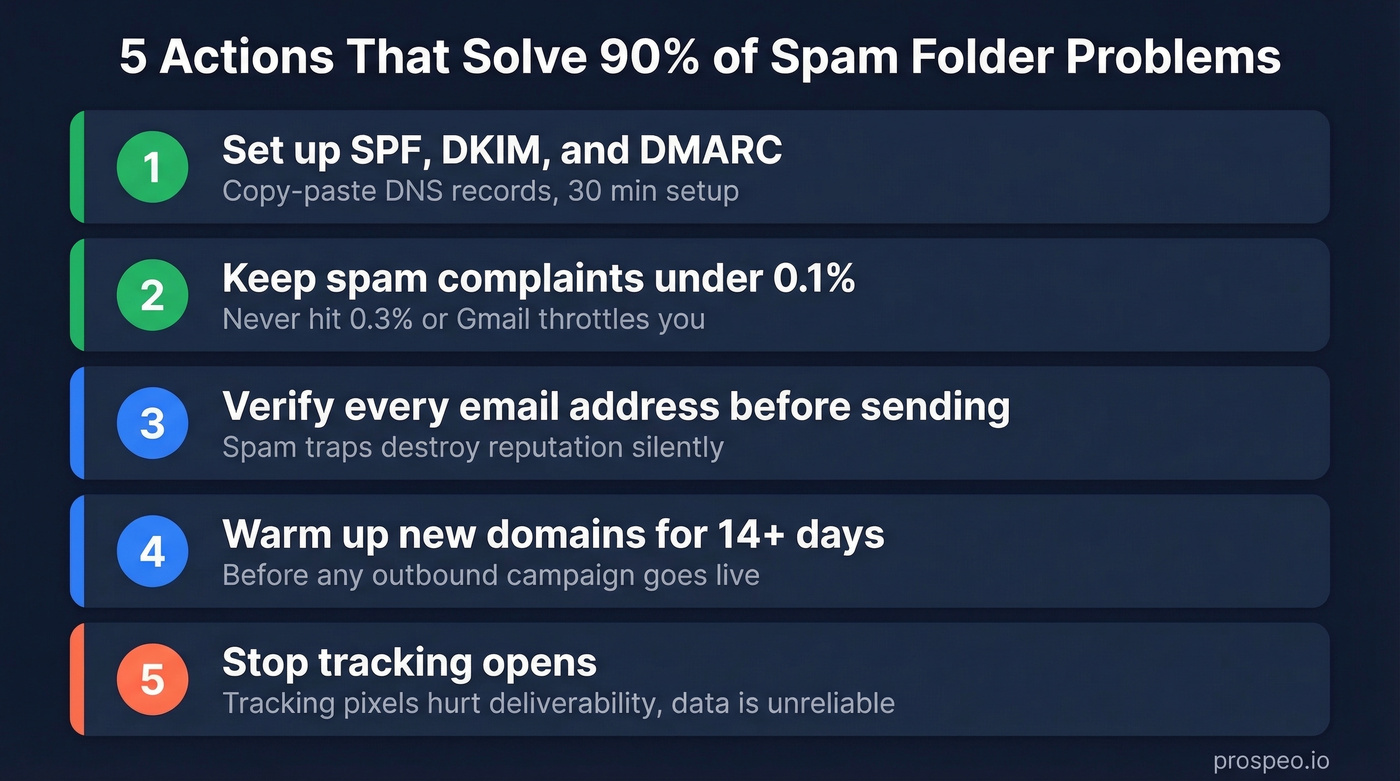
- Set up SPF, DKIM, and DMARC - copy/paste DNS records are below
- Keep spam complaints under 0.1% - never hit 0.3%, or Gmail and Yahoo will throttle you
- Verify every email address before sending - spam traps destroy reputation silently
- Warm up new domains for 14+ days before any outbound campaign
- Stop tracking opens - tracking pixels hurt deliverability and the data is unreliable anyway
Now let's get into the details.
Why Emails Land in Spam
Spam placement isn't random, and it's almost always fixable. The five root causes behind nearly every deliverability problem: poor sender reputation built from complaints, bounces, and engagement patterns; missing or misconfigured authentication records; content and formatting issues; low recipient engagement; and sudden volume spikes that look like bot behavior.
Most teams fixate on content - rewriting subject lines, removing "free" from the body - while ignoring the infrastructure underneath. That's backwards. A perfectly written email from an unauthenticated domain with a dirty list will land in spam every time. A mediocre email from a properly configured domain with a clean list will hit the inbox.
Fix authentication first, clean your list second, then worry about content.
How Spam Filters Actually Work Now
Spam trigger word lists are mostly useless. Gmail blocks 99.9%+ of spam and processes 15 billion unwanted messages daily. It doesn't do this by scanning for the word "free." It does it with machine learning.
Google's RETVec text vectorizer improved spam detection by 38% while reducing false positives by 19.4%. The system evaluates thousands of signals simultaneously - sender reputation, header metadata, URL patterns, message structure, and recipient engagement history. It catches obfuscation tactics like homoglyphs and leetspeak too.
Stop obsessing over individual words. A 2015 "spam words" list won't help you today. Modern filters care about who you are, whether you're authenticated, and whether recipients actually want your emails.
Gmail and Yahoo Sender Requirements
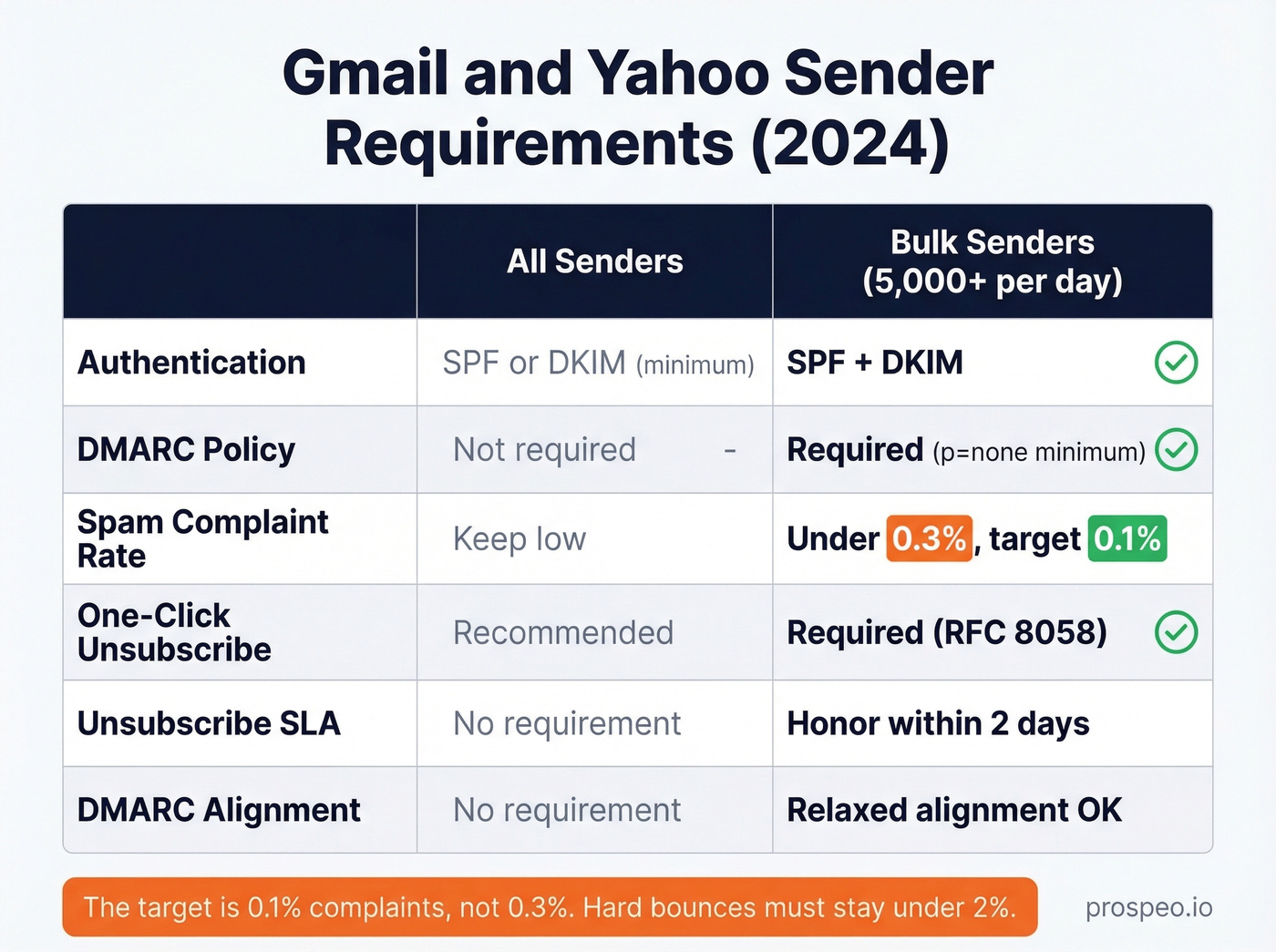
Since February 2024, Gmail and Yahoo enforce stricter sender requirements. Here's what you need depending on your volume:
| Requirement | All Senders | Bulk Senders (5,000+/day) |
|---|---|---|
| Authentication | SPF or DKIM (minimum) | SPF + DKIM |
| DMARC Policy | Not required | Required (p=none minimum) |
| Spam Complaint Rate | Keep low | Under 0.3% (target 0.1%) |
| One-Click Unsubscribe | Recommended | Required (RFC 8058) |
| Unsubscribe SLA | - | Honor within 2 days |
| DMARC Alignment | - | Relaxed alignment OK |
The target complaint rate is 0.1% - that's 1 complaint per 1,000 emails. The 0.3% number is the ceiling, not the goal. Hard bounces should stay under 2%. Anything between 2-5% is a warning sign that your list needs cleaning.

You just read that hard bounces need to stay under 2% and spam complaints under 0.1%. That's impossible with unverified data. Prospeo's 5-step email verification - with catch-all handling, spam-trap removal, and honeypot filtering - delivers 98% email accuracy so your sender reputation stays intact.
Stop rewriting subject lines. Fix the data that's actually killing your deliverability.
Set Up Email Authentication
This is the section most guides skip or hand-wave through. Here are actual records you can paste into your DNS.
SPF Setup
SPF tells receiving servers which mail servers are authorized to send on behalf of your domain. Add a single TXT record to your domain's DNS:
Google Workspace:
"v=spf1 include:_spf.google.com ~all"
Microsoft 365:
"v=spf1 include:spf.protection.outlook.com ~all"
Google Workspace + SendGrid (multi-service):
"v=spf1 include:_spf.google.com include:sendgrid.net ~all"
Non-sending domain (block spoofing):
"v=spf1 -all"
Two critical gotchas that trip up even experienced ops teams. First, SPF has a hard 10 DNS lookup limit - exceed it and you get a PermError, which means authentication fails entirely. Second, you can only have one SPF record per domain. Multiple SPF TXT records cause a PermError. If you're using several sending services, merge all include: statements into a single record, or use dedicated subdomains per service to keep each SPF simple.
SPF doesn't inherit to subdomains either. If you send from mail.yourdomain.com, that subdomain needs its own SPF record. And one more thing: SPF validates the envelope sender (Return-Path), not the visible From address. That's why DMARC alignment matters - it ties authentication back to the domain your recipients actually see.
Verify your record:
dig TXT yourdomain.com +short | grep spf1
DKIM Setup
DKIM adds a cryptographic signature to your emails, proving they haven't been tampered with in transit.
Google Workspace: Navigate to Admin Console, then Apps, then Gmail, then Authenticate email. Generate a new DKIM key, publish the TXT record at google._domainkey.yourdomain.com, then click "Start authentication."
Microsoft 365: Enable DKIM signing and add two CNAME records - selector1._domainkey.yourdomain.com and selector2._domainkey.yourdomain.com - pointing to Microsoft's DKIM infrastructure.
Use 2048-bit keys, not 1024, and rotate them every 6-12 months. After rotating, keep the old selector active for about 30 days so in-transit messages can still be verified. To find your DKIM selector, open any sent email, view the original/raw source, and look for the s= value in the DKIM-Signature header.
Verify your record:
dig TXT google._domainkey.yourdomain.com +short
DMARC Setup + 13-Week Rollout
DMARC ties SPF and DKIM together and tells receiving servers what to do when authentication fails. Don't jump straight to reject - you'll block legitimate email you forgot about.
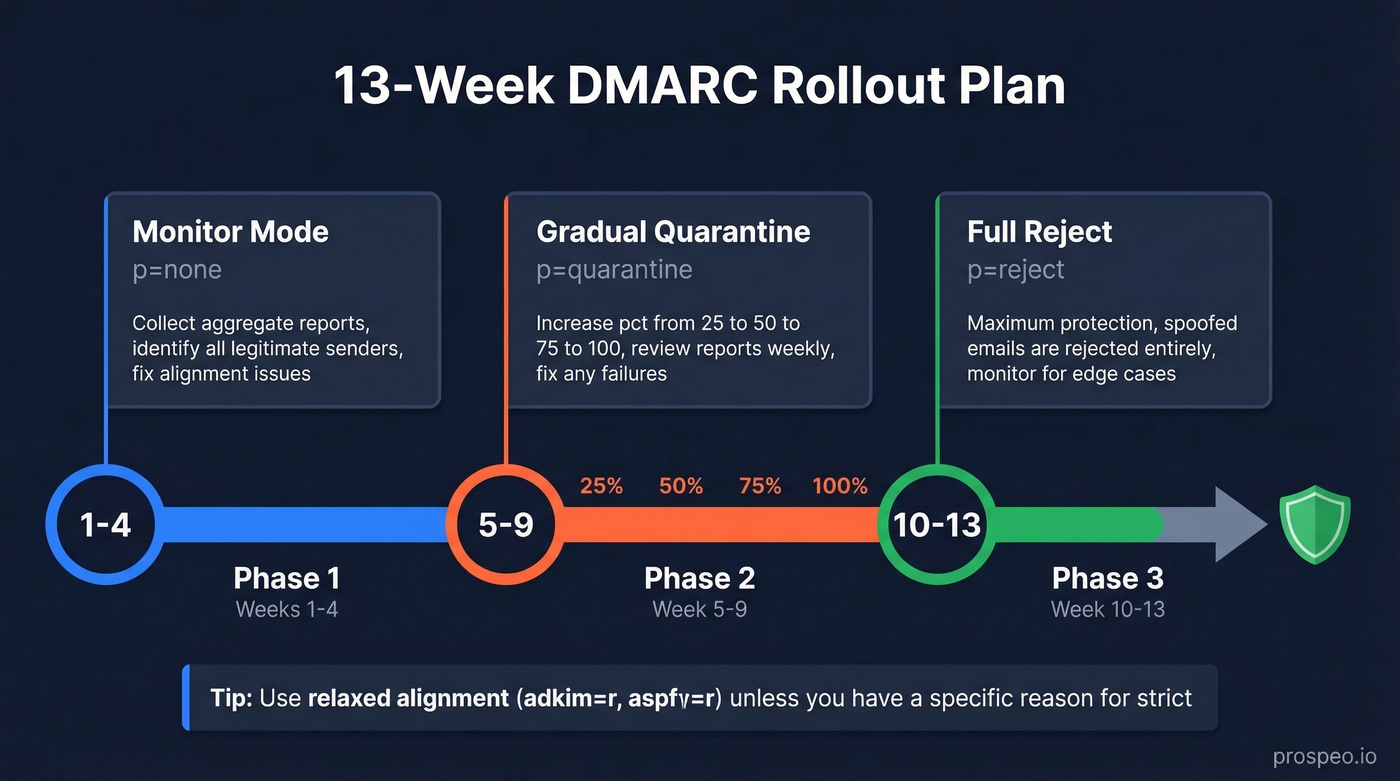
Week 1-4 - Monitor mode:
"v=DMARC1; p=none; rua=mailto:dmarc@yourdomain.com"
Week 5-9 - Gradual quarantine:
"v=DMARC1; p=quarantine; pct=25; sp=quarantine; adkim=r; aspf=r; rua=mailto:dmarc@yourdomain.com"
Increase pct from 25 to 50 to 75 to 100 over these weeks as you review aggregate reports and fix any legitimate senders that fail alignment.
Week 10-13 - Full reject:
"v=DMARC1; p=reject; sp=reject; adkim=r; aspf=r; rua=mailto:dmarc@yourdomain.com"
Include sp= to cover subdomains. Use relaxed alignment (adkim=r, aspf=r) unless you have a specific reason for strict - relaxed handles forwarding and subdomains more gracefully.
Verify your record:
dig TXT _dmarc.yourdomain.com +short
Build a Clean Email List
Authentication gets you through the door. List quality determines whether you stay.
Here's the thing: in our experience, the biggest deliverability killer isn't bad copy - it's dirty lists. Every invalid address, spam trap, and honeypot silently erodes your sender reputation, and you won't know until deliverability craters. We've watched teams spend weeks rewriting subject lines when the real problem was 8% of their list hitting dead addresses.
The non-negotiables: use double opt-in for marketing lists, never buy or scrape email lists, and implement a tiered sunset policy. At 90 days of no engagement, reduce send frequency. At 120 days, trigger a re-engagement campaign. At 180 days, remove the contact entirely. This beats the vague "sunset inactive subscribers" advice you'll find elsewhere because it gives your team clear decision points instead of judgment calls.
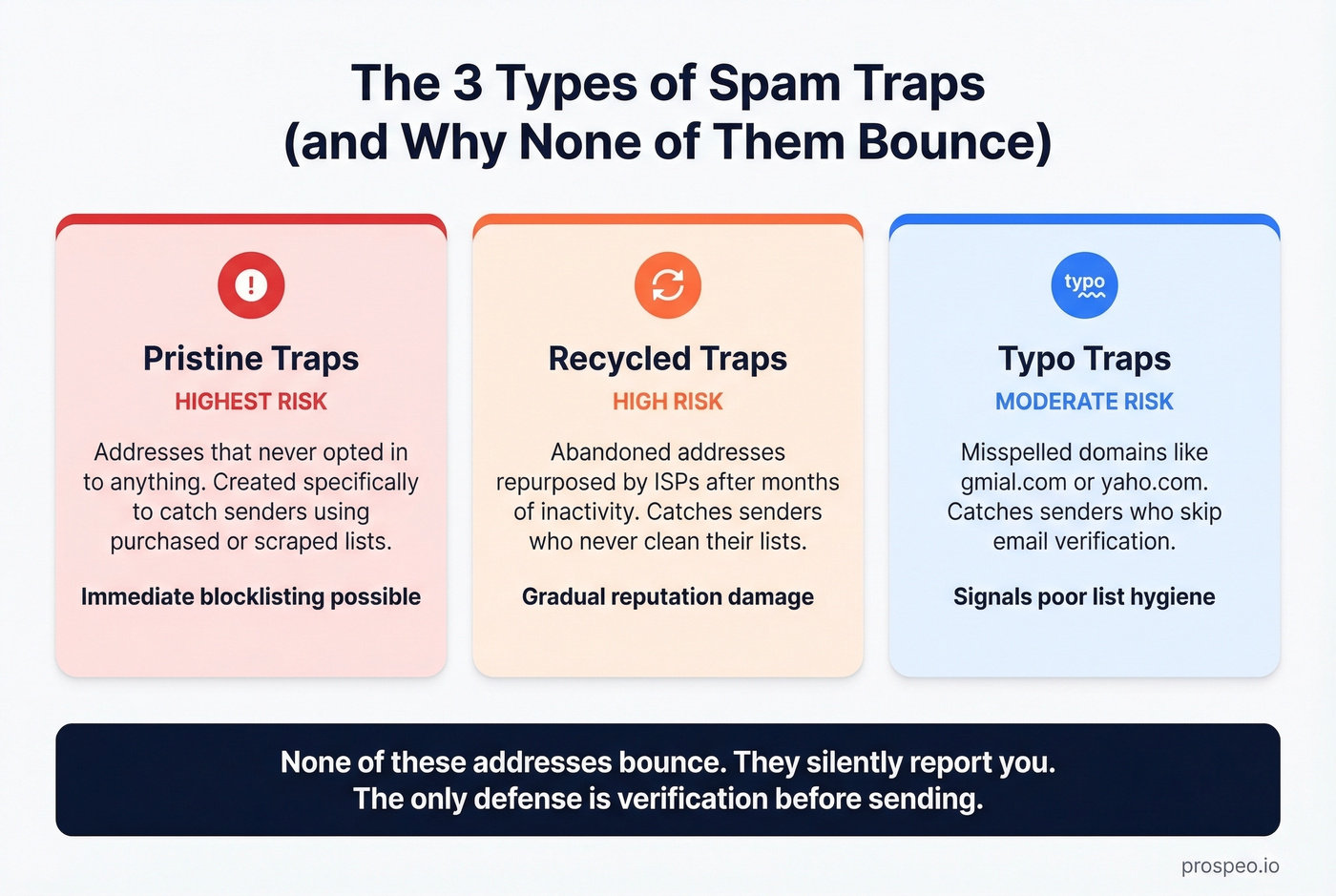
Spam traps come in three flavors. Pristine traps are addresses that have never opted in to anything - they exist solely to catch senders using purchased lists. Recycled traps are abandoned addresses repurposed by ISPs after months of inactivity. Typo traps catch senders who don't verify addresses - gmial.com instead of gmail.com. Each type damages your reputation differently, and none of them bounce. They just silently report you.
To catch these before they do damage, run every list through a verification tool that goes beyond syntax checking. Prospeo's 5-step verification process removes spam traps and honeypots specifically, refreshes data every 7 days, and delivers 98% email accuracy. Stack Optimize built their agency to $1M ARR using Prospeo-verified data: 94%+ deliverability, under 3% bounce rate, zero domain flags across all clients.
Engagement Signals That Keep You in the Inbox
Spam filters watch what recipients do with your emails. Opens, clicks, and replies are positive signals. Deletes-without-opening, spam reports, and ignoring are negative ones. Over time, these engagement patterns determine whether your future emails hit the inbox or get filtered.
Gmail tracks your reputation at two levels - with individual recipients based on their engagement, and across all Gmail users. A poor provider-wide reputation can override positive individual signals, which is why list-wide hygiene matters even if your best contacts always reply.
Use a recognizable From name - your actual name or company, not "Sales Team" or "noreply." Segment your lists so recipients get relevant content. Always include a reply-to address monitored by a human. Keep subject lines between 35-50 characters, skip ALL CAPS, and maintain a healthy text-to-image ratio. Too many images with minimal text is a classic spam signal.
For reference, healthy marketing email benchmarks hover around 40%+ open rate, 2% CTR, and under 0.1% unsubscribe rate. If you're significantly below these, your content or targeting needs work before you blame infrastructure.
Watch your link count too. Every URL in your email is a signal the filter evaluates. Three relevant links are fine. Twelve links crammed into a short email looks like a phishing attempt. And never send campaigns from a free Gmail or Hotmail address - you can't set up proper authentication, and ISPs treat those addresses with extra suspicion for bulk sends.
Cold Email Deliverability Rules
Cold email plays by different rules than marketing email. You're sending to people who haven't opted in, which means filters scrutinize everything more aggressively. Staying out of the spam folder with cold outreach requires stricter discipline around volume, warmup, and technical setup.
Volume Limits
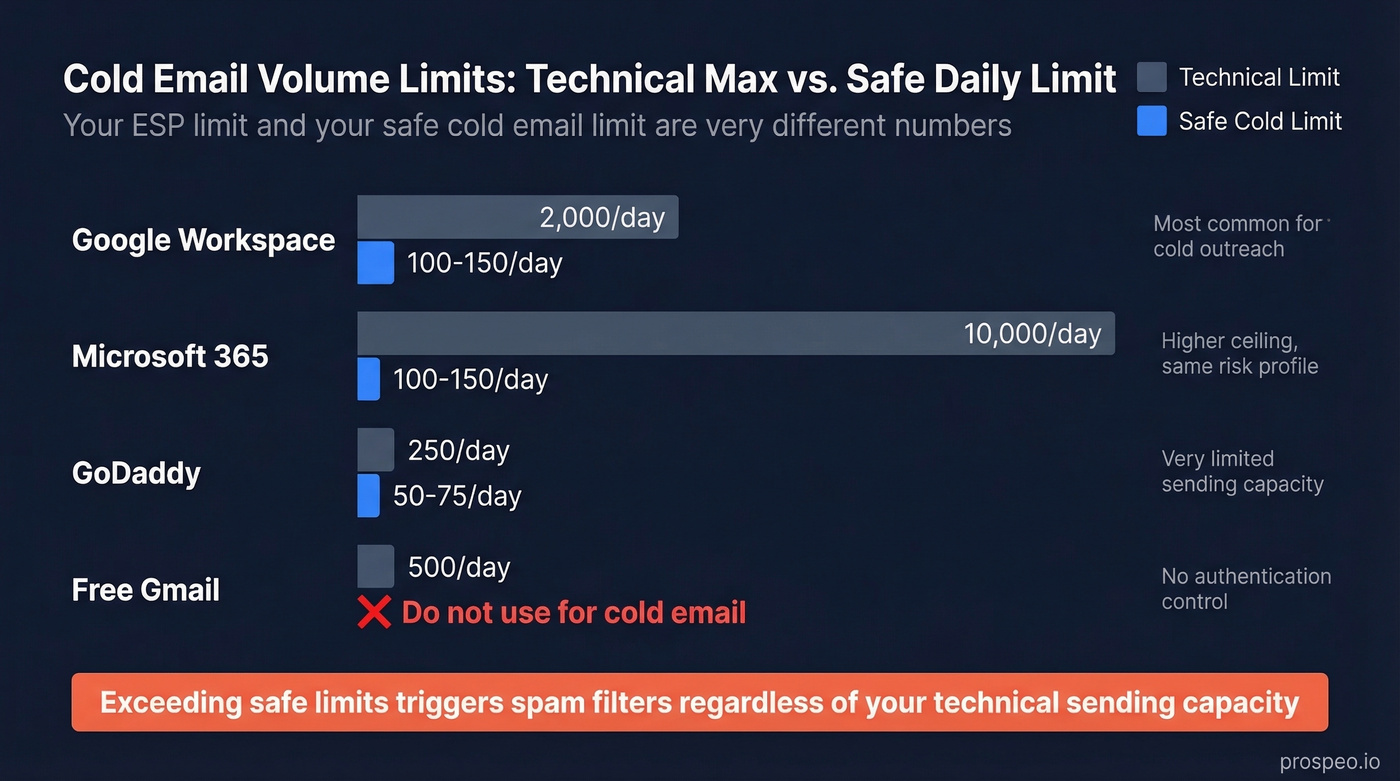
Your ESP's technical limit and your safe cold email limit are very different numbers:
| ESP | Technical Limit | Safe Cold Limit | Notes |
|---|---|---|---|
| Google Workspace | 2,000/day | 100-150/day | Most common for cold |
| Microsoft 365 | 10,000/day | 100-150/day | Higher ceiling, same risk |
| GoDaddy | 250/day | 50-75/day | Very limited |
| Free Gmail | 500/day | Don't use | No authentication control |
Look, if your average contract value is under $10K, you probably don't need more than 100 cold emails per day per domain. The teams we see burning domains are almost always chasing volume instead of targeting. Five well-researched emails to the right people will outperform 500 spray-and-pray sends every single time.
Warmup Schedule
New domains need a slow ramp. We've seen teams skip warmup and burn a domain in 48 hours.
- Week 1: 5-20 emails/day (start lower if the domain is brand new)
- Week 2: 20-40 emails/day
- Week 3: 40-60 emails/day
- Week 4: 60-80 emails/day
Domain maturity takes 2-4 weeks minimum, and up to 12 weeks to be fully established. The consensus on r/coldemail is clear: warmup plus correct DNS authentication is non-negotiable for cold outreach.
Technical Hygiene
Send 100/day from 5 domains rather than 500/day from 1. Warm each domain individually - this diversifies risk and keeps any single domain's reputation protected.
Use plain text only: no HTML templates, no images, no fancy formatting. Cold emails should look like a human typed them in Gmail. If you must track clicks, use a custom tracking domain. Shared tracking domains used by thousands of senders get blacklisted, and that blacklist hits everyone using them. Vary your copy with spintax so ISPs don't see identical messages sent hundreds of times.
The Controversial Stuff
Kill open tracking. This is the contrarian take that Reddit practitioners keep repeating, and they're right. Apple Mail Privacy Protection inflates open rates dramatically, making the data nearly useless. Worse, the tracking pixel itself triggers spam filters. Skip it.
The unsubscribe debate. Including an unsubscribe link in cold email is controversial - links increase filtering risk. Many practitioners use "reply 'unsubscribe'" instead. For marketing email, one-click unsubscribe via RFC 8058 headers is mandatory under Gmail and Yahoo's rules.
When to stop sending. If spam complaints hit 0.1%, stop immediately. Also pause if bounce rate exceeds 5% or inbox placement tests show consistent spam folder placement. Investigate, clean your list, and restart slowly using the warmup schedule above. Pushing through complaints is how domains get permanently flagged.
Every invalid email on your list is a silent reputation killer. Prospeo refreshes 300M+ profiles every 7 days - not every 6 weeks like other providers. That means fewer bounces, fewer spam traps, and inbox placement that holds up at scale.
Clean lists start at $0.01 per verified email. No contracts.
Deliverability Tools Worth Using
You don't need to spend thousands on monitoring. We've tested most of these, and Google Postmaster Tools is the single most useful free resource. It's not close.
| Tool | Type | Price | Free Tier | Best For |
|---|---|---|---|---|
| Google Postmaster Tools | Monitoring | Free | Full access | Domain reputation |
| Microsoft SNDS | Monitoring | Free | Full access | Outlook delivery |
| Yahoo Sender Hub | Monitoring | Free | Full access | Yahoo metrics |
| Mail-Tester | Testing | Free | - | Quick spam score |
| GlockApps | Testing | $59/mo | 2 tests/month | Inbox placement |
| MXToolbox | Monitoring | $129/mo | Limited | Blacklist checks |
| Mailtrap | Testing | From $15/mo | Limited | Dev/staging |
| Prospeo | Verification | ~$0.01/email | 75/month free | Spam trap removal |
| ZeroBounce | Verification | From $49/mo | 100 free | Bulk validation |
| NeverBounce | Verification | ~$0.003-0.01/ea | - | Pay-as-you-go |
| Instantly | Warmup + Sending | Not public | - | Warmup + campaigns |
| MailReach | Warmup | Not public | - | Warmup only |
| MailFlow | Warmup | Not public | - | Warmup |
One caveat: seed-test emails like GlockApps uses behave like cold emails with zero engagement history. Your real deliverability is often higher than what these tools report, because actual recipients who open and reply create positive signals that seed addresses don't.
FAQ
Do spam trigger words still matter?
Barely. Modern ML filters evaluate sender reputation, engagement history, and authentication - not individual keywords. Focus on reputation and list hygiene instead.
How do I check if my emails are going to spam?
Use free tools first. Mail-Tester scores your message on a 10-point scale, Google Postmaster Tools shows your domain reputation over time, and GlockApps runs inbox placement tests with 2 free tests per month. Send a test before every campaign.
How long does it take to fix sender reputation?
Typically 2-4 weeks of clean sending with low volume, high engagement, and zero complaints. Severe cases - like a blacklisted IP - can take 6-12 weeks. Pause all campaigns, fix authentication, verify your list, then ramp slowly using the warmup schedule above.
Should I use a separate domain for cold email?
Yes. Use a dedicated subdomain or secondary domain so cold outreach reputation doesn't affect your primary domain's transactional and marketing email. Warm each domain individually before sending.
What's the fastest way to prevent spam placement with a new domain?
Set up SPF, DKIM, and DMARC before sending a single email, verify your entire contact list, then follow the four-week warmup schedule above. Skipping any of these steps is the most common reason new domains get flagged within days.