

Gmail Outgoing SMTP Server: Settings, Setup & Troubleshooting (2026)
It's Monday morning, your CRM stopped sending follow-ups overnight, and your sales team is pinging you in Slack. The culprit? Google killed password-based SMTP authentication, and your setup was still using it. Most guides for the Gmail outgoing SMTP server floating around are stuck in 2022 - if yours mentions "Less Secure Apps," close the tab. This one's built for 2026.
Gmail SMTP Settings at a Glance
Copy these into your email client or app and you're 90% done.
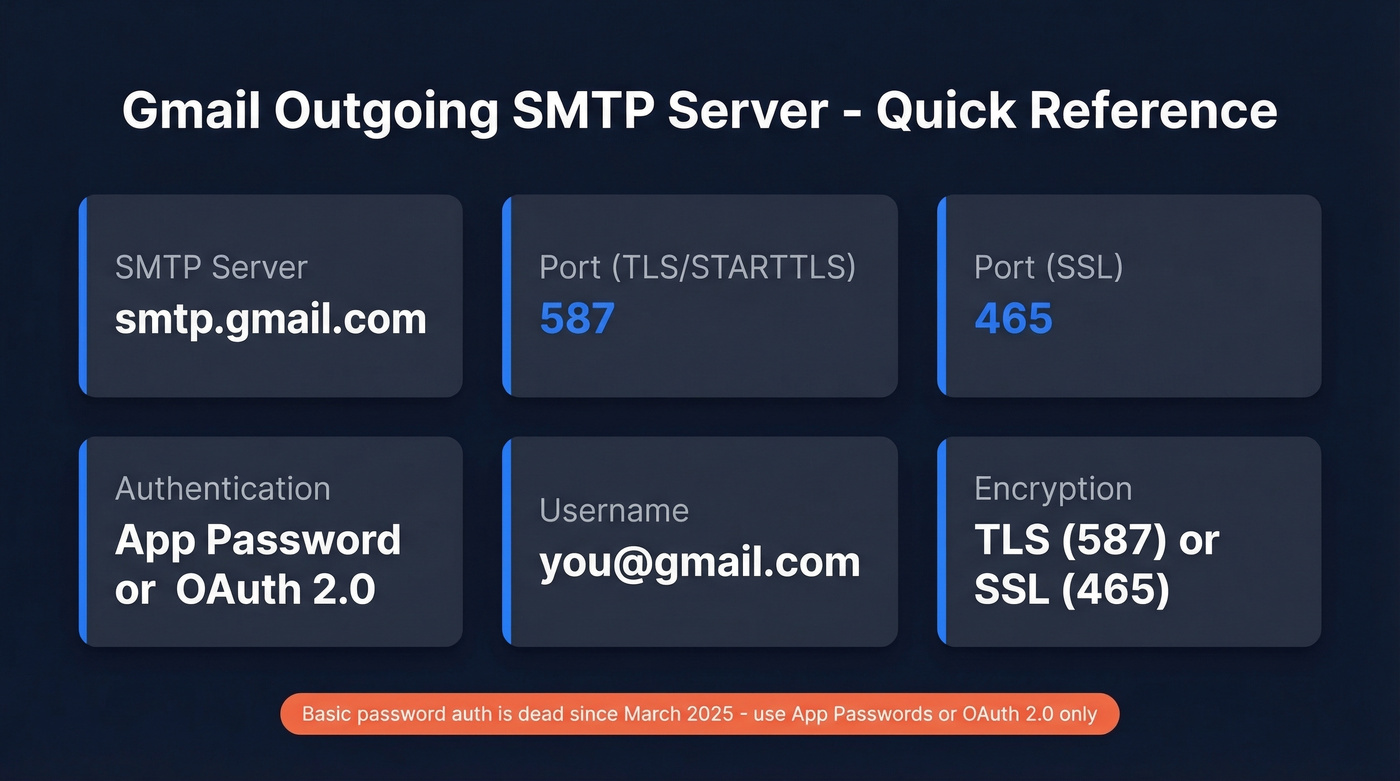
| Setting | Value |
|---|---|
| SMTP Server | smtp.gmail.com |
| Port (TLS/STARTTLS) | 587 |
| Port (SSL) | 465 |
| Authentication | Required (App Password or OAuth 2.0) |
| Username | Your full Gmail address |
| Encryption | TLS (port 587) or SSL (port 465) |
If your outgoing mail stopped working sometime in late 2024 or early 2025, skip straight to the Why Gmail SMTP Broke section. Google killed password-based auth and didn't exactly give everyone a heads-up. And don't go looking for "Less Secure Apps" in your Google account settings. It's gone.
Which Google SMTP Service Do You Need?
Google offers three ways to send mail using its SMTP infrastructure. Picking the wrong one wastes time.
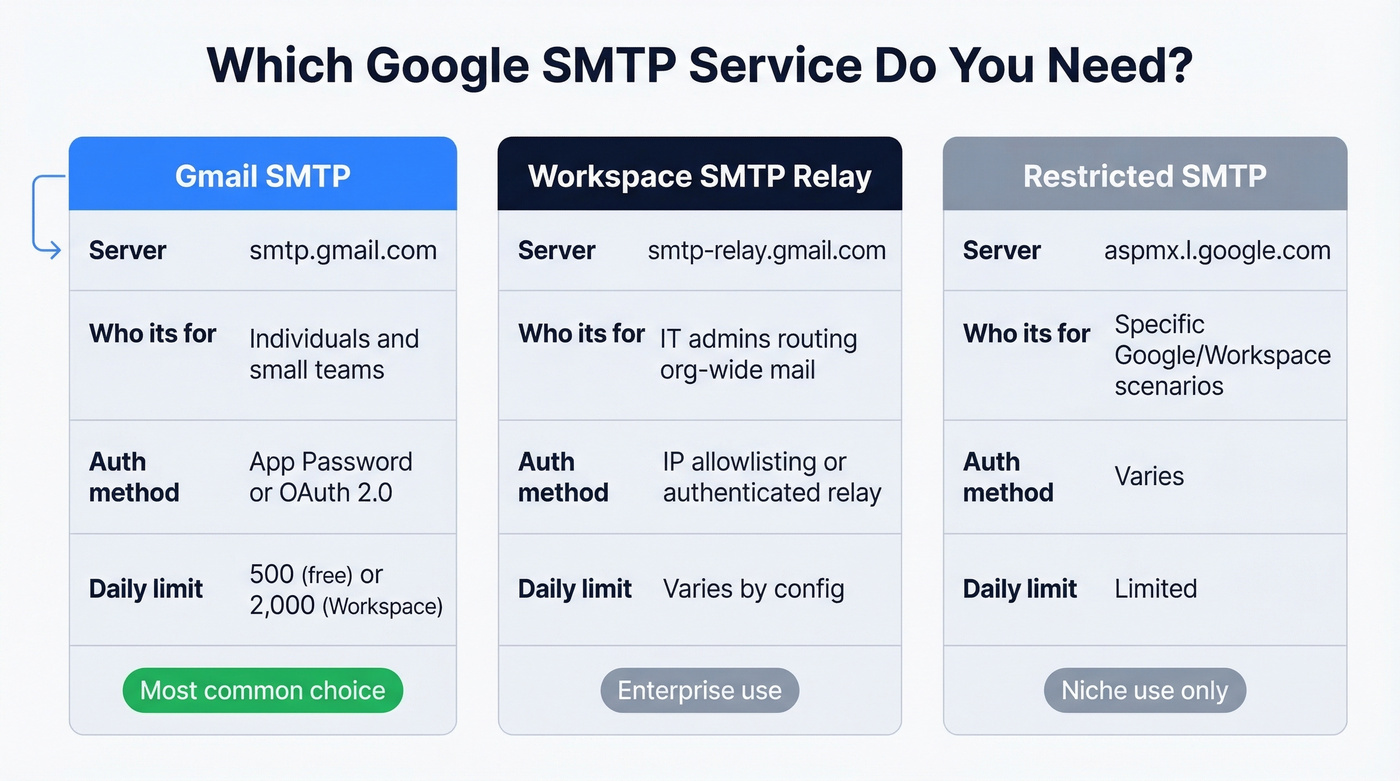
| Service | Who It's For | Auth Method |
|---|---|---|
| Gmail SMTP (smtp.gmail.com) | Individuals and teams sending as a mailbox | App Password or OAuth 2.0 |
| Google Workspace SMTP relay | Orgs routing outbound mail through Google | Admin-configured, often IP allowlisting or authenticated relay |
| Restricted Gmail SMTP server | Specific Google/Workspace scenarios | Varies by configuration |
Most readers need option one - sending via smtp.gmail.com. The relay option is for IT admins routing an entire organization's outbound mail through Google's servers. Google's Workspace documentation covers relay configuration in detail.
Port 587 vs 465
Use 587 as your safe default. RFC 6409 designated 587 for message submission, and it uses STARTTLS - your connection starts unencrypted, then upgrades to TLS before credentials are sent. Port 587 is widely supported across email clients and apps.
Port 465 uses implicit TLS, meaning encryption starts immediately. RFC 8314 recommends this approach as technically more secure, and Gmail supports it. If your client handles it cleanly, 465 is a great choice.
If neither port connects, your ISP or hosting provider is probably blocking it. Residential ISPs commonly block port 25, and some restrict 465/587 too. You'll need a relay service like SendGrid or Amazon SES if that's the case.
One thing that trips people up: don't mix encryption types with the wrong port. SSL settings on port 587 won't work. STARTTLS settings on port 465 won't either. Each port expects its specific encryption handshake.
How to Set Up Gmail Outgoing Mail
Enable 2-Step Verification
Without 2FA enabled on your Google account, the App Passwords option won't appear. This is the prerequisite that trips everyone up.
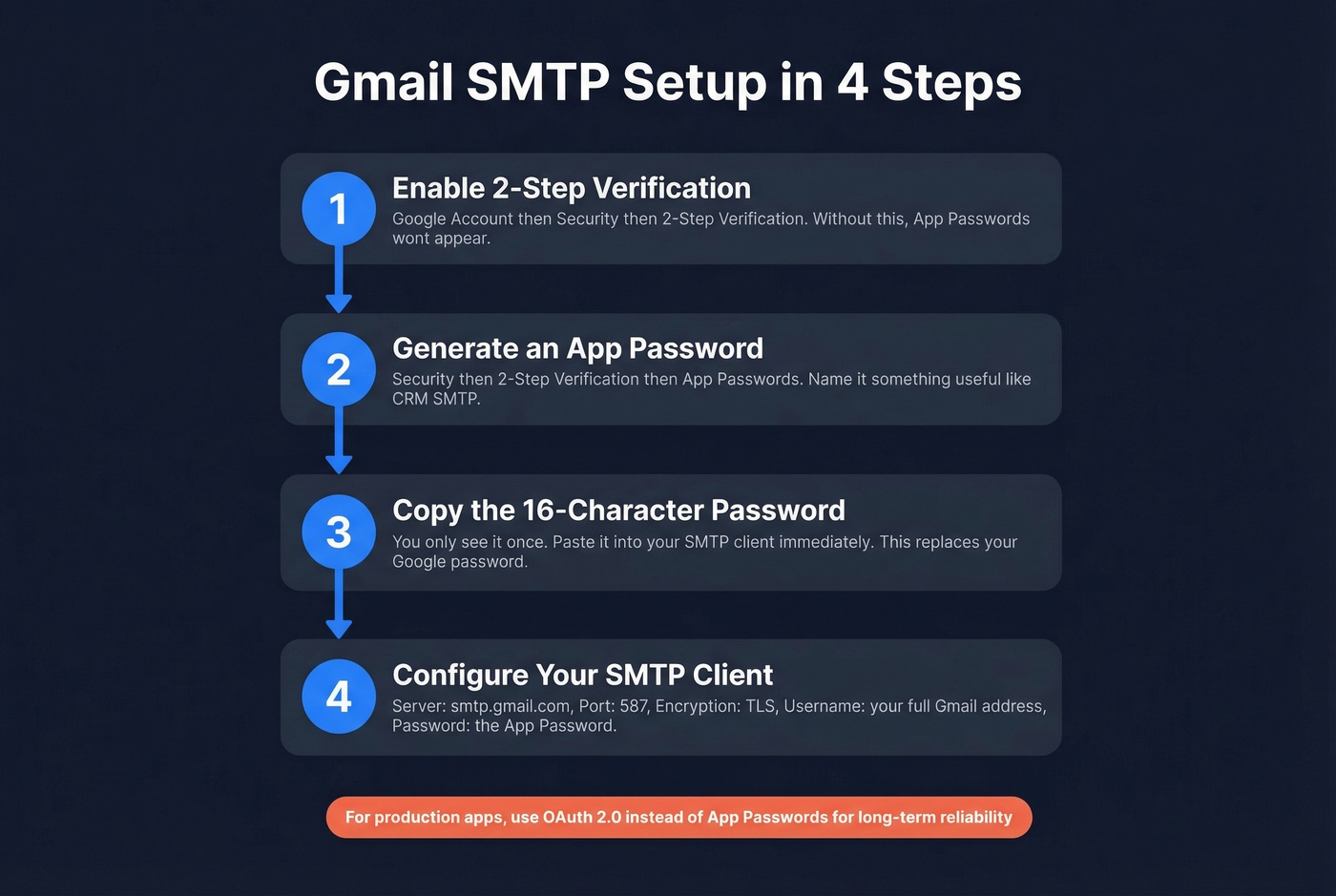
- Go to your Google Account -> Security
- Under "How you sign in to Google," select 2-Step Verification
- Follow the prompts to add a phone number or authenticator app
- Complete the setup and confirm it's active
Create an App Password
Once 2FA is live, generate the 16-character password your SMTP client needs.
- Go to Google Account -> Security -> 2-Step Verification -> App Passwords
- Name the app something descriptive - "CRM SMTP" or "WordPress"
- Click Generate
- Copy the 16-character password immediately. You won't see it again.
- Use this password - not your regular Google password - in your SMTP settings
If the App Passwords option doesn't appear even with 2FA enabled, a few things could be going on: you're using security keys as your only 2FA method, your Workspace admin disabled it via org policy, or you're enrolled in Google's Advanced Protection Program.
For production applications that need long-term reliability, OAuth 2.0 is the better path - more on that in the code section below.

Gmail SMTP limits you to 500-2,000 sends per day. Every bounce eats into that quota and damages your sender reputation. Prospeo's real-time email verification catches invalid addresses before they hit your SMTP server - 98% accuracy, $0.01 per email, no wasted sends.
Verify your entire contact list before Gmail punishes you for bounces.
Why Gmail SMTP Broke
Let's be honest - Google handled this migration poorly, and a lot of teams got burned. Here's the timeline:
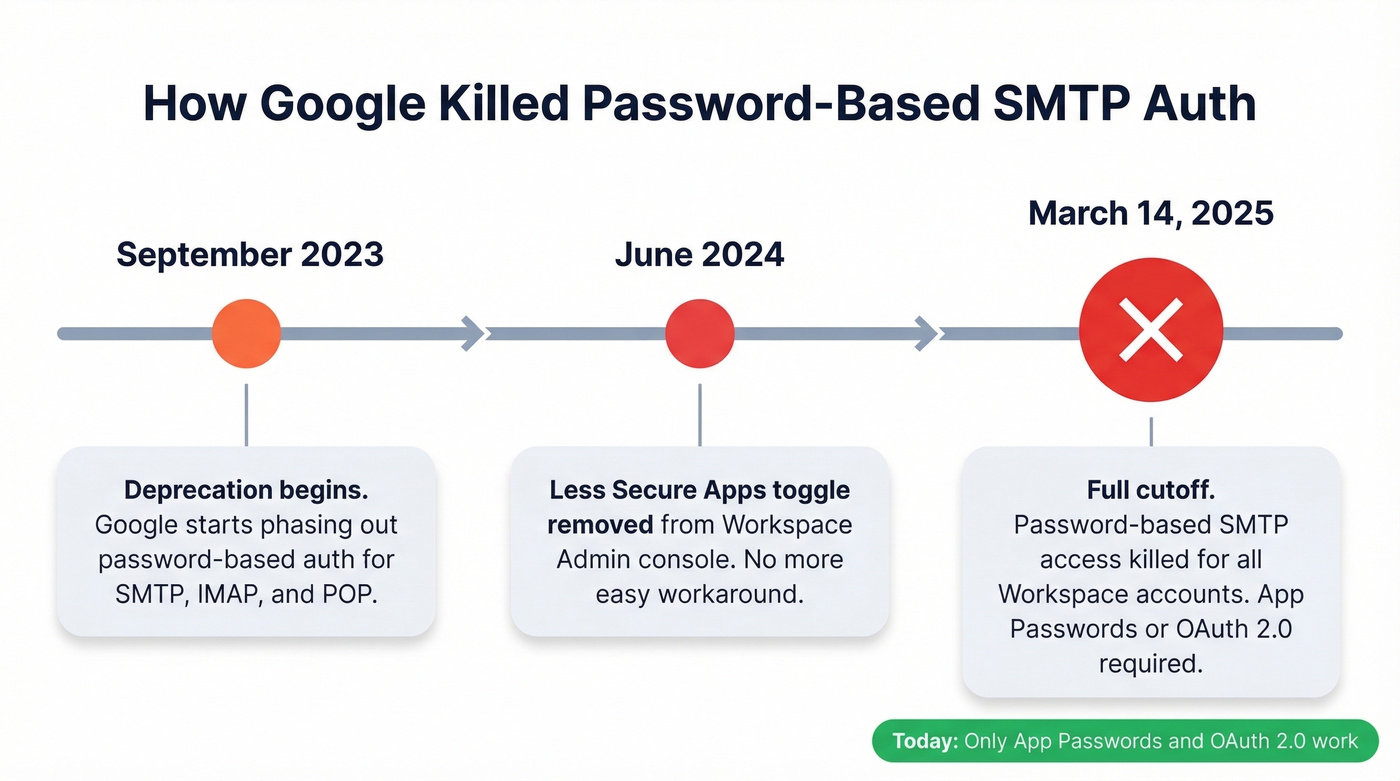
- September 2023: Google's multi-phase deprecation of password-based authentication begins.
- June 2024: The "Less Secure Apps" controls disappear from the Workspace Admin console.
- March 14, 2025: Password-based SMTP/IMAP/POP access is cut off for Google Workspace accounts. Everything must use OAuth 2.0 or App Passwords with 2FA.
The worst part? Teams reported sudden App Password workflow breakage that forced them to enable 2-Step Verification on accounts that had been sending via SMTP without it for years. Service accounts just stopped working overnight.
One sysadmin on r/sysadmin described how their Claris FileMaker setup - which only supports Plain Password or CRAM-MD5 - broke their invoice-email automation with zero warning. If you're stuck with a legacy app that can't do OAuth or App Passwords, set up a local SMTP relay that handles OAuth upstream, or switch to a provider that still supports basic auth like Fastmail or Proton.
Gmail SMTP Sending Limits
Gmail's quotas count recipients per day, not messages. One email sent to 20 people counts as 20 against your quota. Attachment size caps at 25 MB including encoding overhead.
| Account Type | Daily Recipient Limit | Reset Window |
|---|---|---|
| Free Gmail | 500 | Rolling 24 hours |
| Google Workspace | 2,000 | Rolling 24 hours |
The reset is rolling, not midnight. Hit the limit at 2 PM and you're locked out until roughly 2 PM the next day.
Here's the thing: if you're sending more than a few hundred emails a day through Gmail SMTP, you've already outgrown it. Use SendGrid or Amazon SES if you're watching email velocity closely for volume sending. Gmail's outgoing SMTP server is a convenience tool, not email infrastructure. And before you send anything through SMTP, verify your recipient list - bounces hurt deliverability and sender reputation. We've seen teams torch their domain reputation by blasting unverified lists through Gmail. Prospeo's real-time verification catches invalid addresses before they waste your limited sends.
Troubleshooting Common Errors
Authentication Errors
"535-5.7.8 Username and Password not accepted" - This is the most common error post-2025. Basic auth is disabled for everyone now. Enable 2FA, generate a fresh App Password, and make sure you're entering yourname@gmail.com as the username, not just "yourname."
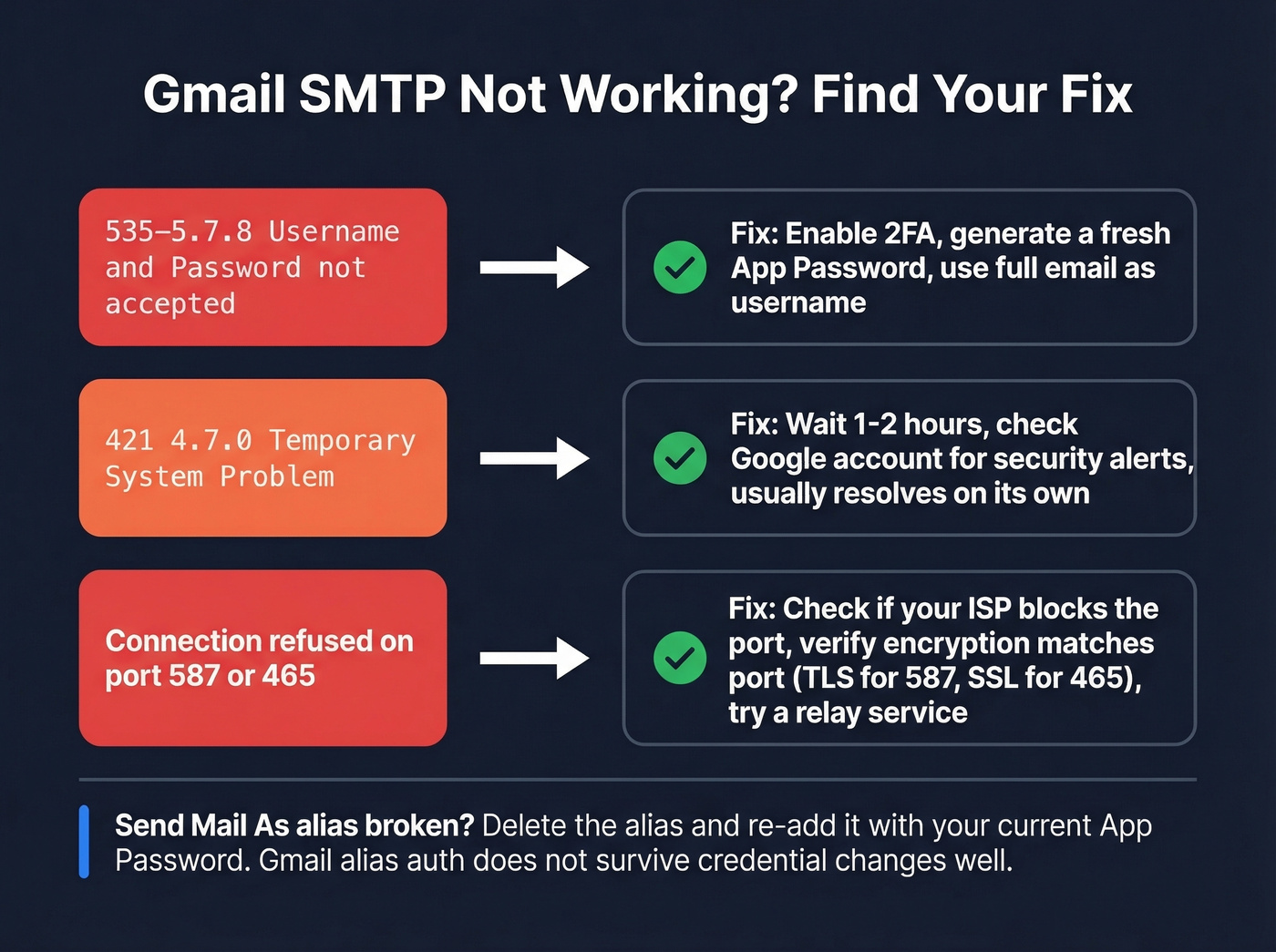
"421 4.7.0 Temporary System Problem" - Google-side throttle or security flag. Wait 1-2 hours and check your Google account for security alerts. Usually resolves on its own.
"Send Mail As" Alias Failures
This catches people after password changes. Your alias in Gmail (Settings -> Accounts -> Send mail as) suddenly stops authenticating. Go back to Send mail as, click "edit info" on the broken alias, and re-enter your current App Password. If that fails, delete the alias and re-add it from scratch - Gmail's alias auth doesn't always survive credential rotations gracefully, and this is a known pain point that Google hasn't fixed in years.
Can't Connect at All
Your ISP or hosting provider is likely blocking the port. Check with them first. Double-check your encryption settings too - don't configure SSL on port 587 or STARTTLS on port 465. If both ports are blocked, you'll need a relay service as described in the port section above.
Using Gmail SMTP in Code
PHPMailer is an SMTP library, not a Gmail API wrapper - an important distinction. For quick setups, configure PHPMailer with smtp.gmail.com, port 587, your full Gmail address, and the 16-character App Password. That gets you running in minutes.
For production applications, OAuth 2.0 is the right call. We've seen App Passwords break during Google policy changes, while OAuth setups survive them. Set AuthType = 'XOAUTH2', use the league/oauth2-google package, and authenticate with a refresh token. The scope you need is https://www.googleapis.com/auth/gmail.send for send-only access.
On WordPress, a plugin like WP Mail SMTP handles Gmail outgoing mail settings through a UI, including OAuth 2.0 setup - no code required.
FAQ
What's the difference between SMTP and IMAP?
SMTP sends email; IMAP retrieves it. You need SMTP settings (smtp.gmail.com) to send outgoing mail from a third-party client or app. IMAP settings (imap.gmail.com) are for reading your inbox. They're separate protocols handling opposite directions of email flow.
Do I need Google Workspace for Gmail SMTP?
No. Free Gmail accounts use smtp.gmail.com with an App Password. Workspace raises your daily limit from 500 to 2,000 recipients and adds the SMTP relay option, but the core setup is identical for both account types.
Can I send bulk email through Gmail SMTP?
Not effectively. Gmail caps you at 500 recipients/day with a free account, 2,000 with Workspace. For bulk sending, use a dedicated service like SendGrid or Amazon SES, and verify your list first - bouncing off dead addresses burns your quota and damages your sender reputation fast.
Fixing your SMTP settings is step one. Step two is making sure the emails you're sending actually reach real inboxes. Teams using unverified lists through Gmail SMTP torch their domain reputation fast. Prospeo's 5-step verification with catch-all handling and spam-trap removal keeps your bounce rate under 4%.
Protect your domain reputation - verify every address before it leaves your outbox.