

DKIM for Google Workspace: The Guide Google's Docs Should Have Been
You set up DKIM in the Admin Console, clicked "Start Authentication," and it still says "not authenticating." You've checked the DNS record three times. Google's own docs tell you to wait 48 hours, but it's been a week. Sound familiar? Here's the guide that actually solves the problems Google's documentation creates.
Why DKIM Isn't Optional Anymore
Google and Yahoo started enforcing SPF, DKIM, and DMARC requirements for bulk senders in February 2024. Microsoft followed with its own bulk-sender authentication enforcement in May 2025. If you're sending more than 5,000 emails per day, all three protocols are mandatory - not recommended, mandatory. Your emails will bounce or land in spam without them.
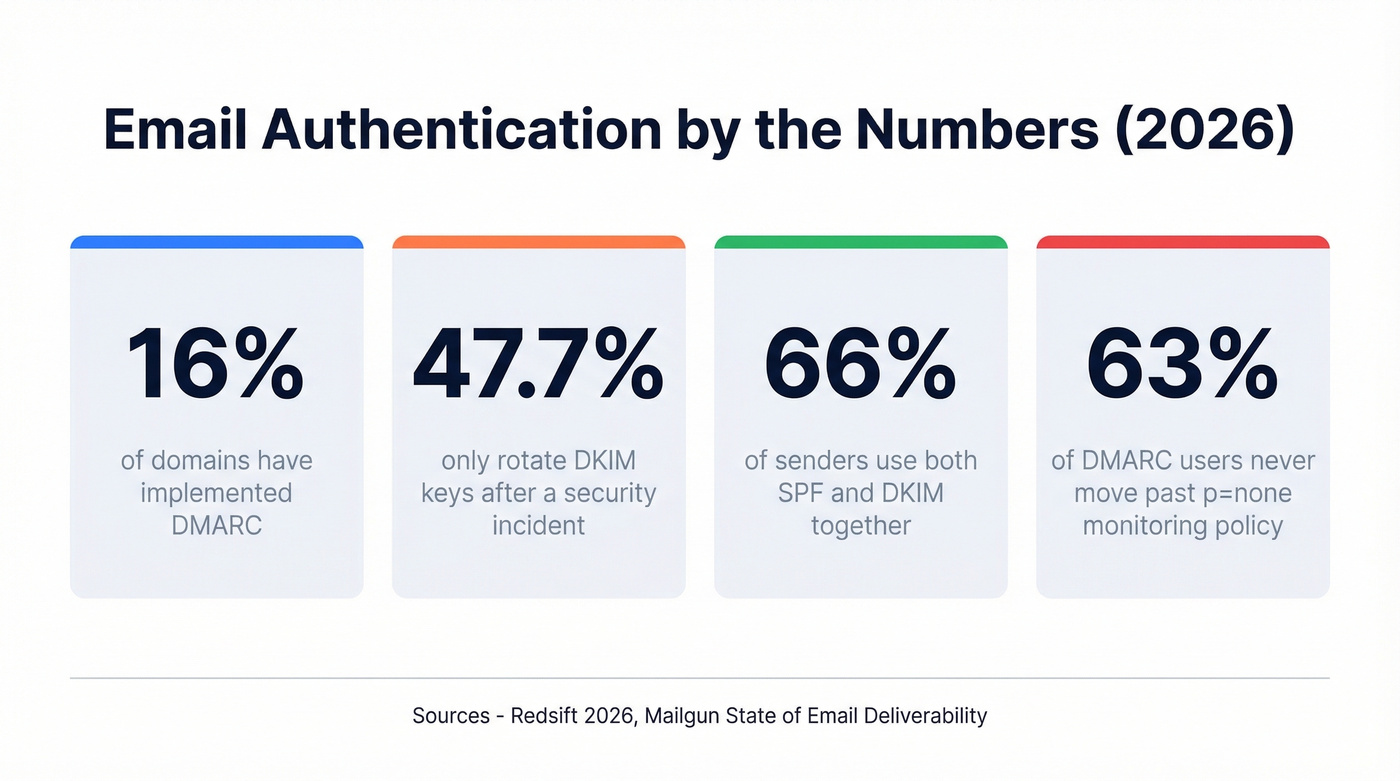
The industry is still catching up. Only 16% of domains have implemented DMARC, and while 66% of senders use both SPF and DKIM, only 37% of DMARC users actually enforce it with quarantine or reject policies. That gap is where deliverability problems live.
Even if you're under the 5,000/day threshold, DKIM is your safety net. Forwarded emails break SPF. DKIM survives forwarding. Without it, a single broken authentication method means your DMARC fails and your email hits junk.
What You Need (Quick Version)
Before the full walkthrough, here's the three-step summary:
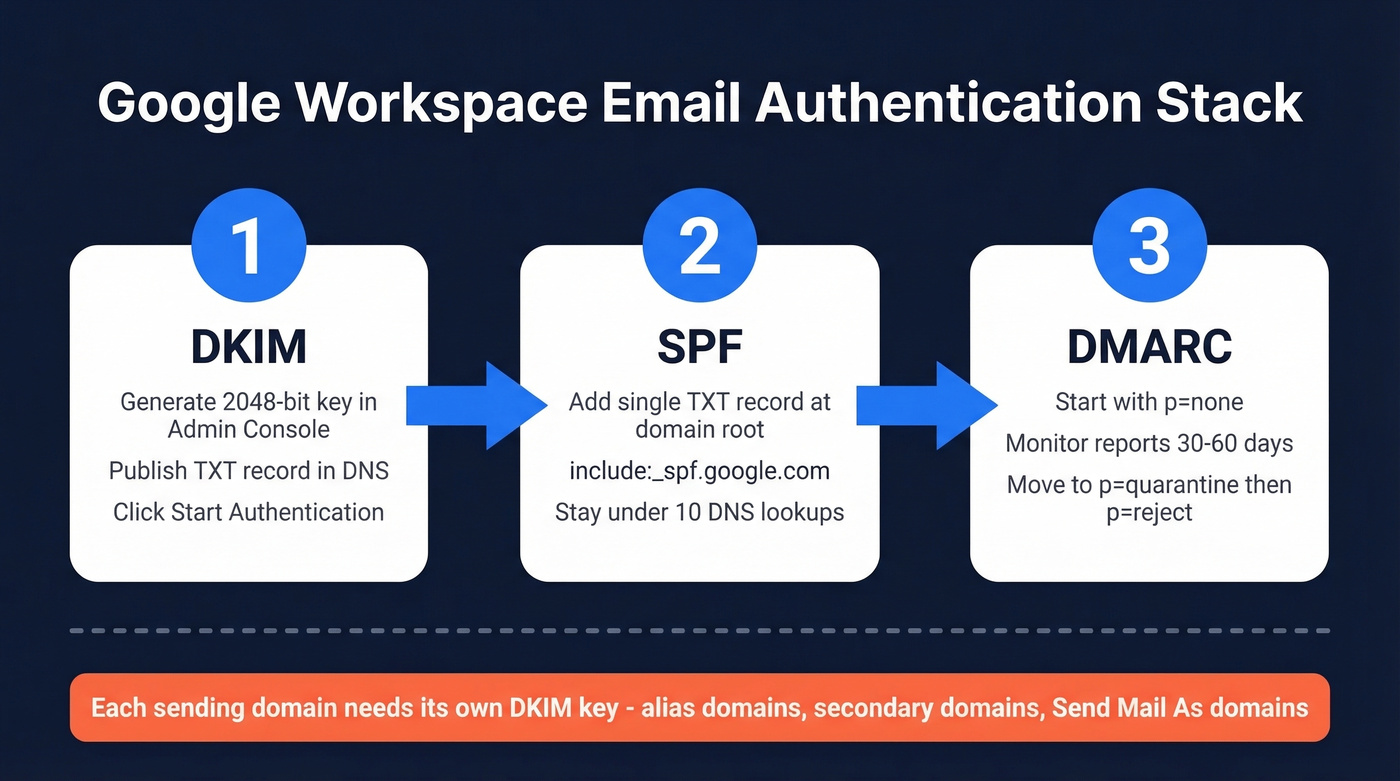
- Generate a 2048-bit DKIM key in Google Admin - publish the TXT record in your DNS - wait up to 48 hours - click "Start Authentication."
- Don't stop at DKIM. Add SPF and DMARC (start at
p=none) to complete the authentication stack. - If you have multiple domains or use "Send mail as," each sending domain needs its own DKIM key. This is where most setups silently break.
How to Set Up DKIM in Google Workspace
Generate Your DKIM Key
Open the Google Admin Console at admin.google.com and navigate to Apps > Google Workspace > Gmail > Authenticate Email. Select your domain from the dropdown. Google's DKIM setup documentation walks through the UI, but the steps below cover what those docs leave out.
Always choose 2048-bit when you generate a key. RFC 8301 recommends moving away from 1024-bit keys, and NIST has recommended the same since 2013. The only reason to use 1024-bit is if your DNS provider can't handle the longer record - most modern providers can.
Google's default selector is typically google, producing a DNS host like google._domainkey.yourdomain.com. Copy the entire TXT value Google gives you.
Publish the Record in DNS
Head to your DNS provider and create a new TXT record. The host/name field is google._domainkey - some providers want the full google._domainkey.yourdomain.com, others just the prefix, so check their docs. The value is the string Google gave you, starting with v=DKIM1; k=rsa; p=MIIBIj....
Here's the thing most guides skip: 2048-bit keys produce a public key string of roughly 400 characters. DNS TXT records have a 255-character-per-string limit. The key needs to be split across multiple quoted strings that receivers concatenate automatically. If your provider doesn't auto-split, manually break the string into 255-character chunks wrapped in double quotes.
After publishing, verify with an external DNS lookup that the full TXT value is present and not truncated.
Start Authentication
Go back to Admin Console > Apps > Google Workspace > Gmail > Authenticate Email. Click "Start Authentication." The status should change from "not started" to "authenticating."
Propagation takes anywhere from a few minutes to 48 hours. Don't panic if it's not instant. Don't create a second record. Don't regenerate the key. Just wait.
Complete the Stack: SPF and DMARC
DKIM alone isn't enough. You need all three protocols working together.
SPF Record
Add this TXT record to your domain's root:
v=spf1 include:_spf.google.com ~all
Two rules that trip people up constantly: you can only have one SPF record per domain (multiple SPF TXT records is an instant fail), and SPF has a 10-DNS-lookup limit. Every include: counts toward that limit. If you're also using Mailchimp, SendGrid, and a helpdesk tool, you can hit it fast.
DMARC Record
Start with a monitoring-only policy:
v=DMARC1; p=none; rua=mailto:dmarc-reports@yourdomain.com
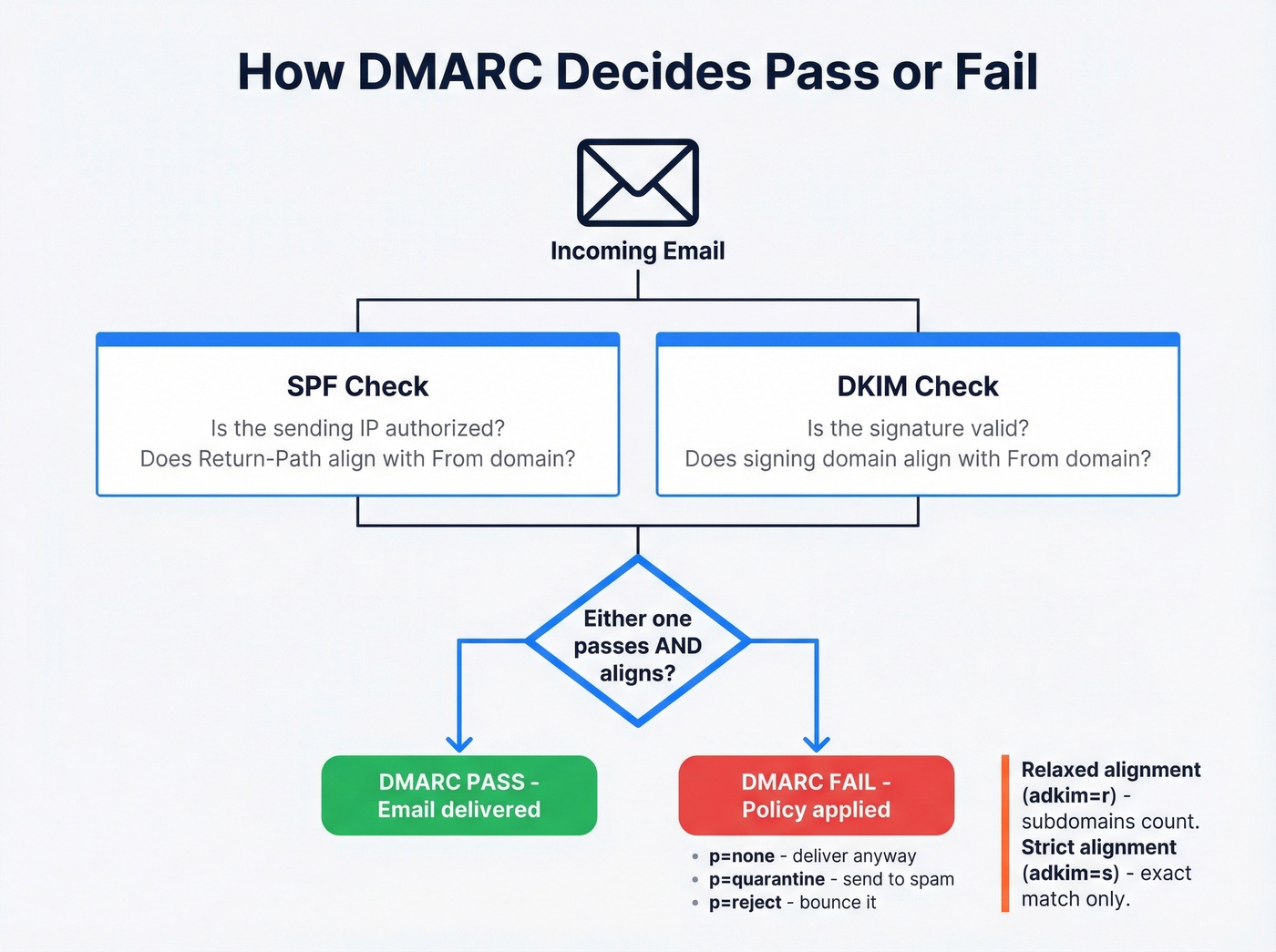
After 30-60 days of reviewing aggregate reports, move to p=quarantine. At 90 days, if everything looks clean, switch to p=reject. The fact that 63% of DMARC users never move past p=none tells you how many teams set it and forget it.
DMARC passes when either SPF or DKIM passes and aligns with the From domain. Alignment has two modes: relaxed and strict. Under relaxed alignment, mail.example.com aligns with example.com. Under strict, it doesn't - exact match only. Unless you have a specific security reason, stick with relaxed (adkim=r). It's what Yahoo explicitly accepts and it avoids a whole category of false failures.

You're setting up DKIM to keep bounce rates low and protect your domain reputation. But authentication only works if the emails you're sending to actually exist. Prospeo's 5-step verification and 98% email accuracy mean sub-4% bounce rates - without the DNS headaches.
Stop fixing bounces after the fact. Start with emails that land.
How to Verify Your DKIM Record Works
Don't trust the Admin Console status alone. Send a test email to an external address - Gmail to Gmail won't always show full headers - then inspect the message headers. Look for the DKIM-Signature header and find the s= tag. That's your selector.
To verify the DNS record directly, look up selector._domainkey.yourdomain.com as a TXT record:
| Tool | Best For | Free? |
|---|---|---|
| MXToolbox | Quick one-off DNS lookups | Yes |
| EasyDMARC | Ongoing DMARC monitoring dashboards | Freemium |
| Valimail | Enterprise-grade authentication monitoring | Enterprise pricing |
| Google Postmaster Tools | Authentication rates at scale for Gmail traffic | Yes |
One warning: we've seen MXToolbox header analysis not show a DKIM "pass" even when other tools confirm the configuration is correct. The consensus on r/msp is that MXToolbox has quirks with header parsing - don't rely on a single checker. Cross-reference with at least two tools before assuming something's broken.
Troubleshooting Common DKIM Errors
This is where Google's docs completely fall apart. Let's walk through the actual errors you'll hit.
"Not Authenticating" in Admin Console
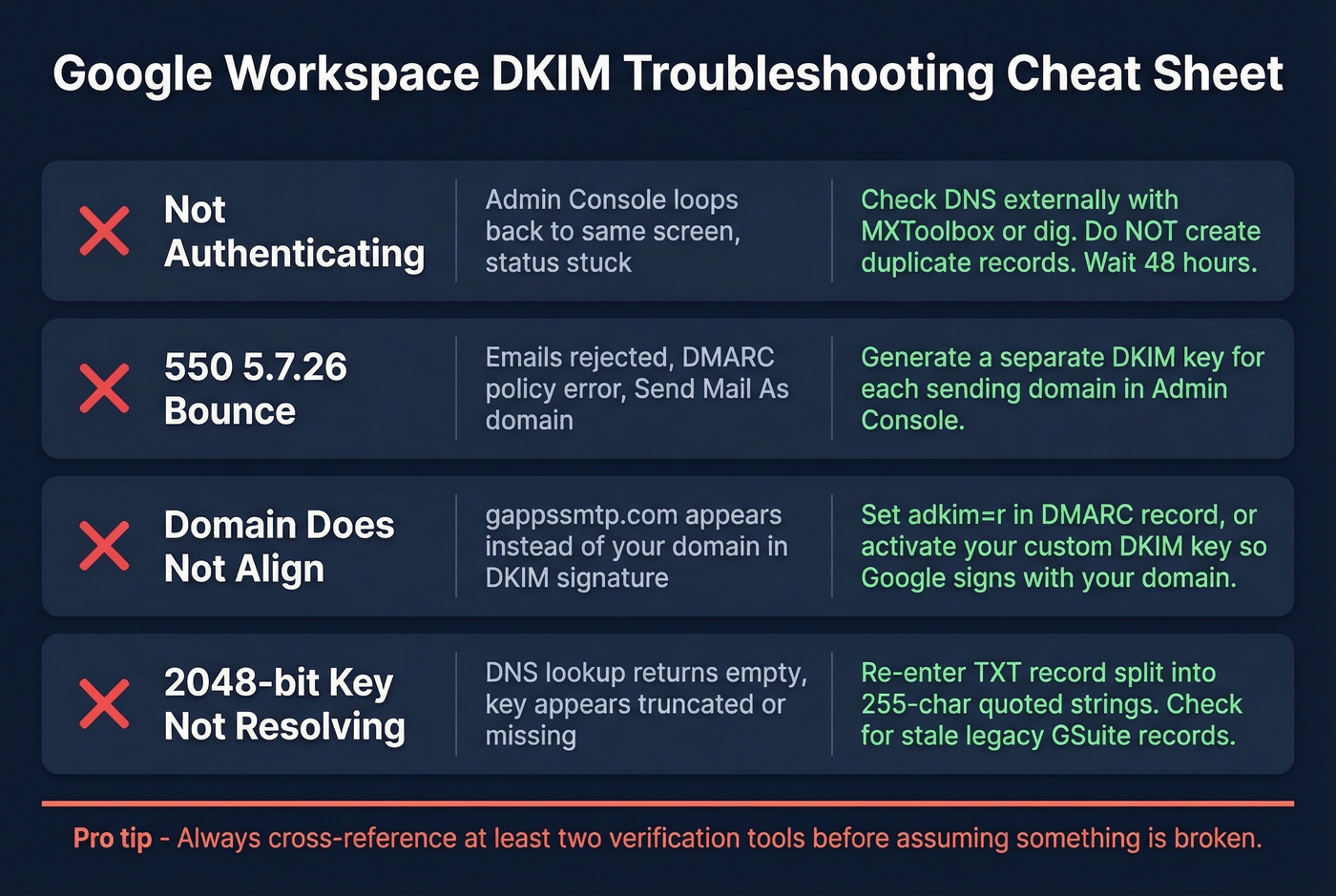
The most common trap: you're using Google-managed DNS, and clicking "Manage" in the Admin Console just loops you back to the same screen. In our experience, this managed DNS loop is the single most confusing part of the setup - even experienced admins get stuck here.
Don't create a duplicate record trying to fix this. Duplicate records cause validation failures. Verify via an external DNS lookup tool like MXToolbox or dig that google._domainkey.yourdomain.com returns a TXT record with your public key. If the record exists externally, the Admin Console status will eventually catch up.
550 5.7.26 Bounces
This is the error that sends people to Reddit:
550 5.7.26 Unauthenticated email from [domain] is not accepted due to domain's DMARC policy.
It almost always means you're using "Send mail as" with a secondary domain, and the signature doesn't match the From domain. Google Workspace signs with the domain it's configured for - if you're sending as primary.com from a Workspace account on secondary.com, the signature won't match unless you've generated a separate key for primary.com. This is one of the most common complaints on r/DMARC, and the error message doesn't tell you which domain's authentication is missing.
Each sending domain needs its own key. No exceptions.
"DKIM Domain Does Not Align"
You'll see this in DMARC testing tools when strict alignment is enabled. The mismatch looks like this:
example.com.20230601.gappssmtp.com ≠ example.com
Two fixes: switch your DMARC record to adkim=r (relaxed), or make sure your custom key is active and Google is signing with your domain instead of gappssmtp.com. The custom key is the better long-term fix.
2048-Bit Key Not Resolving
If your DNS lookup returns nothing for the selector, the most likely culprit is the 255-character string split. Your DNS provider may have stored the key as a single oversized string instead of splitting it into quoted chunks. Check the raw TXT record - if it's truncated or malformed, re-enter it with proper splitting.
If you originally migrated from Google Apps or GSuite, double-check that the old record wasn't carried over with an outdated selector or key length. Stale records from legacy configurations are a surprisingly common cause of resolution failures.
DNS Propagation Delays
If it's been less than 48 hours, stop troubleshooting. DNS propagation is genuinely variable. Wait the full window before changing anything. The worst thing you can do is delete and recreate records while propagation is still in progress - you'll just reset the clock.
Multiple Domains and Third-Party Senders
Alias vs. Secondary Domains
Alias domains in Google Workspace often use the primary domain in the Return-Path for outbound mail. That means SPF alignment checks against the primary domain, not the alias. If someone replies to you@alias.com but the Return-Path says primary.com, SPF alignment fails for the alias domain.
DKIM becomes the lifeline here. Generate a unique key for each alias domain in the Admin Console. It's the most reliable way to pass DMARC alignment when SPF can't.
Third-Party Senders
Multiple DKIM selectors coexist peacefully. Google uses google._domainkey, Mailchimp uses k1._domainkey, and so on. Each selector is independent - enabling one doesn't break another.
SPF is where conflicts happen. Remember: one SPF record per domain. If you're using Google Workspace and Mailchimp, merge them:
v=spf1 a include:_spf.google.com include:servers.mcsv.net -all
Don't create two separate SPF TXT records. That's an instant SPF fail, and it's surprisingly easy to miss during setup.
DKIM Key Rotation
Here's a frustrating stat: 47.7% of organizations only rotate DKIM keys after a security incident. That's not a security posture - it's a prayer. Rotate every 6-12 months, proactively.
The rotation workflow without downtime:
- Generate a new key with a new selector in Admin Console.
- Publish the new TXT record in DNS.
- Wait for propagation (up to 48 hours).
- Activate the new selector in Admin Console.
- Verify signing with the new key.
- Remove the old TXT record after 72 hours.
We recommend setting a calendar reminder the day you first enable authentication. The overlap period where both keys are published ensures no emails fail during the switch.
Protect Your Sender Reputation Beyond Authentication
DKIM proves your domain sent the email. It doesn't prove the email address you're sending to is valid.
Here's where teams get burned: you can have perfect SPF, DKIM, and DMARC, and still tank your sender reputation by blasting emails to invalid addresses, spam traps, and honeypots. High bounce rates trigger spam filtering regardless of authentication status. If you're running outbound campaigns, verify your lists before you send. Tools like Prospeo catch invalid addresses, spam traps, and honeypots through a 5-step verification process - with 98% email accuracy - so your freshly authenticated domain doesn't get torched by bad data. If you want a deeper playbook, start with an email deliverability guide and then track your email bounce rate as you scale.
SPF, DKIM, and DMARC protect your sending reputation - but bad contact data destroys it. Teams using Prospeo cut bounce rates from 35%+ to under 4% because every email is verified before it leaves your outbox. At $0.01 per email, domain protection has never been cheaper.
Your authentication stack deserves data that won't waste it.
FAQ
How long does DKIM take to work in Google Workspace?
DNS propagation typically takes minutes to 48 hours. After publishing the TXT record, return to Admin Console and click "Start Authentication." If it still shows "not authenticating" after 48 hours, verify the record via an external DNS lookup tool - don't create duplicate records, which is the most common mistake at this stage.
Do I need DKIM if I already have SPF?
Yes. Since February 2024, Google and Yahoo require both SPF and DKIM for bulk senders exceeding 5,000 emails per day. Even for low-volume senders, DKIM is your backup - forwarded emails break SPF routinely, and when that happens, DKIM is the only thing keeping your DMARC passing.
Can I use the same DKIM key for multiple domains?
No. Each domain needs its own key generated separately in the Admin Console. This includes alias domains and secondary domains. Skipping this is the number one cause of multi-domain DMARC failures - and the error messages won't tell you that's the problem.