

How to Set Up SPF, DKIM, and DMARC for Google Workspace
You followed every step in Google Workspace's documentation. SPF record - published. DKIM - enabled. DMARC - added. Gmail recipients get your messages fine. Then you send to Yahoo, Outlook, or a custom domain, and it lands in spam. This exact scenario floods r/googleworkspace every week.
The gap between "records are correct" and "mail actually reaches the inbox" is where most guides fail you. Authentication is necessary but not sufficient. Let's configure Google Workspace SPF, DKIM, and DMARC correctly, then cover the stuff Google's docs skip - the lookup limits, the Cloudflare gotchas, the enforcement roadmap, and what to do when everything checks out but mail still gets junked.
What You Need (Quick Version)
Set up all three before sending bulk email. Gmail rejects non-compliant bulk mail outright. Here's the sequence:
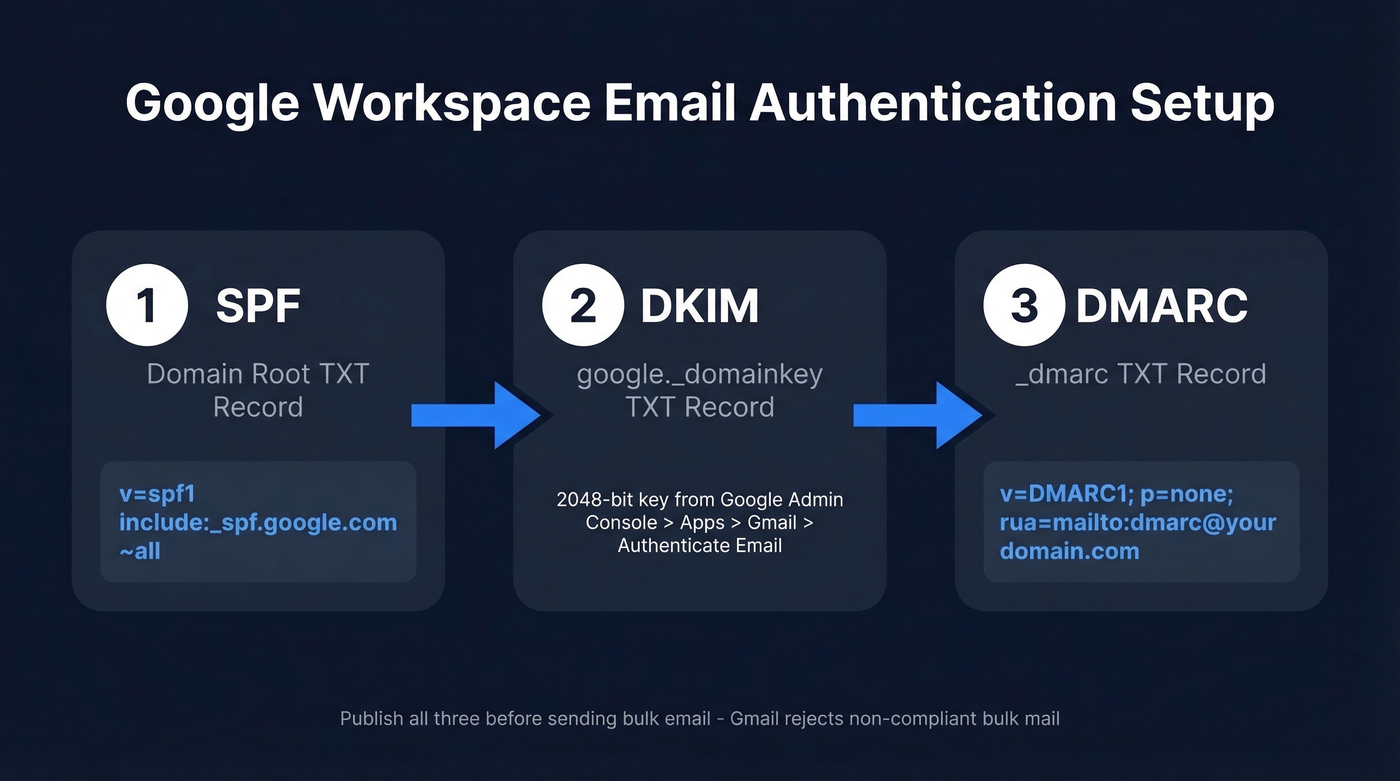
1. SPF - Add this TXT record at your domain root:
v=spf1 [include:_spf.google.com](https://knowledge.workspace.google.com/admin/security/set-up-spf) ~all
2. DKIM - Generate a 2048-bit key in Google Admin Console under Apps > Gmail > Authenticate Email, then publish the TXT record at google._domainkey.
3. DMARC - Publish this TXT record at _dmarc:
v=DMARC1; p=none; rua=mailto:dmarc@yourdomain.com
That's the baseline. Now let's do it properly.
Why Email Authentication Matters in 2026
Email authentication isn't optional - it's table stakes. DMARC adoption jumped from under 43% in 2023 to roughly 54% in 2024, and the trajectory has only steepened since. But about 75% of domains running DMARC are stuck on p=none, which means they're monitoring but not actually protecting anything.
Gmail's bulk sender enforcement changed the game. If you send 5,000+ messages per day to personal Gmail addresses, you're classified as a bulk sender. The requirements: SPF + DKIM authentication, DMARC alignment with at least p=none, one-click unsubscribe for promotional mail, and a spam complaint rate below 0.3%. Fail any of these and Gmail can reject your mail outright. Not spam-folder it. Reject it.
Yahoo's headed the same direction. Marcel Becker from Yahoo put it bluntly: "The end goal is ideally a policy of p=reject." And here's the spoofing angle most teams ignore - without enforcement, anyone can send email pretending to be your domain. Fully authenticated domains see dramatically higher inbox placement rates. The math is simple: authenticate or get filtered.
Set Up SPF for Google Workspace
SPF tells receiving mail servers which IP addresses are allowed to send email on behalf of your domain. For Google Workspace, the record is straightforward.
Step 1: Log into your DNS provider - GoDaddy, Cloudflare, Namecheap, Route 53, wherever your domain's DNS lives.
Step 2: Create a TXT record at the root of your domain (@ or blank, depending on your provider):
v=spf1 include:_spf.google.com ~all
Step 3: If you already have an SPF record for Mailchimp, HubSpot, SendGrid, or another service, don't create a second one. Two SPF records on the same domain cause a PermError, and your authentication breaks entirely. Merge them into a single record:
v=spf1 include:_spf.google.com include:servers.mcsv.net include:spf.protection.outlook.com ~all
The 10-Lookup Limit
SPF has a hard cap of 10 DNS lookups per evaluation. Exceed it and you get a PermError - some receivers reject, some spam-folder, some silently ignore. The inconsistency makes it brutal to diagnose.
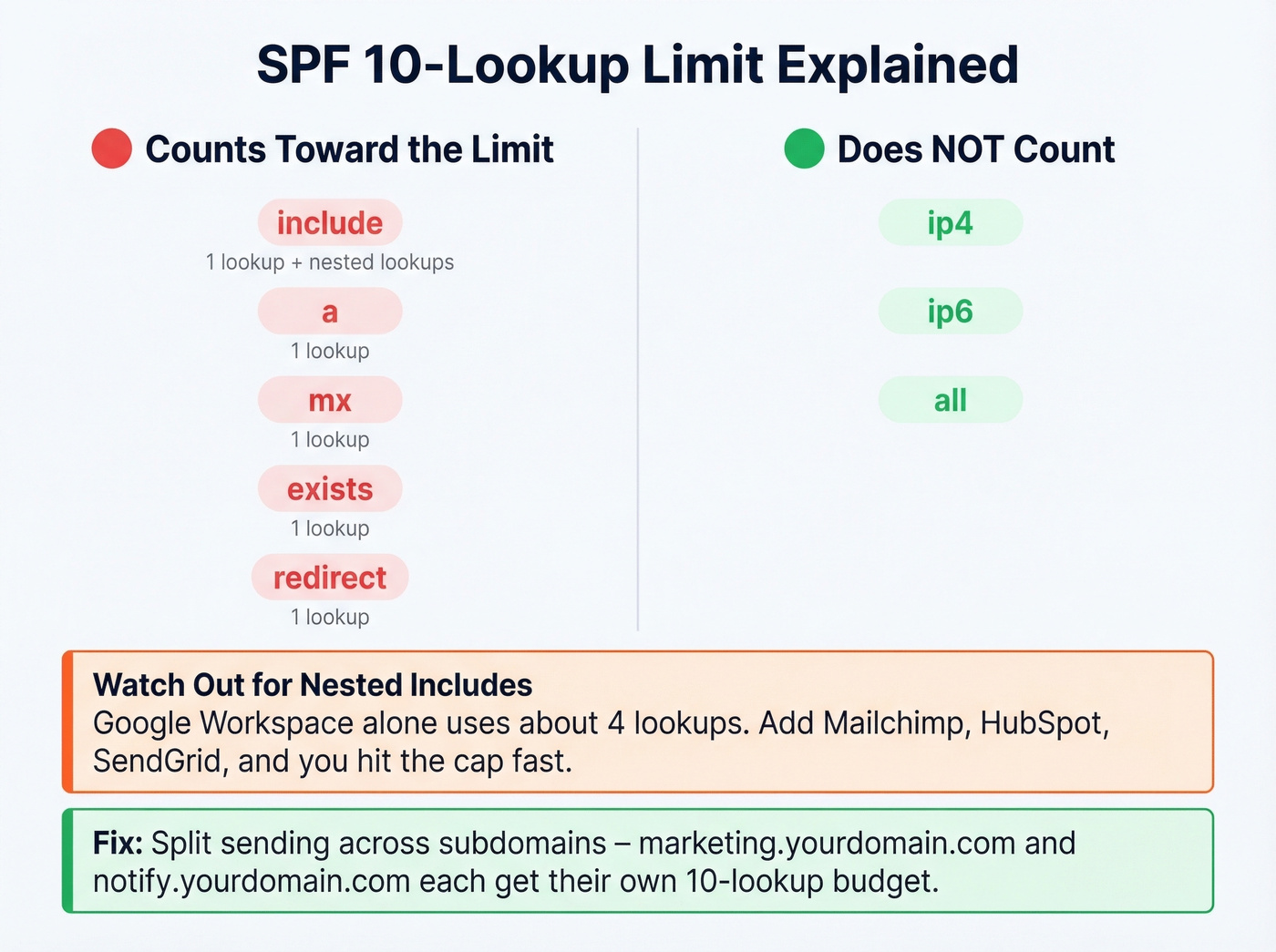
What counts toward the limit: include, a, mx, exists, and redirect mechanisms. What doesn't count: ip4, ip6, and all. The trap is nested includes - each include: consumes one lookup plus whatever lookups exist inside the included record. A typical Google Workspace include chain eats around 4 lookups on its own.
If you're running multiple sending services and hitting the limit, split your sending streams across subdomains. Put marketing email on marketing.yourdomain.com and transactional on notify.yourdomain.com - each subdomain gets its own 10-lookup budget. We've seen teams with six or seven SaaS tools all crammed into one SPF record wonder why their authentication randomly fails; subdomain splitting solved it every time.
Set Up DKIM for Google Workspace
DKIM adds a cryptographic signature to your outgoing messages. It's more important than SPF for one critical reason: DKIM survives forwarding. When someone forwards your email, SPF breaks because the sending IP changes. DKIM doesn't care - the signature stays intact. This makes DKIM the backbone of DMARC alignment in the real world.
Step 1: Open Google Admin Console > Apps > Google Workspace > Gmail > Authenticate Email.
Step 2: Select your domain and click "Generate New Record." Choose 2048-bit key length. The prefix selector defaults to google.
Step 3: Google gives you a TXT record value. Publish it in your DNS at the hostname google._domainkey.
Step 4: Go back to Admin Console and click "Start Authentication." Google verifies the DNS record and activates DKIM signing.
The Cloudflare DKIM Fix
If you're using Cloudflare for DNS, pay attention. A 2048-bit DKIM key is long - long enough that Cloudflare's TXT record handling can mangle it with escaped double quotes. If Google Admin keeps showing "Not authenticated" after you've published the record, remove the double quotes wrapping the TXT value in Cloudflare's dashboard.
Propagation can take minutes to 48 hours, though it's often within an hour. Don't panic if it's not instant - check again in 30 minutes.
Configure DMARC Records
DMARC ties SPF and DKIM together and tells receiving servers what to do when messages fail authentication. Only three tags matter at the start: v (version), p (policy), and rua (where to send reports).
Step 1: Create a TXT record at the hostname _dmarc in your DNS. Not _dmarc.yourdomain.com as a full string - just _dmarc as the hostname within your domain zone. Many DNS panels auto-append your domain, so entering the full string actually creates _dmarc.yourdomain.com.yourdomain.com. This trips up more people than you'd expect.
Step 2: Set the value:
v=DMARC1; p=none; rua=mailto:dmarc-reports@yourdomain.com
Step 3: Create the dmarc-reports@yourdomain.com mailbox. Use a dedicated address - DMARC aggregate reports arrive daily and can be voluminous.
Don't touch the policy beyond p=none yet. Let SPF and DKIM authenticate mail for at least 48 hours before you publish DMARC so you're not flying blind on day one.

Perfect authentication means nothing if you're sending to dead addresses. Prospeo's 98% email accuracy and 5-step verification keep your bounce rate under control - so your freshly configured DMARC domain stays off blocklists.
You protected your domain. Now protect your sender reputation with clean data.
Verify Your DNS Records
Before you move on, confirm everything's live and correct.
Google Admin Toolbox Check MX at toolbox.googleapps.com/apps/checkmx checks your MX and SPF, and it can also validate DKIM if you enter a selector. Enter your domain and it flags misconfigurations immediately.
MXToolbox is another solid option for DMARC record lookups. Search for _dmarc.yourdomain.com and verify the record parses correctly.
Email headers tell the full story. Send a test message to a Gmail account, open it, and click "Show original." Look for the Authentication-Results header - it shows spf=pass, dkim=pass, and dmarc=pass or tells you exactly what failed. This is the fastest way to confirm authentication is working end to end.
If records aren't showing up, give it time. Most propagation happens within an hour, but some registrars are slower. Don't start troubleshooting until you've waited at least 30 minutes.
DMARC Policy Progression
Here's the thing: p=reject on day one breaks legitimate email. We've watched teams do this and then spend a week figuring out why their Mailchimp campaigns, HubSpot sequences, and transactional receipts are getting rejected. Every third-party service that sends on your behalf needs to be authenticated before you enforce.
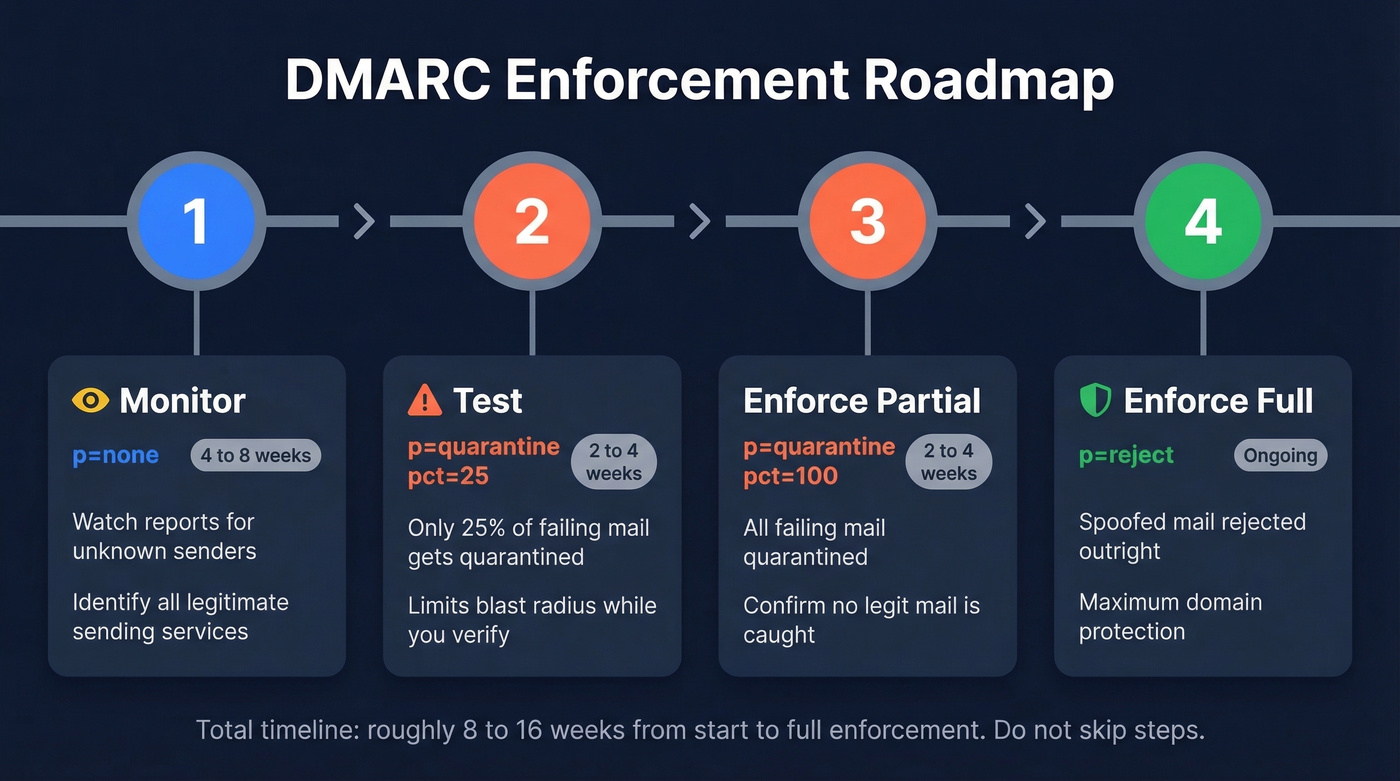
| Stage | DMARC Record | Duration | What to Monitor | When to Advance |
|---|---|---|---|---|
| Monitor | v=DMARC1; p=none; rua=mailto:... |
4-8 weeks | Unknown IPs, failures | <5% unexpected failures |
| Test | v=DMARC1; p=quarantine; pct=25; rua=mailto:... |
2-4 weeks | Quarantined legit mail | No legit mail caught |
| Enforce (partial) | v=DMARC1; p=quarantine; pct=100; rua=mailto:... |
2-4 weeks | Same | All senders aligned |
| Enforce (full) | v=DMARC1; p=reject; rua=mailto:... |
Ongoing | Ongoing monitoring | - |
During the first 4-8 weeks on p=none, you're just watching. Reports come in, you identify every IP sending as your domain. Expect surprises - that SaaS tool your marketing team signed up for six months ago, the invoice system nobody told IT about, the event platform someone used once for a webinar.
Once you move to p=quarantine; pct=25, only 25% of failing messages get quarantined. This limits blast radius while you confirm legitimate senders are aligned. Ramp to pct=100, then to p=reject when nothing legitimate is getting caught. That's where Yahoo says everyone should end up - and we agree.
Reading DMARC Reports
DMARC aggregate reports arrive as XML files, usually daily. They look intimidating but only a few fields matter.
Inside each <record> block, focus on <source_ip> (who sent the message), <count> (how many), <policy_evaluated> (disposition and whether DKIM/SPF passed), and <header_from> (which domain was used). Your workflow: look for unknown source IPs with high message counts and authentication failures. If the IP belongs to a legitimate sender, add their SPF include or set up DKIM signing through their platform. If it's not yours, it's someone spoofing your domain - exactly what DMARC is designed to catch.
Gmail and Outlook don't send forensic reports (RUF) due to privacy concerns, so don't rely on ruf tags. Stick with rua. For parsing at scale, EasyDMARC or DMARCLY can aggregate and visualize reports. Raw XML works fine for a single domain but gets unmanageable fast with multiple.
Common Mistakes and Fixes
Multiple SPF records. Your domain can only have one SPF TXT record. Two records = PermError = authentication failure. Merge all include: mechanisms into a single record. If you need help with syntax, use these SPF record examples as a reference.
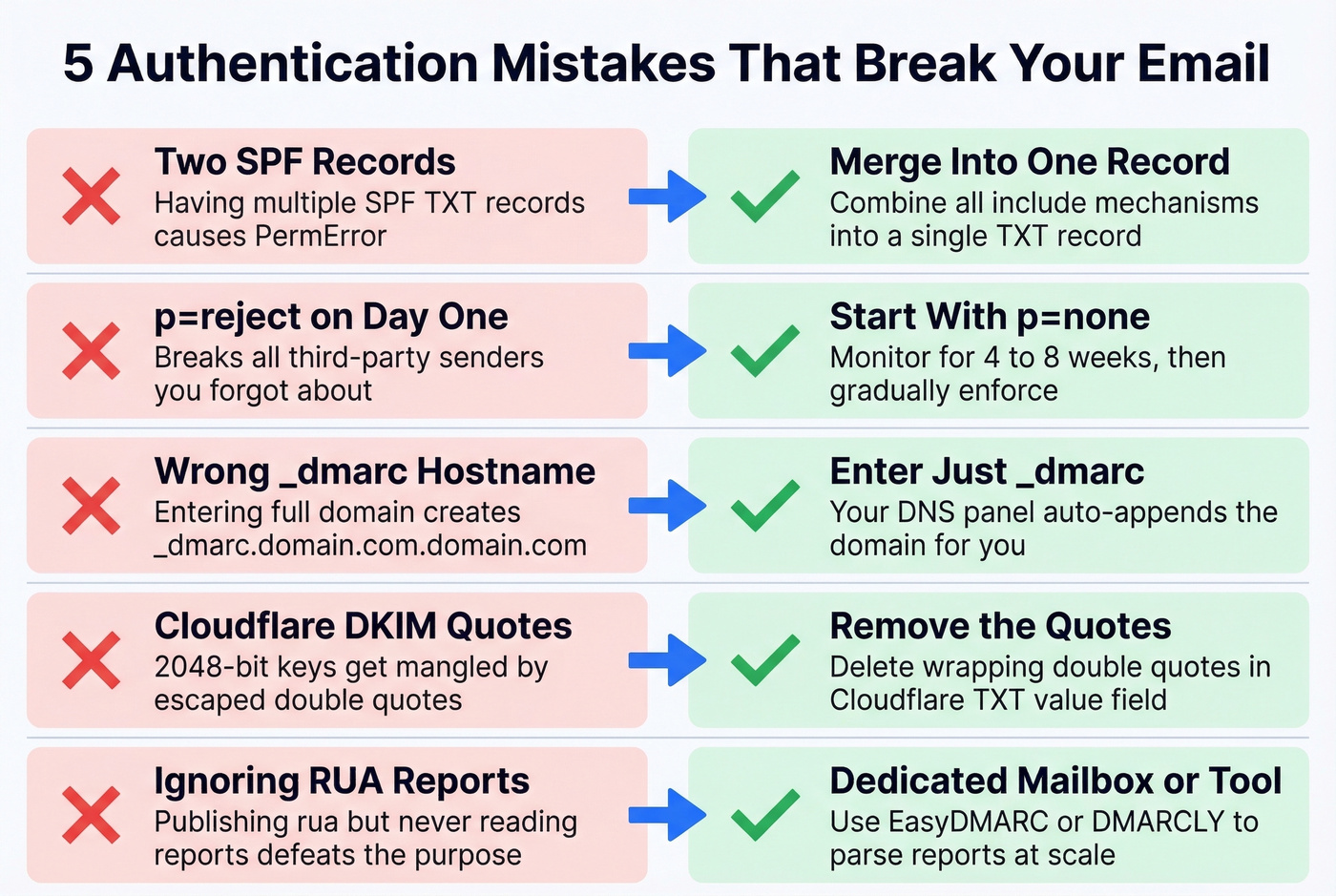
p=reject on day one. A user on r/gsuite shared their setup with p=reject from the start - every third-party sender they'd forgotten about immediately started bouncing. Follow the progression table above.
Wrong _dmarc hostname. Some DNS panels auto-append your domain, so entering _dmarc.yourdomain.com actually creates _dmarc.yourdomain.com.yourdomain.com. Enter just _dmarc.
Cloudflare DKIM quoting. 2048-bit keys wrapped in double quotes get mangled. Remove the quotes in Cloudflare's TXT value field.
Unmonitored RUA inbox. Publishing rua=mailto:admin@yourdomain.com and never reading the reports defeats the purpose. Set up a dedicated mailbox or use a monitoring tool.
SPF PermError from too many lookups. Audit your include chain, replace deep nested includes with ip4 blocks where possible, or split senders across subdomains.
Forwarding breaks SPF. When a corporate mail system forwards your message, SPF fails because the sending IP changed. DKIM can also fail if headers get modified. ARC (Authenticated Received Chain) is designed to solve this, but adoption is still limited. This is why DKIM alignment matters more than SPF for DMARC - and why some failures in your reports are expected and unfixable.
Correct Records, Still Spam?
This is the scenario that drives people to Reddit. Authentication records are published, verification tools show green checkmarks, but Yahoo and Outlook still spam-folder your messages.
Authentication proves your domain is legitimate. It doesn't prove your email is wanted. Domain reputation, sending patterns, content quality, and bounce rates all factor into inbox placement independently of authentication. Google weighs all of these signals together, and no single DNS record overrides poor sender behavior.
Look - most teams that set up authentication perfectly and still land in spam have a data quality problem, not a DNS problem. If 15% of your list is invalid, you're training spam filters to distrust you regardless of how perfect your records are. High bounce rates are a reputation killer, and reputation damage compounds with every send. We've seen domains go from healthy to blacklisted in under two weeks of sending to dirty lists.
Monitor with Google Postmaster Tools. It shows your domain reputation, spam rate, and authentication pass rates across Gmail. It's free and directly relevant - set it up alongside your DMARC monitoring. If Postmaster Tools shows your domain reputation dropping, no amount of DNS tweaking will save you.
Authentication is one pillar of deliverability. Data quality is the other. Before you launch any outbound campaign, verify your list. Prospeo's real-time email verification catches invalid addresses, spam traps, and honeypots with 98% accuracy - the free tier covers 75 verifications per month, enough to test before committing. If you're diagnosing deliverability end-to-end, keep an eye on your email bounce rate and use email reputation tools to spot issues early.

You just spent hours configuring SPF, DKIM, and DMARC to maximize inbox placement. Don't waste that effort on stale contact lists. Prospeo refreshes 300M+ profiles every 7 days - so every email you send lands at a real, active address.
Authenticated domain plus verified data equals inbox every time.
FAQ
Do I need SPF, DKIM, and DMARC together?
Yes. Gmail and Yahoo require all three for bulk senders sending 5,000+ daily messages. DKIM matters most for DMARC alignment because it survives forwarding, but skipping any one creates a gap that can trigger rejections or spam-foldering.
How long do DNS changes take to propagate?
Most changes propagate within minutes to a few hours, though some providers take up to 48 hours. Test with MXToolbox or Google Admin Toolbox before assuming something's broken - wait at least 30 minutes before troubleshooting.
What if I use Mailchimp or HubSpot alongside Google Workspace?
Add their SPF include to your existing record - never create a second SPF record. Then configure DKIM signing through each platform's admin panel so DMARC alignment works for every sending service.
Can I go straight to DMARC p=reject?
Don't. Start with p=none, monitor for 4-8 weeks, then progress through p=quarantine to p=reject. You'll forget about at least one third-party sender, and immediate enforcement bounces their mail without warning.
How do I keep my bounce rate low after authentication?
Verify email addresses before sending. Run your list through a verification tool that checks for spam traps and honeypots in real time. If you're sending cold outbound, this isn't optional - it's the difference between building domain reputation and destroying it.