

Automated Email Responses: The Complete 2026 Setup Guide + Templates
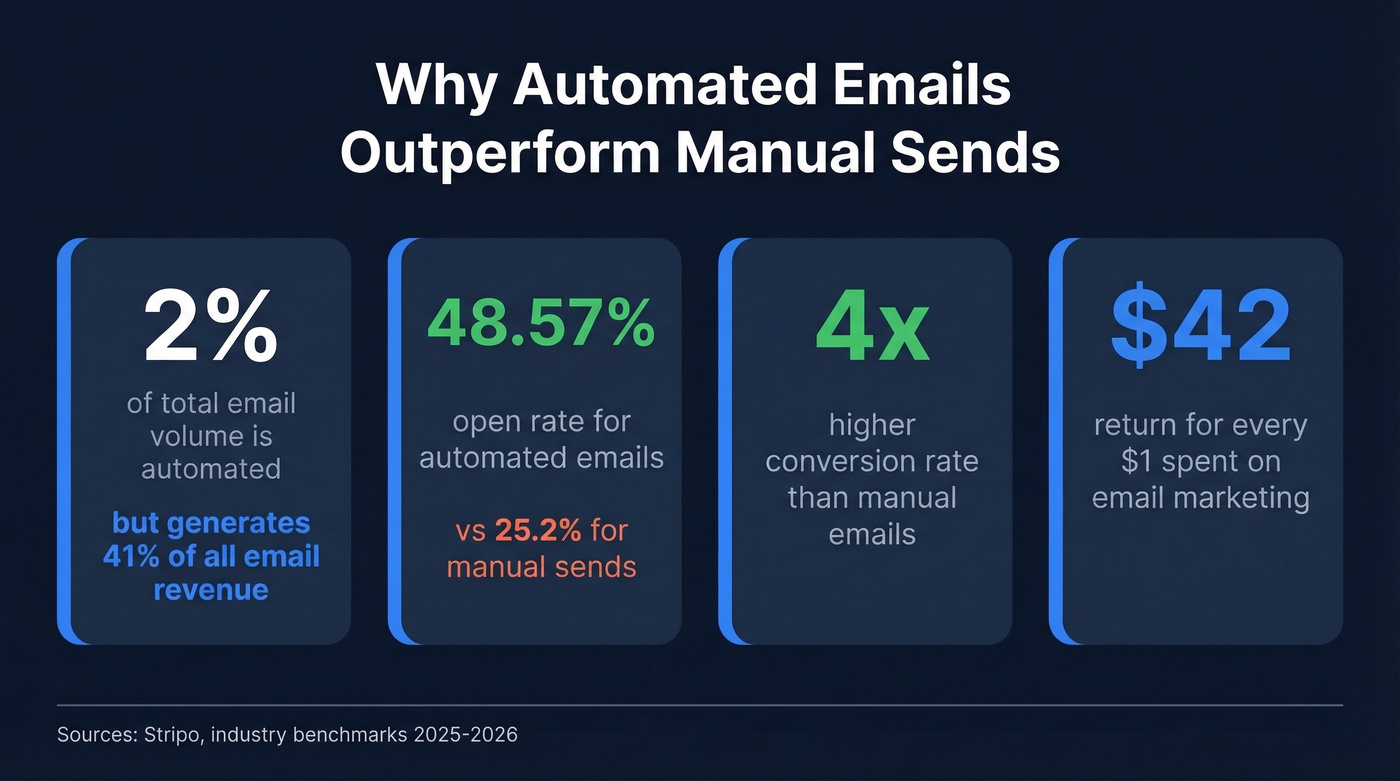
Automated emails account for just 2% of total send volume - but they generate 41% of all email revenue. That's not a rounding error. That's the entire business case for setting up automated email responses correctly, from simple auto-replies to full drip sequences and triggered workflows.
The performance gap is staggering: automated emails hit a 48.57% open rate versus 25.2% for manual sends, and they convert at 4x the rate. With email marketing returning roughly $42 for every $1 spent, the math on response automation isn't close. The only question is how to set it up without sounding like a robot or tanking your sender reputation.
We've helped teams build these systems from scratch, and the pattern is always the same - the setup takes an afternoon, but the payoff compounds for months.
What You Need (Quick Version)
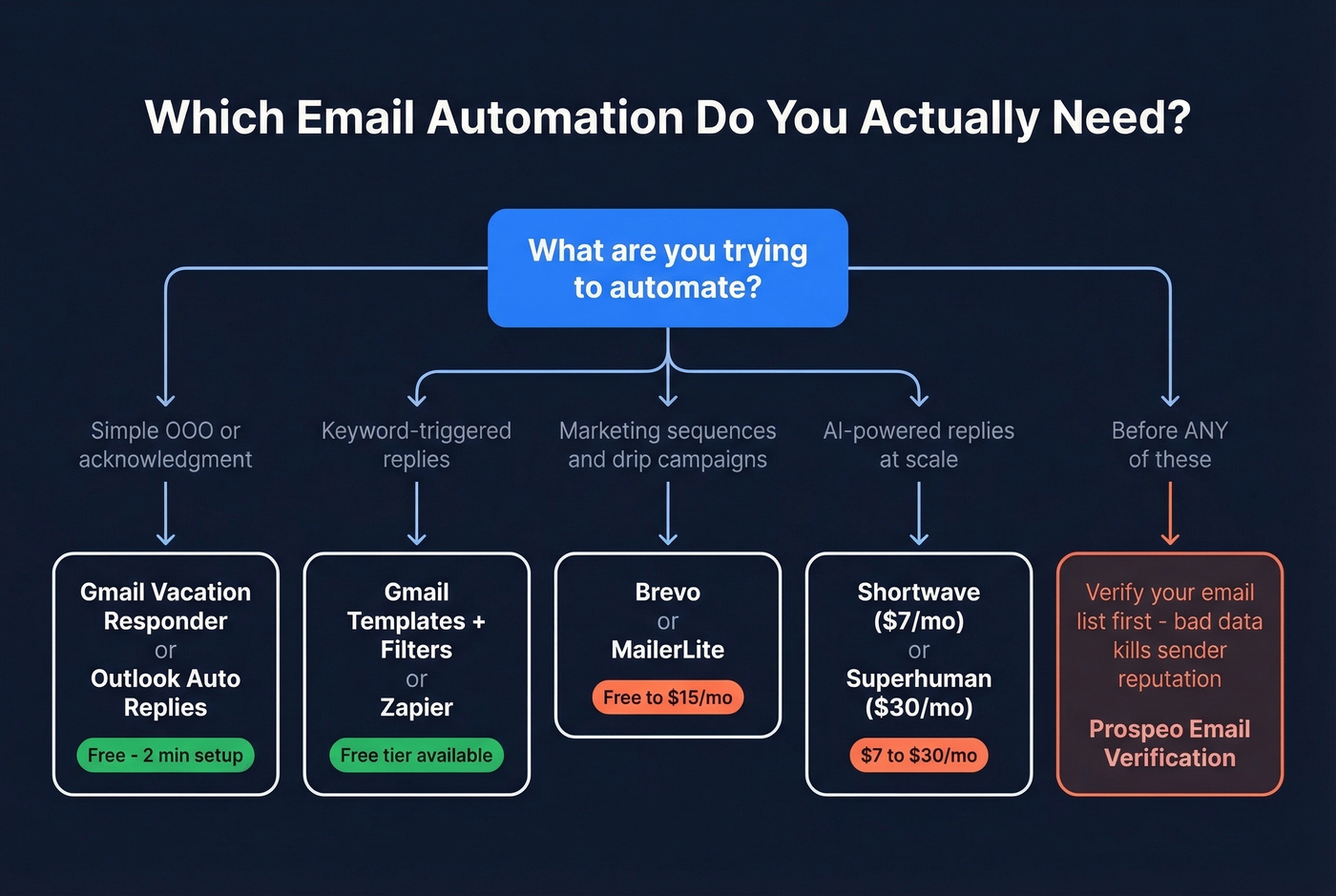
- Simple out-of-office or acknowledgment? Gmail Vacation Responder or Outlook Automatic Replies. Free, two-minute setup.
- Keyword-triggered auto-replies? Gmail Templates + Filters (free) or Zapier (free tier).
- Marketing sequences and drip campaigns? Brevo (free, 300 emails/day) or MailerLite (from $15/mo).
- AI-powered replies at scale? Shortwave ($7/mo) for budget, Superhuman ($30/mo) for power users.
- Before you automate anything: Verify your contact list. Bounces from bad data destroy sender reputation faster than anything else. Prospeo's email verification runs 5-step verification at 98% accuracy with a free tier - clean your list before you flip any automation on.
What Are Automated Email Responses?
An automated email response is any email sent without manual intervention, triggered by a specific event, condition, or schedule. The category is broader than most people realize.
The main types include out-of-office replies, support acknowledgments ("we got your ticket"), order and shipping confirmations, and lead response emails triggered when someone fills out a form. Beyond those, you've got nurture and drip sequences that deliver a series of emails over time, plus AI-generated replies that draft or send responses based on incoming message content.
The important distinction is between transactional and marketing auto-replies. Transactional emails like order confirmations and password resets can be sent without marketing opt-in. But the moment you add promotional content into a transactional email, that exception disappears and you're back in marketing/commercial-email rules.
When to Automate (and When Not To)
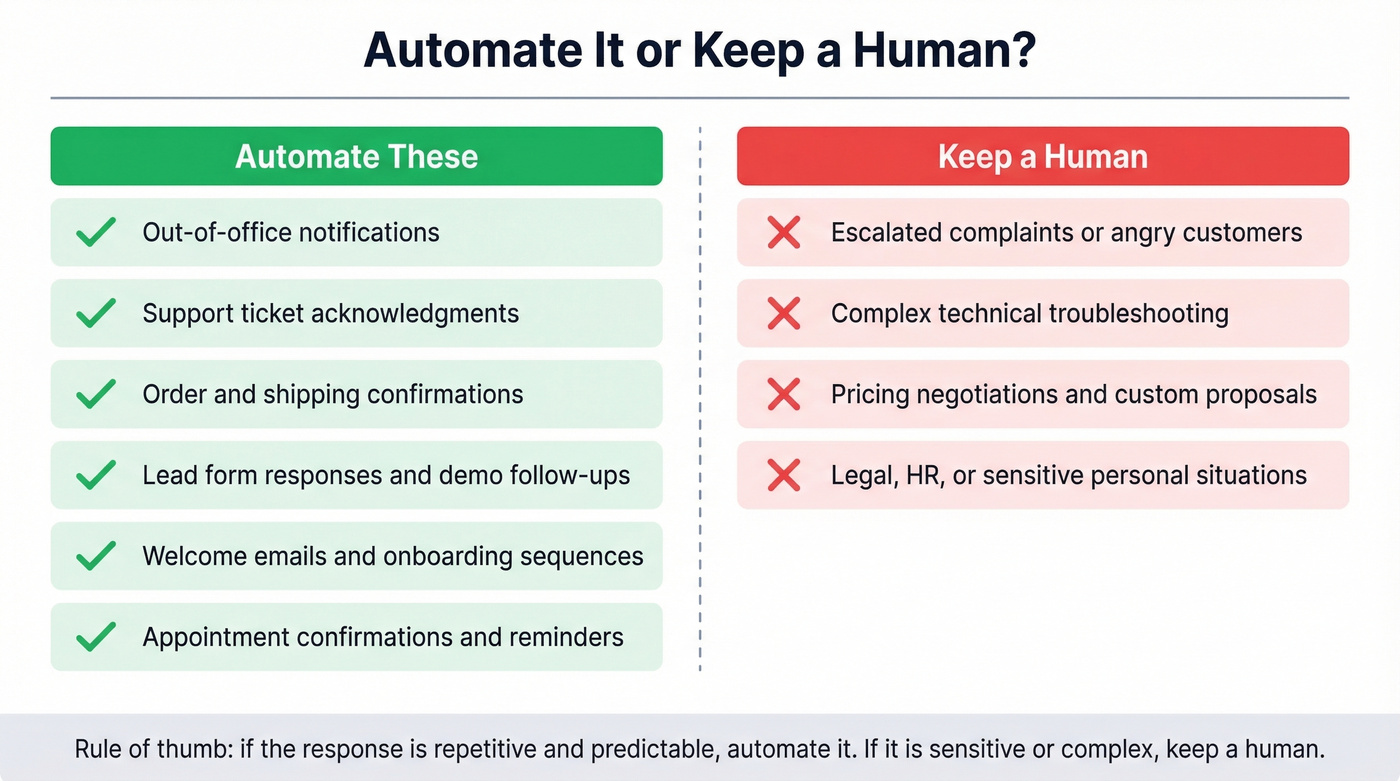
The decision rule is straightforward: if a response is repetitive and predictable, automate it. If it's sensitive, complex, or emotionally charged, keep a human in the loop.
Automate these:
- Out-of-office notifications
- Support ticket acknowledgments
- Order and shipping confirmations
- Lead form responses and demo request follow-ups
- Welcome emails and onboarding sequences
- Appointment confirmations and reminders
Keep human:
- Escalated complaints or angry customers
- Complex technical troubleshooting
- Pricing negotiations and custom proposals
- Anything involving legal, HR, or sensitive personal situations
Here's the thing - r/smallbusiness threads consistently show the same pattern. Small business owners don't want a full CRM or marketing automation suite. They want to auto-reply when an email contains "order," "return," or "invoice" and maybe slap a label on it for later. That's it. If that's you, Gmail filters or a basic Zapier workflow handles it in 15 minutes.
You need five great templates, not fifty mediocre ones. We've seen teams build elaborate template libraries that nobody uses because they can't find the right one fast enough. Start with five, nail the tone, then expand.
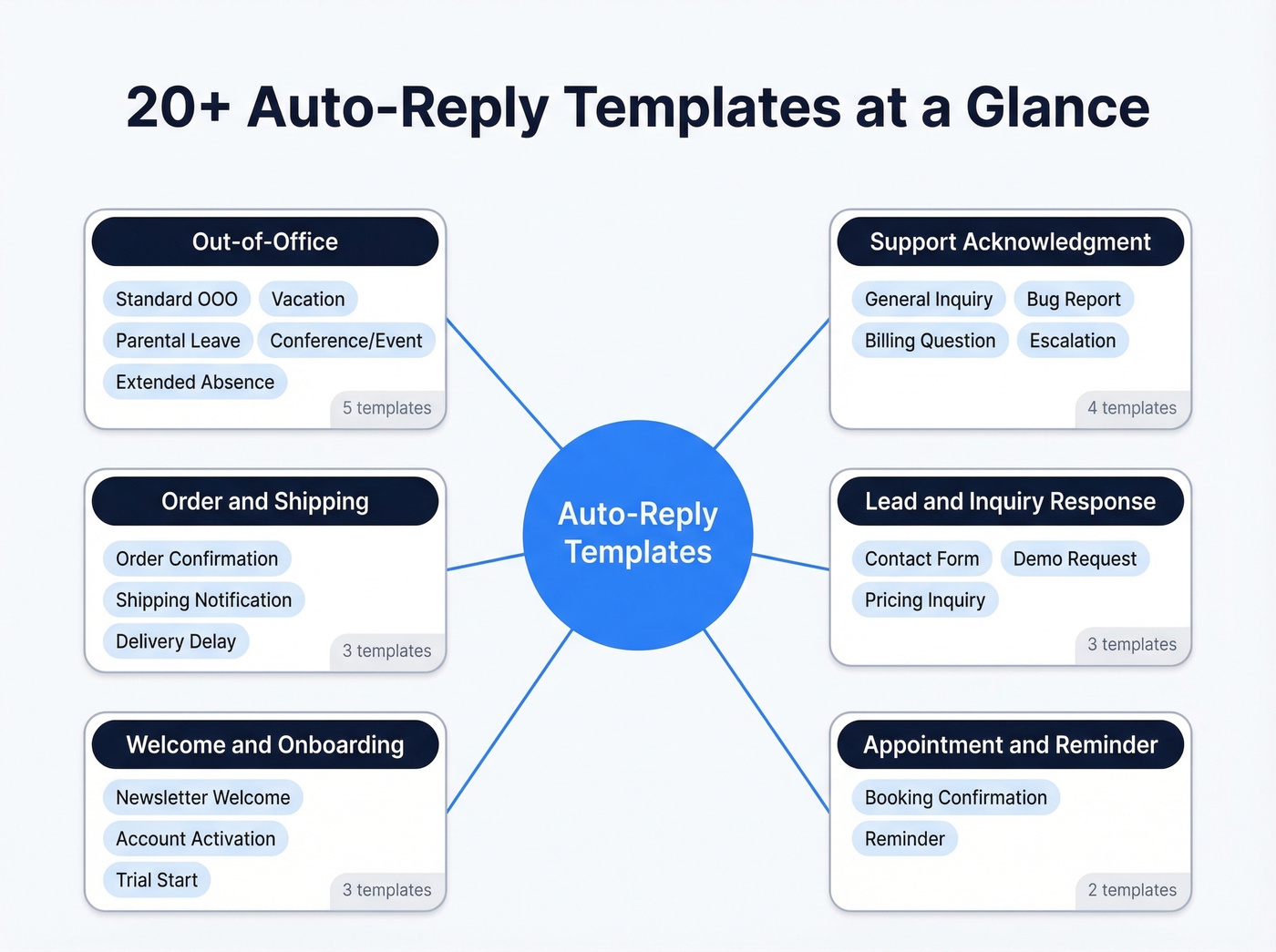
20+ Auto-Reply Templates
Every template below includes a subject line, body, and a note on when to use it. Customize the bracketed fields and adjust the tone to match your brand.
Out-of-Office
1. Standard OOO Subject: Out of office - back [date] Body: Thanks for your email. I'm out of the office until [date] with limited access to email. For urgent matters, please contact [colleague name] at [email]. I'll respond when I return. When to use: Any planned absence under a week. Tone tip: Keep it short. Nobody reads a three-paragraph OOO - they just want the return date and an alternate contact.
2. Vacation Subject: On vacation through [date] Body: I'm currently on vacation and won't be checking email until [date]. If you need immediate help, reach out to [colleague] at [email]. Otherwise, I'll get back to you when I return. Thanks for your patience! When to use: Personal time off where you want a warmer tone. If you need to stop automated emails during vacation, remember to disable any active drip sequences or scheduled sends before you leave - otherwise prospects receive follow-ups you can't monitor.
3. Parental Leave Subject: Out on parental leave - returning [month] Body: I'm on parental leave and will return in [month]. During my absence, [colleague name] ([email]) is handling my responsibilities. They'll be happy to help. When to use: Extended leave with a clear handoff.
4. Conference/Event Subject: At [event name] this week - limited email Body: I'm attending [event] from [dates] and will have limited email access. I'll respond to everything by [return date]. For anything time-sensitive, please contact [colleague] at [email]. When to use: Multi-day events or travel.
5. Extended Absence Subject: Away until [date] - here's who can help Body: I'm currently away from the office and won't return until [date]. For [topic A], contact [person A] at [email]. For [topic B], contact [person B] at [email]. I'll follow up on any outstanding items when I'm back. When to use: Absences over two weeks where multiple people cover different areas.
Support Acknowledgment
6. General Inquiry Subject: We've received your message - [ticket #] Body: Thanks for reaching out. We've received your inquiry and assigned it ticket number [#]. Our team will respond within 1 business day. In the meantime, our [help center link] may have what you need. When to use: Default support acknowledgment. Tone tip: "1 business day" beats "24 business hours" every time. Specificity builds trust; jargon erodes it.
7. Bug Report Subject: Bug report received - [ticket #] Body: We've logged your bug report as ticket [#]. Our engineering team is reviewing it. We'll update you within [timeframe] with next steps. If the issue is blocking your work, reply to this email and we'll prioritize. When to use: Technical issue submissions.
8. Billing Question Subject: Billing inquiry received - we'll follow up shortly Body: We've received your billing question. Our finance team typically responds within 4 business hours. For immediate account access, log in at [portal link]. When to use: Payment or invoice-related inquiries.
9. Escalation Acknowledgment Subject: Your case has been escalated - [ticket #] Body: Your case [#] has been escalated to our senior support team. You'll hear from a specialist within [timeframe]. We understand this is urgent and appreciate your patience. When to use: When a ticket moves to a higher support tier.
Order and Shipping
10. Order Confirmation Subject: Order confirmed - [order #] Body: Your order [#] is confirmed. Here's what you ordered: [items]. Estimated shipping: [date]. We'll send tracking info once it ships. Questions? Reply to this email. When to use: Immediately after purchase.
11. Shipping Notification Subject: Your order has shipped - track it here Body: Good news - order [#] is on its way. Track your package: [tracking link]. Estimated delivery: [date]. If anything looks off, just reply here. When to use: When the order enters transit.
12. Delivery Delay Subject: Update on your order [#] - slight delay Body: We're sorry - order [#] is running behind schedule. Your new estimated delivery date is [date]. We know this is frustrating, and we're working to get it to you as fast as possible. Reply here if you have questions. When to use: Proactive delay notification.
Lead and Inquiry Response
13. Contact Form Response Subject: Thanks for reaching out to [company] Body: We've received your message and someone from our team will follow up within [timeframe]. While you wait, here are a few resources that might help: [link 1], [link 2]. When to use: Generic website contact form submissions.
14. Demo Request Subject: Your demo request - let's find a time Body: Thanks for requesting a demo of [product]. Here's a link to book a time that works for you: [calendar link]. If none of those slots work, reply with your availability and we'll make it happen. When to use: High-intent demo requests where speed matters. Teams that automate sales replies to demo requests see significantly higher booking rates because the response lands while the prospect is still on the site.
15. Pricing Inquiry Subject: Pricing info for [product/service] Body: Thanks for your interest in [product]. Here's an overview of our pricing: [link or brief summary]. Want to talk specifics? Book a call here: [calendar link], or reply with your questions. When to use: When someone asks about cost.
Welcome and Onboarding
16. Newsletter Welcome Subject: Welcome to [newsletter name] Body: You're in. Expect [frequency] emails covering [topics]. Here's our most popular piece to get started: [link]. If this isn't for you, unsubscribe anytime - no hard feelings. When to use: Immediately after newsletter signup.
17. Account Activation Subject: Your [product] account is ready Body: Your account is live. Here's how to get started: [step 1], [step 2], [step 3]. Need help? Check our [getting started guide] or reply to this email. When to use: After account creation.
18. Trial Start Subject: Your [product] trial starts now - here's what to do first Body: Welcome to your [X]-day trial. The fastest way to see value: [one specific action]. Here's a 2-minute walkthrough: [link]. Questions? Hit reply - a real person will answer. When to use: Free trial activation.
Appointment and Reminder
19. Booking Confirmation Subject: Confirmed: [meeting type] on [date] at [time] Body: You're booked. Here are the details: [date, time, location/link]. Add to calendar: [link]. Need to reschedule? Use this link: [reschedule link]. When to use: Immediately after booking.
20. Reminder Subject: Reminder: [meeting type] tomorrow at [time] Body: Quick reminder - we're meeting tomorrow at [time]. Join here: [link]. If something came up, reschedule here: [link]. Looking forward to it. When to use: 24 hours before the appointment.
How to Set Up Auto-Replies
Gmail Setup
Gmail gives you two methods, and they solve different problems.
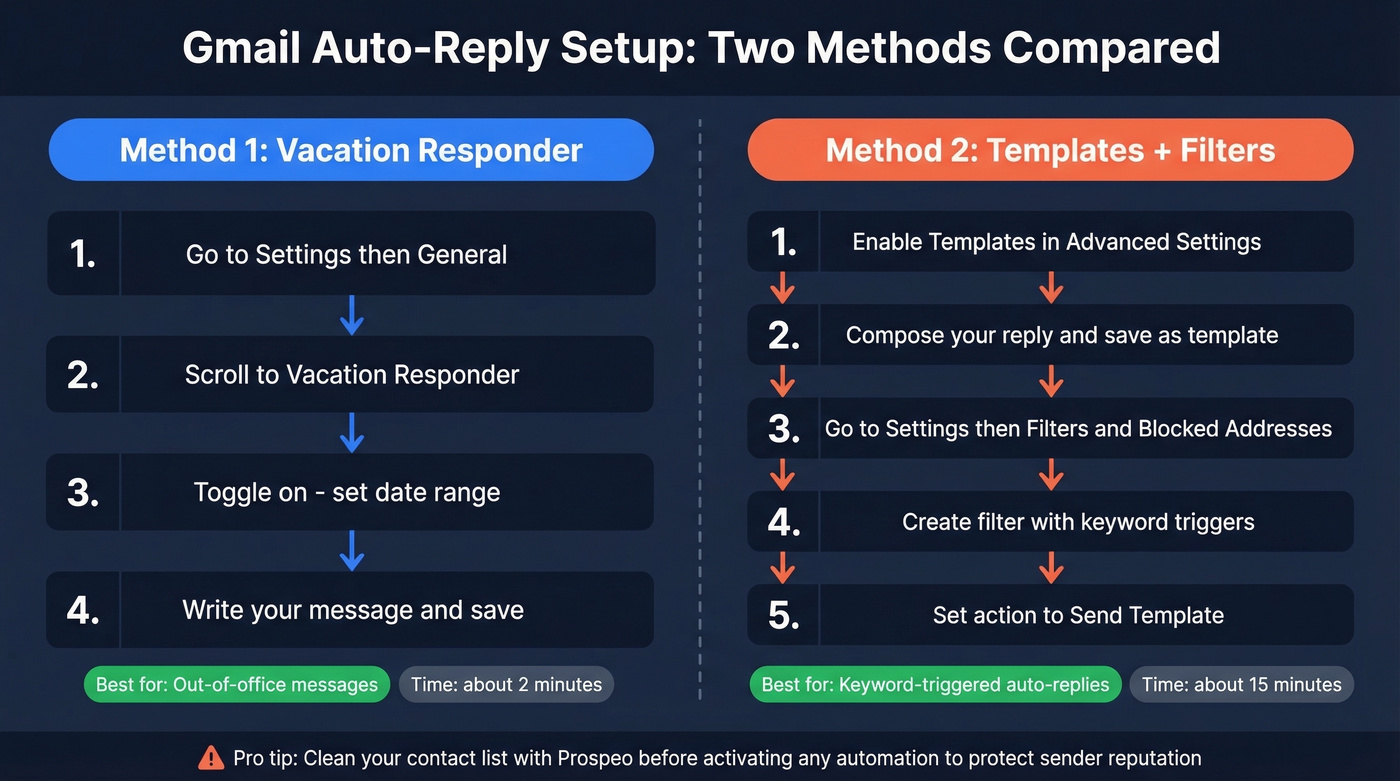
Method 1: Vacation Responder is for out-of-office messages. Go to Settings, then General, scroll to "Vacation responder." Toggle it on, set your date range, write your message. Done. This is also the fastest way to automate out-of-office replies sales teams need when reps are traveling or at conferences.
Method 2: Templates + Filters handles keyword-triggered replies. This is the one most people miss. First, enable Templates under Settings, then See all settings, then Advanced - enable Templates and save. Next, compose your auto-reply email and save it as a template via the three dots menu. Finally, create a filter through the search bar: show search options, enter your trigger criteria like sender, subject keywords, or body keywords, then Create filter and choose "Send template" with your saved template selected.
Method 2 is exactly what that r/smallbusiness poster was looking for - auto-reply when someone emails about "returns" or "invoices" without buying a whole CRM.
Outlook Setup
In new Outlook or Outlook on the web, go to Settings (gear icon), then Accounts, then Automatic Replies, and turn on the toggle. You can schedule start and end dates and write separate messages for people inside and outside your organization.
One critical warning from Microsoft's own documentation: enabling "send replies outside your organization" means Outlook will reply to everything - newsletters, marketing emails, spam. The fix is to select "Send replies only to contacts." Skip this step and you'll broadcast your OOO to every mailing list you've ever joined.
Cross-Platform Automation
For teams that need auto-replies connecting to a CRM, Slack, or a project management tool, Zapier or Make handles it without code. A typical Zap: "When Gmail receives an email matching [filter], send a template reply AND create a task in Asana AND post to a Slack channel." Zapier's free tier covers basic workflows.
This is the sweet spot for teams that outgrow Gmail filters but aren't ready to commit to examples of a CRM like ActiveCampaign or HubSpot yet.

Every automated email that bounces chips away at your sender reputation - and once it's damaged, even your best templates land in spam. Prospeo's 5-step email verification catches bad addresses, spam traps, and honeypots before you flip any automation on. 98% accuracy at ~$0.01 per email.
Clean your list first. Automate second. Never wreck your domain.
AI-Powered Auto-Replies
With 64% of marketers now using AI in email marketing, the question isn't whether to adopt AI replies - it's which approach fits your workflow. AI email tools fall into two categories.
On-demand tools generate a reply when you click a button - you're still in the driver's seat. ChatGPT Plus ($20/mo) and Grammarly ($30/user/mo) work this way. Proactive tools scan your inbox and draft replies before you even open the email. Superhuman ($30/mo), Shortwave ($7/mo), and alfred_ ($24.99/mo) fall into this camp.
The proactive category is where things get interesting - and risky. These tools use your thread history and sometimes connected apps to generate contextual drafts. When they work, they save hours. When they misfire, they produce embarrassing replies that miss the point entirely.
The "Generic Reply" Problem
A SaaS operator handling 100+ customer emails per day tried both Front and Superhuman and found the AI replies felt generic. This is the core tension in the category right now. LLMs match tone reasonably well, but they struggle with company-specific context - your refund policy, your product's quirks, your relationship with that particular customer.
In our testing, proactive AI tools saved 30-45 minutes per day on repetitive replies but still needed human review for anything nuanced. Look for tools that integrate with your knowledge base (not just your inbox), learn from your sent messages over time, and let you set tone preferences beyond "professional" or "casual."
Guardrails You Need
Don't let AI auto-send without guardrails. The minimum setup:
- Confidence threshold - auto-send only above a certain score, keep everything else as a draft
- Sender exclusion lists - never auto-reply to your CEO or your biggest client
- PII stripping - the AI shouldn't leak sensitive data
- Draft-only mode as the default until you trust the system
The more advanced approach uses evaluator agents that score each draft before it goes out. We're early here, but the direction is clear - AI replies need a safety layer between generation and send.
| Tool | Type | Price | Best For |
|---|---|---|---|
| Shortwave | Proactive | $7/mo | Budget AI replies |
| ChatGPT Plus | On-demand | $20/mo | Ad-hoc drafting |
| alfred_ | Proactive | $24.99/mo | Solo operators |
| Superhuman | Proactive | $30/mo | Power users |
| Grammarly | On-demand | $30/user/mo | Team writing |
| Gmelius | Proactive | $21/user/mo | Shared inboxes |
Best Tools for Sales Response Automation
| Tool | Starting Price | Best For | Key Feature |
|---|---|---|---|
| Gmail Filters | Free | Keyword triggers | Templates + Filters |
| Zapier | Free tier | Cross-app workflows | Multi-step Zaps |
| Brevo | Free (300/day) | SMB marketing | Visual builder |
| Zoho Campaigns | $4/mo | Budget teams | Unlimited emails |
| MailerLite | $15/mo | Growing lists | Clean UI |
| Omnisend | $16/mo | E-commerce | Cart abandonment |
| ActiveCampaign | $19/mo | Advanced workflows | If/then logic |
| GetResponse | $19/mo | Webinar + email | Landing pages |
| HubSpot | $20/mo/seat | CRM-integrated | Full GTM stack |
| Klaviyo | $20/mo | D2C brands | Revenue attribution |
A note on Mailchimp ($13/mo): it's the most recognized name in email marketing, but its free plan doesn't include automations. That makes Brevo's free tier a better starting point for anyone testing auto-reply workflows on a budget.
The selection criteria that actually matter are trigger range (can it fire on page visits, cart abandonment, signups, and inactivity?), conditional logic with if/then branching, a visual automation builder you'll actually use, deliverability infrastructure, and integrations with your existing stack.
For most SMBs, Brevo's free tier is the obvious starting point. You get 300 emails per day, up to 2,000 contacts, a visual workflow builder, and enough triggers to cover the basics. If you outgrow it, ActiveCampaign's if/then logic is the best in the mid-range tier. HubSpot makes sense only if you're already in their CRM ecosystem - don't buy it just for email automation.
Mistakes That Kill Your Auto-Replies
Robotic phrasing. "We hereby confirm receipt of your electronic correspondence" makes people cringe. Write like a human. "We've received your email and will get back to you within 1 business day" does the same job without the bureaucratic tone.
Offering phone support in every auto-reply. This sounds helpful but backfires. Including "call us at [number] for faster resolution" in every auto-reply increases inbound call volume - even for issues that don't need a phone call. Reserve phone numbers for escalation templates only.
Vague SLA language. "We'll respond within 24 business hours" is confusing. Is that three calendar days? One business day? Say "within 1 business day" or "by end of day tomorrow." Specificity builds trust.
Reply loops. Your auto-reply responds to their auto-reply, which triggers yours again. This is especially common with Outlook's external reply setting. Always exclude no-reply addresses and known auto-responder domains from your triggers.
Auto-replying to newsletters and spam. If you turn on Outlook's external auto-reply without restricting it to contacts, your OOO message goes to every mailing list, marketing email, and spam sender in your inbox. You're broadcasting your absence to the internet.
Automating on a dirty list. This is the mistake that does lasting damage. We've watched sender reputations crater in under a week from automating on unverified lists. One cleanup pass with a verification tool like Prospeo prevents months of deliverability headaches. Bad addresses mean bounces, bounces mean reputation hits, and reputation hits mean your auto-replies never reach anyone.
Deliverability and Compliance
CAN-SPAM and GDPR Essentials
For marketing auto-replies under CAN-SPAM: use truthful headers and subject lines, include your physical postal address, identify commercial emails as ads, provide a working opt-out mechanism, and honor opt-out requests within 10 business days.
GDPR adds another layer for contacts in the EU. You need a lawful basis for processing - usually consent for marketing emails. You must honor the right to withdraw consent, support data deletion requests, and include a clear privacy notice. The critical nuance: transactional emails like order confirmations and password resets are generally exempt from marketing consent requirements. But the moment you add a promotional upsell to a transactional email, that exception vanishes.
Deliverability Thresholds
Google and Yahoo's sender requirements are strict. A spam complaint rate above 0.1% starts hurting your deliverability. Hit 0.3% and you're looking at severe throttling or outright blocking. ESPs review accounts at 5% bounce rates and pause sending above 10%. The safe zone: keep overall bounces under 2% and hard bounces under 1%.
Recovery from a damaged sender reputation takes 30-60 days. That's 30-60 days where your auto-replies, your campaigns, and your transactional emails all suffer. Average inbox placement sits at 84%, with another 10.5% landing in spam and the rest never arriving at all.
The fix starts upstream - verify every email address before it enters your automation workflow. Prospeo's 5-step verification catches invalid addresses, spam traps, and honeypots at 98% accuracy, so bad data never enters your system and your auto-replies actually reach people. The free tier covers 75 emails per month plus 100 Chrome extension credits, with no contracts and credit-based pricing at around $0.01 per verified email.
Benchmarks for Automated Emails
The performance gap between automated and manual emails isn't subtle:
| Metric | Automated | Manual |
|---|---|---|
| Open Rate | 48.57% | 25.2% |
| CTR | 5.4% | 1.5% |
| Conversion | 12% | 3% |
| Revenue/Send | 4x higher | Baseline |
Response-time context:
| Metric | Value |
|---|---|
| Average response time | 23 hours |
| 50th percentile | 2 hours |
| Most common response time | 2 minutes |
The practical takeaway - promise what you can actually deliver. If your team responds in 4 hours, say "within 4 hours," not "as soon as possible." Per Boomerang's response-time research, Tuesday and Wednesday see the highest reply rates, while Friday triggers the most out-of-office auto-replies. Plan your sends accordingly.
On the cold email side, the average reply rate is 3.43%, with top performers exceeding 10%. First-touch emails generate 58% of replies; follow-ups account for the other 42%. The sweet spot is 4-7 touchpoints with emails under 80 words.
Let's be honest about the ROI case: Slazenger ran automated abandoned cart sequences and saw a 49x ROI in eight weeks, recovering 40% of abandoned revenue. These numbers make the case on their own. Automated emails convert at 4x the rate of manual sends. The only way to lose is by automating on bad data or with bad copy - both of which are fixable.
Your drip sequences and auto-replies are only as good as the contact data behind them. Prospeo refreshes 300M+ profiles every 7 days - not every 6 weeks like competitors - so your automated outreach reaches real inboxes, not dead ends.
Stop automating emails to addresses that no longer exist.
FAQ
Can I auto-reply only to specific senders in Gmail?
Yes - use Gmail's Templates + Filters feature. Create a filter based on sender address, subject keywords, or body content, then assign a saved template as the automatic response. This targets specific senders or topics without replying to every incoming email.
Do auto-replies hurt email deliverability?
Auto-replies themselves don't trigger spam filters. The damage comes from reply loops (your auto-reply responding to another auto-reply) and bounces from unverified addresses. Keep bounce rates under 2% and verify your list before activating any automation.
What's the best free tool for email auto-replies?
Gmail Vacation Responder handles simple out-of-office messages. Gmail Templates + Filters covers keyword-triggered replies. Brevo's free tier is best for marketing sequences - 300 emails/day, 2,000 contacts, and a visual workflow builder.
Are AI email replies accurate enough for customer support?
Expect 30-45 minutes saved daily on repetitive replies, but AI still needs human review for complex or sensitive messages. Use draft-only mode and set confidence thresholds. Shortwave ($7/mo) and Superhuman ($30/mo) lead the category, but neither should auto-send unsupervised.
How do I prevent auto-reply loops?
Exclude no-reply addresses, known autoresponder domains, and mailing list senders from your trigger rules. In Outlook, restrict external replies to contacts only. In Gmail filters, add a "doesn't have: auto-reply" condition. Test by sending yourself a message before going live.