

Google Postmaster Tools: The Complete v2 Guide for 2026
Your domain reputation dashboard is gone. If you logged into Google Postmaster Tools recently and wondered where the "High / Medium / Low" rating went, you're not alone - Reddit threads are full of email marketers asking the same question. As one user put it: "It's a checklist now - no more high/medium/low. How do I check reputation going forward?"
Google rebuilt the v2 interface around compliance, not reputation scores, and the legacy interface is retired. Here's everything you need to know about the v2 dashboard, what it actually tells you, and what it doesn't.
What You Need (Quick Version)
- This tool is free and Gmail-only. It monitors how Gmail treats your sending domain - nothing about Outlook, Yahoo, or any other provider. It works regardless of your ESP, whether you send through Mailchimp, SendGrid, HubSpot, or a custom SMTP server.
- v2 removed the reputation dashboards. Domain Reputation and IP Reputation are gone. They've been replaced by a Compliance Status dashboard tied to Gmail's bulk sender requirements.
- The spam rate threshold that matters: 0.3%. Stay under 0.1% to be safe. At or above 0.3%, Gmail can start rejecting your mail.
- You need ~200+ daily emails to Gmail recipients to see consistent data. On lower-volume days, Google suppresses metrics to protect recipient privacy.
- The one upstream fix most teams miss: list quality. Postmaster Tools shows you the damage from bad data - bounces, delivery errors, authentication failures - but it can't fix the root cause. Clean your lists before you send.
What Postmaster Tools Is (and Isn't)
Google Postmaster Tools is a free diagnostic dashboard that shows how Gmail processes email from your domain. You get visibility into spam rates, authentication pass rates, encryption, delivery errors, and - as of v2 - compliance status against Gmail's bulk sender rules.
It isn't a universal email deliverability monitor. The platform only covers Gmail recipients, so if you're sending to corporate Outlook domains or Yahoo, you won't see a single data point here. Reports aren't real-time either - they update daily and typically reflect the prior day's performance, with delays that can stretch a few days.
Think of it as one layer in a multi-provider monitoring stack. An important layer - Gmail is the world's largest email provider - but just one layer.
What Changed: v1 to v2
Google launched the v2 compliance dashboard in March 2024. On September 30, 2025, they began retiring v1 and redirected users to v2. By October 31, 2025, the legacy interface was gone for good.
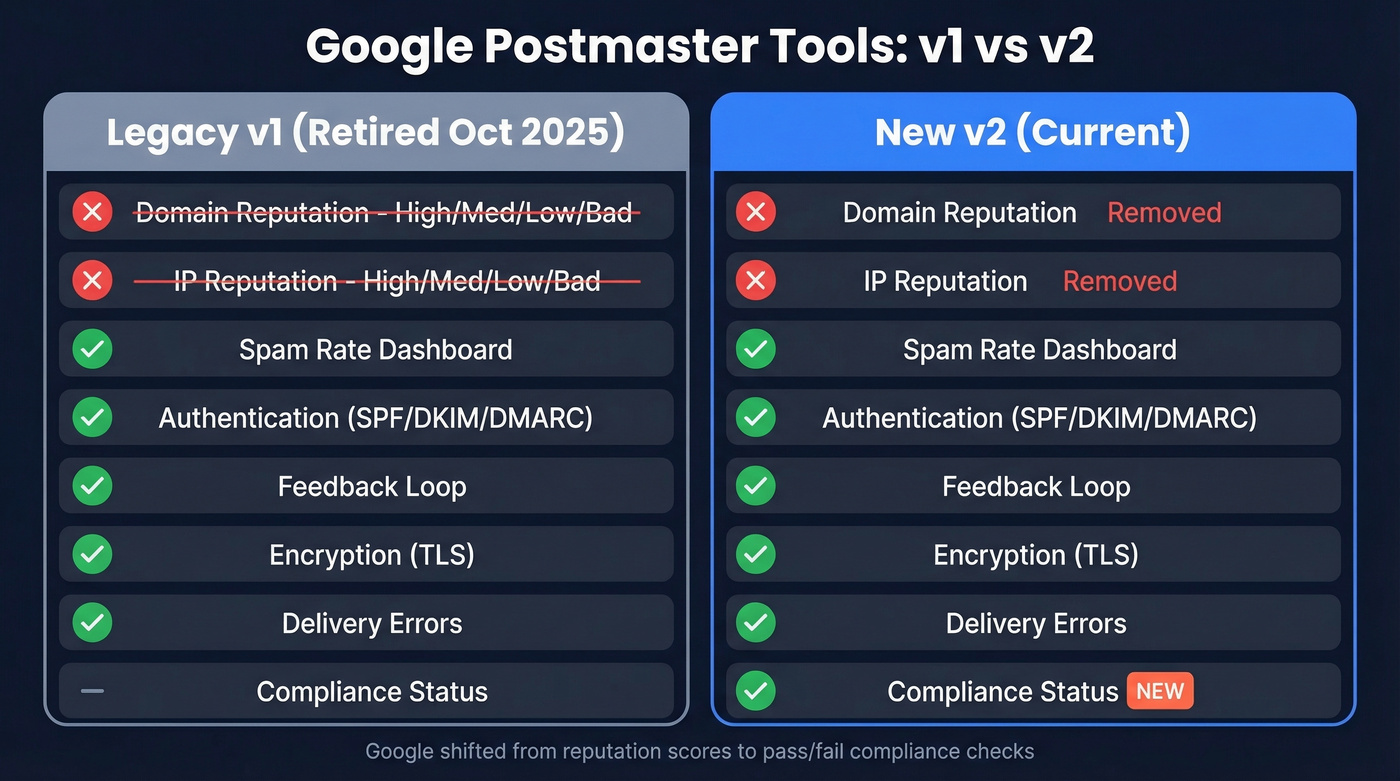
The biggest loss: Domain Reputation and IP Reputation dashboards. These gave you a simple High / Medium / Low / Bad rating that email teams relied on for years. Gone. Google's reasoning is that compliance-driven metrics are more actionable than a vague reputation score - which is fair, even if the transition has been painful for teams that built workflows around those ratings.
Google teased that new dashboards would launch by end of 2025 with "more useful and actionable information," but as of early 2026, nothing concrete has materialized.
| Feature | v1 | v2 |
|---|---|---|
| Domain Reputation | ✓ (High/Med/Low/Bad) | ✗ Removed |
| IP Reputation | ✓ (High/Med/Low/Bad) | ✗ Removed |
| Spam Rate | ✓ | ✓ |
| Authentication | ✓ (SPF/DKIM/DMARC) | ✓ |
| Compliance Status | ✗ | ✓ New |
| Feedback Loop | ✓ | ✓ |
| Encryption (TLS) | ✓ | ✓ |
| Delivery Errors | ✓ | ✓ |
| API | v1 API | v2 API (new schema) |
Why a Low Spam Rate Can Lie
Most guides bury this or skip it entirely. Let's put it front and center: a low spam rate in Postmaster Tools doesn't mean your emails are reaching the inbox.
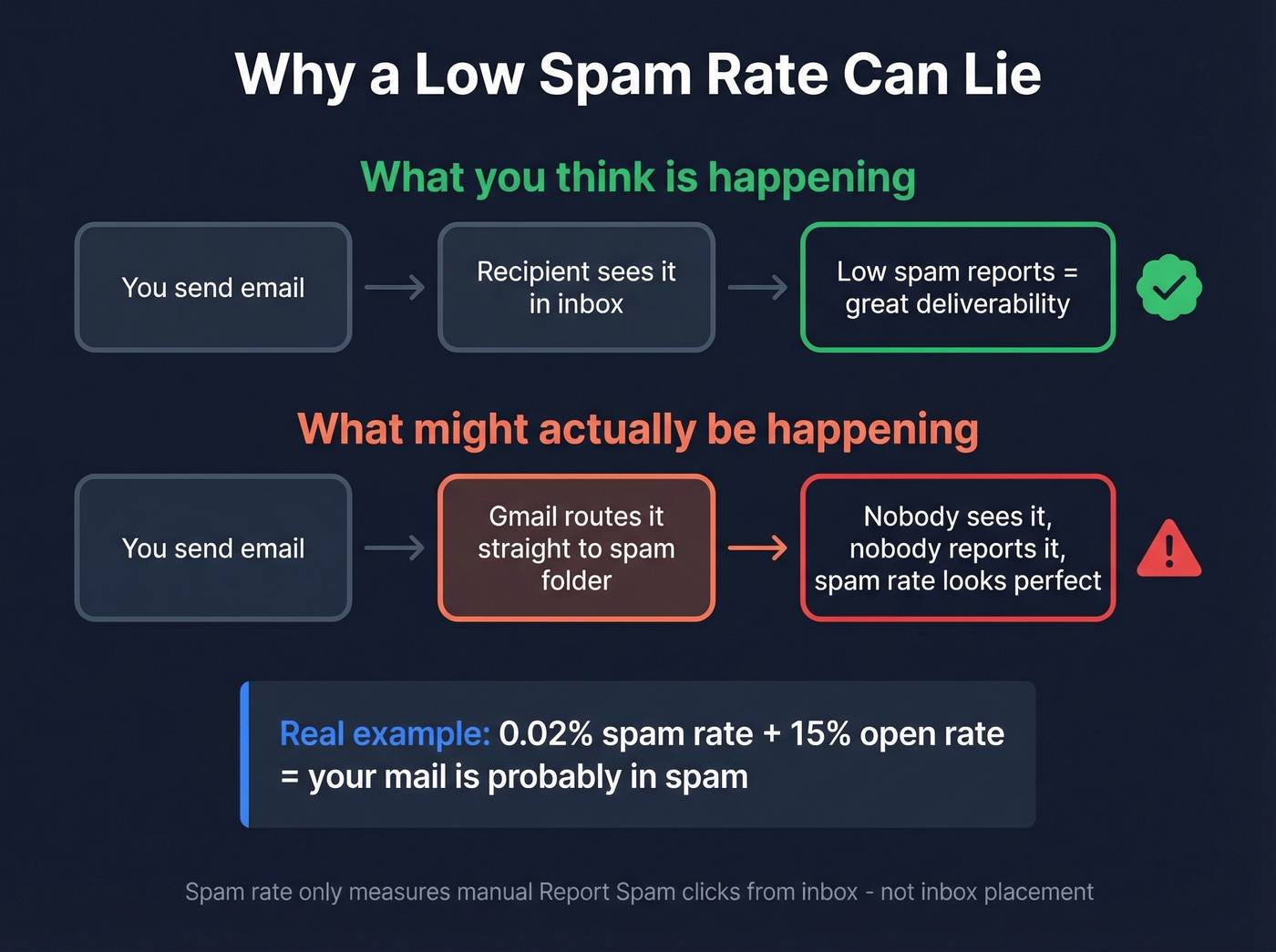
The spam rate reflects manual "Report spam" actions from recipients. The calculation is essentially spam reports divided by messages delivered to the inbox for active users, and Gmail's methodology can also treat messages delivered to spam but later marked "not spam" as inbox-delivered for the metric. If Gmail's filters are already routing your messages straight to the spam folder, recipients never see them - and can't report them. Your spam rate looks pristine because people aren't clicking "Report spam," but that's because they aren't seeing your email in the first place.
A 0.02% spam rate combined with a 15% open rate should make you nervous, not comfortable. We've watched teams celebrate "perfect" numbers while their inbox placement rate was below 40%.
Here's the thing: this is the most important free email monitoring tool available, and it's also the most misread. The teams that get burned aren't the ones ignoring it - they're the ones treating it as a deliverability score when it's actually a complaint metric. Inbox placement requires separate seed-list testing or engagement-based monitoring. Don't confuse the two.
How to Set Up Your Domain
Setup is quick. The waiting is the slow part.
- Go to postmaster.google.com and sign in with your Google account.
- Click Add Domain and enter your sending domain (e.g.,
yourdomain.com). - Google generates a DNS TXT record. Copy it and add it to your domain's DNS settings. A CNAME alternative is available, but TXT is the standard path.
- Wait 24-48 hours for DNS propagation and verification.
- Once verified, dashboards start populating - assuming you meet the volume threshold.
One detail that trips people up: subdomain vs. root domain matters. If you send from mail.yourdomain.com, verify that subdomain too so you're looking at the right traffic. Each domain you add is tracked independently, so verify every subdomain you actively send from. If you’re unsure whether your DKIM is actually passing, follow a quick DKIM verification check before troubleshooting Postmaster metrics.

Postmaster Tools can diagnose spam rate spikes and authentication failures - but it can't fix the root cause: bad email data. Prospeo's 5-step verification and 7-day data refresh cycle keep bounce rates under 4% for teams like Snyk and Meritt, so your Gmail compliance dashboard stays green.
Stop treating symptoms. Fix your list quality at the source.
v2 Dashboard: Every Metric Explained
Quick reference before we dig into each one:
| Metric | What "Good" Looks Like | Action Trigger |
|---|---|---|
| Compliance Status | All green checks | Any red/yellow item |
| Spam Rate | < 0.1% | > 0.3% = urgent |
| Authentication | 100% pass (SPF+DKIM+DMARC) | Any failures |
| Feedback Loop | Active, low volume | Spike in reports |
| Encryption | 100% TLS | Any non-TLS traffic |
| Delivery Errors | < 2% | Sustained spike |
The v2 dashboard uses rolling averages for some views. Fix an issue today and you won't see the dashboard reflect it immediately. For Compliance Status specifically, it can take up to 7 days after resolving issues for changes to appear.

Compliance Status
This is the new centerpiece of v2. It's a checklist that maps directly to Gmail's bulk sender requirements: authentication alignment, one-click unsubscribe, spam rate, and more. Green checks mean you're compliant. Anything else means Gmail can throttle or reject your messages.
The compliance dashboard is blunt - it doesn't tell you how compliant you are, just whether you pass or fail each item. For teams used to the nuance of a sender reputation score, this feels harsh. But it's actionable, which is the point.
Spam Rate
This is the metric that matters most. Gmail's thresholds are clear:
| Band | Rate | Status | Action |
|---|---|---|---|
| 🟢 Green | < 0.1% | Healthy | Maintain |
| 🟡 Yellow | 0.1% - 0.3% | Warning | Investigate |
| 🔴 Red | > 0.3% | Danger | Immediate remediation |
At or above 0.3%, you're in the zone where Gmail enforcement kicks in - temporary and permanent rejections. The 0.1% target is the line between "Gmail trusts you" and "Gmail is watching you."
Authentication (SPF, DKIM, DMARC)
This dashboard shows pass/fail rates for SPF, DKIM, and DMARC across your sending volume. You want 100% pass rates. Anything less means some of your messages are failing authentication, which directly impacts deliverability and compliance status.
For bulk senders (5,000+ daily Gmail recipients), you need all three - SPF, DKIM, and DMARC with at least p=none. Smaller senders need SPF or DKIM at minimum. Either way, aim for all three configured and passing. If you need a quick reference for syntax, use these SPF record examples to avoid common mistakes.
Feedback Loop
Gmail's Feedback Loop shows spam report data in a more granular way than the spam rate dashboard. If you see a spike here, it's almost always a specific campaign or segment. Check if you launched a new campaign, changed a template, or added a new segment in the last 48 hours. That's where your answer is.
Encryption and Delivery Errors
Encryption is straightforward: what percentage of your email is sent over TLS. This should be 100%. If it's not, your email infrastructure has a configuration problem.
Delivery errors show the percentage of messages Gmail rejected or couldn't deliver. A sustained spike here - especially combined with compliance failures - signals a serious problem. Common causes include authentication failures, IP blocklisting, or sending to a high percentage of invalid addresses. When delivery errors spike, slow your sending rate immediately and investigate before resuming normal volume. For new IPs or domains, ramp up gradually - jumping straight to full volume is one of the fastest ways to trigger rejections.
Troubleshooting "No Data" Issues
This is the single most common frustration with Google Postmaster Tools. One Reddit user reported sending 10,000+ emails over a year and still seeing nothing. We've debugged dozens of these cases, and the root cause is almost always Gmail-specific volume.
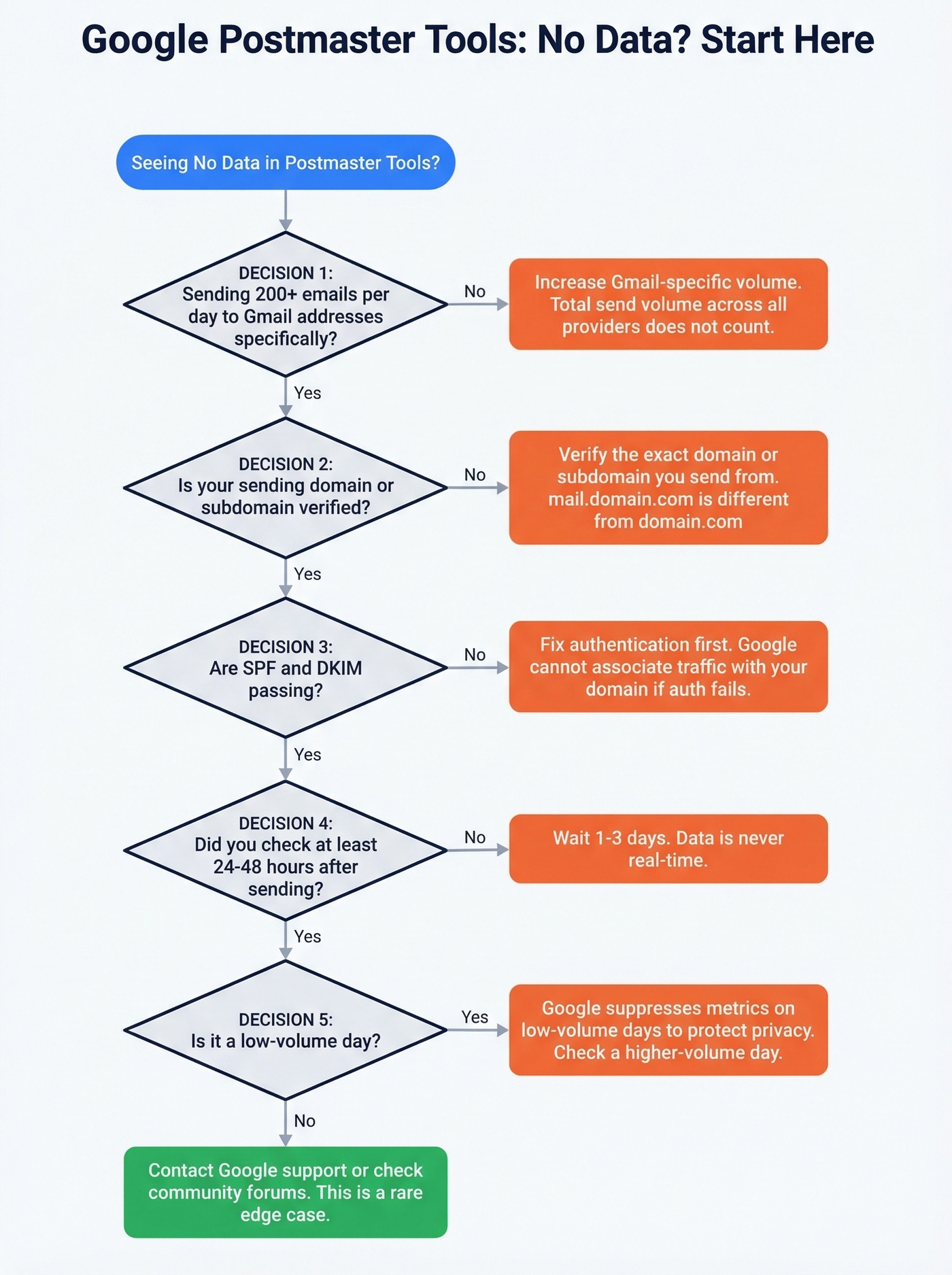
Here's the diagnostic checklist:
- Volume to Gmail specifically. You need roughly 200+ daily emails landing at Gmail addresses - not total volume across all providers. Lower-volume days get suppressed.
- Authentication must pass. If SPF or DKIM are failing, Google won't associate the traffic with your verified domain.
- Domain vs. subdomain mismatch. Verified
yourdomain.combut sending frommail.yourdomain.com? Verify the subdomain too. - Privacy suppression on low-volume days. Even if you normally exceed the threshold, Google can suppress data on days when your Gmail volume dips.
- 24-hour data lag is normal. Don't check the same day you send. Wait at least a full day, sometimes 2-3.
- Remove disengaged recipients. If a large portion of your list hasn't opened in 90+ days, those addresses drag down engagement signals and contribute to deliverability problems.
Gmail Bulk Sender Requirements
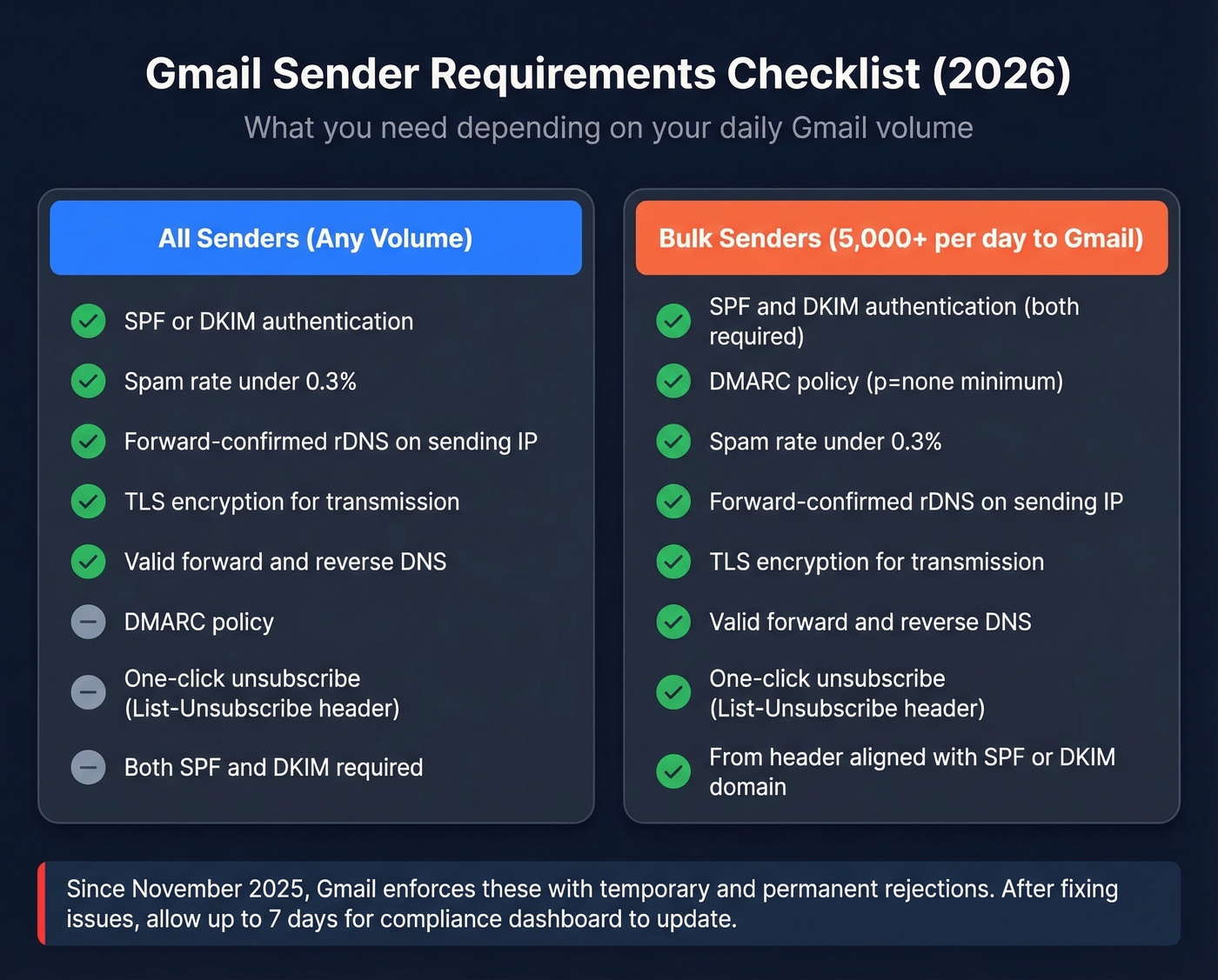
Since November 2025, Gmail has ramped up enforcement with temporary and permanent rejections for non-compliant senders. After fixing compliance issues, expect up to 7 days before the dashboard reflects your changes. Gmail doesn't forgive instantly.
| Requirement | All Senders | Bulk (>5K/day) |
|---|---|---|
| SPF or DKIM | ✓ | ✓ (both required) |
| DMARC (p=none min) | ✗ | ✓ |
| Spam rate < 0.3% | ✓ | ✓ |
| FC-rDNS on sending IP | ✓ | ✓ |
| TLS encryption | ✓ | ✓ |
| One-click unsubscribe | ✗ | ✓ |
| List-Unsubscribe header | ✗ | ✓ |
| ARC (for forwarders) | ✓ (forwarders) | ✓ (forwarders) |
The "all senders" tier is the baseline: SPF or DKIM, spam under 0.3%, forward-confirmed reverse DNS, and TLS. Most legitimate senders already meet these.
The bulk sender tier adds real teeth. You need both SPF and DKIM, a published DMARC record with at least p=none, and one-click unsubscribe via the List-Unsubscribe header. That last requirement catches the most teams off guard - it's not enough to have an unsubscribe link in your email body. Gmail wants the header-based mechanism.
If you're sending 5,000+ emails a day to Gmail and you haven't implemented all of this, you're already seeing rejections. The enforcement isn't theoretical anymore.
Monitoring Without Reputation Scores
Postmaster Tools v2 covers Gmail. That's one mailbox provider. You need a multi-provider stack, and the good news is most of the tools are free.
| Tool | What It Monitors | Price |
|---|---|---|
| Google Postmaster Tools | Gmail compliance + spam | Free |
| Microsoft SNDS | Outlook/Hotmail delivery | Free |
| Yahoo Sender Hub | Yahoo delivery | Free |
| Sender Score (Validity) | IP reputation (0-100) | Free |
| Talos Intelligence | Domain/IP classification | Free |
| Spamhaus Lookup | Blocklist status | Free |
| Barracuda Reputation | IP reputation | Free |
| MxToolbox | Blacklists, DNS, SMTP | Free basic / $129-$399/mo |
Set up the three provider tools - Google Postmaster Tools, Microsoft SNDS, and Yahoo Sender Hub. That covers the vast majority of B2B and B2C inboxes. Then add Sender Score and Spamhaus for the inbox placement and sender reputation signals that the compliance dashboard no longer provides. If you want a fuller list of options, see our roundup of email reputation tools.
We've seen teams spend hours in MxToolbox's Delivery Center when the free tools would've caught the same issues. Start free. Upgrade only if you need consolidated reporting across high-volume sending infrastructure.
Bad Data Is the Upstream Problem
A lot of the most painful issues you'll see in Google Postmaster Tools - delivery errors, rejections, compliance failures tied to complaints - trace back to one root cause: the quality of your email list. The dashboard shows you the symptoms. It can't fix the disease.
The chain is predictable. Invalid email addresses cause hard bounces. Hard bounces damage your sender reputation. Damaged reputation triggers delivery errors and compliance failures. Once Gmail decides you're a problem sender, climbing back takes weeks. I've seen teams burn through three sending domains before they realized the fix was upstream, not in their DKIM configuration.
This is where list verification matters - running addresses through a multi-step process that catches invalid addresses, spam traps, and honeypots before they ever reach Gmail's servers. Prospeo's 5-step verification with catch-all domain handling keeps bounce rates low and your compliance dashboard green. The free tier covers 75 verifications per month, and at scale it runs about $0.01 per email. If you’re benchmarking, compare your hard-bounce performance against typical email bounce rate ranges.
Every bounced email chips away at your domain reputation and pushes your spam rate toward that 0.3% cliff. Prospeo delivers 98% verified email accuracy with catch-all handling, spam-trap removal, and honeypot filtering built in - at $0.01 per email. No more gambling your sender reputation on stale data.
Send to 143M+ verified emails that won't wreck your deliverability.
For Developers: API Migration
If you've built integrations against the v1 Postmaster API, the clock has run out. The v1 API was deprecated and shut down at end of 2025, and the v2 API uses a different schema that requires code updates.
Here's your migration checklist:
- Export historical v1 data if you haven't already - it's gone once the API endpoint is fully decommissioned.
- Review the v2 API schema. The data model has changed to reflect the compliance-first dashboard structure. Reputation endpoints don't exist anymore.
- Test in staging before switching production integrations. The schema differences aren't trivial - field names, response structures, and available metrics have all shifted.
For teams that were pulling reputation scores into internal dashboards, you'll need to replace that data source with third-party tools like Sender Score or Talos Intelligence.
FAQ
Is Google Postmaster Tools free?
Yes, completely free with no paid tiers. You need a Google account and a domain you can verify via DNS TXT record. Setup takes under five minutes, plus 24-48 hours for DNS propagation and verification.
What's the minimum volume to see data?
Plan for 200+ daily emails to Gmail recipients specifically. Below that threshold, Google suppresses metrics to protect recipient privacy. Total volume across all providers doesn't count - only messages reaching Gmail addresses matter.
How often does the dashboard update?
Typically within 24 hours, but delays of 2-3 days happen regularly. Compliance status changes can take up to 7 days to reflect after you've fixed an issue. Don't make configuration changes and immediately check - give it time.
Does it work for Outlook or Yahoo?
No - it's Gmail-only. Use Microsoft SNDS for Outlook and Yahoo Sender Hub for Yahoo. You need all three to get full visibility across major mailbox providers.
How do I reduce bounce rates flagged in Postmaster Tools?
Verify your list before sending. A multi-step verification process catches invalid addresses, spam traps, and honeypots before they reach Gmail's servers. Remove addresses that haven't engaged in 90+ days, and never purchase lists from third-party brokers - they're the fastest path to a wrecked compliance dashboard.