

Google Workspace MX Records Setup: The Complete Guide
Google's setup wizard says "update your MX records" like it's a single click. For most people, it's a two-hour rabbit hole across three tabs, two support docs, and a growing fear that you just broke your company's email. The problem isn't that the setup is hard - it's that no single page covers both valid MX configurations, the full authentication stack, and what to do when things go wrong.
This one does.
Quick Reference - All DNS Records You Need
Bookmark this section. Come back to it when you're staring at your DNS dashboard.
MX Record Configurations (pick one)
| Config | Host | Value | Priority |
|---|---|---|---|
| New (recommended) | @ |
smtp.google.com |
1 |
| Legacy record 1 | @ |
ASPMX.L.GOOGLE.COM |
1 |
| Legacy record 2 | @ |
ALT1.ASPMX.L.GOOGLE.COM |
5 |
| Legacy record 3 | @ |
ALT2.ASPMX.L.GOOGLE.COM |
5 |
| Legacy record 4 | @ |
ALT3.ASPMX.L.GOOGLE.COM |
10 |
| Legacy record 5 | @ |
ALT4.ASPMX.L.GOOGLE.COM |
10 |
New setup? Use smtp.google.com. Already have the 5-record set working? Leave it alone.
Companion Authentication Records
| Record | Type | Host/Name | Value |
|---|---|---|---|
| SPF | TXT | @ |
v=spf1 include:_spf.google.com ~all |
| DKIM | TXT | google._domainkey |
(generated in Admin Console) |
| DMARC | TXT | _dmarc |
v=DMARC1; p=none; rua=mailto:dmarc@yourdomain.com |
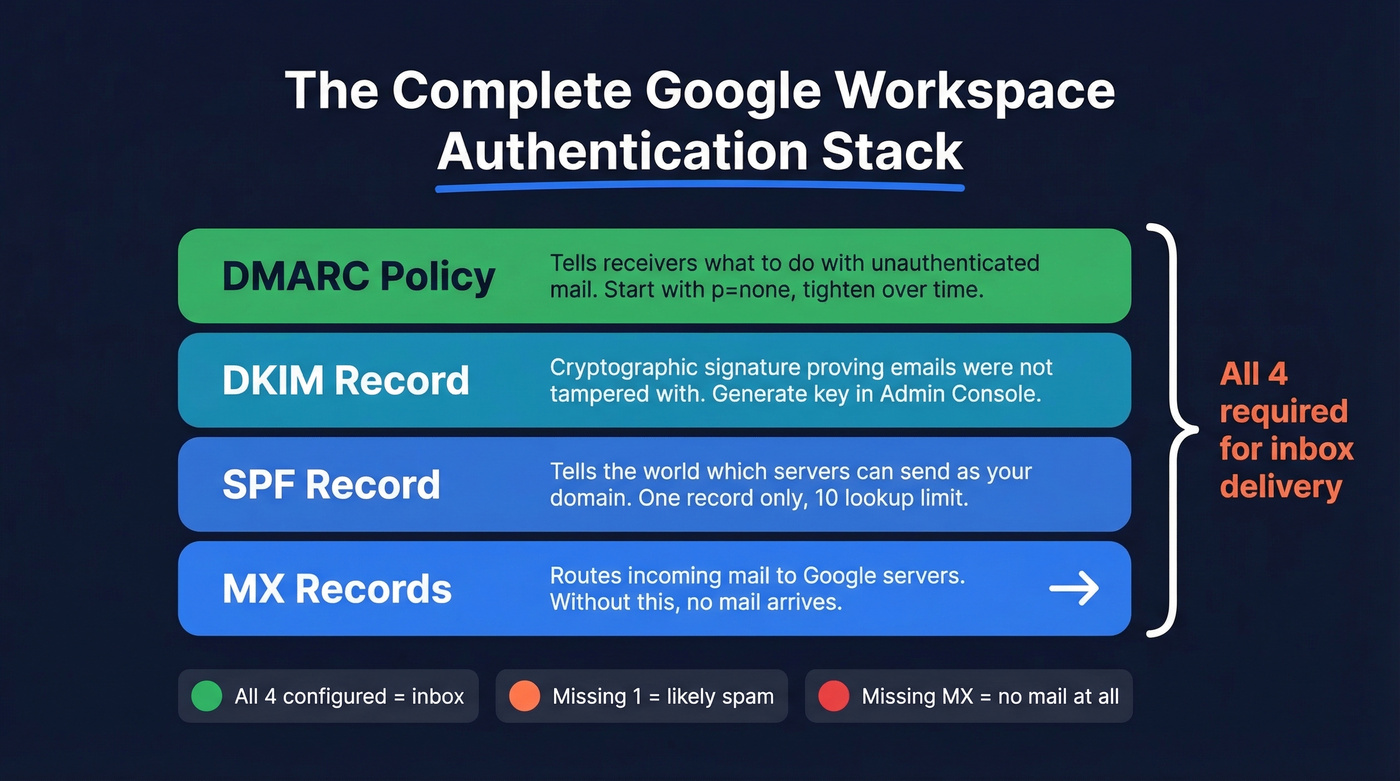
You need all four pieces - MX plus SPF, DKIM, and DMARC - for email to flow correctly and land in inboxes instead of spam folders. Missing any one of them is the fastest way to end up in junk.
Which MX Configuration Should You Use?
Google simplified Workspace email routing in April 2023 by introducing a single MX record option: smtp.google.com at priority 1. Before that, every setup required the five-record ASPMX set - what many admins still think of as the default.
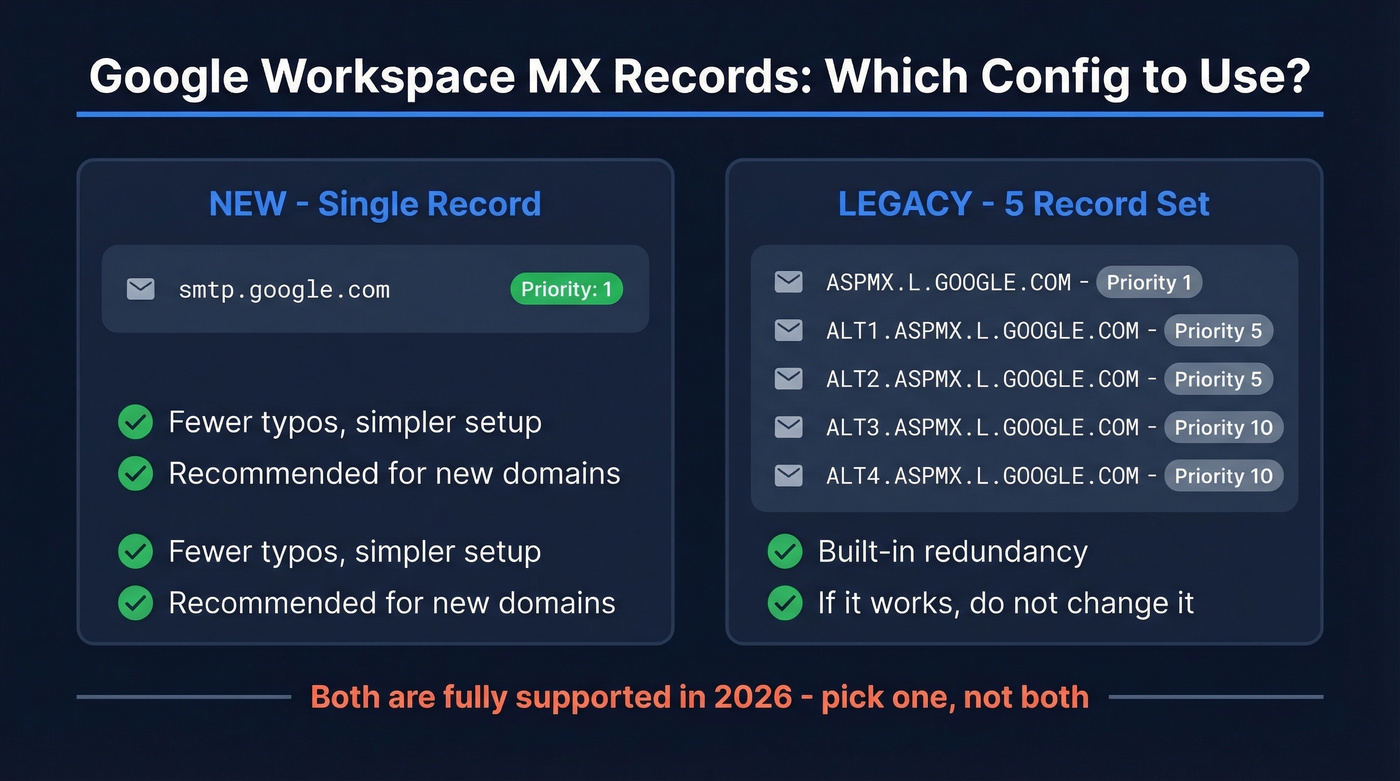
Here's the thing: both configurations are fully supported in 2026. A lot of blog posts label the 5-record set as "outdated" or "deprecated." That's wrong. Google supports both, and the legacy set works identically to the single record for mail routing. You don't need third-party backup MX records either - Google Workspace's SLA guarantees 99.9% availability, and the legacy 5-record set already includes built-in redundancy.
The decision is simple. Setting up a new domain? Use smtp.google.com - one record, one priority value, less room for typos. Already running the 5-record set without issues? Don't touch it. Changing working MX records introduces unnecessary downtime risk for zero benefit. If Google Admin is prompting you to update, follow the prompt. Otherwise, leave things alone.
Don't change working MX records. Unnecessary DNS changes are the #1 self-inflicted email outage we see. If your email is flowing fine, there's no reason to swap configurations.
Step Zero - Find Your DNS Host
This is the step everyone skips, and it's the #1 reason MX setups fail.
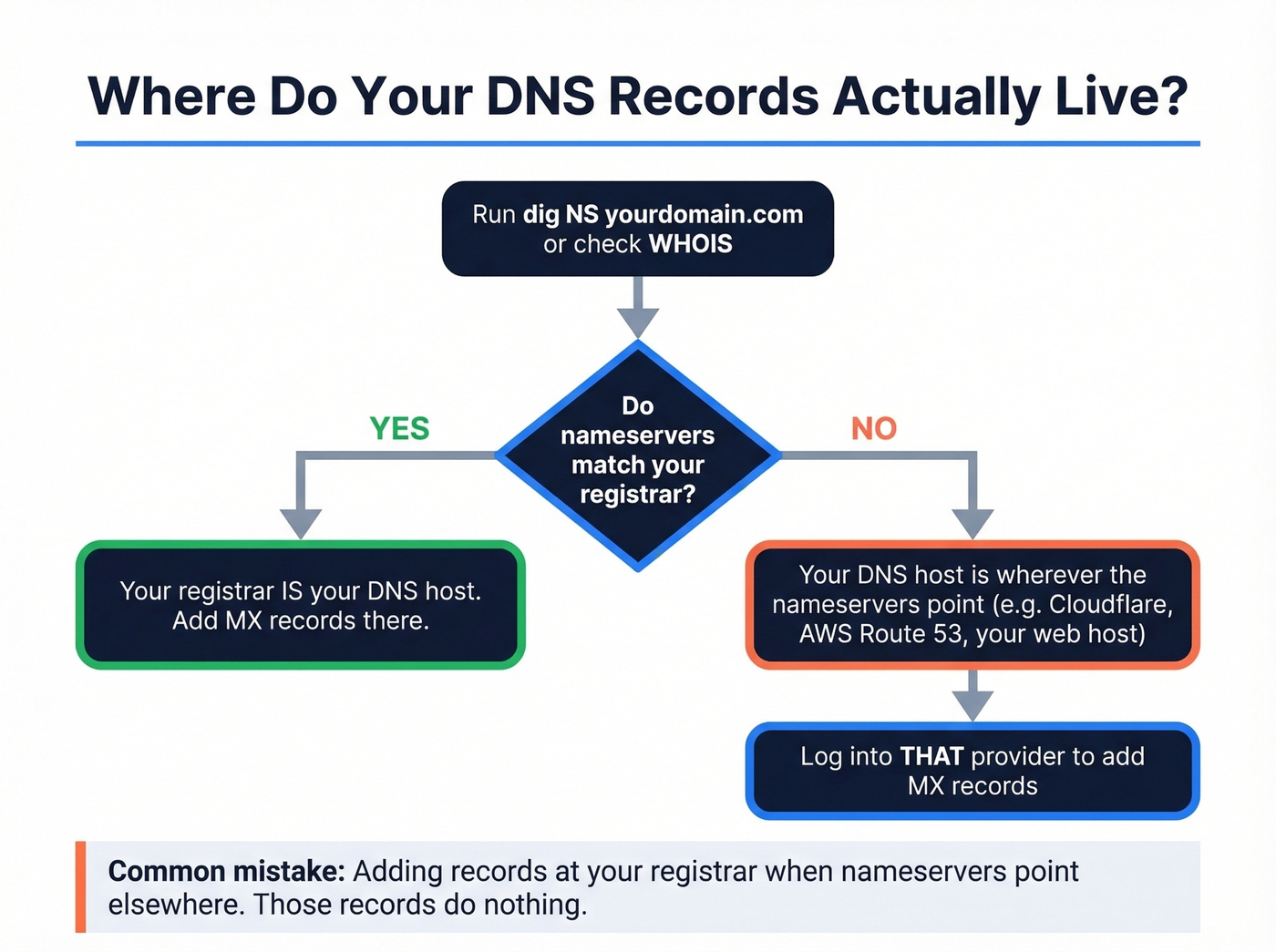
Your domain has a registrar (where you bought it) and a DNS host (where your DNS records actually resolve from). These are often the same company - but not always. If you bought your domain at Namecheap but pointed nameservers to Cloudflare, your DNS lives at Cloudflare. Adding MX records at Namecheap does absolutely nothing.
Before you touch any records, confirm where your DNS is hosted:
- Run
dig NS yourdomain.comin terminal, or use a WHOIS lookup tool - The nameservers in the response tell you where DNS lives
- Log into that provider's dashboard to add your MX records
We've seen this exact scenario dozens of times: someone sets up Google Workspace through Namecheap, verifies the domain, MX records work. Then they switch to "Custom DNS" pointing to their web host, email stops working, and they're scrambling to recreate records at the new DNS host. If you change nameservers, you must recreate all MX and TXT records at the new provider. Every time.
Add MX Records for Google Workspace
These steps work regardless of DNS provider. The UI labels differ, but the process is the same.
- Log into your DNS host - the one your nameservers point to, which you confirmed in Step Zero.
- Delete any existing MX records from a previous email provider. Old MX records cause mail to split unpredictably between providers. Remove them first.
- Add your Google MX record(s). For the single-record config: Host =
@, Type = MX, Value =smtp.google.com, Priority =1. For the legacy set, add all five records with their respective priorities from the table above. - Save and wait. In our experience, propagation takes 30-60 minutes, not the 48-72 hours many guides cite.
Registrar-specific tips:
- Cloudflare: Make sure MX records are set to "DNS only" mode. The orange cloud (proxy) icon shouldn't appear on MX records - Cloudflare's docs confirm this.
- Trailing dots: Some DNS providers require
smtp.google.com.with a trailing dot. If your provider shows an error without it, add the dot. - Host field: Depending on the provider, the host field might need
@, be left blank, or show "root." All three mean the same thing - your bare domain.

You're setting up MX, SPF, DKIM, and DMARC to keep your emails out of spam. But authentication only works if the addresses you're sending to are real. Prospeo's 5-step verification delivers 98% email accuracy - so your carefully configured domain never bounces its way into a blacklist.
Don't let bad contact data undo all this DNS work.
Complete Your Email Authentication
MX records route mail to Google's servers. Authentication records prove to the world that mail from your domain is legitimate. Skip these and your emails land in spam.
SPF Record
Add a single TXT record:
Host: @

Value: v=spf1 include:_spf.google.com ~all
Three critical rules. First, you can only have one SPF record per domain. If you already have an SPF record from a previous provider or marketing tool, merge the include: statements into one record rather than creating a second. Two SPF records break both.
Second, SPF has a 10-DNS-lookup limit per RFC 7208. If you're including Mailchimp, SendGrid, and HubSpot alongside Google, you'll hit the ceiling fast. Flatten nested includes if you're running multiple sending services - tools like AutoSPF or manual flattening can help.
Third, use ~all (soft fail) rather than -all (hard fail) during initial setup. Hard fail rejects legitimate mail if you haven't accounted for all sending services yet. Tighten to -all once you've confirmed every sender is covered.
DKIM Setup
DKIM requires generating a key in Google Admin Console, then publishing it as a DNS record.
- Go to Admin Console > Apps > Google Workspace > Gmail > Authenticate Email
- Select your domain and click Generate New Record
- Copy the TXT record value (it'll start with
v=DKIM1; k=rsa; p=...) - Add a TXT record at your DNS host: Name/Host:
google._domainkey(some DNS hosts want the fullgoogle._domainkey.yourdomain.com), Value: the key you copied - Wait 24-48 hours before returning to Admin Console to click "Start Authentication"
Don't rush step 5. Clicking "Start Authentication" before the record has propagated is the single most common DKIM failure we see, and it forces you to start over. If you want a quick sanity check after publishing, follow a DKIM verification workflow before you retry.
DMARC Record
Start with a monitoring-only policy:
Host: _dmarc

Value: v=DMARC1; p=none; rua=mailto:dmarc-reports@yourdomain.com
The rua tag sends aggregate reports to your inbox so you can see who's sending mail as your domain. Run p=none for 2-4 weeks, review the reports, then tighten to p=quarantine and eventually p=reject once you're confident all legitimate senders are authenticated. Jumping straight to p=reject on a domain with multiple sending services is a great way to silently kill your marketing emails.
How to Verify Your Setup
Don't assume - verify. Three ways to confirm everything's correct.
Google Admin Toolbox CheckMX: Go to toolbox.googleapps.com/apps/checkmx, enter your domain, and run the check. It validates MX records, SPF, and optionally DKIM if you provide the selector.
Command line: Run dig MX yourdomain.com or nslookup -type=MX yourdomain.com. You should see only Google's mail servers in the output:
yourdomain.com. 300 IN MX 1 smtp.google.com.
If you see records from a previous provider mixed in, go back and delete them.
MXToolbox: A solid third-party alternative at mxtoolbox.com. Enter your domain and it shows MX, SPF, DKIM, and DMARC status in one view - useful for a second opinion if CheckMX gives you an unexpected result.
Troubleshooting Common Issues
Not Receiving Emails
The most common cause: you added MX records at the wrong DNS host. If your nameservers point to Cloudflare but you added records at GoDaddy, those records don't exist as far as the internet is concerned. Run dig NS yourdomain.com to confirm where DNS lives, then verify your MX records are there.
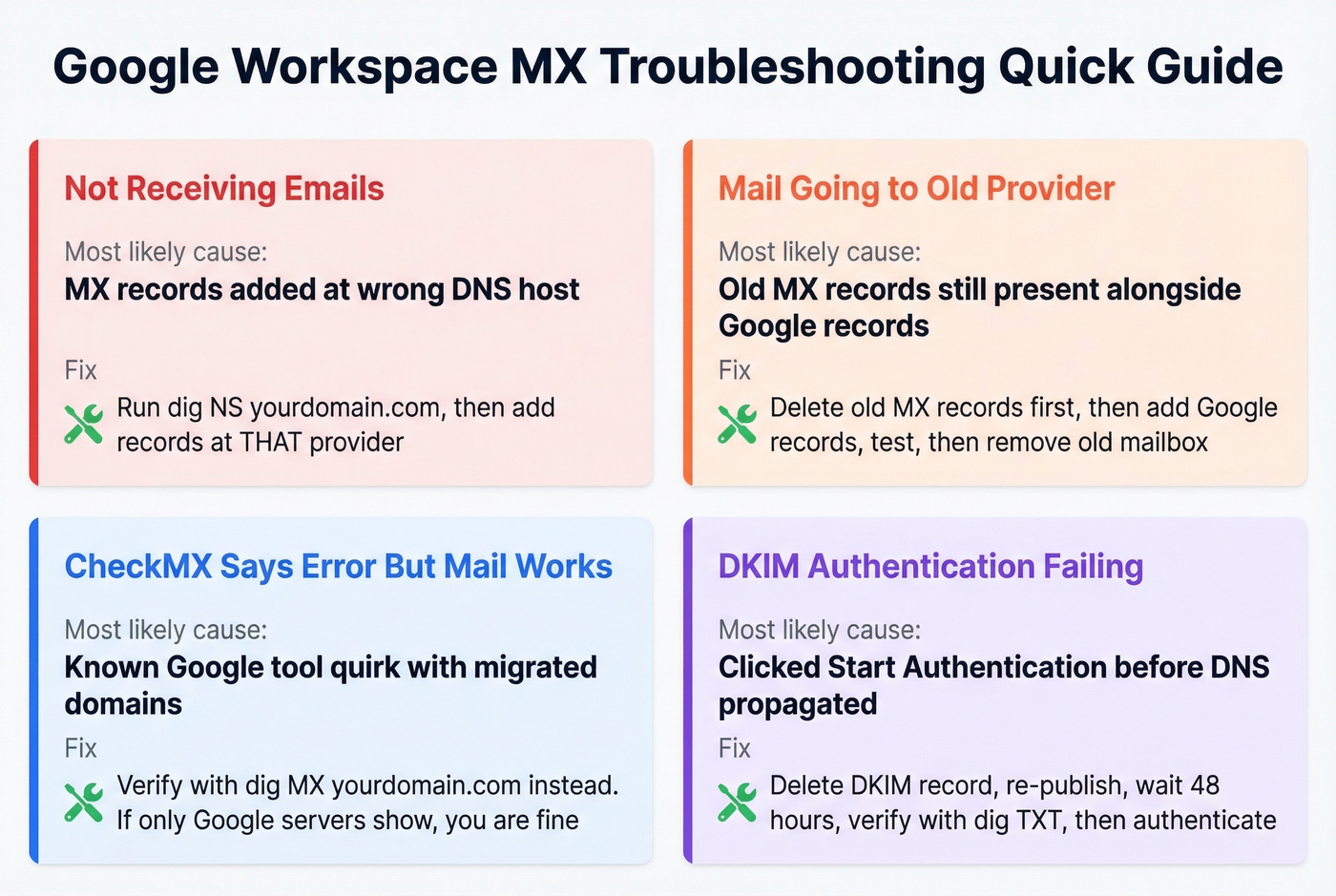
Second most common: the records exist but have wrong values or priorities. Double-check against the reference table at the top of this article. A typo in smtp.google.com or a missing priority value silently breaks inbound mail.
Mail Going to Old Provider
This happens when old MX records are still present alongside Google's. Mail splits between providers based on priority - and if the old provider has a lower priority number (higher priority), it wins.
The safe migration sequence: add Google MX records, send a test email to confirm delivery, remove old provider's MX records, wait 24 hours, then delete the old mailbox. Keeping the old mailbox active can intercept mail even when Google's records have higher priority, because some hosting providers route locally before checking DNS.
CheckMX Says "Not Set Up Correctly" But Mail Works
This is a known quirk. Google's CheckMX tool sometimes flags domains that previously used a different email service, even when the current MX records are correct.
Verify independently: run dig MX yourdomain.com. If the only records in the output are Google's mail servers, you're fine. Send test emails from an external account to confirm delivery. If mail arrives, ignore CheckMX's complaint - it typically resolves itself within a few days.
DKIM Authentication Failing
You clicked "Start Authentication" in Admin Console too soon. Delete the DKIM record, re-publish it, wait a full 48 hours, then try authenticating again. Verify the record exists first with dig TXT google._domainkey.yourdomain.com. If the query returns nothing, the record hasn't propagated yet - or you published it at the wrong DNS host.
Protect Your Sender Reputation
You just configured MX records, SPF, DKIM, and DMARC. Your domain is authenticated and ready to send. But authentication only proves your domain is real - it doesn't protect you from what you send.

Look, if you're using Google Workspace for sales outreach, sending to unverified email addresses causes bounces. Bounces damage the sender reputation you just built. Standard Google Workspace accounts cap sending at 2,000 emails per day per user, and a high bounce rate within that limit can still get your domain flagged. The consensus on r/coldemail is pretty clear: verify before you send, or pay for it later with deliverability problems that take weeks to fix. Prospeo's 5-step verification process handles catch-all domains, removes spam traps, and filters honeypots - so your freshly authenticated domain doesn't get burned on bad data from day one. If you want to go deeper on prevention, use an email deliverability checklist and track your email bounce rate as you ramp.
You just spent hours perfecting your email authentication stack. Now protect that sender reputation with data that's verified every 7 days - not every 6 weeks. Prospeo's 143M+ verified emails and spam-trap removal keep your bounce rate under control from day one.
Your domain is authenticated. Make sure your prospect list is too.
FAQ
Can I use smtp.google.com instead of the 5-record ASPMX set?
Yes. Both are fully supported in 2026. Use smtp.google.com for new domains because it's simpler - one record, one priority value. If the 5-record ASPMX set is already working on your domain, don't change it.
How long do MX changes take to propagate?
Typically 30-60 minutes. The "48-72 hours" figure is a worst case. If mail isn't flowing after an hour, it's almost certainly a configuration error, not a propagation delay.
Do I need SPF, DKIM, and DMARC if I only receive email?
Yes. They protect your domain from spoofing, which damages reputation even if you never send outbound email. They also improve deliverability for replies, calendar invites, and Workspace notifications that Google sends on your behalf.
What happens when two providers have MX records on the same domain?
Mail splits unpredictably based on priority values. Remove your old provider's MX records before or immediately after adding Google's to prevent lost messages.
How do I keep bounces from damaging my new domain?
Run your contact list through an email verification tool before sending outreach. A bounce rate above 5% on a fresh domain is a red flag to mailbox providers, and recovery takes far longer than prevention.