

MX Record Lookup: What It Tells You, How to Run One, and What to Do When Mail Breaks
You migrated your domain to a new DNS host last Tuesday. MX records are copied exactly. It's been 36 hours, and inbound email is landing nowhere. Or maybe you're setting up Google Workspace for a new domain and just need to confirm the mail exchange values are right before flipping the switch. Either way, the tool pages that dominate the results give you an MX record lookup box and zero context about what you're actually looking at.
Here's the thing: most MX problems aren't mysterious. They're misconfigurations hiding behind a "wait 24-48 hours" excuse that lets broken setups fester. This is the guide that explains what you're seeing, why things break, and how to fix them.
What You Need (Quick Version)
Before we go deep, the fast-reference version:
- Best free lookup tool: MxToolbox - queries authoritative nameservers, so changes show instantly.
- CLI command:
dig yourdomain.com MX +shorton macOS/Linux ornslookup -query=MX yourdomain.comon Windows. - Realistic propagation time: 30-60 minutes when your TTL is 3600 or lower. Not 24-48 hours.
- The #1 reason mail breaks after migration: You updated MX records in the wrong DNS zone. Your nameserver delegation still points to the old provider, so nobody sees your changes.
If any of that doesn't make sense yet, keep reading.
What Is an MX Record?
An MX (Mail eXchange) record is a DNS record that tells sending mail servers where to deliver email for your domain. When someone emails you@yourcompany.com, their mail server queries DNS for yourcompany.com's MX records, gets back one or more hostnames with priority numbers, and attempts delivery starting with the lowest priority value.
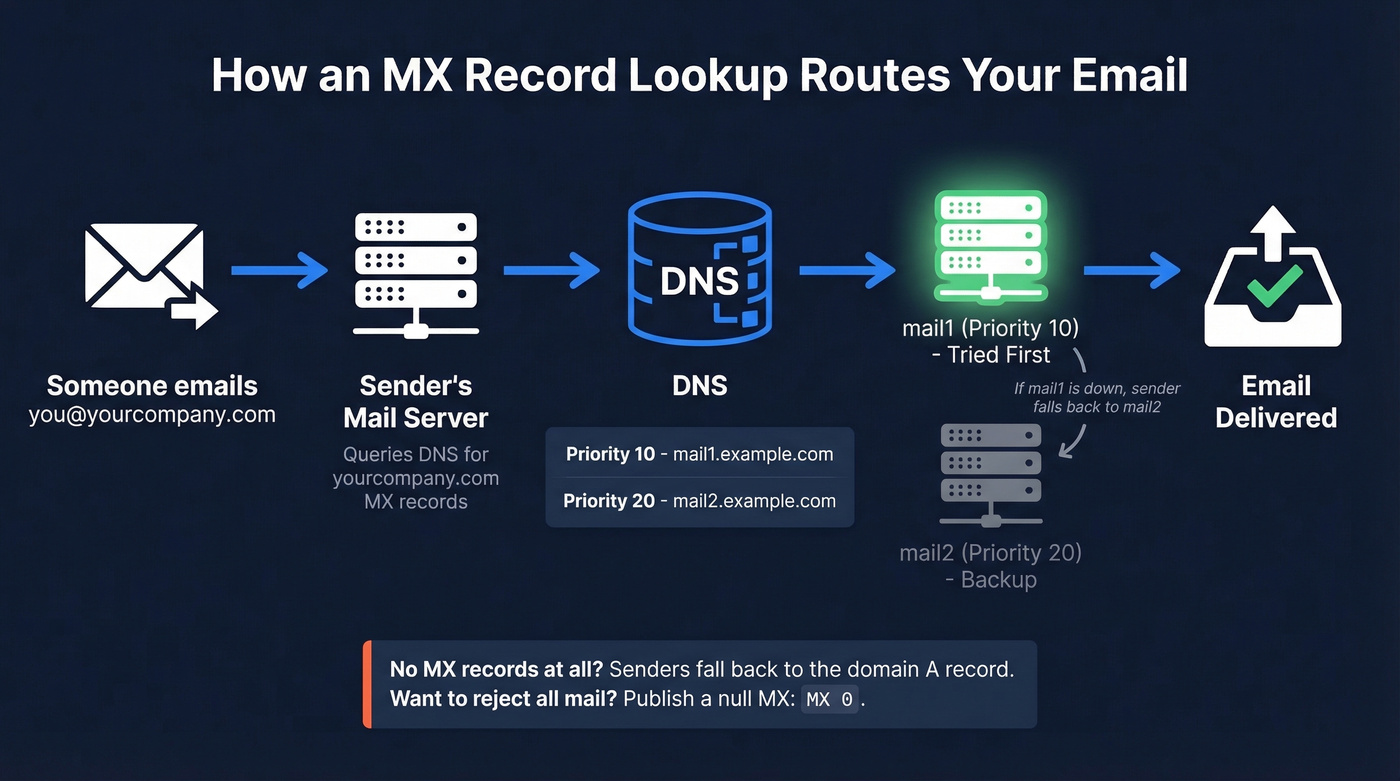
Take a concrete example. Say your domain has two MX records:
| Priority | Hostname |
|---|---|
| 10 | mail1.example.com |
| 20 | mail2.example.com |
The sending server tries mail1 first (priority 10). If mail1 is down or unreachable, it falls back to mail2 (priority 20). If both records share the same priority - say two servers at priority 10 - the sender randomizes between them for load balancing. This behavior is defined in the SMTP routing rules in RFC 5321.
MX records should point to a hostname (a fully qualified domain name), not an IP address. MX targets also shouldn't be CNAMEs. Some mail transfer agents will follow a CNAME chain and deliver anyway, but others refuse the chain entirely - and you'll never know which camp a given sender falls into until mail silently disappears.
No MX records at all? Senders fall back to the domain's A or AAAA record - the "implicit MX" behavior. And if you want to explicitly reject all mail for a domain, publish a null MX record - MX 0 . - as defined in RFC 7505. That tells senders "this domain doesn't accept email, stop trying."
How to Run an MX Record Lookup
Online Tools Compared
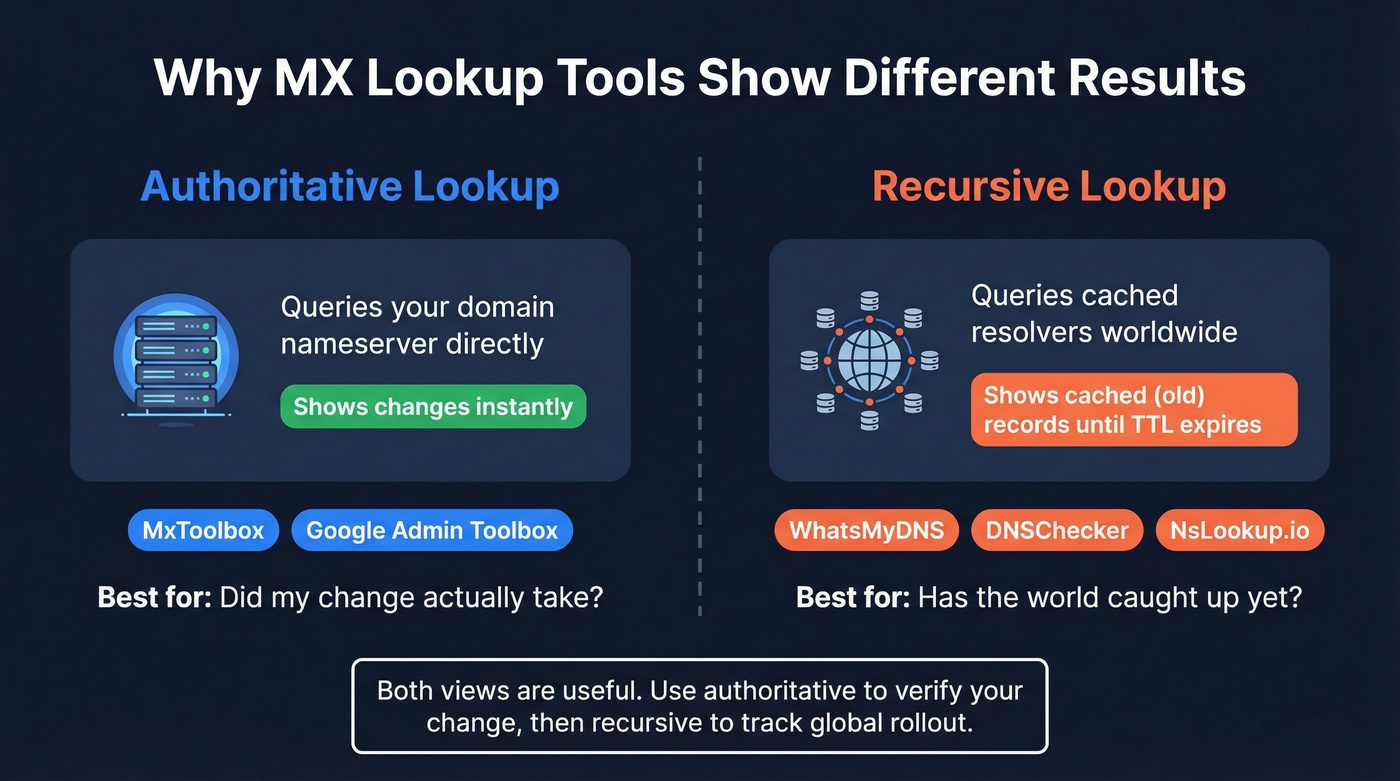
Not all lookup tools work the same way. The difference matters when you're troubleshooting a recent change.
| Tool | Best For | Queries Authoritative DNS? | Extras |
|---|---|---|---|
| MxToolbox | Instant verification | Yes | Blacklist check (105 lists) |
| WhatsMyDNS | Global propagation | No (multiple global resolvers) | Multi-location view |
| Google Admin Toolbox | Workspace validation | Yes | Google-specific checks |
| DNSChecker | Multi-resolver comparison | No by default | Visual map of results |
| EasyDMARC | MX + DMARC in one view | Varies | Auth record bundling |
| NsLookup.io | Quick, no frills | No (standard recursive) | Lightweight interface |
Here's what confuses people: MxToolbox shows your MX change instantly while DNSChecker still shows the old records. That's not a bug. MxToolbox queries your domain's authoritative nameservers directly - the source of truth. Tools like DNSChecker and WhatsMyDNS query recursive resolvers around the world, which cache records based on TTL. After a change, those cached copies persist until the old TTL expires.
Both views are useful. Authoritative for "did my change actually take?" Recursive for "has the world caught up yet?"

Command-Line Methods
For Windows, nslookup is built in:
nslookup -query=MX yourdomain.com
Sample output:
Server:  dns.yourISP.com

Address:  192.168.1.1

Non-authoritative answer:
yourdomain.com  MX preference = 10, mail exchanger = mail1.yourdomain.com
yourdomain.com  MX preference = 20, mail exchanger = mail2.yourdomain.com
"Non-authoritative answer" means the result came from a cached recursive resolver, not the domain's authoritative nameserver. That's normal.
On macOS and Linux, dig is the standard:
dig yourdomain.com MX
Sample output:
;; ANSWER SECTION:
yourdomain.com.    3600    IN    MX    10 mail1.yourdomain.com.
yourdomain.com.    3600    IN    MX    20 mail2.yourdomain.com.
Each line gives you the domain, TTL (3600 seconds = 1 hour), record type (MX), priority, and the mail server hostname. That TTL value is critical during migrations - it controls how long resolvers cache the old record.
The dig flags you'll actually use:
+short- strips everything except the answer. Clean output for scripting.+trace- follows the full resolution chain from root servers down. Essential for debugging delegation issues.@8.8.8.8- queries a specific resolver instead of your default. Compare what Google's DNS sees vs your ISP's.+noall +answer- shows only the answer section with less noise than default output.
When troubleshooting, the combo we reach for most often is dig yourdomain.com MX +trace to verify the delegation chain, followed by dig @8.8.8.8 yourdomain.com MX +short to see what a major public resolver has cached.
How to Read the Results
Whether you're using a web tool or the command line, you're looking at three key fields per record.
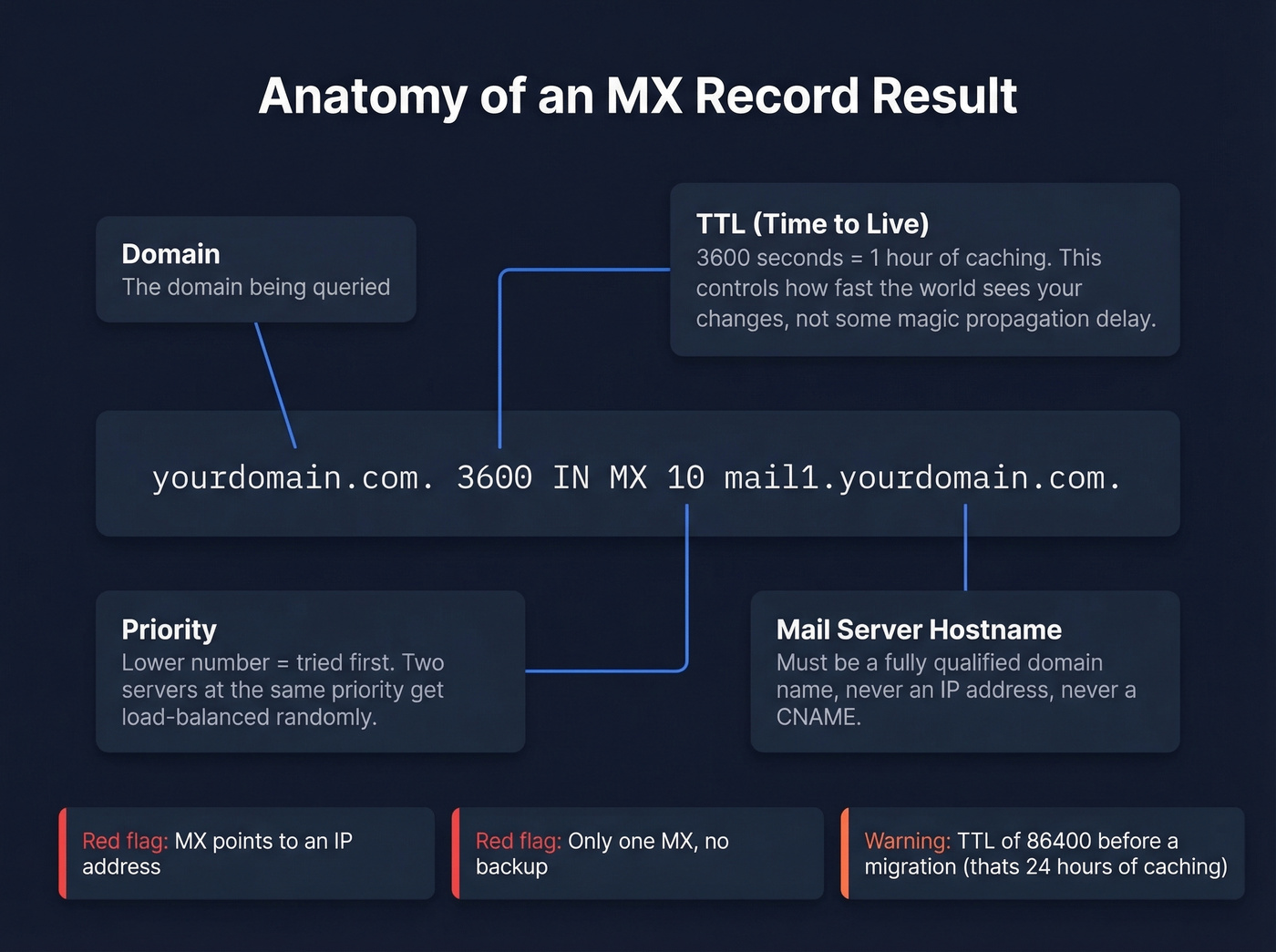
Hostname is the mail server that'll receive your email. It should be a fully qualified domain name - something like mail.yourdomain.com or aspmx.l.google.com. If you see an IP address here, that's a misconfiguration.
Priority determines the order senders try servers. Lower numbers get tried first. A single MX at priority 1 means all mail goes to one server with no failover. Two servers at priority 10 and 20 mean the second is a backup.
TTL controls how long recursive resolvers cache this record. A TTL of 3600 means resolvers hold onto the answer for one hour before re-querying. During migrations, this is the number that determines how fast the world sees your change - not some mystical "propagation" process.
Red flags to watch for: MX pointing to an IP address instead of a hostname, a single MX with no backup server, or a very high TTL like 86400 (that's 24 hours of caching) right before a planned migration. If two different tools show different results, don't panic - one is probably querying authoritative DNS and the other is showing a cached copy. Check the TTL to estimate when they'll converge.
One step people skip after verifying MX records: checking whether your mail server IPs appear on DNS-based blacklists. A perfectly configured mail exchange record is useless if the server it points to is blacklisted. MxToolbox checks against 105 blacklists automatically during a lookup - use that data. If you're working on broader deliverability, it also helps to track your domain health with email reputation tools.
MX Records by Provider
Google Workspace
In April 2023, Google introduced a simplified single-record setup for new domains:
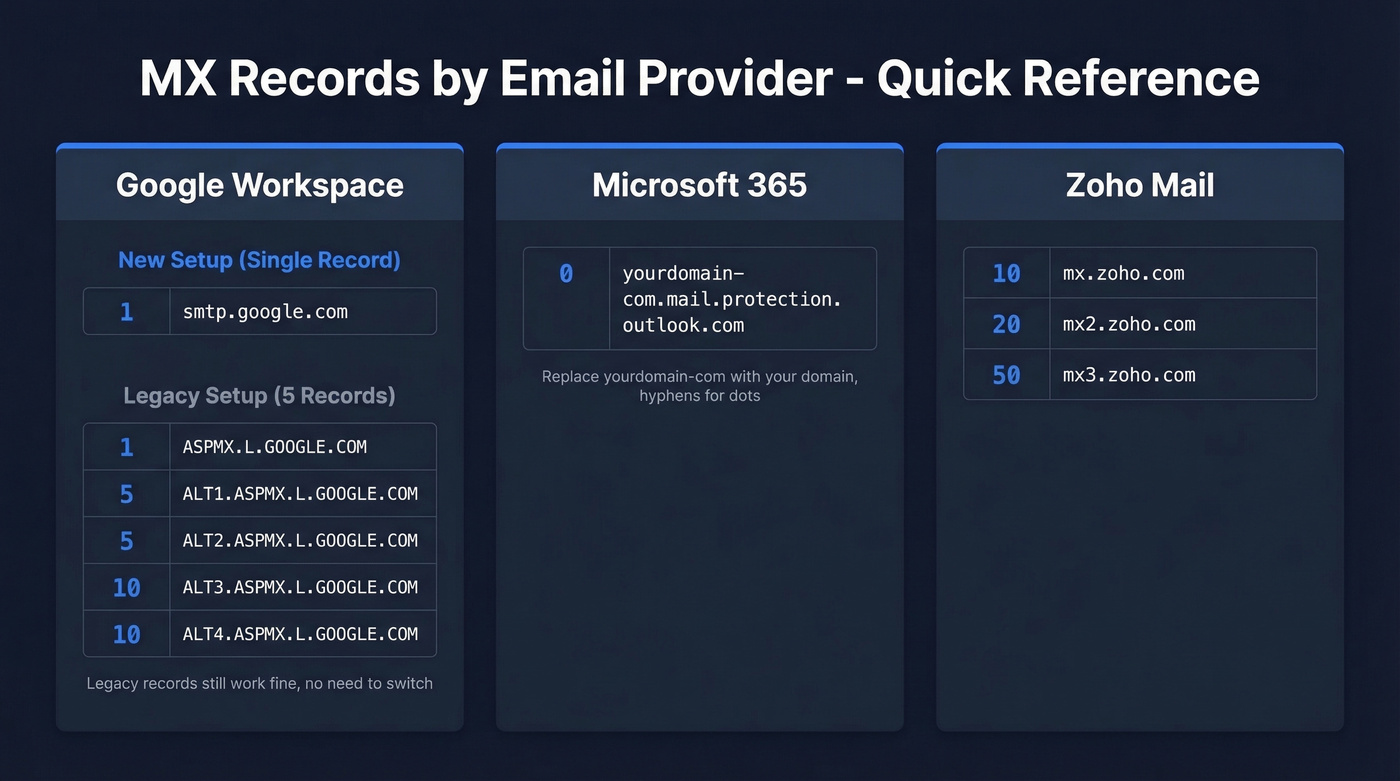
| Priority | Hostname |
|---|---|
| 1 | smtp.google.com |
The legacy five-record configuration still works and is widely deployed:
| Priority | Hostname |
|---|---|
| 1 | ASPMX.L.GOOGLE.COM |
| 5 | ALT1.ASPMX.L.GOOGLE.COM |
| 5 | ALT2.ASPMX.L.GOOGLE.COM |
| 10 | ALT3.ASPMX.L.GOOGLE.COM |
| 10 | ALT4.ASPMX.L.GOOGLE.COM |
If your legacy records are working, don't change them just because the single-record option exists. Unnecessary MX changes can cause temporary delivery issues for zero benefit.
Microsoft 365
Microsoft 365 uses a single MX record with a domain-specific hostname:
| Priority | Hostname |
|---|---|
| 0 | yourdomain-com.mail.protection.outlook.com |
Replace yourdomain-com with your actual domain, substituting hyphens for dots. Priority 0 just means "highest priority."
Zoho Mail
Zoho uses a three-record setup:
| Priority | Hostname |
|---|---|
| 10 | mx.zoho.com |
| 20 | mx2.zoho.com |
| 50 | mx3.zoho.com |

MX misconfigurations destroy deliverability - but so does sending to bad addresses. Prospeo's 5-step email verification catches invalid, catch-all, and spam-trap addresses before they ever hit your outbox. 98% accuracy, 143M+ verified emails.
Fix your MX records, then fix your email list. Start free.
The 24-48 Hour Propagation Myth
Every hosting provider, every DNS tutorial, and every support article tells you to "wait 24-48 hours for propagation." This is, at best, a CYA disclaimer. At worst, it causes people to sit around waiting when something is actually broken.
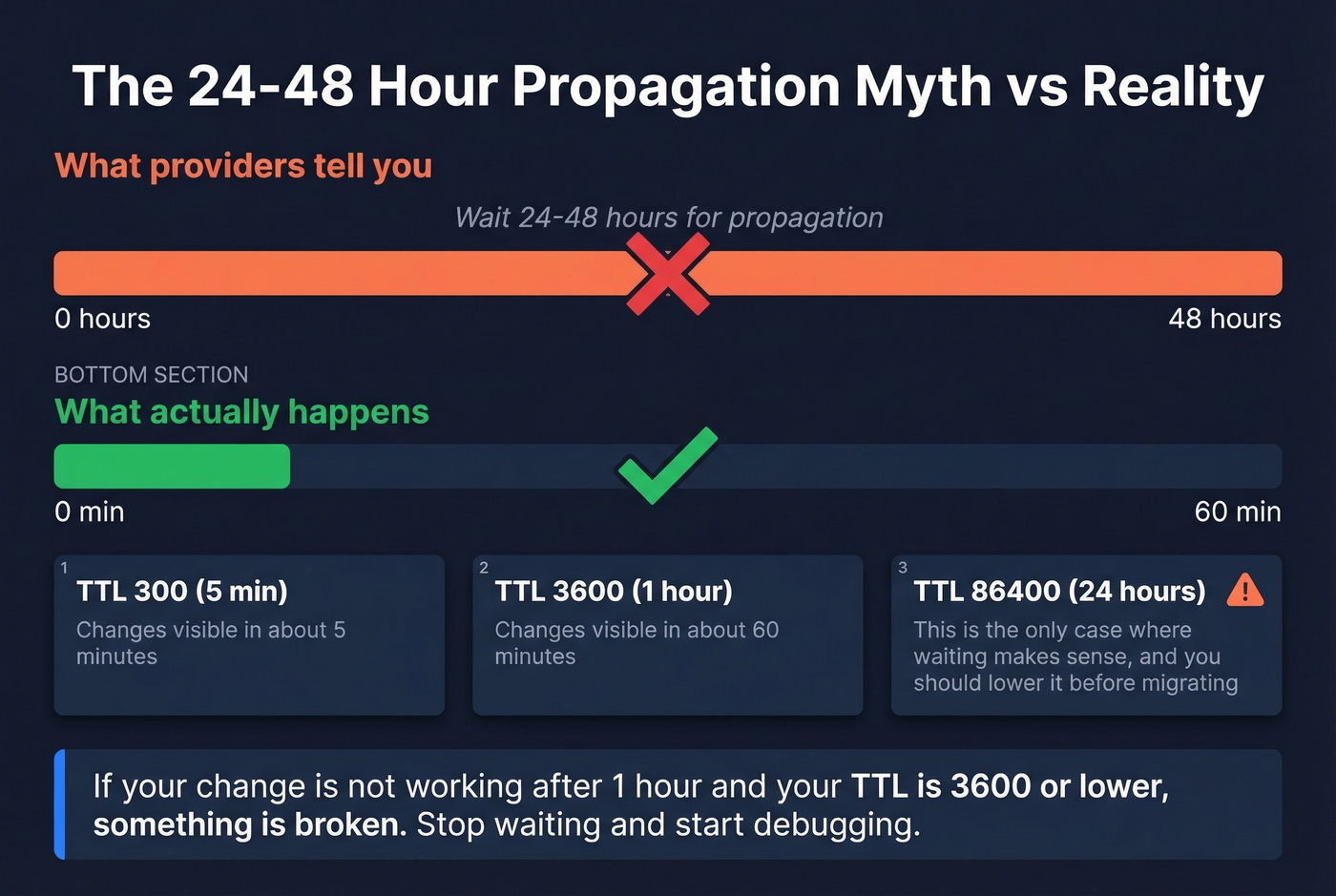
Here's what's actually happening. There's no global propagation process. When you update an MX record, your authoritative nameserver has the new value immediately. Recursive resolvers around the world still have the old value cached, and they'll hold onto it until the old TTL expires. If your TTL was 3600 (one hour), most resolvers pick up the change within an hour. If your TTL was 300 (five minutes), it's even faster.
The frustration on Reddit about this is real - practitioners know changes take under an hour in practice, yet providers keep parroting the 48-hour line. If your TTL is 3600 or lower and your change still isn't working after about 60 minutes, something is wrong. Waiting longer won't fix a misconfiguration. Check your nameserver delegation, verify you edited the right DNS zone, and use an authoritative lookup tool to confirm the answer.
The 24-48 hour propagation myth has probably caused more wasted engineering hours than any other piece of DNS folklore. It trains people to wait instead of debug. If you're sitting around "giving it time" past the one-hour mark, you're not being patient - you're ignoring a broken configuration.
Common Misconfigurations and Fixes
MX Pointing to an IP Address
MX records should resolve to a hostname, not an IP address. Many DNS control panels will let you enter an IP in the MX value field, and it's a surprisingly common mistake. Replace the IP with your mail server's fully qualified domain name, and make sure that hostname has a valid A record pointing to the IP.
MX Pointing to a CNAME
MX targets shouldn't be CNAMEs. Some mail transfer agents will follow the CNAME chain and deliver anyway, but others won't - and you'll get intermittent delivery failures that are maddening to debug because they only affect certain senders. Point your MX directly to a hostname that resolves to an A or AAAA record. No intermediate CNAMEs.
Stale Records After Migration
This is the #1 failure pattern we see. You move your domain from GoDaddy to AWS Route 53, copy your Google Workspace MX records into Route 53 exactly as they were, wait 24 hours, and mail still doesn't arrive.
The problem? Your domain's NS (nameserver) records still point to GoDaddy. The world is asking GoDaddy for your MX records, and GoDaddy still has the old values - or no values at all. Your Route 53 zone is invisible to everyone.
Run dig yourdomain.com NS to confirm which nameservers are actually authoritative, then update your records in that zone.
Mixed-Provider MX at Same Priority
If you have MX records from two different providers at the same priority - say Google's aspmx.l.google.com at priority 10 and your old host's mail.oldhost.com also at priority 10 - senders will randomly split traffic between them. Some email arrives in Google Workspace, some goes to the old server. Nobody's happy. Use distinct priorities for each provider during transitions, or better yet, consolidate to a single provider and remove the old records entirely.
Dangling MX - A Real Security Risk
One risk almost no guide covers: a "dangling MX" occurs when your MX record points to a hostname whose parent domain is expired or available for purchase. An attacker buys that domain, stands up a mail server, and starts receiving your email.
This isn't theoretical. DNS Institute research found 393 domains with dangling MX records in a single study. Even lower-priority MX targets can collect mail - attackers can induce failures on higher-priority routes, or simply wait for the primary to be temporarily unreachable.
The audit is simple: run an MX record lookup for your domain, then check whether each hostname's parent domain is registered and under your control. If you migrated email providers two years ago and never cleaned up the old records, those old hostnames are a liability. Remove them.
MX Record Migration Checklist
Two weeks before cutover:
- Lower TTL on all DNS records (MX, SPF, A) to 300 seconds. This ensures old cached values expire quickly once you make the switch.
- Confirm which nameservers are authoritative for your domain with
dig yourdomain.com NS. - Document your current MX records as a rollback reference.
Cutover day:
- Update MX records in the correct DNS zone - the one your authoritative nameservers point to.
- Verify via an authoritative lookup tool - results should reflect the change instantly.
- Send a test email from an external account (Gmail, Outlook personal) to confirm delivery.
- Check WhatsMyDNS for global resolver propagation. Most should update within 15-30 minutes with a 300-second TTL.
Post-cutover (within 48 hours):
- Remove legacy MX records. Leaving old records in place lets spammers target your former mail server directly.
- Restore TTL to a standard value (3600 seconds).
- Verify SPF and DKIM records are updated for the new provider (and sanity-check your syntax against an SPF record example).
Microsoft 365 migration note: Lower MX and SPF TTL to 5 minutes at least 72 hours before cutover - M365 migrations are particularly sensitive to cached records. Add the LegacyExchangeDN as an X500 proxy address in the new tenant to prevent IMCEAEX bounce errors on replies to old messages. Update SPF and enable DKIM in the new tenant immediately.
How MX Fits Into Email Authentication
MX records handle routing - they tell the world where to deliver your inbound mail. But routing is only one piece of the email delivery chain. The full authentication stack has four layers that work together:
- MX routes inbound email to the correct server.
- SPF authorizes which IP addresses can send email on behalf of your domain.
- DKIM adds a cryptographic signature so recipients can verify the message wasn't tampered with (here’s how to verify DKIM is working).
- DMARC is the policy layer that uses SPF and DKIM results to decide whether to deliver, quarantine, or reject a message (see DMARC alignment).
These aren't interchangeable. Correct MX records get mail to the right server, but authentication determines whether it's trusted once it arrives. Getting all four right is what drives deliverability (full breakdown: email deliverability).
If you're on the sending side - running outbound campaigns or prospecting - the other half of deliverability is making sure you're sending to real, verified addresses. Tools like Prospeo verify emails in real time before they hit your sending infrastructure, keeping bounce rates low and domain reputation intact. If bounces are already an issue, use an email bounce rate checklist to pinpoint the cause.
You're debugging DNS so mail actually reaches people. But when you're the sender, bad data is your MX problem. Prospeo refreshes every 7 days - not 6 weeks - so you're never emailing dead addresses that tank your domain reputation.
Stop bouncing. Send to 98% accurate emails at $0.01 each.
FAQ
Can a Domain Have No MX Records?
Yes. Sending servers fall back to the domain's A or AAAA record - the "implicit MX." To explicitly reject all mail, publish a null MX record (MX 0 .) per RFC 7505. Without either, delivery behavior depends entirely on the sending server's routing logic.
What Happens If All MX Servers Are Down?
The sending server queues the message and retries for 1-5 days, depending on its retry schedule. It doesn't fall back to A/AAAA records when MX records exist but hosts are unreachable. After all retries are exhausted, the sender receives a bounce notification.
How Often Should I Audit MX Records?
Run an MX record lookup immediately after any DNS or email provider change. Otherwise, a quarterly audit catches dangling records, stale entries from forgotten migrations, and configuration drift. Automated monitoring tools can alert you to unexpected changes between audits.
Do MX Records Affect Outbound Email?
Not directly - they control inbound routing. Some receiving servers do check whether the sender's domain has valid MX records as a basic spam signal, but for outbound deliverability, SPF, DKIM, and verified contact data matter far more.
Why Do Different Tools Show Different Results?
Tools querying authoritative nameservers (like MxToolbox) show current records instantly. Tools querying recursive resolvers show cached results based on TTL. After a DNS change, expect discrepancies until the old TTL expires - typically under an hour if your TTL was 3600 or lower.