

How to Send Automated Emails in Gmail: 6 Methods, Ranked
You're spending roughly 3.1 hours a day in your inbox. Some of that time is unavoidable. A lot of it isn't - the same follow-up, the same weekly update, the same onboarding email sent to every new signup. You can send automated emails in Gmail, but the method you pick matters more than you'd think. Get it wrong and you'll hit sending limits, tank your domain reputation, or install a Chrome extension that quietly reads every email you send.
And since Google started actively enforcing stricter authentication requirements in late 2025, getting this wrong carries real consequences: deferrals, rejections, and permanent reputation damage.
The Quick Version
- Scheduling one email for later? Schedule Send. Built into Gmail, three clicks.
- Sending the same email every week? Google Apps Script (free, no extensions) or Boomerang (easiest UI).
- Sending personalized emails to a list? Mail merge with Mailmeteor or GMass.
- Sending 500+ emails/day? Stop using Gmail. Move to Brevo or ActiveCampaign.
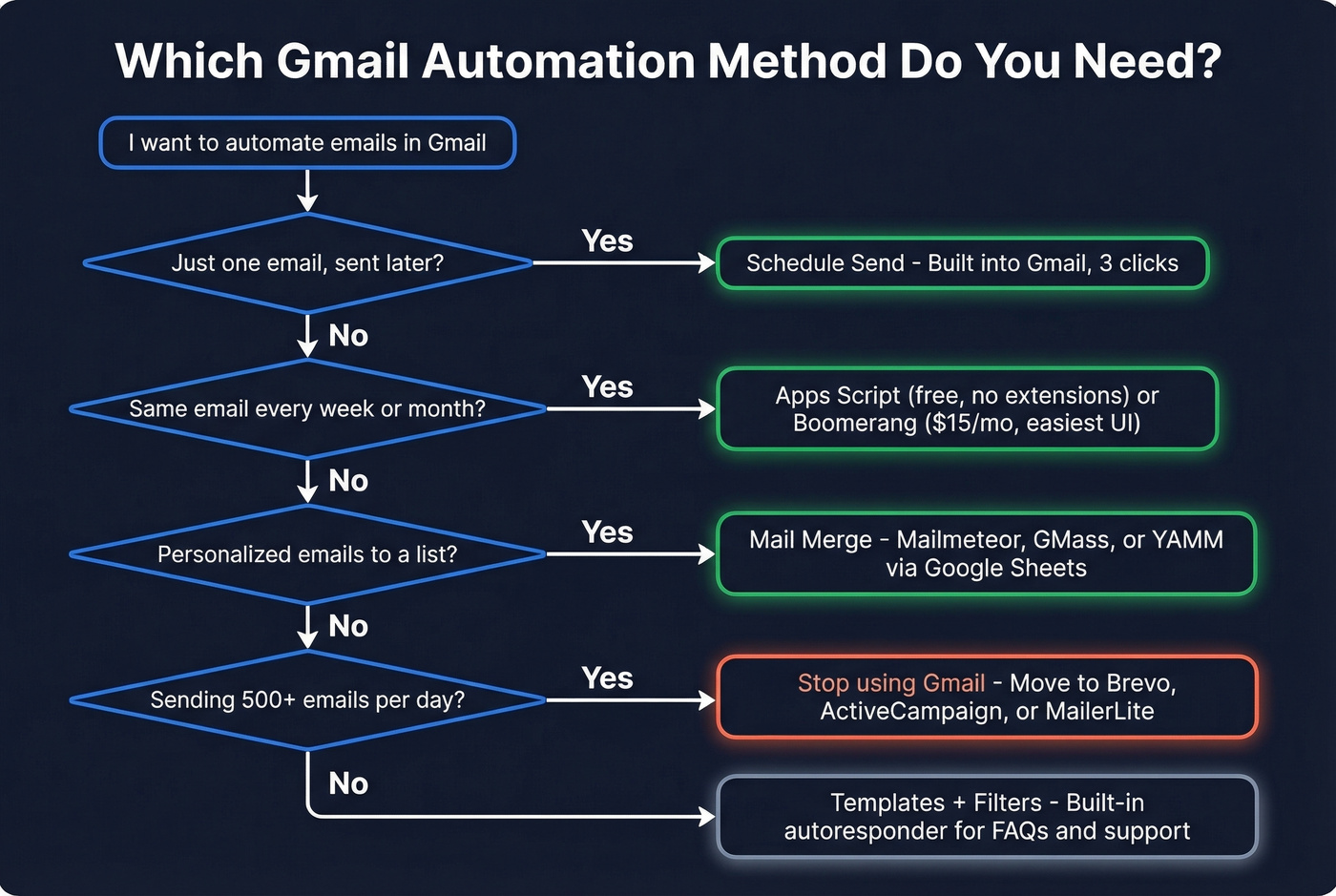
The rest of this guide walks through each method step by step, with the limits and tradeoffs that actually matter.
Gmail Sending Limits
This is the constraint that shapes everything. Gmail doesn't care how clever your automation is - exceed these limits and you're locked out.
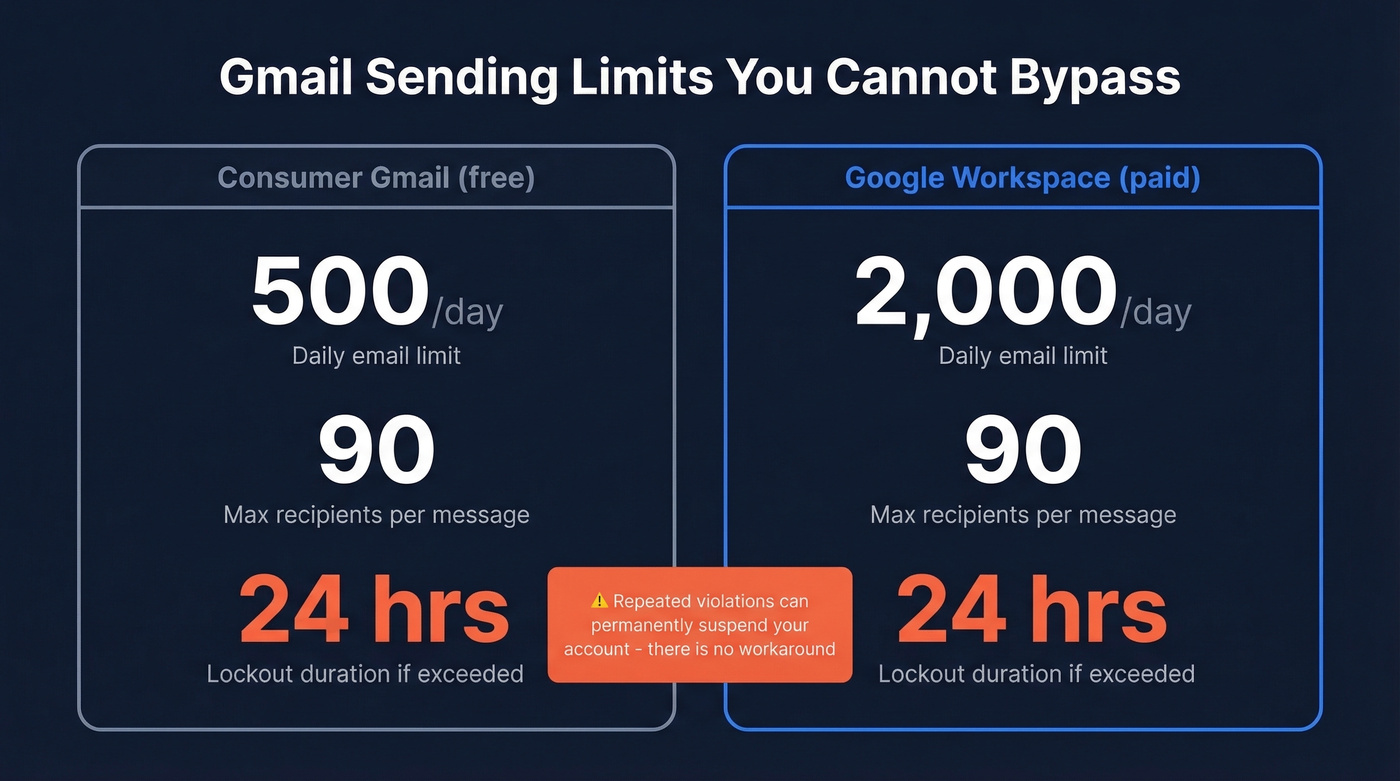
| Account Type | Daily Limit | Recipient Cap | Lockout |
|---|---|---|---|
| Consumer Gmail | 500 emails/day | ~90 recipients per message | 24 hrs |
| Google Workspace | 2,000 emails/day | ~90 recipients per message | 24 hrs |
Repeated violations don't just lock you out temporarily. They can flag your account for review, damage your sender reputation, and in extreme cases lead to permanent suspension. The consensus on r/Entrepreneur is blunt: there's no workaround for the 500/day limit on consumer Gmail. Don't try to game it.
6 Methods for Gmail Email Automation
1. Schedule Send
The simplest automation Gmail offers, and the one most people overlook. Compose your email, click the arrow next to the Send button, select Schedule send, and pick your date and time. Done.
The limitation: there's no recurring option. You can schedule one email for Tuesday at 9 AM, but you can't tell Gmail "send this every Tuesday at 9 AM." For that, you need Apps Script or Boomerang.
2. Templates + Filters
This combo turns Gmail into a basic autoresponder - useful for FAQ replies, support acknowledgments, or a smarter out-of-office setup.
- Go to Settings -> Advanced -> Templates -> Enable.
- Compose and save a template via Compose -> three dots -> Templates -> Save draft as template.
- Create a filter: click the search bar slider -> enter your criteria -> Create filter -> check Send template and select your saved template.
A practical trick we've used: create a filter matching messages containing "unsubscribe" and auto-archive them. It won't stop promos from arriving, but it keeps your inbox clean without manually triaging everything.
3. Mail Merge via Google Sheets
This is where Gmail automation earns its keep for outbound. You write one email, personalize it with spreadsheet columns like first name, company, and a custom opening line, then send it to your entire list.
Three tools worth considering:
- Mailmeteor - easiest setup, 50 emails/day free, paid plans from $4.99/mo.
- GMass - most powerful option with behavior-based follow-ups and auto sequences, 50/day trial, paid from around $25/mo.
- YAMM (Yet Another Mail Merge) - best free tier at 50/day, solid for simple campaigns.
All three pull from Google Sheets, so your spreadsheet quality matters. We've seen bounce rates spike from 2% to 8% after a single unverified batch - run your list through a verification tool like Prospeo's email verifier before you hit send. Its 5-step verification catches invalid addresses, catch-all domains, and spam traps before they wreck your sender reputation.
4. Recurring Emails with Boomerang
Skip this if you're comfortable writing 10 lines of JavaScript - Apps Script does the same thing for free.
Boomerang is the go-to for recurring emails with zero code. The free tier gives you 10 message credits per month, which covers light use. Recurring messages require the Pro plan at around $15/mo. Setup is straightforward: install the Chrome extension, compose your email, click the Boomerang send-later button, and select a recurrence pattern - daily, weekly, or monthly.
5. Google Apps Script
Here's the thing: this is the method every other Gmail automation guide either skips or buries. Apps Script is the only free way to send truly recurring automated emails from Gmail without installing anything or granting a third-party extension access to your inbox.
Here's the workflow:
- Open a Google Sheet with your recipient data.
- Go to Extensions -> Apps Script.
- Paste a script like this:
function sendEmails() {
  var sheet = SpreadsheetApp.getActiveSpreadsheet().getActiveSheet();
  var data = sheet.getRange("A2:C").getValues();
  data.forEach(function(row) {
    var email = row[0];
    var subject = row[1];
    var message = row[2];
    if (email) {
      MailApp.sendEmail(email, subject, message);
    }
  });
}
- To make it recurring, click the Triggers icon (clock) in the Apps Script editor -> Add Trigger -> set Time-driven -> choose your frequency.
No Chrome extension reading your inbox. No monthly fee. In our testing, Apps Script triggers fire reliably within a few minutes of the scheduled time, and we've run weekly digest emails this way for months without a single missed send. The tradeoff is that there's no UI for tracking opens or managing replies - for power users and anyone who doesn't trust extensions with their Gmail credentials, this is the move.
6. Gmail API
The Gmail API is overkill for personal automation, but it's the right choice if you're building a user-facing app that sends, reads, or organizes email on behalf of users. You'll need a Google Cloud project, the Gmail API enabled, an OAuth client ID, and a configured consent screen. OAuth 2.0 means no password sharing. If you aren't building software, skip this entirely and use Apps Script.

Every Gmail automation method in this guide shares the same weak point: bad data. One unverified batch can spike your bounce rate and torch your sender reputation overnight. Prospeo's 5-step email verification catches invalid addresses, catch-all domains, spam traps, and honeypots before you hit send - at 98% accuracy and roughly $0.01 per email.
Clean your list before Gmail locks you out.
Tools Compared
| Tool | Best For | Free Tier | Paid From |
|---|---|---|---|
| Mailmeteor | Mail merge | 50/day | $4.99/mo |
| GMass | Advanced sequences | 50/day trial | ~$25/mo |
| YAMM | Simple campaigns | 50/day | ~$25/yr |
| Boomerang | Recurring emails | 10 credits/mo | ~$15/mo |
| Right Inbox | Reminders + tracking | Limited free | ~$8/mo |
| Streak | CRM in Gmail | Free CRM tier | ~$15/mo |
| Gmelius | Shared inbox | 7-day trial | ~$24/mo |
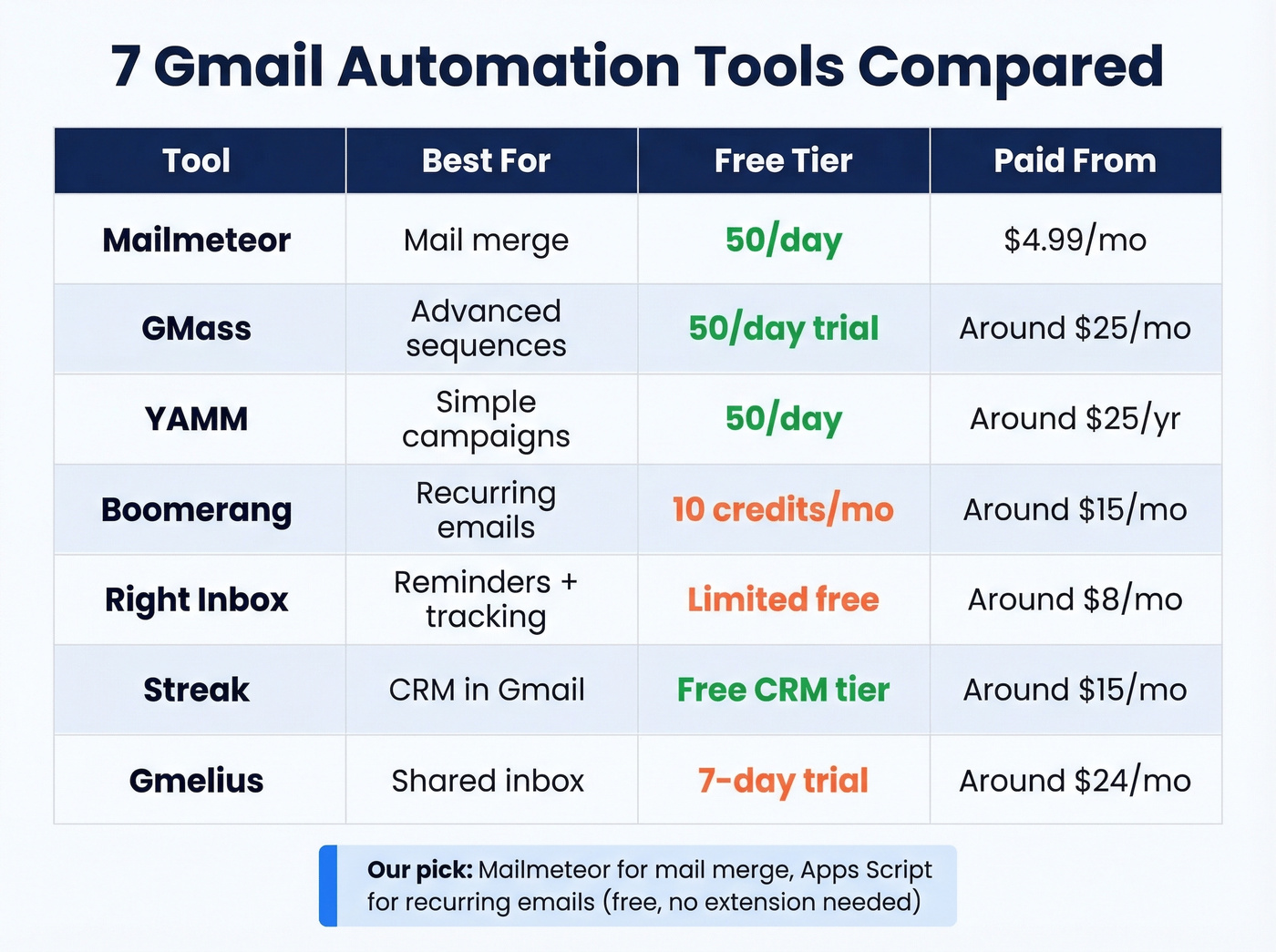
For mail merge, Mailmeteor is the easiest. For recurring emails, Apps Script is free and Boomerang has the friendliest UI. Most teams don't need seven Gmail extensions - they need one, plus discipline about list quality.
One clarification that saves people time: tools like SaneBox and Sortd help organize your inbox but don't send automated emails. Don't confuse inbox management with email automation.
How to Avoid Spam Flags
Gmail filters 99.9% of spam - which means even minor authentication gaps can land your automated emails in the spam folder instead of the inbox. Google's enforcement of authentication requirements and complaint-rate thresholds is real and active. If you're sending automated messages without proper setup, you're one batch away from a lockout.
SPF, DKIM, and DMARC must be configured on your sending domain. Missing any of these triggers deferrals, delays, or outright rejections. This isn't optional anymore. (If you want to go deeper, start with DMARC alignment and a clean SPF record.)
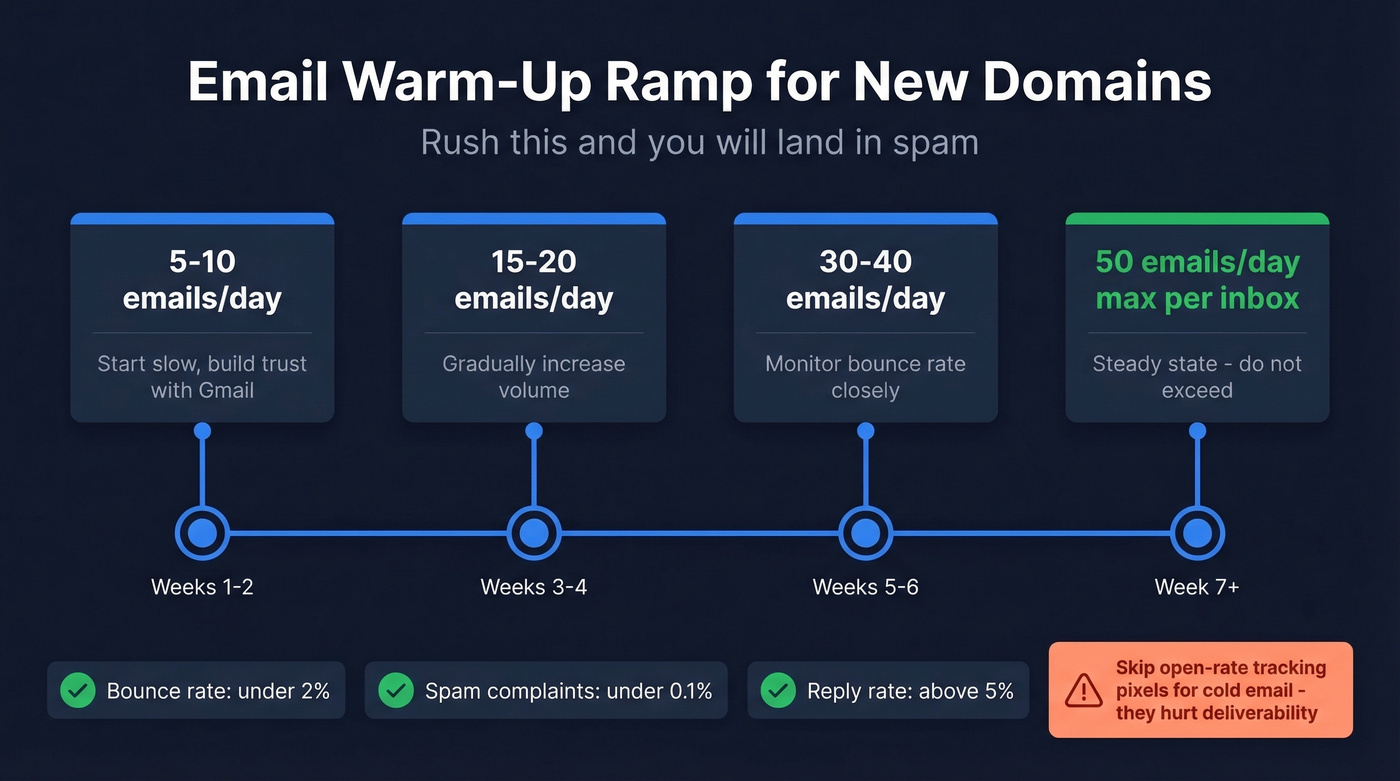
Warm-up ramp for new domains or accounts:
- Weeks 1-2: 5-10 emails/day
- Weeks 3-4: 15-20/day
- Weeks 5-6: 30-40/day
- Week 7+: max 50/day per inbox
Stay healthy by keeping your bounce rate under 2%, spam complaints under 0.1%, and reply rate above 5%. Skip open-rate tracking pixels for cold email - they hurt deliverability more than the data is worth.
Before you send a single automated email, verify your list. A 5% bounce rate doesn't just waste sends - it damages your domain reputation for every email you send afterward, automated or not. We've watched teams go from healthy deliverability to the spam folder in a single afternoon because they skipped verification on a 200-person list that turned out to be 30% stale.
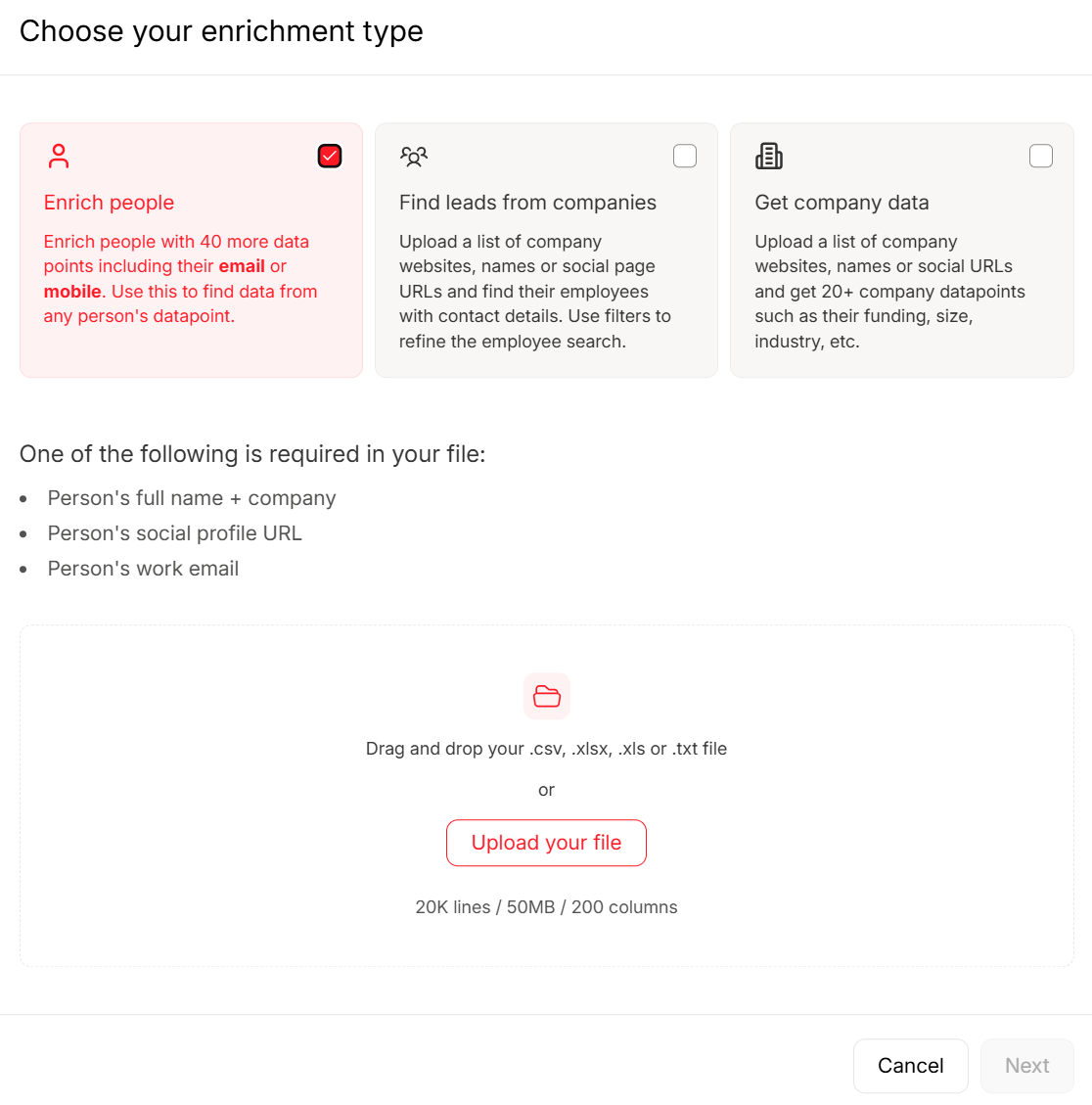
Mail merge tools like Mailmeteor and GMass are only as good as the contacts in your spreadsheet. Prospeo gives you 143M+ verified emails with 30+ filters - job title, buyer intent, technographics, funding - so your automated Gmail campaigns reach real decision-makers instead of dead inboxes. Data refreshes every 7 days, not every 6 weeks.
Stop automating emails to the wrong people.
When to Stop Using Gmail
Let's be honest: Gmail automation is a stepping stone, not a destination. If you're regularly hitting the 500/day ceiling, need multi-step drip sequences, or want analytics beyond basic open tracking, it's time to switch. Businesses using dedicated automation software generate twice as many leads as those without it - and Gmail extensions aren't automation software.
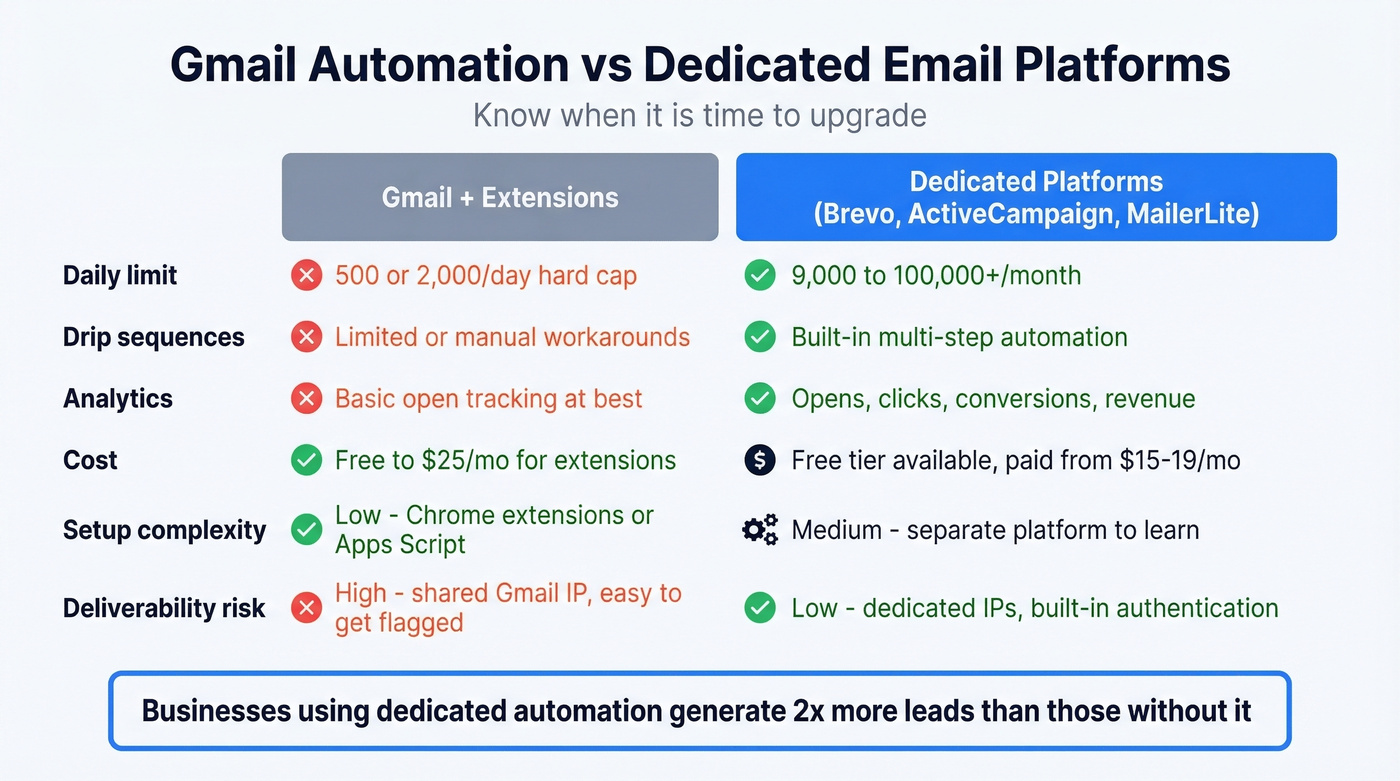
The on-ramps are cheaper than you'd think:
- Brevo - free plan with 9,000 emails/month at a 300/day cap. Solid for newsletters and transactional email.
- ActiveCampaign - from $19/mo for 1,000 contacts. Best automation builder in the mid-market.
- MailerLite - from $15/mo. Clean UI, good for content-driven businesses.
If you've been duct-taping Gmail with three extensions and a cron-triggered Apps Script, you'll save time and headaches by moving to a proper platform. The cost is a rounding error compared to the hours you're burning.
FAQ
Can I send recurring emails in Gmail without an extension?
Yes. Google Apps Script lets you set time-driven triggers that send emails on a daily, weekly, or custom schedule - completely free and built into Google Workspace. Set it up via Sheets -> Extensions -> Apps Script -> Triggers -> Add Trigger -> Time-driven. No Chrome extension or third-party access required.
What happens if I exceed Gmail's daily sending limit?
Gmail blocks your sending for up to 24 hours. Repeated violations can flag your account for review or lead to permanent suspension. Google Workspace accounts get 2,000/day, but the consequences for exceeding are identical - there's no grace period.
How do I verify emails before a mail merge?
Upload your CSV to a verification tool before hitting send. Every address gets checked in real time - invalid contacts, catch-all domains, and spam traps are flagged so you can remove them. This keeps your bounce rate under 2% and protects domain reputation that takes weeks to recover once damaged.
What's the best free tool to send automated emails in Gmail?
Google Apps Script is the best free option for recurring sends - no install, no monthly fee, no data shared with third parties. For one-time mail merges, Mailmeteor and YAMM both offer 50 free emails per day. Schedule Send handles simple delayed messages natively.