

How to Send Automated Emails in Outlook (2026)
You tried the template-plus-calendar-recurrence trick. Nothing happened. That's because Outlook doesn't have a native recurring email feature, and most workarounds floating around confuse calendar reminders with actual automation. If you want to send automated emails in Outlook, only five methods actually work - and we've tested every one.
What Doesn't Work (Save Yourself 20 Minutes)
"Save as Template + Calendar Recurrence" - The idea is to save an email as an .oft template, attach it to a recurring calendar event, and manually send it when the reminder pops. This isn't automation; it's a glorified sticky note. The "save as template" option isn't even available in modern Outlook on the web, and SuperUser threads have called this out repeatedly - yet it keeps showing up in guides.
Calendar Reminders as "Recurring Emails" - Several guides describe setting up recurring calendar appointments with email text in the description. That's a reminder to send, not an auto-send. You still have to manually compose and hit Send every time. If that counts as automation, so does writing "SEND EMAIL" on a Post-it.
Which Method Should You Use?
Power Automate is the right answer for most people. Here's the full picture:
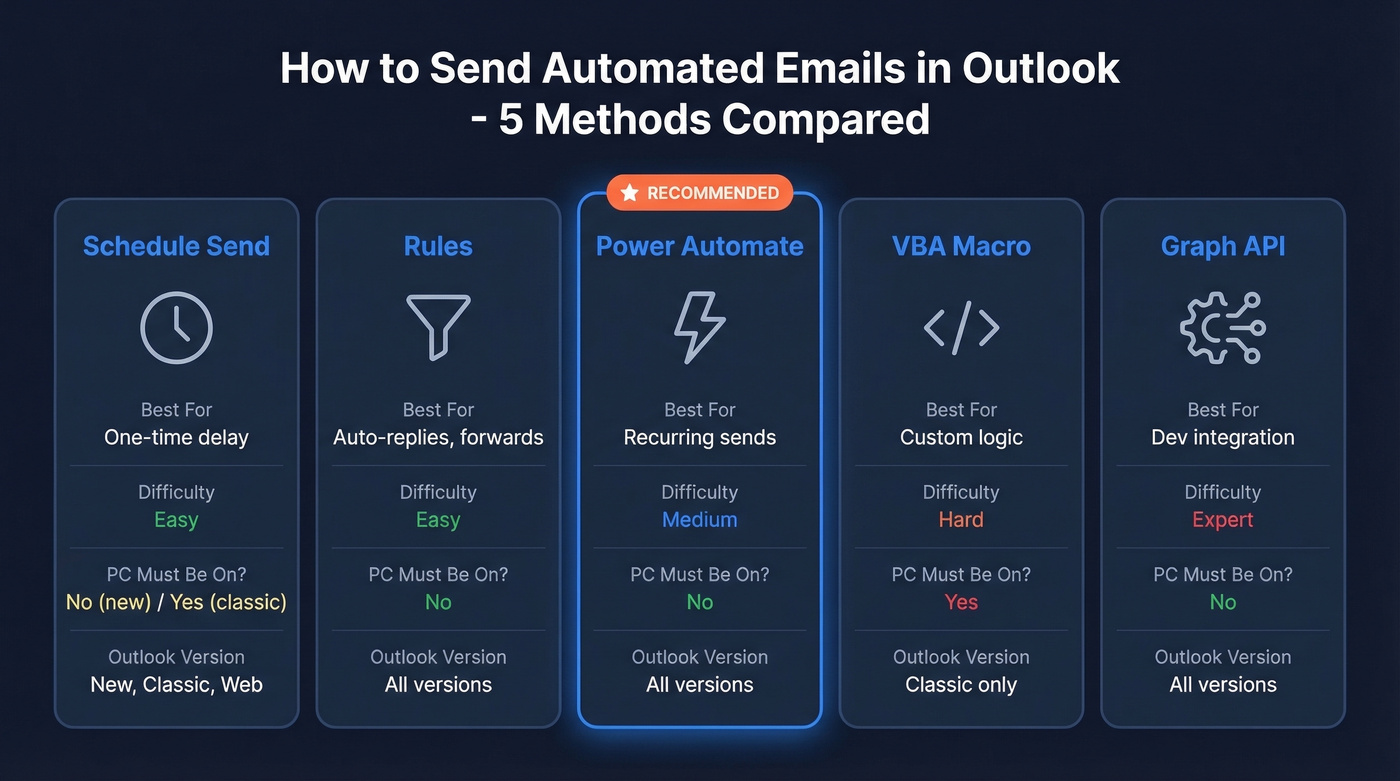
| Method | Best For | Outlook Version | Difficulty | PC Must Be On? |
|---|---|---|---|---|
| Schedule Send | One-time delay | New, Classic, Web | Easy | No (new) / Yes (classic) |
| Rules | Auto-replies, forwards | All | Easy | No |
| Power Automate | Recurring sends | All | Medium | No |
| VBA Macro | Custom logic | Classic only | Hard | Yes |
| Graph API | Dev/integration | All | Expert | No |

Automating email delivery in Outlook is easy. The hard part is knowing you're sending to real inboxes. Prospeo's 98% verified email accuracy and 7-day data refresh mean your automated flows never bounce off stale addresses - unlike providers where 20-35% of emails go nowhere.
Stop automating emails to dead inboxes. Start with data that actually connects.
Five Ways to Automate Emails in Outlook
Schedule Send (One-Time Only)
Schedule Send handles the "I wrote this at 11 PM but don't want to look unhinged" scenario. It's not recurring automation - it's a delayed send for a single message.
New Outlook & Outlook Web: Compose your message, click the dropdown arrow next to Send, select Schedule send, and pick a date and time. The message stays in your Drafts folder until delivery time, and it doesn't require your PC to be open.
Classic Outlook (Windows): Go to Options > More Options in the Tags group, check Do not deliver before, and set your date and time. The message sits in your Outbox until delivery. The catch: classic Outlook needs to be running and online at the scheduled time for the message to actually go out.
One thing to know: in new Outlook, Schedule Send isn't available for IMAP or POP accounts.
Outlook Rules (Reactive, Not Scheduled)
Rules are powerful but misunderstood. They react to incoming mail - they don't initiate outbound sends on a schedule. Think of rules as "if this arrives, do that."
Here's where they shine. Say your VP emails you with "URGENT" in the subject line while you're on PTO. A rule can auto-forward that message to your team lead instantly, no human intervention needed. Other solid use cases include auto-replying to emails containing specific keywords (like "out of office" responses for a shared mailbox) and auto-categorizing or moving messages from certain senders into project folders.
If you need "every Monday at 9 AM, send this report," rules can't help. That's Power Automate territory.
Power Automate (Recurring - Recommended)
This is the method most people actually need, and in our experience it takes under five minutes to set up from scratch. Power Automate runs in the cloud, handles true recurring schedules, and doesn't require your PC to be on. It's included with Microsoft 365 in most orgs, and the Send an email (V2) action under the Outlook connector isn't a premium connector for most plans.
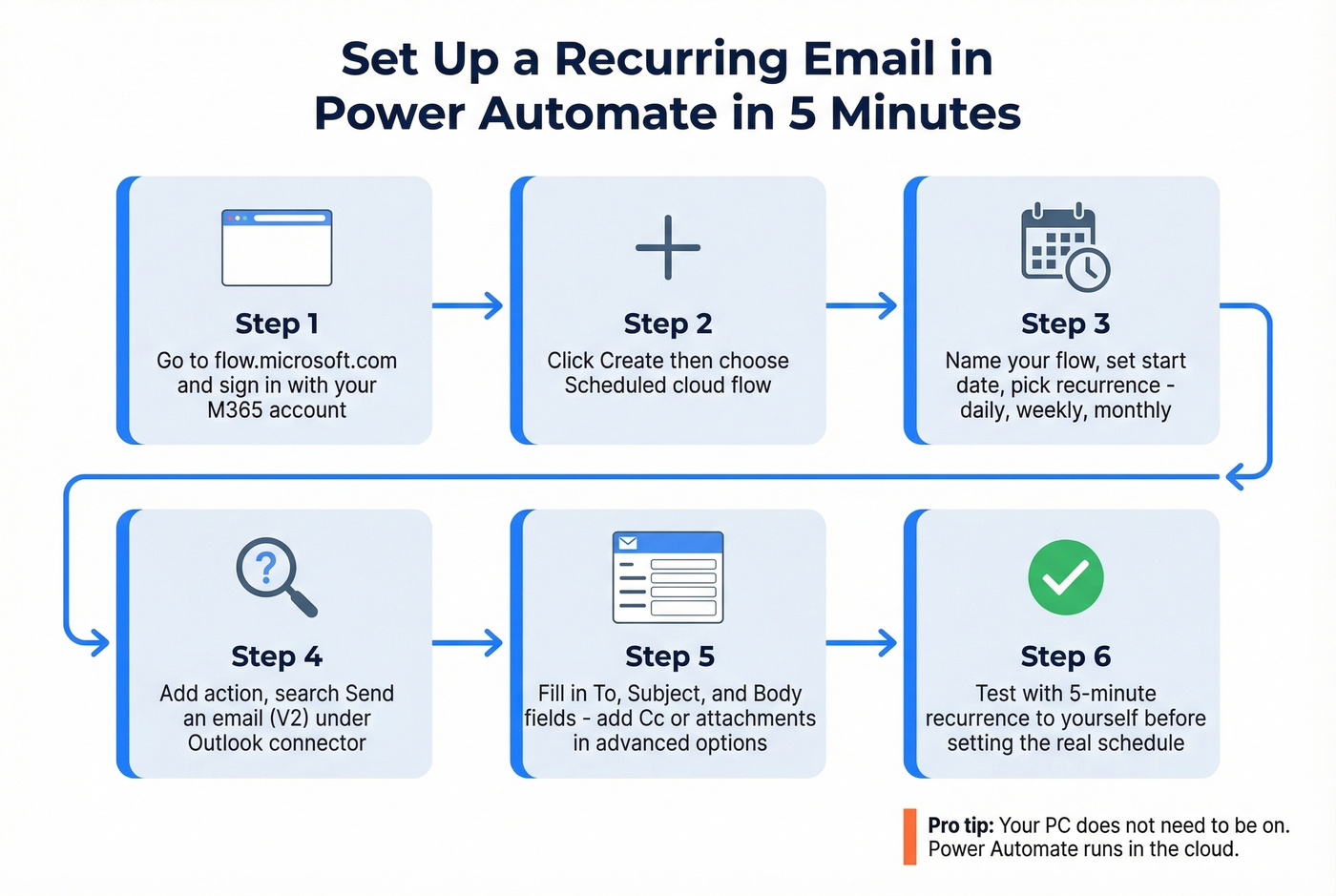
- Go to flow.microsoft.com and sign in with your Microsoft 365 account.
- Click Create > Scheduled cloud flow.
- Name your flow - something like "Weekly Status Update" - set the start date and time, and choose your recurrence: daily, weekly, monthly, whatever you need.
- Click Add an action, search for Send an email (V2) under the Outlook connector.
- Fill in the required fields (marked with a red star): To, Subject, and Body.
- Click Show advanced options to add Cc, Bcc, or attachments.
For the email body, you can format text, insert hyperlinks using the editor's link icon, and pull in dynamic content if you're connecting to other data sources. The flow runs on Microsoft's servers at your specified interval - you don't need to be logged in, and your computer can be off.
Here's the thing: test your flow with a short recurrence - every 5 minutes, sending to yourself - before setting the real schedule. We've seen teams discover their weekly email had been going out blank for a month because nobody tested it first.
Your org's admin policies can restrict Power Automate access, so if you don't see the option, check with IT. But for most M365 environments, this just works.
VBA Macro (Classic Outlook Only)
For teams that need custom logic - sending different emails based on the day of the month, or pulling data from an Excel file - VBA macros in classic Outlook can handle it. This is the power-user route, and it comes with real tradeoffs.
The pattern: create a recurring Outlook Task with a reminder, then use the Application_Reminder event in ThisOutlookSession to auto-compose and send when the reminder fires.
Private Sub Application_Reminder(ByVal Item As Object)
    If Item.Class = olTask And InStr(Item.Subject, "AutoEmail") > 0 Then
        Dim mail As Outlook.MailItem
        Set mail = Application.CreateItem(olMailItem)
        mail.To = "team@company.com"
        mail.Subject = "Weekly Status Update"
        mail.HTMLBody = "<p>Here's the weekly update...</p>"
        mail.Send
    End If
End Sub
You'll need to sign your code and adjust macro security settings to allow digitally signed macros. And if Outlook isn't running when the reminder fires, nothing sends.
The dealbreaker for many: new Outlook has dropped VBA and COM add-in support entirely. This method is classic Outlook only, and your PC must be running with Outlook open at trigger time. Skip this if you're already on new Outlook or planning to migrate soon.
Microsoft Graph API (Developer)
For developers building integrations or automating email at scale, the Graph API offers full programmatic control. You can create drafts, send messages, and schedule deferred delivery using the PidTagDeferredSendTime extended property.
To schedule a future send, set the MAPI property - tag 0x3FEF, type SystemTime - via singleValueExtendedProperties:
{
  "subject": "Scheduled Report",
  "body": { "contentType": "HTML", "content": "<p>Report attached.</p>" },
  "toRecipients": [{ "emailAddress": { "address": "ops@yourcompany.com" } }],
  "singleValueExtendedProperties": [
    { "id": "SystemTime 0x3FEF", "value": "2026-03-15T09:00:00" }
  ]
}
For true recurring sends, combine Graph API message creation with Azure Functions or a cron job on your server. Create a draft (POST to the user's /messages), then call the send endpoint programmatically on your schedule.
Let's be honest: if you're reaching for the Graph API just to send a weekly status email, you're overengineering it. Power Automate does the same thing in five minutes with zero code. Save Graph API for when you need programmatic control - dynamic recipient lists, conditional content, or integration into a larger application.
When Outlook Automation Isn't Enough
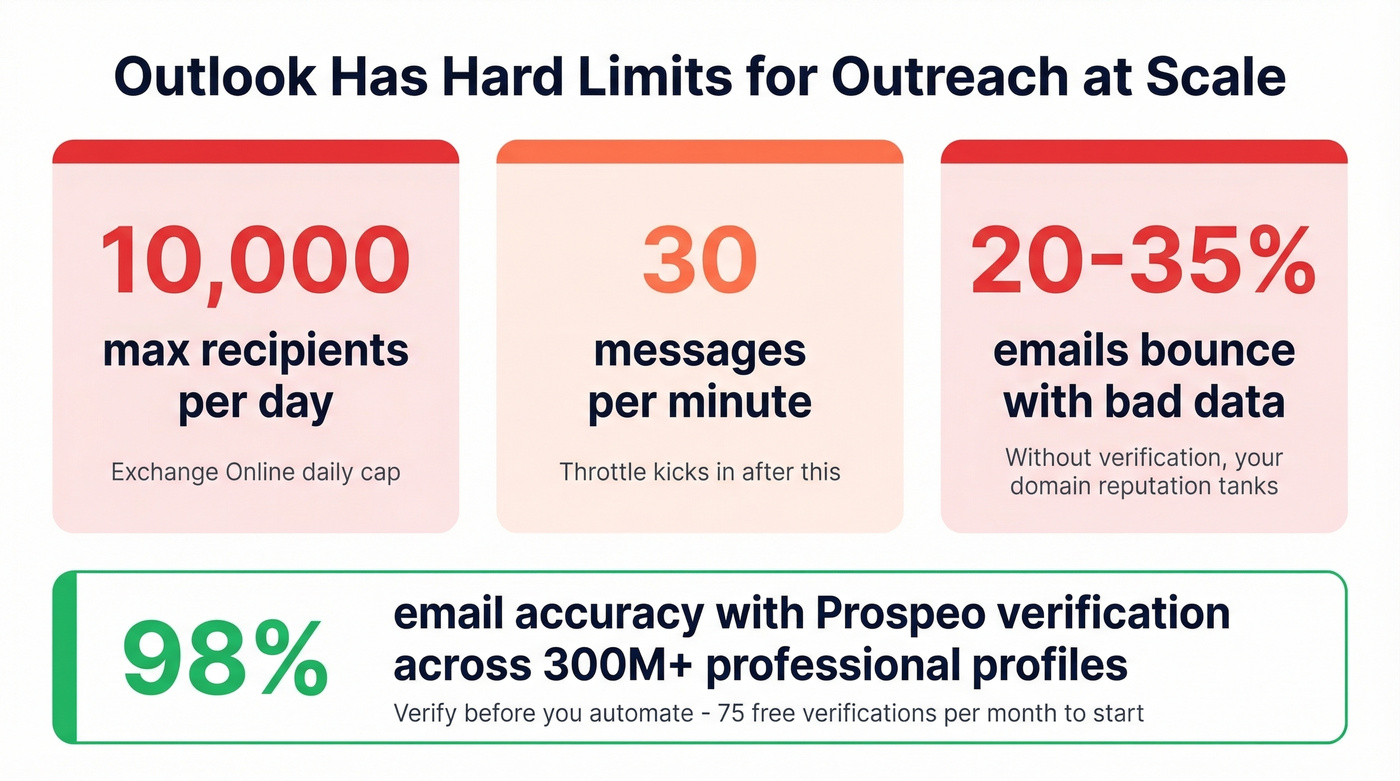
All five methods above work for internal emails and small-scale sends. But if you're thinking about cold outreach or prospect communication, Outlook has hard limits. Exchange Online caps you at 10,000 recipients per day and 30 messages per minute. Hit those limits and you're throttled. Send to bad addresses and your domain reputation tanks fast.

Outlook wasn't built for outreach at scale. Before you automate any prospecting emails, verify your list. Prospeo's 5-step verification process catches spam traps and honeypots that destroy sender reputation, with 98% email accuracy across 300M+ professional profiles. The free tier gives you 75 verifications per month - enough to test before committing.
If you're building lists from scratch, start with a sales prospecting database or one of these email list providers instead of scraping random sources.
You've built the flow. Now fill it with contacts that convert. Prospeo gives you 300M+ professional profiles with 30+ filters - buyer intent, technographics, job changes - so your automated Outlook campaigns reach decision-makers, not spam traps. Starting at $0.01 per email.
Your Outlook automation is only as good as the contacts feeding it.
Troubleshooting: Email Didn't Send?
If your scheduled or automated email is stuck, work through these five checks.
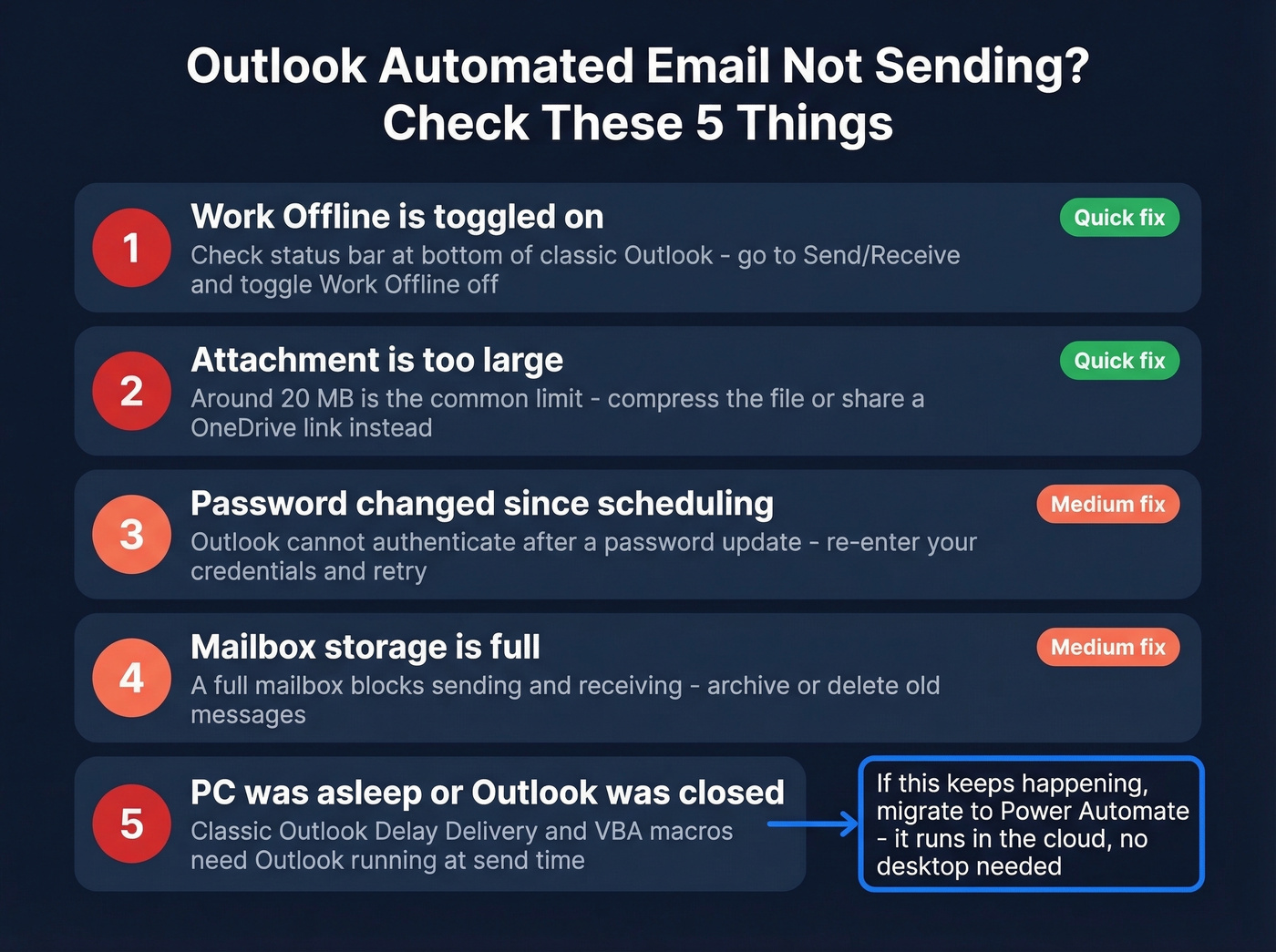
Work Offline is toggled on. In classic Outlook, check the status bar at the bottom. If it says "Working Offline" or "Disconnected," go to Send/Receive > Work Offline to toggle it off. This catches people more often than you'd think.
Attachment is too large. Around 20 MB is a common limit. Compress the file or share a OneDrive link instead.
Password changed since scheduling. If you updated your Microsoft 365 password after setting up a delayed send, Outlook can't authenticate. Re-enter your credentials, then try sending again.
Mailbox storage is full. A full mailbox blocks both sending and receiving. Archive or delete old messages to free up space.
PC was asleep or Outlook was closed. For classic Outlook's Delay Delivery and VBA macros, Outlook must be running at send time. Power Automate and Graph API don't have this problem - they're cloud-based. If you keep hitting this wall, that's your sign to migrate to Power Automate.
If you're sending to larger lists, also watch your email velocity and keep an eye on email bounce rate so you don't get throttled or flagged.
FAQ
Can I send recurring emails in Outlook without Power Automate?
Only via VBA macros in classic Outlook, which requires coding, code signing, and keeping your PC running around the clock. Power Automate is the no-code alternative included with most M365 plans and runs entirely in the cloud - no desktop dependency.
Does Outlook need to be open for scheduled emails to send?
For classic Outlook's Delay Delivery, yes - the desktop client must be running and online at the scheduled time. Power Automate, Graph API, and new Outlook's Schedule Send all run server-side, so your PC can be off.
Does Schedule Send work with IMAP accounts?
No. In new Outlook, Schedule Send isn't available for IMAP or POP accounts. When budget is tight and you're stuck on IMAP, Power Automate or a VBA macro in classic Outlook are your alternatives.