

How to Set Up a Business Email Domain (And What Every Other Guide Leaves Out)
Sending proposals from yourname@gmail.com when your LLC has a real domain is like handing out business cards printed on napkins. It works, technically. But nobody takes it seriously.
Here's how to set up a business email domain properly - including the DNS authentication and deliverability details that most setup guides gloss over entirely.
What You Need (Quick Version)
- Most businesses: Google Workspace Business Starter - $7/user/month (annual commitment). Done.
- Office-native teams: Microsoft 365 Business Basic - $6/user/month (annual commitment).
- Bootstrapped solo founders (1-5 people): Zoho Mail Free, upgrade later.
If you already know what you need, go set it up. For everyone else who wants to understand why these choices matter and how to avoid the mistakes that tank deliverability, keep reading.
What Is a Custom Domain Email?
A business email domain is the part after the @ sign that matches your company's website - sarah@acmecorp.com instead of sarah.acmecorp@gmail.com. You register a domain (or already own one), connect it to an email hosting provider, and your team sends and receives email under your brand.
The disconnect is more common than you'd think. A founder registers an LLC, builds a website at acmecorp.com, then keeps emailing clients from a personal Gmail address for months. Prospects see the mismatch and it signals "side project," not "real company." Beyond perception, free email addresses lack the authentication controls that modern inbox providers require to deliver your messages reliably. In many industries, contracts, invoices, and regulatory filings expect communication from a verified company domain - not a consumer inbox.
Setting up a professional email domain isn't a branding exercise. It's infrastructure.
Why Deliverability Matters More Than Branding
The credibility argument is obvious: name@company.com looks professional. But the deliverability argument is the one most guides skip, and it's far more consequential.
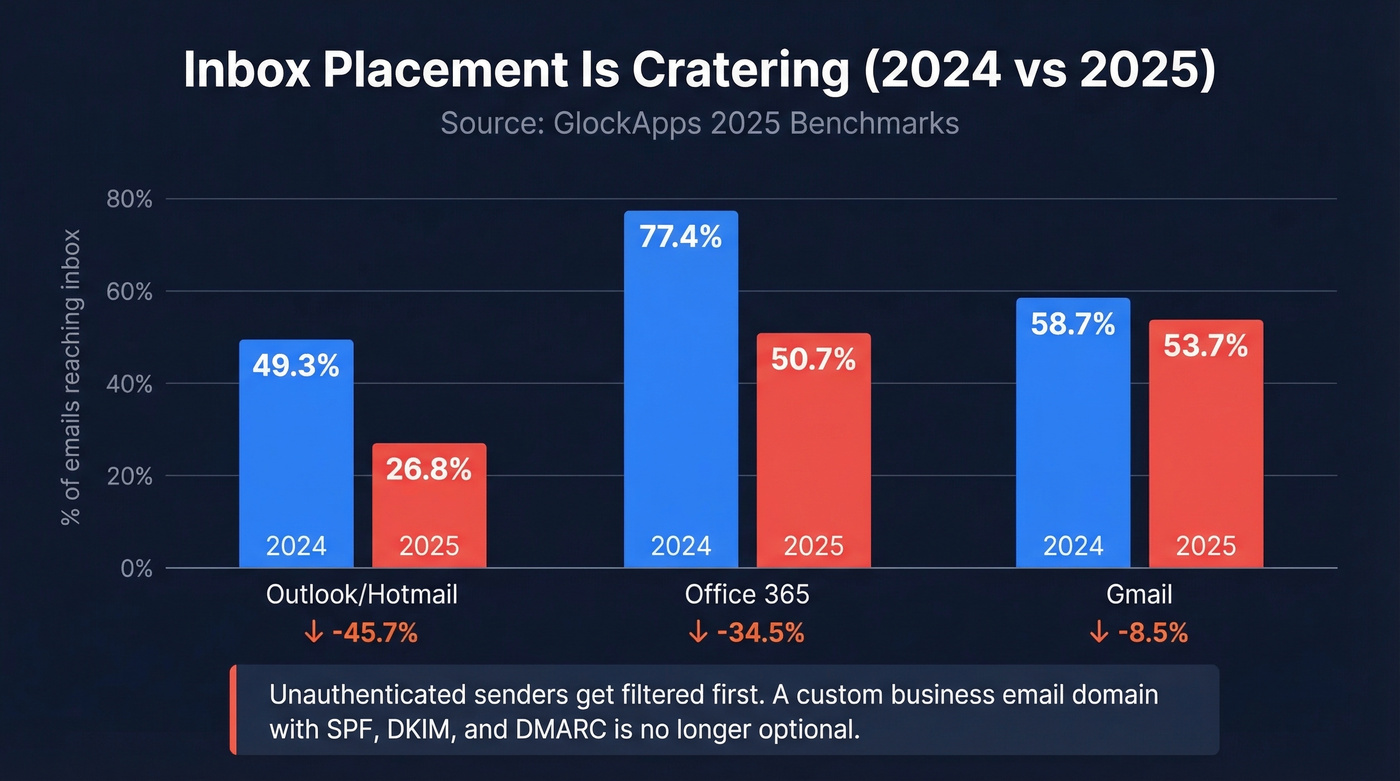
Inbox placement is cratering. GlockApps' 2025 benchmarks show Outlook/Hotmail inbox placement dropped from 49.33% to 26.77% year over year. Office365 fell from 77.43% to 50.70%. Even Gmail dipped from 58.72% to 53.70%. The trend is unmistakable: inbox providers are filtering more aggressively, and unauthenticated senders get cut first.
Gmail started enforcing bulk sender authentication requirements on February 1, 2024. Outlook followed with its own high-volume enforcement in May 2025. If you're sending from a free email address, you can't configure SPF, DKIM, or DMARC - the authentication protocols that tell inbox providers your messages are legitimate. A custom domain gives you that control.
Content isn't the determining factor anymore. Sender reputation is. And sender reputation starts with a properly authenticated domain.

Best Providers Compared
Most businesses choose between three or four providers. Here's the comparison, then the details.
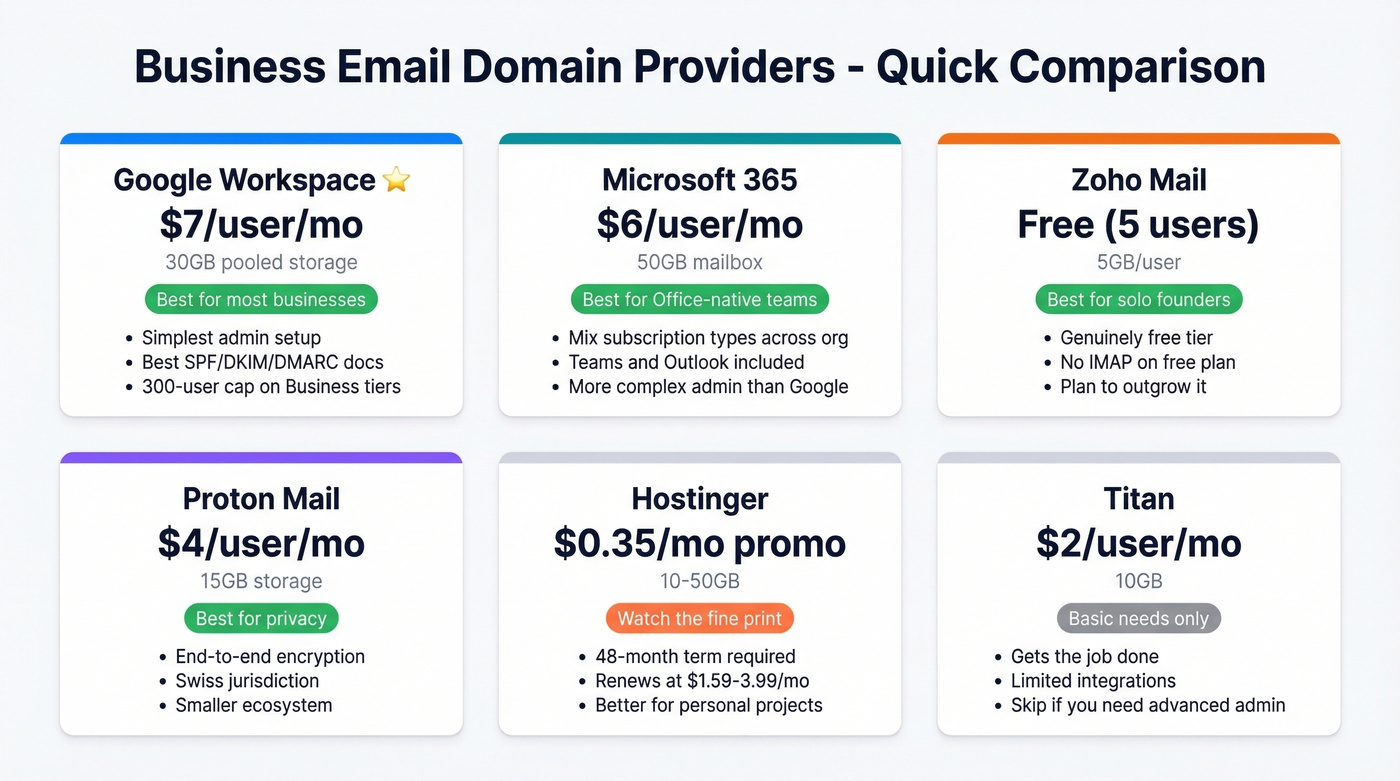
| Provider | Starting Price | Storage | Best For | Caveat |
|---|---|---|---|---|
| Google Workspace | $7/user/mo | 30GB pooled (Starter) | Most businesses | 300-user cap on Business tiers |
| Microsoft 365 | $6/user/mo | 50GB mailbox | Office-native teams | Copilot add-on extra |
| Zoho Mail | Free (5 users) | 5GB/user | Solo founders | No IMAP on free plan |
| Proton Mail | ~$4/user/mo | 15GB | Privacy-first teams | Smaller ecosystem |
| Hostinger | ~$0.35/mo promo | 10-50GB | Budget buyers | 48-month term |
| Titan | $2/user/mo | 10GB | Basic needs | Limited ecosystem |
Google Workspace
The default for most small businesses - and for good reason. In our experience, Google Workspace has one of the simplest admin experiences for getting a domain connected and mail flowing. 10 million paying customers, three clean tiers at $7/$14/$22 per user/month (annual), and pooled storage from 30GB to 5TB depending on plan. You get Gmail's interface, Google Drive, Meet, and the full productivity suite. Google's documentation for SPF/DKIM/DMARC is among the best available.
Business tiers cap at 300 users. Larger orgs need Enterprise pricing - expect $25+ per user/month after talking to sales. For everyone under 300, Business Starter at $7/user/month is the sweet spot unless you need more storage or compliance features.
Microsoft 365
Only makes sense if your team already lives in Word, Excel, and Teams. Business Basic starts at $6/user/month, Standard at $12.50, Premium at $22. The licensing flexibility is a genuine advantage - Microsoft lets you mix subscription types across your org, which Google makes harder.
The email experience runs through Outlook, which some people love and others tolerate. If your team doesn't already have a preference for Microsoft's ecosystem, Google Workspace is simpler to set up and manage.
Zoho Mail
Genuinely useful for solo founders on a budget. The Forever Free plan gives you email hosting for one domain, up to 5 users with 5GB each. That's a real professional email address at zero cost. The catch: no IMAP, POP, or ActiveSync on the free plan, so you're locked into Zoho's webmail interface.
The consensus on r/smallbusiness is mixed - people appreciate the price but worry about deliverability, and a few threads mention past Zoho spam-placement issues. For a founder who just needs name@company.com and doesn't mind webmail, it's hard to beat free. But plan to outgrow it.
Proton Mail, Hostinger, Titan & Others
Proton Mail (~$4/user/month for Business) is the pick for privacy-conscious teams. End-to-end encryption, Swiss jurisdiction, solid reputation. The ecosystem is smaller than Google or Microsoft, but the security trade-off is worth it if that's your priority.
Hostinger pricing looks incredible until you realize it's a 48-month term paid upfront. Promotional rates renew at $1.59-$3.99/month. Fine for personal projects - a gamble for businesses.
Titan ($2-$6.99/user/month) gets the job done for basic custom domain email. Skip it if you need integrations or advanced admin controls.
Namecheap (~$1-3/mailbox/month) is reasonable if you already registered your domain there. GoDaddy (~$6-10/mailbox/month) charges Google Workspace prices without the ecosystem - there's no reason to choose it.
Let's be honest: if your average deal size is under $10k/year, you don't need anything beyond Google Workspace Business Starter. The productivity suite alone justifies the $7/month, and the email hosting is essentially free on top of it.

A professional domain gets your emails delivered. Prospeo gets them to the right people. Search 300M+ profiles with 30+ filters and get 98% verified emails - so your new business domain builds reputation from day one, not bounces.
Don't burn your fresh domain on bad data. Start with emails that land.
Step-by-Step Setup Guide
The whole process takes 15-30 minutes of active work, plus up to 48 hours for DNS propagation - though most changes apply within an hour or two.
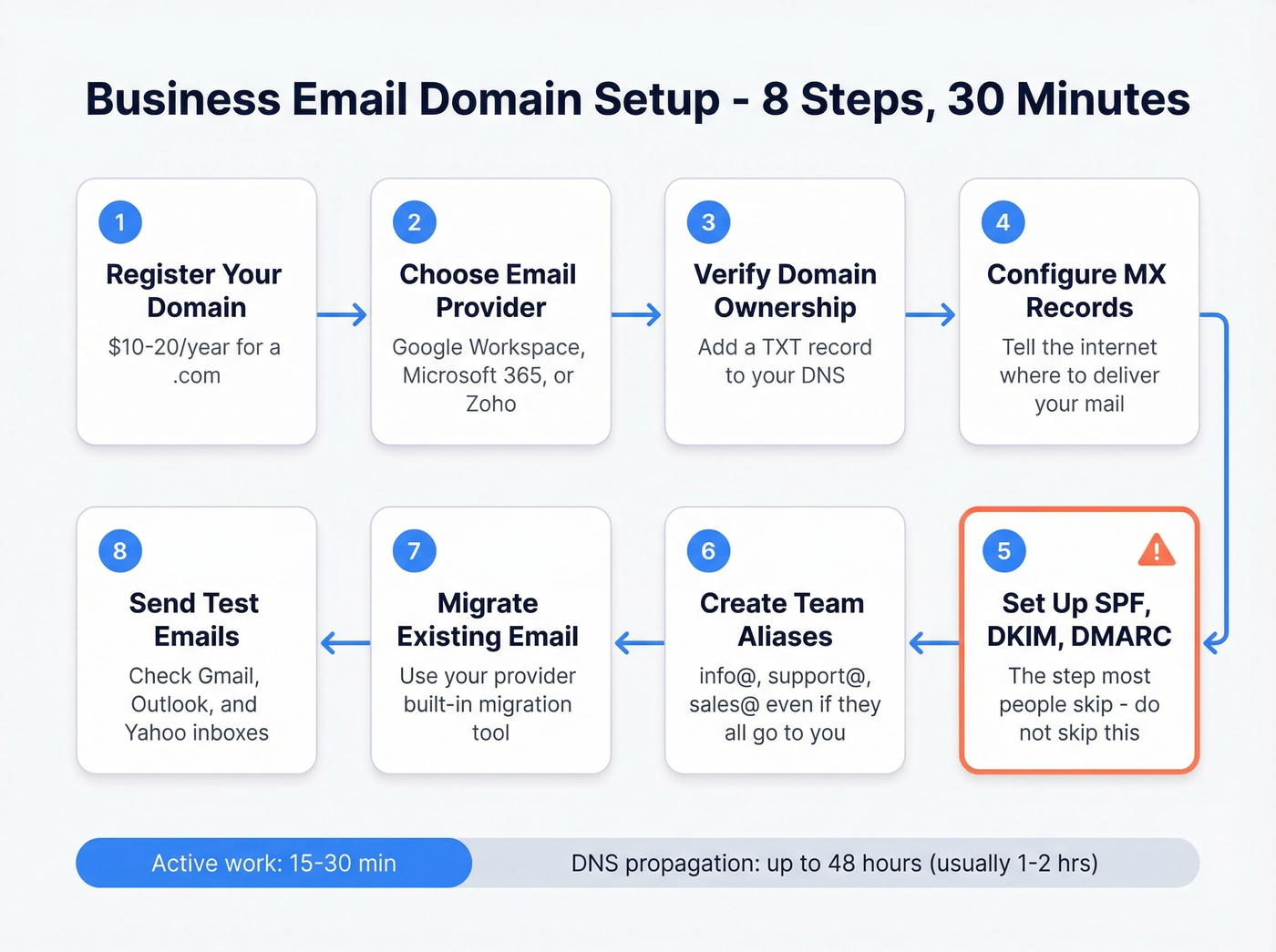
1. Register your domain if you haven't already. Use any registrar: Namecheap, Cloudflare, Squarespace Domains, GoDaddy. The registrar doesn't matter much - pick one with clean DNS management. Expect $10-20/year for a .com.
2. Choose your email hosting provider. See the comparison above. For most teams, it's Google Workspace or Microsoft 365. Sign up, enter your domain, and follow the provider's setup wizard.
3. Verify domain ownership. Your provider will give you a TXT record (or sometimes a CNAME) to add to your domain's DNS settings. This proves you own the domain. Log into your registrar's DNS panel, add the record, and wait for verification - usually a few minutes.
4. Configure MX records. MX records tell the internet where to deliver email for your domain. Your provider gives you the exact records to add. Delete any existing MX records first, then add the new ones.
If "DNS" sounds intimidating, you're not alone - it's one of the most common blockers people hit on r/smallbusiness. Think of DNS as a phone book for the internet. MX records are the entry that says "deliver mail for this domain to this server." You're just updating the phone book.
5. Set up authentication (SPF, DKIM, DMARC). This is the step most guides mention in passing and most people skip. Don't. Covered in detail in the next section.
6. Create team aliases and forwarding. Set up addresses like info@, support@, and sales@ - even if they all forward to one person initially. These departmental aliases make your business look established and give you flexibility as you grow.
7. Migrate existing email if you're switching providers. Google Workspace has a built-in data migration tool that pulls email from your old provider. Microsoft 365 offers a similar wizard. Don't lose years of correspondence - run the migration before you decommission the old account.
8. Send a test email. Send to a personal Gmail, Outlook, and Yahoo address. Check that it arrives in the inbox (not spam) and that the "from" address shows your custom domain correctly.
SPF, DKIM, and DMARC Explained
These three protocols separate "I have a custom domain" from "my emails actually land in the inbox."
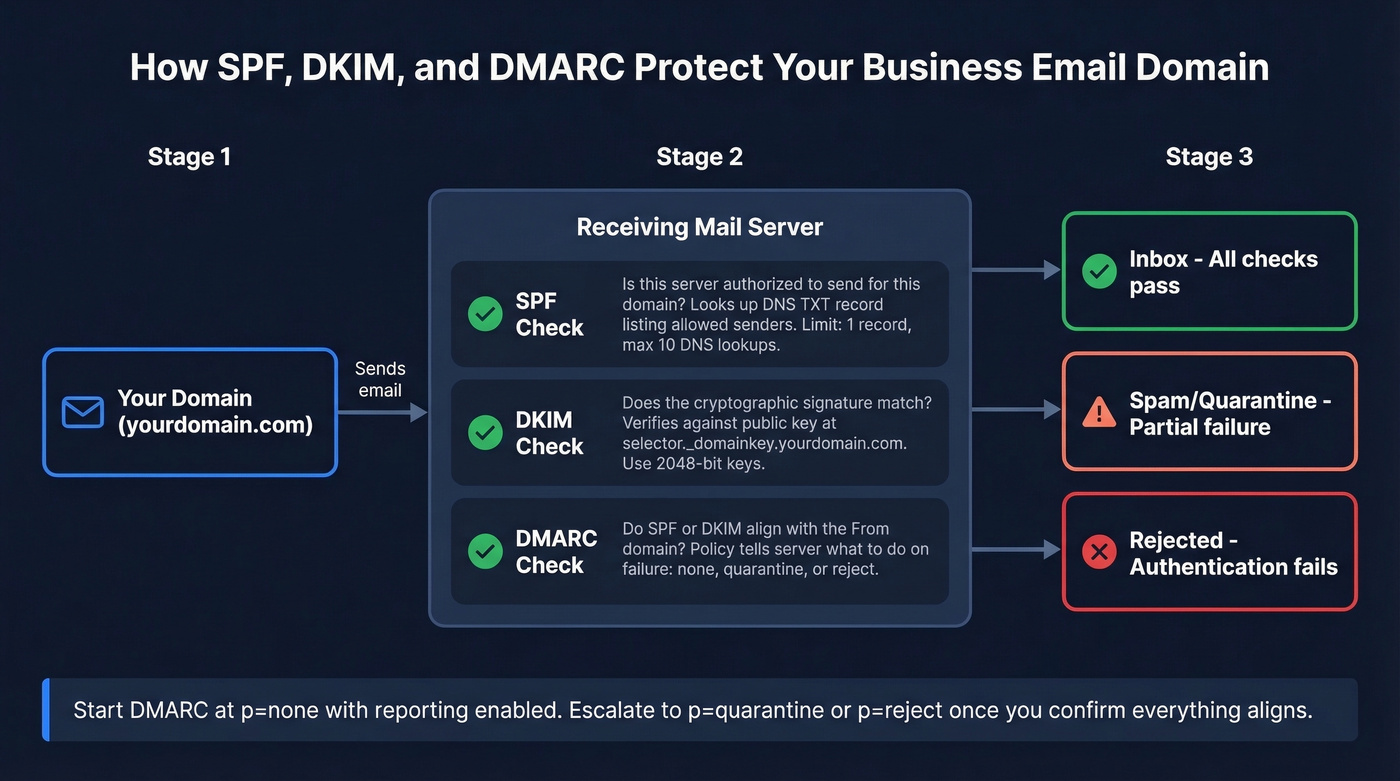
SPF (Sender Policy Framework) is a DNS TXT record that lists which servers are allowed to send email on behalf of your domain. When a receiving server gets an email from your domain, it checks SPF to see if the sending server is authorized.
Critical rule: one SPF record per domain. If you add multiple SPF TXT records - common when using several email services - authentication fails. Merge all your include: statements into a single record. SPF also has a 10 DNS-lookup limit; exceed it and you'll get a PermError, which breaks DMARC alignment. When you're using multiple sending services like email hosting, a marketing platform, and a CRM, consider dedicated subdomains for each to keep SPF records simple.
DKIM (DomainKeys Identified Mail) adds a cryptographic signature to your outgoing emails. The receiving server checks this signature against a public key published in your DNS at selector._domainkey.yourdomain.com. Use 2048-bit keys when your provider supports them - they're more secure than the older 1024-bit standard.
DMARC (Domain-based Message Authentication, Reporting & Conformance) ties SPF and DKIM together. It tells receiving servers what to do when authentication fails: nothing (p=none), quarantine, or reject. Start with p=none and reporting enabled so you can see what's happening. Once you're confident everything's aligned, escalate to p=quarantine or p=reject.
Here's the thing most people miss: DMARC alignment. SPF can pass and DKIM can pass, but DMARC still fails if the authenticated domain doesn't match your visible "From" address. Say you're sending through Amazon SES - DKIM passes for amazonses.com, but your From address says yourdomain.com. That's a DMARC alignment failure, and it looks suspicious to inbox providers even though the individual checks passed. We've seen teams skip DMARC entirely and wonder why their open rates tanked three months later.
To verify your setup, run this from a terminal:
dig +short TXT yourdomain.com | grep spf
dig +short TXT _dmarc.yourdomain.com
Or use MxToolbox if you prefer a web interface. Check all three records. Fix alignment issues before you start sending at volume.
Ongoing Domain Management
Authentication is necessary but not sufficient. Here's what inbox placement actually looks like right now:
| Inbox Provider | Q1 2024 | Q1 2025 | Change |
|---|---|---|---|
| Gmail | 58.72% | 53.70% | -5.02% |
| Google Workspace | 63.85% | 53.36% | -10.49% |
| Outlook/Hotmail | 49.33% | 26.77% | -22.56% |
| Office365 | 77.43% | 50.70% | -26.73% |
| Yahoo/AOL | 43.32% | 40.97% | -2.35% |
The Microsoft ecosystem took the biggest hit - Office365 inbox placement dropped by nearly 27 percentage points in a single year. High-volume senders (1M+ emails/month) saw placement crater from 49.98% to 27.63%.
The takeaway isn't "email is dying." It's that sender reputation is everything now, and reputation is built on authentication, engagement, and data quality. Ongoing domain management - monitoring DMARC reports, rotating DKIM keys, auditing SPF records as you add new sending services - keeps your inbox placement from eroding over time. Bad contact data is the fastest way to destroy the domain reputation you just spent an hour building. Bounces, spam traps, and honeypots all signal to inbox providers that you aren't a trustworthy sender.
If you're actively sending outbound, it also helps to track email velocity and use email reputation tools to catch issues before they become a domain-wide problem.
Using Your Domain for Outreach
If you're planning to use your new business email domain for cold outreach, stop. Don't send cold email from your primary domain.
Set up a separate outbound domain instead. Register a variant like getacmecorp.com or tryacmecorp.com, set up a redirect to your main site, and use that domain exclusively for outbound sequences. If your outbound reputation takes a hit, your main domain's transactional and marketing email stays clean.
Use this if: You're running any kind of cold email - SDR sequences, founder-led outreach, agency campaigns. (If you're building a system, start with sales prospecting techniques and a clean B2B cold email sequence.)
Skip this if: You're only sending to people who've opted in or already know you.
Sending limits matter too. Free Gmail caps you at 100 messages via SMTP per day. Google Workspace bumps that to 2,000. But even with Workspace, don't blast 2,000 cold emails on day one. Plan for at least a 12-week warm-up period where you gradually increase volume and build engagement signals.
You spent time configuring SPF, DKIM, and DMARC. Don't blow it by sending to unverified lists. Prospeo's email finder runs a 5-step verification process with 98% accuracy and refreshes data every 7 days - the free tier gives you 75 verified emails per month, enough to test whether your outbound setup is working before you scale. If you want to go deeper on list hygiene, see our guide to email bounce rate and spam trap removal.
You just spent 30 minutes configuring SPF, DKIM, and DMARC to protect your sender reputation. Don't waste it on unverified contact lists. Prospeo's 5-step email verification keeps bounce rates under 4% - ask the 15,000+ companies already using it.
Protect the domain you just built. Prospect with 98% accurate emails.
FAQ
Can I get a business email domain for free?
Yes - Zoho Mail's Forever Free plan gives you email hosting for one domain with up to 5 users and 5GB storage each. The limitation is no IMAP, POP, or ActiveSync, so you're stuck with Zoho's webmail. Google Workspace and Microsoft 365 don't offer free tiers.
How long does setup take?
Active setup takes 15-30 minutes. DNS propagation can take up to 48 hours, though most changes apply within 1-2 hours. Adding authentication records adds another 10-15 minutes if your provider's documentation is clear.
Do I need a website to use a custom domain for email?
No. You need a registered domain name, not a live website. You can configure email hosting and start sending from name@yourdomain.com without ever building a site. Many founders set up email first and launch the website later.
What happens without SPF, DKIM, and DMARC?
Your emails are more likely to land in spam. Gmail and Outlook now require authentication for bulk senders - without it, your custom domain offers no deliverability advantage over free email. You're paying for a professional address that still gets filtered.
How do I find verified email addresses for outreach?
Use a B2B data platform with real-time verification. Prospeo covers 300M+ professional profiles with 98% email accuracy and refreshes data every 7 days. The free tier gives you 75 verified emails per month - enough to validate your outbound workflow before committing to a paid plan.