

DMARC O365: Complete Setup Guide to Full Enforcement
Someone spoofs your CEO's email address, sends a wire-transfer request to your controller, and the message lands in their inbox looking perfectly legitimate. That's not a hypothetical - phishing accounts for roughly 16% of data breaches, and your domain is the weapon.
Configuring DMARC for O365 isn't optional anymore. Microsoft began enforcing stricter authentication for bulk senders in May 2025, and Google's tighter enforcement kicked in November 2025. If you're running Microsoft 365 without a DMARC policy in 2026, you're exposed on both sides - inbound spoofing and outbound deliverability.
What You Need First
Before touching DMARC, configure two DNS records:
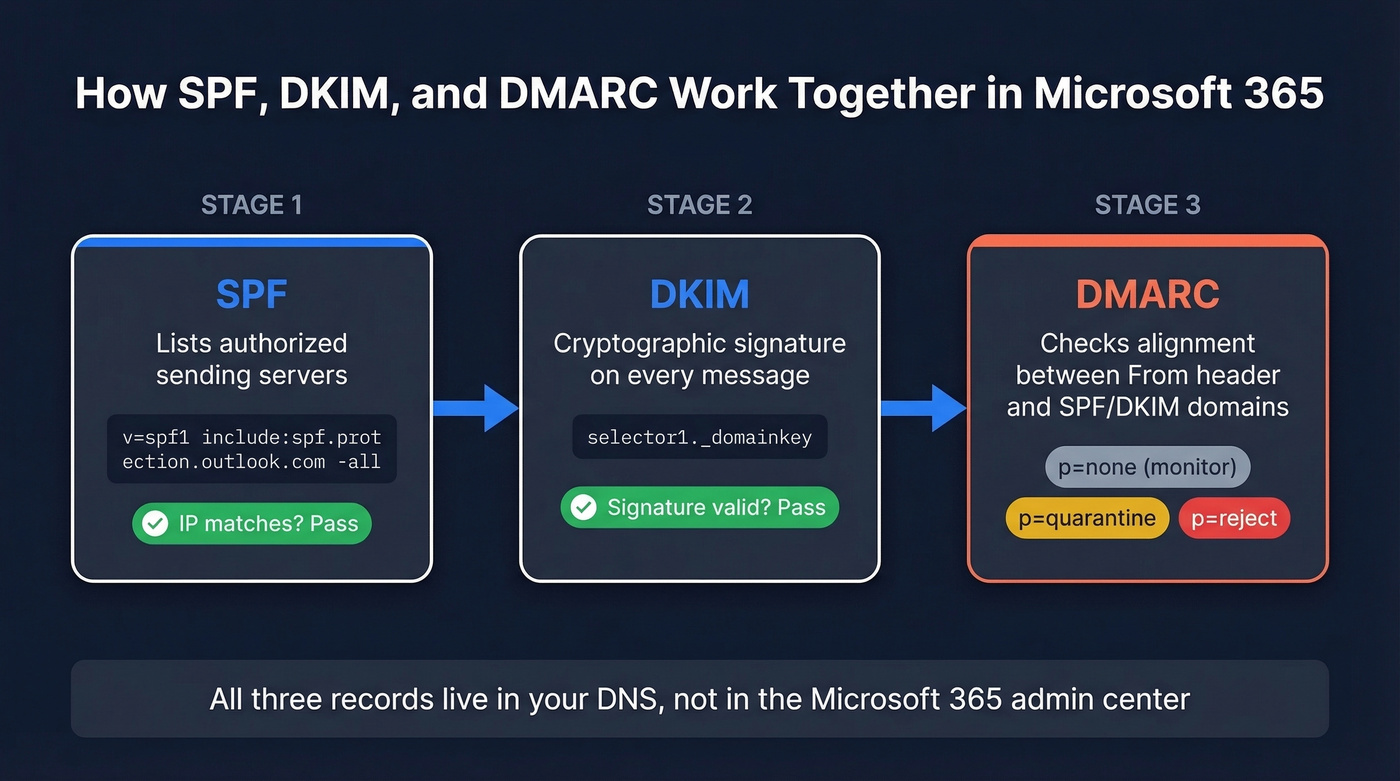
- SPF - tells receivers which servers can send on your domain's behalf
- DKIM - cryptographically signs your messages so receivers can verify they weren't tampered with
- DMARC - ties SPF and DKIM together with a policy telling receivers what to do when checks fail
Start with p=none (monitoring only), then ramp to p=reject over roughly 6-8 weeks. You don't need a paid tool to get there. Google and Yahoo apply bulk-sender requirements at 5,000+ messages/day, and Microsoft enforces authentication for high-volume sending to consumer mailboxes (Outlook.com, Hotmail, Live.com).
Prerequisites: SPF and DKIM
Set Up SPF
SPF is a DNS TXT record published at your domain's root listing every server authorized to send email on your behalf. For Microsoft 365, the baseline record:
v=spf1 include:spf.protection.outlook.com -all
Don't create a second SPF TXT record. You can only have one per domain. If you already have an SPF record, append the Microsoft include to it. We've seen admins accidentally overwrite their existing record or publish a duplicate - both break SPF entirely.
If third-party services send email from your domain, add their includes too:
| Service | SPF Include |
|---|---|
| Microsoft 365 | include:spf.protection.outlook.com |
| Mailchimp | include:servers.mcsv.net |
| HubSpot | include:hubspotemail.net |
| Salesforce | include:_spf.salesforce.com |
Here's the thing: SPF has a hard limit of 10 DNS lookups per RFC 7208. Every include, a, mx, exists, and redirect counts - and included records cascade, so one include might consume three lookups underneath. Mechanisms like ip4, ip6, and all don't count because they're direct matches, not DNS queries.
Exceed 10 lookups and you get a PermError. SPF fails entirely - not partially, not gracefully. Use MXToolbox to audit your current lookup count. If you're close, split sending streams across subdomains so each gets its own 10-lookup budget.
Enable DKIM
Microsoft doesn't enable DKIM signing for custom domains by default - you have to turn it on manually in Defender. This catches admins off guard because M365 auto-signs for the default *.onmicrosoft.com domain, creating a false sense of security.
Publish two CNAME records for your custom domain:
selector1._domainkey.yourdomain.com -> selector1-yourdomain-com._domainkey.yourtenant.onmicrosoft.com
selector2._domainkey.yourdomain.com -> selector2-yourdomain-com._domainkey.yourtenant.onmicrosoft.com
Replace yourdomain.com with your actual domain and yourtenant with your Microsoft 365 tenant name. Once the CNAMEs propagate - give it a few hours - head to the Microsoft 365 Defender portal and enable DKIM for the domain.
If you have multiple custom domains or alias domains, each one needs its own selector1/selector2 CNAMEs. Miss one and you'll get intermittent DKIM failures that only surface in aggregate reports weeks later. Rotate DKIM keys every 6-12 months. If you want a quick checklist, see verify DKIM is working.
Create Your DMARC Record
DMARC is a single TXT record published at _dmarc.yourdomain.com in your DNS host - not in the M365 admin center. It checks whether the domain in the visible From header (RFC 5322.From) aligns with the domain authenticated by SPF or DKIM. Here's the full syntax:
v=DMARC1; p=none; rua=mailto:dmarc-reports@yourdomain.com; pct=100; adkim=r; aspf=r; sp=none;
| Tag | Purpose | Start Value |
|---|---|---|
v |
Protocol version | DMARC1 (required) |
p |
Policy for domain | none -> reject |
rua |
Aggregate report address | Your mailbox or tool |
ruf |
Forensic report address | Skip it |
pct |
% of mail to apply policy | 100 for none |
adkim |
DKIM alignment mode | r (relaxed) |
aspf |
SPF alignment mode | r (relaxed) |
sp |
Subdomain policy | none initially |
If you want to go deeper on alignment (and why relaxed vs strict matters), read DMARC alignment.
Copy-paste starters for each stage:
Monitoring: v=DMARC1; p=none; rua=mailto:dmarc@yourdomain.com; adkim=r; aspf=r;
Quarantine: v=DMARC1; p=quarantine; pct=25; rua=mailto:dmarc@yourdomain.com; adkim=r; aspf=r;
Reject: v=DMARC1; p=reject; pct=100; rua=mailto:dmarc@yourdomain.com; adkim=r; aspf=r; sp=reject;
Set your TTL to 3600 (1 hour) so policy changes propagate quickly during rollout. Stop configuring ruf. Gmail and Outlook don't send forensic reports due to privacy concerns, and Microsoft 365 won't send them even if you publish the tag.
Verify Your Setup
After publishing, confirm everything is live:
nslookup -type=TXT _dmarc.yourdomain.com
nslookup -type=CNAME selector1._domainkey.yourdomain.com
nslookup -type=TXT yourdomain.com
Run your domain through MXToolbox's DMARC lookup to catch formatting errors. A single misplaced semicolon can invalidate the entire record.
Rollout Calendar
If you're still on p=none after months, you have monitoring, not protection. Here's a practical rollout:
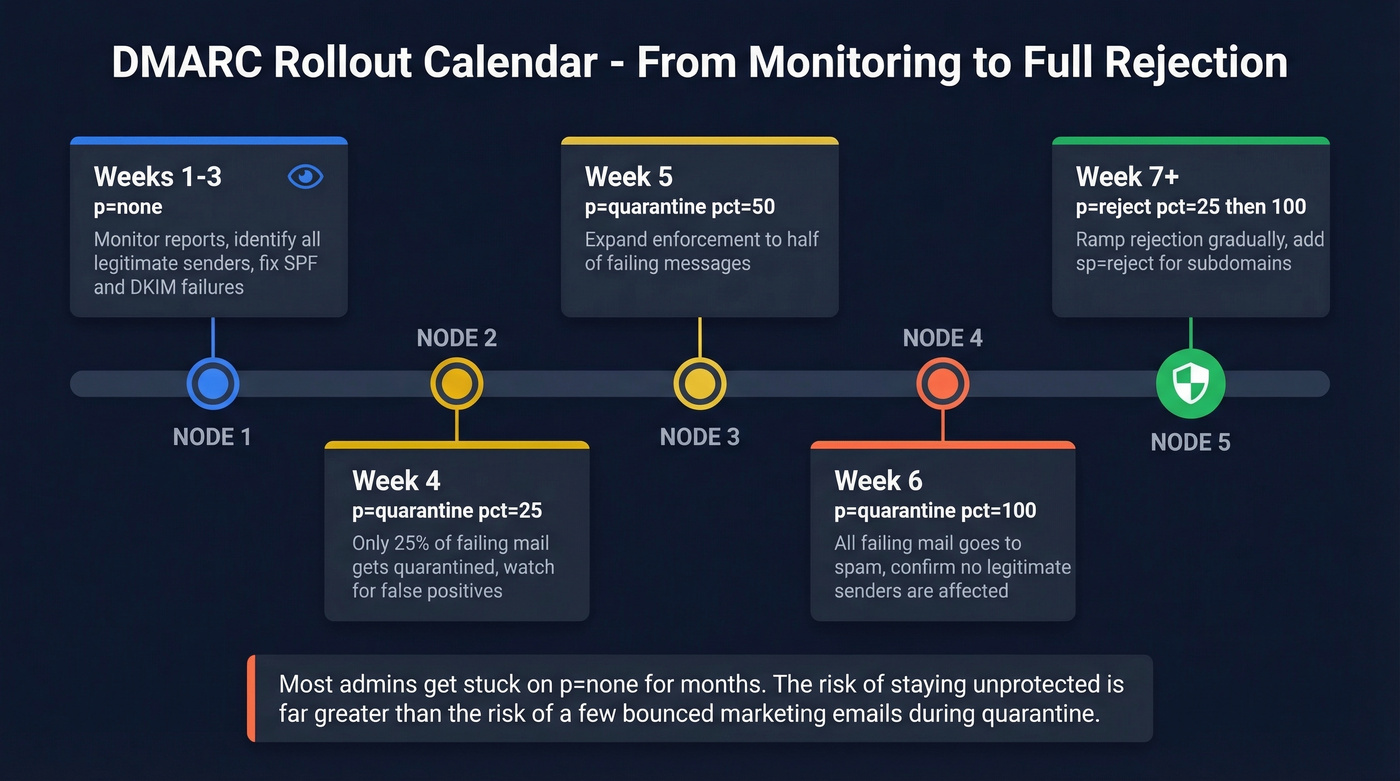
| Week | Policy | pct | What to Do |
|---|---|---|---|
| 1-3 | p=none |
- | Monitor reports, ID all senders |
| 4 | p=quarantine |
25 | Watch for false positives |
| 5 | p=quarantine |
50 | Expand enforcement |
| 6 | p=quarantine |
100 | Full quarantine |
| 7+ | p=reject |
25->100 | Ramp to full rejection |
During weeks 1-3, your only job is reading aggregate reports and making sure every legitimate sender passes SPF or DKIM with alignment. Fix failures before moving to quarantine.
The pct tag applies the policy to only a percentage of failing messages. At pct=25, 75% of failing mail still gets delivered normally. One caveat: not all receivers honor pct precisely. Treat it as a ramp, not a rollback mechanism.
Let's be honest - most admins get stuck on p=none for months because they're afraid of breaking legitimate mail. In our experience, the risk of staying on p=none (where anyone can spoof your domain with zero consequences) far outweighs the risk of a misconfigured marketing tool bouncing a few emails during the quarantine phase. Move faster.

You're hardening your domain with DMARC so spoofed emails don't wreck your reputation. But authentication only matters if you're sending to verified addresses. Bad data triggers bounces, bounces tank your sender score, and suddenly your DMARC-compliant emails land in spam anyway. Prospeo's 5-step verification and 98% email accuracy keep your bounce rate under control - the same way DMARC keeps spoofing under control.
Don't let bad contact data undo the deliverability DMARC just gave you.
How to Read DMARC Reports
Aggregate Report XML
Aggregate reports arrive as gzipped XML files from every receiver that processes your mail. Three sections matter:
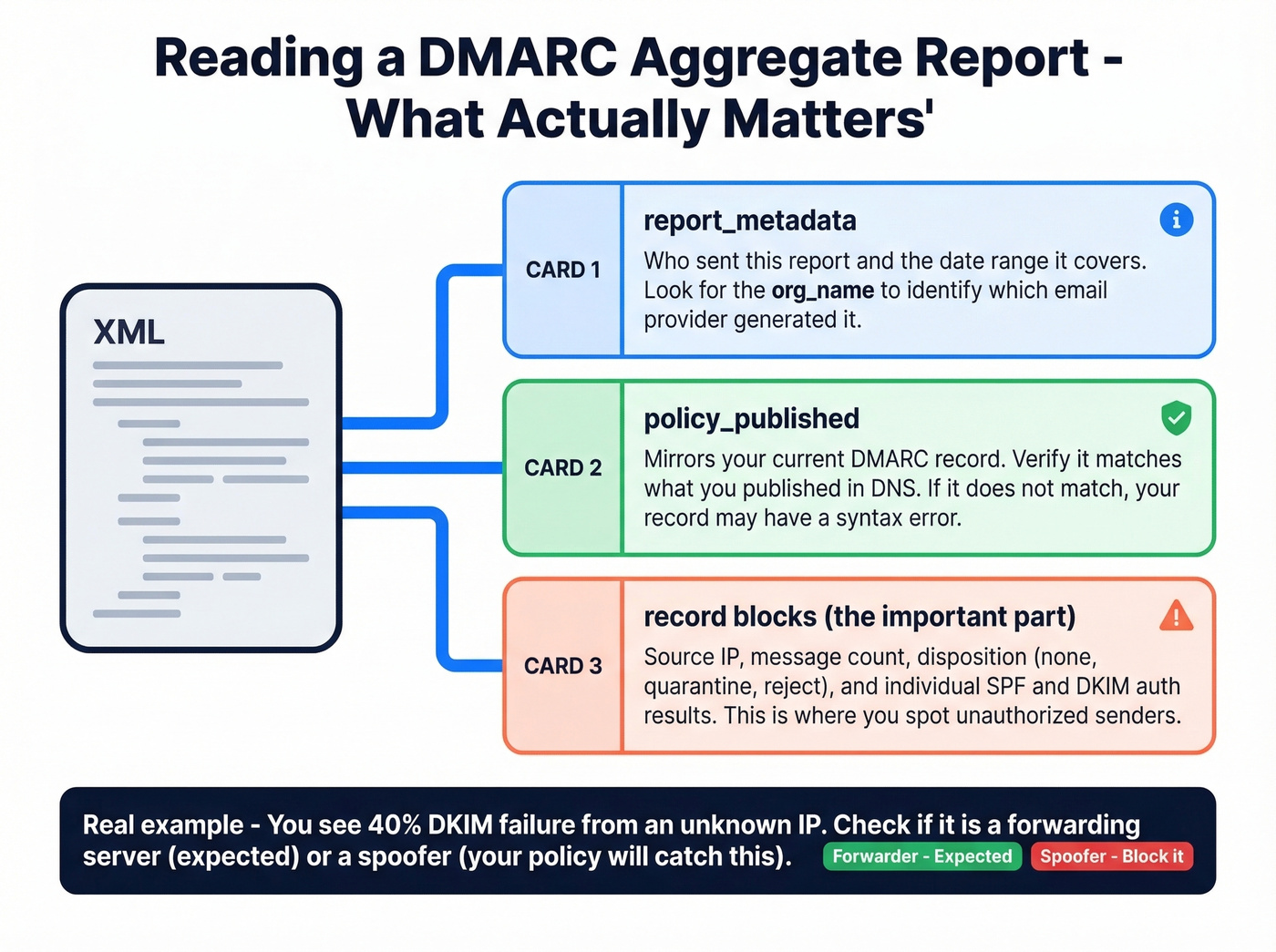
report_metadata- who sent the report and the date rangepolicy_published- mirrors your DMARC recordrecordblocks - source IP, message count, policy disposition, and SPF/DKIM auth results
Real scenario: you see 40% DKIM failure from an unrecognized IP. Before panicking, check the source. If it's a forwarding server or mailing list, that's expected - forwarding breaks authentication. If it's an IP you've never seen claiming to send as your domain, that's a spoofer, and exactly what your policy catches.
Check aggregate reports daily during rollout, weekly once you're at p=reject.
Free Monitoring Tools
You don't need a paid tool to reach p=reject:
| Tool | Free Tier | Paid From | Best For |
|---|---|---|---|
| Valimail Monitor | No volume limits | Enterprise (contact vendor) | High-volume senders |
| EasyDMARC | 1K emails/mo, 14-day data | $35.99/mo | Dashboard workflow |
| Postmark | Email digests only | $14/mo/domain | Simple summaries |
| PowerDMARC | Free tier available | Paid plans available | Budget-conscious |
| dmarcian | Free record wizard | Paid plans available | Record generation |
Valimail's free monitor is the strongest starting point - no volume limits and it preserves your existing settings when adding its rua address. EasyDMARC has a better dashboard but caps you at 1,000 emails per month on free. Postmark sends email digests without a dashboard - fine for small domains, but watch out during setup: it can prompt you to create a record without detecting an existing one, which risks creating duplicates that invalidate your policy.
If you're also trying to keep inbox placement stable during enforcement, it helps to track your domain with email reputation tools.
Troubleshooting Common Failures
Forwarding and Mailing Lists
This is the most common "why is everything failing when I configured it correctly?" scenario.
When a message gets forwarded, the forwarding server's IP replaces the original. SPF checks the new IP against your record, doesn't find it, and fails. DKIM usually survives - unless the intermediary modifies headers or body content. Mailing lists love adding footers and rewriting subject lines, which breaks the DKIM signature.
A thread on r/sysadmin captures this perfectly: an admin sets up DKIM, monitors reports, and sees failures because large universities forward mail and mangle headers. You can't fix the receiver. What you can do is configure ARC.
Fix Forwarding with ARC
ARC (Authenticated Received Chain) preserves original authentication results across forwarding hops. When Microsoft 365 receives a forwarded message, it checks the ARC chain and can trust the original SPF/DKIM results instead of re-evaluating against the forwarding server's IP.
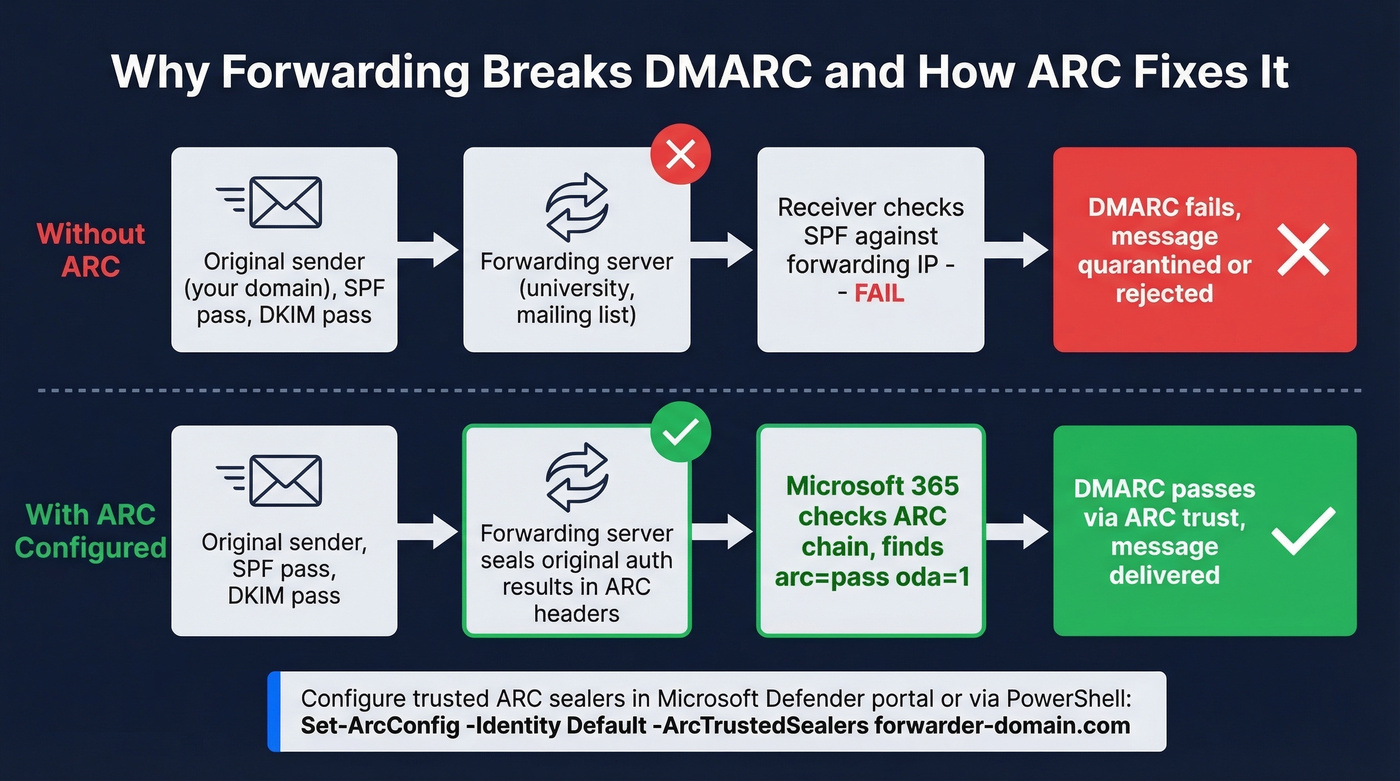
To configure trusted ARC sealers in M365, go to the Microsoft Defender portal -> Email authentication settings (https://security.microsoft.com/authentication) -> ARC tab. Add the domain of the trusted intermediary - this must match the d= value in the ARC-Seal and ARC-Message-Signature headers.
Or via PowerShell:
Get-ArcConfig
Set-ArcConfig -Identity Default -ArcTrustedSealers "forwarder-domain.com"
In the last ARC-Authentication-Results header, look for arc=pass and oda=1 to confirm the sealer is trusted. Most guides skip ARC entirely, which is a disservice to anyone dealing with forwarding at scale.
Why p=reject Doesn't Always Reject
You've set p=reject; pct=100 and a spoofed message still lands in someone's inbox. The headers show dmarc=fail action=oreject and compauth=none reason=451. What happened?
Receivers can override disposition. Microsoft historically used oreject (override reject) to route failing messages to Junk instead of rejecting outright. The bulk-sender enforcement that started in May 2025 tightened this for high-volume sending to consumer Microsoft mailboxes, with rejections like 550 5.7.515 when required authentication isn't met. But overrides still happen. Email works across thousands of independent servers - you can't control all of them.
DKIM "No Key for Signature" Errors
Headers showing dkim=fail (no key for signature) header.d=yourdomain.com mean the receiver couldn't find your DKIM public key. Common causes: an alias or vanity domain missing its own selector CNAMEs, DNS propagation delay, or a selector pointing to the wrong tenant. Verify each sending domain has both selector CNAMEs published and confirm propagation with nslookup -type=CNAME selector1._domainkey.yourdomain.com.
Subdomains, Alignment & Parked Domains
The sp= tag sets policy for subdomains. Without it, subdomains inherit the parent's p= policy. But each subdomain still needs an aligned authentication path for checks to pass.
Relaxed alignment (adkim=r; aspf=r) allows mail.yourdomain.com to align with yourdomain.com. Strict alignment requires an exact match. Start relaxed. Move to strict only when you've fully mapped every sending subdomain.
Microsoft recommends using subdomains for third-party bulk senders - marketing.contoso.com for Mailchimp, notifications.contoso.com for transactional email. This isolates reputation and keeps your root domain clean. If you're setting up separate sending infrastructure, a dedicated tracking domain can also help keep signals clean.
For parked or unused domains, publish a reject-all record. This includes your *.onmicrosoft.com domain if you don't use it for email:
_dmarc.yourtenant.onmicrosoft.com -> v=DMARC1; p=reject; sp=reject;
Attackers love spoofing parked domains because admins forget about them. Don't be that admin.
Protect Your Outbound Reputation
Authentication handles domain impersonation on the inbound side, but your domain reputation also depends on outbound hygiene. Bounces, spam traps, and complaint rates all factor in - Google wants you below 0.3% complaint rate, ideally under 0.1%. If you're sending outbound campaigns with unverified contact data, you're undermining the authentication work you just did.
If you're seeing deliverability issues even with authentication in place, work through an email deliverability guide and monitor your email bounce rate closely.
Tools like Prospeo catch invalid addresses, spam traps, and honeypots before they become bounces, with 98% email accuracy and a 7-day data refresh cycle. Authentication proves you're legitimate; clean data proves you're responsible. If you need a broader shortlist, compare data enrichment services or free lead generation tools that support list hygiene.

Meritt dropped their bounce rate from 35% to under 4% after switching to Prospeo. Stack Optimize runs 94%+ deliverability across every client domain with zero flags. When you've spent weeks rolling out SPF, DKIM, and DMARC to protect your domain, the last thing you need is a data provider feeding you unverified emails that spike bounces and trigger spam traps.
Protect the domain reputation you just spent six weeks building.
FAQ
Does Microsoft 365 support DMARC natively?
M365 evaluates inbound DMARC automatically via Exchange Online Protection - no extra licenses needed. For outbound mail, you must configure SPF, DKIM, and publish a DMARC TXT record in your DNS host yourself.
How long should I stay on p=none?
Two to four weeks - long enough to identify every legitimate sender in aggregate reports. Staying on p=none indefinitely gives you visibility but zero phishing protection. Most orgs can reach p=reject within 6-8 weeks.
Can I use DMARC without DKIM?
Technically yes - DMARC passes if either SPF or DKIM passes with alignment. But SPF breaks on forwarding while DKIM survives intact. Skipping DKIM creates a significant authentication gap, especially for forwarded messages.
What's the SPF 10-lookup limit?
RFC 7208 caps SPF evaluation at 10 DNS lookups total. Exceeding it triggers a PermError and SPF fails entirely - not partially. Use MXToolbox to audit your count and split high-lookup domains across subdomains.
How do I keep outbound email data clean?
Verify lists before sending. A 5-step verification process that removes spam traps, catch-all risks, and honeypots is the baseline. Invalid addresses and spam traps damage domain reputation just as effectively as failed authentication.