

Email Authentication DNS TXT Records: The 2026 Setup Guide You Actually Need
Your email authentication DNS TXT records are either working right now or they're silently killing your deliverability. There's no middle ground - by 2026, bulk-sender enforcement is strict, and non-compliant mail gets rejected at the SMTP level before it ever touches a spam folder. Here's every record you need, the exact commands to verify them, and the mistakes that break everything without triggering a single alert.
Why DNS Authentication Matters Now
Google and Yahoo started requiring DMARC for bulk senders (5,000+ daily messages) in February 2024. Microsoft followed with similar requirements in 2025. By 2026, enforcement is strict across all three for high-volume sending - non-compliant messages get rejected, not just flagged.
Here's a stat that should bother you: around half of domains publish a DMARC record, but many sit at p=none - monitoring only, no enforcement. That gap between "technically present" and "actually protected" is where spoofing thrives and deliverability quietly erodes.
What stops most people from fixing this is fear of breaking something. DNS editing sounds dangerous. It's not. TXT records don't touch your A, AAAA, or MX records. You can't break your website or mail routing by adding a TXT record - the worst case is a typo that does nothing until you fix it. The real risk is doing nothing.
Let's get this done.
What You Need (Quick Version)
You need three DNS TXT records, set up in this order:
- SPF - authorizes which servers can send email from your domain
- DKIM - cryptographically signs your messages so receivers can verify they weren't tampered with
- DMARC - tells receivers what to do when SPF or DKIM fails, and where to send you reports
Add these records wherever your DNS is hosted - not necessarily where you registered the domain. If your domain is at Namecheap but DNS points to Cloudflare, you're editing records in Cloudflare. All three live as TXT entries in your domain's DNS zone, managed through whichever provider controls your nameservers.
How These Records Work Together
DNS TXT records are text-based entries in your domain's zone file, originally defined in RFC 1035 as a way to attach descriptive text to a domain. Email authentication repurposed them as machine-readable key-value pairs - SPF policies, DKIM public keys, and DMARC instructions all live in TXT records.
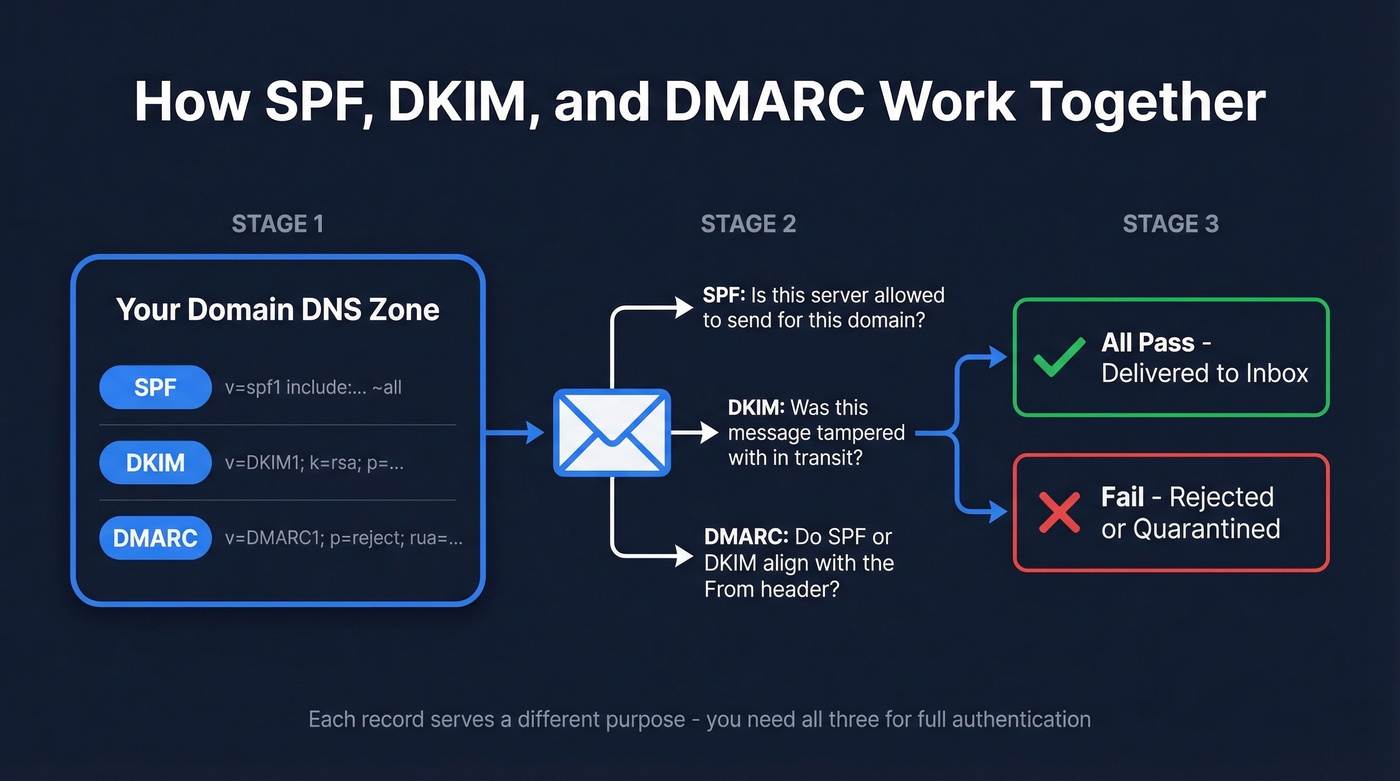
One technical constraint matters: a single TXT record string maxes out at 255 characters. Longer values get split into multiple quoted strings within one record, then concatenated by the DNS resolver. This is normal, but it's where formatting mistakes creep in.
Think of your domain's TXT records as three branches. SPF declares who's allowed to send. DKIM proves the message is authentic. DMARC ties them together with a policy. Each serves a different purpose, and you need all three.
Setting Up Your Records
SPF - Authorize Your Sending Servers
SPF tells receiving mail servers which IP addresses and services are allowed to send email on behalf of your domain:
v=spf1 [mechanisms] [qualifier]
Three records you can copy and adapt:
Google Workspace only:
v=spf1 include:_spf.google.com ~all
Multiple providers - Google + Mailchimp + a dedicated IP:
v=spf1 include:_spf.google.com include:servers.mcsv.net ip4:198.2.128.1 ~all
Unused domain lockdown - no email should ever come from this domain:
v=spf1 -all
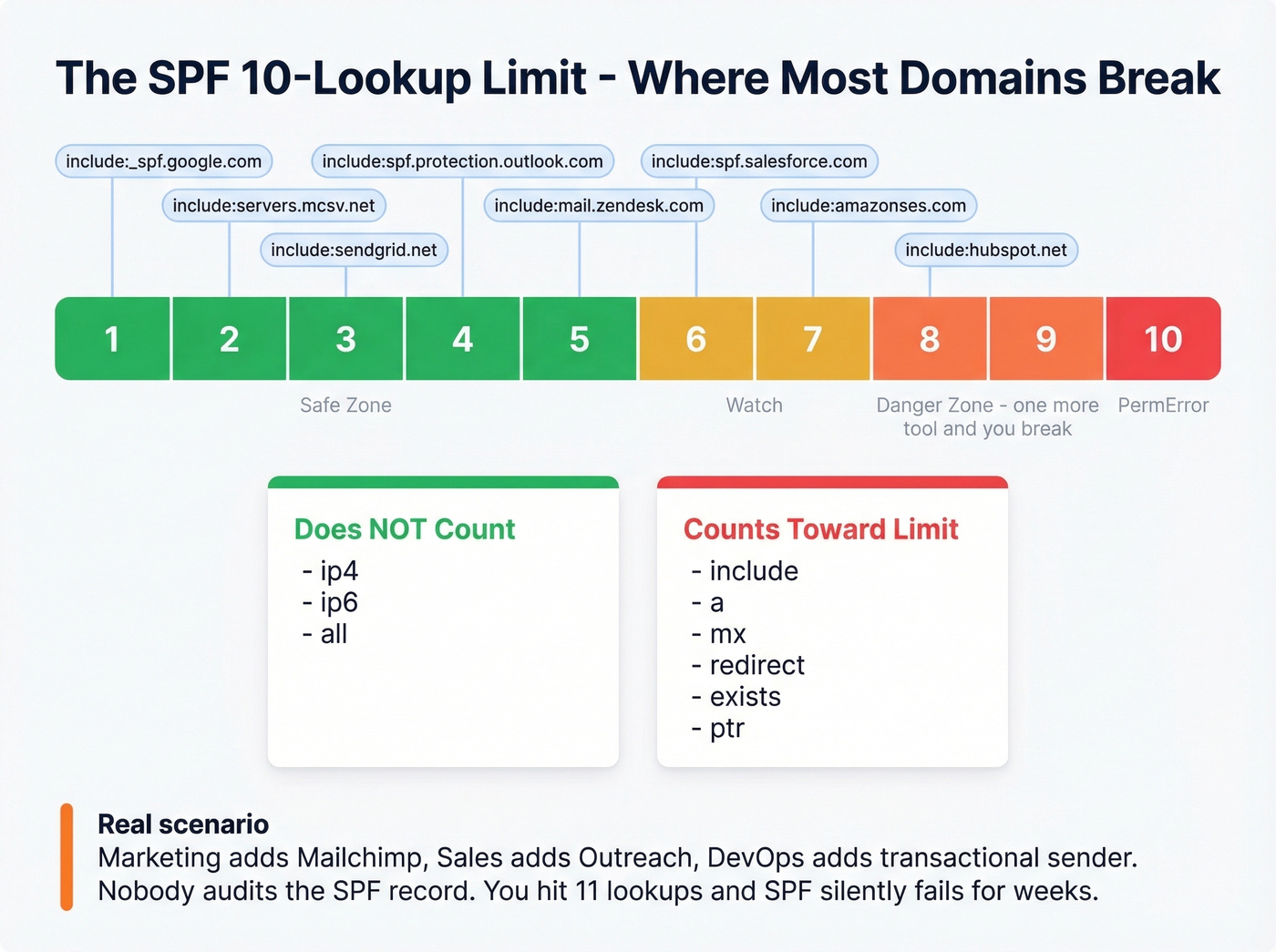
The 10-lookup limit is the thing that'll bite you. RFC 7208 caps SPF evaluation at 10 mechanisms that trigger DNS lookups. Exceed it and you get a PermError - which can mean rejection, spam filtering, or neutral handling depending on the receiver.
| Mechanism | Counts Toward Limit? |
|---|---|
include |
Yes |
a |
Yes |
mx |
Yes |
redirect |
Yes |
exists |
Yes |
ptr (deprecated) |
Yes |
ip4 |
No |
ip6 |
No |
all |
No |
Flag your domain at 8+ lookups. That's the danger zone - one more SaaS tool added by your marketing team and you're over the limit. We've seen this exact scenario play out with Mailchimp, HubSpot, and Salesforce all stacked in one record, and the team had no idea SPF was silently failing for weeks.
Two ways to manage this. First, use dedicated subdomains per sending service, where each gets its own SPF record with a clean lookup count. Second, use SPF flattening tools that resolve includes down to IP addresses. Subdomains are cleaner. Flattening works but creates maintenance risk because providers rotate IPs, and your flattened record can go stale without warning.
One critical rule: one SPF record per domain. Two TXT records starting with v=spf1 on the same domain cause a PermError. Merge all your authorized senders into a single record. (If you want more syntax patterns, see these SPF record examples.)
DKIM - Sign Your Messages
DKIM uses public-key cryptography. Your mail server signs outbound messages with a private key, and the receiving server looks up the public key in your DNS to verify the signature matches. If someone tampered with the message in transit, verification fails.
The public key lives at a specific DNS location:
selector._domainkey.yourdomain.com
Step 1: Generate your key pair. RSA-2048 is the minimum you should use - some receivers actively distrust 1024-bit keys.
openssl genrsa -out private.key 2048
openssl rsa -in private.key -pubout -out public.key
Step 2: Name your selector. Use a date-based convention like jan2026 so you can track rotation. The TXT record goes at jan2026._domainkey.yourdomain.com.
Step 3: Publish the public key as a TXT record:
v=DKIM1; k=rsa; p=MIIBIjANBgkqhkiG9w0BAQEFAAOCAQ8AMIIBCgKCAQEA...
The p= value is your base64-encoded public key. Keep the private key locked down - it signs every outbound message and must remain confidential.
Step 4: Configure your mail server to sign outbound messages using the private key and the selector you chose. The exact steps vary by ESP - Google Workspace, Microsoft 365, Mailgun, and others each have their own setup flow - but the DNS side is the same everywhere. (If you want a dedicated checklist, use this guide on how to verify DKIM is working.)
Rotation approach: Publish a new selector like jul2026, configure your mail server to sign with the new key, overlap both selectors for 2-7 days while cached DNS entries expire, then retire the old one. Simple, but skipping rotation for years is one of the most common DKIM hygiene failures we see.
DMARC - Set Your Policy
DMARC ties SPF and DKIM together. It tells receiving servers what to do when authentication fails and where to send aggregate reports. Together, SPF, DKIM, and DMARC form the trust chain that receivers evaluate before delivering your message.
The record lives at _dmarc.yourdomain.com:
v=DMARC1; p=reject; sp=quarantine; pct=100; aspf=s; adkim=s; rua=mailto:dmarc-reports@yourdomain.com; ruf=mailto:dmarc-forensics@yourdomain.com;
Breaking that down:
- v=DMARC1 - version, required, must be first
- p=reject - policy:
none(monitor),quarantine(spam folder), orreject(block) - sp=quarantine - policy for subdomains
- pct=100 - percentage of messages the policy applies to
- aspf=s - SPF alignment:
sstrict orrrelaxed - adkim=s - DKIM alignment:
sstrict orrrelaxed - rua - aggregate report destination
- ruf - forensic/failure report destination
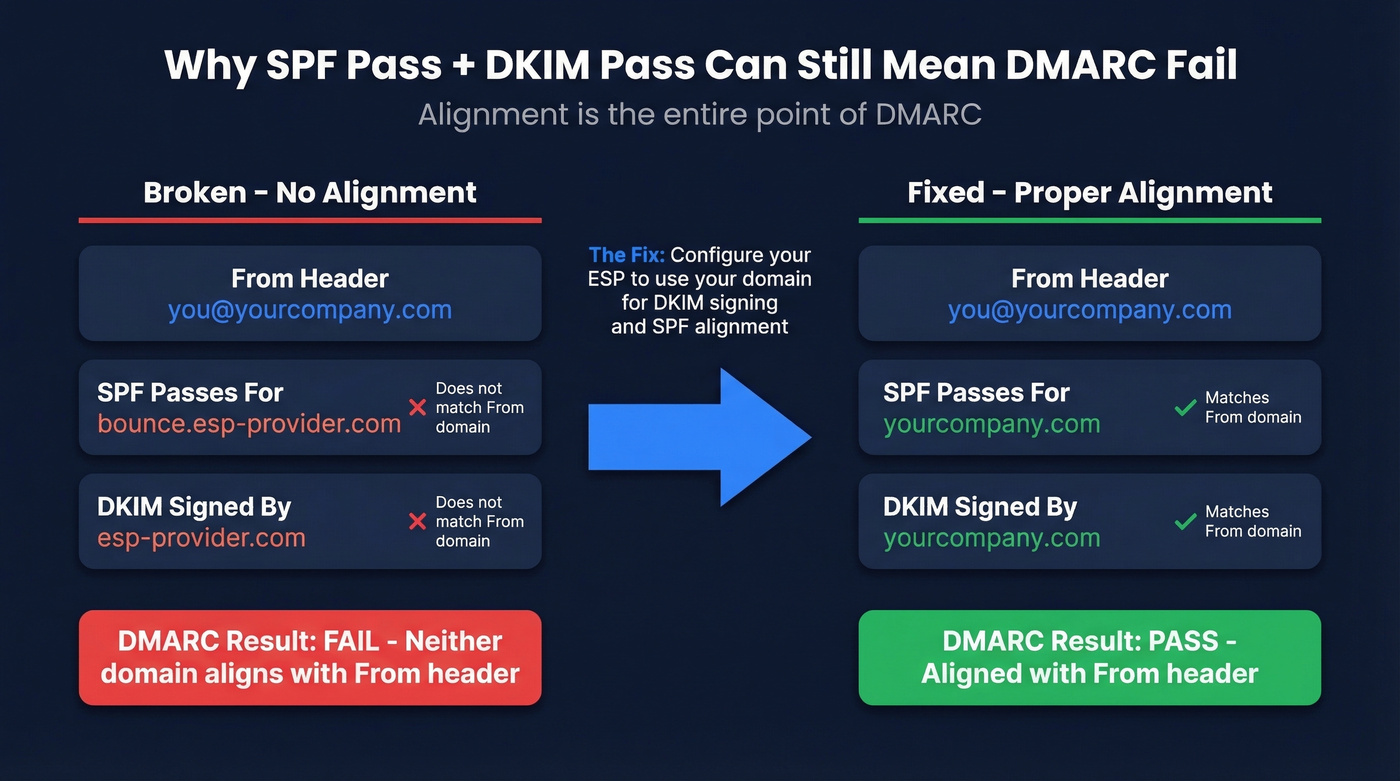
Here's the thing most guides gloss over: alignment is the entire point of DMARC. SPF and DKIM can both pass individually, and DMARC still fails. This trips up experienced teams constantly, and it's one of the most common complaints in r/sysadmin threads about email authentication. (If you want the deeper mechanics, read DMARC alignment.)
Your ESP sends email on your behalf. SPF passes for the ESP's bounce/envelope domain. DKIM passes for the ESP's signing domain. But the From: header shows you@yourcompany.com. Neither the SPF domain nor the DKIM domain aligns with your From: domain - so DMARC fails. The fix is configuring your ESP to use your domain for DKIM signing and/or SPF alignment. (This often overlaps with your return-path setup.)
Look, p=none is a participation trophy. It satisfies the checkbox for bulk-sender requirements, but it doesn't protect you from spoofing - it just gives you reports. Start at p=none for 2-4 weeks while you monitor aggregate reports, move to p=quarantine once you've fixed alignment issues, then graduate to p=reject. Don't rush this. But don't stay at none forever either.
For forwarded messages, ARC (Authenticated Received Chain) preserves authentication results across hops, but that's a separate configuration outside the scope of these three core records.

Stop paying for bounced emails. Prospeo verifies every contact with 98% accuracy, refreshed every 7 days.
Start free and only pay for verified contacts
How to Verify Your Setup
Once your records are published, verify them before assuming everything works. DNS propagation often completes within minutes to a few hours, though it can take up to 48 hours.
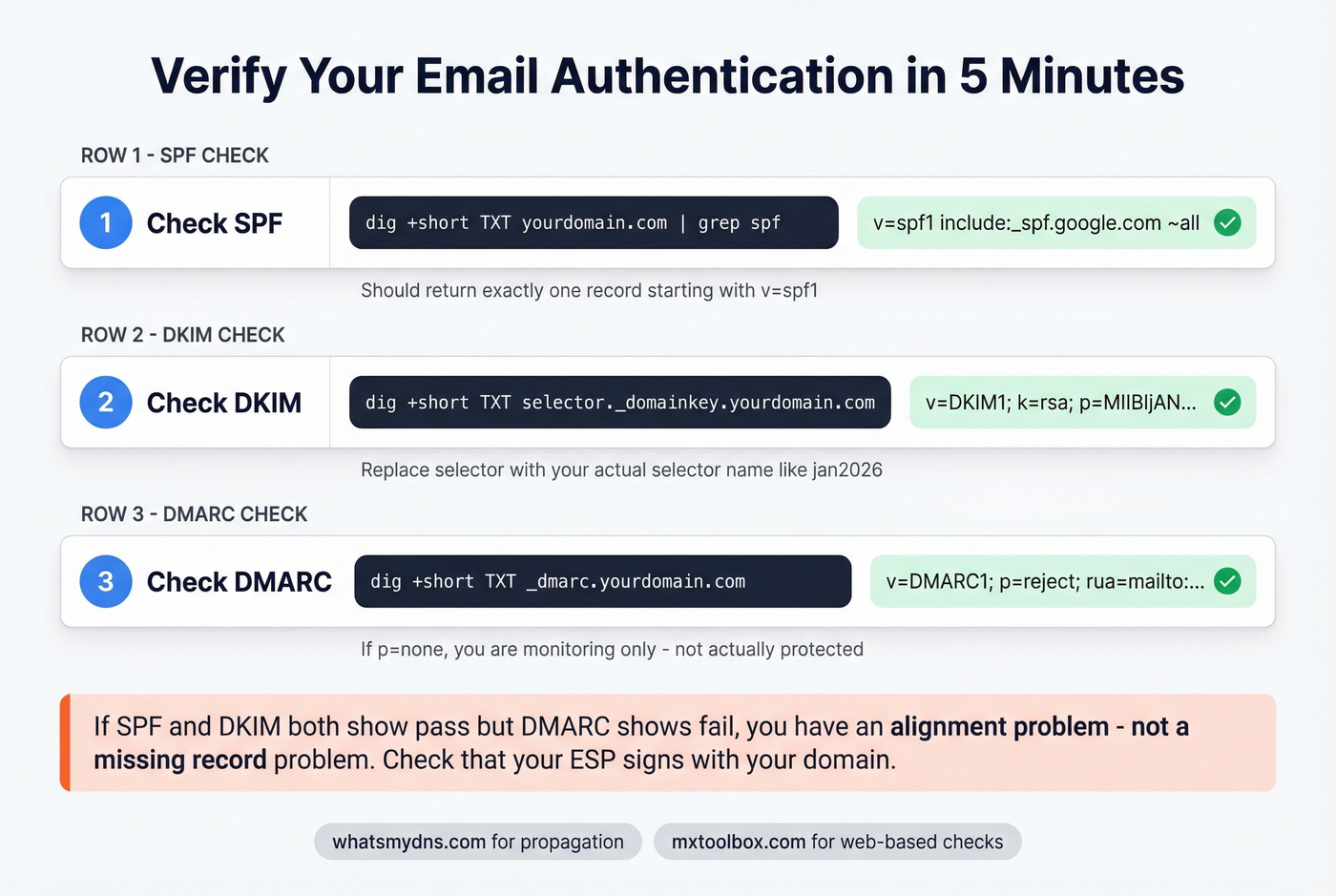
Terminal commands using dig:
Check SPF:
dig +short TXT yourdomain.com | grep spf
Check DKIM - replace selector with your actual selector:
dig +short TXT selector._domainkey.yourdomain.com
Check DMARC:
dig +short TXT _dmarc.yourdomain.com
If you get empty results, either the record hasn't propagated or it's published at the wrong location. Use WhatsMYDNS to check propagation across global resolvers. For a quick web-based check, MxToolbox runs SPF, DKIM, and DMARC lookups without touching a terminal.
Header inspection: Send a test email to a Gmail or Outlook account and view the full message headers. Look for the Authentication-Results header - you want spf=pass, dkim=pass, and dmarc=pass. If SPF or DKIM shows pass but DMARC shows fail, you've got an alignment problem. Go back to the DMARC section above.
For pre-publish SPF checking, spf.access.nu lets you validate your record and visualize the include chain before committing changes to DNS. It's useful for catching lookup-limit issues before they go live.
Quick checklist:
- SPF returns one record starting with
v=spf1 - DKIM returns a record with
v=DKIM1and ap=value - DMARC returns a record starting with
v=DMARC1 - Test email headers show
passfor all three - SPF lookup count is under 10 (treat 8+ as at-risk)
Mistakes That Silently Break Everything
These are the failures that don't send you an error message. Your email just quietly stops arriving.
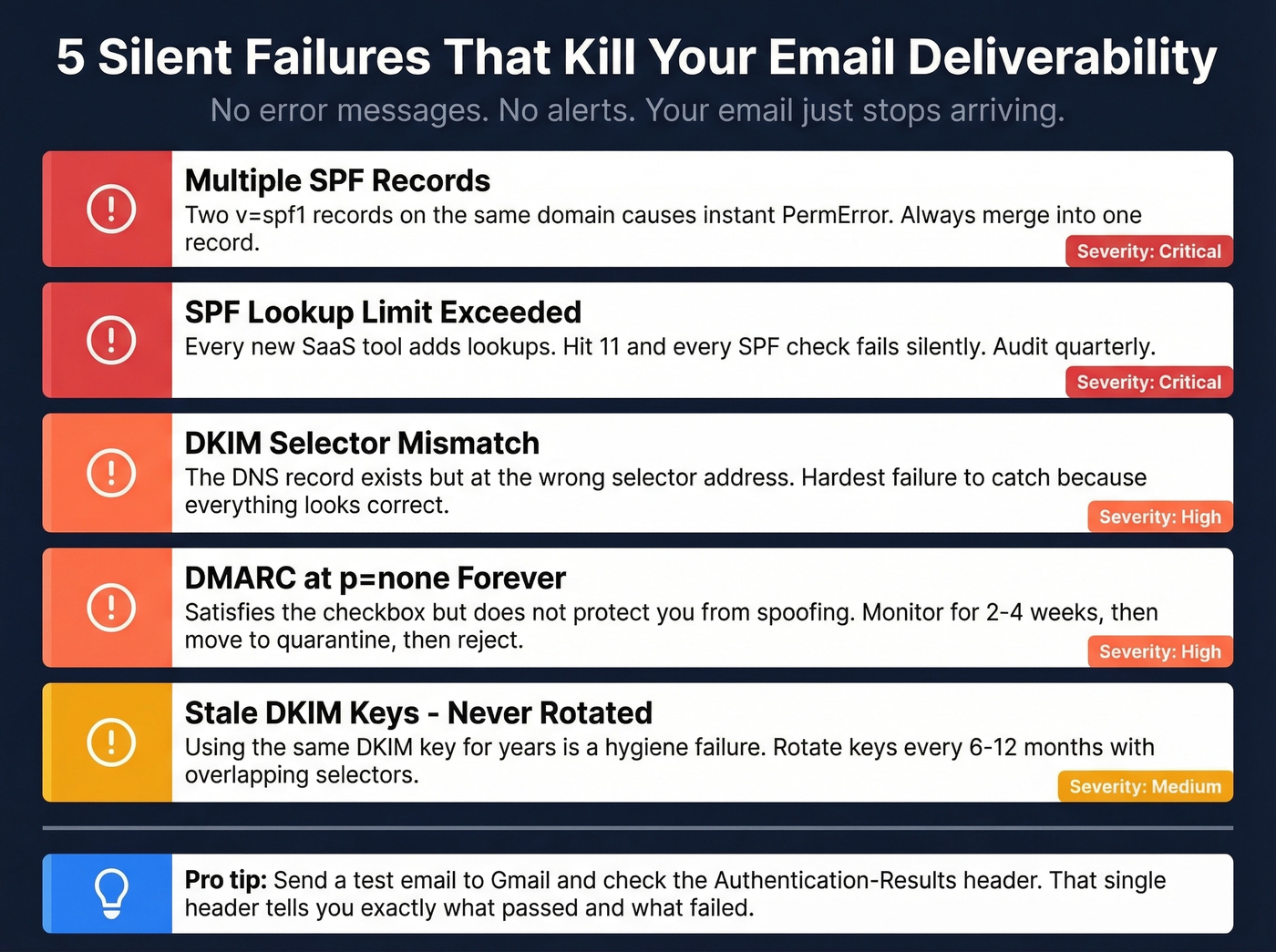
Multiple SPF records. Two TXT records starting with v=spf1 on the same domain = instant PermError. This happens when someone adds a new ESP's SPF record instead of merging it into the existing one. Always combine into a single record.
SPF lookup limit exceeded. Marketing adds Mailchimp. Sales adds Outreach. Someone adds a transactional sender. Suddenly you're at 11 lookups and every SPF check returns PermError. Audit your record quarterly. Use ip4 entries where possible - they don't count toward the limit.
DKIM selector mismatch. In our experience, this is the hardest failure to catch because the record exists - it's just at the wrong address. The DNS record is published at jan2026._domainkey.yourdomain.com but your mail server is signing with selector s1. Always verify the selector in your DKIM-Signature header's s= tag matches your DNS entry.
Stray characters in DKIM p= value. A missing semicolon, an accidental space in the base64 string, or unclosed quotes will silently invalidate the record. Copy-paste carefully, and don't publish multiple TXT records at the same selector name - split long keys into multiple quoted strings within one record instead.
Weak DKIM keys. RSA-1024 still technically works, but major receivers are increasingly distrusting it. Use 2048-bit minimum. If you set up DKIM years ago and never rotated, now's the time.
DMARC alignment failures with third-party senders. This is the most common "everything passes but DMARC fails" scenario. Your ESP sends from their infrastructure, SPF and DKIM pass for their domains, but your From: domain doesn't align. Configure custom DKIM signing and return-path alignment for every third-party sender you use. Skip this step and your DMARC reports will be a wall of alignment failures that make the whole setup pointless.
Authentication Is Necessary but Not Sufficient
Here's a frustration we hear constantly from teams who've done everything right on the DNS side: deliverability still tanks. Perfect authentication protects your domain identity, but if your bounce rate exceeds 2-3%, you're going to feel it in inbox placement even with flawless SPF, DKIM, and DMARC. Authentication guards who you are; list hygiene guards your reputation. Prospeo's 5-step email verification catches invalid addresses, spam traps, and honeypots before they hit your sequences - keeping bounce rates well under the threshold that damages inbox placement. (If you’re troubleshooting broader issues, start with an email deliverability guide and then drill into email bounce rate benchmarks and fixes.)
Your outbound is only as good as your data. With 300M+ profiles and verified emails at ~$0.01 each, Prospeo keeps your pipeline full.
Try it free - no credit card required
Beyond Authentication: BIMI
Once you're at DMARC enforcement with p=quarantine or p=reject, you unlock BIMI - Brand Indicators for Message Identification. BIMI displays your brand logo next to your emails in supported inboxes including Gmail, Yahoo, and Apple Mail.
The DNS record lives at default._bimi.yourdomain.com:
v=BIMI1; l=https://yourdomain.com/logo.svg;
Your logo needs to be a compliant SVG hosted at a public HTTPS URL. But the record alone isn't enough - you also need a certificate. A VMC (Verified Mark Certificate) requires a registered trademark and is issued by authorities like DigiCert and Entrust; Gmail shows a blue checkmark for VMC-verified senders. A CMC (Common Mark Certificate), introduced in early 2025, doesn't require a trademark - you just need to prove the logo has been displayed on your domain for 12 months.
Realistic timeline: 6-8 weeks to reach DMARC enforcement if you're starting from scratch, then 7-10 days for certificate provisioning. It's not a weekend project, but your logo appearing next to every message is a trust signal that no amount of subject-line optimization can replicate. If you're not sending at high volume or don't have a registered trademark yet, skip BIMI for now and revisit once your DMARC policy is at reject and stable.
FAQ
Can I have multiple SPF records on one domain?
No. Two TXT records starting with v=spf1 cause a PermError - SPF evaluation fails entirely. Merge all authorized senders into a single record. This is the most common SPF mistake and it's completely silent until you audit with dig or MxToolbox.
How long do DNS TXT record changes take to propagate?
Most changes go live within minutes to a few hours, though full global propagation can take up to 48 hours depending on TTL settings. Use WhatsMYDNS to monitor propagation across resolvers in real time before sending test emails.
Why does DMARC fail when SPF and DKIM both pass?
Domain alignment. DMARC requires the domain passing SPF or DKIM to match your From: header domain. Third-party senders often authenticate against their own domains, not yours. Fix this by configuring custom DKIM signing and return-path alignment for every ESP you use.
What's the difference between SPF ~all and -all?
~all (soft fail) marks unauthorized messages as suspicious but still delivers them. -all (hard fail) tells receivers to reject unauthorized mail outright. Start with ~all while testing, then switch to -all once every legitimate sender is included in your record.
How do I protect sender reputation after setting up authentication?
Authentication guards your domain identity, but high bounce rates above 2-3% still trigger spam filters. Verify your contact list before every campaign - tools like Prospeo's email verification catch invalid addresses, spam traps, and honeypots at 98% accuracy, keeping bounce rates well under the threshold that damages inbox placement.