

How to Create a Gmail Allow List (And What to Do When It Doesn't Work)
You set up SPF, DKIM, and DMARC. Everything passes. And yet your colleague's Outlook emails keep landing in your Gmail spam folder - every single time.
Creating a Gmail allow list should be simple, but it's not. Let's fix that.
"Allowlist" and "whitelist" mean the same thing. Most modern documentation uses "allowlist," so we will too.
What You Need (Quick Version)
Three methods, ranked by how well they actually work:
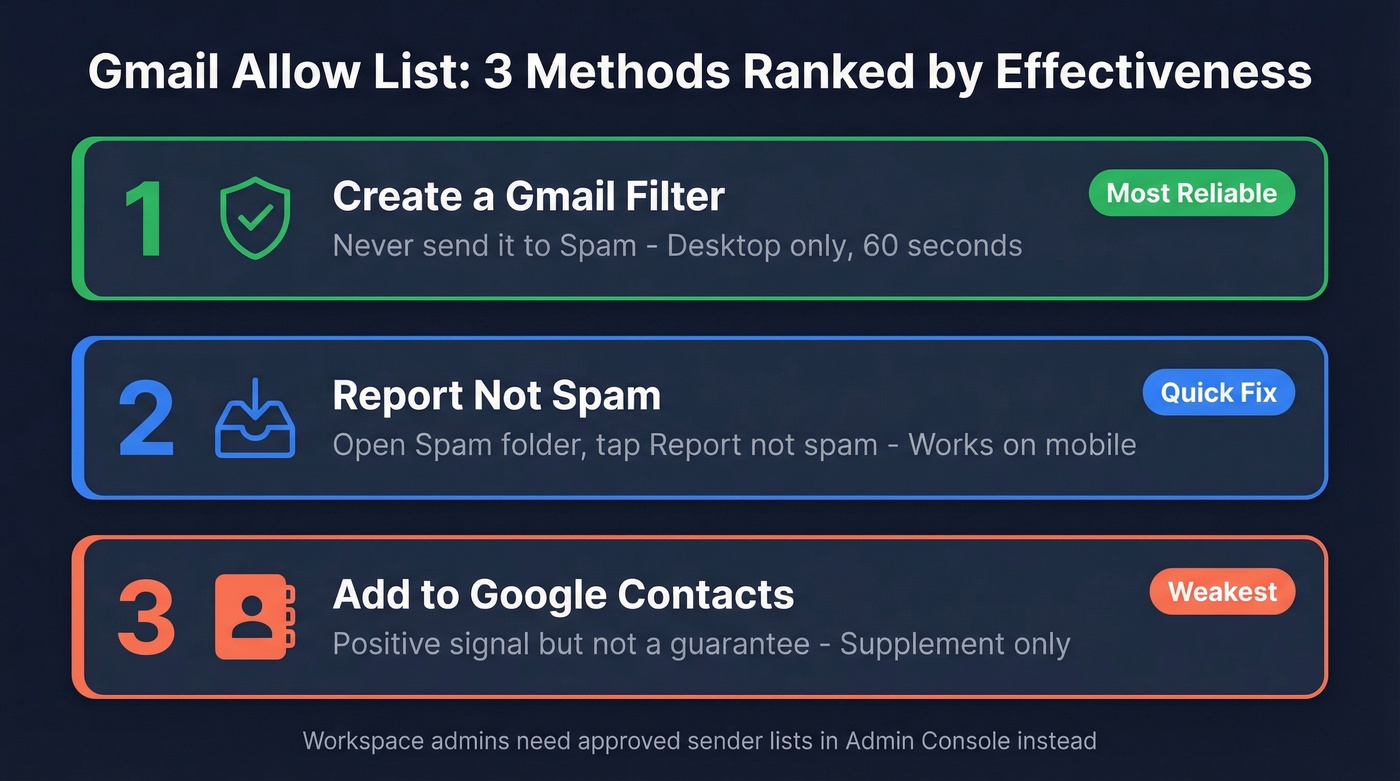
- Best method: Create a Gmail filter with "Never send it to Spam" - desktop only, takes 60 seconds.
- Quick fix: Open your Spam folder, find the email, tap "Report not spam." Works on mobile.
- Supplement: Add the sender to Google Contacts. It's a positive signal, but not a guarantee.
If you're a Google Workspace admin, skip to the Workspace section - you need approved sender address lists in the Admin Console, not the personal filter approach.
How Gmail's Spam Filter Works
Gmail layers multiple signals before deciding whether an email hits your inbox or gets buried: authentication results (SPF, DKIM, DMARC), sender reputation across all Gmail users, your personal engagement history with that sender, and machine-learning filtering signals.
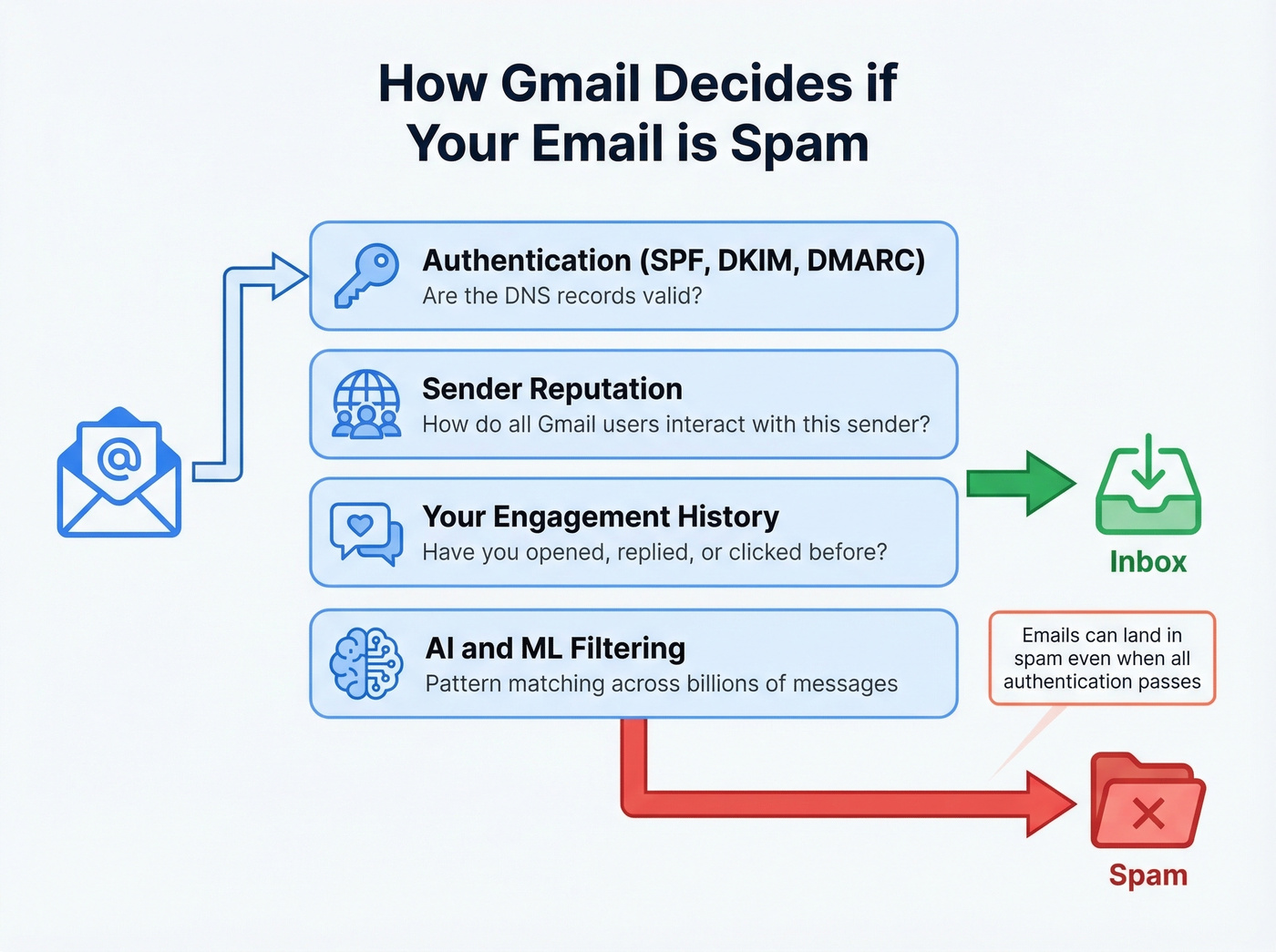
Here's the critical part: emails can land in spam even when every authentication check passes. One sender on Reddit reported sudden Gmail spam placement despite perfect SPF/DKIM/DMARC scores - two months of clean delivery, then nothing. When recipients clicked "not spam," future emails arrived fine. Engagement history matters as much as technical setup.
Google support has told users that spam decisions factor in "AI filtering" and "no prior interaction" - if you've never emailed someone before, Gmail's ML model treats you with more suspicion. We've seen this pattern repeatedly with outbound senders who have flawless authentication but zero recipient engagement.
How to Whitelist an Email in Gmail (Desktop)
This is the most reliable method for personal Gmail accounts.
From an Existing Email
Open the email you want to allowlist. Click the three-dot menu at the top right of the message and select "Filter messages like this." Gmail pre-fills the From field. Click "Create filter," check "Never send it to Spam," and hit "Create filter" again. Done.
Also check the option that categorizes it as Primary if you want these emails in your main inbox rather than the Promotions tab. And check "Also apply filter to matching conversations" to retroactively rescue emails already stuck in spam.
From Scratch (Settings)
Go to Settings -> See all settings -> Filters and Blocked Addresses -> Create a new filter. Type the email address in the From field, click "Create filter," check "Never send it to Spam," and save.
You can whitelist multiple addresses by separating them with commas in the From field: john@company.com, jane@company.com, alerts@company.com. If you already have a filter for safe senders, click Edit on the existing one and add the new address - no need to create duplicates.
Allowlist an Entire Domain
In the From field, use @domain.com or *@domain.com to match every sender at that domain. You can combine multiple domains with OR logic: @client1.com OR @client2.com. In practice, around 20-25 OR conditions per filter tends to be the practical limit before things get unwieldy.
Other Methods
Add to Contacts as a Safe Sender Signal
Open Google Contacts and add the sender's email address. This sends a soft trust signal to Gmail - it improves the odds of inbox delivery but doesn't guarantee it. Most useful as a supplement to a filter, not a replacement.
Mark as "Not Spam"
Open your Spam folder, find the email, and click "Report not spam." This moves that email to your inbox and trains Gmail's ML model that you want mail from this sender.
Important: Gmail permanently deletes spam after 30 days. If you suspect you're missing emails, check your Spam folder regularly - anything older than a month is gone for good.
On the flip side, when actual spam slips through to your inbox, use "Report Spam" instead of just deleting it. Deleting doesn't train the algorithm. Reporting does.

Allowlisting fixes the receiving end. But if you're sending outbound, the real problem is bad data. Emails that bounce destroy your sender reputation and train Gmail to spam-folder everything you send. Prospeo's 5-step verification and 98% email accuracy keep your bounce rate under 4%.
Protect your domain reputation before you need an allowlist.
Allowlisting on iPhone and Android
Gmail's mobile apps can't create or edit filters. It's been this way for years, and Google hasn't fixed it.
Your mobile options:
- Add the sender to your contacts directly from the email - tap the sender's name or avatar, then add to contacts.
- Open the Spam folder, find the email, and tap "Report not spam."
Neither is as reliable as a desktop filter. If you're dealing with a persistent spam-foldering problem, take 60 seconds on a computer and create the filter properly. Mobile workarounds are band-aids.
For Google Workspace Admins
Personal Gmail filters won't cut it when you're managing email delivery for an entire organization.
Approved Sender Lists
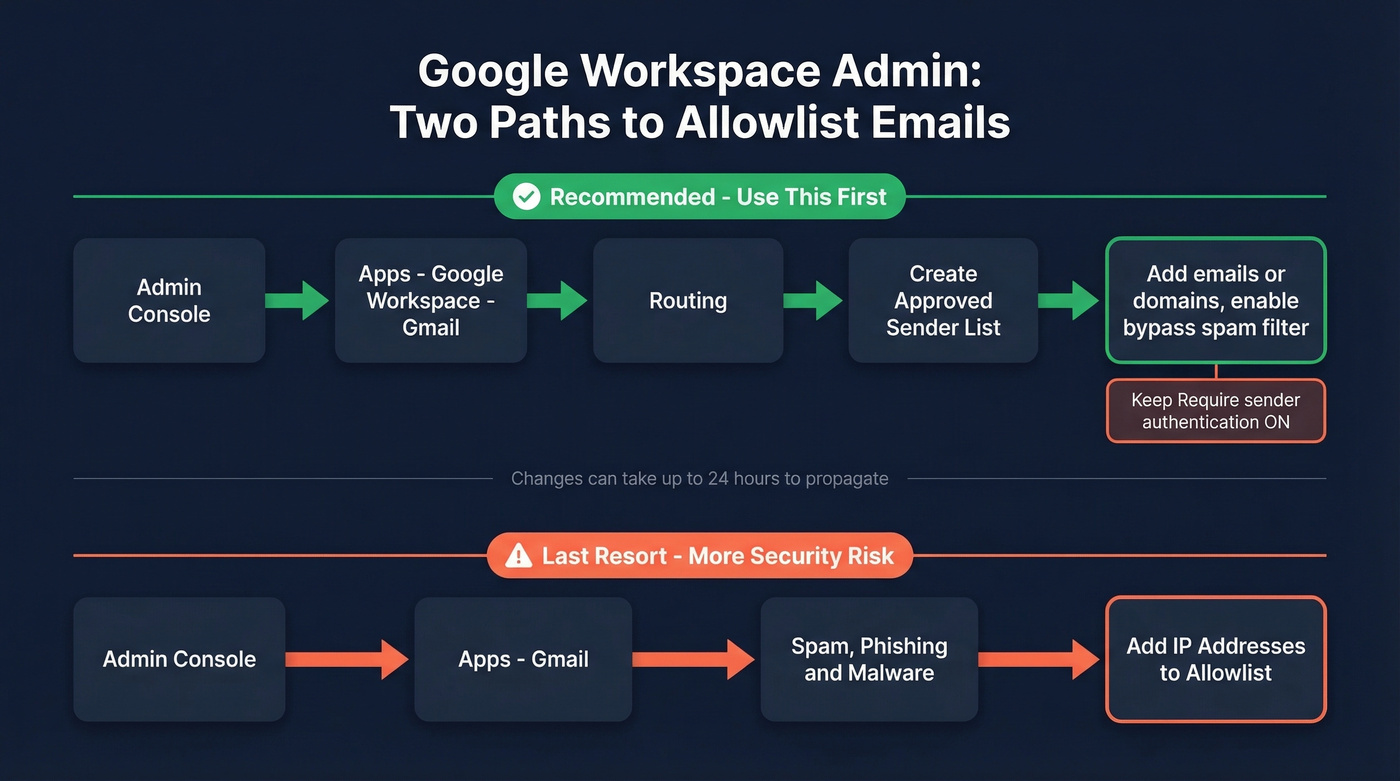
In the Admin Console, go to Apps -> Google Workspace -> Gmail -> Routing and create an approved sender address list. Add specific email addresses or domains, then use the routing rule option to bypass spam filters for messages from senders or domains in that list.
Keep "Require sender authentication" toggled on in most orgs. Turning it off weakens authentication enforcement and opens the door to spoofed messages. Changes can take up to 24 hours to propagate, though it's usually faster.
A common mistake we see: inheriting a bloated allowlist. One Workspace admin on Reddit reported 122 individual IPs and IP ranges on their list. If a vendor's mail is properly configured with SPF/DKIM/DMARC, you shouldn't need to allowlist their IPs at all. Keep your list lean.
IP Allowlists (Last Resort)
Under Apps -> Gmail -> Spam, Phishing and Malware, you can add IP addresses to an allowlist. This bypasses spam filtering for all mail from those IPs. Use this only when approved sender lists aren't solving the problem - it's a broader exception with more security risk.
Why Your Allowlist Isn't Working
You've tried filters, contacts, and admin-level allowlists - and emails still land in spam. Here's your diagnostic checklist:
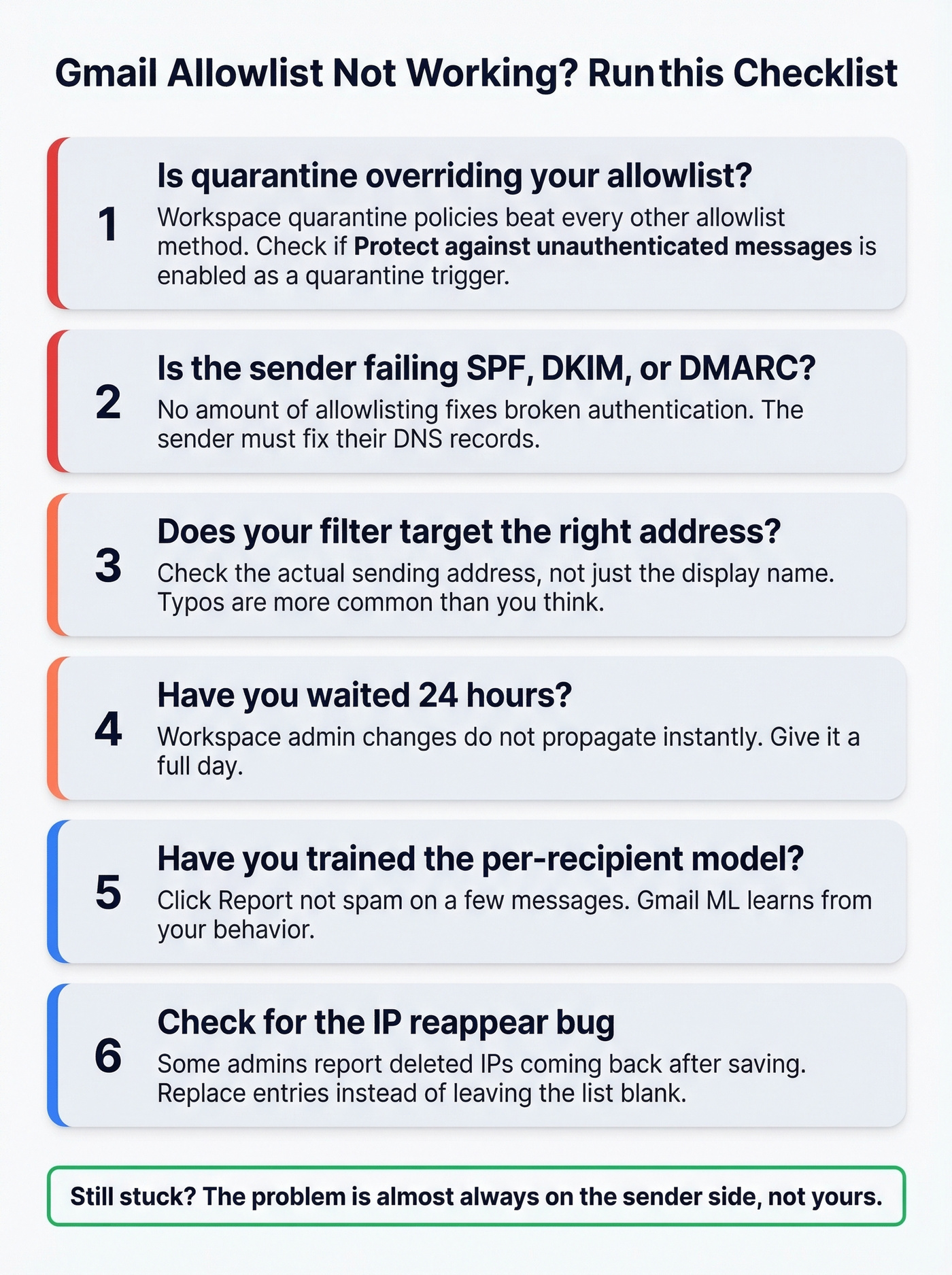
Check if quarantine is the real issue. If your Workspace admin enabled "Protect against any message not authenticated (SPF or DKIM)" as a quarantine trigger, that enforcement overrides every other allowlist method. One admin tried IP allowlists, domain address lists, shared contacts via API, and personal contacts - none of it bypassed quarantine. The fix is to address the authentication failure at the sender's end, or adjust the quarantine policy. In our experience, the quarantine-vs-spam distinction trips up more admins than any other issue.
Verify the sender's SPF/DKIM/DMARC. If authentication is failing, no amount of allowlisting will reliably fix delivery. The sender needs to fix their DNS records. Full stop. (If you need a quick check, see how to verify DKIM is working and these SPF record examples.)
Confirm your filter targets the right address. Typos happen. Check that the From field matches the actual sending address, not just the display name.
Wait 24 hours for Workspace changes. Admin-level changes don't propagate instantly.
Train the per-recipient model. For personal Gmail, click "Report not spam" on a few messages. Gmail's ML learns from your behavior, and sometimes that's the nudge it needs.
Watch for the IP reappear bug. Some admins have reported that deleted IPs reappear in the allowlist after saving. If you hit this, replace entries rather than leaving the list blank.

The Security Tradeoff
Every address you add to an allowlist is an address that bypasses spam filtering. That's the point - but it's also the risk.
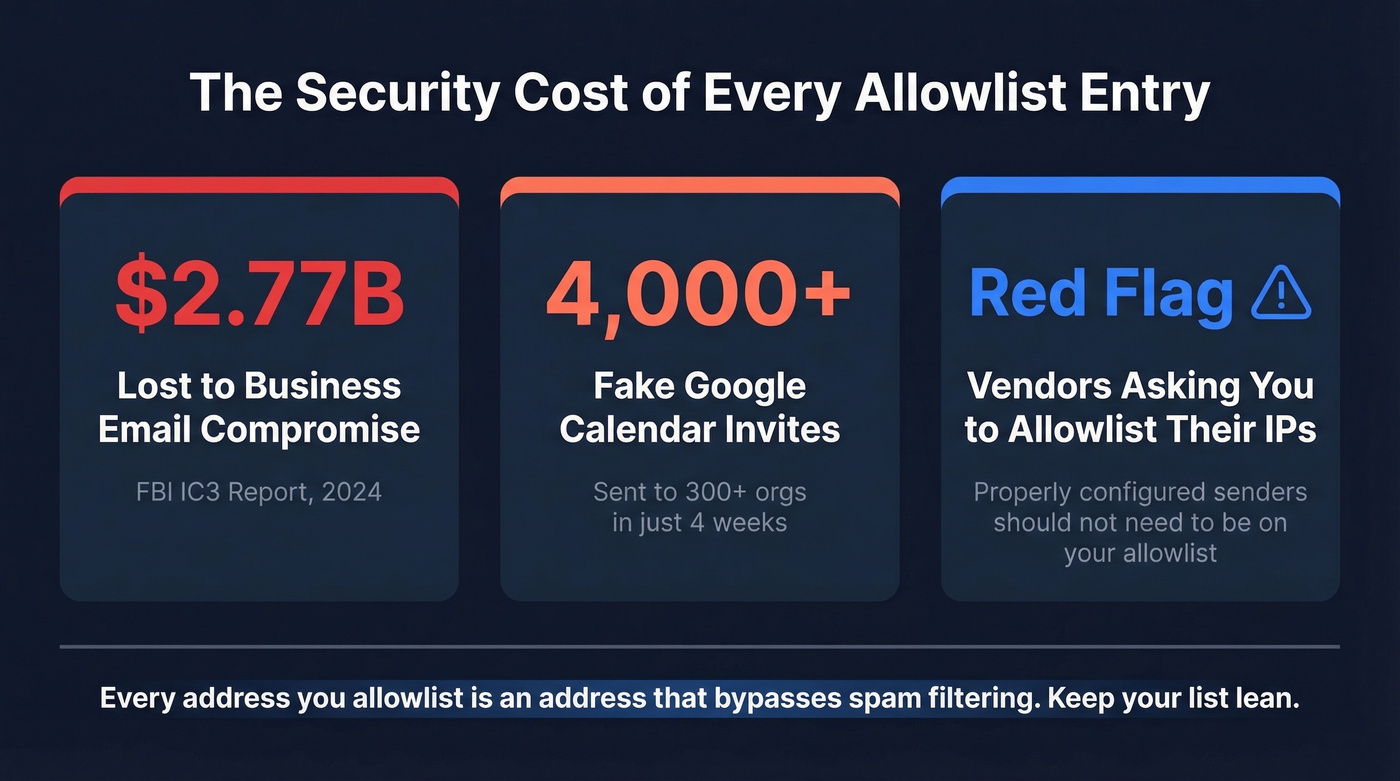
The FBI's 2024 IC3 report documented $2.77B in losses from business email compromise. In late 2024, Check Point flagged a phishing campaign that hit 300+ organizations with 4,000+ fake Google Calendar invites in four weeks - emails that bypassed filters because they came from legitimate Google services.
Here's the thing: if a vendor asks you to allowlist their sending IPs, push back hard. A properly configured sender shouldn't need to be on your allowlist. The request itself is a red flag that they haven't done their homework on authentication.
For Email Senders - Fix the Root Cause
If your emails keep hitting Gmail spam, asking every recipient to create a filter isn't scalable. Sure, ask subscribers to add you to their contacts or create a filter - but that's a band-aid. The real fix is upstream.
One newsletter sender reported 60-70% open rates on Apple Mail and KPN but consistent Gmail spam placement - despite passing every authentication check. Gmail Postmaster Tools is the best place to see how Gmail views your sending domain's reputation and spam rate. (For a deeper playbook, use this email deliverability guide and these email reputation tools.)
Bad data tanks sender reputation faster than almost anything else. Invalid email addresses generate hard bounces. Spam traps and honeypots signal to Gmail that you're not maintaining a clean list. If you're running outbound or newsletters, cleaning your list is the single highest-leverage fix for deliverability problems. Prospeo's 5-step verification catches invalid emails, spam traps, and honeypots with 98% accuracy, and the free tier covers 75 verifications per month - worth running before your next send. (Benchmarks help too: see email bounce rate and how to improve sender reputation.)
Gmail's ML model punishes senders with high bounce rates and low engagement. One agency cut their bounce rate from 35% to under 3% by switching to Prospeo - zero domain flags across all clients. Data refreshed every 7 days, not the 6-week industry average.
Stop landing in spam. Start with emails that actually exist.
FAQ
Can I create a Gmail filter on my phone?
No. Gmail's iOS and Android apps don't support filter creation or editing. You need the desktop web interface at mail.google.com. On mobile, your only options are adding the sender to contacts or tapping "Report not spam" - both weaker than a proper filter.
Does adding someone to contacts guarantee inbox delivery?
It doesn't. Adding a contact is a positive signal, but Gmail weighs sender reputation, authentication results, and engagement history more heavily. A filter with "Never send it to Spam" is significantly more reliable - use contacts as a supplement, not a standalone fix.
What's the difference between allowlist and whitelist?
They mean the same thing. Google and most modern documentation now use "allowlist" as the standard term. Older guides and third-party tools still say "whitelist." Functionally identical.
How do I allowlist a domain in Gmail?
Create a filter using @domain.com in the From field, then check "Never send it to Spam." For Workspace admins, add the domain to your approved sender list in the Admin Console under Apps -> Google Workspace -> Gmail -> Routing. Domain-level rules apply to every sender at that domain.
Why do emails still go to spam after allowlisting?
The most common cause in Workspace environments is a quarantine policy overriding your allowlist - authentication-based quarantine rules take priority over every other method. For personal Gmail, verify your filter uses the correct sending address (not the display name) and click "Report not spam" on a few messages to train the ML model.