

How to Set Up SPF, DKIM, and DMARC: The Complete 2026 Guide
Gmail's bulk-sender enforcement now escalates to SMTP-level rejections for non-compliant mail. Outlook.com began enforcing similar requirements for high-volume senders in May 2025. If you haven't set up SPF, DKIM, and DMARC for your sending domain, your outbound emails are already landing in spam - or getting silently dropped.
This isn't a theoretical risk anymore. Let's get your records published correctly the first time.
What You Need (Quick Version)
- What you're setting up: 3 DNS TXT records - SPF, DKIM, and DMARC
- Time required: 30-60 minutes for a single domain with one email provider
- Tools you'll need: DNS admin panel (GoDaddy, Cloudflare, Namecheap, etc.) + a free checker like MXToolbox
- End goal: A DMARC policy of
p=rejectwithin 4-8 weeks- After setup: Verify your contact data is clean - authentication protects your domain, but bad email addresses destroy sender reputation all on their own
Why Email Authentication Matters Now
The enforcement timeline has been aggressive. Gmail and Yahoo began requiring SPF, DKIM, and DMARC for bulk senders (5,000+ emails/day) in February 2024. Outlook.com followed for high-volume senders in May 2025. In 2026, non-compliant bulk-sender mail gets rejected at the SMTP level - not just filtered to spam, but bounced before it ever reaches an inbox.
DMARC adoption hit 53.8% in 2024, up from 42.6% in 2023. That still leaves roughly 46% of domains unprotected. If yours is one of them, every email you send is at risk - cold outreach, transactional notifications, even internal forwards through third-party services.
The spam rate threshold is equally unforgiving. Google expects you to stay below 0.3%, and ideally under 0.1%. You can't hit those numbers if your authentication is broken.
What You Need Before You Start
Before touching any DNS records, gather these:
- DNS admin access for your domain - GoDaddy, Cloudflare, Namecheap, Route 53, or wherever your nameservers live
- Email provider admin access - Google Workspace Admin Console, Microsoft 365 Defender portal, or your ESP's dashboard
- A list of every service that sends email from your domain - marketing automation, transactional email, CRM, helpdesk, billing. Miss one and it'll fail DMARC once you enforce.
- 30-60 minutes of focused time for a single-provider domain. Multi-sender environments take 1-3 days to inventory and align.
If you're sending 5,000+ emails per day to Gmail or Yahoo addresses, all three protocols are mandatory. Not optional. (If you want to sanity-check your volume and limits, see our bulk sender thresholds breakdown.)
One critical rule upfront: you can only have one SPF record per hostname. Publishing two SPF TXT records on the same domain causes SPF to fail entirely. You merge, never duplicate.
Quick Concepts: SPF, DKIM, DMARC
These three protocols work together, but they do different things.
| Protocol | What It Does | DNS Record Type | Survives Forwarding? |
|---|---|---|---|
| SPF | Lists authorized sending IPs | TXT | No |
| DKIM | Cryptographic signature proving message integrity | TXT (public key) | Yes |
| DMARC | Policy layer requiring alignment with visible From domain | TXT | Depends on DKIM |
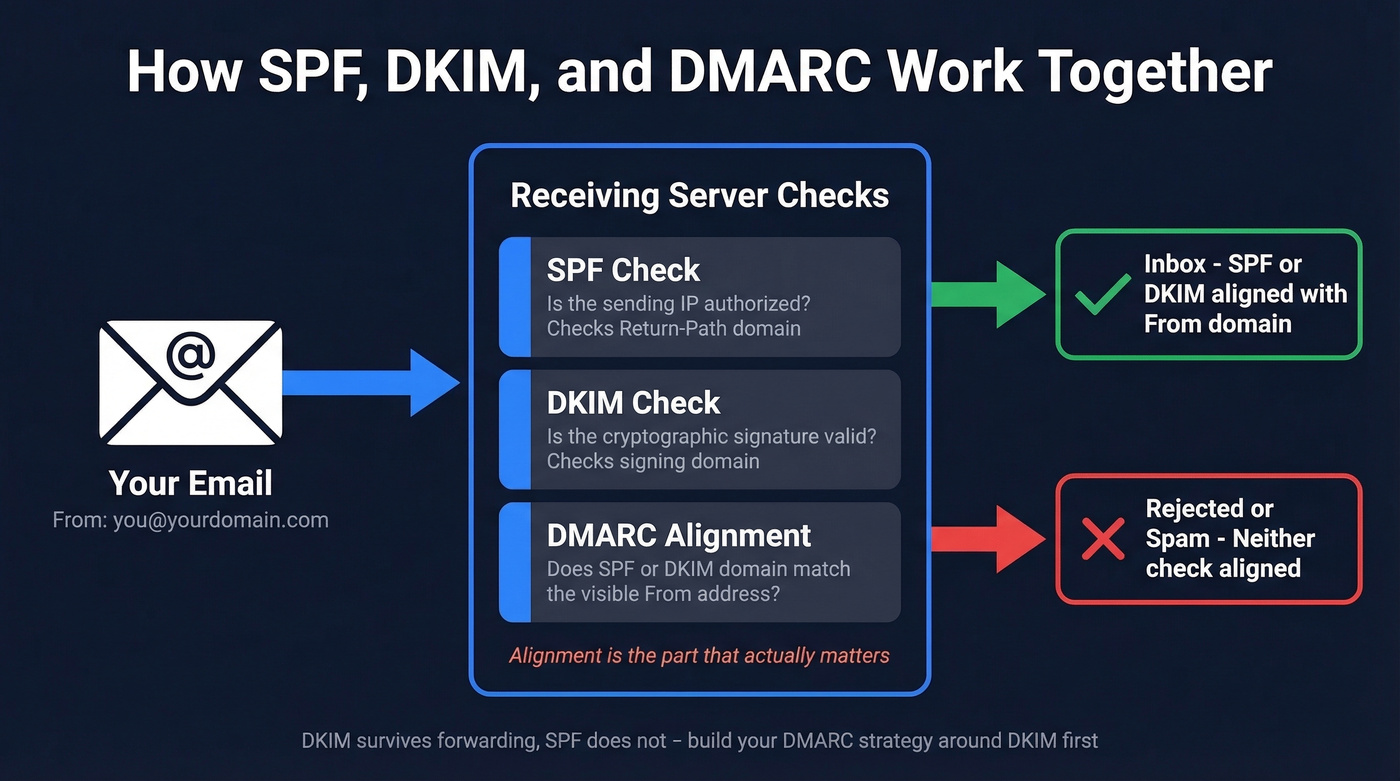
SPF tells receiving servers which IP addresses are allowed to send on your behalf. Critically, SPF checks the Return-Path (envelope sender) domain, not the visible From address - which is exactly why SPF alone doesn't prevent spoofing. DKIM attaches a cryptographic signature to each message, and the receiving server checks it against a public key in your DNS. DMARC ties them together by requiring that at least one of those checks aligns with the domain in your visible From address.
Here's the thing most guides bury until the troubleshooting section: alignment is the concept that actually matters. SPF can pass for your ESP's bounce domain. DKIM can pass for your ESP's signing domain. But if neither of those domains matches your From address, DMARC fails - even though SPF and DKIM both "passed." We'll come back to this in troubleshooting, because it's the #1 reason DMARC breaks in production. (If you want the deep dive, read our DMARC alignment guide.)
DKIM is more reliable than SPF for DMARC alignment because it survives forwarding. SPF checks the sending server's IP, which changes when a message is forwarded. DKIM checks a signature embedded in the message itself, which stays intact. Build your DMARC strategy around DKIM alignment first.
Set Up SPF
SPF Record Syntax
An SPF record is a TXT record published at your domain's root. The basic structure:
v=spf1 [mechanisms] [qualifier]all
v=spf1- version identifier, required- Mechanisms -
include:,ip4:,ip6:,mx,a- define who's authorized ~all(softfail) - marks unauthorized senders as suspicious-all(hardfail) - tells receivers to reject unauthorized senders
Start with ~all during setup. Move to -all once you've confirmed every legitimate sender is included.
Copy-Paste SPF Templates
| Provider | SPF Record |
|---|---|
| Google Workspace | v=spf1 include:_spf.google.com ~all |
| Microsoft 365 | v=spf1 include:spf.protection.outlook.com ~all |
| Google + Mailchimp | v=spf1 include:_spf.google.com include:servers.mcsv.net ~all |
| Multi-sender example | v=spf1 include:_spf.google.com include:sendgrid.net ip4:203.0.113.5 ~all |
If you use multiple services, merge all mechanisms into a single record. Never publish two separate SPF TXT records on the same hostname. (More examples: SPF record examples.)
Add SPF in GoDaddy, Cloudflare, and Namecheap
GoDaddy: Domains > DNS > Add Record > Type: TXT > Name: @ > Value: your SPF string > Save.
Cloudflare: DNS > Records > Add Record > Type: TXT > Name: @ > Content: your SPF string > Save.
Namecheap: Domain List > Manage > Advanced DNS > Add New Record > Type: TXT Record > Host: @ > Value: your SPF string > TTL: Automatic > Save.
Propagation often happens quickly, but many DNS providers warn it can take up to 48 hours.
The 10-Lookup Limit
SPF has a hard limit of 10 DNS lookups. Every include: mechanism triggers at least one lookup, and nested includes count too. Exceed 10 and you get a PermError - SPF fails entirely, which cascades into DMARC failure.
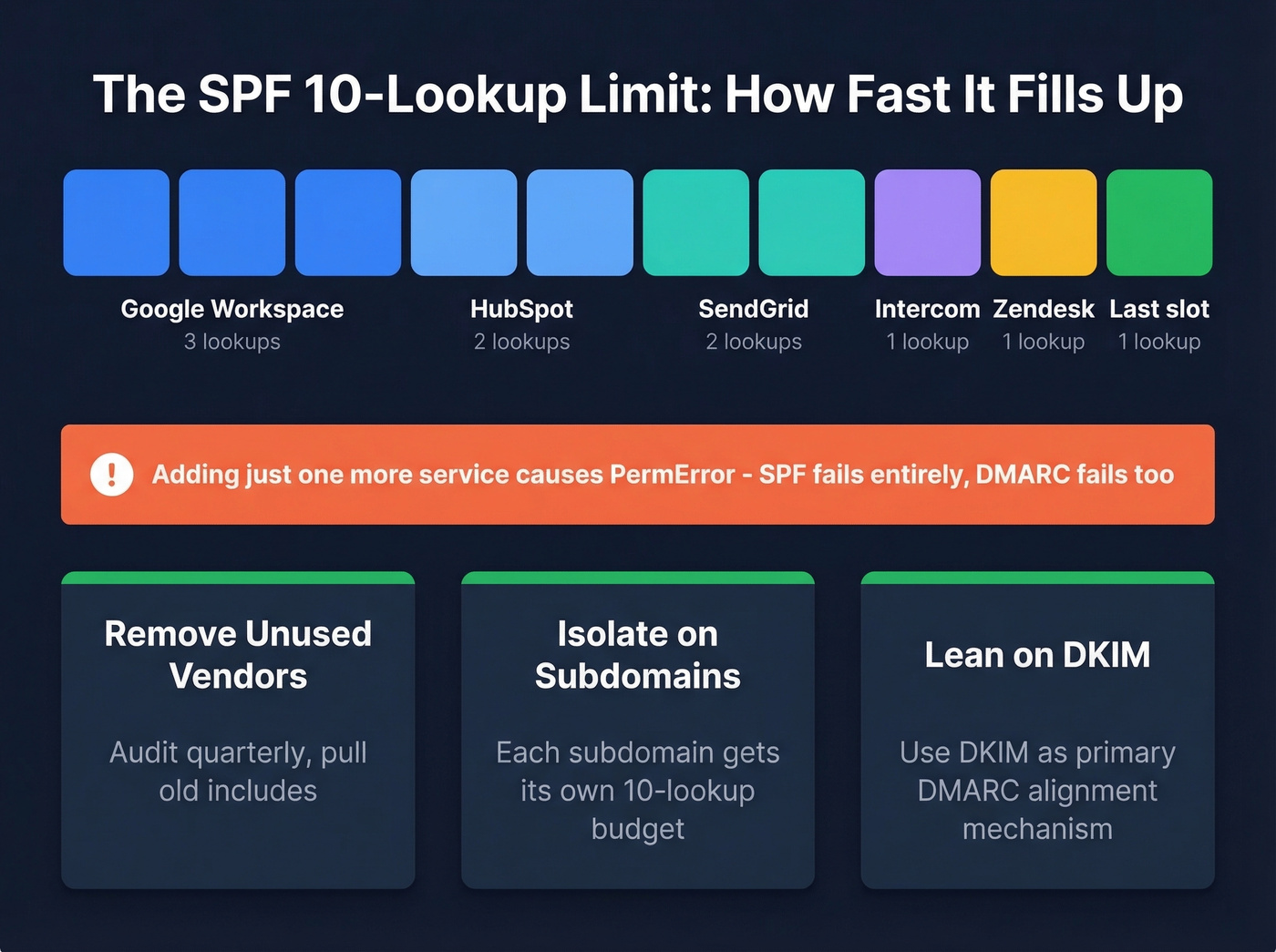
This happens faster than you'd expect. A typical SaaS stack - Google Workspace, HubSpot, SendGrid, Intercom, Zendesk - can eat through 10 lookups before you've even added your cold email tool.
Fixes, in order of preference:
- Remove unused vendors. Audit your SPF record quarterly. If you stopped using a service, pull its
include:. - Isolate services on subdomains. Route marketing email through
marketing.yourdomain.comwith its own SPF record. This is the real fix - each subdomain gets its own 10-lookup budget. - Lean on DKIM for alignment. If SPF is getting complex, use DKIM as your primary DMARC alignment mechanism and keep SPF lean.
SPF flattening tools exist, but they're a band-aid. They resolve include: chains to raw IP addresses, which break when vendors change IPs. Subdomain isolation is the sustainable solution.
Set Up DKIM
DKIM works by signing outgoing messages with a private key (which your email provider holds) and publishing the corresponding public key in your DNS. Receiving servers check the signature against the public key to verify the message wasn't tampered with.
The DNS record lives at: selector._domainkey.yourdomain.com
Google Workspace DKIM Setup
- Open the Admin Console > Apps > Google Workspace > Gmail > Authenticate Email
- Select your domain and click Generate new record
- Choose 2048-bit key length - always, never 1024
- Choose a selector prefix, such as
googleor a date-based name likejan2026 - Copy the TXT record hostname and value
- Publish the TXT record in your DNS provider
- Return to the Admin Console and click Start Authentication
Your domain must be verified in Google Workspace before DKIM can be enabled. If the "Generate new record" option is grayed out, check your domain verification status first.
Microsoft 365 DKIM Setup
Microsoft handles DKIM differently - you publish two CNAME selector records instead of TXT records.
- Go to the Microsoft 365 Defender portal > Email authentication > DKIM
- Select your domain
- Publish the two CNAME selector records Microsoft provides in your DNS
- Return to the Defender portal and enable DKIM signing
Microsoft hosts the DKIM keys on their infrastructure, so the CNAME records point to their key servers rather than containing the key directly.
Key Size and Rotation
Use 2048-bit RSA as the minimum. Some providers are testing 4096-bit keys, and Ed25519 is gaining traction for its smaller key size and stronger security. But 2048-bit is the current standard and universally supported.
Rotate your DKIM keys about every 6 months, and at least annually. Date-based selector names make this easy to track - jan2026._domainkey, jul2026._domainkey, and so on. When you rotate, publish the new key, update the signing configuration, and leave the old key in DNS for a few days to handle in-flight messages. (If you want a quick checklist, see how to verify DKIM is working.)
If you use multiple ESPs, each one needs its own DKIM key and selector. Don't try to share keys across services - it creates a single point of failure and makes rotation a nightmare.

SPF, DKIM, and DMARC protect your domain - but sending to invalid addresses destroys your sender reputation anyway. Prospeo's 98% email accuracy and 5-step verification ensure every address you send to is real, keeping you under Google's 0.3% spam threshold.
Don't let bad data undo all that DNS work.
Set Up DMARC
Your First DMARC Record
DMARC records live at _dmarc.yourdomain.com. Start with a monitoring-only policy:
v=DMARC1; p=none; rua=mailto:dmarc@yourdomain.com
This tells receiving servers to send you aggregate reports about authentication results without taking any action on failing messages. You need these reports to understand what's passing and what's failing before you start enforcing.
A more complete starter record:
v=DMARC1; p=none; rua=mailto:dmarc@yourdomain.com; ruf=mailto:dmarc-forensic@yourdomain.com; fo=1; adkim=r; aspf=r; pct=100; ri=86400
Publish this as a TXT record at _dmarc.yourdomain.com using the same DNS process as SPF.
DMARC Tag Reference
| Tag | Values | Default | What It Does |
|---|---|---|---|
v |
DMARC1 |
Required | Version identifier |
p |
none, quarantine, reject |
Required | Domain policy |
sp |
none, quarantine, reject |
Same as p |
Subdomain policy |
pct |
1-100 |
100 |
Percentage of messages the policy applies to |
aspf |
r (relaxed), s (strict) |
r |
SPF alignment mode |
adkim |
r (relaxed), s (strict) |
r |
DKIM alignment mode |
rua |
mailto: URI |
None | Aggregate report destination |
ruf |
mailto: URI |
None | Forensic report destination |
fo |
0, 1, d, s |
0 |
Failure reporting options |
ri |
Seconds | 86400 |
Reporting interval |
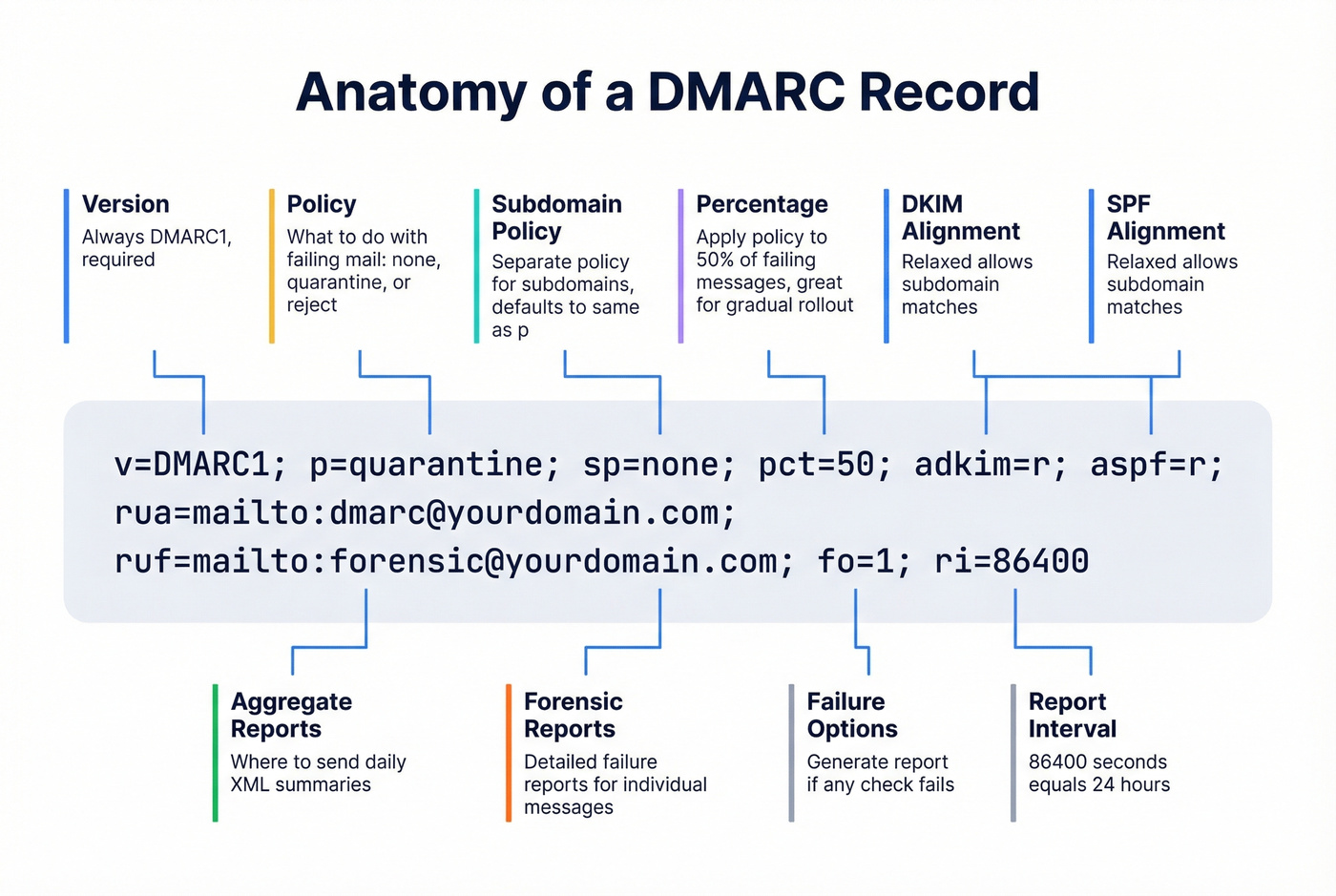
Relaxed alignment (r) allows subdomain matches - mail.yourdomain.com aligns with yourdomain.com. Strict (s) requires an exact domain match. Start with relaxed. It's more resilient and covers most legitimate sending scenarios.
If you omit sp, subdomains inherit whatever you set for p. That's usually what you want, but it catches people off guard when they enforce p=reject and a subdomain's unaligned messages start getting dropped too.
Verify Your Setup
Don't trust that your records are working just because you published them. Verify every protocol independently.
Terminal Commands
# Check SPF
dig +short TXT yourdomain.com | grep spf

# Check DKIM (replace 'selector' with your actual selector)
dig +short TXT selector._domainkey.yourdomain.com

# Check DMARC
dig +short TXT _dmarc.yourdomain.com
If you don't know your DKIM selector, send yourself a test email and inspect the headers. Look for the DKIM-Signature header - the s= value is your selector, and d= is the signing domain.
Email Header Inspection
In Gmail, open a message you sent to yourself, click the three dots, and select Show original. Look for three lines:
spf=passdkim=passdmarc=pass
Here's the critical distinction most people miss: "pass" and "pass + aligned" aren't the same thing. SPF can pass for your ESP's bounce domain without aligning to your From domain. Check that the authenticated domain actually matches your visible From address.
Free Checker Tools
MXToolbox is the standard - run SPF, DKIM, and DMARC lookups for your domain and it'll flag errors, warnings, and misconfigurations. Google Admin Toolbox Check MX is another solid option, especially for Google Workspace users. And if you want to visualize your SPF record before publishing, spf.access.nu is a popular community tool for catching lookup-limit issues early.

From p=none to p=reject: Phased Rollout
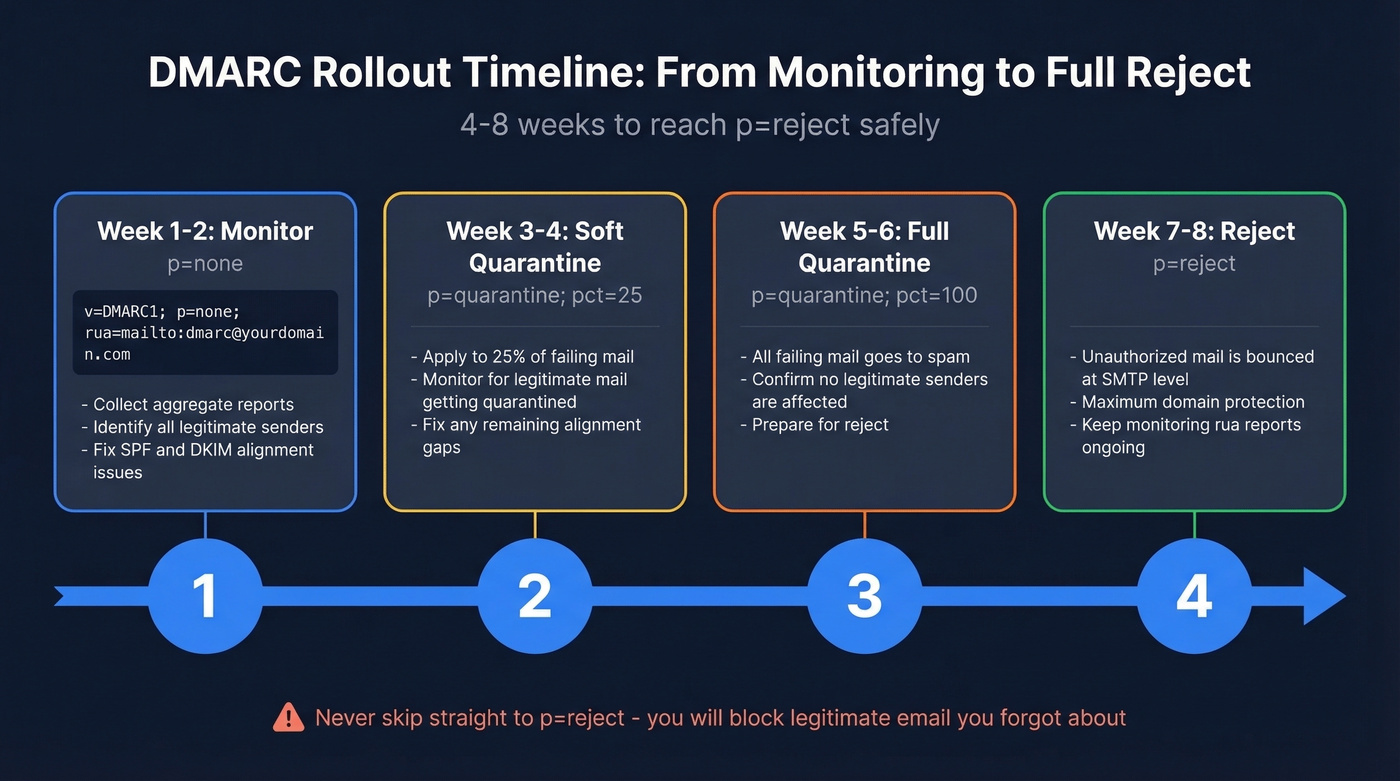
Starting with p=none is fine. Staying there for six months is not. Here's the phased plan we've used across multiple domain setups.
| Phase | Timeline | Action | Advance When |
|---|---|---|---|
| Phase 0 | Week 0-1 | Inventory all senders; publish p=none with rua |
Reports are flowing |
| Phase 1 | Week 1-3 | Fix failing senders; target 98%+ aligned pass | 98%+ DKIM-aligned pass rate |
| Phase 2 | Week 3-5 | Move to p=quarantine; ramp pct 10% > 50% > 100% |
Stable at pct=100 for 5-7 days |
| Phase 3 | Week 5+ | Move to p=reject |
99.5%+ auth pass, spam <0.1%, DMARC failures <0.2% for 14 days |
During Phase 1, focus on DKIM alignment as your primary pass mechanism. SPF alignment breaks when messages are forwarded - and forwarding is more common than you think between mailing lists, internal routing, and shared inboxes.
During Phase 2, ramp pct gradually. Set pct=10 for 5-7 days, then pct=50, then pct=100. Set sp=quarantine to cover subdomains too. Watch your aggregate reports at each step for unexpected failures, and monitor your domain reputation and spam rates in Google Postmaster Tools throughout - it's the most reliable signal for how Gmail treats your mail. (If you're actively trying to improve inbox placement, see our guide on how to improve sender reputation.)
For forwarding scenarios, look into ARC (Authenticated Received Chain). Gmail uses ARC as a trust signal - when a forwarder breaks DKIM by modifying the message, ARC preserves the original authentication results. You don't configure it directly, but understanding it explains why some forwarded messages pass DMARC and others don't.
Phase 3 is the goal. p=reject tells receiving servers to drop messages that fail DMARC alignment. Full protection against domain spoofing. Don't rush it, but don't stall either.
Look, most domains that stall at p=quarantine do so because of one rogue internal tool nobody documented. The fix isn't more monitoring - it's a 30-minute audit of every service that touches your domain. Do the audit, move to p=reject, and stop leaving your domain half-protected.
Common Mistakes and Fixes
1. The alignment failure. This is the big one. Your marketing team launches a campaign through a new ESP. SPF passes for the ESP's bounce domain. DKIM passes for the ESP's signing domain. But your From address is your domain, and neither authenticated identifier aligns with it. DMARC fails even though SPF and DKIM both "passed." The consensus on r/sysadmin and r/email is that this trips up experienced admins more than any other issue. The fix: configure the ESP to sign with your domain's DKIM key, or use a subdomain that aligns.
2. Duplicate SPF records. You add a new ESP and publish a second SPF TXT record instead of merging it into the existing one. Both records break. Always merge mechanisms into a single record.
3. SPF lookup limit exceeded. You've accumulated six SaaS tools, each with nested includes. SPF returns PermError. Isolate services on subdomains or prune unused vendors.
4. Missing rua reporting address. Without aggregate reports, you're flying blind. You won't know what's failing until customers tell you they aren't getting your emails.
5. TXT record formatting errors. Line breaks, extra quotes, or whitespace in your DNS record can silently break authentication. Some registrar UIs add quotes automatically - don't double-quote. Copy-paste carefully and verify with dig. You're not the first person to lose an afternoon to an invisible trailing space.
6. Missing subdomain policy. If you omit sp, subdomains inherit your domain policy. That's usually fine - but if you're running p=reject on the root and have a subdomain with its own sending setup that isn't aligned yet, those messages get rejected too.
7. Leaving p=none indefinitely. Monitoring mode doesn't protect you from spoofing. It just tells you what's happening. We've seen domains sit at p=none for over a year because nobody looked at the reports. Set a calendar reminder.
The #1 reason DMARC fails isn't a misconfigured record - it's that nobody explains alignment until after you've already published your records.
Protect Sender Reputation After Setup
Authentication tells inbox providers your domain is legitimate. But if 10-15% of your email list bounces, sender reputation tanks anyway - and no amount of DNS configuration saves you. (Related: email bounce rate benchmarks and fixes.)
After locking down your records, the natural next step is verifying your contact data. In our experience, teams that pair authentication with real-time email verification see the biggest deliverability gains. Prospeo's verification catches invalid addresses, spam traps, and catch-all domains before they damage your sender score, with 98% email accuracy and a 7-day data refresh cycle. There's a free tier to start - enough to test the workflow before committing. If you're building lists at scale, our guide to email list providers can help you compare sources.
You just spent an hour protecting your domain from spoofing. Don't let bad data undo that work.
You're spending 30-60 minutes perfecting authentication records. Make sure the contact data flowing through those records is just as clean. Prospeo verifies every email with catch-all handling, spam-trap removal, and honeypot filtering - bounce rates under 4% across 15,000+ companies.
Authentication is step one. Clean data is what keeps you in the inbox.
FAQ
Do I Need All Three Protocols?
Yes. Gmail and Yahoo require SPF, DKIM, and DMARC for bulk senders, and Outlook.com enforces similar rules for high-volume senders as of May 2025. SPF and DKIM handle authentication; DMARC enforces policy on top of them. Without all three, you can't reach p=reject and your emails risk spam folders or outright rejection.
How Long Does DNS Propagation Take?
Most changes propagate within minutes, but providers warn it can take up to 48 hours. Run dig commands or check MXToolbox to confirm your records are live before moving to the next step. Don't start verifying authentication results until propagation completes.
What If I Use Multiple Email Services?
Merge all include: mechanisms into one SPF record. Give each service its own DKIM key and selector. If you exceed the 10-lookup SPF limit, isolate services on subdomains - each subdomain gets its own 10-lookup budget.
What's the Difference Between ~all and -all?
~all (softfail) marks unauthorized senders as suspicious but typically still delivers the email. -all (hardfail) instructs receivers to reject unauthorized senders outright. Start with ~all during initial setup; move to -all once you've confirmed every legitimate sender is included in your record.
How Do I Verify Emails Are Reaching Inboxes?
Check DMARC aggregate reports sent to your rua address for pass/fail rates. Use Google Postmaster Tools to monitor spam rates and domain reputation. Also verify your contact list is clean - even perfect authentication can't save emails sent to invalid addresses. Prospeo's bulk verification catches bad addresses before they hit your sequences, with 98% accuracy across 143M+ verified emails.