

Bulk Email Threshold Guide: All 3 Meanings in 2026
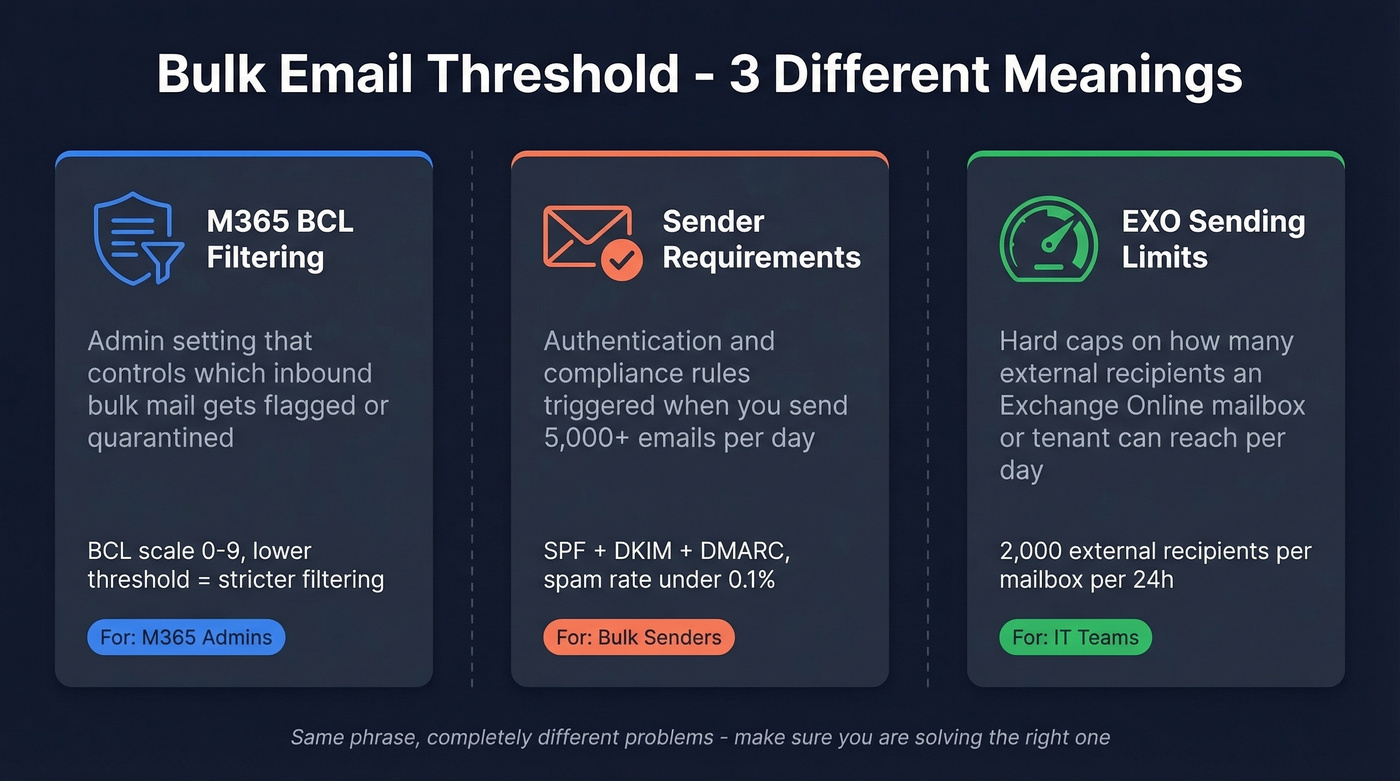
"Bulk email threshold" means three completely different things depending on who you are and what you're trying to do. That confusion costs admins hours of troubleshooting and costs senders their domain reputation. This guide untangles all three so you can fix the right problem.
Which one are you looking for?
- "I'm an M365 admin trying to filter bulk/spam" - Jump to BCL Threshold
- "I send bulk email and my messages are getting rejected" - Jump to Sender Requirements
- "I'm hitting Exchange Online sending limits" - Jump to EXO Outbound Limits
The short version: set your BCL to 6 and enable Standard preset policies. Authenticate every sending domain with SPF+DKIM+DMARC and keep spam complaints under 0.1%. If you're hitting EXO limits, stop using mailboxes for bulk - use a dedicated ESP.
Microsoft 365 BCL Threshold
This is the meaning most people land on. In Microsoft 365, inbound messages identified as bulk get a Bulk Complaint Level (BCL) value from 0 to 9, stamped in an X-header. Your threshold setting determines which BCL values get treated as bulk and which slide through to the inbox.
How the 0-9 Scale Works
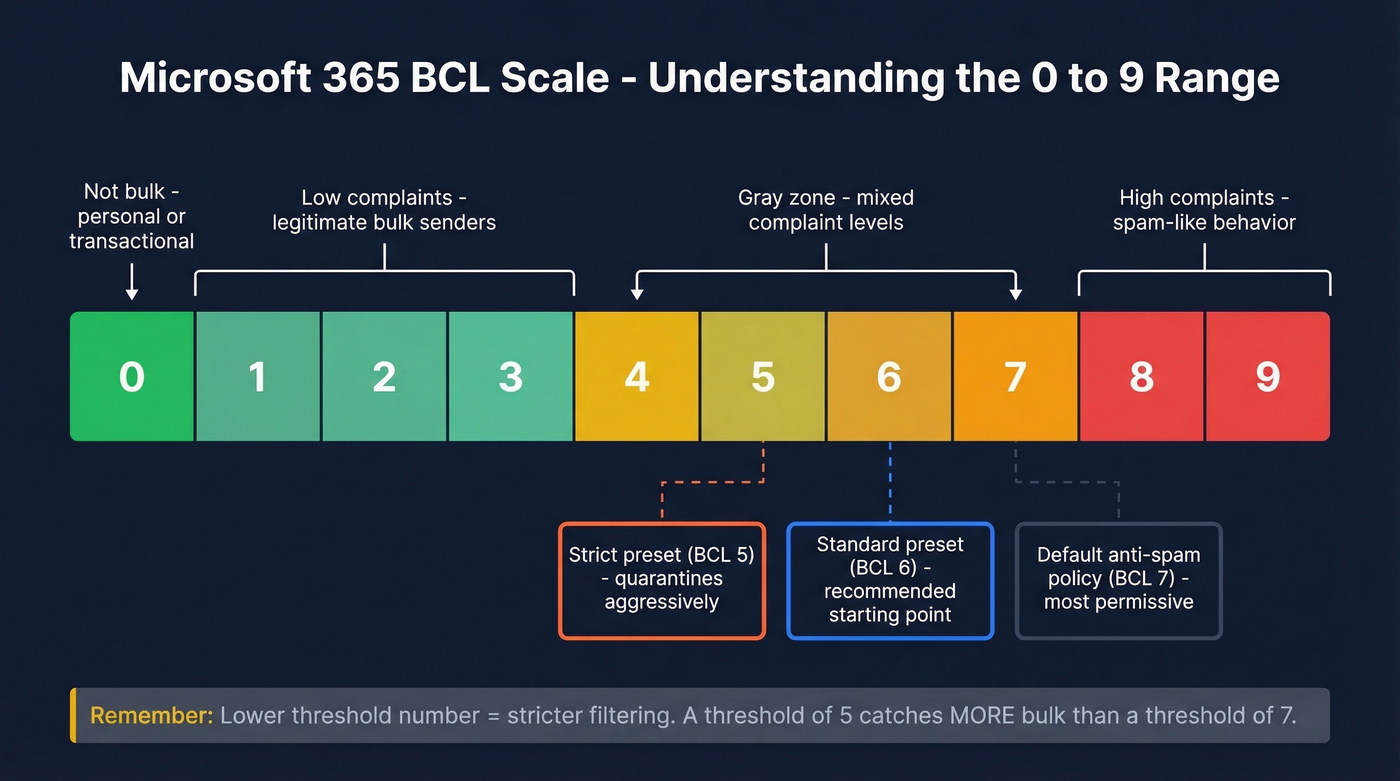
The BCL scale reflects how spam-like a sender's bulk behavior is, based on complaint patterns across Microsoft's network. Higher BCL means worse behavior.
| BCL Score | What It Means |
|---|---|
| 0 | Not bulk - transactional or personal messages |
| 1-3 | Bulk sender with few recipient complaints |
| 4-7 | Mixed complaint levels, gray-zone senders |
| 8-9 | High complaint rate, spam-like behavior |
Here's the thing most admins get wrong: lower threshold = stricter filtering. A threshold of 5 catches more bulk than a threshold of 7. Setting it to 1 flags almost everything as bulk. Setting it to 9 lets almost everything through.
This trips people up constantly - we see the confusion in admin forums all the time. Think of it as "flag everything at this score and above," so a lower number casts a wider net.
To check a message's BCL value, open the message headers and look for it in the X-Forefront-Antispam-Report header. In Defender, the Email entity page surfaces this in a cleaner format without the header parsing.
Default Thresholds and What to Set
Microsoft ships different defaults depending on whether you're using the built-in anti-spam policy or the Preset security policies:
| Policy Type | Default BCL | Default Action |
|---|---|---|
| Default anti-spam (and new custom policies) | 7 | Deliver to Junk |
| Standard preset security policy | 6 | Deliver to Junk |
| Strict preset security policy | 5 | Quarantine |
BCL 6 is where we'd start for most organizations. That's the Standard preset value, and it catches the gray-zone senders without burying legitimate newsletters.
Let's be honest about custom anti-spam policies: skip them unless you have a specific, documented reason. We've audited dozens of M365 tenants, and the pattern repeats - admins spend hours tweaking custom policies that perform worse than Microsoft's presets. Enable the Standard preset security policy as your baseline, then fine-tune only where you see problems. Use the Configuration analyzer in the Defender portal to compare your custom policies against Microsoft's recommended values. If you're a PowerShell person, the ORCA module's Get-ORCAReport cmdlet audits your anti-spam, anti-phishing, and message hygiene settings in one pass.
Why Changing BCL Didn't Fix Your Spam
One admin on r/sysadmin reported moving their threshold from 1 to 9 with "no noticeable difference." They'd been running at 2 across all tenants and still seeing obvious spam land in inboxes. Not unusual - we've seen the same thing repeatedly.
Three reasons your BCL change might not matter:
Other filters are disabled. We've seen legacy tenants with BCL set to 7 while URL content filters, HTML heuristics, and preset security policies are all turned off. BCL is one layer in a stack. If the rest of the stack is dormant, tuning one slider won't save you.
SCL and phish verdicts override BCL. Microsoft's spam confidence level and phishing classifiers operate independently. One admin reported a 20x spike in quarantined messages - even simple "Thank you!" emails flagged as phishing - despite having BCL set to 9. The headers showed SCL >= 5 driving quarantine decisions, not BCL at all.
Microsoft's backend models shift without warning. The filtering engine updates continuously, so your policies can stay identical while Microsoft's classifiers change what gets caught. This is why admins see sudden quarantine spikes with no policy changes on their end.
If you're dealing with false positives - legitimate mail getting quarantined as "High Confidence Phishing" - that's a different beast entirely. The fix isn't BCL; it's submitting false positives through the Microsoft 365 Defender submissions portal and using tenant allow/block lists strategically.
Simulating BCL Changes First
Don't guess. The Threat protection status report in the Defender portal includes a BCL slider that shows how message volume would shift at different thresholds. Bulk senders insight goes further - it shows how much mail is identified as bulk at the current threshold and simulates identified vs. allowed bulk email based on threshold changes. Use both before touching production settings.
Bulk Sender Requirements by Provider
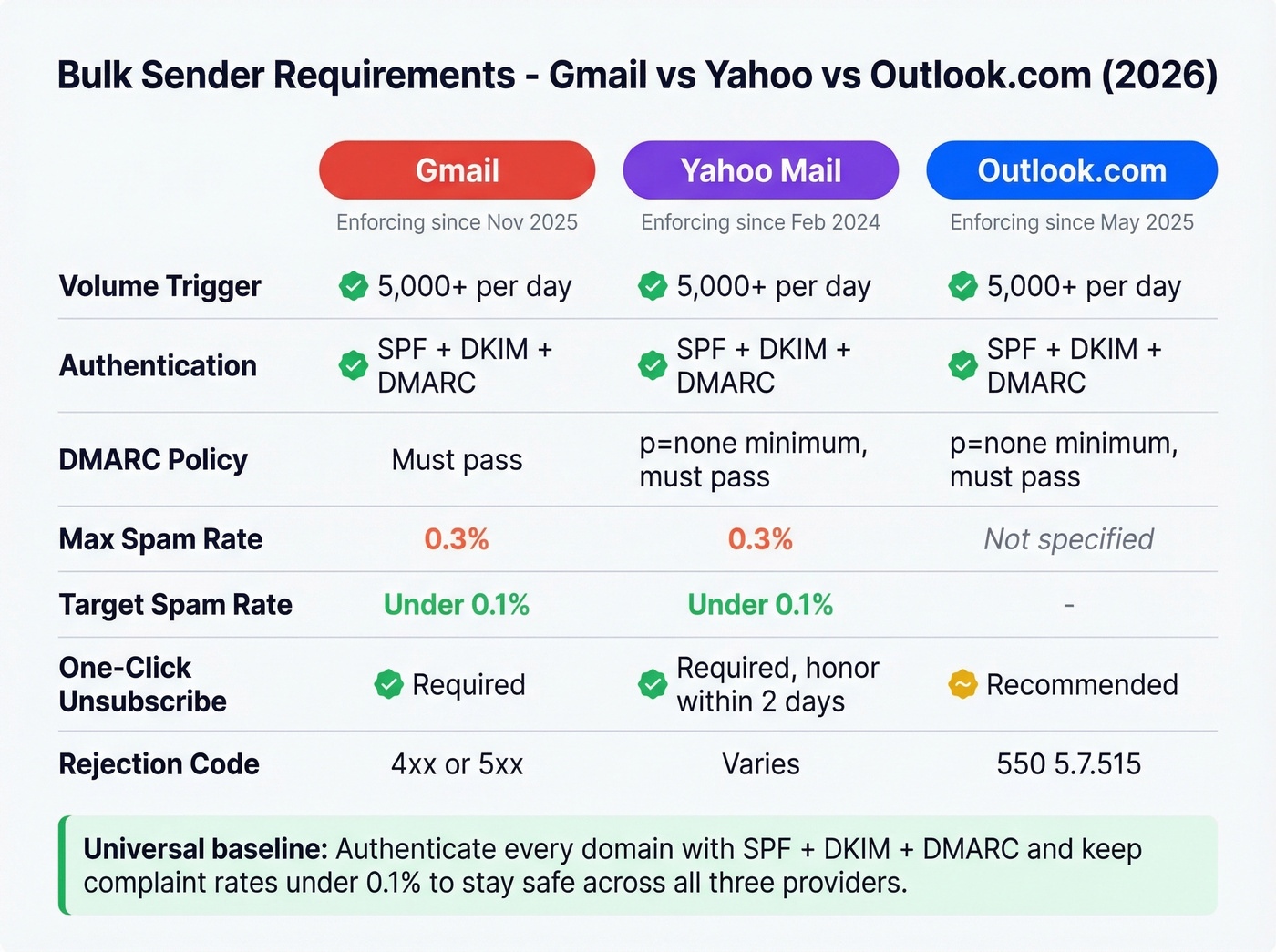
This is the second meaning - the volume threshold that triggers authentication and compliance requirements from Gmail, Yahoo, and Outlook.com. All three enforce rules for senders pushing 5,000+ messages per day, and as of 2026, these requirements are actively enforced with real rejection codes.
Side-by-Side Comparison
| Requirement | Gmail | Yahoo Mail | Outlook.com |
|---|---|---|---|
| Bulk sender trigger | 5,000+/day | 5,000+/day | 5,000+/day |
| SPF | Required | Required | Required |
| DKIM | Required | Required | Required |
| DMARC | Required (pass) | Required (p=none min; must pass) | Required (p=none min; must pass) |
| Max spam rate | <0.3% | <0.3% | Not specified |
| Recommended spam rate | <0.1% | <0.1% | - |
| One-click unsub | Required | Required (honor within 2 days) | Recommended |
| Enforcing since | Nov 2025 (ramp) | Feb 2024 | May 5, 2025 |
| Rejection code | 4xx/5xx | Varies | 550 5.7.515 |
Google Gmail
Gmail defines bulk senders as anyone pushing 5,000+ messages to Gmail addresses in a 24-hour period. Non-compliant traffic sees 4xx temporary deferrals and 5xx rejections. Exceed 0.3% complaint rates and your messages face increasing delivery failures, even if your authentication is perfect.
The number to target is under 0.1%. Monitor your domain's complaint rate in Google Postmaster Tools - it's free and gives you the complaint-rate and reputation signals Gmail actually uses to evaluate your sending.
If you need a deeper playbook, see our email deliverability guide and the fastest fixes for sender reputation.
Yahoo Mail
Yahoo has enforced sender requirements since February 2024. Bulk senders need SPF, DKIM, and a DMARC policy at minimum p=none. Relaxed DMARC alignment is acceptable.
The nuance most senders miss: Yahoo calculates spam rate based on mail delivered to the inbox, not total mail sent. If you're sending 10,000 messages and 2,000 go to spam, your complaint rate is calculated against the 8,000 that hit the inbox. This makes Yahoo's 0.3% ceiling effectively stricter than it looks on paper. One-click unsubscribe is mandatory with a 2-day processing SLA. Track your performance through Yahoo's Complaint Feedback Loop to catch problems before they escalate.
If you're still building your list, avoid risky sources - read our breakdown on buy email lists.
Microsoft Outlook.com
Microsoft's rules apply to consumer domains - hotmail.com, live.com, and outlook.com. Enforcement started May 5, 2025. DMARC must pass with at least p=none, and it must align with either SPF or DKIM (preferably both).
Fail authentication and you'll get a 550 5.7.515 rejection: "sending domain does not meet the required authentication level." Microsoft also recommends implementing ARC if you operate forwarding services or mailing lists, since forwarding can break DMARC alignment.
To reduce authentication-related rejects, make sure you understand DMARC alignment and validate your DNS with this guide on DKIM is working.

BCL thresholds and sender requirements only matter when your underlying data is clean. Prospeo's 5-step email verification delivers 98% accuracy - teams using it cut bounce rates from 35%+ to under 4%, keeping complaint rates well below Gmail's 0.1% target.
Stop tuning spam filters and start sending to verified addresses.
Exchange Online Outbound Sending Limits
The third meaning: how many emails an Exchange Online mailbox or tenant can send before Microsoft cuts you off. This isn't about filtering. It's about hard sending caps.
If you're trying to plan safe throughput, our guide to email velocity breaks down limits and pacing.
Mailbox-Level ERR Limit
Every Exchange Online mailbox can send to a maximum of 2,000 external recipients per 24-hour rolling window. That's the External Recipient Rate limit.
How recipients are counted matters:
| Scenario | How It Counts |
|---|---|
| Org-managed DL (in GAL) | 1 recipient |
| User-created DL | Each member counted individually |
| To/CC/BCC recipients | All count individually |
Related limits you'll hit first: 10,000 total recipients (internal + external) per 24 hours per mailbox, 1,000 recipients per individual message, and 30 messages per minute before throttling kicks in.
Tenant-Wide TERRL Formula
Beyond mailbox limits, Microsoft rolled out a tenant-wide External Recipient Rate Limit that completed enforcement by May 1, 2025:
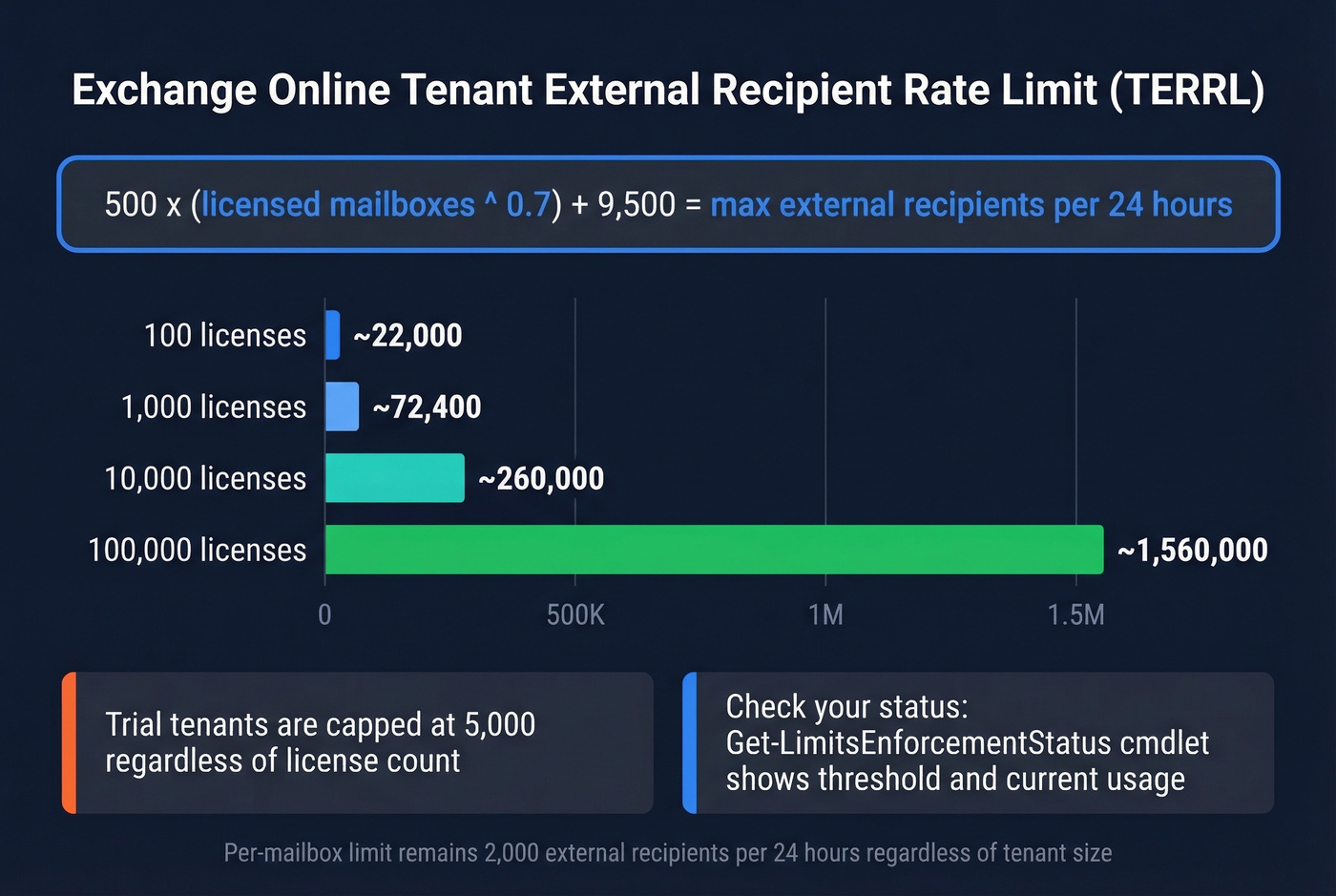
500 x (purchased email licenses^0.7) + 9,500
Here's what that looks like at different scales:
| Licensed Mailboxes | TERRL (External Recipients/24h) |
|---|---|
| 100 | ~22,000 |
| 1,000 | ~72,400 |
| 10,000 | ~260,000 |
| 100,000 | ~1,560,000 |
Trial tenants are capped at 5,000 regardless of license count. Distribution list membership counts against TERRL - a DL with 65 internal and 12 external members burns 12 from your quota. Check your current status with the Get-LimitsEnforcementStatus cmdlet, which shows both your threshold and observed usage.
What to Use Instead of EXO Mailboxes
Look - Exchange Online was never designed for bulk email. Microsoft has been saying this for years. If you're hitting ERR or TERRL limits, the answer isn't to buy more licenses. It's to use the right tool.
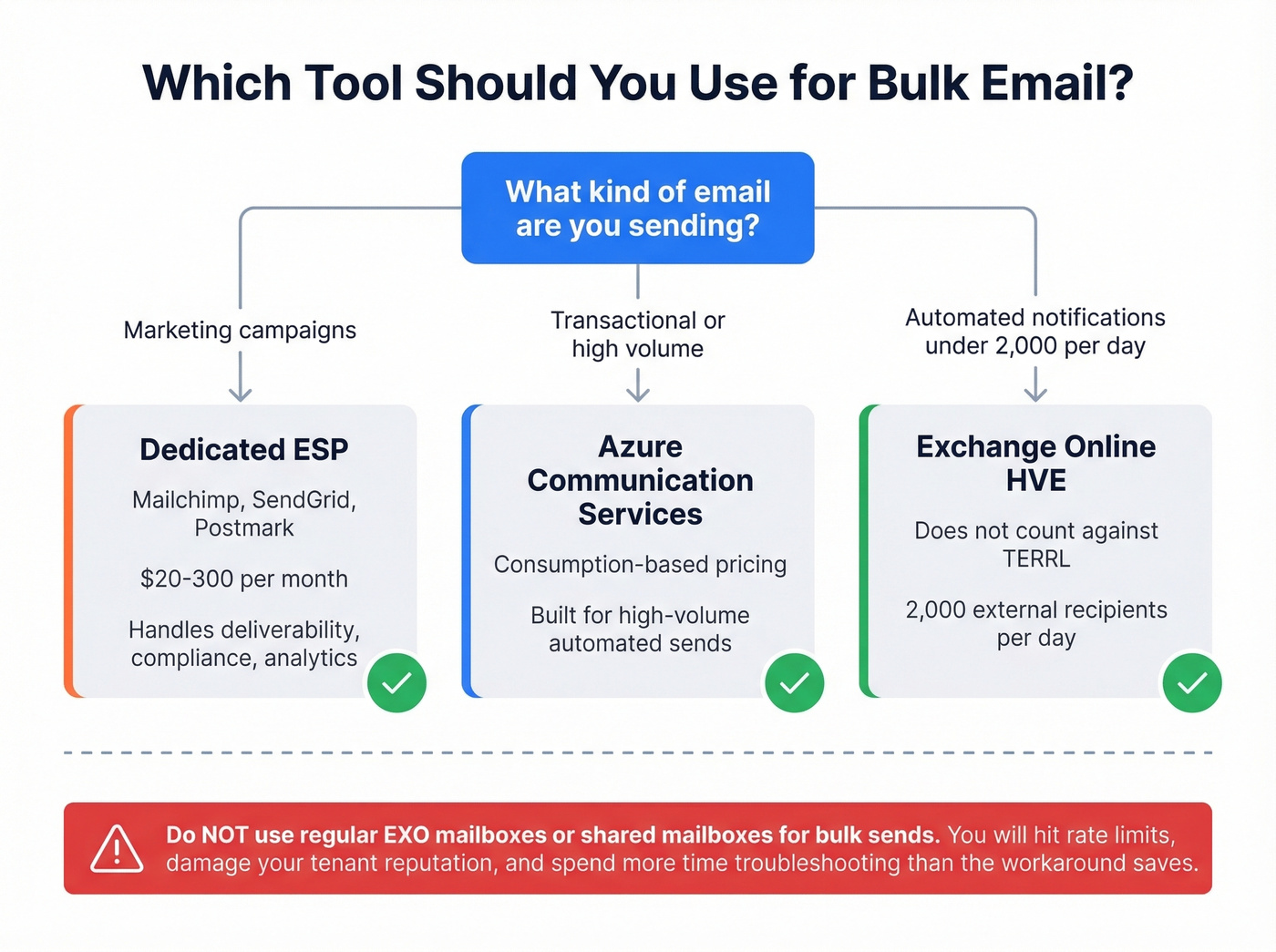
Azure Communication Services for Email handles high-volume transactional and marketing sends on consumption-based pricing. Exchange Online High-Volume Email (HVE) gives you 2,000 external recipients per day without counting against TERRL - useful for automated notifications. For marketing campaigns, a dedicated ESP like Mailchimp, SendGrid, or Postmark runs $20-300/month depending on volume and handles deliverability, compliance, and analytics out of the box.
If you're choosing tooling for outreach, compare options in our roundup of the best way to send bulk email without getting blacklisted and our tested list of AI bulk email senders.
Don't try to route bulk campaigns through shared mailboxes or distribution groups. You'll hit limits, damage your tenant's reputation, and spend more time troubleshooting than the workaround saves.
How Data Quality Affects Every Threshold
Every threshold in this guide punishes bad data. Sending to invalid addresses inflates bounce rates, which tanks sender reputation, which triggers provider enforcement. Spam traps and honeypots are worse - a single hit can flag your entire domain.
In our experience, most deliverability problems trace back to stale contact data that's been sitting in a CRM untouched for weeks. Prospeo's 5-step verification catches invalid addresses, spam traps, and honeypots before they damage your domain reputation, running on a 7-day refresh cycle so you're not sending into data that went stale six weeks ago. Whether you're trying to stay under Gmail's spam complaint ceiling or keep your BCL score clean on the receiving end, clean data is the foundation everything else depends on.
If you're diagnosing bounces, start with our email bounce rate benchmarks and fixes.

Hitting the 5,000/day bulk sender threshold means SPF, DKIM, DMARC, and complaint rates are non-negotiable. Bad contact data inflates bounces and spam complaints, triggering 550 rejections. Prospeo refreshes 300M+ profiles every 7 days so you're never sending to stale or invalid addresses.
Protect your domain reputation at the source - start with accurate data at $0.01/email.
FAQ
Is BCL threshold 1 or 9 stricter?
BCL 1 is the strictest setting - it flags almost everything scored 1 and above as bulk mail. BCL 9 is the most permissive, only catching the highest-complaint senders. Think of the number as "flag everything at this score and above," so a lower value casts a much wider net.
What's the default BCL in Microsoft 365?
The default anti-spam policy uses BCL 7. Standard preset security policies use 6, and Strict preset uses 5. Most admins find BCL 6 a solid baseline - start with the Standard preset and adjust based on your quarantine volume and false-positive rate.
What counts as a bulk sender for Gmail, Yahoo, and Outlook?
All three providers use the same trigger: 5,000+ messages per day sent to their addresses, counted per 24-hour period. Once you cross that line, SPF, DKIM, and DMARC authentication become mandatory, and spam complaint rates must stay under 0.3%.
How many external emails can one Exchange Online mailbox send per day?
The ERR limit is 2,000 external recipients per 24-hour rolling window per mailbox. Org-managed distribution lists in the GAL count as one recipient. User-created contact lists count each member individually. To/CC/BCC all count toward the cap.
How do I keep my spam complaint rate under 0.3%?
Verify email addresses before sending - tools like Prospeo catch invalid addresses and spam traps before they inflate your bounce rate. Honor unsubscribe requests within 2 days. Authenticate every sending domain with SPF, DKIM, and DMARC. Monitor complaint rates weekly in Google Postmaster Tools and Yahoo's Complaint Feedback Loop.