

How to Stop Gmail from Blocking Emails - Sender & Recipient Fixes
Your emails stopped arriving last month. Maybe it was a trickle at first - a few bounces, a prospect who "never got your follow-up." Then the bounce rate spiked, and Gmail started returning cryptic error codes with zero useful detail.
You're not imagining it. Since late 2025, Google ramped up enforcement of its bulk sender requirements, and the threshold is lower than most people think: send 5,000+ messages to Gmail addresses in a single day, and you're classified as a bulk sender. Once you're in that bucket, the rules are strict.
Reddit threads are full of senders reporting bounce messages that promise "technical details below" and deliver nothing. Let's walk through how to stop Gmail from blocking emails - on both the sender and recipient side.
Quick Diagnosis
Before you change anything, run three checks:
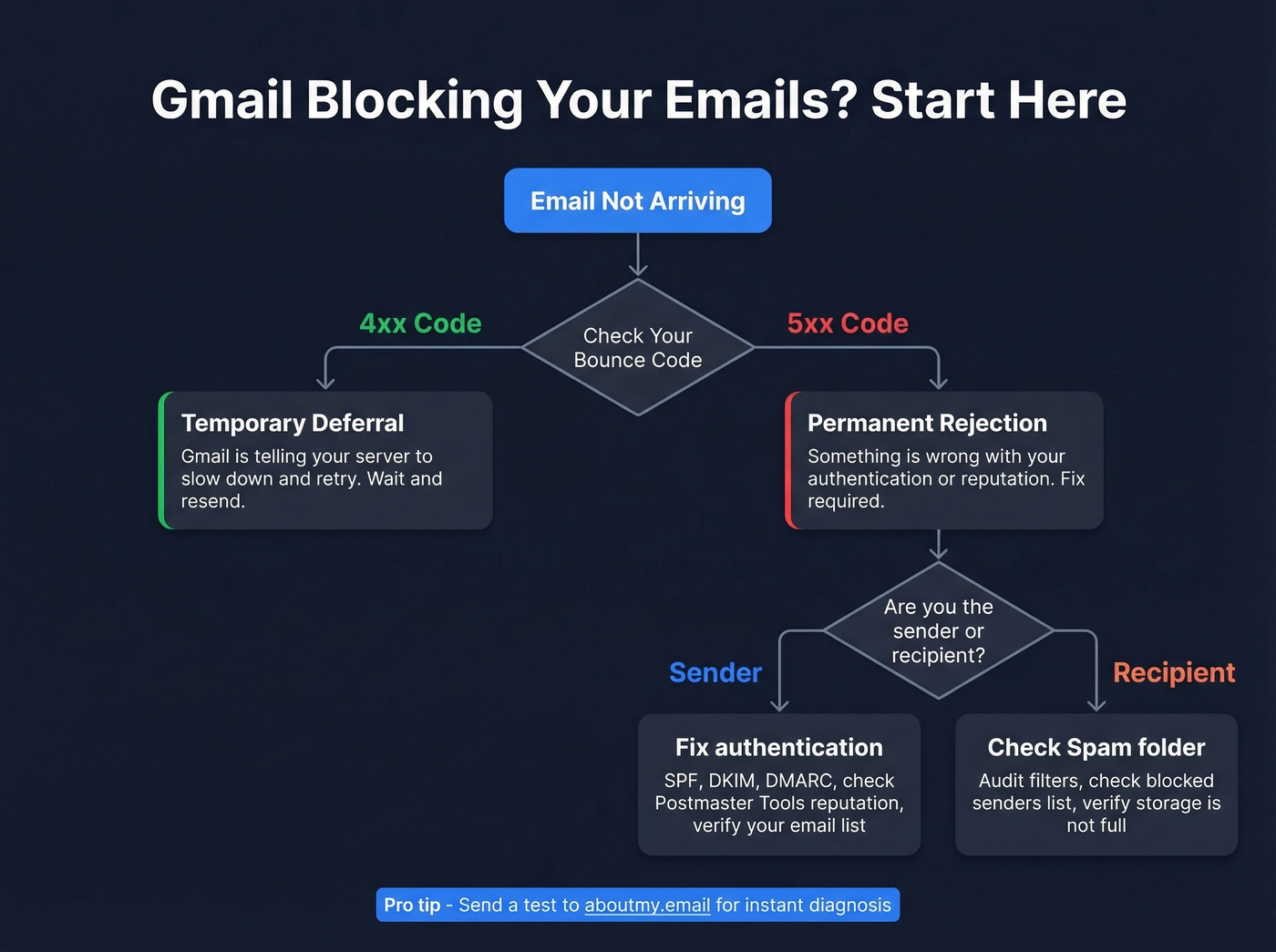
- Read your error code. A 4xx code means Gmail's temporarily deferring your mail - it'll retry. A 5xx code means permanent rejection. The fix depends entirely on which one you're seeing.
- Send a test email to aboutmy.email. This free tool analyzes your authentication, size, structure, and best-practice compliance. Takes 30 seconds.
- Open Google Postmaster Tools. Check your domain reputation and spam rate.
Now branch: if you're sending emails that bounce, jump to sender fixes. If you're not receiving emails you expect, skip to recipient fixes.
Gmail Error Code Reference
| Error Code | What It Means | Fix |
|---|---|---|
| 421 4.7.0 | Rate limiting / temporary deferral | Slow down sending; retry later |
| 550 5.7.1 | Blocked due to policy, auth, or reputation signals | Fix authentication; check IP/domain reputation; reduce spammy patterns |
| 550 5.7.26 | Unauthenticated email / DMARC policy rejection | Fix SPF, DKIM, and DMARC alignment |
Here's the thing: 4xx errors are temporary deferrals - Gmail's telling your server to back off and try again. 5xx errors are permanent rejections - something's fundamentally wrong with your authentication or reputation. If you're seeing 550 5.7.26 bounces specifically, the message text will usually reference DMARC policy or missing SPF/DKIM. That's your starting point.

Gmail blocks senders with high bounce rates - and once your domain reputation drops, recovery takes weeks. The fastest fix is never sending to bad addresses in the first place. Prospeo's 5-step verification catches spam traps, honeypots, and dead inboxes before they hit your bounce rate.
Stop debugging DNS records when the real problem is bad data.
Sender-Side Fixes
Fix Your Authentication
SPF, DKIM, and DMARC aren't optional anymore. Gmail rejects unauthenticated mail, and if your messages are bouncing, misconfigured authentication is the most common culprit. (If you need a deeper walkthrough, start with our email deliverability guide.)
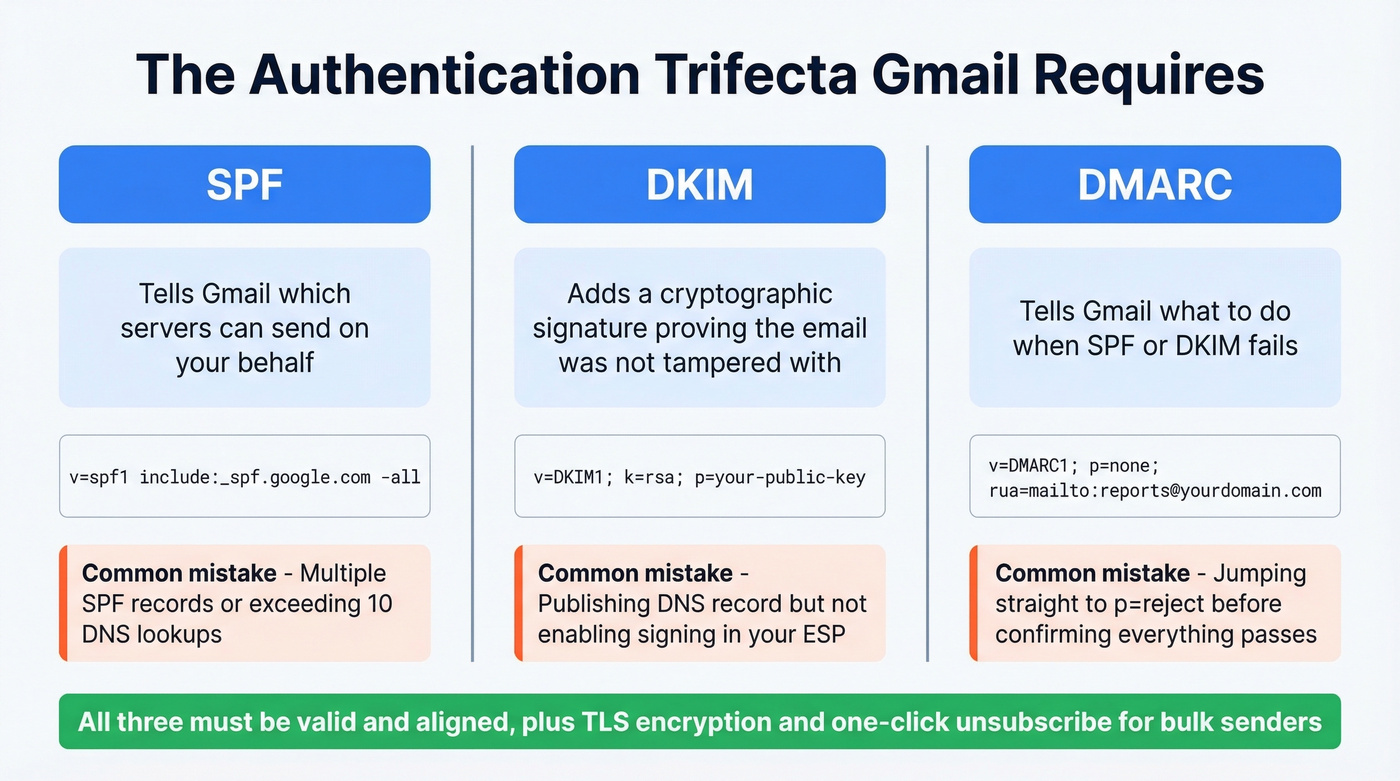
SPF: Add a single TXT record to your domain's DNS. If you send through multiple providers, include them all in one record - you can only have one SPF record per domain, and you're limited to 10 DNS lookups. Replace the includes below with your actual sending providers:
v=spf1 include:_spf.google.com include:spf.brevo.com -all
DKIM: Generate your DKIM key through your email provider and publish the DNS record. It looks like v=DKIM1; k=rsa; p=... and takes 24-48 hours to propagate. If you use multiple sending tools, you'll need separate DKIM selectors for each. (To confirm it’s set up correctly, see how to verify DKIM is working.)
DMARC: Start with monitoring mode so you don't accidentally block your own mail (more on DMARC alignment if you’re troubleshooting pass/fail issues):
v=DMARC1; p=none; rua=mailto:dmarc-reports@yourdomain.com
TLS is also part of the bulk-sender compliance checklist - most modern ESPs handle this automatically, but verify yours does.
We see the same mistakes constantly: duplicate SPF records, exceeding the 10-lookup limit, publishing DKIM in DNS but not enabling it in the sending tool, and jumping straight to p=reject on DMARC before confirming everything passes. If you send marketing or bulk email, include a one-click unsubscribe header - it's required for bulk senders and Gmail will penalize you without one.
Monitor with Postmaster Tools
Set up Google Postmaster Tools if you haven't already. Add your domain, verify via DNS TXT record, and wait 24-48 hours for data to populate. You'll need to send roughly 100-200 emails per day to Gmail addresses before the dashboards show meaningful data. If you want a tighter operating model, track email reputation tools alongside Postmaster.
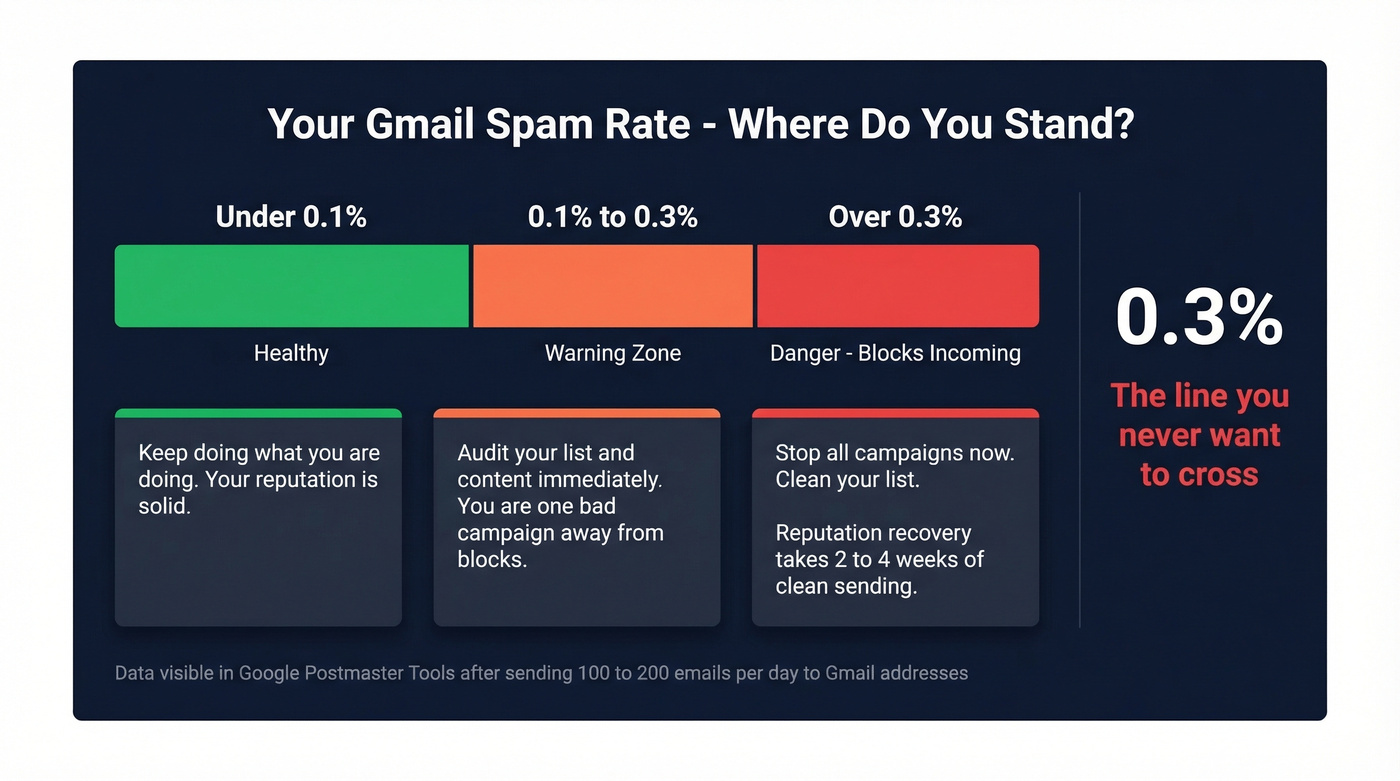
Here's how to read your spam rate:
| Spam Rate | Status | Action |
|---|---|---|
| Under 0.1% | Healthy | Keep doing what you're doing |
| 0.1% - 0.3% | Warning | Audit your list and content |
| Over 0.3% | Danger | Stop campaigns, clean list now |
If your domain reputation shows "Low" or "Bad," that's the root cause of your blocks. Reputation recovery takes clean sending over 2-4 weeks - there's no shortcut. If you need an escalation path, use Google's Sender Contact Form.
Verify Your Contact List
Most guides bury list quality at step 7. It should be step 1.
Bad email data causes high bounce rates, which tank sender reputation, which triggers Gmail blocks. No amount of SPF/DKIM tweaking fixes the problem if you're sending to dead addresses. We've watched teams spend weeks debugging DNS records when the real issue was a purchased list full of spam traps and abandoned inboxes. (If you’re diagnosing the numbers, start with email bounce rate.)
Prospeo's 5-step email verification catches this upstream - 98% accuracy with catch-all handling and spam-trap removal. Stack Optimize built their agency to $1M ARR using Prospeo's data and maintained bounce rates under 3% with zero domain flags across all their clients.

Stack Optimize maintained under 3% bounce rates and zero domain flags across every client campaign using Prospeo data. With 98% email accuracy, catch-all handling, and spam-trap removal, your sender reputation stays clean - so Gmail never has a reason to block you.
Clean data is the only Gmail deliverability fix that actually lasts.
Warm Up New Domains
If you're launching a new domain or one that's been dormant, don't blast 500 emails on day one. In our experience, domains that skip warmup and blast cold lists get flagged within 48 hours - sometimes faster. Here's a ramp that works:
| Timeframe | Daily Volume | Focus |
|---|---|---|
| Week 1 | 10-50 | Engaged recipients who'll open and reply |
| Week 2 | 50-200 | Broaden list, monitor Postmaster Tools daily |
| Week 3+ | Scale based on reputation | Tighten DMARC to p=quarantine then p=reject |
During warmup, avoid tracking pixels and link redirects early - they look unnatural to spam filters. Pair warmup with list verification so you're not bouncing emails during the phase that matters most. For a more detailed sending-speed model, see email velocity and our picks for email warmup tools.
Recipient-Side Fixes
If you're the one missing emails, the problem is usually Gmail's filtering, not the sender. Work through these steps:
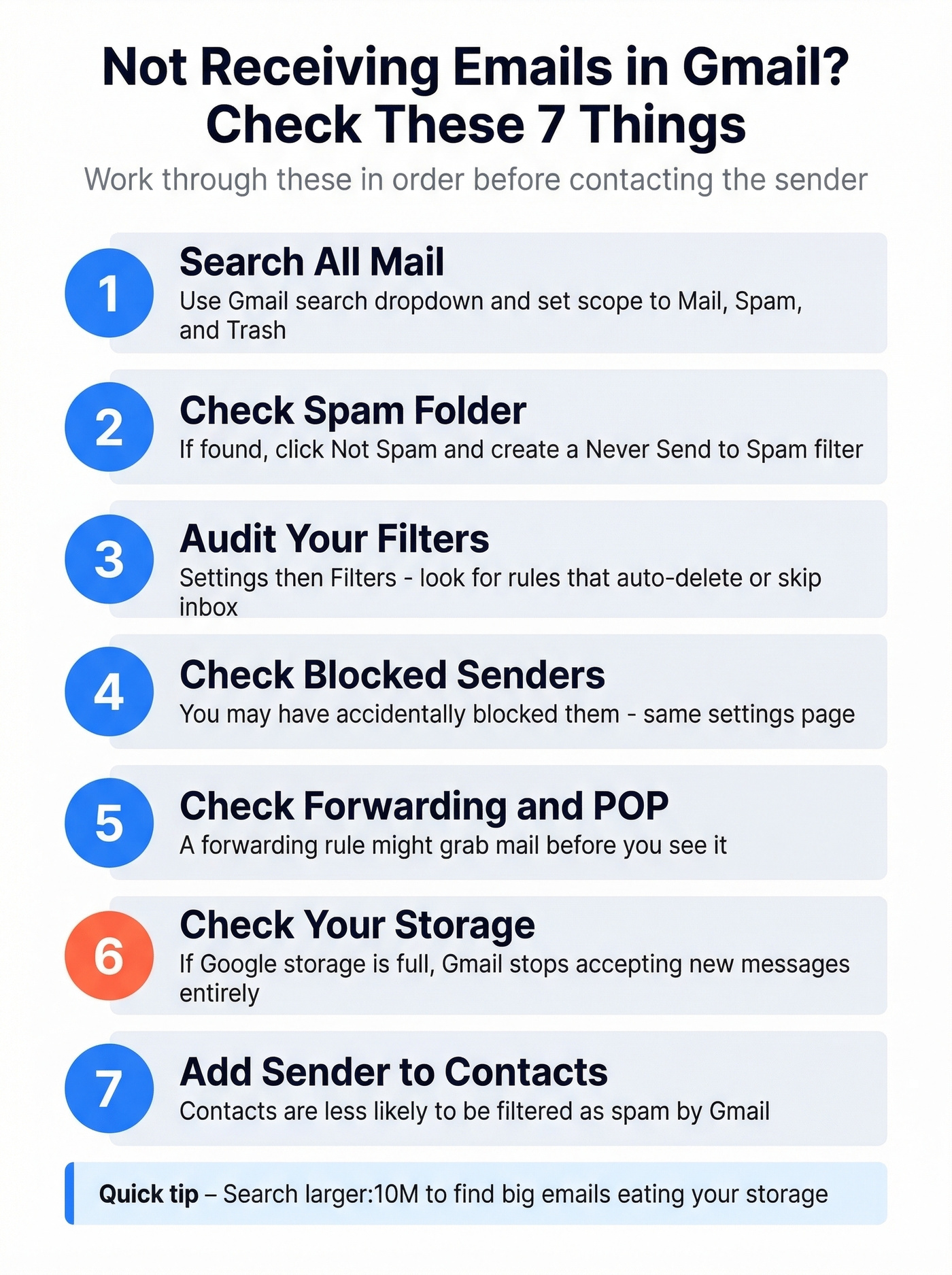
- Search everywhere. In Gmail's search bar, click the dropdown and set the scope to "Mail & Spam & Trash." Search
from:sender@example.com. - Check Spam. If you find the email there, click "Not spam." Then create a filter for that sender: search their address, click "Create filter," and check "Never send it to Spam."
- Audit your filters. Go to Settings > Filters and Blocked Addresses. Look for rules that auto-delete, archive, or skip the inbox for that sender's domain.
- Check your blocked senders list. You may have accidentally blocked them. Same settings page.
- Check forwarding and POP. Under Settings > Forwarding and POP/IMAP, make sure a forwarding rule isn't grabbing mail before you see it or POP isn't deleting Gmail's copy.
- Check your storage. If your Google storage is full, Gmail stops accepting new messages. Search
larger:10Mto find big emails you can delete. - Add the sender to Contacts. Senders in your Google Contacts are less likely to be filtered as spam.
Edge Cases Worth Knowing
Workspace "sensitive content" blocks. Some Google Workspace admins discover their outbound mail is bouncing with "may contain sensitive content" errors - even though they never configured DLP rules. Check Admin Console > Security > Data Protection. Workspace can ship with default content compliance rules that trigger on patterns like credit card numbers in the message body.
"Send as" custom domain failures. If you use Gmail's "Send as" feature with a custom domain and suddenly get 550 5.7.26 rejections, your SPF record probably doesn't include _spf.google.com - a common issue when SPF was originally set up for a different provider like Mailgun. You likely also don't have DKIM signing through Workspace. This setup breaks silently when the receiving domain tightens its DMARC policy.
Small BCC newsletter throttling. Even 50 recipients via BCC can trigger temporary rejection from Workspace. Gmail sees the burst pattern and throttles it. The fix isn't reducing your list - it's using a proper sending tool like Mailchimp, Brevo, or Instantly instead of BCC. If you’re sending at scale, follow the best way to send bulk email without getting blacklisted playbook.
FAQ
Why does Gmail say "Message Blocked" with no details?
Gmail's generic bounce signals an account-level or reputation issue, not a content problem. The bounce often promises "technical details below" but delivers nothing - this is by design to prevent spammers from gaming the system. Check Google Postmaster Tools for your domain reputation and spam rate to identify the root cause.
How long does it take to fix delivery after a block?
DNS changes for SPF, DKIM, and DMARC propagate in 24-48 hours. Reputation recovery takes longer - typically 2-4 weeks of consistently clean sending with low bounce rates and minimal spam complaints. There's no way to accelerate this; you earn trust back gradually.
Can bad email data cause Gmail to block my domain?
Yes. High bounce rates signal to Gmail that you're sending to unverified addresses, which tanks sender reputation fast. Verifying your list before sending prevents the reputation damage that triggers blocks in the first place.
What's the first thing to check when Gmail blocks outbound emails?
Start with the authentication trifecta: confirm your SPF, DKIM, and DMARC records are all valid and aligned. Then check Google Postmaster Tools for your domain reputation and spam rate. If reputation is low, pause outbound campaigns, clean your contact list, and resume with a slow warmup schedule.