

How to Whitelist an Email in Outlook: Every Version, Every Method
You're waiting on a two-factor code, a password reset, or an invoice that was due yesterday - and it's sitting in your Junk folder. Again. You drag it to your Inbox, mark it "not junk," and next week the same thing happens. Knowing how to whitelist an email in Outlook should be simple, but Microsoft doesn't make it obvious which fix actually sticks across different versions.
Let's sort this out once, for every version, so you never dig through Junk again.
Quick-Start: Whitelist in 30 Seconds
If you're using Outlook on the web / Outlook.com or new Outlook for Windows:
Open Settings → Mail → Junk email → Safe senders and domains → Add. Type the email address (or domain), hit Save.
If you're using classic Outlook for Windows: Home → Junk → Junk E-mail Options → Safe Senders → Add.
If it doesn't stick, your problem is usually server-side filtering, a full list, or an admin policy - and we cover all three below.
What "Whitelisting" Actually Means
Microsoft doesn't use the word "whitelist." In Outlook's world, it's the Safe Senders list. Emails from addresses or domains on this list are never treated as junk, regardless of message content.
Here's the thing most guides miss: adding someone to your Contacts is a trust signal, but it's not a guarantee. Safe Senders is the guarantee - at least at the mailbox/client rule level. More on that caveat in the troubleshooting section.
Step-by-Step for Every Outlook Version
Not sure which version you're on? If your Outlook has a simplified ribbon with rounded icons and a toggle that says "New Outlook" in the top right, you're on the new version. If it looks like it hasn't changed since 2019 - dense ribbon, lots of buttons - you're on classic.
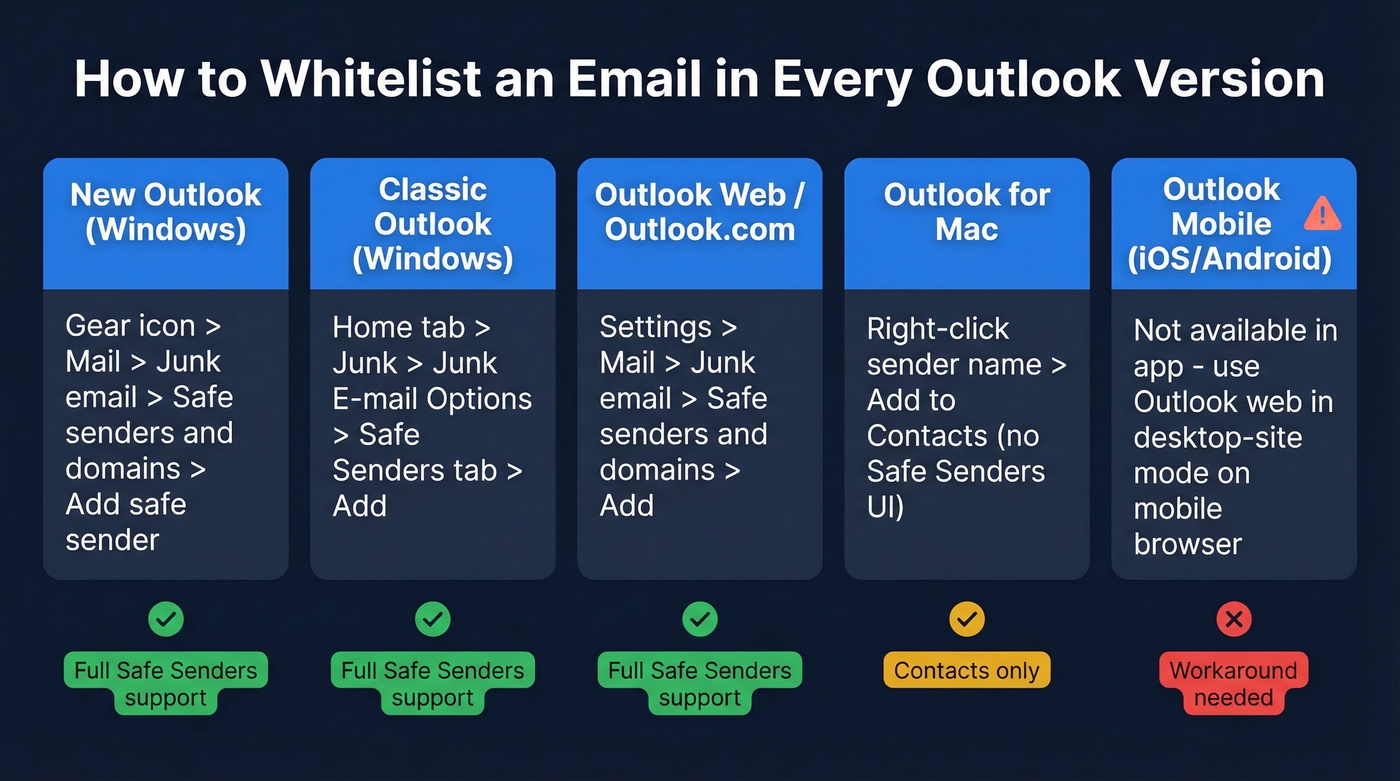
New Outlook for Windows
- Click the gear icon → Mail → Junk email.
- Scroll to Senders, then select Safe senders and domains.
- Click + Add safe sender.
- Type the address or domain → OK → Save.
Contacts are considered safe senders by default, though you can toggle this off. People in your organization's Global Address List are also treated as safe on work and school accounts - this doesn't apply to Contacts and Mail Users in the GAL.
Classic Outlook for Windows
- Go to the Home tab → click Junk → Junk E-mail Options.
- Select the Safe Senders tab.
- Click Add, type the email address or domain, and hit OK.
There's a faster alternative: right-click any email from the sender in your Junk folder and select Never block this sender. This shortcut is also a proven workaround when Safe Senders entries won't persist - more on that in troubleshooting.
Outlook on the Web / Outlook.com
Same steps as the quick fix above: Settings → Mail → Junk email → Safe senders and domains → Add. Done.
Outlook for Mac
Mac's Outlook doesn't expose the same Safe Senders UI as Windows in many setups. The practical approach is to rely on Contacts as the trust mechanism:
- Open the email from the sender you want to add.
- Ctrl-click (or right-click) the sender's name.
- Select Sender → Add to Contacts.
Email from contacts stays in Inbox and isn't filtered to Junk. It's not as bulletproof as a dedicated Safe Senders list, but it's what works in most Mac environments.
Outlook Mobile (iOS & Android)
The Outlook mobile app doesn't provide Safe Senders management. Full stop.
Workaround: open Outlook on the web in your mobile browser using desktop site mode. On iOS, open Safari, tap Aa in the address bar, and select Request Desktop Website. On Android, use Chrome's Desktop site toggle. A Microsoft Q&A thread puts it bluntly: "There is no other way... you need to use the desktop version" - and 25 people found that answer helpful.

Whitelisting fixes your inbox. But if you're sending outbound emails, the real question is whether your messages survive your prospects' spam filters. Prospeo's 98% email accuracy and 5-step verification - including spam-trap removal and honeypot filtering - means your emails reach real inboxes.
Bounce rates under 4%. That's what accurate data does for deliverability.
How to Whitelist a Domain
Instead of adding individual addresses one by one, you can whitelist an entire domain. Use the same Safe Senders path from any version above, but enter domain.com instead of a full email address. Every email from that domain bypasses Junk.
This is useful when you want to trust all emails from a company - notion.so or stripe.com, for instance. But understand the trade-off: you're trusting every address at that domain. If an attacker spoofs it, those emails skip your Junk filter too, which is why admins often pair allowlisting with authentication checks like DMARC at the policy level.
Whitelist for All Users (Microsoft 365 Admin)
If you're an IT admin and need to allowlist a sender across your entire organization, the user-level Safe Senders list won't cut it. Microsoft documents five methods, and the order matters because each operates at a different layer of the filtering stack.
Recommended Admin Methods
Microsoft's recommended ordering, from strongest to weakest:
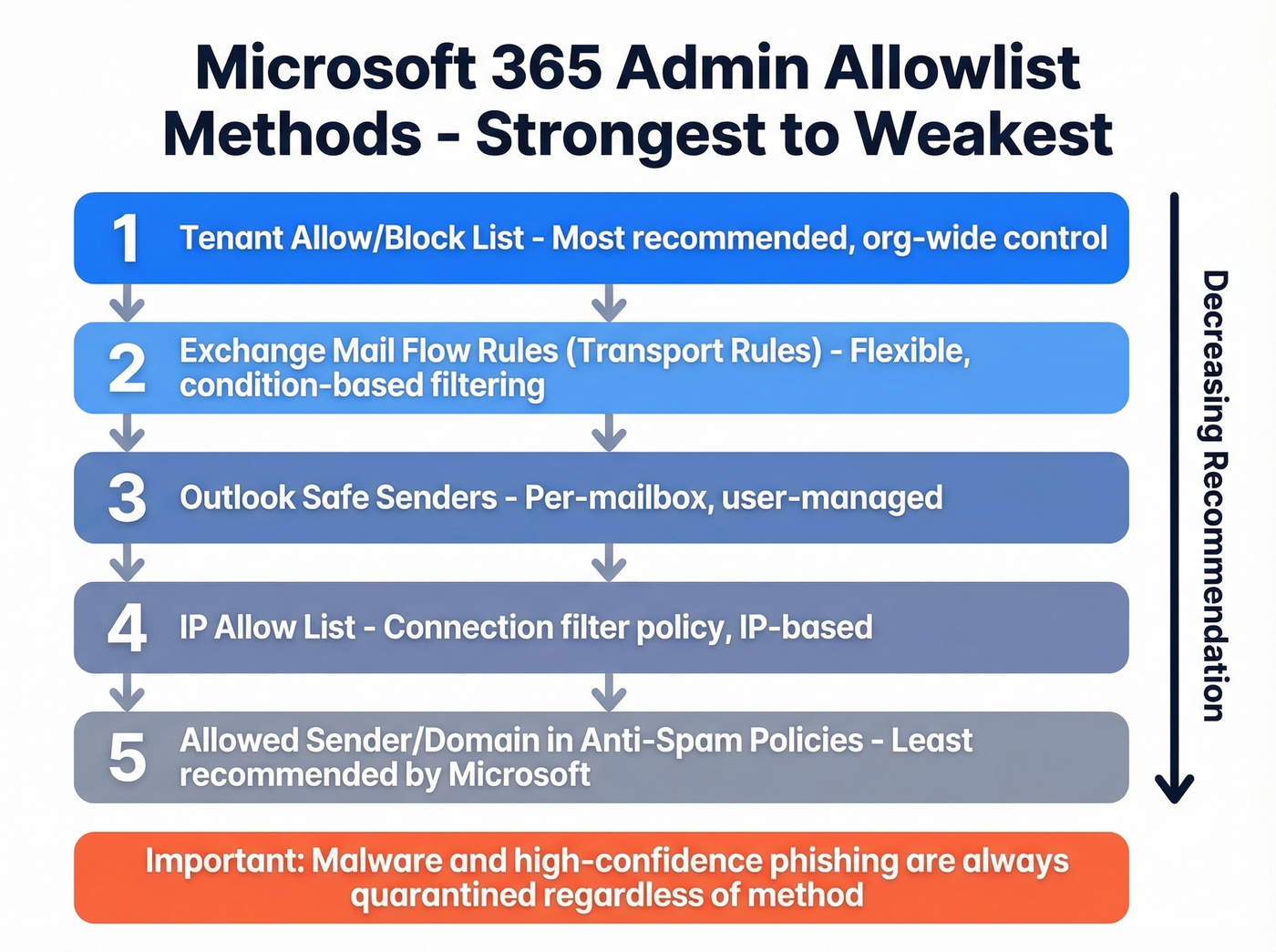
- Tenant Allow/Block List - most recommended, org-wide
- Exchange mail flow rules (transport rules)
- Outlook Safe Senders - per-mailbox
- IP Allow List in connection filter policy
- Allowed sender/domain in anti-spam policies - least recommended
One hard limit applies regardless of method: malware and high-confidence phishing are quarantined no matter what you allowlist.
Defender Anti-Spam Policy Steps
- Go to
security.microsoft.com. - Navigate to Email & Collaboration → Policies & rules → Threat Policies → Anti-Spam.
- Click Anti-spam inbound policy (default).
- Select Edit allowed and blocked senders and domains.
- Under Manage Senders or Allow Domains, click Add.
- Enter the sender address or domain → Save.
Changes can take up to an hour to propagate. Give it time before escalating.
Exchange Mail Flow Rule Steps
- Open Exchange Admin Center → Mail flow → Rules.
- Click Add a rule → select Bypass Spam Filtering.
- Set the condition: sender domain is → enter the domain.
- Set the action: Set the spam confidence level (SCL) to Bypass Spam Filtering.
- Critical step: add an anti-spoofing condition. Set Authentication-Results header contains
dmarc=passordmarc=bestguesspassas separate entries. - Save the rule.
Never create a bypass rule using only sender domain without the DMARC condition. Microsoft explicitly warns against this because it lets attackers spoof the domain and skip filtering entirely. The DMARC check ensures the email is actually authenticated as coming from who it claims to be - skip it and you're opening a hole in your security posture.
Why Whitelisting Isn't Working
You followed the steps. The sender is on your Safe Senders list. Emails still land in Junk. Frustrating. The answer is almost always one of these four causes.
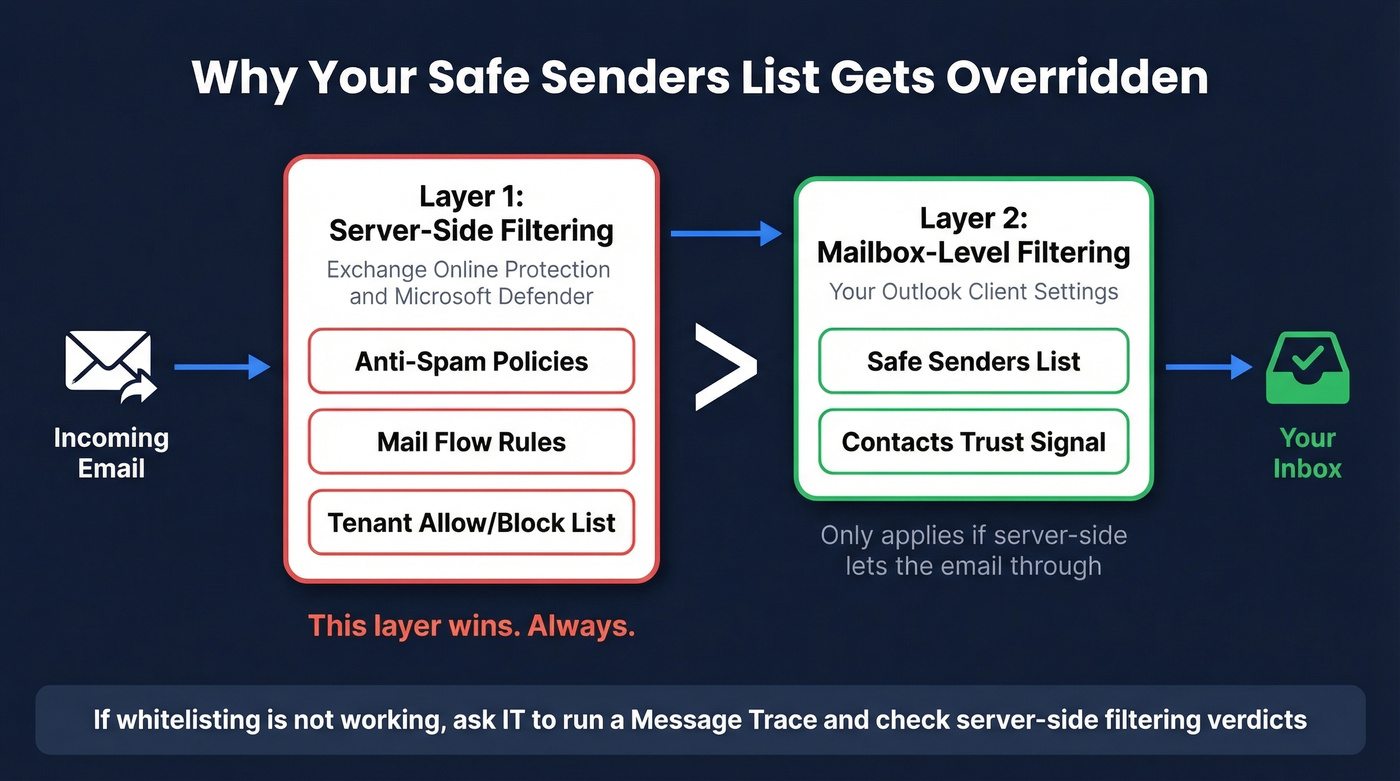
Client-Side vs. Server-Side Filtering
Outlook Safe Senders is a mailbox-level mechanism, while Exchange Online Protection and Microsoft Defender policies filter mail server-side in most Microsoft 365 environments. These are two separate layers, and the server-side layer wins.
If your admin has a server-side spam policy blocking a sender, your Safe Senders list won't override it. To check, ask your IT team to run a Message Trace in Exchange Admin Center and review the filtering verdicts.
For deeper debugging, check the X-Forefront-Antispam-Report header on a delivered message:
SFV:SKNindicates a mail flow rule bypassed spam filtering.IPV:CALindicates the source IP was on an allow list.
Safe Senders List Won't Save
You add an address, close Settings, reopen it - and the entry is gone. This is almost always a size limit issue.
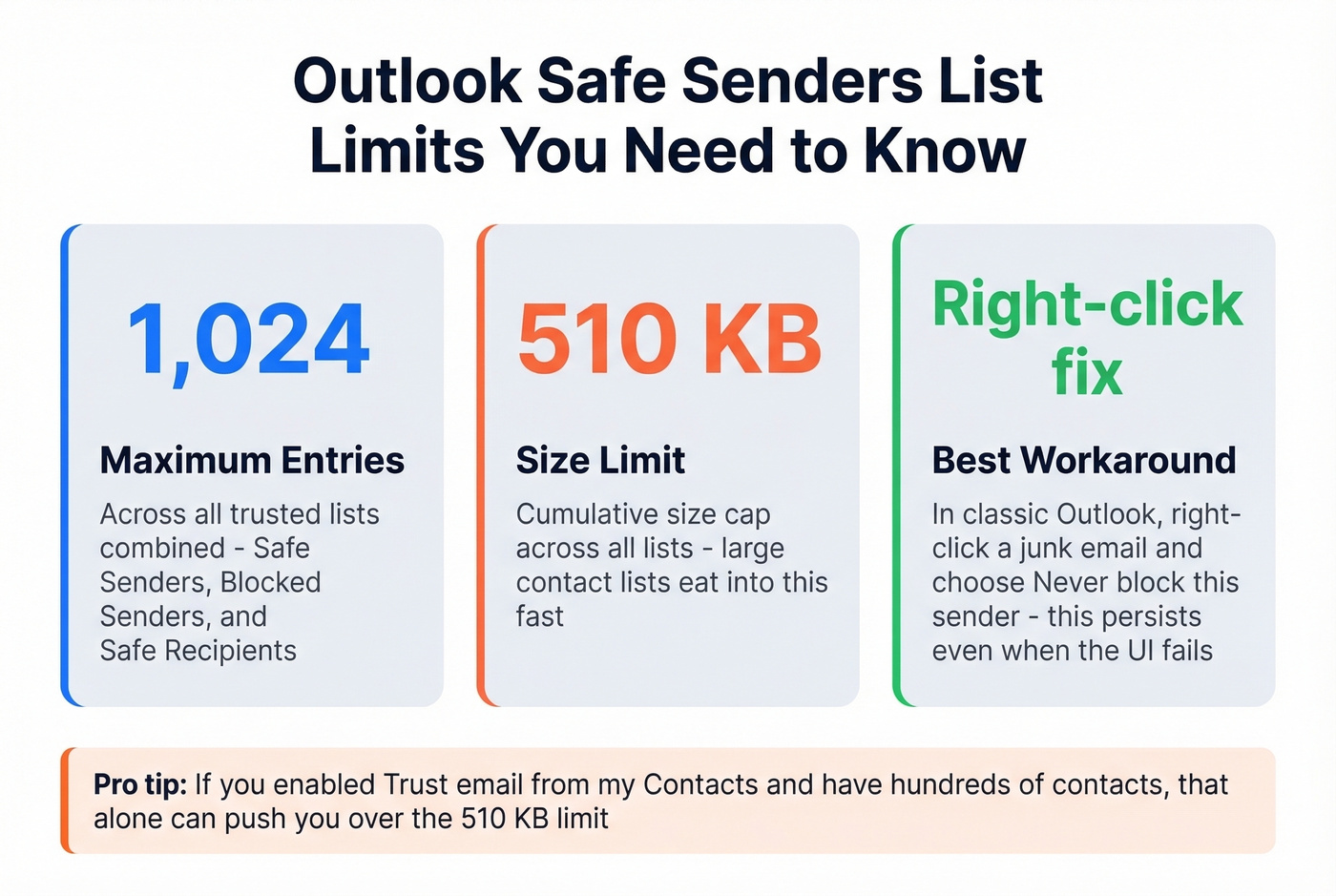
Cloud mailboxes support up to 1,024 entries across all trusted lists, with a 510 KB cumulative size limit across Safe Senders, Blocked Senders, and Safe Recipients combined. If you've enabled "Also trust e-mail from my Contacts" and have a large contact list, that alone can push you over the limit.
The fix that works: open your mailbox in classic Outlook, find the email in your Junk folder, right-click it, and choose Never block this sender. That action persists even when the Safe Senders UI won't cooperate.
Admin Policies Override Your Settings
If you're in a corporate environment and whitelisting doesn't work, don't waste another hour tweaking client settings. Escalate to IT. They need to use Defender policies or mail flow rules - your user-level settings simply aren't enough when server-side policies are in play.
If You're the Sender - Fix Your Deliverability
Look, if you're sending emails and recipients keep telling you they're landing in Junk - even after adding you to Safe Senders - the problem isn't on their end. Your sender reputation is damaged.
SPF, DKIM, and DMARC authentication are table stakes. You need all three configured correctly. But authentication alone won't save you if 5% of your list is invalid. High bounce rates are the fastest way to tank a domain's reputation, and once that happens, even authenticated mail gets filtered aggressively. We've seen teams go from 35% bounce rates to under 4% just by running their lists through Prospeo's real-time verification before sending - 98% accuracy, including catch-all domains and spam traps. The free tier gives you 75 verifications per month, no contracts, no credit card.
For a deeper breakdown of what actually moves inbox placement, see our email deliverability guide and the most common email bounce rate causes.
If you're troubleshooting reputation specifically, start with sender reputation and run a quick audit using email reputation tools.
If you suspect list quality is the real issue, use an email spam checker and review your email velocity before scaling.
Real talk: If you're constantly asking recipients to whitelist you, your deliverability is broken. Fix the root cause - clean your list, authenticate your domain - and you won't need to ask.
You're troubleshooting Junk folders because bad sender data triggers spam filters. Prospeo refreshes every record on a 7-day cycle - not the 6-week industry average - so you're never sending to stale, flagged, or recycled addresses that tank your domain reputation.
Stop fighting spam filters. Start with data that's verified this week.
FAQ
Does Safe Senders work on Outlook mobile?
No. The Outlook mobile app doesn't expose Safe Senders management. Your best option is opening Outlook on the web in your mobile browser using desktop-site mode, or managing the list from a computer.
How many safe senders can I add?
Cloud mailboxes support up to 1,024 entries across all trusted lists, with a 510 KB cumulative size limit. Enabling "trust email from my Contacts" with a large contact list eats into that cap fast.
What's the difference between Safe Senders and Contacts?
Safe Senders ensures messages bypass junk filtering at the mailbox rule level - it's a guarantee. Adding someone to Contacts is a trust signal that influences filtering, but Outlook can still override it in some configurations. If you want certainty, use Safe Senders.
Can my admin override my Safe Senders list?
Yes. Server-side policies in EOP and Microsoft Defender filter before your Safe Senders list applies. Malware and high-confidence phishing are quarantined regardless of any allowlist.
How do I stop my emails from landing in recipients' Junk?
Authenticate with SPF, DKIM, and DMARC - all three. Then verify your contact list to keep bounce rates under 2%. Microsoft's sender guidelines detail their filtering criteria, and Google's bulk sender requirements apply similar standards. Clean data and proper authentication solve the vast majority of deliverability problems - no amount of recipient-side whitelisting fixes a broken sending reputation.