

Gmail Port for SMTP: Complete 2026 Configuration Guide
Your copier stopped emailing scanned invoices last Tuesday. Your FileMaker automation silently died a month ago. If you're looking up the Gmail port for SMTP, the short answer is 587. Google changed something - again - and their docs tell you what the settings are but not which to pick or why the old ones broke. Let's fix that.
Quick-Reference Settings
Copy-paste settings for the Gmail SMTP server:
- Server:
[smtp.gmail.com](https://developers.google.com/workspace/gmail/imap/imap-smtp) - Port:
587(STARTTLS) - recommended default - Port:
465(implicit SSL/TLS) - fallback - Username: your full Gmail address
- Authentication: App Password (requires 2FA) or OAuth2
Use 587. Use an App Password. Read on only if something's broken or you need to understand the tradeoffs.
Gmail SMTP Settings at a Glance
| Setting | Value |
|---|---|
| SMTP Server | smtp.gmail.com |
| Port (recommended) | 587 (STARTTLS) |
| Port (fallback) | 465 (SSL/TLS) |
| Username | Full email address |
| Authentication | App Password or OAuth2 |
| Encryption | Required |
The server IP resolves dynamically - Google uses multiple IPs behind smtp.gmail.com, so always use the hostname rather than hardcoding an IP.
IMAP and POP settings (for receiving)
| Protocol | Server | Port | Encryption |
|---|---|---|---|
| IMAP | imap.gmail.com | 993 | SSL/TLS |
| POP | pop.gmail.com | 995 | SSL/TLS |
Port 587 vs 465: Which One to Use
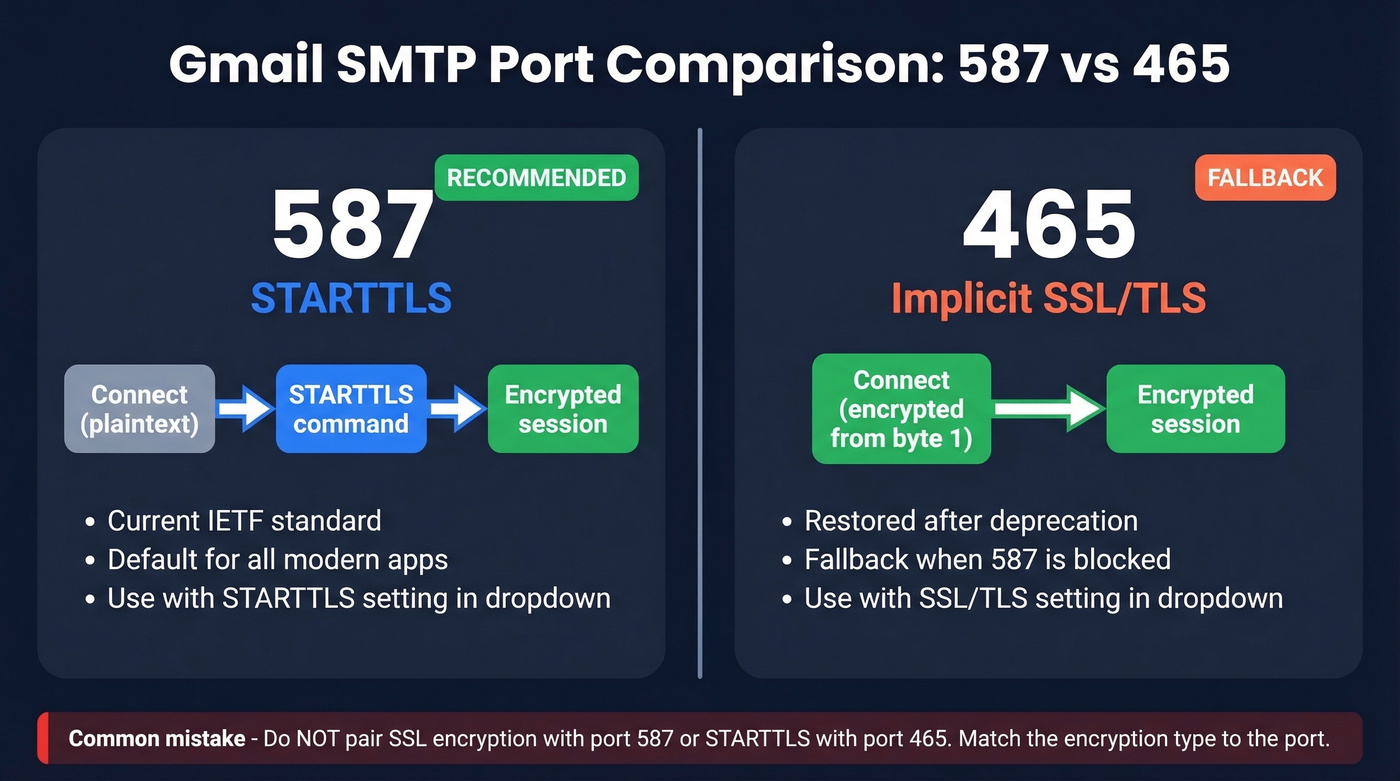
Port 587 is the current standard for SMTP submission. Use it with STARTTLS as your default choice. Port 465 uses implicit TLS - the connection starts encrypted immediately - and it's a valid fallback when 587 is blocked or your client doesn't support STARTTLS.
| Port | Encryption | Status | When to Use |
|---|---|---|---|
| 587 | STARTTLS (upgrades) | Current standard | Default for all apps |
| 465 | Implicit SSL/TLS | Restored after deprecation | 587 blocked or legacy |
| 25 | None (or STARTTLS) | Often blocked for submission | Don't use for Gmail submission |
Here's the thing: the most common misconfiguration we see is selecting "SSL" encryption with port 587, or "STARTTLS" with port 465. Match the encryption type to the port, or you'll burn hours debugging what turns out to be a one-dropdown fix.
Port 25 exists for server-to-server relay, not for client submission. Many ISPs and hosts block it outbound anyway.
How TLS and SSL Encryption Work
Understanding the encryption layer matters because picking the wrong type for your port is the single most common configuration error.
With port 587, your client connects in plaintext and then upgrades to TLS via the STARTTLS command. With port 465, the connection is wrapped in SSL/TLS from the very first byte. Both are secure once the encrypted session is established; the difference is when encryption kicks in.
Modern clients label both options as "TLS" - if you see "STARTTLS" in the dropdown, pair it with port 587. If you see "SSL/TLS" or just "SSL," pair it with 465. Google requires encryption on all SMTP connections, so there's no unencrypted option. And if your app only offers a generic "TLS" toggle without specifying STARTTLS vs implicit, try port 587 first with TLS enabled.

Configuring Gmail SMTP is only half the battle. If you're sending to bad addresses, your bounce rate tanks your domain reputation - no port setting can fix that. Prospeo's 5-step email verification delivers 98% accuracy with catch-all handling and spam-trap removal built in.
Stop debugging bounces. Start with verified emails at $0.01 each.
How to Authenticate in 2026
App Passwords (Current Workaround)
Less Secure Apps is dead. Google killed it. If your app or device was using your regular Gmail password for SMTP, that's why it broke.
App Passwords are the replacement for anything that can't do OAuth2 (and if you're still relying on basic auth flows, it’s worth reviewing SMTP authentication basics so you know what your client is actually doing):
- Enable 2-Step Verification on the Google account. Non-negotiable - the App Password option literally doesn't appear without it.
- Go to myaccount.google.com -> Security -> 2-Step Verification -> App Passwords.
- Name the app something descriptive like "Office Copier" or "FileMaker."
- Google generates a 16-character code. Copy it immediately; you won't see it again.
- Use that 16-character code as the password in your SMTP client. Your username is still your full email address.
One gotcha that catches Workspace admins: on certain tiers - Google Workspace for Nonprofits being one - the App Password option can disappear entirely. If you don't see it, check your Workspace admin console for tier-specific restrictions. The r/sysadmin threads are full of admins who discovered this the hard way over a weekend.
OAuth2 / XOAUTH2 (Future-Proof)
OAuth2 is what Google wants everyone using. If your app supports it, use it - it's more secure and won't break when Google tightens auth policies again.
- Create a project in Google Cloud Console.
- Configure the OAuth consent screen (internal for Workspace, external for personal Gmail).
- Create OAuth client credentials (Web Application type) with a redirect URI.
- Enable the Gmail API in the API Library.
- Add the scope
https://mail.google.com/. - Authorize via browser to get an authorization code, then exchange it for access and refresh tokens.
The access token expires after roughly 3,600 seconds, so your app needs to use the refresh token to get new access tokens automatically. More setup than an App Password, sure. But this is the method that won't break next time Google deprecates something.
Auth Decision Ladder
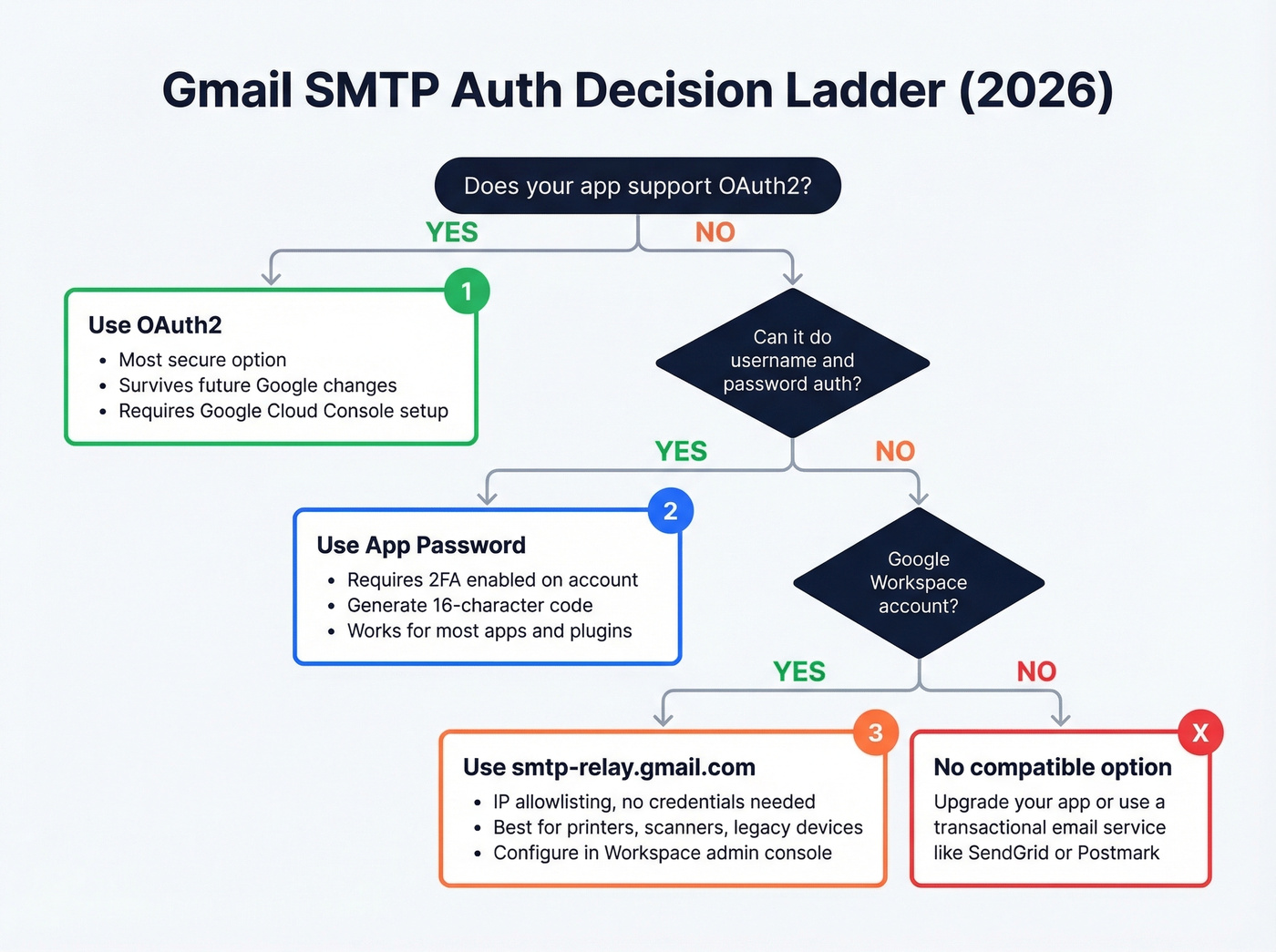
- OAuth2 - if your app supports it, always use this.
- App Password - if your app can do username/password auth but not OAuth2.
- smtp-relay.gmail.com with IP allowlisting - for devices that can't handle either. Workspace only.
smtp.gmail.com vs smtp-relay: Choosing the Right Server
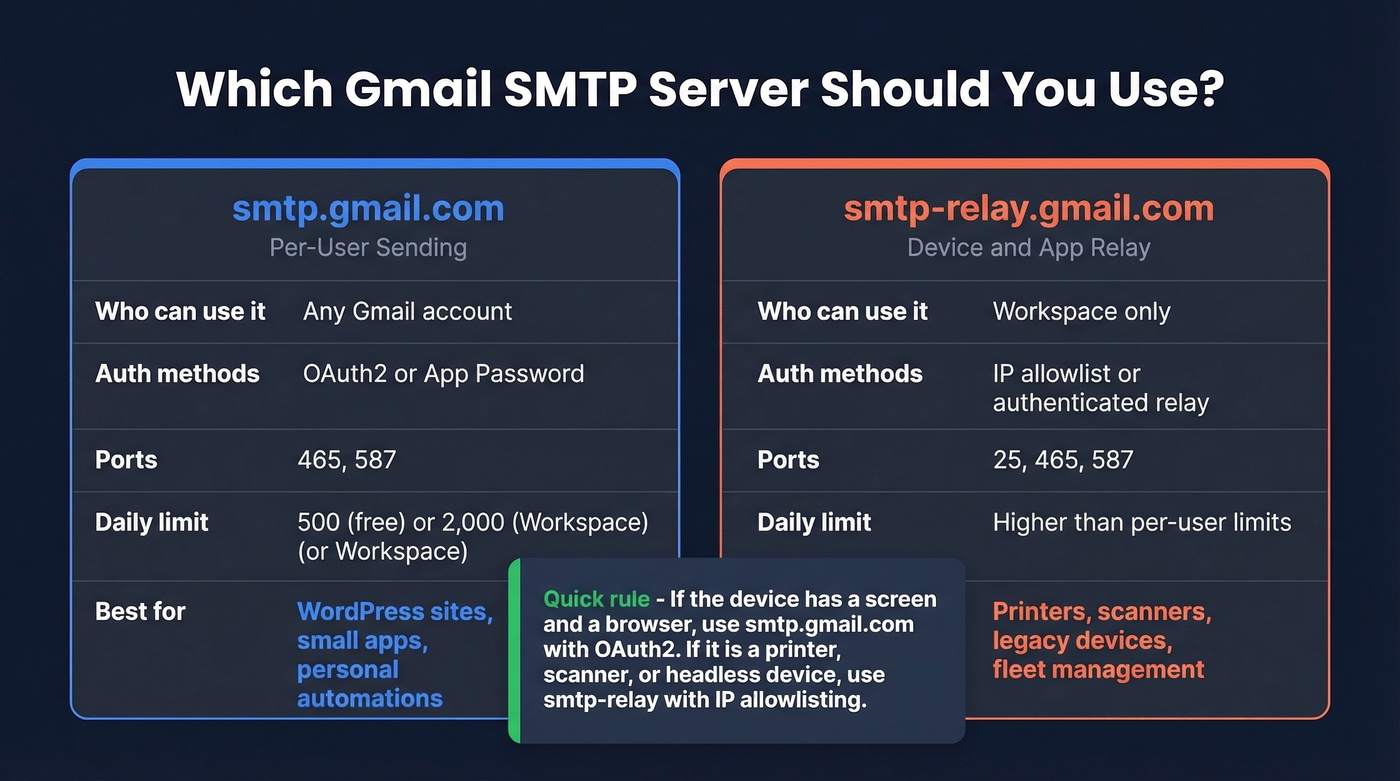
These are two different servers solving two different problems. Mixing them up is one of the most common Workspace configuration mistakes we run into.
| Feature | smtp.gmail.com | smtp-relay.gmail.com |
|---|---|---|
| Who can use it | Any Gmail account | Workspace only |
| Auth methods | OAuth2, App Password | IP allowlist or authenticated relay |
| Supported ports | 465, 587 | 25, 465, 587 |
| Daily limit | 500 (free) / 2,000 (Workspace) | Higher than per-user limits |
| Primary use case | Per-user sending | Device/app relay |
For printers and scanners, smtp-relay is the right choice. It supports IP allowlisting, meaning the device doesn't need to authenticate with credentials at all - you whitelist its static IP in the Workspace admin console. This sidesteps the entire App Password / OAuth2 problem for hardware that can't support modern auth.
If you're a Workspace admin with a fleet of copiers and legacy apps, stop trying to make App Passwords work on every device. smtp-relay with IP allowlisting is the path of least resistance. Don't force modern auth onto a 2015-era Brother printer - you'll waste a weekend and end up here anyway. (If you need the exact admin-side knobs, see Gmail Workspace SMTP settings.)
Gmail SMTP Sending Limits
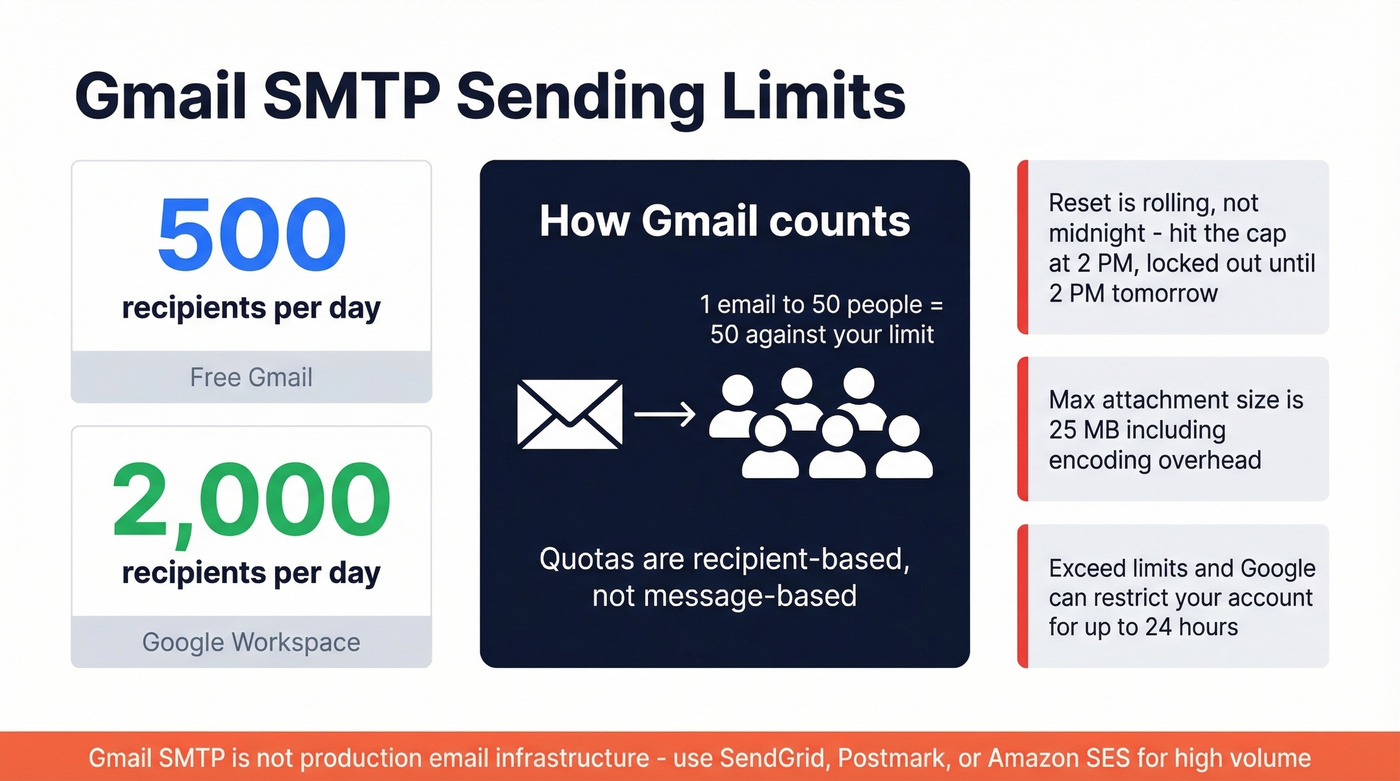
Gmail's quotas are recipient-based, not message-based. One email to 50 people counts as 50 against your limit.
| Account Type | Daily Recipients | Reset |
|---|---|---|
| Free Gmail | 500 | Rolling 24 hours |
| Google Workspace | 2,000 | Rolling 24 hours |
The reset is rolling - not midnight. If you hit the cap at 2 PM, you're locked out until roughly 2 PM the next day. Attachment size caps at 25 MB including encoding overhead. Exceed the limits and you'll see errors like "Daily user sending quota exceeded" or "421 4.7.0 Temporary System Problem," and Google can restrict your account for up to 24 hours.
Gmail SMTP isn't production email infrastructure. Full stop. (If you’re running into caps often, compare the nuances in Gmail SMTP limits vs broader Gmail sending limits.)
For high-volume sending, use SendGrid, Postmark, or Amazon SES. Gmail is fine for transactional notifications, scan-to-email, and low-volume outbound - but 500 or 2,000 recipients per day is a hard ceiling. If you're using Gmail for outbound prospecting, verify your list first with a tool like Prospeo so bounces don't eat into that daily quota and tank your sender reputation. (If you want benchmarks to sanity-check your list quality, see average email bounce rate.) The free tier gives you 75 verifications per month, which is enough to clean a small campaign before it costs you a 24-hour lockout.
Troubleshooting Common Errors
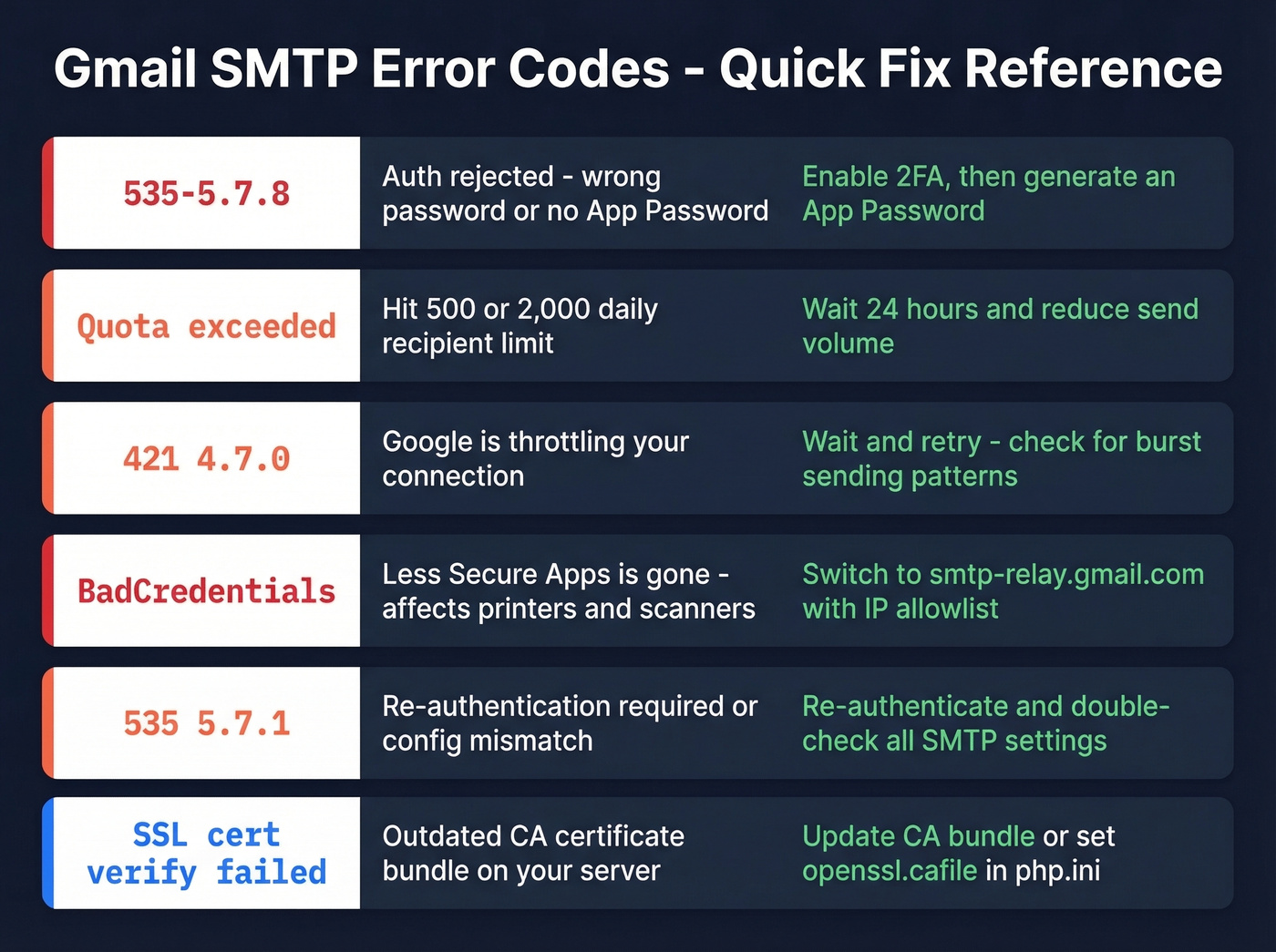
Error Code Reference
| Error | Cause | Fix |
|---|---|---|
| 535-5.7.8 Auth rejected | Wrong password or no App Password | Enable 2FA, generate App Password |
| Quota exceeded | Hit 500/2,000 limit | Wait 24 hours; reduce volume |
| 421 4.7.0 Temp error | Google throttling | Wait and retry; check burst patterns |
| BadCredentials (printers) | Less Secure Apps gone | Use smtp-relay + IP allowlist |
| 535 5.7.1 Intermittent | Re-auth required / config issue | Re-authenticate; re-check SMTP settings |
| SSL cert verify failed | Outdated CA bundle | Update CA bundle or set openssl.cafile in php.ini |
App Password Option Missing?
Two things to check. First, 2-Step Verification must be enabled on the account - without it, the App Password menu doesn't exist. Second, if you're on Google Workspace, check the admin console. Certain tiers and admin policies can hide or disable App Passwords entirely. This catches people most often on service accounts that were never set up with 2FA.
Printers and Scanners Not Sending
This is the #1 complaint on Reddit since Google killed Less Secure Apps. Your copier worked fine for years, and now it throws BadCredentials or silently fails.
The fix for most Workspace environments: switch the device to smtp-relay.gmail.com with IP allowlisting. Configure the printer's static IP in the admin console, and the device sends without credentials. Don't disable authentication entirely on smtp-relay as a workaround - we've seen admins do this as an "interim" fix that becomes permanent, and it's a security hole you don't want to explain during an audit.
WordPress Sites
For WordPress, use a plugin like WP Mail SMTP with these same settings. Port 587 with STARTTLS and an App Password works in most cases; OAuth2 via the plugin is even better. Skip this if you're already using a transactional email service - there's no reason to route WordPress mail through Gmail when you've got SendGrid or Postmark handling it. (If you’re diagnosing placement issues, run through an email deliverability audit before you blame SMTP.)
Hitting Gmail's 500 or 2,000 daily recipient limit? Every bounced email wastes a slot. Teams using Prospeo's 143M+ verified emails cut bounce rates from 35% to under 4% - meaning more of those limited sends actually land.
Make every send count with emails refreshed every 7 days.
FAQ
What is the Gmail port for SMTP?
The recommended Gmail port for SMTP is 587 with STARTTLS encryption, using smtp.gmail.com as the server. Port 465 with implicit SSL/TLS is the fallback. Both require an App Password or OAuth2 - regular Gmail passwords no longer work for SMTP authentication.
Can I still use my Gmail password for SMTP?
No. Google deprecated Less Secure Apps, so regular passwords don't work for SMTP anymore. You need an App Password (requires 2-Step Verification) or OAuth2 credentials. There's no workaround - this change is permanent.
Why did my Gmail SMTP stop working?
Google disabled plain-password and basic-auth SMTP authentication, including CRAM-MD5 in some legacy apps. If your device only supported those methods, it broke when the change rolled out. Switch to App Passwords, OAuth2, or move legacy devices to smtp-relay.gmail.com with IP allowlisting.
How do I avoid bounces when sending through Gmail SMTP?
Verify recipient addresses before sending - bounces waste your daily quota and damage sender reputation. Even a small verification pass before a campaign can prevent a 24-hour lockout that kills your workflow.