

Gmail SMTP Relay Server: Setup Guide (2026)
Your office scanner stopped emailing PDFs three months ago. Or maybe your Python script just started throwing 534 errors out of nowhere. Either way, you're here because your Gmail SMTP relay broke something that used to work, and Google's help docs are scattered across four separate articles that somehow all contradict each other.
One page. Bookmark it.
What You Need (Quick Version)
- Which server?
smtp.gmail.comfor most users.smtp-relay.gmail.comif you're a Workspace admin routing mail from multiple devices or services. - What port? 587 with TLS/STARTTLS. Use 465 (SSL) only if your app can't handle STARTTLS.
- What password? An App Password - 16 characters, generated from your Google account. Not your regular Gmail password. You'll need 2FA enabled first.
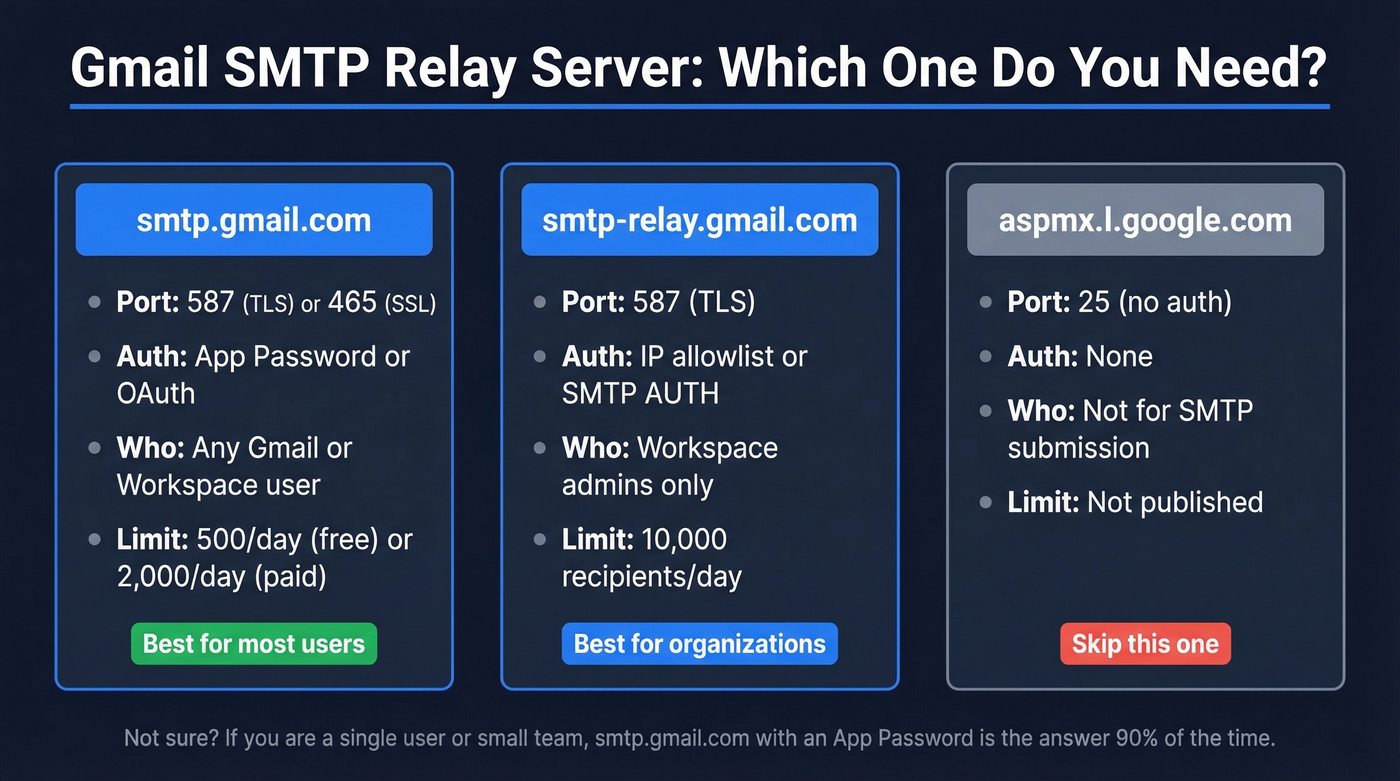
| Server | Port | Auth Method | Who Can Use It | Daily Limit |
|---|---|---|---|---|
smtp.gmail.com |
587 (TLS) / 465 (SSL) | App Password or OAuth | Any Gmail/Workspace user | 500 (free) / 2,000 (Workspace) |
smtp-relay.gmail.com |
587 (TLS) | IP allowlist or SMTP AUTH | Workspace admins only | 10,000 recipients/day |
aspmx.l.google.com |
25 | None (no auth) | Not an authenticated SMTP submission option | Not published |
If you're not sure which server to use, the next two sections will make it obvious.
What Changed - The End of Basic Auth
Google deprecated "less secure apps" access, and basic password SMTP no longer works for most legacy setups. That single toggle - the one buried in account settings that let apps authenticate with a plain username and password - is gone.
Every scanner, legacy CRM, monitoring script, and WordPress plugin that relied on basic password authentication broke overnight. The r/sysadmin threads tell the story - "shutting off Plain Password... has bricked this for us" is a direct quote from an admin whose entire print fleet went dark.
Google made the right security call. But the transition communication was terrible. No push notification to your Ricoh MFP. No warning email to the account running your cron job. Just silence, then errors.
The current state is straightforward: you've got two paths for SMTP authentication. App Passwords work everywhere and are easy to set up. OAuth 2.0 is more secure but harder to implement on legacy devices. For most setups, App Passwords are the answer. This isn't just Google's change, either - Google and Yahoo enforced bulk sender authentication requirements in February 2024, and Microsoft joined in May 2025. Plain password SMTP is dead across the board.
Choosing Your Gmail SMTP Gateway
smtp.gmail.com - The Default
You're a developer, a small team, or anyone sending from a single authenticated account. This covers scripts, apps, scanners, WordPress sites, and most SaaS integrations. Each message sends as the authenticated user's address.
Skip this if: You need to send as multiple addresses in your domain, or you're routing mail from devices that can't store per-user credentials.
Here's the thing: if you're a solo developer or small team, smtp.gmail.com with an App Password is the answer 90% of the time. Don't overcomplicate it.
smtp-relay.gmail.com - For Workspace Admins
You're managing mail flow for an organization. The relay lets you send as any address in your domain, supports IP allowlisting, and handles higher volume at 10,000 recipients per day. It's configured in the Admin Console, not per-user.
| Pros | Cons |
|---|---|
| Send as any domain address | Workspace subscription required |
| 10,000 recipients/day | IP allowlisting breaks for remote/cloud senders |
| Org-level control | Up to 24 hours for changes to fully propagate |
| SMTP AUTH or IP allowlist | More complex initial setup |
If your team is remote or distributed, skip IP allowlisting entirely. It breaks the moment someone sends from a coffee shop or a cloud service with a dynamic IP. Use SMTP AUTH instead.
aspmx.l.google.com - Probably Not What You Need
This is a Google MX host used for receiving mail. It runs on port 25 and isn't an authenticated SMTP submission endpoint like the other two servers. Unless you have a very specific mail-routing reason to touch it, skip it.
Many cloud providers - AWS, GCP, Azure - restrict outbound port 25 by default, which limits port-25-only setups even further.
Setup Walkthroughs
Setting Up smtp.gmail.com
Four steps:
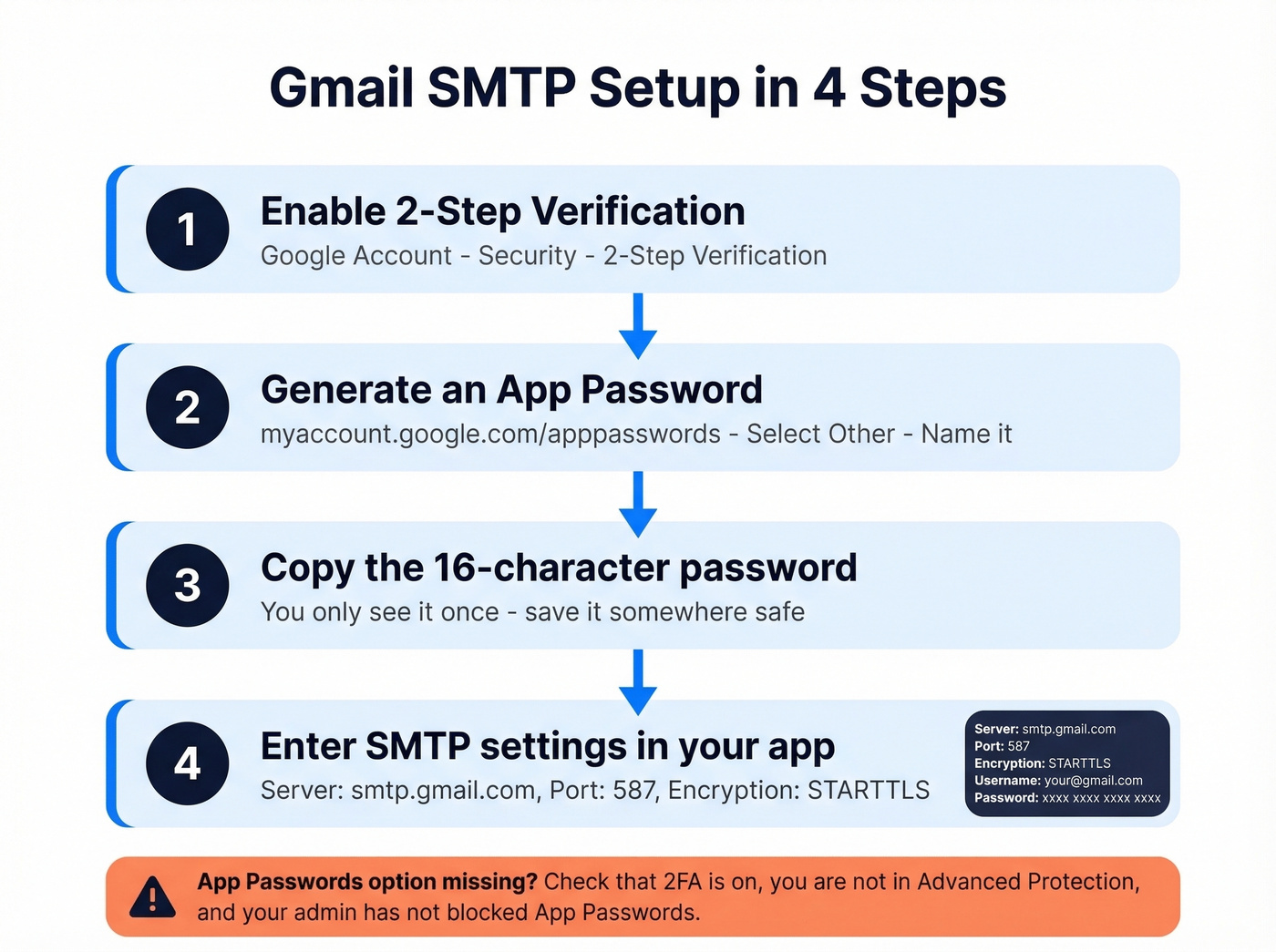
- Enable 2FA on the Gmail or Workspace account you'll send from. Go to your Google Account, then Security, then 2-Step Verification.
- Generate an App Password at myaccount.google.com/apppasswords. Select "Other" as the app type, name it something descriptive like "Office Scanner" or "Python Script," and click Generate.
- Copy the 16-character password Google gives you. This is the only time you'll see it.
- Enter these settings in your app or device: Server:
smtp.gmail.com, Port: 587, Encryption: STARTTLS, Username: your full Gmail address, Password: the 16-character App Password.
One gotcha: the "App Passwords" option won't appear if 2FA isn't enabled, if you're enrolled in Google's Advanced Protection Program, or if your Workspace admin has blocked App Password generation via org policy. Check those three things first before you start troubleshooting.
Configuring Relay Settings (Workspace Admin)
This requires Google Workspace admin access. You're configuring an org-level relay, not a per-user setting.
- Open the Admin Console, then Apps, then Google Workspace, then Gmail, then Routing.
- Scroll to SMTP Relay Service and click Configure.
- Set Allowed Senders: choose between "Only registered apps in my domain," "Only addresses in my domains," or "Any addresses."
- Set Authentication: pick IP allowlist or require SMTP authentication.
- Set Encryption: require TLS. There's no good reason not to.
- Save and wait up to 24 hours for propagation.
We've seen this trip up admins who lock down the relay for their office IP, then wonder why their AWS Lambda function can't send. If you restrict to specific IPs, every remote user and cloud service sending from a different IP gets blocked.
Use SMTP AUTH for mixed environments - it's more flexible and just as secure with TLS enforced.
Printer & Scanner Setup
This is the #1 pain point in forums. Your MFP's scan-to-email worked for years - maybe through an unauthenticated IIS relay on a Windows server, maybe directly via smtp.gmail.com with a plain password. Then scans started landing in Spam, or stopped sending entirely.
The fix is the same App Password method:
- Enable 2FA on the Gmail/Workspace account the scanner uses.
- Generate an App Password at myaccount.google.com/apppasswords.
- In your scanner's SMTP settings, enter: Server:
smtp.gmail.com, Port: 587, Encryption: STARTTLS (or "TLS" - scanner UIs vary), Username: the full email address, Password: the 16-character App Password. - Send a test scan.
If your scanner's firmware is ancient and doesn't support STARTTLS, you need an on-prem relay - hMailServer, Postfix, or even the Windows IIS SMTP service if it's already running in your environment. The relay accepts unauthenticated mail from the scanner locally, then forwards it to Gmail with proper TLS authentication. It's an extra hop, but it works.

Wrestling with SMTP relay limits and 534 errors just to send outbound emails? Prospeo gives you 143M+ verified emails at 98% accuracy - no relay configuration, no App Passwords, no daily caps. Just clean contact data that lands in inboxes.
Stop configuring relay servers. Start reaching real buyers.
Sending Limits - The Real Numbers
Outdated guides circulate wrong numbers constantly. Here's what we've confirmed:
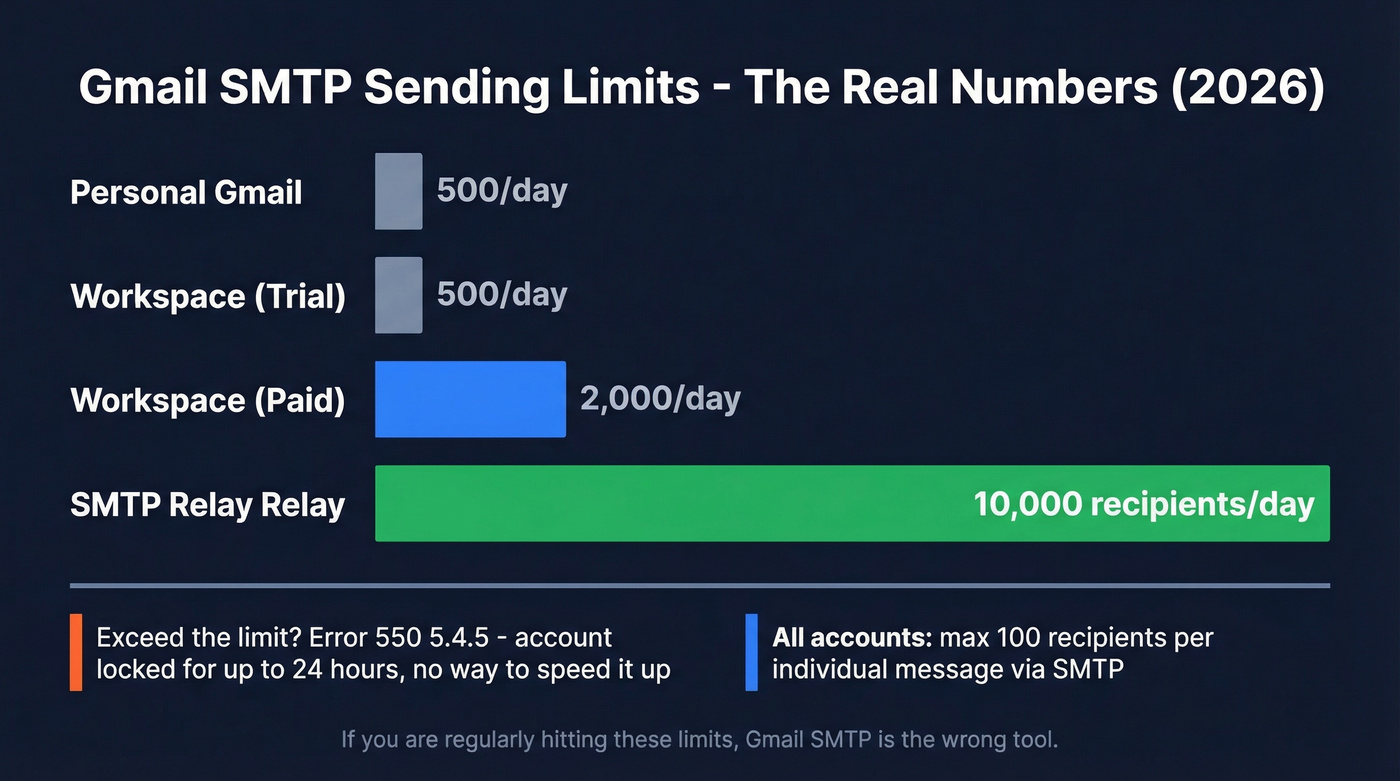
| Account Type | Daily Sending Limit | Per-Message Recipients (SMTP) | Notes |
|---|---|---|---|
| Personal Gmail | 500/day | 100 | Free accounts |
| Workspace (paid) | 2,000/day | 100 | Full paid plans |
| Workspace (trial) | 500/day | 100 | Same as personal |
| SMTP Relay | 10,000 recipients/day | 100 | Workspace admin config |
The 10,000 relay figure is total recipients. Google also enforces sub-limits like 3,000 unique recipients per day and 2,000 unique external recipients per day, though these vary by account type and configuration.
Some sources still cite ~150/day for personal Gmail SMTP. In practice, 500/day is the number most current guides reference - but Google will throttle you earlier under heavy burst sending.
When you exceed these limits, Google temporarily locks the account's sending ability. You'll see error 550 5.4.5 ("Daily user sending quota exceeded") or similar. The lockout typically clears within 24 hours with no way to speed it up.
If you're regularly hitting these limits, Gmail SMTP is the wrong tool. Full stop. It's a convenience feature, not an email infrastructure platform. The free tiers on dedicated SMTP services are generous enough that cost isn't an excuse.
Deliverability - SPF, DKIM, and DMARC
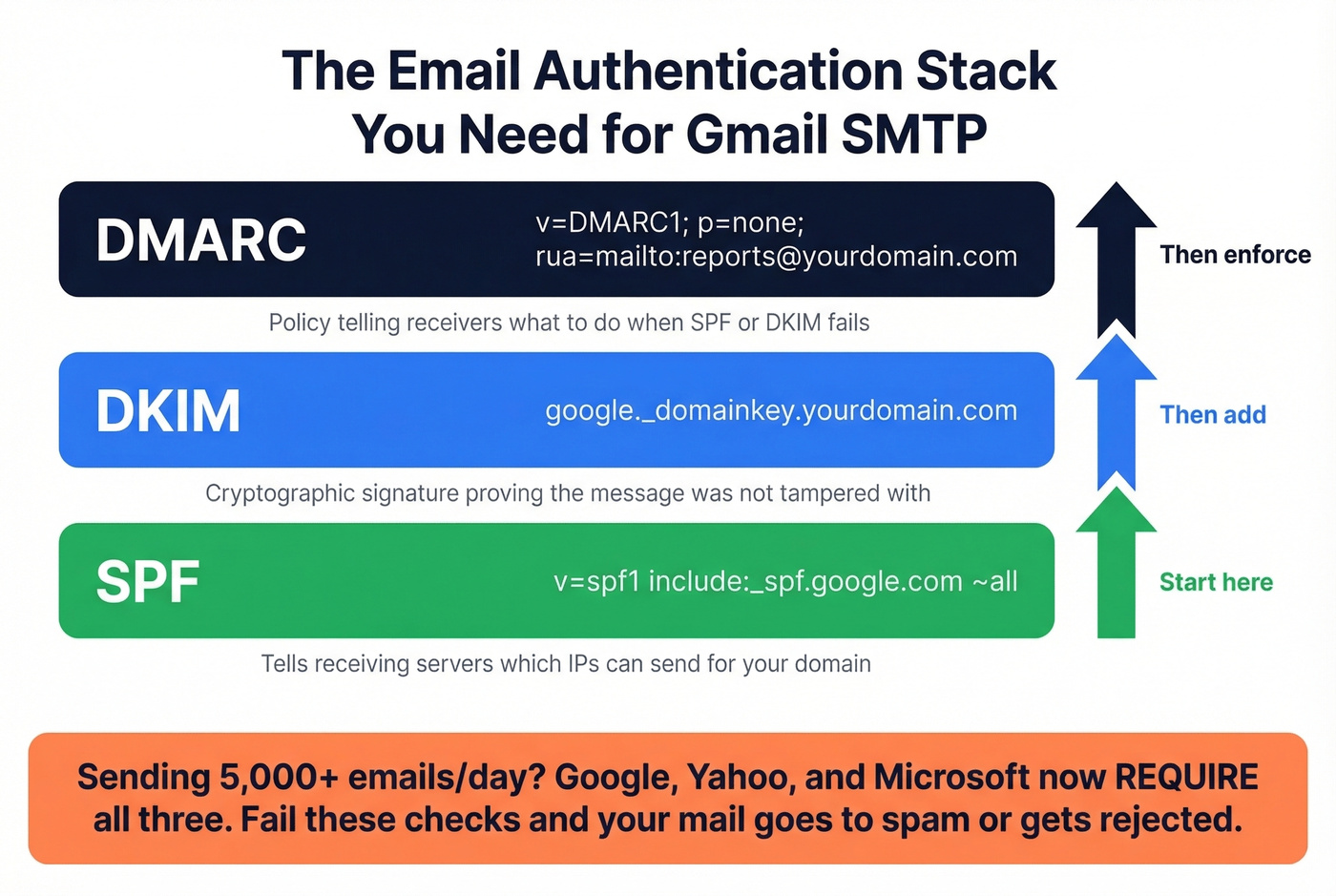
Getting Gmail SMTP to send is half the battle. Getting messages into the inbox is the other half. If you're sending from a custom domain through Workspace, you need three DNS records configured correctly.
SPF Record
Add a single TXT record to your domain's DNS:
v=spf1 include:_spf.google.com ~all
Common failures: publishing two separate SPF records (only one is allowed per domain), forgetting the Google include, or exceeding the 10 DNS lookup limit by stacking too many third-party includes.
If you want more examples and common syntax mistakes, see our SPF breakdown.
DKIM Signing
In the Admin Console, go to Apps, then Google Workspace, then Gmail, then Authenticate Email. Generate a DKIM key for your domain, then publish the TXT record at google._domainkey.yourdomain.com with the key Google provides.
To confirm it’s actually working after setup, use this DKIM verification checklist.
DMARC Record
Start with a monitoring-only policy:
v=DMARC1; p=none; rua=mailto:dmarc-reports@yourdomain.com
Once you've confirmed SPF and DKIM are passing consistently, tighten to p=quarantine or p=reject.
If you’re troubleshooting alignment failures, this guide on DMARC alignment helps.
The Bulk Sender Threshold
If you're sending 5,000+ emails per day, Google and Yahoo now require SPF and DKIM to pass, DMARC to exist at minimum p=none, and either SPF or DKIM alignment. Microsoft enforces similar rules as of May 2025. Fail these checks and your mail goes to spam or gets rejected outright.
Your relay configuration is half the deliverability equation. The other half is data quality - if 10% of your recipient list bounces, Gmail throttles your sending and your domain reputation tanks. Prospeo catches invalid addresses, spam traps, and catch-all domains before they do damage, with 98% email accuracy across 143M+ verified emails.
If you’re trying to reduce bounces systematically, start with bounce rate benchmarks and fixes and then work on improving sender reputation.

Troubleshooting Common Errors
The scenario we see most often: "it works for one account but not another." Almost always, the working account already has an App Password that someone set up months ago while the failing account is trying to authenticate with a regular password. Check the working account's credentials - you'll probably find a 16-character string that isn't the user's actual password.
| Error Code | Message | Cause | Fix |
|---|---|---|---|
| 534 5.7.14 | "Please log in via your web browser" | Using regular password instead of App Password | Enable 2FA, generate App Password |
| 535 5.7.8 | "Authentication failed" | Wrong credentials or App Password not created | Regenerate App Password, verify username |
| 550 5.4.5 | "Daily sending limit exceeded" | Over the daily cap | Wait up to 24 hours, reduce volume |
| 421 | "Too many connections" | Sending too fast | Back off, implement retry with delay |
| 530 5.7.0 | "Must issue STARTTLS first" | Connecting without encryption | Enable TLS/STARTTLS on port 587 |
If you're troubleshooting on a device that doesn't give verbose error output, test the same credentials from a desktop mail client first. That isolates whether the problem is authentication or the device's TLS implementation.
When to Move Beyond Gmail SMTP
Gmail SMTP is fine for transactional notifications, scanner emails, and low-volume app alerts. It's not built for anything at scale. Switch when:
- You're hitting the 500 or 2,000/day limit regularly
- You need deliverability analytics like open rates, bounce tracking, or reputation monitoring
- You're sending transactional email that needs 99.9% reliability
- You're running outbound sales campaigns - Gmail SMTP will get your domain flagged fast
If you’re doing any kind of outreach, you’ll also want to understand safe email velocity so you don’t trigger throttling.
| Service | Free Tier | Paid From | Tested Deliverability |
|---|---|---|---|
| Gmail SMTP | 500/day (personal) | ~$7-8/user/mo (Workspace) | N/A |
| SMTP2GO | 1,000/month | ~$10/mo | 96% |
| Brevo | 300/day | $9/mo (5K emails) | 80% |
| Postmark | 100/month | ~$15/mo (10K) | 94% |
| SendGrid | 100/day | $15/mo (15K) | 82% |
| Mailgun | 100/day (trial) | $15/mo (10K) | Not independently tested |
| Amazon SES | 3,000/mo (12 months) | ~$0.10/1,000 | Not independently tested |
For transactional email at scale, SMTP2GO and Postmark deliver the best inbox placement based on independent deliverability testing. If cost matters most, Brevo's free tier at 300/day is hard to beat for light usage. Reddit's r/homelab crowd consistently recommends SMTP2GO as the cleanest migration path from Gmail SMTP.
Let's be honest: stop using Gmail SMTP for anything mission-critical. It's a convenience feature with strict limits, fragile authentication, and zero deliverability tooling. If you're powering outbound sales emails through it, your sending infrastructure is only as good as your contact data - and bad addresses will burn your domain reputation faster than any SMTP misconfiguration.
Gmail caps you at 2,000 recipients per day. Your relay breaks every time Google changes auth rules. Prospeo delivers verified emails at $0.01 each with a 7-day data refresh cycle - so your outbound never depends on SMTP workarounds again.
Ditch the sending limits. Scale outbound with data that actually connects.
FAQ
What is a Gmail SMTP relay server?
It's a Google mail server that routes outgoing email from your apps, devices, or scripts through Gmail's infrastructure. The two main options are smtp.gmail.com for individual authenticated sending and smtp-relay.gmail.com for organization-wide routing through Google Workspace. It sits between your application and the recipient's mail server, handling authentication and delivery on your behalf.
Is Gmail SMTP free to use?
Yes - smtp.gmail.com is free with any Gmail account, limited to 500 emails per day. smtp-relay.gmail.com requires a paid Google Workspace subscription (~$7-8/user/month) and supports up to 10,000 recipients daily. No additional SMTP fees apply beyond the Workspace subscription.
What port should I use?
Port 587 with TLS/STARTTLS. It's the modern standard and works with virtually every client. Use port 465 with SSL only if your app doesn't support STARTTLS. Avoid port 25 - it's unencrypted, blocked by many ISPs and cloud networks, and not designed for authenticated submission.
Why did my scanner stop sending emails through Gmail?
Google deprecated "less secure apps" access, killing plain password authentication for SMTP. Your scanner was using a regular password, which no longer works. Fix it by enabling 2FA on the sending account, generating an App Password, and entering that 16-character password in your scanner's SMTP settings with port 587 and STARTTLS enabled.
How do I prevent Gmail SMTP emails from landing in spam?
Set up SPF, DKIM, and DMARC records for your domain - all three matter. Use authenticated sending with an App Password or OAuth, never unauthenticated relay. Verify your recipient list before sending, because bounces from invalid addresses destroy sender reputation fast.