

How to Whitelist a Domain in Gmail - For Receivers and Senders
A missed invoice sitting in Spam. A security alert you never saw. A client who thinks you're ignoring them. Gmail blocks massive volumes of malicious email every day, but it also catches legitimate ones - and there's no single "whitelist" button to fix it.
The method you need depends on which side of the problem you're on.
Quick Version
Receiver (personal Gmail): Create a filter with @domain.com in the From field, then check Never send it to Spam.
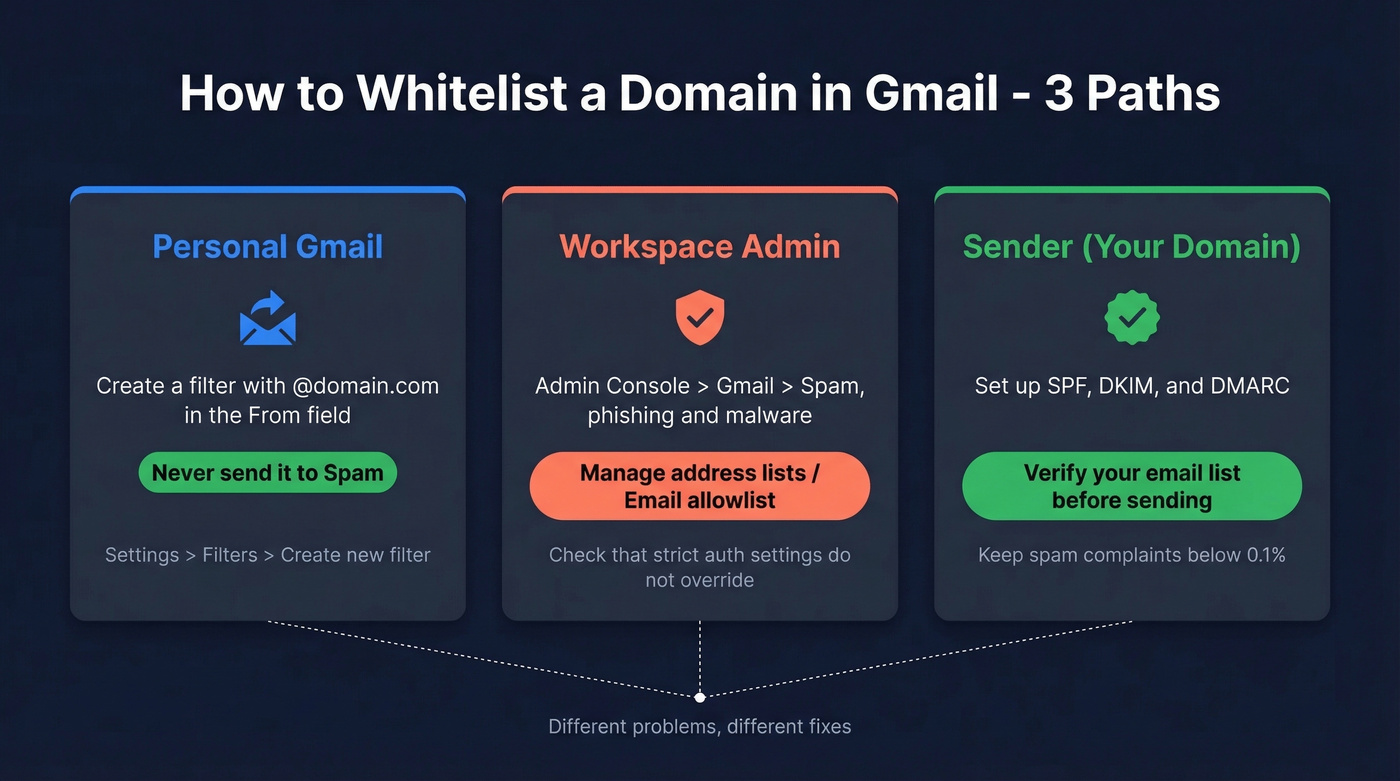
Receiver (Google Workspace admin): Admin Console > Apps > Google Workspace > Gmail > Spam, phishing and malware > Manage address lists / Email allowlist > add the domain. Double-check that strict authentication or quarantine settings aren't overriding it.
Sender (get YOUR domain trusted): Set up SPF, DKIM, and DMARC. Keep bounce rates low by verifying your email list before you send.
What "Whitelist" Actually Means in Gmail
Gmail doesn't have a classic whitelist page for personal accounts. The mechanism is a filter with the Never send it to Spam action. For Workspace admins, it's an approved senders or address list in the Admin Console.
Here's the thing: allowlisting a domain without enforcing proper SPF, DKIM, and DMARC authentication increases your exposure to spoofing and phishing. Only allowlist domains you trust and that authenticate their email properly. We've seen organizations allowlist a vendor domain and then get hit by spoofed messages impersonating that vendor weeks later.
How to Allowlist a Domain in Personal Gmail
If you're on a free Gmail account, filters are your only real option.
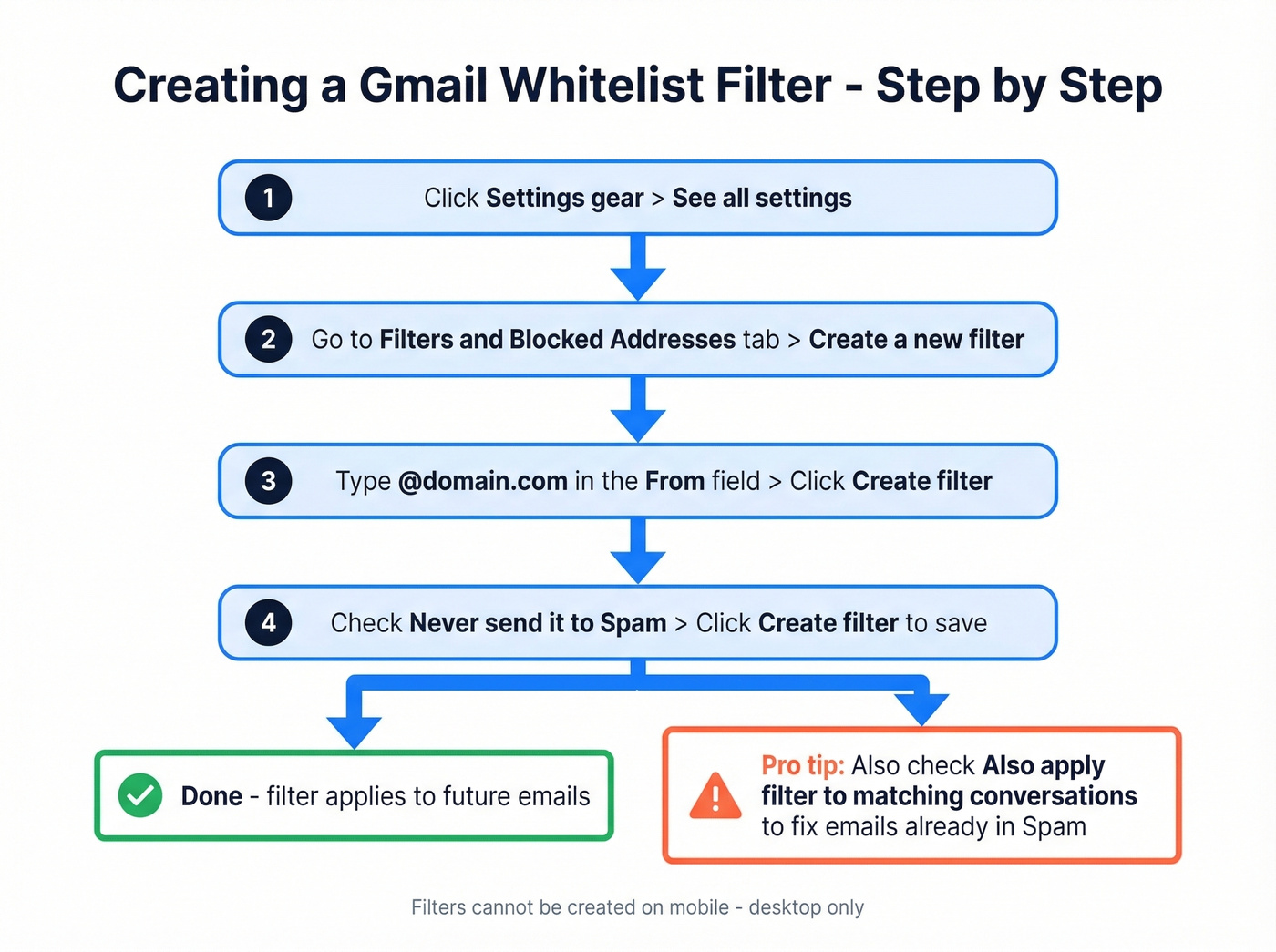
- Open Gmail on desktop and click the Settings gear icon.
- Click See all settings.
- Navigate to the Filters and Blocked Addresses tab.
- Click Create a new filter.
- In the From field, type
@domain.com(swap in the actual domain you want). - Click Create filter.
- Check Never send it to Spam.
- Click Create filter to save.
One detail people miss: filters don't apply retroactively unless you explicitly tell them to. If emails from that domain are already buried in Spam, also check Also apply filter to matching conversations during step 7.
Mobile Gmail Limitations
The Gmail mobile app won't let you create or manage filters. You won't find Filters and Blocked Addresses anywhere in the app settings.
On mobile, your practical options are limited:
- Open the Spam folder and tap Report not spam
- Add the sender to your Google Contacts
Then create the real filter on desktop. Once it's set, it syncs across all your devices.

Creating Gmail filters is a band-aid. The real fix is never sending to invalid addresses in the first place. Prospeo's 5-step email verification catches spam traps, honeypots, and catch-all domains at 98% accuracy - so your domain reputation stays clean and your emails land in Primary, not Spam.
Clean lists don't need whitelisting. Verify before you send.
Workspace Admin Allowlisting
For anyone managing email for an organization, the Admin Console gives you more control - in theory.
- Open the Google Admin Console (admin.google.com).
- Go to Apps > Google Workspace > Gmail.
- Click Spam, phishing and malware.
- Use Manage address lists or Email allowlist to add the domain or sender.
- Save and allow time for propagation.
What trips up even experienced admins: if you've enabled strict inbound settings like Protect against any message not authenticated (SPF or DKIM), quarantine enforcement can override your allowlist entirely. In one real-world admin thread we came across, the admin tried IP allowlisting, domain address lists, shared contacts, and having recipients add the sender to contacts. Quarantine still won. Authentication checks took precedence over everything else, and the only fix was getting the sender to properly configure their DNS records.
Spam vs. Promotions Tab
Let's be honest - many people searching for how to whitelist a domain actually want emails out of the Promotions tab. These are different problems.
The Never send it to Spam filter affects spam classification. It doesn't reliably control tab placement. If emails land in Promotions instead of Primary, drag the message to the Primary tab and confirm when Gmail asks about future messages from that sender.
Fair warning: this doesn't always stick. Gmail's tab sorting can revert without explanation.
Also remember that spam messages are automatically deleted after about a month and aren't recoverable, so it's worth fixing classification issues quickly.
Why Allowlisting Doesn't Always Work
Authentication failures can override allowlists. If the sender's emails fail SPF or DKIM checks and your Workspace environment enforces strict authentication, those controls take priority. The fix isn't on the receiver side - the sender needs to configure their authentication records correctly.
If you need a quick reference for sender-side fixes, start with an email deliverability guide and then validate your SPF record setup.
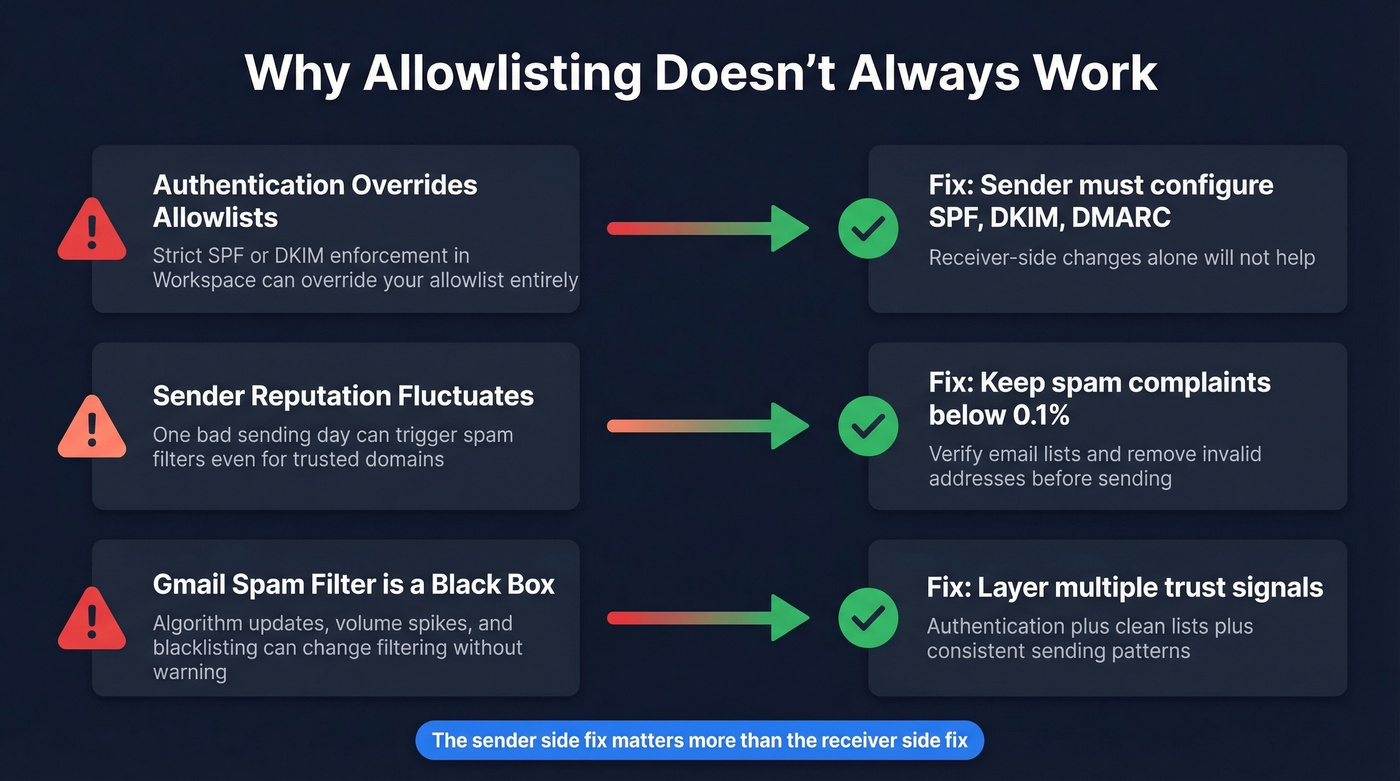
Inconsistent spam classification still happens. Some Workspace admins see allowlisted domains land in Spam sporadically, which is maddening. This often comes down to sender reputation fluctuating - one bad sending day can trigger Gmail's filters even for previously trusted senders.
The spam filter is a black box. Algorithm updates, sending volume spikes, domain blacklisting, and third-party apps can all affect filtering. Gmail's filters are always running. They just don't always behave the way you'd expect.
Sender Side - Get Your Domain Trusted
If your recipients have to whitelist you, you've already lost. Fix the root cause instead of asking every prospect to create a filter.
SPF, DKIM, and DMARC are the core authentication records Gmail uses as trust signals. If these aren't set up correctly, receiver-side filtering won't reliably save you. Google's own Email Sender Guidelines spell this out clearly, and the DMARC.org FAQ is worth bookmarking if you're setting up records for the first time.
If you're troubleshooting alignment issues, it helps to understand DMARC alignment and how to verify DKIM is working.
Gmail also watches your sending behavior closely. Keep spam complaints below 0.1% and aim for 2-5% click-through. Fall below those benchmarks and you're far more likely to land in Spam regardless of what your recipients do on their end.
The second pillar is list hygiene. Every bounce from an invalid address chips away at your sender reputation. Spam traps and honeypot addresses are worse - they can get your domain flagged fast. We've tested this extensively, and the difference between a clean list and a dirty one is night and day for inbox placement. Prospeo's email verification catches invalid addresses, spam traps, and catch-all domains at 98% accuracy before you ever hit send.
If you're trying to reduce bounces fast, start by tracking your email bounce rate and running a pre-send check like an email spam checker.

Filter Actions Compared
| Filter Action | What It Does | Prevents Spam? | Controls Tab? |
|---|---|---|---|
| Never send to Spam | Strongly reduces spam placement for matching mail | Yes | No |
| Mark as important | Adds importance flag | No | No |
| Categorize as Primary | Attempts tab move | No | Partially |
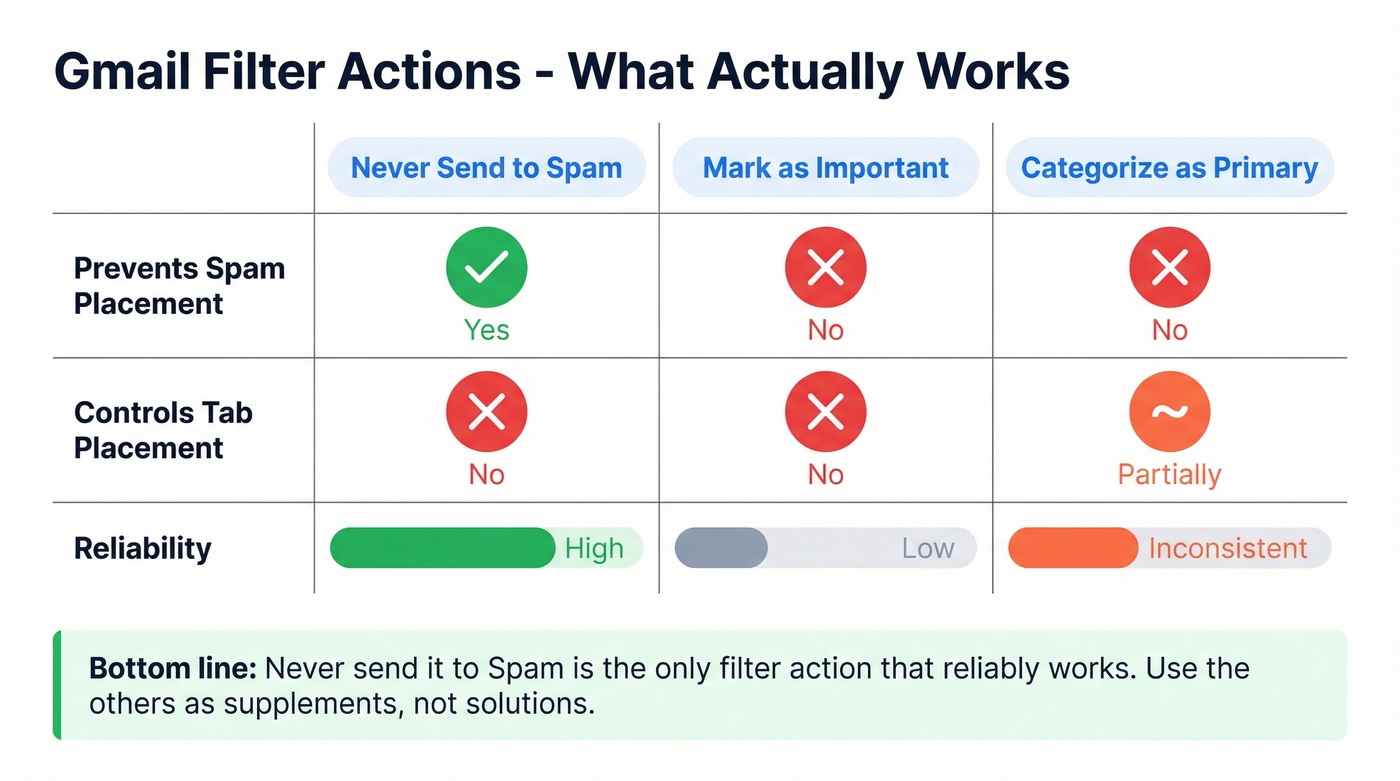
Never send it to Spam is the only action that reliably prevents spam classification. Categorize as Primary sounds like it should solve tab placement, but in practice it's inconsistent. Use it as a supplement, not a solution.
FAQ
Does whitelisting a domain also move emails out of Promotions?
No. The Never send it to Spam filter only prevents spam classification. To influence Primary vs. Promotions placement, drag messages to Primary and confirm when Gmail prompts you - though this can revert over time.
Can I whitelist a domain on the Gmail mobile app?
Not directly. Use Report not spam or add the sender to Contacts as a temporary fix, then create a proper filter on desktop. The filter syncs across all your devices automatically.
Why do allowlisted domains still go to Spam in Workspace?
Strict inbound authentication or quarantine settings override allowlists when the sender fails SPF or DKIM checks. The sender must fix their DNS authentication records - receiver-side allowlisting alone won't help. Google's Workspace admin help page covers the specifics.
How do I whitelist multiple domains at once?
In personal Gmail, you'll need a separate filter per domain. In Google Workspace, add multiple domains to the same address list or allowlist entry in the Admin Console - no per-domain filter needed.
How do I make sure Gmail trusts my sending domain?
Set up SPF, DKIM, and DMARC. Non-negotiable. Then keep bounce rates low by verifying your list before sending. Prospeo catches invalid addresses and spam traps at 98% accuracy, with a free tier of 75 verifications per month so you can test it without commitment.
Every bounce from a bad email erodes your sender reputation and pushes you closer to Gmail's spam folder. Prospeo verifies 143M+ emails on a 7-day refresh cycle, removing invalid addresses before they damage your domain - at roughly $0.01 per email.
Kill your bounce rate before Gmail kills your deliverability.