

Google Workspace Email Setup: Every Step, One Page, No Tab-Hopping
Google Workspace email setup shouldn't require fifteen browser tabs. Google's own guidance is scattered across help pages, admin docs, and community threads stuffed with outdated answers from 2019. This is the single-page walkthrough - signup through authentication through migration through troubleshooting - so you can close everything else.
What You Need Before Starting
Gather three things:
- A domain you own (like yourcompany.com) with access to its DNS settings
- A credit card for billing - there's a 14-day free trial, but Google asks upfront
- About 15 minutes of uninterrupted time for the core setup
One common snag: if you previously created a personal Google account using your business email address, you'll hit a conflict during signup. Google will prompt you to rename or transfer that old account. Resolve it first or you'll loop through error screens wondering what's broken.
Workspace vs Microsoft 365
Collaboration: Workspace is cloud-native and browser-first. Microsoft 365 is desktop-first with cloud bolted on. If your team lives in Chrome and Google Docs, Workspace wins without question.
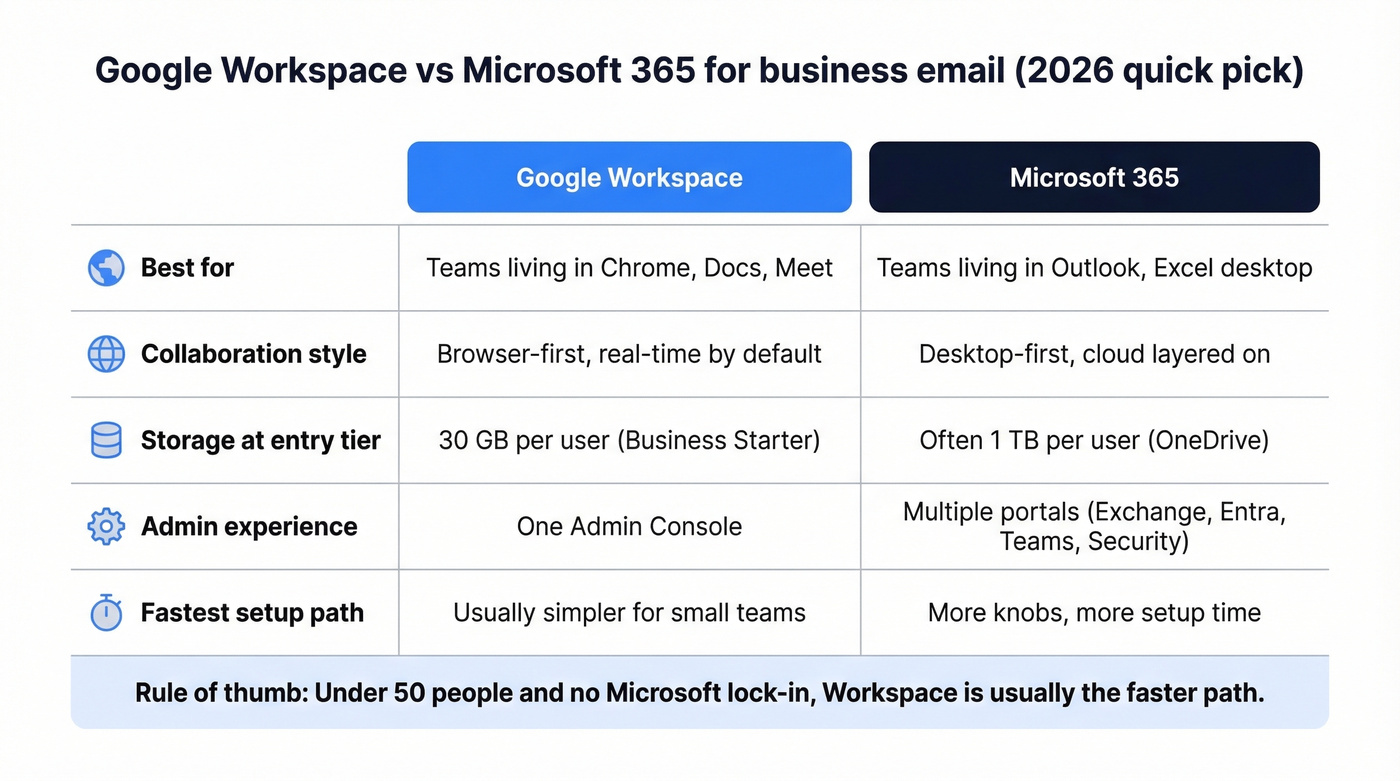
Storage: Business Starter gives 30 GB per user. Microsoft 365 typically gives 1 TB per user on OneDrive across many entry business tiers - a gap that matters for email-heavy teams archiving years of attachments.
Admin simplicity: Google Admin Console is one interface. Microsoft spreads admin across Exchange, Entra ID, Teams admin, and Security portals. For a small team without dedicated IT, Workspace is simpler by a wide margin.
For most teams under 50 people without strong Microsoft dependencies, Workspace is the faster path.
Plans and Pricing (2026)
Prices went up in early 2025 for new customers to bundle Gemini across all business tiers. Here's what you'll pay now:
| Plan | Annual (per user/mo) | Monthly (per user/mo) | Storage |
|---|---|---|---|
| Business Starter | $7 | $8.40 | 30 GB/user |
| Business Standard | $14 | $16.80 | 2 TB/user |
| Business Plus | $22 | $26.40 | 5 TB/user |
Enterprise pricing isn't public - expect $25+ per user per month at volume after talking to sales.
We've set up dozens of Workspace accounts, and Business Starter at $7/user/month handles everything most small teams need. You get Gmail, Google Meet, Docs, and 30 GB of storage. Don't overpay unless you need advanced security controls or significantly more storage.

You're setting up Google Workspace to send professional email. But who are you sending to? Prospeo gives you 143M+ verified emails with 98% accuracy so your new domain builds reputation on real replies, not bounces.
Don't warm up a fresh domain with bad data. Start with verified contacts.
Step-by-Step Setup Process
Sign Up
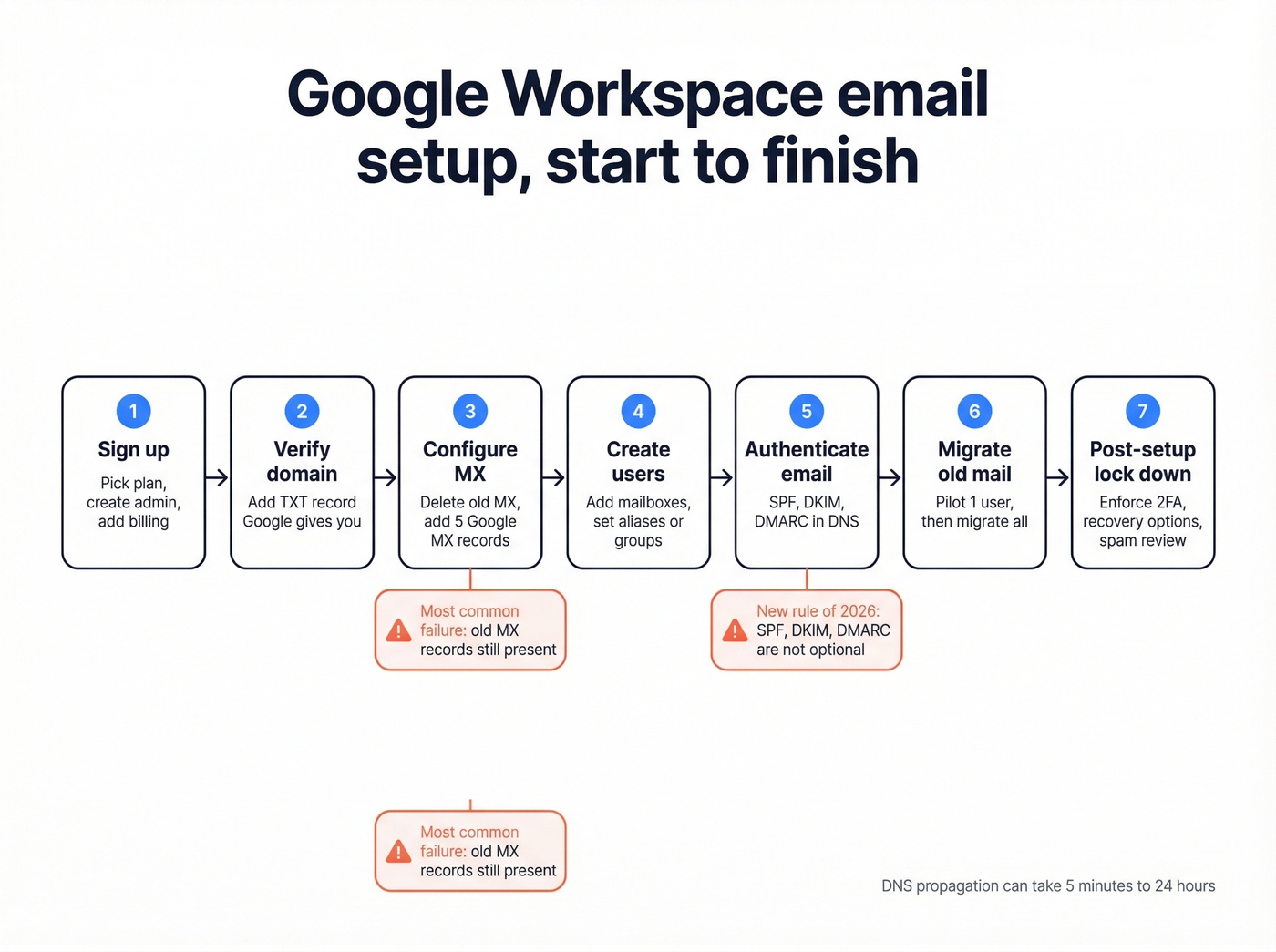
Head to workspace.google.com and click "Get Started." Enter your business name, team size, and domain. Pick your plan - start with Business Starter - create your admin account, and enter payment info.
If you hit the account conflict mentioned earlier, follow the prompts to rename that old account before proceeding. Don't try to force past it.
Verify Your Domain
Google needs proof you own your domain. The simplest method is adding a TXT record to your DNS. Google generates a verification string; you paste it into a new TXT record at your registrar.
Every registrar formats the Host/Name field differently. If you're unsure, set the Host to @ and the Value to the string Google gave you. TTL can stay at the default. CNAME and HTML file upload are alternative methods, but TXT is the most universal and least error-prone.
Configure MX Records
This is the step that actually routes email to Google. Get it wrong and mail disappears into the void.
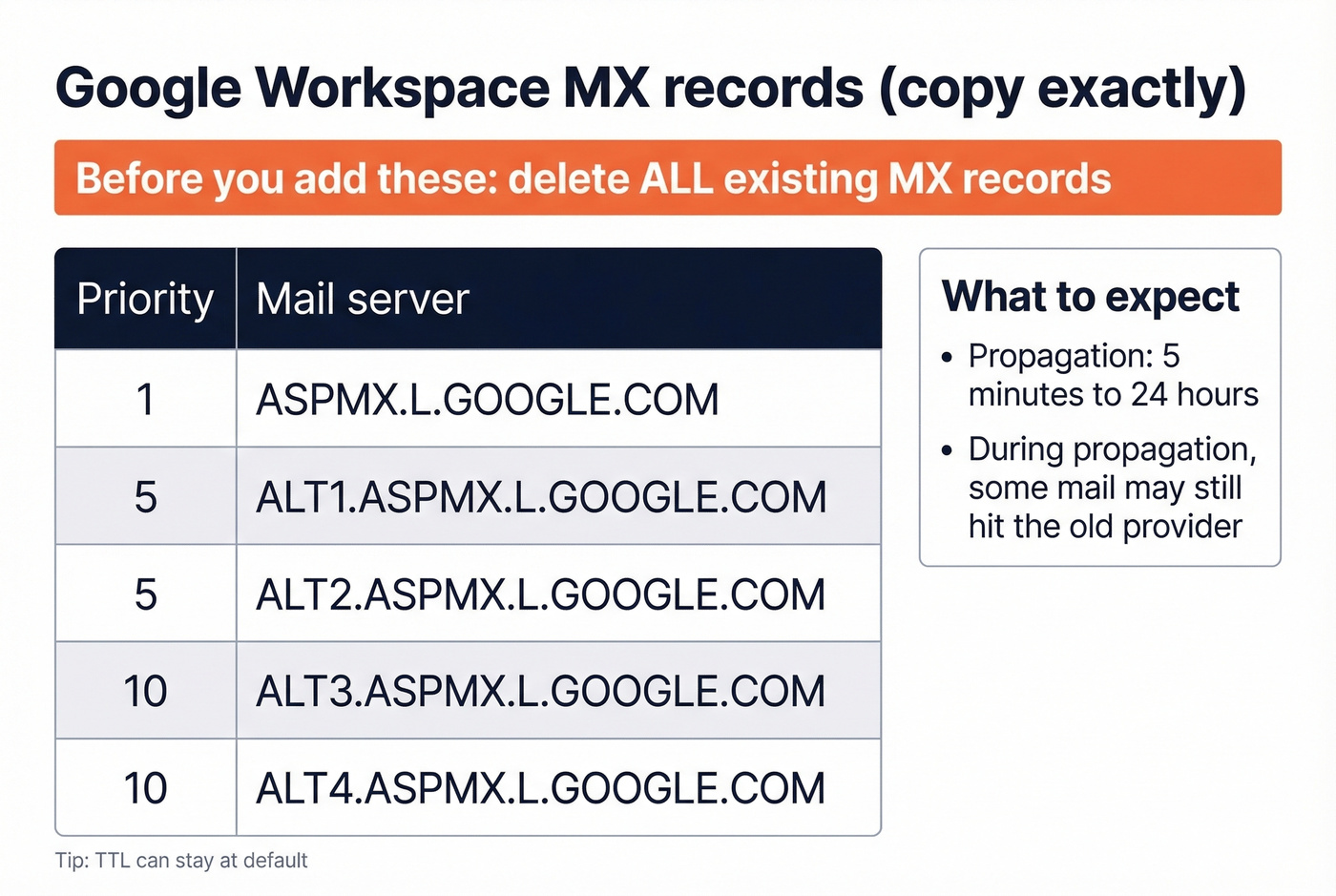
Delete ALL existing MX records first. If old records from cPanel, Zoho, or another provider linger, some mail routes to the old server and some to Google. That's a nightmare to debug, and we've seen teams waste entire days chasing phantom delivery failures because a single stale MX record was hiding three screens deep in their registrar's DNS panel.
Then add Google's standard five MX records:
| Priority | Mail Server |
|---|---|
| 1 | ASPMX.L.GOOGLE.COM |
| 5 | ALT1.ASPMX.L.GOOGLE.COM |
| 5 | ALT2.ASPMX.L.GOOGLE.COM |
| 10 | ALT3.ASPMX.L.GOOGLE.COM |
| 10 | ALT4.ASPMX.L.GOOGLE.COM |
Propagation takes anywhere from 5 minutes to 24 hours. During that window, some mail may still route to your old provider. Don't panic. Wait it out and check again in a few hours.
Create User Accounts
In Admin Console, go to Directory > Users > Add new user for each team member. Each person gets their own private mailbox - like name@yourcompany.com - that nobody else can access unless you explicitly set up delegation or grant admin access.
"Can employees see each other's emails?" No. Mailboxes are private by default.
Aliases like info@, sales@, and support@ route to an existing mailbox without creating a new user. If you need multiple people reading the same inbox, configure delegation or a Google Group with shared inbox settings. Aliases alone won't do it.
Set Up Email Authentication
Here's the thing: SPF, DKIM, and DMARC aren't optional anymore. Skip them and your emails land in spam - or get rejected entirely. Google and Yahoo both enforce sender authentication requirements as of 2024, and those rules have only gotten stricter.
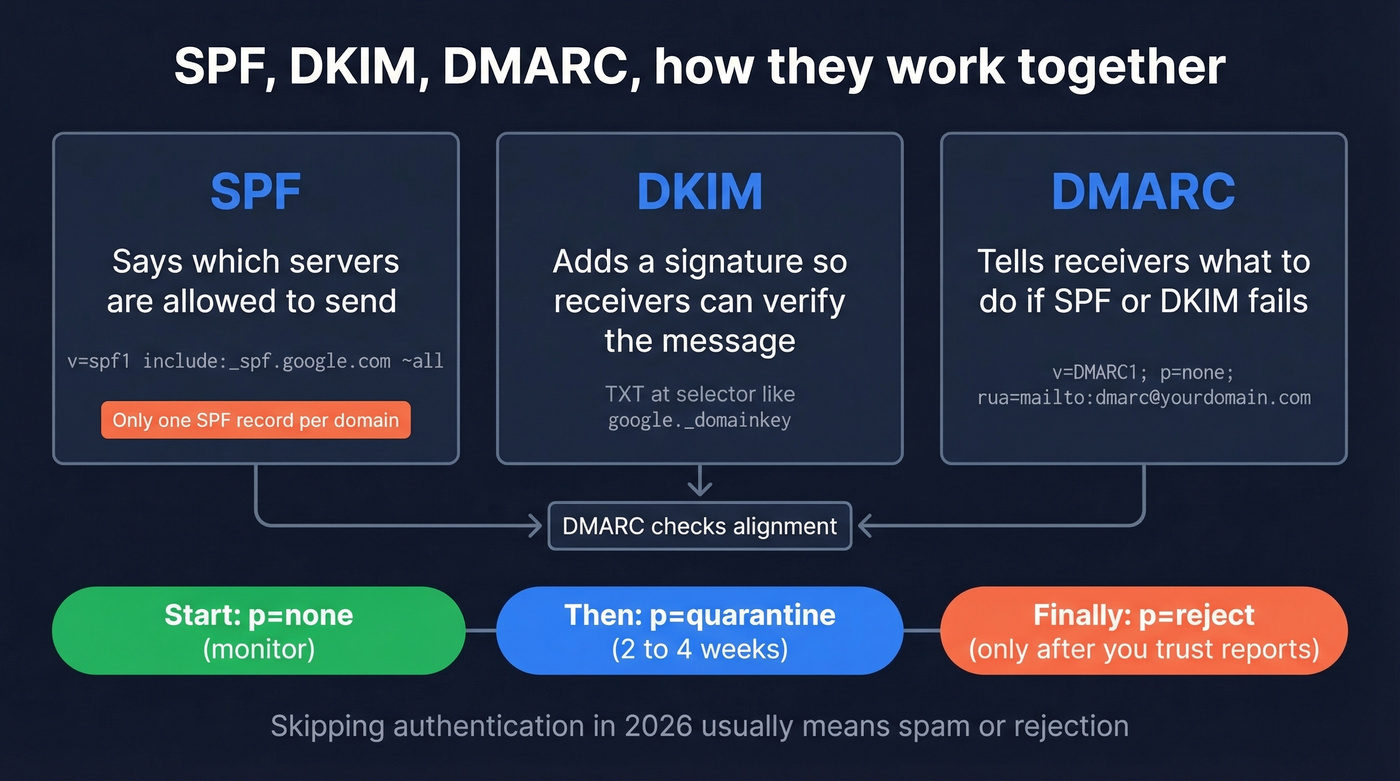
SPF - Add a single TXT record to your DNS:
v=spf1 include:_spf.google.com ~all
Two rules that trip people up constantly. First, you can only have one SPF record per domain, so if you use other sending services like Mailchimp, combine them into that single record. Second, SPF has a hard limit of 10 DNS lookups. Too many include: mechanisms and validation breaks silently - no error message, just failed authentication. If you want more examples, see our SPF record breakdown.
DKIM - In Admin Console, go to Apps > Google Workspace > Gmail > Authenticate email. Click Generate to create your DKIM key. Google gives you a TXT record to publish with the selector format google._domainkey.yourdomain.com. Publish it at your registrar, wait for propagation, then click Start authentication. Afterward, use this guide on how to verify DKIM is working.
DMARC - Add one more TXT record:
v=DMARC1; p=none; rua=mailto:dmarc@yourdomain.com
Start with p=none for monitoring only. After 2-4 weeks of reviewing reports and confirming legitimate mail passes SPF and DKIM, move to p=quarantine, then eventually p=reject. Jumping straight to reject on a new domain will block legitimate mail you forgot about - that newsletter platform, that invoicing tool, that onboarding sequence. Stage the rollout. If you want the deeper technical nuance, read our guide to DMARC alignment.
Migrate Historical Emails
Switching MX records only affects new mail. Your old emails don't magically appear in Gmail.
In Admin Console, go to Data migration and select the email migration tool. Connect to your source server with the IMAP address, port, and credentials, enable SSL/TLS, and choose what to migrate. The tool handles emails with attachments and folder structures converted to Gmail labels, and it can also pull contacts and calendars depending on your source.
Let's be honest - we've seen teams skip the pilot step and regret it every time. Migrate one user first. Verify that folder structures transferred correctly and attachments are intact. Then run the full migration. It's an extra 20 minutes that saves hours of cleanup.
Post-Setup Checklist
Your email works. Now lock it down.
Enable 2FA for all users. Go to Security > 2-Step Verification in Admin Console and enforce it org-wide. This is non-negotiable in 2026.
Set a recovery email and phone for the admin account. Losing admin access is a painful recovery process that involves proving business ownership to Google support.
Install Gmail mobile apps for your team and configure external email clients if anyone needs Outlook or Apple Mail using Google's IMAP/SMTP settings.
Review spam filtering under Apps > Google Workspace > Gmail > Safety. The defaults are solid, but you may want to whitelist specific senders who consistently get flagged.
Build your prospect list. Your business email infrastructure is ready. If you're doing outbound, tools like Prospeo find verified emails at 98% accuracy - protecting the domain reputation you just built. Pair that with a real email deliverability guide so you don't undo the setup with bad sending habits.
Managing Multiple Domains
If you run multiple brands, go to Admin Console > Domains > Add a domain. Users on any domain share the same admin console, billing, and settings. One Workspace account with secondary domains is simpler and cheaper for most businesses.
But if you're running cold outbound across multiple domains, separate Workspace accounts per domain give you isolation. If one domain gets flagged, the others survive. That isolation costs more since you're paying per-user on each account, but for outbound-heavy teams it's worth the insurance. The consensus on r/coldemail is pretty clear: never run outbound from your primary domain. If you're doing outbound at scale, also watch your email velocity and use email reputation tools to catch issues early.
Troubleshooting Common Issues
Start with the Google Workspace Status Dashboard - if Gmail itself is down, no amount of DNS tweaking helps.
Can't send or receive: Check that your domain hasn't expired, verify domain status in Admin Console under Account > Domains > Manage domains, and confirm billing is active. Expired billing is the silent killer that nobody thinks to check first.
Can send but not receive: MX records are misconfigured or old records are still present. Also check Gmail routing rules under Apps > Google Workspace > Gmail > Default routing - a stray rule can silently redirect incoming mail to nowhere.
Missing mail from specific senders: Check spam settings and blocked senders. The sender's SPF/DKIM/DMARC setup on their end may be broken, or they're on a public blacklist. If you're seeing deliverability problems on your side, start with your email bounce rate and run an email spam checker before you change DNS records.
One warning worth flagging: Reddit threads consistently call out Google Admin Toolbox CheckMX as unreliable, sometimes showing errors when your records are perfectly correct. Cross-check with MXToolbox.com before changing things that aren't broken.
You just configured SPF, DKIM, and DMARC to protect deliverability. Protect it further by only emailing verified addresses. Prospeo's 5-step verification removes spam traps and honeypots - keeping your new Workspace domain clean from day one.
Bounce rates under 4%. That's what 98% email accuracy delivers.
FAQ
How long does the full setup take?
Active hands-on work takes 15-30 minutes: signup, domain verification, MX records, and user creation. DNS propagation adds up to 24 hours of waiting. Email authentication (SPF, DKIM, DMARC) is another 10 minutes of DNS work. Total: under an hour of active time, plus waiting.
Can I use Workspace with a domain I already own?
Yes - you don't need to transfer your domain to Google. You update DNS records at your current registrar, whether that's GoDaddy, Namecheap, Cloudflare, or anywhere else. Google never requires a domain transfer. You're just pointing email routing to Google's servers. This guide covers setting up directly through Google, not through resellers like Wix or GoDaddy, which have different interfaces and limitations.
What's the cheapest way to get professional business email?
Business Starter at $7/user/month on annual billing. You get Gmail, Google Meet, Docs, and 30 GB storage. For a solo founder or small team, that covers everything. Skip this plan only if you need more than 30 GB per user or advanced endpoint management - otherwise you're paying for features you won't touch.