

How Many Emails Can You Send at Once in Gmail? The Real Answer
You just hit send on your 15th email of the day and Gmail tells you you've "reached a limit for sending mail." Fifteen. Not 500. Not even close.
If you've ever wondered how many emails you can send at once in Gmail, the answer is more complicated than Google's help page suggests - and that gap catches people off guard constantly. We've watched it happen to sales teams, agency owners, even internal comms people sending a company update. Let's break down what's actually going on.
Gmail Sending Limits in 2026
The official numbers are straightforward. Free Gmail accounts can send 500 emails per day. Google Workspace accounts get 2,000 emails per day. Both operate on a rolling 24-hour window, not a calendar day.
But here's what actually matters:
- Free Gmail: 500 emails/day, 100 recipients per message
- Google Workspace: 2,000 emails/day, 100 recipients per message via SMTP
- Hourly throttle: ~20 emails/hour before Gmail starts slowing you down
- Mail merge (Workspace): up to 1,500/day, counting toward the 2,000/day total
- Behavioral throttling: Gmail routinely blocks accounts sending as few as 10-20 emails/day based on reputation signals
That last point is the one nobody talks about until they're locked out.
The Complete Gmail Limits Table
| Limit Type | Free Gmail | Workspace | Workspace Trial |
|---|---|---|---|
| Daily emails (rolling 24 hours) | 500 | 2,000 | 500 |
| Per-message recipients (SMTP) | 100 | 100 | 100 |
| Hourly rate limit | ~20/hr | ~20/hr | ~20/hr |
| Mail merge/day (Workspace) | - | 1,500 | - |
| Suspension duration after exceeding limits | 1-24 hrs | 1-24 hrs | 1-24 hrs |
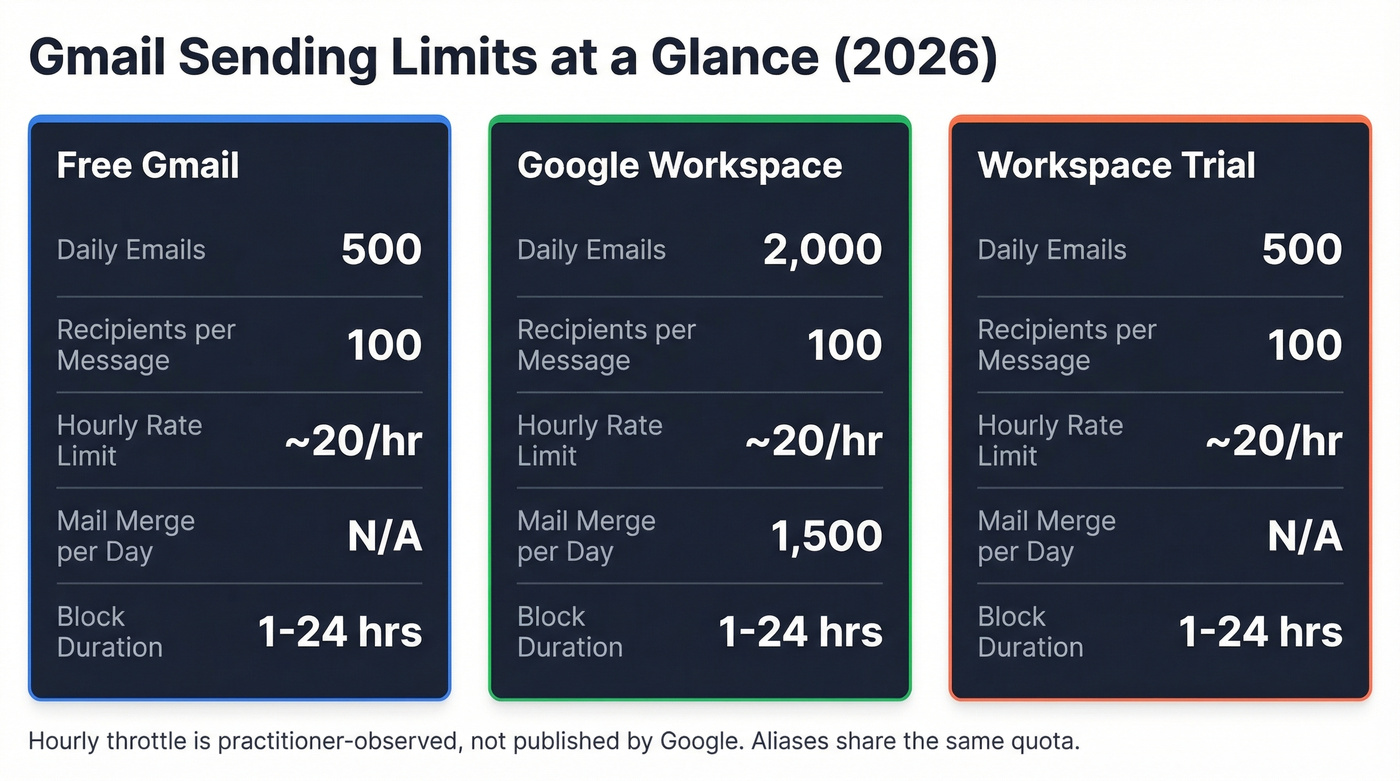
Workspace trial accounts stay capped at 500/day until you convert to paid and complete a 60-day waiting period. The hourly throttle of ~20 emails isn't published by Google anywhere - it's a practitioner-observed limit that multiple tools and community threads have confirmed. Aliases share the same quota as your primary address, so routing through a "+sales" alias buys you nothing.
How Gmail Counts Your Sends
Gmail counts recipients, not messages. One email sent to 50 people in BCC uses 50 of your daily quota - not one. Every address in To, CC, and BCC counts as a separate recipient.
If you're doing any kind of outbound, it helps to understand email velocity so you don't accidentally spike your send rate.
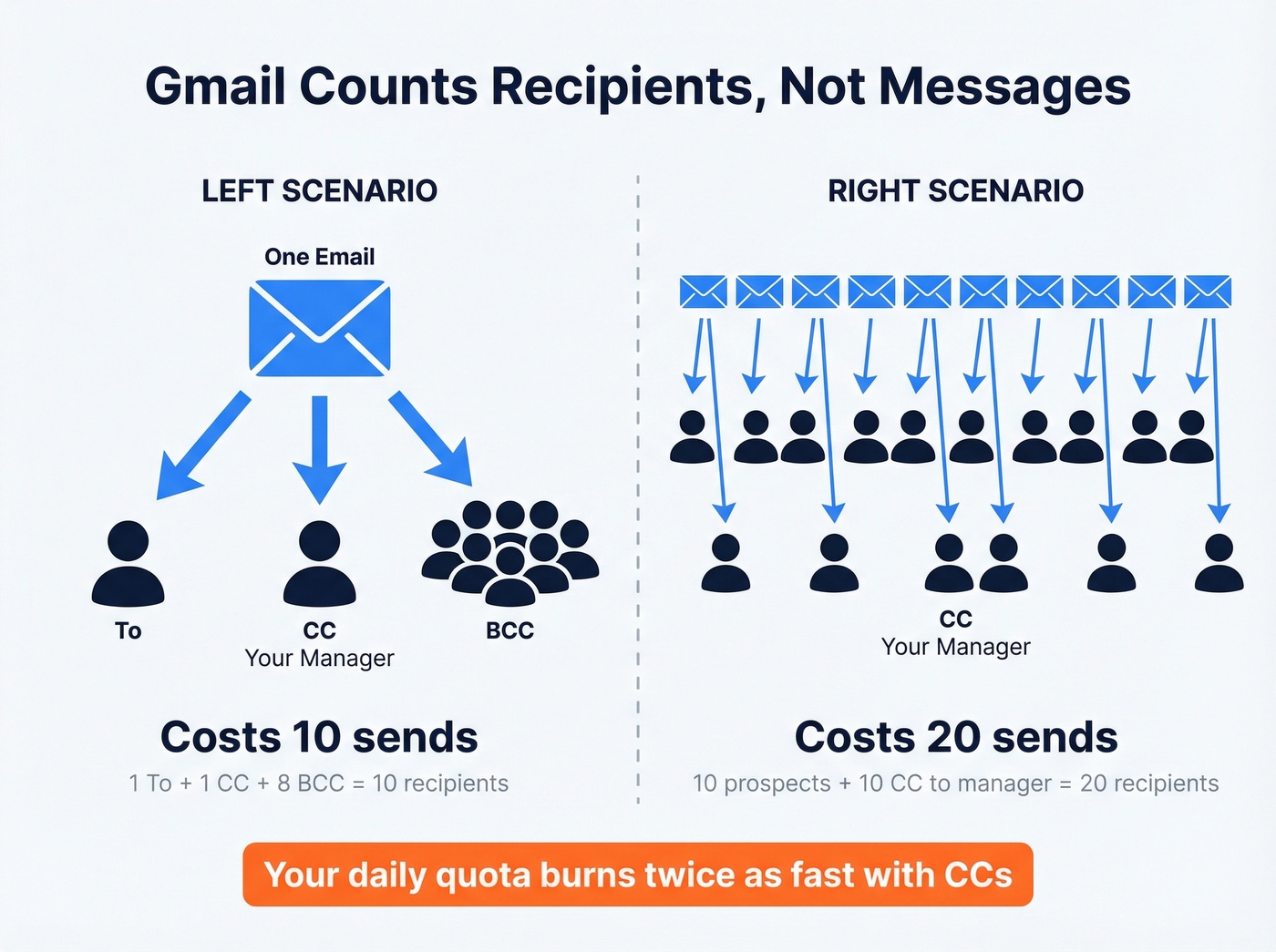
Here's a scenario that trips people up: you send a follow-up to 10 prospects and CC your manager on each. That's 20 recipients, not 10. The manager counts every single time. We've seen teams burn through half their daily quota on internal CCs alone without realizing it.
Why Gmail Blocks You Well Below 500
This is where the published limits become fiction.
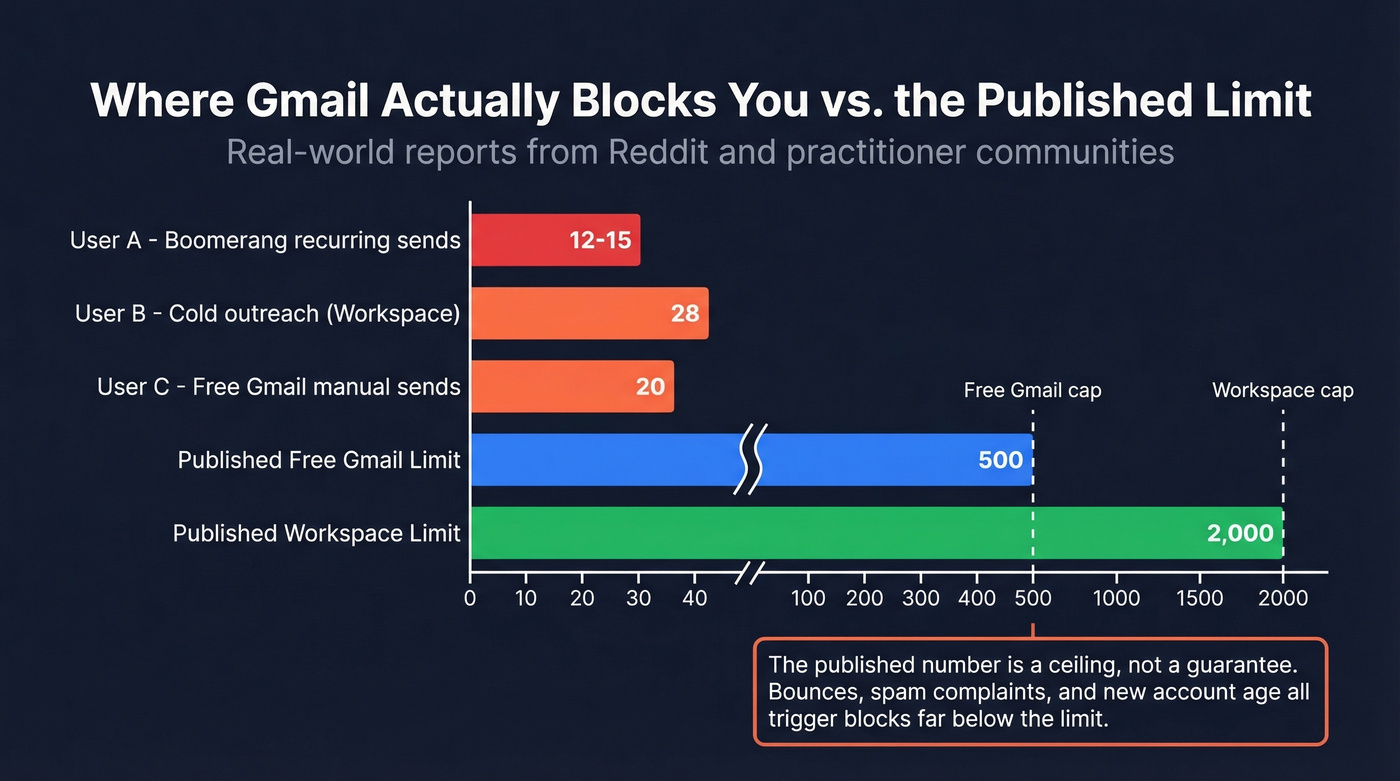
Reddit is full of users getting blocked at volumes that shouldn't trigger anything. One user reported Gmail blocking them after just 12-15 emails per day sent via Boomerang recurring reminders. Another Workspace user running a cold outreach campaign got shut down around the 28th email - well under the 2,000/day limit. A third couldn't send more than 20 on a regular Gmail account. The consensus on r/sales and r/gmail is that the published number is a ceiling, not a guarantee.
Gmail's behavioral throttling is the real governor. When people ask how many emails Gmail can actually send at once, the honest answer is: far fewer than the documentation implies.
Bounced emails and spam complaints are the most common triggers. Running your list through a verification tool before sending eliminates the top cause of unexpected blocks - sending to addresses that don't exist. You can't control whether recipients mark you as spam, but you can control whether you're sending to valid addresses. (If you want to go deeper, see our email deliverability guide.)


Gmail blocks accounts sending to invalid addresses - often before you hit 50 emails. Prospeo's 5-step verification catches bounces, spam traps, and honeypots before they torch your sender reputation. 98% accuracy, catch-all handling included, $0.01/email.
Clean your list before Gmail cleans your account for you.
What Happens When You Hit the Limit
The cascade is predictable and escalates fast:
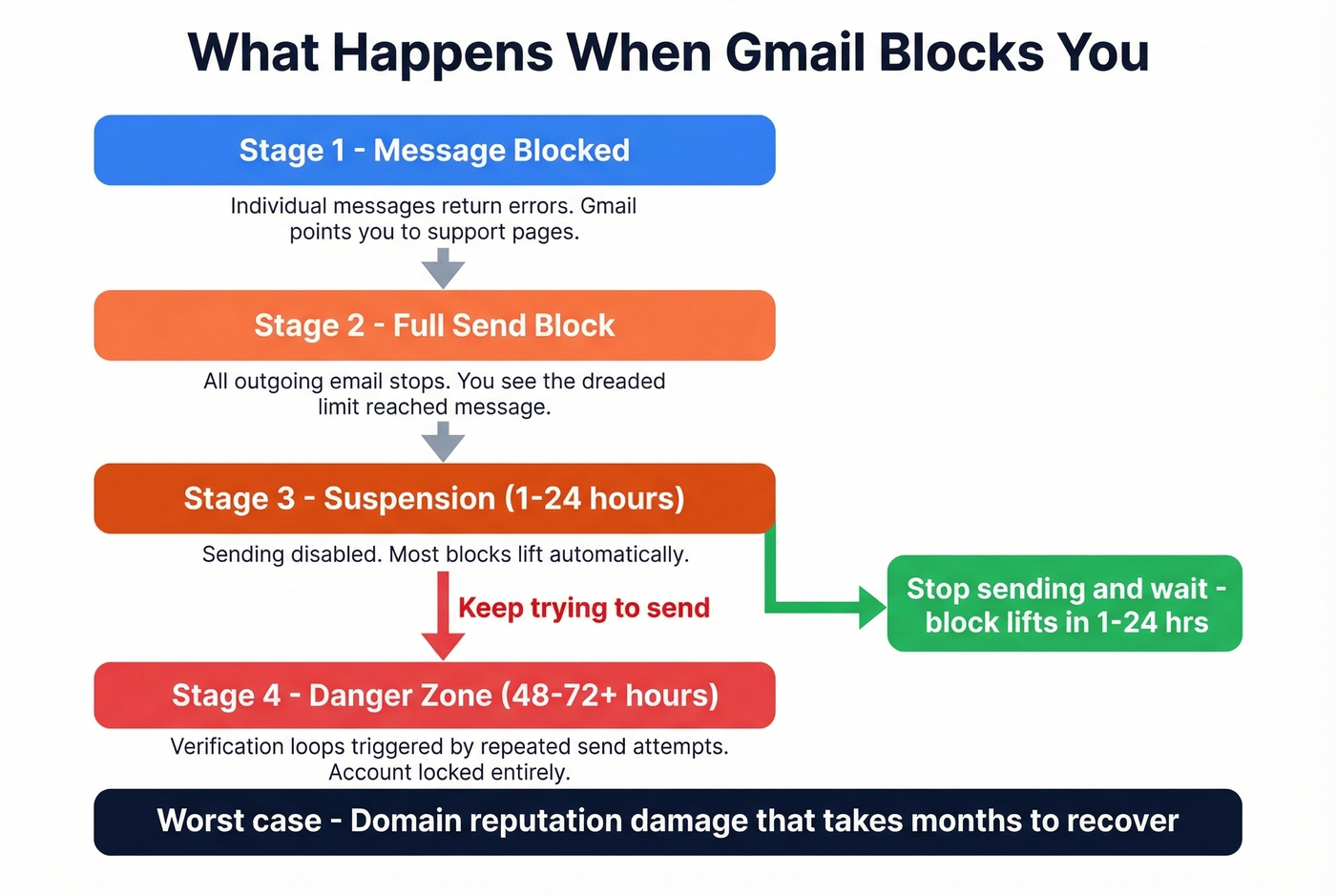
- First warning: Individual messages start returning "Message Blocked" or "Message rejected" errors, often pointing to Google's support pages.
- Full block: You see "You have reached a limit for sending mail. Your message was not sent." All outgoing email stops.
- Suspension window: Sending is disabled for 1-24 hours.
- The danger zone: If you keep trying to send during the block, Gmail can trigger verification loops. Users report getting stuck in cycles where verification codes are "sent too many times" and then stop sending entirely - locking them out for 48-72+ hours.
The worst-case scenario isn't a temporary block. It's domain reputation damage. One Reddit thread describes an employee who sent ~500 cold emails daily for 10 consecutive days from the company's main domain using a purchased list. Even if the domain survives that, the deliverability hit can take months to recover from. Don't be that person.
If you're already seeing issues, it's worth learning how to improve sender reputation before you scale volume again.
Bulk Sender Rules for 2026
If you're sending 5,000+ emails per day to Gmail addresses, you're classified as a bulk sender - permanently. Enforcement has been ramping since late 2025, and the requirements are strict:
- SPF + DKIM authentication on your sending domain
- DMARC alignment at minimum p=none
- One-click unsubscribe that's RFC 8058 compliant
- Process unsubscribes within 48 hours
- Spam rate below 0.1% - never exceed 0.3%
- TLS encryption for all outbound mail
Non-compliant senders get 4.7.x temporary failures that escalate to 5.7.x permanent failures. Even if you're under 5,000/day, these authentication standards improve your deliverability across the board. Google's Email Sender Guidelines spell out the full requirements.
If you want the technical nuance, DMARC alignment is the piece most teams misconfigure.
How to Send More Emails Safely
Here's the priority order - prevention first, then volume expansion.
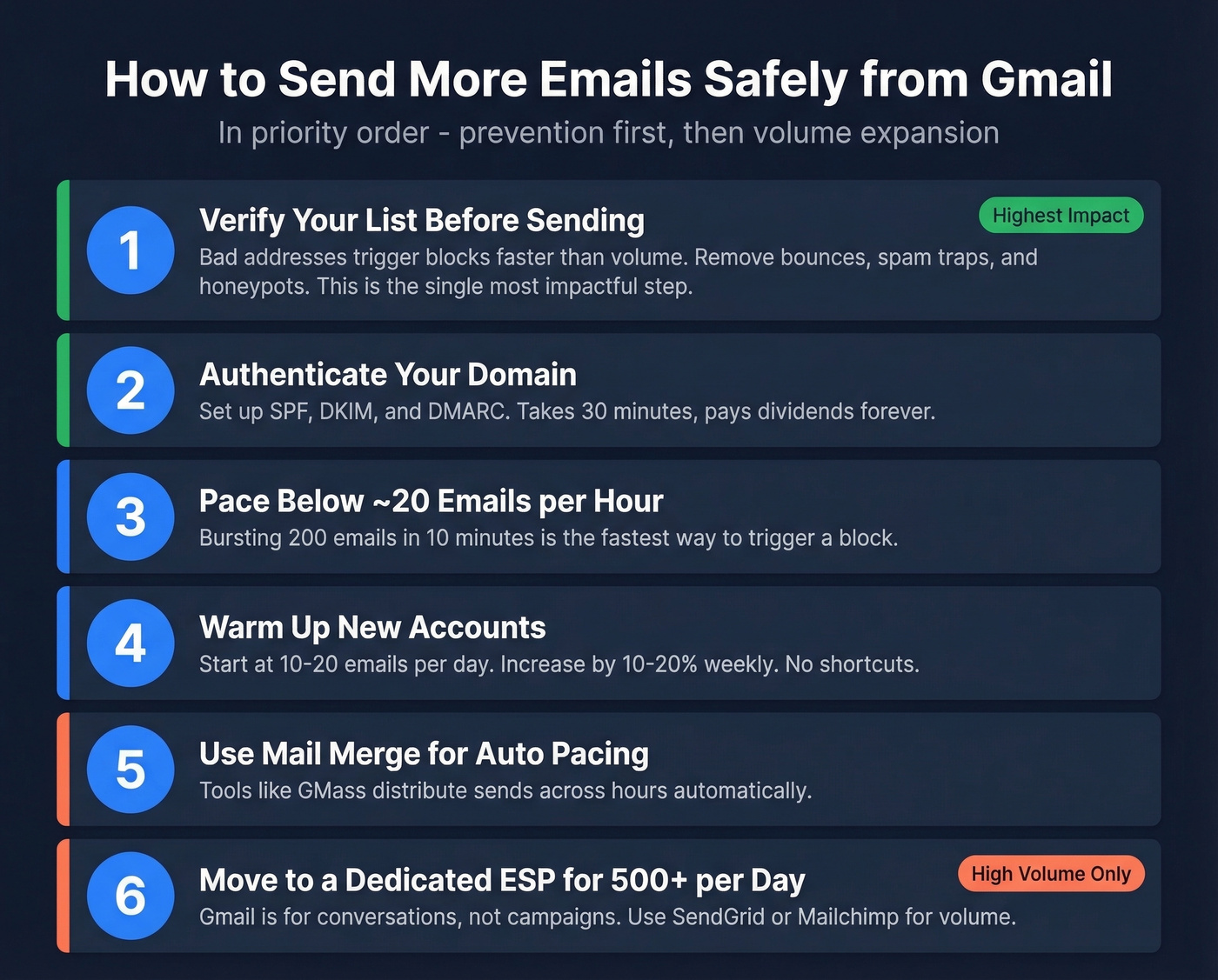
1. Verify Your List Before Sending
This is the single most impactful thing you can do. Bad addresses trigger blocks faster than volume does, and most people don't realize their list has gone stale until Gmail shuts them down. Prospeo's 5-step verification catches invalid addresses, spam traps, and honeypots - the exact triggers that cause Gmail to block you below the published limits. With 98% email accuracy and catch-all domain handling built in, it strips out the addresses that silently destroy your sender reputation. The free tier covers 75 verifications per month, and paid plans run about $0.01 per email. Before you send a single cold email from Gmail, upload your list and remove anything that'll bounce.
If you're troubleshooting list quality, start with email bounce rate benchmarks and what they signal.
2. Authenticate Your Domain
Set up SPF, DKIM, and DMARC. Even if you're sending 50 emails a day, authentication signals tell Gmail you're legitimate. This takes 30 minutes in your DNS settings and pays dividends forever. Google's SPF setup guide walks through the process step by step.
For practical DNS patterns, see these SPF Record Examples.
3. Pace Below the Hourly Throttle
Stay under ~20 emails per hour. Bursting 200 emails in 10 minutes is the fastest way to trigger a block, even if you're under the daily cap.
4. Warm Up New Accounts
If you're using a new domain or account, start at 10-20 emails/day and increase by 10-20% weekly. We've tested this across dozens of accounts, and skipping warm-up is the most reliable way to get throttled on day one. No shortcut here - patience is the strategy.
If you're building a system around this, our guide to unlimited email warmup tools can help.
5. Use Mail Merge for Automated Pacing
Tools like Streak and GMass support mail merge inside Gmail. GMass plans typically start around $20-$30/month and can distribute sends across hours automatically, keeping you under the hourly throttle without babysitting your outbox.
If you're using GMass specifically, this breakdown of GMass Email Deliverability is worth reading.
6. Move to a Dedicated ESP for High Volume
Look - if you regularly need 500+ emails per day, Gmail wasn't built for that. It's a personal and business email client with anti-spam infrastructure that actively fights high-volume patterns. Tools like SendGrid and Mailchimp are designed for higher-volume sending with list management, unsubscribe handling, and deliverability controls baked in. Google Workspace bumps your cap to 2,000/day, but you're still subject to behavioral throttling.
Skip this section if you're sending under 100 emails a day. Gmail handles that fine with proper list hygiene.
Our take: Most teams agonizing over Gmail limits don't actually need to send from Gmail. If your outbound volume regularly exceeds 200 emails/day, you'll spend more time managing throttling and blocks than you would setting up a proper ESP. Gmail is for conversations, not campaigns.
If you're planning to scale outreach, compare options in our AI bulk email sender roundup.
What to Do If You're Already Blocked
- Stop trying to send. Repeated send attempts during a block trigger verification loops that can lock you out of your account entirely.
- Wait it out. Most sending blocks lift automatically within 1-24 hours. Check Google's status dashboard to rule out a platform-wide issue.
- If you're locked out of your account, expect 48-72+ hours before full access returns.
- After the block lifts, reduce volume to ~50/day for at least a week. Gmail watches your account more closely after a restriction.
- Verify your list before resuming. Whatever caused the block - bounces, spam traps, complaints - needs to be cleaned before you send again.
- Don't switch to a new alias and blast again. Aliases share the same quota and reputation. You'll just trigger another block.
The real Gmail limit isn't 500 or 2,000 - it's however many bad addresses it takes to flag your account. Prospeo verifies emails against spam traps, honeypots, and catch-all domains so every send counts. 75 free verifications/month, no credit card required.
Stop losing send privileges to stale data.
Frequently Asked Questions
How many emails can I send at once in Gmail?
Free Gmail allows up to 500 recipients per rolling 24-hour period, with a maximum of 100 recipients per individual message. Behavioral throttling often blocks accounts sending far fewer - especially new accounts or those with high bounce rates. Pace sends at ~20/hour and verify your list first.
Do BCC recipients count toward Gmail's daily limit?
Yes. Every address in To, CC, and BCC counts as a separate recipient toward your daily quota. Sending one email to 50 BCC recipients uses 50 of your 500 daily sends. There's no workaround.
How long does Gmail block you for exceeding the limit?
Most sending blocks lift within 1-24 hours automatically. Repeatedly attempting to send during a block can trigger verification loops that lock you out entirely for 48-72+ hours. Stop sending immediately and wait for the restriction to clear.
What's the cheapest way to verify emails before sending from Gmail?
Prospeo offers 75 free email verifications per month with its 5-step process - including catch-all handling and spam-trap removal. Paid plans cost about $0.01 per verification. Hunter's free tier covers 25 searches monthly but doesn't include catch-all verification, making it less useful for protecting Gmail sender reputation.
Should I upgrade to Google Workspace just for higher sending limits?
Workspace raises your cap from 500 to 2,000 emails/day, but behavioral throttling still applies. If you're consistently hitting limits, the real fix is list hygiene and send pacing - not a higher ceiling. For volumes above 500/day, a dedicated ESP like SendGrid is more reliable than Workspace alone.