

How to Set Up DKIM and DMARC in Office 365: The Complete 2026 Walkthrough
Your marketing team gets a bounce-back from Outlook: 550 5.7.15 Access denied, sending domain does not meet the required authentication level. Your CEO's CC'd. You need this fixed today.
Here's the short version: you need 4 DNS records - an SPF TXT, two DKIM CNAMEs, and a DMARC TXT - plus access to the Microsoft Defender portal and about 30 minutes. Start with SPF, enable DKIM second, publish DMARC third. Then enforce DMARC over 4-12 weeks using the phased rollout below.
Why DKIM and DMARC Matter Now
Microsoft's enforcement means domains without proper SPF, DKIM, and DMARC can get a hard 550 5.7.15 rejection when sending to Outlook and Hotmail recipients at volume. This isn't a future threat. It's live.
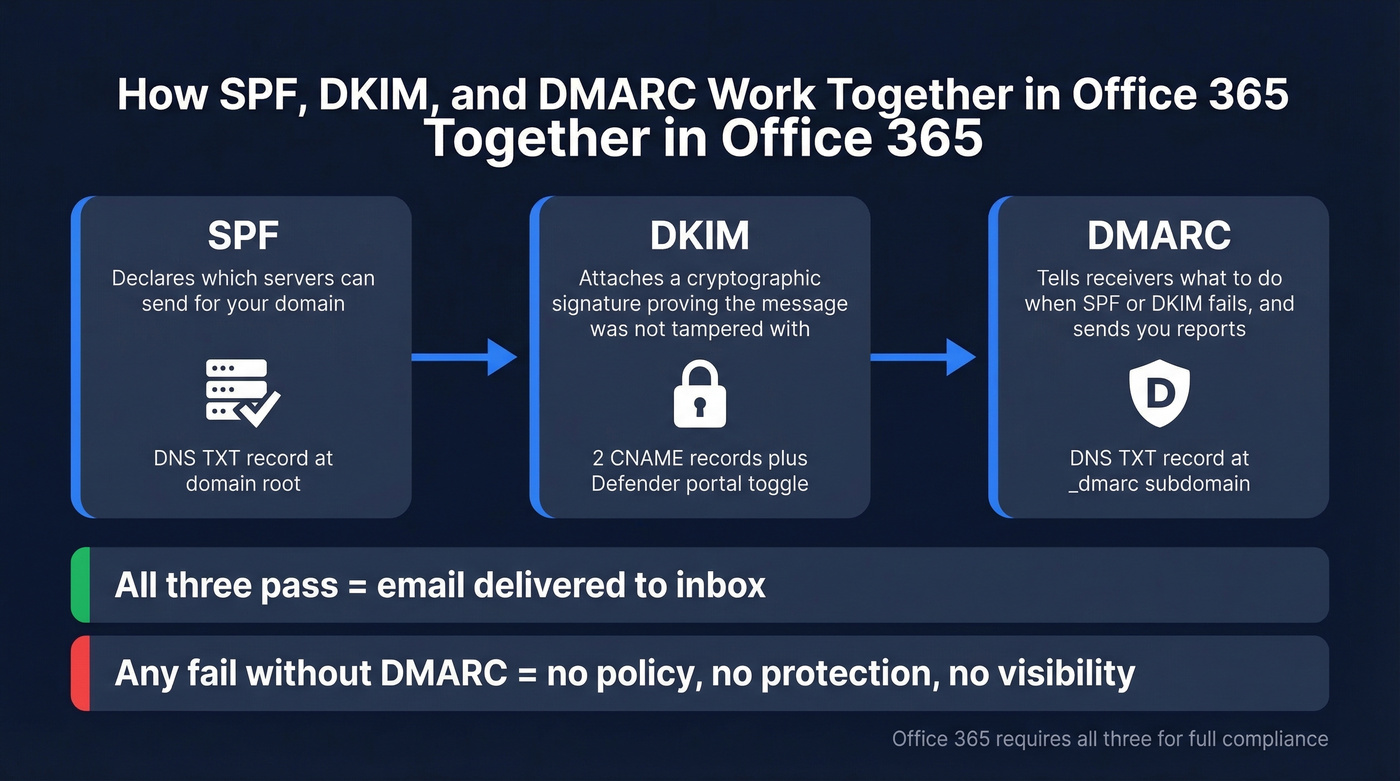
SPF declares which servers can send on your domain's behalf. DKIM attaches a cryptographic signature proving a message wasn't tampered with in transit. DMARC ties them together with a policy telling receivers what to do when authentication fails, and sends you reports about who's impersonating your domain.
Most guides celebrate publishing a DMARC record with p=none. That's not a DMARC implementation - it's a monitoring hobby. The goal is p=reject.
What You Need Before Starting
- DNS provider access - Cloudflare, GoDaddy, Route 53, wherever your domain lives (GoDaddy users, there are a few quirks covered below)
- Microsoft Defender portal access -
security.microsoft.com(Microsoft's DKIM configuration docs) - A mailbox for DMARC reports - a shared mailbox like
dmarc-reports@yourdomain.comworks fine - About 30 minutes for setup, plus 15 minutes to 48 hours for DNS propagation
Step-by-Step Configuration
Step 1 - SPF Record
Add a TXT record at your domain root:
v=spf1 include:spf.protection.outlook.com -all
If you also send through marketing automation or transactional email platforms, add their include: statements to this same record. One SPF record per domain - never publish two.
Here's the constraint that bites people: SPF has a hard 10 DNS lookup limit. Every include: triggers nested lookups, and exceeding 10 causes a permanent SPF failure. We've seen domains hit 8-9 lookups just from Microsoft 365's include chain plus two marketing tools. If you're running tight, lean on DKIM alignment for DMARC - it's more reliable anyway, especially for forwarded mail where SPF breaks by design.
If you want more examples and edge cases, see our SPF guide.
Step 2 - Enable DKIM
Custom domains in Microsoft 365 have no DKIM signing by default. Your contoso.onmicrosoft.com domain signs automatically, but contoso.com doesn't until you configure it.
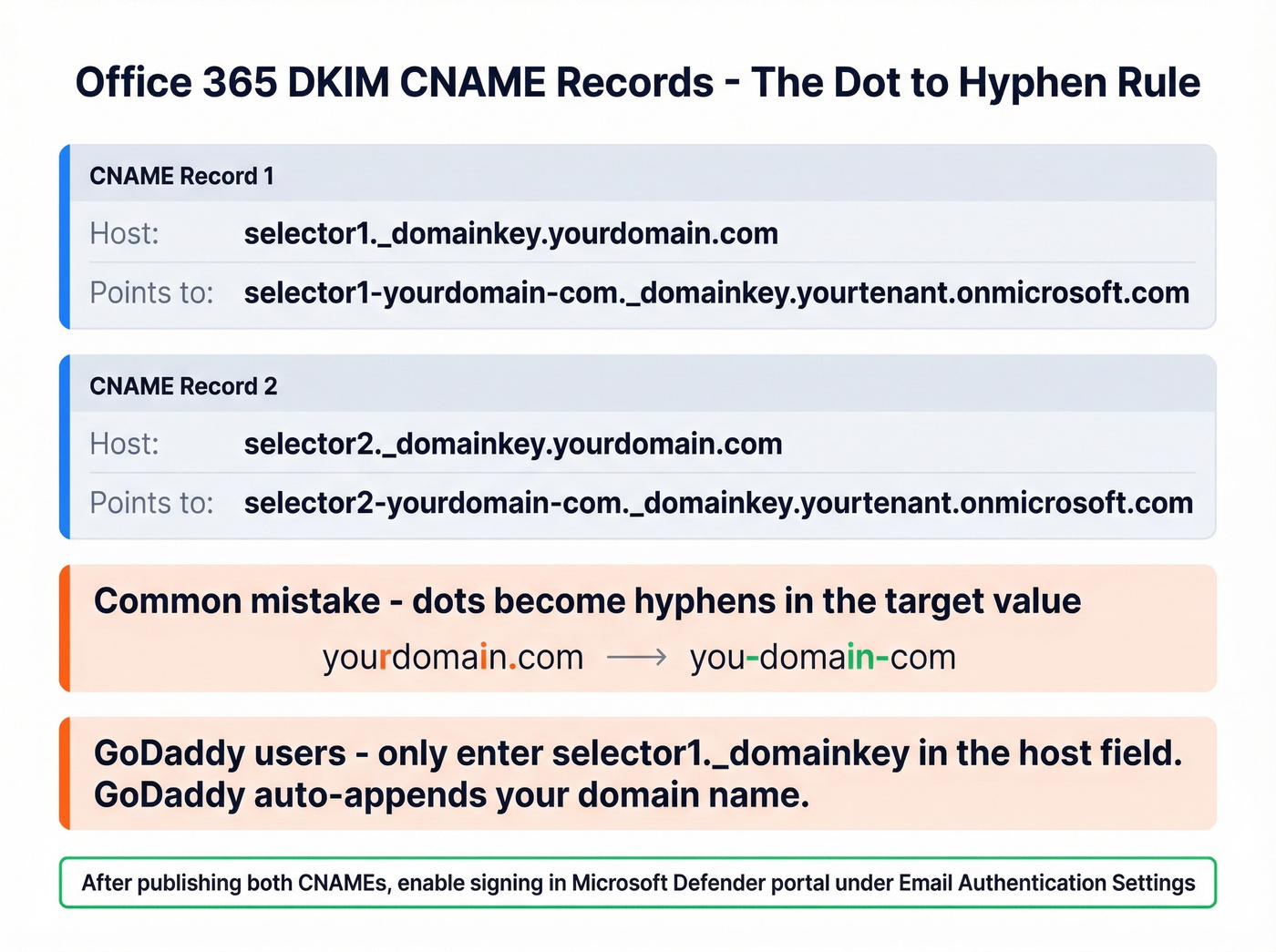
Create two CNAME records. Replace yourdomain.com with your actual domain and yourtenant with your .onmicrosoft.com prefix:
Host: selector1._domainkey.yourdomain.com

Value: selector1-yourdomain-com._domainkey.yourtenant.onmicrosoft.com

Host: selector2._domainkey.yourdomain.com

Value: selector2-yourdomain-com._domainkey.yourtenant.onmicrosoft.com
Microsoft uses two selectors to support key rotation without interrupting mail flow. Note the format: dots in your domain become hyphens in the CNAME target.
Once the CNAMEs are published, go to the Microsoft Defender portal: Email & Collaboration > Policies & Rules > Threat Policies > Email Authentication Settings > DKIM. Select your domain and toggle signing to Enabled.
If you get the "550 5.7.15 Access denied" error, don't panic. Verify your records at dnschecker.org and double-check for the hyphen-vs-dot typo - in our experience, that single mistake accounts for about half of all "CNAME not found" errors we've debugged. GoDaddy users should note that GoDaddy's DNS manager automatically appends your domain to the host field, so enter only selector1._domainkey rather than the full hostname to avoid duplication.
When you enable DKIM in the Defender portal, it can show a pop-up with the exact CNAME values you need. Handy if you want Microsoft to generate the records for you.
If you want a quick checklist for confirming signatures, use our guide on how to verify DKIM is working.
Step 3 - Publish DMARC Record
Add a TXT record at _dmarc.yourdomain.com:
v=DMARC1; p=none; rua=mailto:dmarc-reports@yourdomain.com; aspf=r; adkim=r
p=none means "don't act on failing mail yet - just send me reports." rua is where aggregate reports go. aspf=r and adkim=r set relaxed alignment, meaning subdomains can align with the parent domain. Strict alignment requires an exact domain match, which breaks many third-party sender setups.
Skip the ruf= tag. Forensic reports are mostly dead - Google and Yahoo stopped sending them, and Microsoft sends limited data. Focus on RUA aggregate reports.
If you’re debugging “pass but still failing,” it’s usually DMARC alignment.

You're setting up DKIM and DMARC to protect your domain reputation. Don't ruin it by sending to bad email addresses. Prospeo's 5-step verification delivers 98% email accuracy - teams using our data see bounce rates drop from 35% to under 4%.
Authentication protects your domain. Verified data protects your pipeline.
Phased Enforcement Rollout
Don't jump from p=none to p=reject. You'll block legitimate mail and spend the next week in incident response.
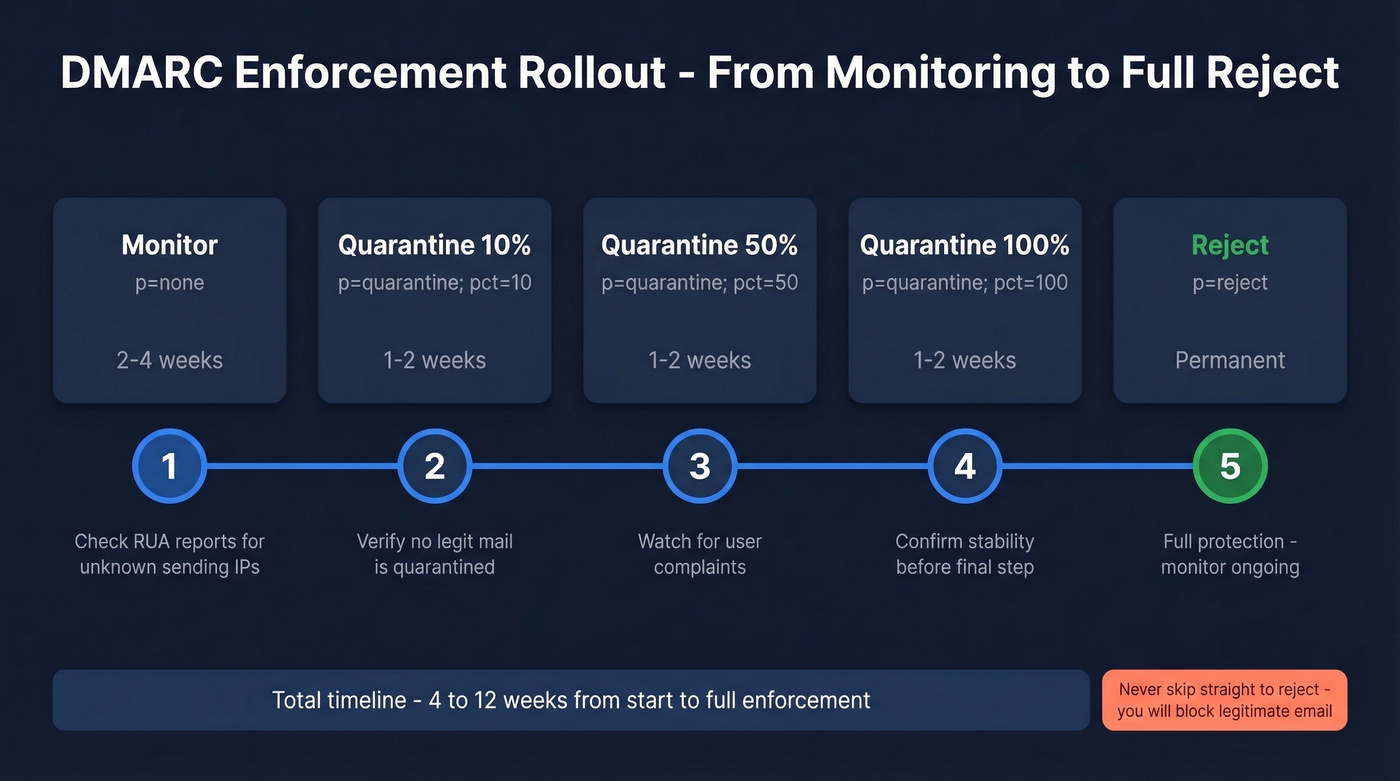
Use the pct= tag to ramp gradually:
| Phase | Record | Duration | What to Check |
|---|---|---|---|
| Monitor | p=none |
2-4 weeks | Check RUA for unknown IPs |
| Quarantine 10% | p=quarantine; pct=10 |
1-2 weeks | No legit mail quarantined? |
| Quarantine 50% | p=quarantine; pct=50 |
1-2 weeks | Watch for user complaints |
| Quarantine 100% | p=quarantine; pct=100 |
1-2 weeks | Stable? Move to reject |
| Reject | p=reject |
Permanent | Done. Monitor ongoing |
Phase 2 record, ready to copy-paste:
v=DMARC1; p=quarantine; pct=10; rua=mailto:dmarc-reports@yourdomain.com; aspf=r; adkim=r
Final enforcement record:
v=DMARC1; p=reject; rua=mailto:dmarc-reports@yourdomain.com; aspf=r; adkim=r
Before advancing each phase, check your RUA reports. Unexpected source IPs mean someone's spoofing your domain - exactly what you want DMARC to block. Known IPs failing authentication means you've got a misconfiguration to fix first. Dmarcian's free XML-to-human converter makes parsing the raw XML painless.
If you’re also trying to protect deliverability beyond authentication, see our email deliverability guide.
Authenticating Third-Party Senders
Every marketing platform, transactional email service, and support tool that sends as your domain needs to authenticate properly. Here's the thing: SPF alignment is structurally impossible with some ESP setups unless you're on a tier that supports a custom mail-from domain. In those cases, DKIM carries DMARC entirely. Make sure every third-party sender has DKIM signing with a domain that aligns with your From address.
If you’re using a separate click/open tracking setup, make sure it’s aligned too (see: tracking domain).
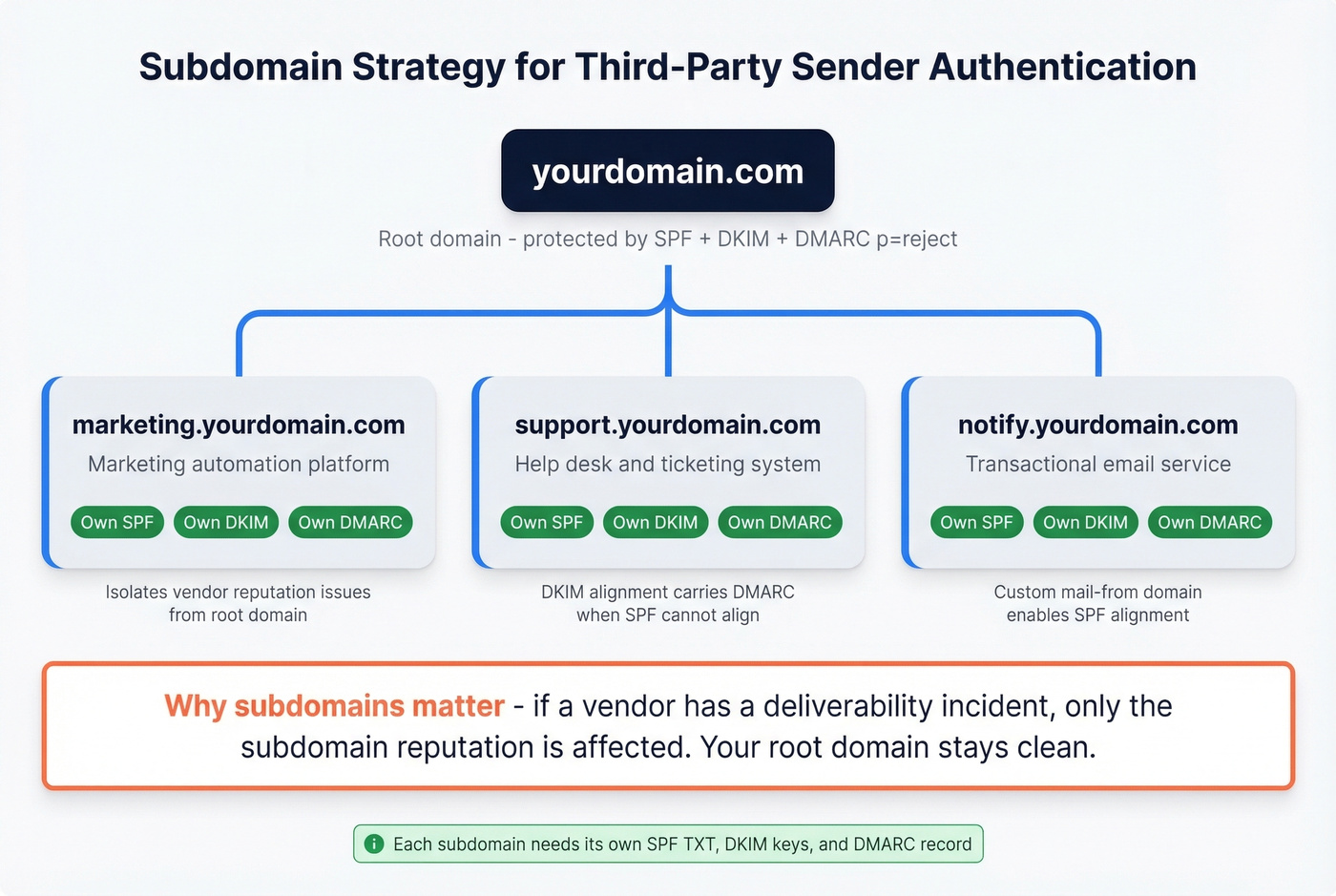
For services you can't fully control, use a subdomain strategy. Send marketing email from marketing.yourdomain.com with separate SPF/DKIM/DMARC for that subdomain. This protects your root domain's reputation if a vendor has a deliverability incident.
One detail that gets missed: outbound mail from Microsoft 365 that fails DMARC checks at the destination gets routed through the High-risk delivery pool when your domain DMARC policy is quarantine or reject. Misconfigured third-party senders can drag your sending reputation down fast, so don't leave this for later.
Troubleshooting Common Failures
DKIM won't enable - DNS propagation delay is the #1 cause. Wait up to 48 hours and verify CNAMEs at dnschecker.org. Microsoft 365 uses 2048-bit RSA keys, and some older tenants still run 1024-bit. If you manage DNS through GoDaddy, double-check that the CNAME host field doesn't include the root domain twice - that's the most common GoDaddy DKIM mistake we see.
DMARC fails despite SPF and DKIM passing - This is an alignment issue. SPF passes based on Return-Path, but DMARC checks alignment with the From header domain. Switch to relaxed alignment if you haven't already.
Inbound mail rejected with 550 5.7.509 - A common complaint in sysadmin forums. It happens when mail routes through a forwarding hop or backup MX before hitting Microsoft 365, which causes DMARC evaluation to fail on the wrong source IP. Fix: enable Enhanced Filtering for Connectors in Exchange Online so Microsoft 365 evaluates the original source IP instead of the forwarder's.
SPF PermError - You've exceeded the 10-lookup limit. Audit your includes and retire dormant senders. Don't manually flatten to IP lists - vendors change IPs and you'll break silently.
If bounces are part of the problem you’re chasing, use our email bounce rate breakdown to map codes to fixes.
Validate Everything Works
Send a test email to an external Gmail address and inspect the Authentication-Results header. You're looking for three passes:
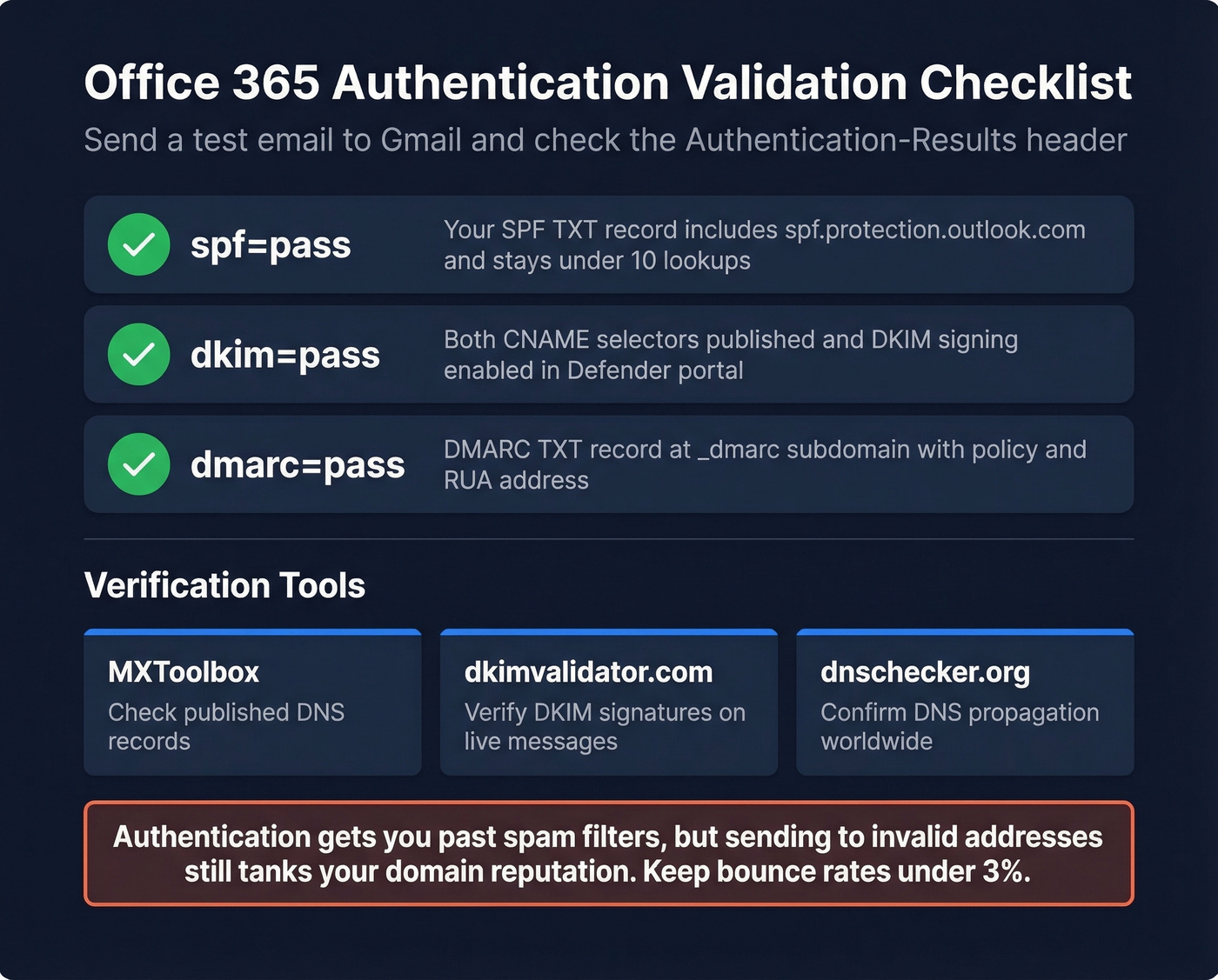
spf=pass
dkim=pass
dmarc=pass
Use MXToolbox to check your published DNS records and dkimvalidator.com to verify DKIM signatures on live messages. Once all three pass, your authentication stack is solid.
Let's be honest though - authentication gets your emails past spam filters, but sending to invalid addresses spikes bounce rates and tanks the domain reputation you just spent 30 minutes building. We've watched teams nail their DKIM and DMARC setup only to crater deliverability with a stale prospect list the following week. Tools like Prospeo verify emails in real time on a 7-day refresh cycle, so your outbound lists don't undermine the authentication work you've done here.
If you’re actively doing outbound, it’s worth pairing this with a safe-sending plan around email velocity.
You just spent 30 minutes bulletproofing your email authentication. One campaign to stale or unverified contacts undoes all of it. Prospeo refreshes 300M+ profiles every 7 days - not every 6 weeks - so your outbound hits real inboxes, not spam traps.
Don't let bad data trigger the 550 errors you just fixed.
FAQ
How long does DNS propagation take?
Most changes propagate within an hour. Worst case is 48 hours. If DKIM still won't enable after that, revisit the CNAME troubleshooting steps above - the hyphen-vs-dot typo is the culprit roughly half the time.
Do I need DMARC if I already have SPF and DKIM?
Yes. SPF and DKIM authenticate email but don't tell receiving servers what to do when authentication fails. DMARC adds the policy layer and gives you reporting visibility into every source sending as your domain. Without all three, you have zero spoofing protection and no way to know who's abusing your domain.
What does pct= do in a DMARC record?
The pct= tag controls what percentage of failing messages get the policy applied. Setting pct=10 with p=quarantine means only 10% of DMARC-failing emails are quarantined - the rest pass through. It's a safety valve for phased rollout, letting you catch misconfigurations before they block legitimate mail at scale.
How do I protect domain reputation after setting up authentication?
Authentication stops spoofing, but high bounce rates from stale contact data still damage sender reputation. Keeping bounces under 3% ensures the domain reputation you built with SPF, DKIM, and DMARC stays intact. A verification tool with frequent data refreshes - rather than one that checks against a months-old database - makes a real difference here.