

How to Set Up Gmail SMTP: Settings, App Passwords, and Troubleshooting
It's Monday morning. Your office printer won't scan to email, your WordPress contact form stopped sending, and your invoicing app throws a cryptic authentication error. They all worked fine last month.
If you need to set up SMTP for Gmail and something recently broke, there's one reason: Google killed Less Secure Apps on May 1, 2025. You now need an app password or OAuth2 - your regular Gmail password won't work anymore. Let's get you back up and running.
Gmail SMTP Settings (Quick Reference)
Bookmark this.
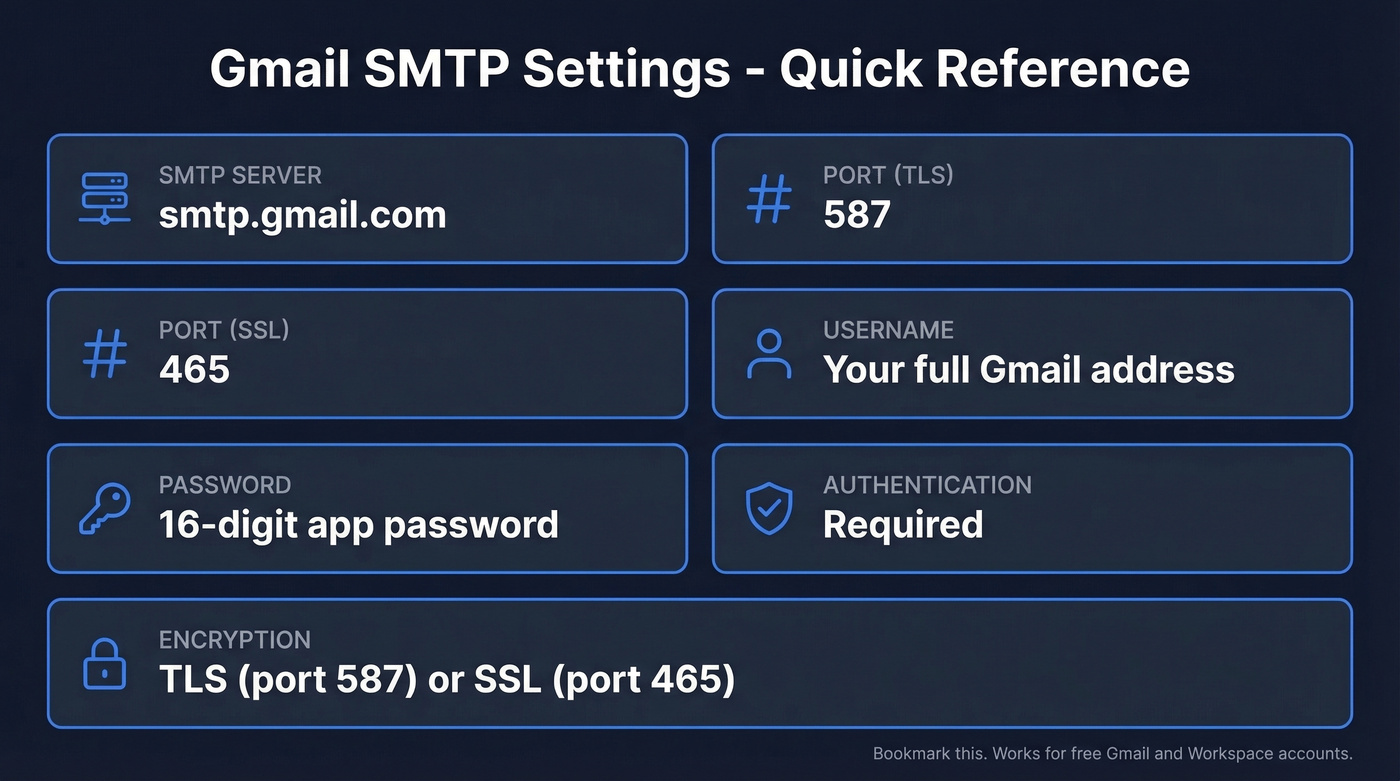
| Setting | Value |
|---|---|
| SMTP Server | smtp.gmail.com |
| Port (TLS) | 587 |
| Port (SSL) | 465 |
| Username | Your full Gmail address |
| Password | 16-digit app password |
| Authentication | Required |
| Encryption | TLS (port 587) or SSL (port 465) |
The server name you need is smtp.gmail.com - same for free Gmail and Workspace accounts. If you already have an app password, plug these in and you're done. If you don't, or if something's not working, keep reading.
What Changed: The Less Secure Apps Shutdown
Google spent about 20 months phasing out password-only access for third-party apps and devices. Here's the timeline:
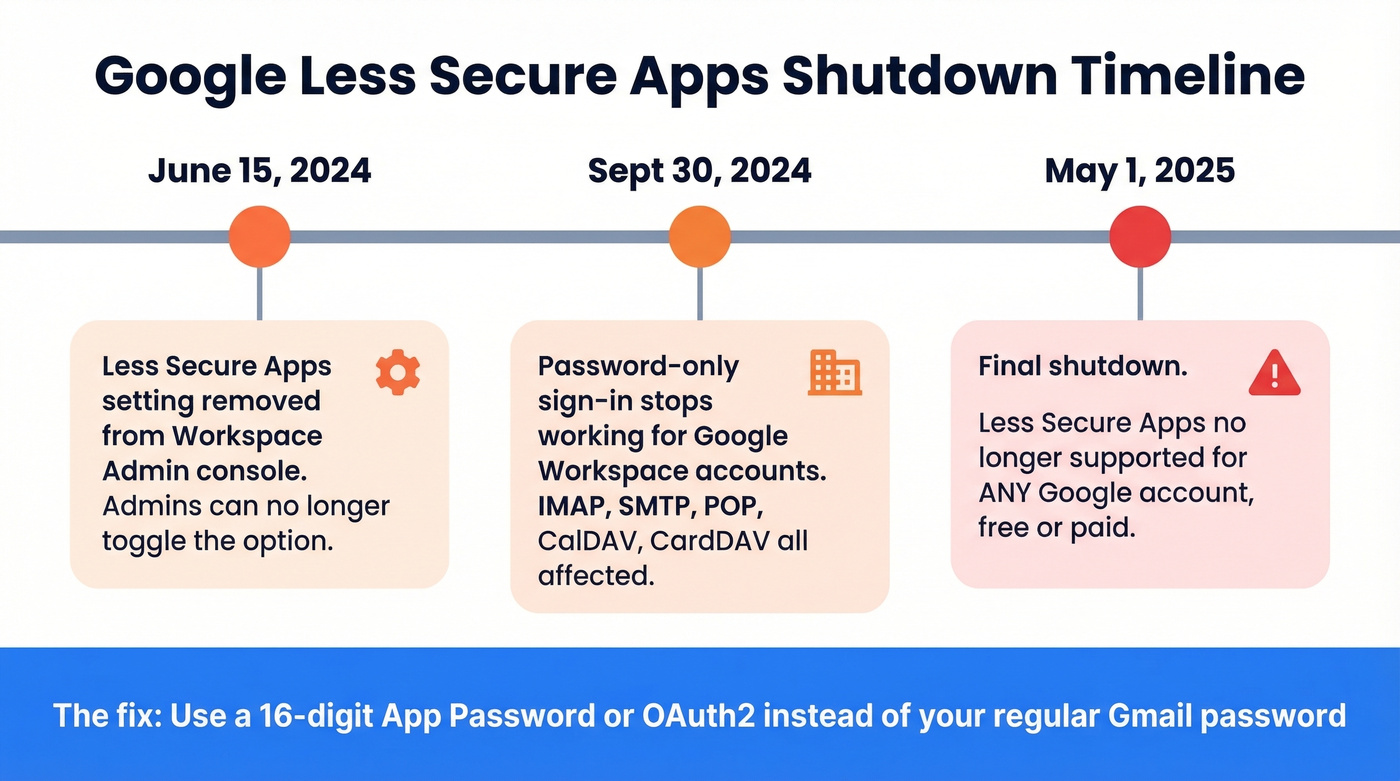
June 15, 2024: Google removed Less Secure Apps settings from the Workspace Admin console. Admins could no longer toggle the option.
September 30, 2024: Password-only sign-in stopped working for Google Workspace accounts. IMAP, SMTP, POP, CalDAV, and CardDAV all required OAuth or app passwords.
May 1, 2025: Final shutdown. Less Secure Apps no longer supported for any Google account, free or paid.
This broke a lot of setups overnight. The printer in your office that's been scan-to-emailing for five years? It was using your Gmail password directly. That WordPress contact form running a basic SMTP plugin? Same thing. Every device and app that relied on plain password authentication just stopped working. The fix is straightforward, but it depends on what you're connecting.
Create a Gmail App Password
App passwords are 16-digit codes that replace your regular Gmail password for SMTP connections. Here's how to create one:
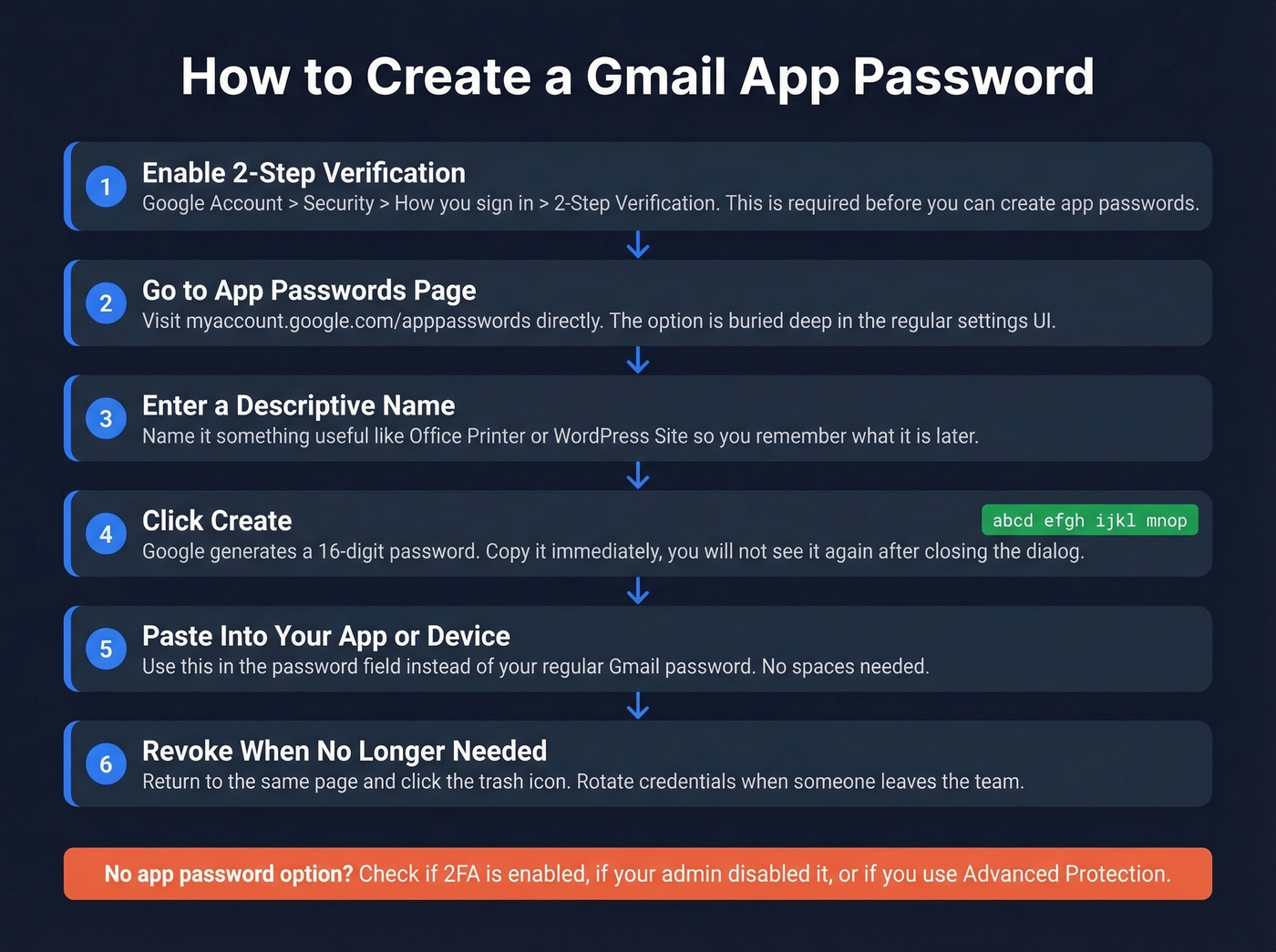
Enable 2-Step Verification first. Go to your Google Account > Security > "How you sign in to Google" > 2-Step Verification. You can't create app passwords without this.
Go directly to the app passwords page: myaccount.google.com/apppasswords. This direct link is the fastest route - the option is buried deep in the regular settings UI.
Enter a descriptive app name like "Office Printer" or "WordPress Site" so you remember what it's for six months from now.
Click Create. Google generates a 16-digit password. Copy it immediately. You won't be able to view it again after closing the dialog.
Paste this password into whatever device or app needs SMTP access. Use it in the password field instead of your regular Gmail password. No spaces.
To revoke later, return to the same page and click the trash icon next to the entry. Rotate credentials whenever someone leaves the team or a device gets decommissioned.
When App Passwords Don't Appear
Four common reasons:
- 2-Step Verification isn't enabled. This is the prerequisite. Enable it first.
- Your account uses security keys as the only 2FA method. App passwords require a standard 2-Step Verification method like an authenticator app, SMS, or Google prompt. If you only have a hardware security key enrolled, add a second method.
- Your account uses Advanced Protection. Google's highest security tier doesn't allow app passwords at all. You'll need OAuth2.
- Your admin disabled it. Work and school accounts managed through Google Workspace may have app passwords turned off at the org level. Talk to your IT team.
The direct URL (myaccount.google.com/apppasswords) sometimes works even when the option isn't visible in the main security settings. Worth trying before you escalate.
How to Set Up Gmail SMTP by Use Case
Email Clients (Outlook, Thunderbird, Apple Mail)
Every desktop email client uses slightly different terminology, but the fields map to the same settings:
- Outgoing server / SMTP host: smtp.gmail.com
- Port: 587 (TLS) - the safest default across all clients
- Security / Encryption: STARTTLS or TLS
- Username / Email address: your full Gmail address
- Password: your 16-digit app password (not your regular password)
- Authentication: Normal password or "Password"
Thunderbird and Apple Mail auto-detect most of these if you enter your Gmail address. Outlook sometimes needs manual configuration - use the settings above when the auto-setup wizard fails.
Sending from an alias? Configure the alias in Gmail Settings > Accounts > "Send mail as," then use your primary Gmail address and app password for SMTP authentication. Gmail sends the email with the alias in the From field. This is how most teams handle support@company.com or billing@company.com addresses without separate mailboxes.
WordPress
WordPress email is broken by default on most hosting providers. The built-in wp_mail() function uses PHP's mail(), which lacks SMTP authentication. Most shared hosts either block it outright or route it through servers with terrible sender reputation. Your contact form submissions end up in spam - or nowhere.
The fix is a dedicated SMTP plugin. WP Mail SMTP is the standard choice, and it offers three paths for Gmail:
One-Click Setup (Pro): Uses the Gmail API with a "Sign in with Google" flow. No app password needed. Easiest option if you're paying for the Pro version.
Manual Gmail API (Free): Create a Google Cloud project, enable the Gmail API, generate OAuth credentials, and paste the Client ID and Client Secret into the plugin. More work, but free and more secure than app passwords.
App Password via Generic SMTP: Use the smtp.gmail.com settings from the quick reference table above. Works with the free version of WP Mail SMTP or any generic SMTP plugin. Fastest to configure, but less secure long-term.
Your site needs SSL (https) for any Google/Gmail mailer option. If you're still on http, fix that first.
Printers and Scanners
This is where the Less Secure Apps shutdown hit hardest. We've seen entire offices lose scan-to-email functionality overnight because their Brother or Ricoh multifunction printer was using a plain Gmail password. A thread on r/gsuite confirmed this was widespread - "BadCredentials" errors flooding printer logs across organizations.
The fix: create an app password and enter it in the printer's SMTP configuration. Use smtp.gmail.com, port 587, TLS enabled, your full Gmail address as the username.
If you're on Google Workspace and the printer doesn't support app passwords (some older models only do plain auth), there's a workaround: use smtp-relay.gmail.com with IP-based authentication configured in the Workspace Admin console. This lets the printer send without a password - Google authenticates based on the printer's IP address instead. It's a Workspace-only option, and Google's relay documentation walks through the setup.
Custom Apps and Scripts
If you're sending email from Python, PHP, Node.js, or similar - app passwords work as a drop-in replacement. Swap your old Gmail password for the 16-digit app password. The rest of your code stays the same.
Here's a minimal Python example using smtplib:
from email.message import EmailMessage

msg = EmailMessage()
msg["From"] = "you@gmail.com"
msg["To"] = "recipient@example.com"
msg["Subject"] = "Test from Gmail SMTP"
msg.set_content("It works.")

server = smtplib.SMTP("smtp.gmail.com", 587)
server.starttls()
server.login("you@gmail.com", "xxxx xxxx xxxx xxxx")  # 16-digit app password
server.send_message(msg)
server.quit()
For PHPMailer, the equivalent is setting $mail->Host = 'smtp.gmail.com', $mail->Port = 587, $mail->SMTPSecure = 'tls', and using the app password in $mail->Password.
Here's the thing: some legacy applications don't support modern auth at all. A thread on r/sysadmin describes a small business whose Claris FileMaker setup only supports Plain Password or CRAM-MD5 for SMTP - Google's changes bricked their invoice emailing entirely. If your app only supports basic password authentication without app password compatibility, Gmail's outbound mail server is no longer an option. Switch to a provider that still supports basic SMTP auth or migrate to OAuth2.
smtp.gmail.com vs smtp-relay.gmail.com vs aspmx.l.google.com
Google has a few mail server hostnames, and mixing them up causes a lot of configuration headaches.
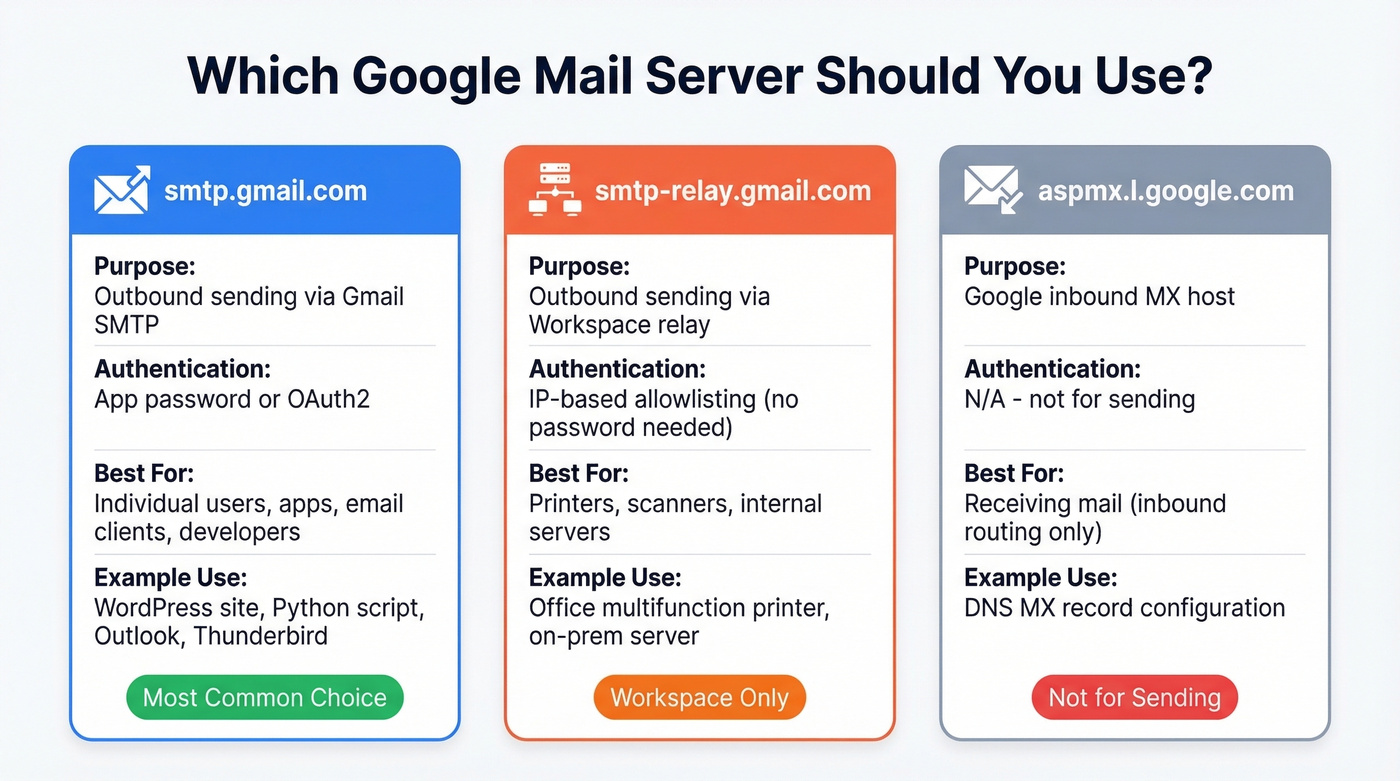
| Hostname | What it's for | Auth | Best for |
|---|---|---|---|
| smtp.gmail.com | Outbound sending via Gmail SMTP | App password / OAuth2 | Individual users, apps, email clients |
| smtp-relay.gmail.com | Outbound sending via Workspace relay | IP-based allowlisting | Printers, scanners, internal servers |
| aspmx.l.google.com | Google's inbound MX host | N/A | Receiving mail (inbound routing) |
Use smtp.gmail.com if you're an individual user or developer connecting a single app or email client.
Use smtp-relay.gmail.com if you're a Workspace admin setting up printers, scanners, or internal servers that need to send without per-user credentials. Requires IP allowlisting in the Admin console.
Ignore aspmx.l.google.com unless you're configuring inbound mail routing. It's for receiving, not sending.

You're fixing SMTP so your emails actually send. But are you sending to the right addresses? Prospeo delivers 98% verified emails - so your carefully configured Gmail SMTP doesn't waste sends on bounces that destroy your domain reputation.
Don't burn your freshly configured SMTP on bad email addresses.
Gmail SMTP Sending Limits
Gmail's daily quotas are recipient-based, not message-based. Send one email to 100 people, and that counts as 100 against your limit.
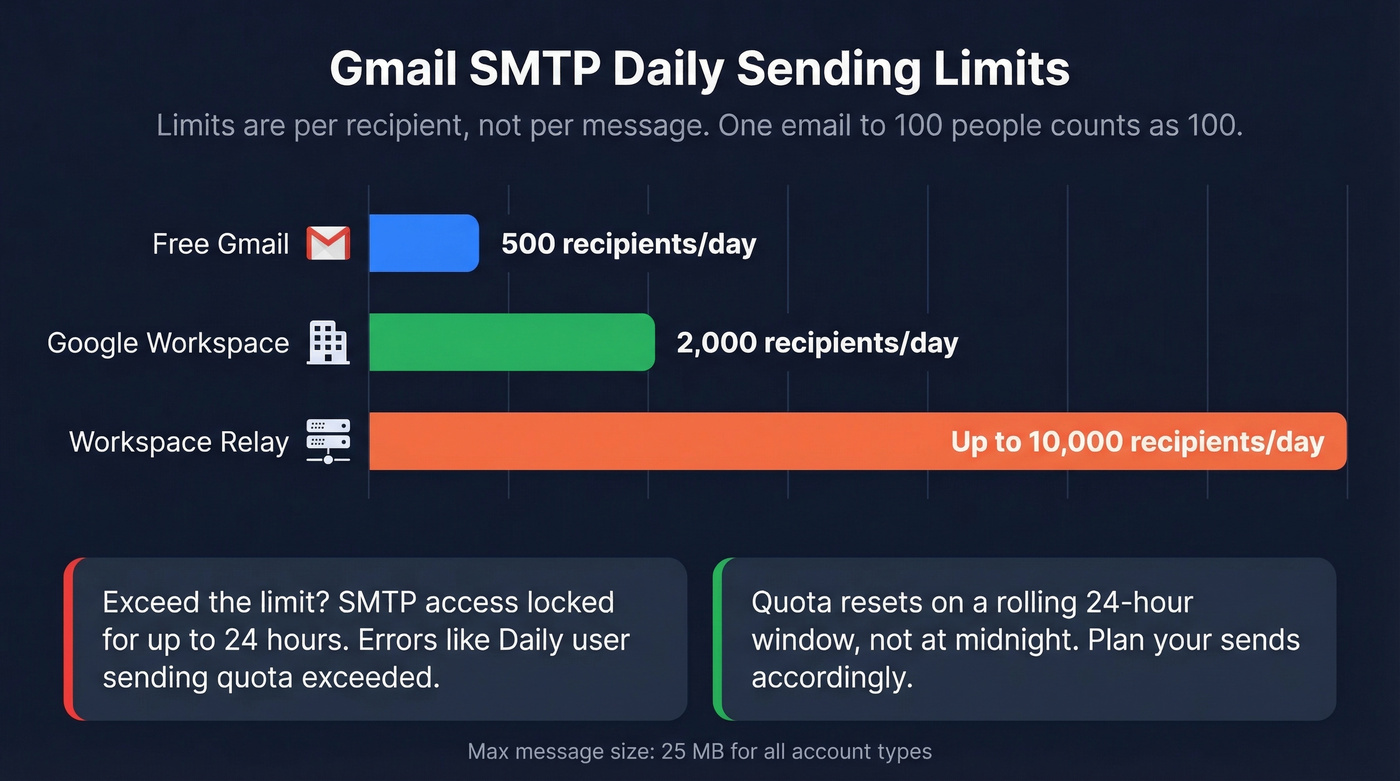
| Account Type | Daily Recipients | Message Size | Reset Window |
|---|---|---|---|
| Free Gmail | 500 | 25 MB | Rolling 24 hours |
| Google Workspace | 2,000 | 25 MB | Rolling 24 hours |
| Workspace Relay | Up to 10,000 | 25 MB | Rolling 24 hours |
Exceed the limit and Google locks your SMTP access for up to 24 hours. You'll see errors like "Daily user sending quota exceeded" or "421 4.7.0 Temporary System Problem." The quota resets on a rolling 24-hour window, not at midnight.
With only 500 sends per day on a free account, every email counts. Sending to invalid addresses wastes slots and damages your sender reputation. Running your list through an email verification tool before sending catches invalid emails, spam traps, and honeypots so you're not burning quota on addresses that'll bounce. (If you want a deeper playbook on keeping bounces low, see our guide to email bounce rate.)
Free Gmail vs Google Workspace
| Feature | Free Gmail | Google Workspace |
|---|---|---|
| Daily SMTP Limit | 500 recipients | 2,000 recipients |
| Custom Domain | No | Yes |
| SPF/DKIM/DMARC | No DNS control for custom domain | Full DNS control |
| SMTP Relay | Not available | Available |
| Admin App Passwords | Self-managed | Admin-managed |
| Price | Free | ~$7-$14/user/month |
If you're sending from a custom domain and care about deliverability, Workspace is worth it. Free Gmail doesn't give you DNS control for a custom domain, which means you can't properly set SPF, DKIM, and DMARC unless you use a domain email service like Workspace. Before sending your first SMTP email from a domain, configure those DNS records - without them, even perfectly authenticated SMTP connections can still get flagged as suspicious. (If you need a quick reference, start with an SPF example and then check DMARC alignment.)
Workspace also unlocks smtp-relay.gmail.com for device-level sending and gives admins control over app password policies across the organization.
Let's be honest though: most small teams agonize over Gmail vs. Workspace for SMTP, but the real deliverability killer isn't your mail server configuration. It's your contact list. A perfectly configured Workspace account sending to a list full of dead addresses will land in spam faster than a free Gmail account sending to verified contacts. Fix the data first, then optimize the infrastructure. (More on that in our email deliverability guide.)
Troubleshooting Gmail SMTP Errors
In our experience, three errors account for the vast majority of Gmail SMTP failures.
| Error Code | Message | Cause | Fix |
|---|---|---|---|
| 534-5.7.14 | Please log in via browser | Suspicious sign-in flagged | Log in via browser, retry |
| 535-5.7.8 | Username/Password not accepted | Wrong creds or LSA shutdown | Use app password, enable 2FA |
| 421-4.7.0 | Temporary System Problem | Rate limit or abuse flag | Wait 1-24 hrs, reduce volume |
Error 534-5.7.14 means Google flagged the login attempt as suspicious. Log into Gmail from a browser on the same network, complete any security challenges, then retry the SMTP connection.
Error 535-5.7.8 is the most common post-shutdown error. If you're still using your regular Gmail password, that's the problem. Create an app password and use that instead.
Error 421-4.7.0 means you've hit a rate limit or Google detected unusual sending patterns. High bounce rates, sudden volume spikes, or sending from multiple IPs can all trigger this. Wait it out and reduce your sending pace. If high bounce rates are the root cause, you've got a data quality problem that no amount of waiting will fix - you need to verify your list before the next send. (To keep your domain healthy, follow a simple how to improve sender reputation checklist.)
Advanced: OAuth2 Setup
App passwords work for most setups, but OAuth2 is the right long-term solution for production systems. It's more secure, doesn't require sharing static credentials, and it's what Google recommends for all new integrations.
The setup requires a Google Cloud project:
- Go to console.cloud.google.com and create a new project.
- Enable the Gmail API under APIs & Services.
- Configure the OAuth consent screen. Choose "Internal" for Workspace accounts or "External" for free Gmail accounts.
- Add the restricted scope:
https://mail.google.com/ - Create OAuth client credentials (Client ID and Client Secret).
- Authorize the connection in your app using the credentials and redirect URI.
For free Gmail accounts using "External" audience type, you'll need to add test users manually and keep the app in "Testing" status - or go through Google's verification process to publish it. Workspace accounts using "Internal" skip this entirely.
Real talk: OAuth2 setup takes 20-30 minutes the first time and feels like overkill for a printer. But for WordPress sites, custom applications, and anything running in production, it's worth the investment. App passwords are a bridge. OAuth2 is the destination.
When Gmail SMTP Isn't Enough
Gmail SMTP works great for transactional email at low volumes - contact forms, order confirmations, scan-to-email. You'll outgrow it fast if you're doing any kind of outbound at scale.
Signs it's time to move on: you're hitting the 500/day cap regularly, you need dedicated IP reputation, or you're sending marketing campaigns that require tracking and analytics. At that point, look at SendGrid (free tier of about 100 emails/day, paid plans from ~$20/mo) or Amazon SES (~$0.10 per 1,000 emails) for transactional volume. (If you're planning higher volume, also watch your email velocity so you don't trip provider limits.)
But SMTP only handles delivery. Whether you land in the inbox or the spam folder depends on data quality. Sending to invalid addresses, spam traps, or outdated contacts tanks your sender reputation regardless of which SMTP service you use. We've watched teams spend weeks perfecting their SMTP configuration only to get blacklisted in days because 15% of their list was dead. Verify before you send - tools like Prospeo run a 5-step verification process with spam-trap and honeypot removal to keep your bounce rate under control and your domain reputation intact. (If you're cleaning lists at scale, our spam trap removal guide helps.)
SMTP setup gets emails out the door. Prospeo gets them to real inboxes. With 143M+ verified emails, a 7-day data refresh cycle, and spam-trap removal built in, your bounce rate stays under 4% - just like Meritt's did after switching.
Start with 75 free verified emails and see the difference in deliverability.
Can I still use my regular Gmail password for SMTP?
No. Google shut down Less Secure Apps on May 1, 2025. You need a 16-digit app password (requires 2-Step Verification) or OAuth2 credentials. This applies to all Google accounts - free and Workspace.
What's the difference between port 465 and 587?
Port 465 uses implicit SSL - encrypted from the start. Port 587 uses STARTTLS, upgrading a plain connection to encrypted. Both work with Gmail. Port 587 is more widely supported across devices and apps, making it the safer default for any SMTP configuration.
Why doesn't App Passwords appear in my account?
You need 2-Step Verification enabled first. The option also won't appear if you use only security keys for 2FA, if your account has Advanced Protection, or if your Workspace admin disabled it. Try the direct URL: myaccount.google.com/apppasswords.
How many emails can I send per day?
Free Gmail: 500 recipients/day. Workspace: 2,000/day. Workspace relay: up to 10,000. All quotas are recipient-based and reset on a rolling 24-hour window, not at midnight.
What are the correct Gmail outbound SMTP settings?
Use smtp.gmail.com as the server, port 587 with TLS (or port 465 with SSL), your full Gmail address as the username, and a 16-digit app password. Authentication and encryption are both required - these settings apply whether you're connecting an email client, a WordPress plugin, or a custom application.