

How to Whitelist Emails in Outlook - And What to Do When It Doesn't Work
You added the sender to Safe Senders list. You clicked "Never Block Sender." And the emails still land in Junk. If you're trying to whitelist emails in Outlook, the steps themselves are simple - but Outlook's filtering layers make the outcome unpredictable. Users on r/Outlook report manually dragging 10-20 legitimate emails out of Junk every single week, which is maddening when you've already done everything Microsoft tells you to do. Here's every method, plus the fixes for when they fail.
What You Need (Quick Version)
Three methods, ranked by reliability:
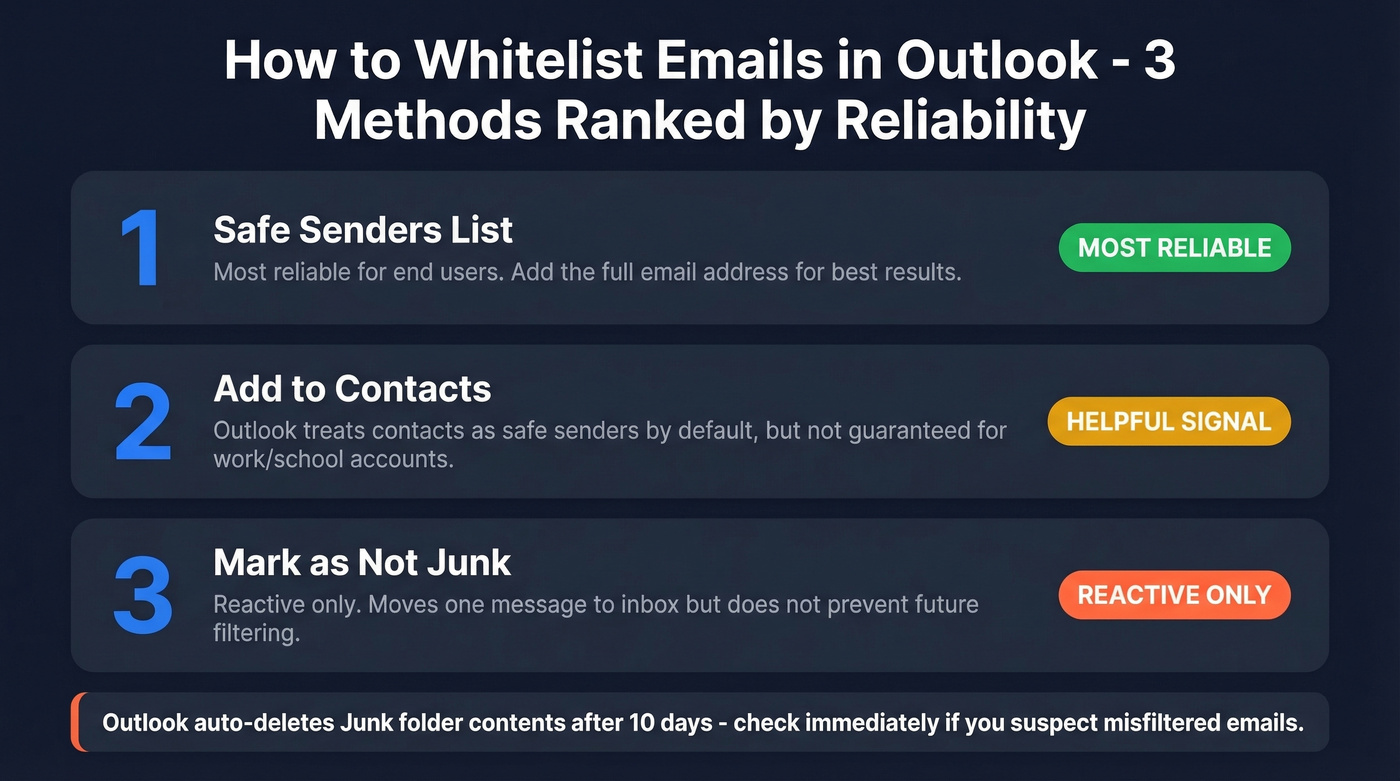
- Safe Senders list - the most dependable option for end users. Add the full email address, and only use a domain entry when you specifically need it.
- Add to Contacts - helps because Outlook treats contacts as safe senders by default, but it's not a guarantee in work/school accounts.
- Mark as Not Junk - reactive unless you also add the sender to Safe Senders.
Outlook auto-deletes Junk folder contents after 10 days. Check that folder immediately if you suspect a legitimate email got filtered.
Already tried all three and emails still land in Junk? Skip straight to the troubleshooting section below.
Which Outlook Version Are You Using?
The steps differ depending on your version. Here's how to tell:
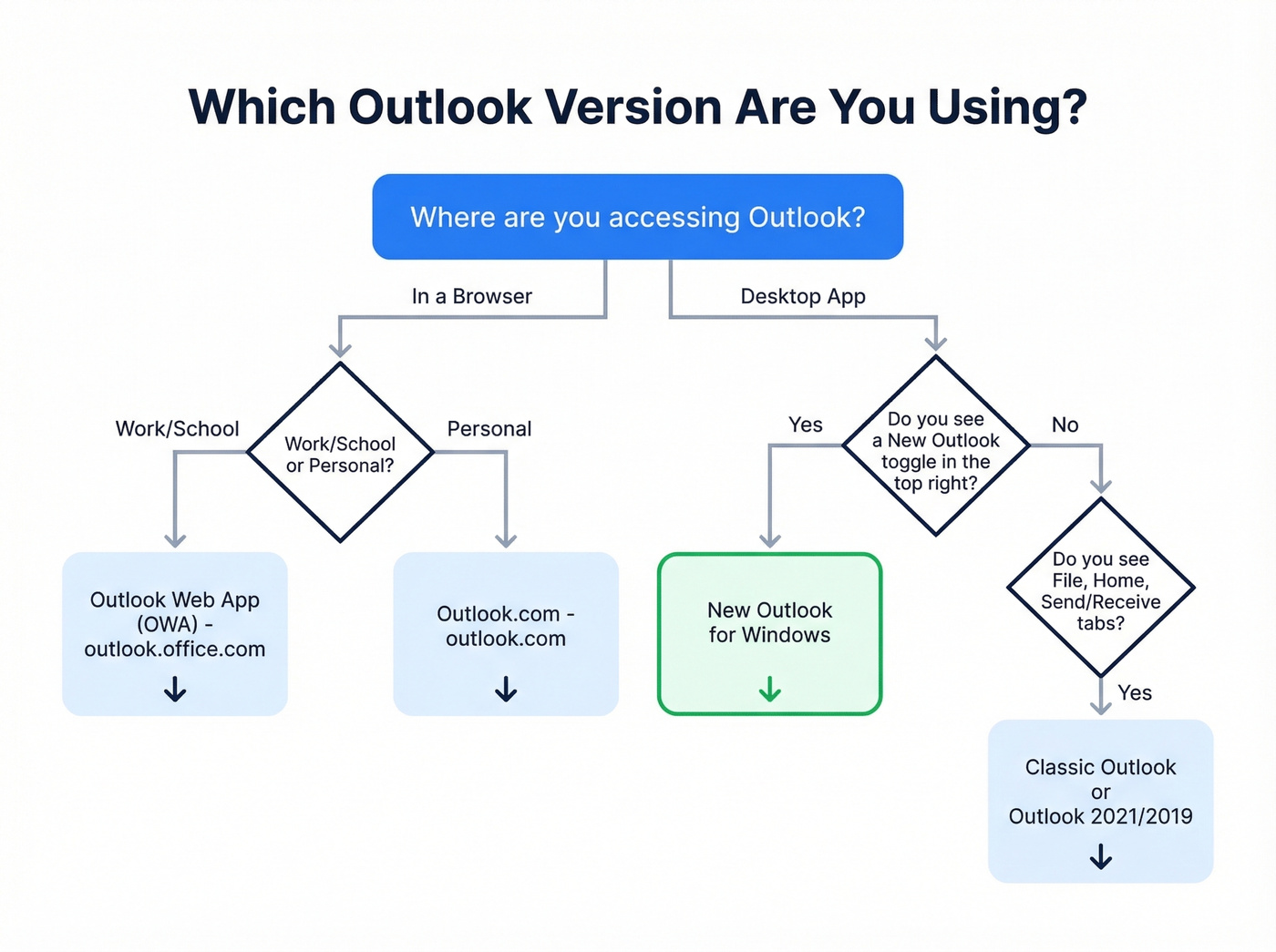
- New Outlook for Windows - simplified ribbon, toggle in the top-right corner that says "New Outlook"
- Classic Outlook (Desktop) - traditional ribbon with File/Home/Send-Receive tabs, no toggle
- Outlook 2021/2019 (standalone) - similar to Classic; follow the Classic Outlook steps below
- Outlook on the Web (OWA) - browser-based, commonly at outlook.office.com for work/school accounts
- Outlook.com - browser-based consumer version at outlook.com
How to Add Safe Senders in Outlook
New Outlook for Windows
Go to Settings > Mail > Junk email. Scroll down to the Senders section and select the Safe senders and domains tab. Click "+ Add safe sender", type the full email address, hit OK, then Save.
One important caveat: sending someone an email doesn't automatically add them to your Safe Senders list. If they reply, that reply can still land in Junk. You need to add them manually.
Classic Outlook (Desktop)
From the Home tab, click Junk > Junk E-mail Options. Go to the Safe Senders tab and click Add. Type the full email address and click OK.
There's a faster method too: right-click any message from the sender, select Junk > Never Block Sender. This adds them to Safe Senders in one step. Both approaches do the same thing - use whichever fits your workflow.
Outlook Web App (Work/School)
This applies to work/school accounts on Microsoft 365. Click the Settings gear icon, then go to Mail > Junk email. Under Safe senders and domains, click Add and enter the full email address. Hit Save.
The interface looks nearly identical to New Outlook for Windows. If your organization manages mailboxes through the Global Address List, those contacts are already considered safe senders - though this doesn't extend to Contacts and Mail Users in the GAL.
Outlook.com (Consumer)
Click the Settings gear icon, then View all Outlook settings > Mail > Junk email. Under Safe senders and domains, click Add, type the email address, and hit Save.
By default, Outlook.com treats your Contacts as safe senders. This is configurable, but most users leave it on. If you're on the consumer version, adding someone to your Contacts is often enough.
Other Whitelisting Methods
Add to Contacts
Outlook treats contacts as safe senders by default, so adding someone to your address book should keep their emails out of Junk. But "should" is doing a lot of work in that sentence. Exchange Online Protection can still override this for work/school accounts, so think of it as a helpful signal rather than a guarantee.
Mark as Not Junk
Go to your Junk folder, right-click the message, and select Not Junk. This moves the message to your inbox and can also add the sender to Safe Senders. It's reactive, though. And remember: Outlook auto-deletes Junk folder contents after 10 days. Miss a misfiltered email, and it's gone.

Whitelisting fixes the receiving end. But if you're sending outbound emails that keep hitting Junk, the problem is bad data - invalid addresses, spam traps, and honeypots that destroy your sender reputation. Prospeo's 5-step verification delivers 98% email accuracy with spam-trap and honeypot removal built in.
Stop landing in Junk folders. Start with emails that are actually verified.
Can You Whitelist on Mobile?
Not really. Safe Senders management is a desktop/web task. On mobile web, the Junk/Safe Senders settings don't appear unless you force the desktop version of the site - a common complaint in Microsoft community threads.
The workaround on iOS: open Outlook on the web in Safari, tap the "Aa" menu, and select "Request Desktop Website." This forces the full settings interface to load, and you can manage Safe Senders from there. Clunky, but it works. Android users can do the same in Chrome by requesting the desktop site.
Why Whitelisting Doesn't Always Work
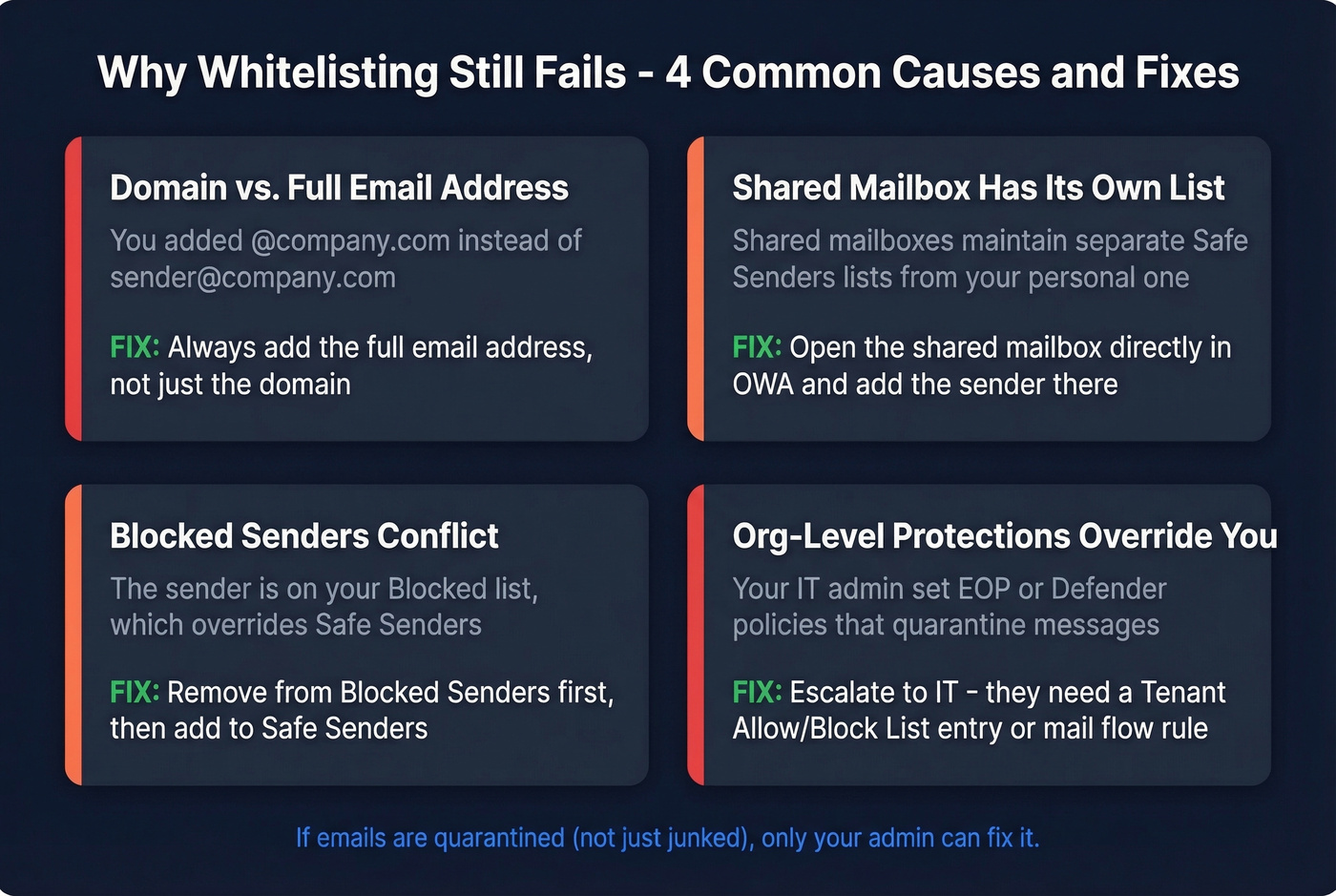
We've walked dozens of users through this exact troubleshooting sequence. The pattern is almost always one of these four issues.
Domain vs. Email Address
Here's the single most common mistake: adding a domain like @company.com instead of the full email address sender@company.com.
In Microsoft 365 environments using Exchange Online Protection, the practical rule is simple - if a domain entry doesn't work, add the exact sender address instead. Domain allowlisting also increases your exposure to spoofing because anyone can forge a "From" address on a whitelisted domain. Always prefer the full address when the goal is "let this specific sender through."
Shared Mailbox Gotcha
Shared mailboxes are a special kind of headache. This exact scenario played out on r/exchangeserver - a sysadmin had a domain added to Defender anti-spam exceptions, mail flow rules set SCL to -1, and the domain in Safe Senders. Emails still landed in Junk for the shared mailbox.
The fix: open the shared mailbox directly in OWA using "Open another mailbox." Navigate to Junk email settings and add the full email address - not just the domain. Shared mailboxes maintain their own Safe Senders list, completely separate from your personal one. We've seen this trip up experienced admins who assumed the settings would carry over.
Blocked Senders Conflict
Before troubleshooting anything else, check your Blocked Senders list. If the sender accidentally ended up there - maybe you misclicked months ago - it overrides Safe Senders. Remove them from Blocked first, then add to Safe Senders.
Org-Level Protections Override You
Here's the thing: Safe Senders only controls whether a message goes to Junk. It doesn't remove "From outside your organization" banners, and it doesn't override org-level protections set by your IT admin.
Microsoft ranks allowlisting methods from most to least recommended: Tenant Allow/Block List, mail flow rules, Safe Senders, IP Allow List, then anti-spam policy. Your Safe Senders list sits in the middle - not at the top. If your admin has configured EOP or Defender policies that quarantine certain messages, your personal Safe Senders list won't override that.
That said, there's at least one confirmed support case where a user's Safe Senders entry bypassed an admin's anti-spam outcome, and Microsoft confirmed that behavior when the admin escalated. The interaction between layers can be genuinely unpredictable.
When to escalate to IT: if you've added the full email address to Safe Senders and emails still get quarantined - not just junked - your admin needs to create a Tenant Allow/Block List entry or a mail flow rule. That's above your pay grade as an end user.
Domain Whitelisting Is Risky
Let's be honest about this one. Microsoft explicitly warns against creating mail flow rules that bypass spam filtering based solely on sender domain. It "significantly increases the likelihood" that attackers can spoof that domain, skip filtering, and bypass authentication checks. Malware and high-confidence phishing are always quarantined regardless of any allowlist - but everything else gets through.
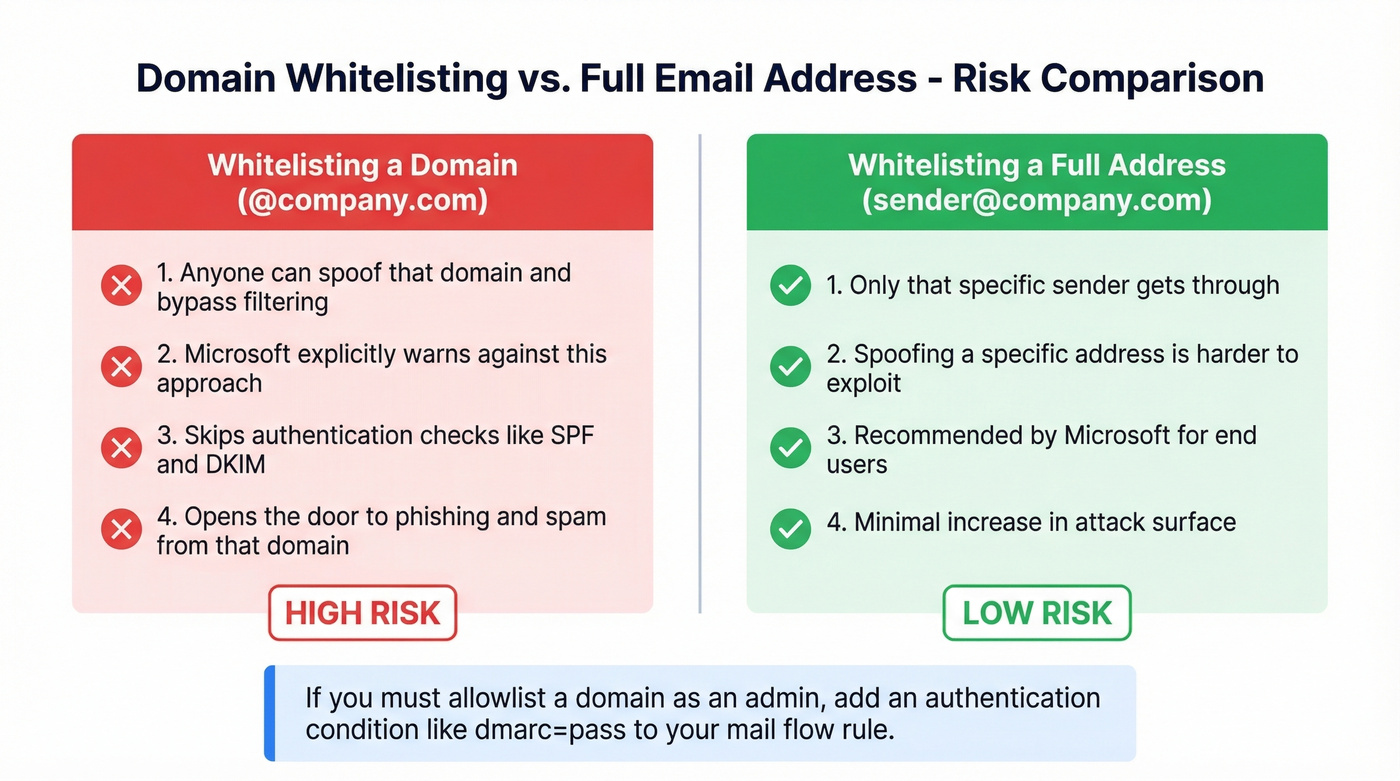
Adding a domain to Safe Senders is almost always the wrong move, even when your vendor asks you to do it. Add the specific email address instead. If you're an admin who needs to allowlist a domain for business reasons, add an authentication condition like dmarc=pass to your mail flow rule. Don't just open the floodgates.
The Sender-Side Fix
Everything above fixes the receiving side. But if you're a sales professional or marketer whose outbound emails keep landing in recipients' Junk folders, whitelisting is a band-aid you can't even apply - you'd need every recipient to add you individually.
The real causes are on your end: invalid email addresses spiking bounce rates, poor SPF/DKIM/DMARC authentication, and damaged domain reputation. One bad campaign can put you in a hole that takes weeks to climb out of. We've seen teams burn through three sending domains before realizing the problem was their data, not their copy.
Prospeo's real-time email verification catches invalid, catch-all, and spam-trap addresses before they damage your domain. The 5-step verification process runs at 98% accuracy, with a free tier of 75 verifications per month - enough to clean a small campaign list before you hit send.

Teams using unverified email data see 35%+ bounce rates - the exact kind of sender behavior that triggers Outlook's aggressive filtering. Prospeo refreshes 300M+ contacts every 7 days and removes catch-all traps automatically, so your outbound emails reach real inboxes without recipients needing to whitelist you.
Make whitelisting unnecessary - send to verified emails that bypass Junk.
FAQ
Does adding someone to Contacts whitelist them in Outlook?
By default, yes - Outlook treats contacts as safe senders. But Exchange Online Protection can override this for work/school accounts. For reliability, add the sender to your Safe Senders list directly rather than relying on Contacts alone.
Can I manage Safe Senders from a mobile device?
Safe Senders settings are accessible via desktop Outlook or Outlook on the web. On iOS, force the desktop site through Safari's "Aa" menu to load the full settings interface. Android users should open outlook.office.com in Chrome and request the desktop site.
Why do whitelisted emails still go to Junk?
Usually because you added a domain instead of the full email address, or your organization's EOP/Defender policies override user-level Safe Senders. Check your Blocked Senders list for conflicts too - a blocked entry always wins.
Is whitelisting an entire domain safe?
No. Domain whitelisting increases spoofing risk because anyone can forge a "From" address matching that domain. Add the specific sender's full email address instead. Admins who must allowlist a domain should require dmarc=pass in their mail flow rule.
How do I stop my outbound emails from landing in recipients' Junk?
Verify your email list before sending to catch invalid and spam-trap addresses. Authenticate your domain with SPF, DKIM, and DMARC, and keep bounce rates under 3% to protect sender reputation. If you're not sure where to start, cleaning your list with a verification tool is the fastest win.