

How to Automate Follow-Up Emails in Outlook: Every Method Compared
You sent the email three days ago. No reply. Now you're staring at your Sent folder trying to remember which prospects need a nudge, which ones already responded, and which ones you completely forgot about. One Reddit user on r/Outlook described the experience as "flying blind" - and honestly, that's generous.
Here's the bad news upfront: Outlook can't automatically send a follow-up email if someone doesn't reply. Not natively. But there are ways to get close, and some are far better than others.
Quick Decision Framework
Figure out which tier you're in before you read another word:
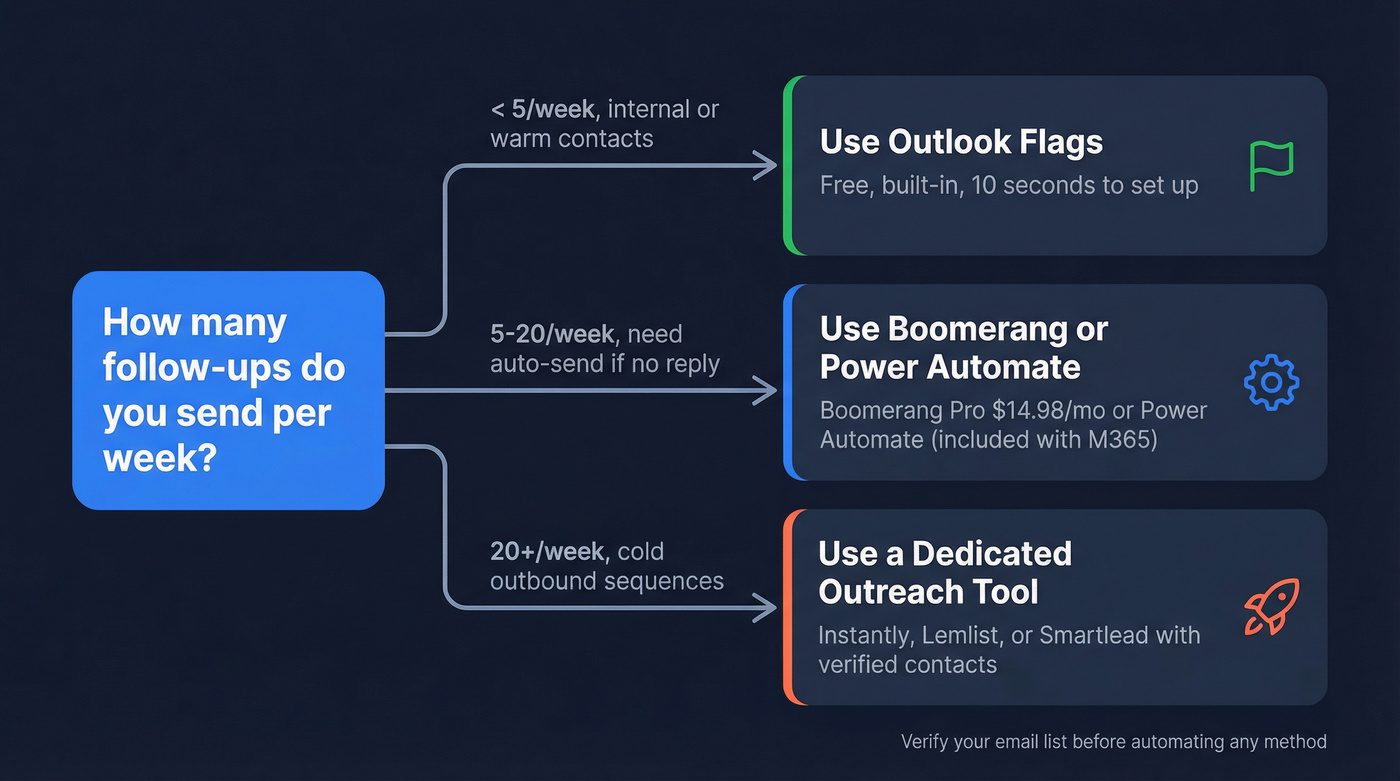
- Just need reminders? Use Outlook's built-in flags. Free, takes 10 seconds.
- Need auto-send if no reply (fewer than 10/week)? Boomerang Pro ($14.98/mo) or SendLater (~$30-$100 one-time).
- Sending 20+ follow-ups per week? Stop fighting Outlook. Use a dedicated outreach tool like Instantly or Lemlist paired with verified contact data.
Native Outlook: Flags, Rules, and Quick Steps
Outlook's built-in follow-up system is really just a reminder system. You flag an email - Today, Tomorrow, This Week, Next Week, or a Custom date - and Outlook surfaces it in your task list when the date hits. No auto-send. No conditional logic. Just a nudge for you to manually write the follow-up.
Outlook Rules are another feature people ask about, but they only trigger on received mail. They can auto-categorize or auto-forward incoming messages, but they can't monitor your Sent folder for unreplied messages. Wrong tool for this job.
Quick Steps add a bit more muscle. You can chain actions together - move a message, mark it unread, forward it to a colleague - all in one click. The setup path in New Outlook: Home > Quick Steps > Manage Quick Steps > +New Quick Step, then pick your actions and assign a keyboard shortcut.
Two caveats worth knowing. Quick Steps can't be undone - if you include a "Permanently Delete" action, there's no Ctrl+Z. And Quick Steps in New Outlook only work with Exchange Online accounts. If you're on Outlook.com, Hotmail, or a third-party email provider, you won't even see the option.
Project managers tracking internal follow-ups can usually get by with flags plus Quick Steps. For anything conditional - "send this email if they don't reply within 3 days" - you need something else entirely.
Power Automate: Conditional Follow-Ups
Power Automate is Microsoft's answer to "I need real automation." A conditional follow-up flow works in four steps:
- Log every sent email to a SharePoint list
- Monitor your inbox for replies that match
- Run a scheduled check (daily or every few hours)
- Auto-send a follow-up for any email without a response

Let's be honest about the setup time. In our testing, expect 2-3 hours, not the 5 minutes some guides promise. And there are real pitfalls that'll bite you if you don't plan for them.
The biggest: if your flow only scans unread replies, you'll send follow-ups to people who already responded - because you read and archived their reply before the flow checked. You need to scan read and deleted messages too, which adds complexity. One workaround for subject-line matching fragility is to tag emails that need follow-up with a subject prefix like "[rmndr]" so your flow only monitors tagged messages. This is more reliable than hoping subject lines stay unique across dozens of conversations.
The thread-reply problem is another headache. If you need your follow-up to appear in the original conversation thread with attachments intact, Power Automate makes this surprisingly difficult. Most flows end up sending a new email rather than a true reply, which looks sloppy to recipients who pay attention.
Basic flows using standard Outlook/Exchange connectors are included with most Microsoft 365 business plans. Premium connectors require Power Automate Premium at ~$15/user/month.
If you're building this for a sales team, it's worth stepping back and comparing it to a real automated follow-up system before you invest the time.

Building a Power Automate flow for follow-ups takes hours. Sending those follow-ups to invalid addresses wastes all of it. Prospeo verifies emails at 98% accuracy with 5-step verification - so every automated follow-up actually reaches a real inbox, not a bounce.
Stop automating bounces. Verify your list before you hit send.
Outlook Add-Ins for Auto Follow-Up
If Power Automate feels like overkill, add-ins are the middle ground. (If you want more options beyond Outlook-specific plugins, see our breakdown of email follow-up tools.)
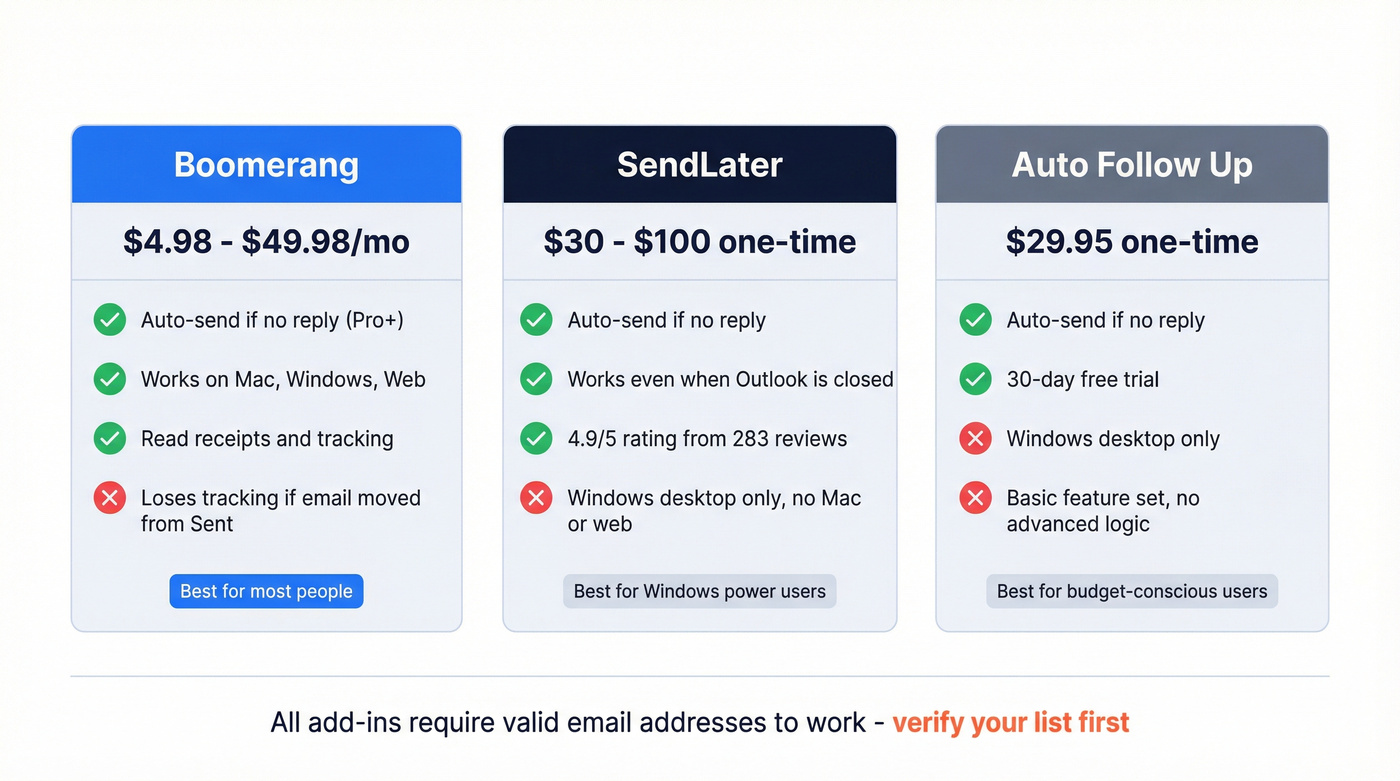
| Tool | Price | Auto-Send If No Reply? | Platform | Best For |
|---|---|---|---|---|
| Boomerang | Free-$49.98/mo | Yes (Pro+) | Outlook (varies by version) | Cross-platform users |
| SendLater | ~$30-$100 one-time | Yes | Windows only | Windows power users |
| Auto Follow Up | ~$30 one-time | Yes | Windows only | Budget-conscious, simple needs |
Boomerang is the most popular option and the one we'd recommend for most people. The free plan gives you 10 message credits per month - enough to test, not enough to rely on. Personal at $4.98/mo gives you unlimited message credits; Pro at $14.98/mo adds the features that actually matter for automated follow-ups. The catch: if you move an email out of your Sent folder, Boomerang loses track of it. Reddit threads on r/Outlook also flag feature bloat - Boomerang keeps adding AI features instead of refining the core experience, which is frustrating when all you want is reliable "send this again if they don't reply."
SendLater's 4.9/5 rating from 283 reviews tells you something - it does one thing well and doesn't try to do more. Its "Re-Send if not Responded" feature works even when Outlook isn't running. The dealbreaker is obvious: Windows desktop only. No Mac, no web. Skip this if you work across multiple machines or platforms.
Auto Follow Up is a straightforward Windows add-in for basic "send a follow-up if they don't reply" behavior without building a Power Automate flow. It runs $29.95 one-time per license and includes a 30-day free trial.
When to Send Follow-Ups
Timing matters more than most people think. 55% of cold email replies come from follow-ups, not the initial email. And 80% of closed deals happen after at least five follow-ups. (If you're building a repeatable cadence, our follow up strategy guide goes deeper.)
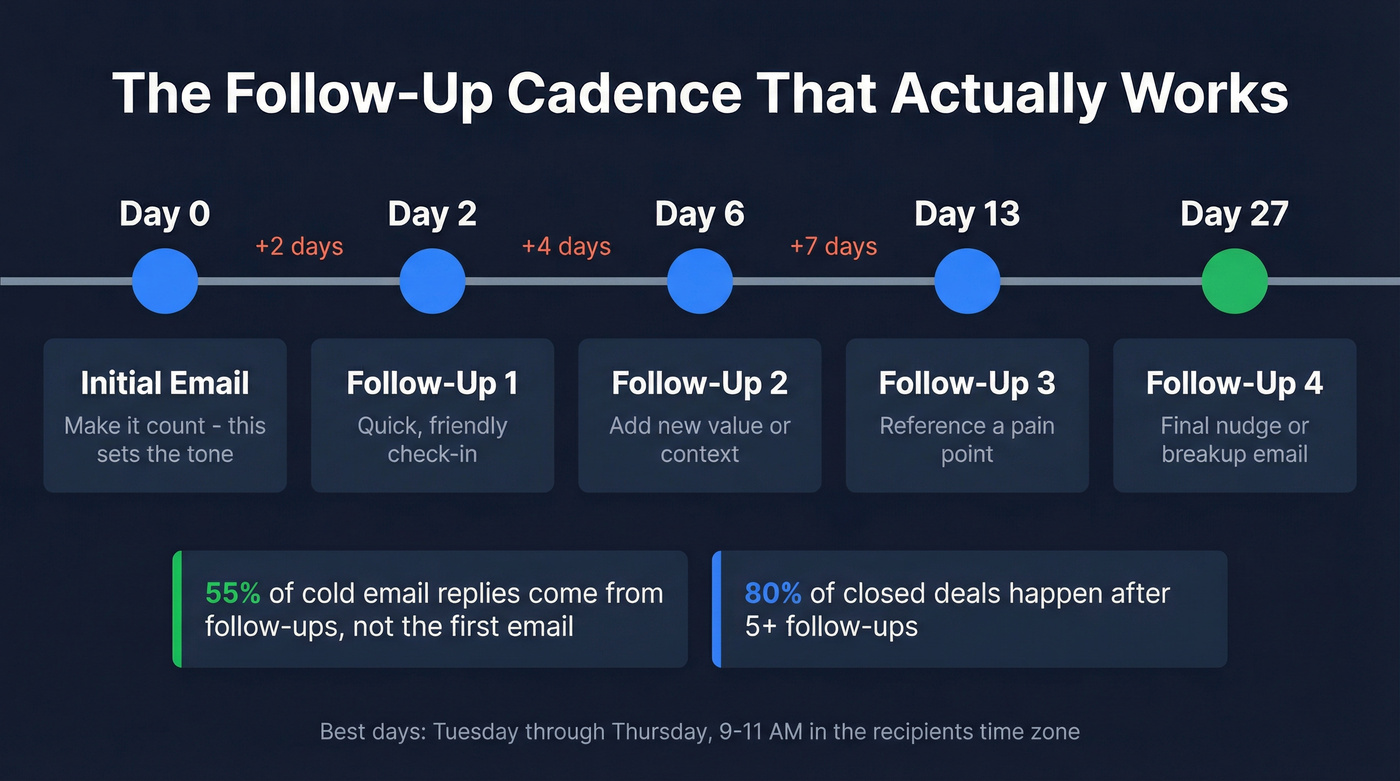
The cadence that works: 2 days after the first email, then 4, then 7, then 14. Graduated spacing looks human. Static spacing - every 2 days like clockwork - looks automated and gets ignored.
We've seen the best response rates on Tuesday through Thursday, 9-11 AM in the recipient's time zone. For meeting follow-ups specifically, send within 24 hours while the conversation is still fresh.
Verify Before You Automate
Here's the step most guides skip entirely, and it's the one that'll wreck your domain if you ignore it: verifying your email addresses before you automate anything. Every follow-up you send to an invalid address is a bounce. Stack up enough bounces and your sender reputation tanks - which means even your emails to valid addresses start landing in spam. (If you want to sanity-check your process, start with a mailbox checker.)

Automating follow-ups to a dirty list is worse than not automating at all. You're just burning your domain faster. If you're scaling outbound, it's also worth reviewing the broader sales email automation playbook so your follow-ups fit into a real system.
If you're sending 20+ follow-ups a week from Outlook, you've already outgrown it. Prospeo pairs with Instantly, Lemlist, and Smartlead - giving you verified contact data at $0.01/email so your sequences hit real buyers, not dead addresses that torch your domain.
Your domain reputation is worth more than a free Outlook workaround.
Choosing the Right Method
Here's the thing: if you're reading this article, you've probably outgrown flags already. The people who are fine with flags aren't searching for solutions - they're just flagging emails and moving on. So here's where to go next:
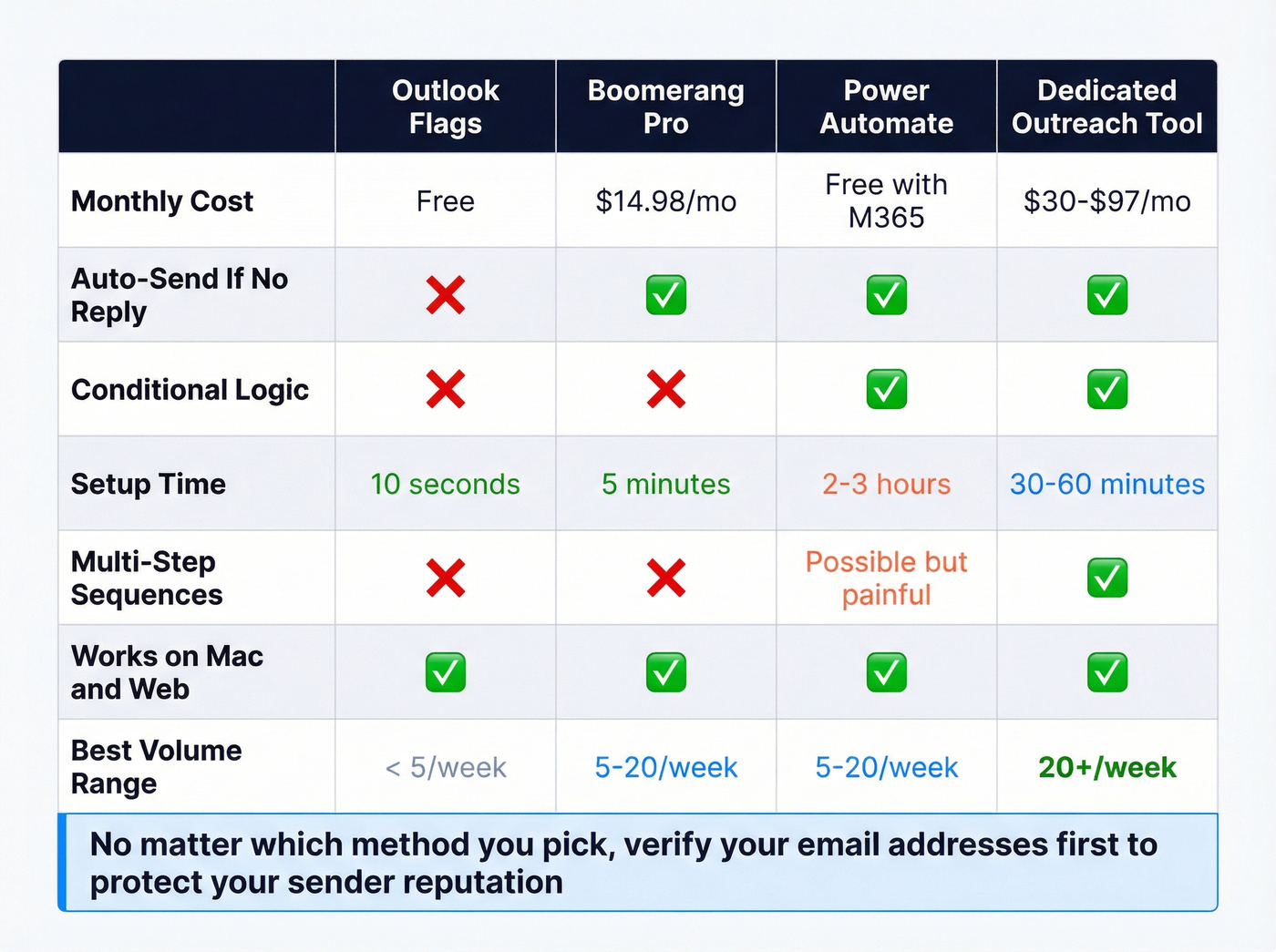
Use Boomerang if you need auto-send for under 10 emails per week and don't mind $15/mo. It's the fastest path from "I keep forgetting to follow up" to "this is handled."
Use Power Automate if you need conditional logic, have an M365 business license, and don't mind spending an afternoon on setup. Best for ops-minded people who enjoy building workflows.
Use a dedicated outreach tool if you're doing real outbound. Sales teams sending cold follow-up sequences should skip native Outlook entirely. The gap between Outlook-with-add-ins and a proper sequencing tool is enormous once you pass 20 emails per week - we've watched teams waste months trying to duct-tape Outlook into something it was never designed to be. If you're at that stage, compare sales engagement software and a proper email sequencing tool.
Use native flags only if you send fewer than 5 follow-ups a week and they're all internal or warm contacts.
Whatever method you choose, verify your addresses first. A clean list is the difference between automated follow-up emails that land in inboxes and follow-ups that destroy your deliverability.
FAQ
Can Outlook send a follow-up email automatically if there's no reply?
No. Outlook's built-in flags and reminders only notify you - they don't send anything. For actual auto-sending when someone doesn't reply, you need Power Automate, a third-party add-in like Boomerang or SendLater, or a dedicated outreach tool that handles sequences natively.
Is Power Automate free with Microsoft 365?
Basic flows using standard Outlook and Exchange connectors are included with most Microsoft 365 business licenses at no extra cost. Premium connectors and advanced features require Power Automate Premium at ~$15/user/month - roughly the same as a Boomerang Pro subscription.
What's the best free option for follow-up automation in Outlook?
Outlook's native follow-up flags are completely free but only remind you - they don't send anything. Boomerang's free plan adds 10 message credits per month for scheduling and response tracking. For verifying addresses before any automation, Prospeo offers 75 free credits per month and Hunter provides 25 free searches per month.