

Email Deliverability in Salesforce: Admin Guide (2026)
You configured SPF, DKIM, and DMARC last quarter. Everything passed validation. Then your VP of Sales forwarded you a screenshot - another critical follow-up sitting in a prospect's Gmail spam folder. Roughly one in six marketing emails never reaches the inbox, and nearly half of all global email traffic is spam. Email deliverability in Salesforce depends on more than authentication records - mailbox providers are getting more aggressive about filtering, and your legitimate sends are collateral damage if anything's off.
What You Need (Quick Version)
- Authentication alone doesn't guarantee inboxing. You need DMARC alignment - the domain that passes SPF or DKIM must align with your header From domain. SPF and DKIM can both pass while DMARC still fails.
- Use Salesforce's built-in Test Deliverability tool (Setup > Administration Setup > Email Administration > Test Deliverability) to diagnose IP-level blocks before you touch a single DNS record.
- Clean your data before every send. Bounces damage sender reputation fast. This is the lever most admins ignore - and the fastest way to improve inboxing org-wide. (If you need a broader framework, start with our email deliverability guide.)
Salesforce Deliverability Settings
The first thing to check isn't DNS - it's whether Salesforce is even allowed to send email from your org. Navigate to Setup > Email > Deliverability and look at the Access Level setting.
Access Levels Explained
Salesforce gives you three options:
- No Access - outbound email is blocked (except password reset emails).
- System Email Only - only automated system emails like password resets and new user welcome emails go out. User-initiated emails are blocked.
- All Email - both system-generated and user-generated email can send. This is what production orgs need.
The setting lives under Setup > Email > Deliverability.
Sandbox Defaults That Waste Your Morning
New and refreshed sandboxes default to System Email Only. We've seen admins spend hours debugging "broken" email workflows in sandbox before realizing the access level was never flipped. If you're testing email flows in a sandbox, check this setting first. The restriction is intentional - it prevents test data from reaching real recipients. The problem isn't the default; it's not knowing about it.
Authentication Setup - SPF, DKIM, DMARC
Authentication is table stakes in 2026. Without it, you're not even in the conversation.
SPF Record
Add Salesforce's include to your domain's SPF TXT record:
v=spf1 include:_spf.salesforce.com ~all
If you already have an SPF record, append the include - don't create a second TXT record. Keep your total DNS lookups at or under 10. Every include: directive counts as a lookup, and exceeding 10 causes SPF to fail entirely. This is one of the most common misconfigurations we encounter, especially in orgs running multiple SaaS tools that each want their own SPF include. (For more patterns, see these SPF record examples.)
DKIM Keys
Navigate to Setup > Email > DKIM Keys and create a new key. Use a 2048-bit key - 1024-bit is for older DNS systems and is increasingly a liability for modern deliverability. Salesforce generates two CNAME records you'll need to publish in your DNS. (If you want a quick validation checklist, use our guide on how to verify DKIM is working.)
Even when DNS updates are quick, internal IT coordination can add 2-4 weeks depending on your organization's change control policies. Plan accordingly.
DMARC Policy Progression
Don't jump straight to p=reject. Follow this timeline:
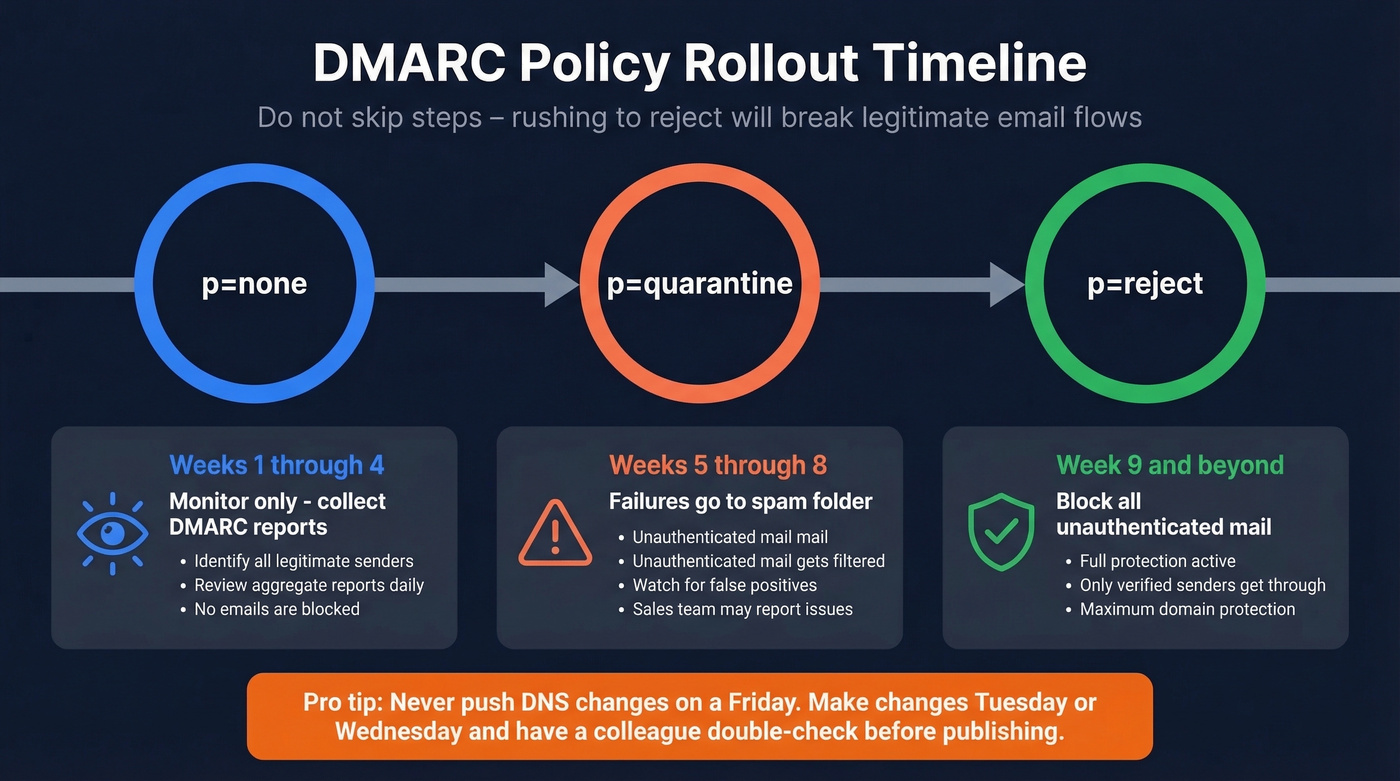
- Weeks 1-4:
p=none- monitor reports, identify legitimate senders you missed. - Weeks 5-8:
p=quarantine- start filtering failures to spam. - Week 9+:
p=reject- block unauthenticated messages entirely.
Each stage gives you visibility into what's actually sending on behalf of your domain. Rushing to reject before you've catalogued all legitimate senders will break things - and you'll hear about it from sales before IT even notices. (If you want the deeper technical breakdown, read our DMARC alignment explainer.)
One operational rule worth tattooing on your forearm: never push DNS changes on a Friday. If something breaks, you're debugging over the weekend while your sales team's emails bounce. Make DNS changes on Tuesday or Wednesday, and always have a colleague double-check the record before publishing.
Authentication vs. Alignment
This is where most Salesforce admins get stuck - and where the Reddit threads get heated.
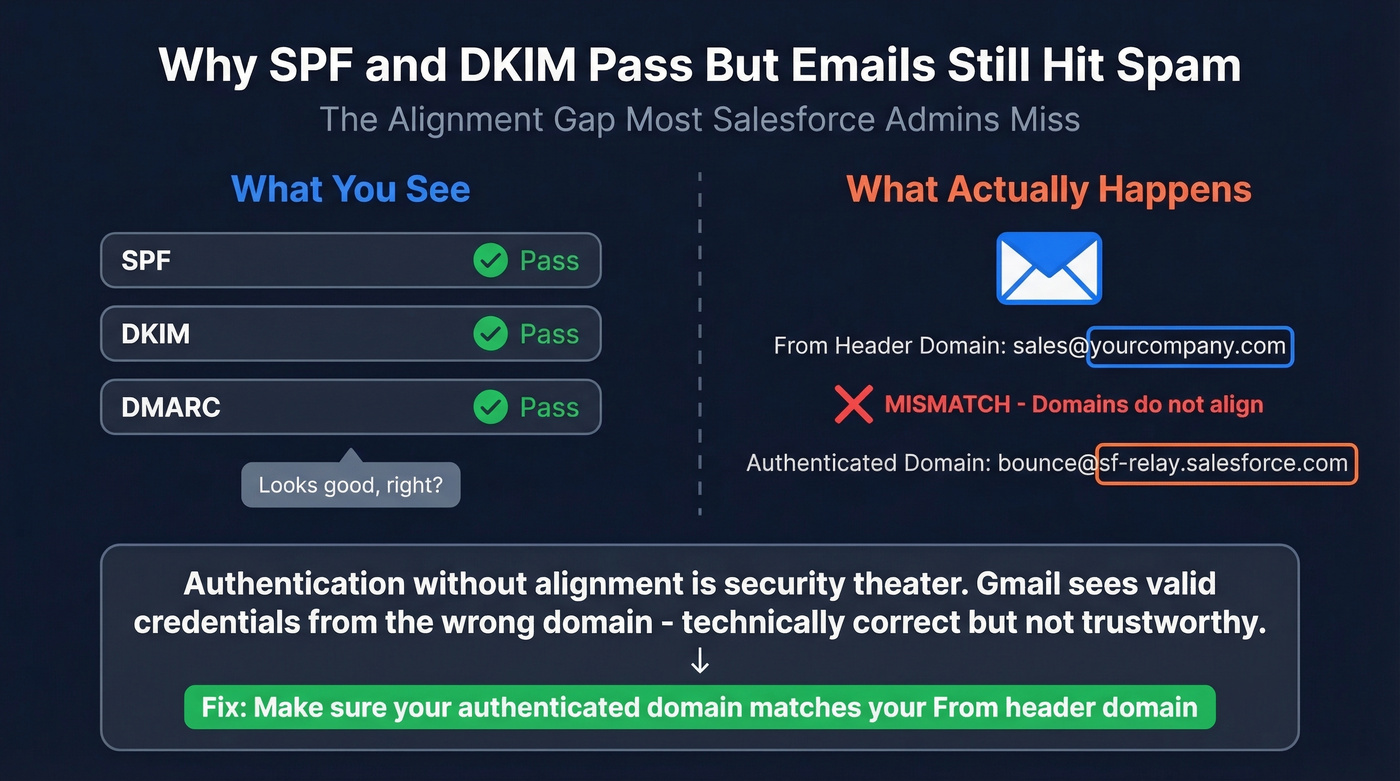
Here's the scenario: it's Monday morning, your VP fires off a follow-up from Salesforce, and it lands in the prospect's spam folder. You check SPF - pass. DKIM - pass. DMARC - looks okay. So what happened?
The problem is alignment. A common failure mode is that messages appear to be "sending on behalf of user@internaldomain.com but actually coming from SF," which creates a mismatch between the domain in the From header and the domain that's actually being authenticated. Mailbox providers see authentication without alignment as incomplete - technically valid but not trustworthy. (Related: if you're using a separate subdomain for tracking, make sure you understand what a tracking domain changes - and what it doesn’t.)
Admins on r/salesforce describe this exact pattern, with SPF/DKIM/DMARC showing green while Gmail still flags messages. The fix isn't adding more authentication - it's ensuring your authenticated domains align with your header From domain. Authentication without alignment is security theater.

You just read how bounces damage sender reputation faster than any other signal. Every bad email you send from Salesforce chips away at your domain's credibility. Prospeo's 5-step verification - with catch-all handling, spam-trap removal, and honeypot filtering - delivers 98% email accuracy. Teams using Prospeo cut bounce rates from 35%+ to under 4%.
Stop debugging deliverability issues caused by bad contact data.
Cross-Product Authentication Matrix
If you're running multiple Salesforce products, each one has its own authentication setup and DNS entries. Missing one creates an alignment gap for that product's sends.
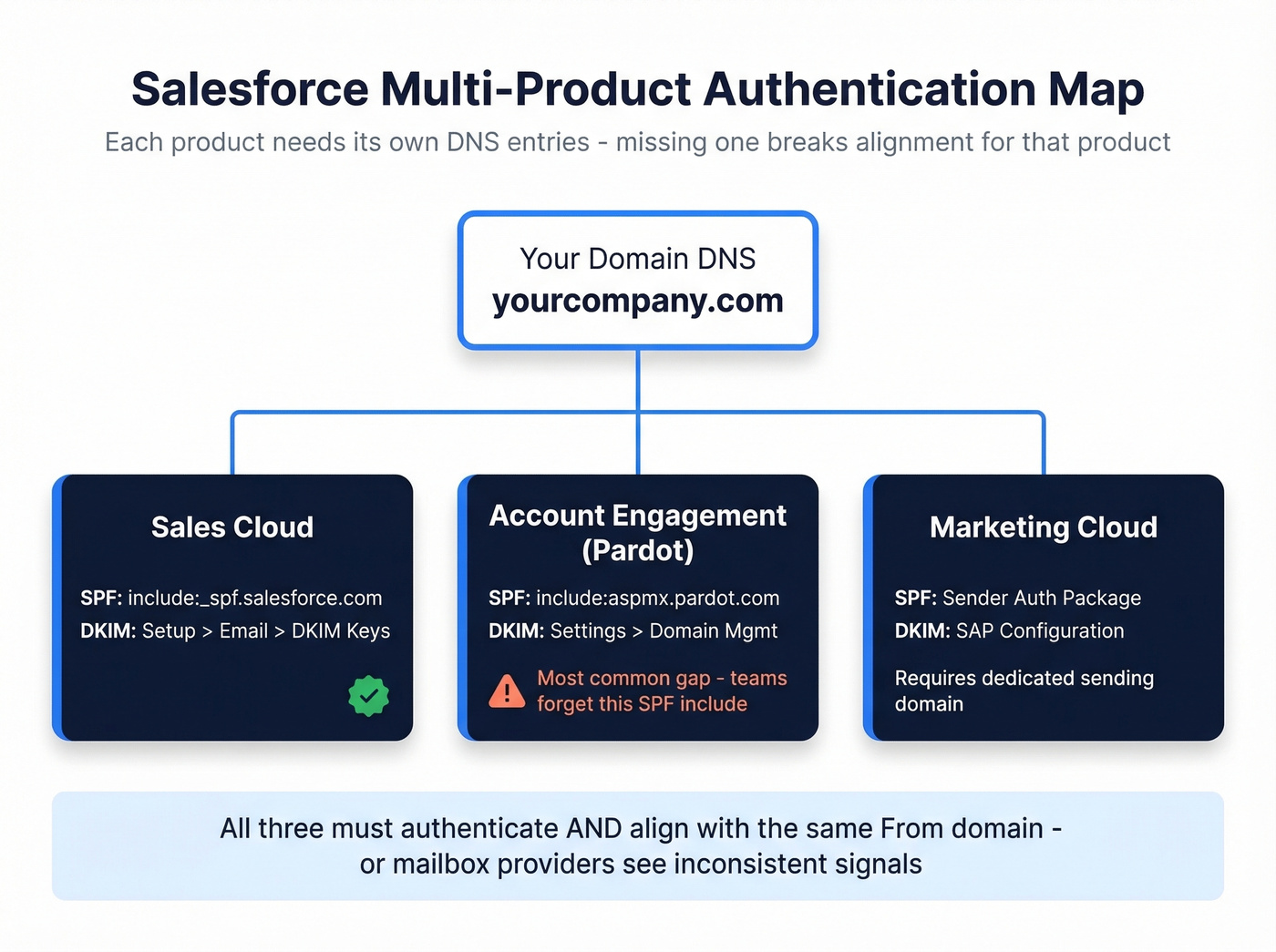
| Salesforce Product | SPF Include | DKIM Setup Path | Notes |
|---|---|---|---|
| Sales Cloud | _spf.salesforce.com |
Setup > Email > DKIM Keys | Standard org email |
| Account Engagement | aspmx.pardot.com |
Settings > Domain Mgmt | Separate DNS entries required |
| Marketing Cloud | Sender Auth Package | SAP configuration | Dedicated sending domain |
The most common gap we see: teams authenticate Sales Cloud perfectly, then launch Account Engagement campaigns without adding include:aspmx.pardot.com to their SPF record. Those emails start life at a disadvantage.
2026 Mailbox Provider Requirements
The enforcement timeline has been tightening since February 2024, when Gmail and Yahoo started requiring DMARC policies for senders pushing more than 5,000 daily emails. Microsoft followed with similar requirements in early 2025. By 2026, non-compliant messages are rejected at the SMTP level.
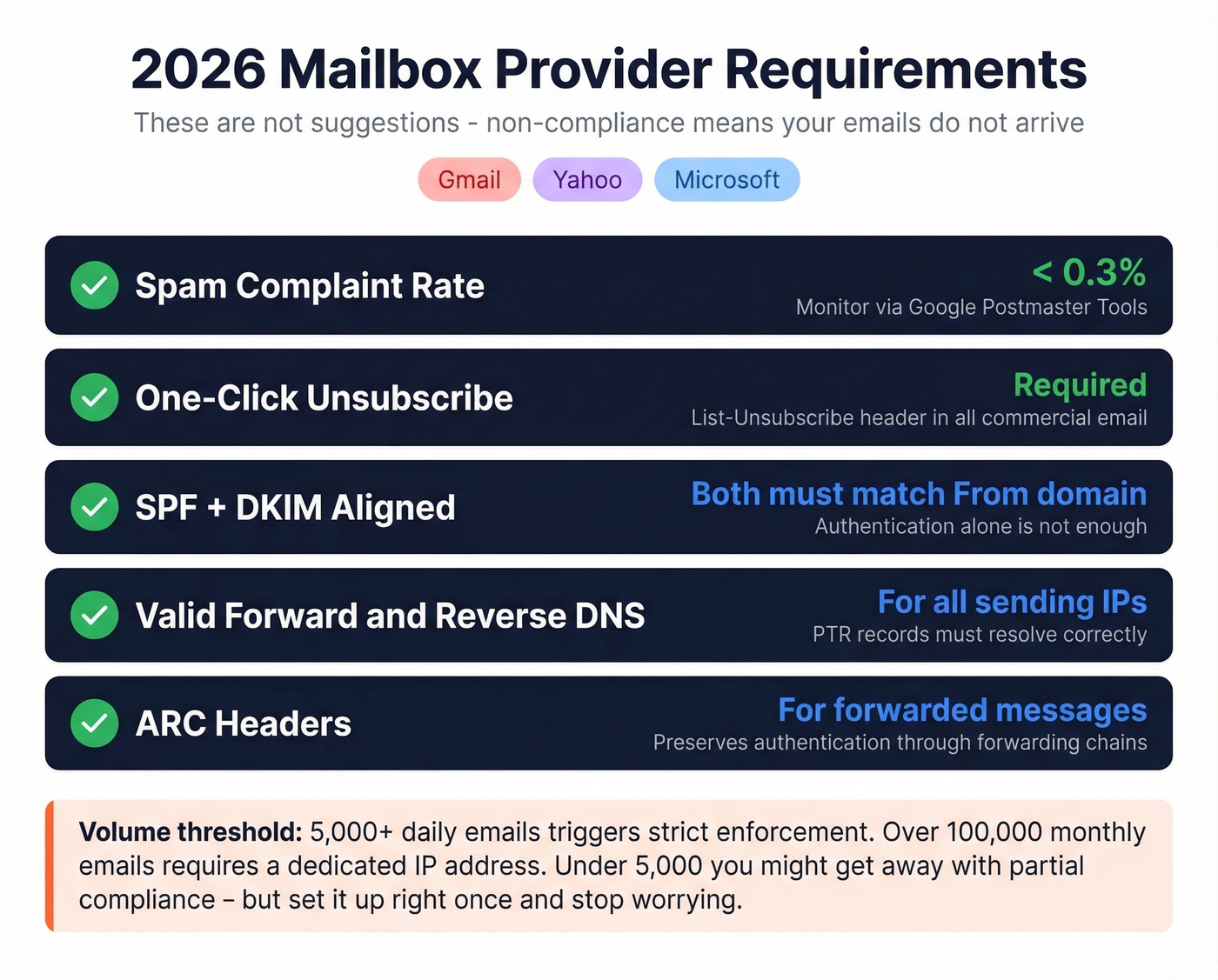
Here's what you need to hit:
- Keep spam complaint rates under ~0.3%
- Include one-click unsubscribe in commercial email
- Ensure SPF and DKIM are set up and aligned with your From domain
- Maintain valid forward and reverse DNS for sending IPs
- Use ARC headers for forwarded messages
These aren't suggestions. They're requirements. If your Salesforce org sends any volume to Gmail, Yahoo, or Outlook recipients, non-compliance means your emails simply don't arrive.
Let's be honest about a gray area: if your org sends fewer than 5,000 emails per day, you can sometimes skate by with partial compliance. But "technically" is doing a lot of heavy lifting in that sentence. Set it up right once and stop worrying about it. For orgs sending more than 100,000 emails a month, you'll also need a dedicated IP address.
Troubleshooting Real-World Failures
Use the Test Deliverability Tool First
Before you change a single DNS record, run Salesforce's built-in diagnostic. Navigate to Setup > Administration Setup > Email Administration > Test Deliverability. Salesforce uses 38 different IP addresses to send emails, and this tool sends test messages from all of them. If you don't receive all test emails, one or more IPs are blocked - each test email includes the sending IP address so you can identify exactly which one to whitelist or escalate. This takes five minutes and tells you whether you have an IP-level problem or an authentication/alignment problem, which are two very different fixes requiring very different approaches.
Email Relay Through O365 Doesn't Fix Alignment
A common misconception: "If I route Salesforce emails through Office 365, they'll inherit O365's reputation and inbox fine." One admin reported enabling O365 relay and still seeing 15 out of 16 test emails land in spam. Sending directly from Outlook to Gmail worked perfectly - but the same email routed through Salesforce via O365 got flagged.
Relay changes the sending IP. It doesn't fix domain alignment. If the authenticated domain still doesn't match your header From, you've just moved the problem to a different server. Fix alignment first. Relay is a routing decision, not a deliverability strategy.
"Mark as Not Spam" Isn't a Strategy
Real talk: Salesforce support has been known to suggest manually releasing emails and marking them "not spam" as they come in. This doesn't scale, doesn't fix the underlying problem, and trains exactly one recipient's mailbox. Your next prospect still gets the spam folder. If someone suggests this as a fix, the actual root cause hasn't been identified yet.
Data Quality - The Lever Nobody Talks About
Every deliverability guide says "clean your list." None of them explain how it actually works.
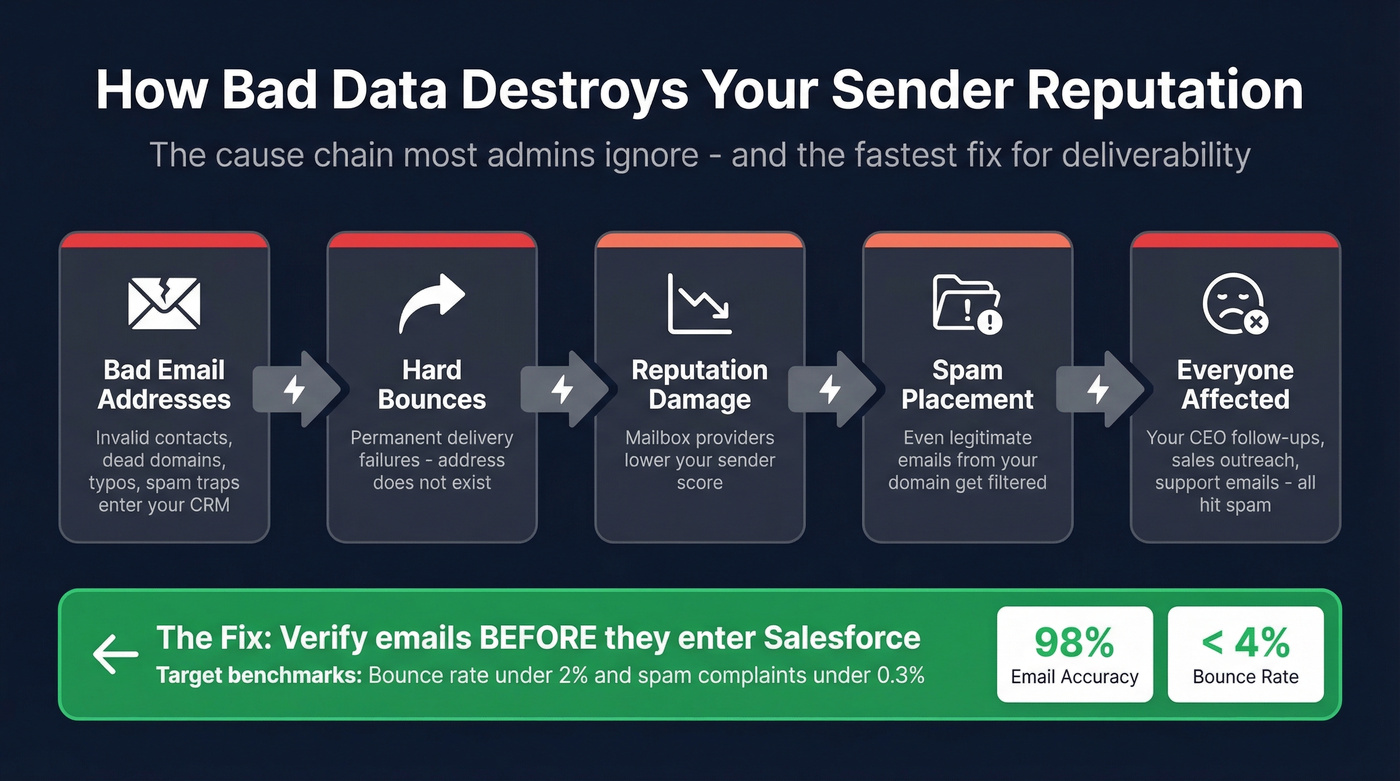
Here's the cause chain: bad email addresses generate hard bounces, hard bounces damage sender reputation, and damaged reputation means spam placement for everyone on your domain - including your CEO's one-on-one follow-ups. The distinction matters: hard bounces are permanent failures where the address doesn't exist or the domain is dead, while soft bounces are temporary hiccups like a full inbox. Hard bounces are the reputation killers and should be removed immediately. (Benchmarks and remediation steps: email bounce rate.)
Industry targets are straightforward: keep bounce rate under ~2% and spam complaints under ~0.3%. Hitting those numbers starts before you ever click send - it starts with the data entering Salesforce. Prospeo's 5-step email verification catches invalid addresses, spam traps, and honeypots before they touch your CRM, with 98% email accuracy and native Salesforce integration on a 7-day refresh cycle. Stack Optimize built their agency to $1M ARR using this approach and maintained bounce rates under 3% with 94%+ deliverability across all clients - zero domain flags. (If you’re actively cleaning lists, this spam trap removal playbook helps avoid reputation landmines.)
Authentication and alignment get your emails past DMARC checks. But none of that matters if you're sending to dead addresses. Prospeo refreshes its 300M+ profiles every 7 days - not every 6 weeks like most providers. Enrich your Salesforce CRM with 50+ data points per contact at 92% match rate, so every send hits a real inbox.
Clean data is the deliverability lever most Salesforce admins ignore.
Monitoring Key Deliverability KPIs
Once authentication and data quality are handled, ongoing monitoring keeps you out of trouble. (If you’re trying to speed up recovery after a bad send, use this guide on how to improve sender reputation.)
Google Postmaster Tools is free and essential - it tracks domain reputation and spam rate for Gmail recipients. MXToolbox validates your DNS records; run your domain through it monthly to catch SPF/DKIM drift after infrastructure changes. Monitor hard and soft bounces closely. A spike in hard bounces is an early warning sign that bad data is entering your system upstream, and by the time you notice the reputation damage, you're already weeks behind on recovery.
Target benchmarks: bounce rate under ~2%, complaint rate under ~0.3%.
FAQ
Why do my Salesforce emails go to spam even with SPF and DKIM configured?
SPF and DKIM can both pass while DMARC still fails due to domain misalignment. If the authenticated domain doesn't match the header From domain, mailbox providers treat the message as untrustworthy and route it to spam. Check alignment - not just authentication status.
Should I route Salesforce emails through Office 365 to improve deliverability?
Relay changes the sending IP but doesn't fix domain alignment automatically. Admins report identical spam placement after enabling O365 relay. Fix SPF/DKIM alignment with your From domain first - relay is a routing decision, not a deliverability fix.
How do I reduce Salesforce email bounce rates quickly?
Verify every email address before importing into Salesforce or running campaigns. Hard bounces from invalid addresses destroy sender reputation across your entire domain. A bulk verification tool with catch-all handling and spam-trap removal is the highest-impact change you can make.
What deliverability settings should I check in a new Salesforce org?
Start with Setup > Email > Deliverability and confirm the Access Level is set to "All Email." Then verify your SPF record includes _spf.salesforce.com, publish your DKIM keys, and set a DMARC policy starting at p=none. Run the Test Deliverability tool to check all 38 sending IPs before your first campaign.
What's the fastest way to improve email deliverability in Salesforce?
Clean your contact data. Authentication gets you to the door, but bad addresses generate hard bounces that tank sender reputation across your entire domain. Verifying emails before every send or import is the highest-impact change most admins can make today.