

How to Set Up a Custom Email Domain - The Only Guide You Actually Need
You just registered your business. The website's live, the logo looks decent, and now you need hello@yourcompany.com working before Monday. Sending from jane.doe.company@gmail.com instead of jane@company.com kills credibility before a prospect even reads your pitch.
Proper email domain setup signals legitimacy, protects your brand from spoofing, and gives you control over deliverability. Most guides walk you through MX records and call it done. That's like building a house and forgetting the locks - your emails land in spam, and you won't know why.
The full setup takes 30-60 minutes. We're covering every step here, including the authentication records that most tutorials skip entirely.
What You Need Before You Start
- A domain - around $10/year from registrars like Namecheap or Porkbun.
- An email provider - Google Workspace at $7/mo is the reliable pick. Zoho Mail is free for up to 5 users.
- MX records pointed at your provider. Five minutes in your DNS panel.
- Authentication records: SPF + DKIM + DMARC - the step most guides skip, and the reason your emails land in spam. (If you want to go deeper on DMARC specifics, see DMARC alignment.)
- Verification that everything works. One test email plus a header check.
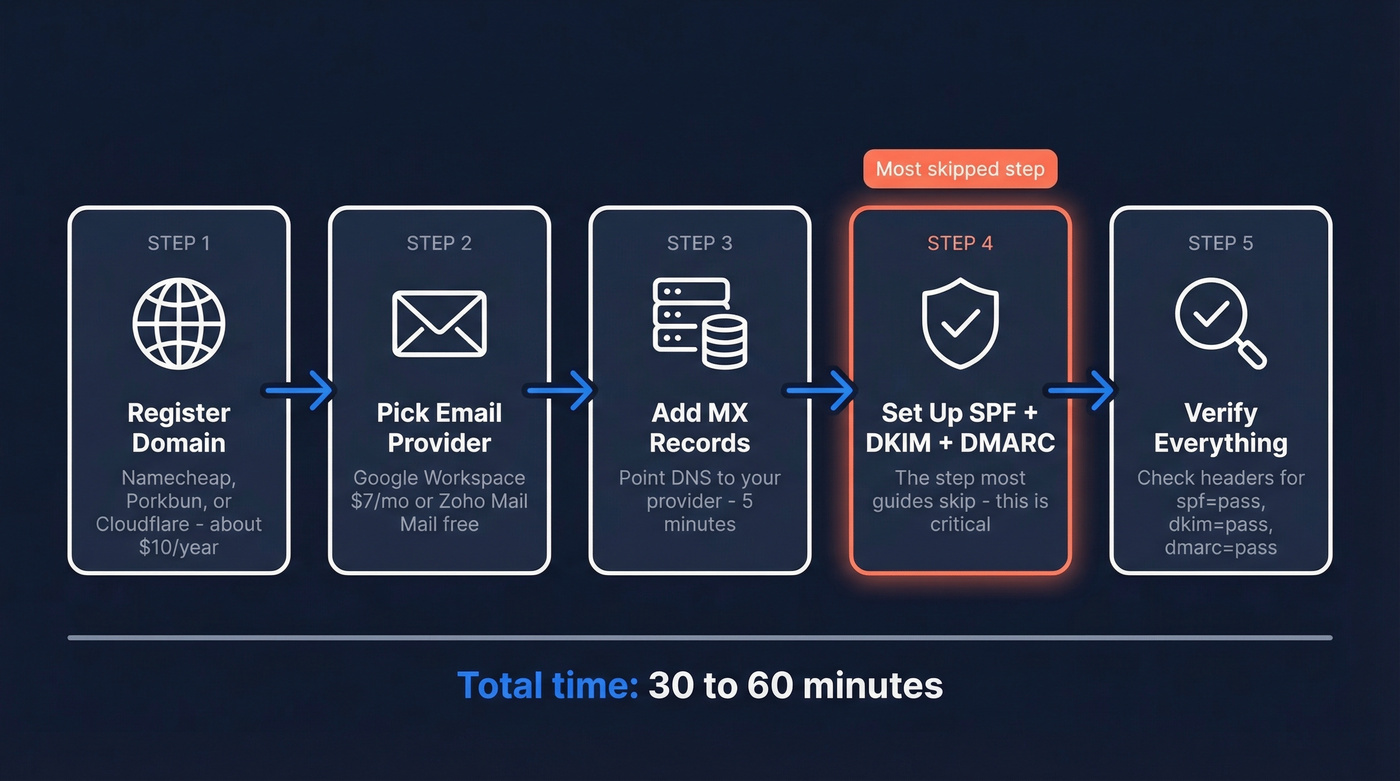
Total time: 30-60 minutes. Let's walk through each step with copy-paste DNS examples.
Step-by-Step: Configure Your Domain for Email
Register Your Domain
Namecheap, Porkbun, and Cloudflare Registrar are three registrars worth considering. They include free WHOIS privacy, which hides your personal info from public lookups, and offer competitive renewal rates.
GoDaddy is overpriced. Their introductory rates look competitive, but they upsell aggressively on every click. Skip it.
Here's a contrarian take most guides won't give you: keep your registrar and email provider separate. If you buy your domain from a website builder and use that same vendor for email, it's simpler to manage - but switching later becomes a headache. Registering at Namecheap and pointing DNS to whatever provider you want gives you the flexibility to swap email providers without migrating your domain. That flexibility matters more than you think. We've seen teams stuck in painful migrations because they bundled everything with one vendor.
Choose an Email Provider
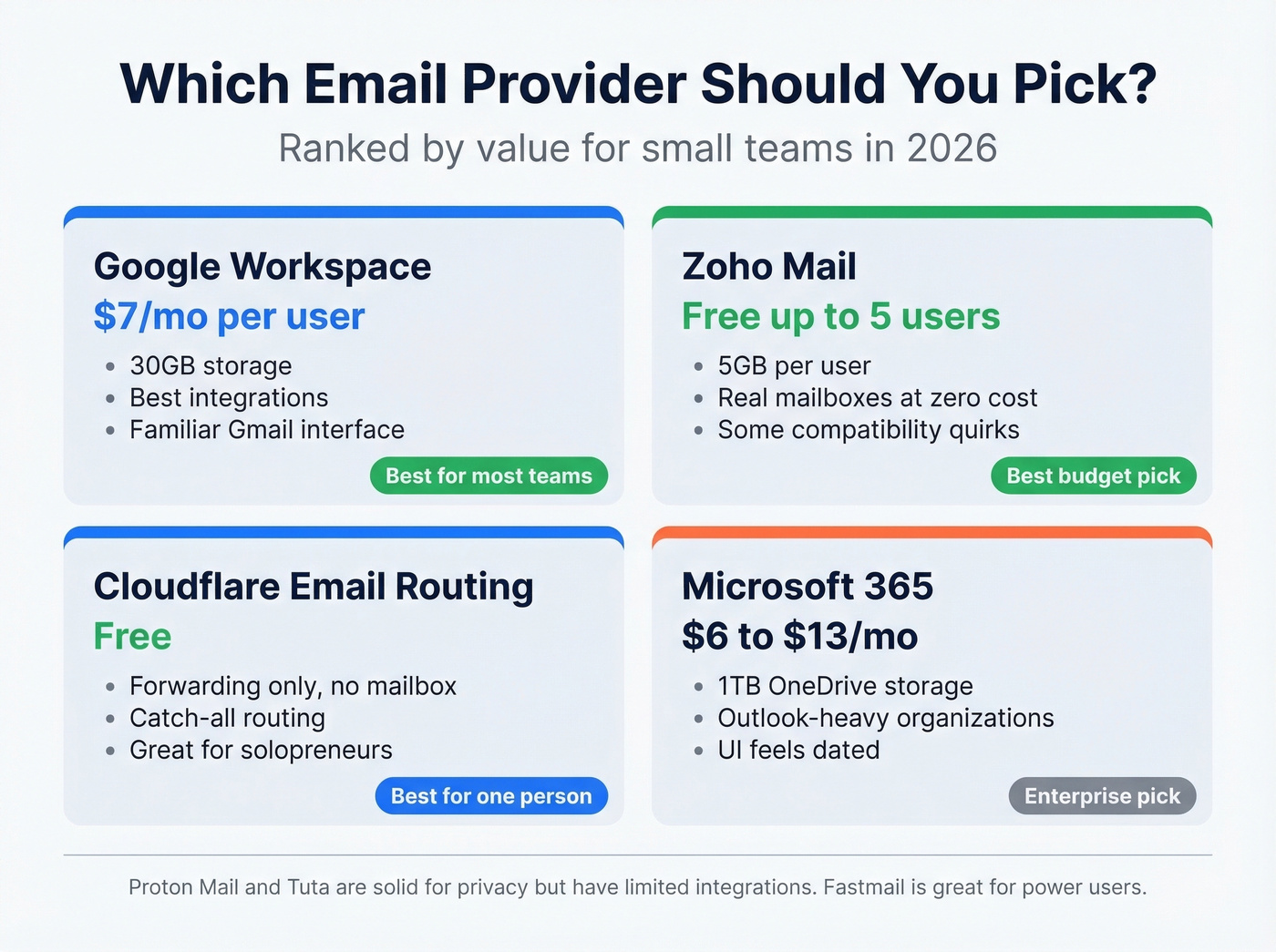
Google Workspace is the default for a reason - the interface is familiar, the integrations are deep, and deliverability is strong out of the box. But it's not the only option, and it's definitely not the cheapest.
| Provider | Price/mo | Storage | Best For | Watch Out For |
|---|---|---|---|---|
| Google Workspace | $7 / $14 / $22 | 30GB-5TB | Most teams | Unresponsive support |
| Microsoft 365 | ~$6-$13 | Varies by plan | Outlook-heavy orgs | Outdated UI, lag |
| Zoho Mail | Free (up to 5) | 5GB/user | Bootstrapped teams | Compatibility quirks |
| Proton Mail | ~$8 | Varies by plan | Privacy-first | Limited integrations |
| Tuta | ~$3 | Varies by plan | Budget privacy | Sparse feature set |
| Fastmail | ~$3-$5 | Varies by plan | Power users | No free tier |
| Namecheap Email | ~$1-$3 | Varies by plan | Bare minimum | Basic webmail |
| Cloudflare Routing | Free | N/A | Forwarding only | No real mailbox |
Google Workspace at $7/user/month on an annual plan is the safe pick for most businesses. For solopreneurs or tiny teams watching every dollar, Zoho Mail's free tier or Cloudflare Email Routing can get you started at zero cost.
DNS Configuration: MX Records
MX records tell the internet where to deliver email for your domain. Without them, mail sent to you@yourdomain.com has nowhere to go.
Log into your registrar's DNS panel, delete any existing MX records, and add the records your email provider gives you. For Google Workspace, that's five records:
| Host | Type | Priority | Value |
|---|---|---|---|
| @ | MX | 1 | ASPMX.L.GOOGLE.COM |
| @ | MX | 5 | ALT1.ASPMX.L.GOOGLE.COM |
| @ | MX | 5 | ALT2.ASPMX.L.GOOGLE.COM |
| @ | MX | 10 | ALT3.ASPMX.L.GOOGLE.COM |
| @ | MX | 10 | ALT4.ASPMX.L.GOOGLE.COM |
Priority numbers matter - they tell receiving servers which mail server to try first. Lower number = higher priority.
DNS propagation often completes within an hour, though it can technically stretch to 48 hours depending on your registrar and TTL settings. Don't panic if email doesn't work instantly.
Set Up Authentication (SPF, DKIM, DMARC)
This is the section that separates a working domain email configuration from one that lands in spam. Most setup guides stop at MX records. That's malpractice in 2026.
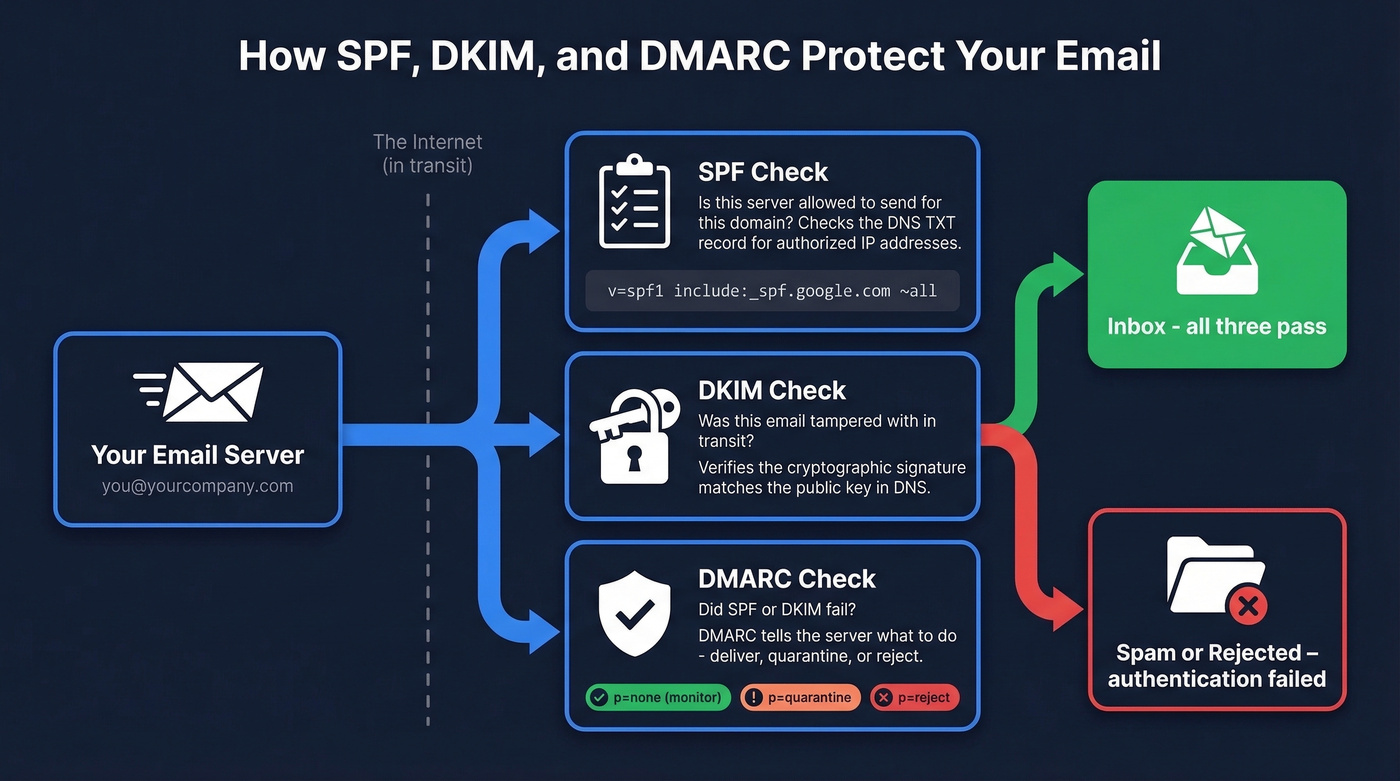
Here's what each record does in plain English:
- SPF tells receiving servers which IP addresses are allowed to send email on behalf of your domain.
- DKIM attaches a cryptographic signature to every email you send, proving it wasn't tampered with in transit. (More: how to verify DKIM is working.)
- DMARC tells receiving servers what to do when SPF or DKIM fail - deliver anyway, quarantine, or reject.
All three are DNS TXT records.
SPF Record
For Google Workspace, add this TXT record to your domain:
v=spf1 include:_spf.google.com ~all
If you also send through a transactional service like SendGrid, merge both into a single record:
v=spf1 include:_spf.google.com include:sendgrid.net -all
Two critical rules most people learn the hard way: you can only have one SPF record per domain - multiple records break SPF entirely - and SPF has a 10 DNS lookup limit. Exceed it, and your authentication fails silently. (More examples: SPF record examples.)
For teams using multiple sending services, use dedicated subdomains for each one rather than cramming everything into a single SPF record.
DKIM Record
Your email provider generates the DKIM key - you just paste it into DNS. The record lives at selector._domainkey.yourdomain.com as a TXT record:
v=DKIM1; k=rsa; p=MIIBIjANBgkqh...
Use 2048-bit keys and rotate your selector about every six months. Name selectors with a date prefix like jun2026._domainkey so you know when they were created.
DMARC Record
Add this TXT record at _dmarc.yourdomain.com:
v=DMARC1; p=none; rua=mailto:dmarc@yourdomain.com
Look, don't jump straight to p=reject. Start with p=none for 2-4 weeks so you can monitor reports without blocking legitimate email. Then move to p=quarantine. Only switch to p=reject once you're confident all your legitimate sending sources are authenticated. Skipping this progression is one of the most common mistakes we see - teams lock themselves out of their own email delivery because they got aggressive too early.
The rua tag sends aggregate reports to the email address you specify. Read them. They'll show you exactly who's sending email as your domain, including services you forgot about. Cloudflare has a solid explainer on DMARC reports if you want to dig deeper.
Verify Your Setup
Send a test email to a Gmail account. Open the message, click the three dots, and select "Show original." Search the headers for three lines:
spf=passdkim=passdmarc=pass
All three should say "pass." If any say "fail" or "softfail," go back and check your DNS records.
From the terminal, you can also verify your SPF record directly:
dig +short TXT yourdomain.com | grep spf
For a quick all-in-one check, mail-tester.com scores your email setup and flags specific issues. Send it a test email and you'll know within seconds if something's misconfigured. (If you're troubleshooting ongoing issues, use an email deliverability guide to isolate the root cause.)
Free and Budget Options
Zoho Mail works well for teams of five or fewer who want real mailboxes at zero cost. The Forever Free plan gives you 5 users, 5GB per user, and a single custom domain. It's genuinely free - not a trial. The tradeoff is occasional compatibility quirks with third-party apps, and support is limited on the free tier.
Cloudflare Email Routing is the play for solopreneurs who just need a professional-looking address that forwards to personal Gmail. It's completely free, handles catch-all routing - meaning you can give out unique addresses per service like newsletter@, support@, and billing@ that all land in one inbox - and you can configure Gmail's "Send mail as" feature to reply from your custom domain. No mailbox, no storage, just forwarding and sending-as. For a one-person operation, that's often enough.
Skip both if you need shared calendars, team collaboration, or more than basic email. At that point, Google Workspace at $7/mo is worth every penny.

You just spent an hour configuring MX records, SPF, DKIM, and DMARC to protect your domain reputation. Don't waste that effort by sending to bad email addresses. Prospeo's 5-step verification and 7-day data refresh deliver 98% email accuracy - so your carefully authenticated emails reach real inboxes, not bounce logs.
Your domain setup is bulletproof. Make sure your contact list is too.
2026 Authentication Requirements
SPF, DKIM, and DMARC aren't optional anymore. Gmail and Yahoo's bulk sender requirements, announced in 2024 and now fully enforced, apply to bulk senders - and even low-volume senders benefit from proper authentication. (Related: bulk email threshold.)
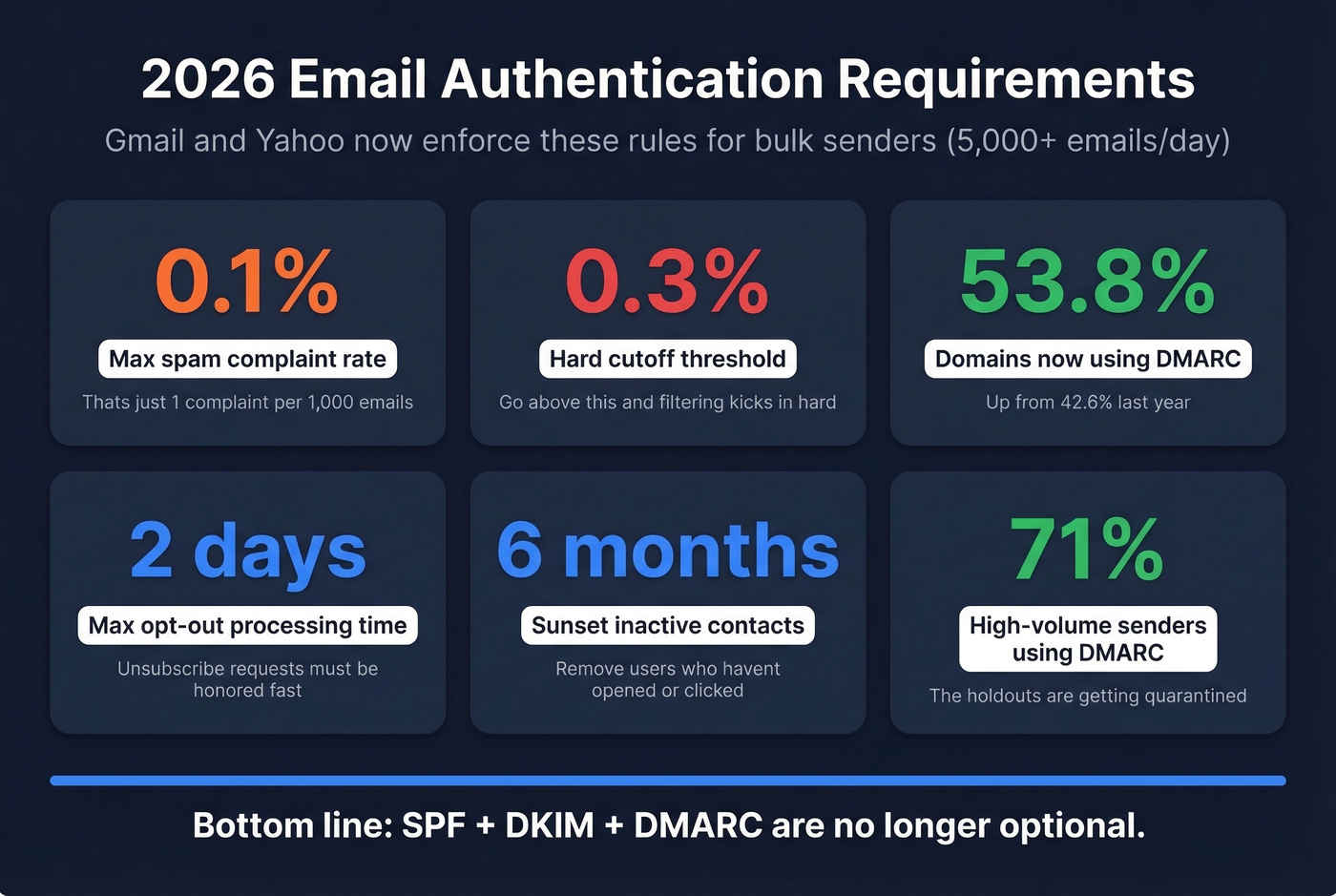
If you send more than 5,000 messages per day to Gmail or Yahoo addresses, you must:
- Authenticate with SPF, DKIM, and DMARC at minimum
p=none - Include one-click unsubscribe via RFC 8058 List-Unsubscribe headers
- Process opt-out requests within 2 days
- Keep spam complaints below 0.1% - that's 1 complaint per 1,000 emails
- Never spike above 0.3%, the threshold where filtering kicks in hard
- Sunset users who haven't opened or clicked in 6 months
DMARC adoption jumped from 42.6% to 53.8% year-over-year, and 71% of high-volume senders now use it. The holdouts are increasingly finding their emails quarantined or rejected outright.

Domain Setup for Outbound Sales
If you're configuring a domain specifically for cold outreach, everything above is table stakes. But outbound has its own layer of infrastructure discipline that trips up even experienced teams. (If you're building the full motion, start with AI cold email outreach.)
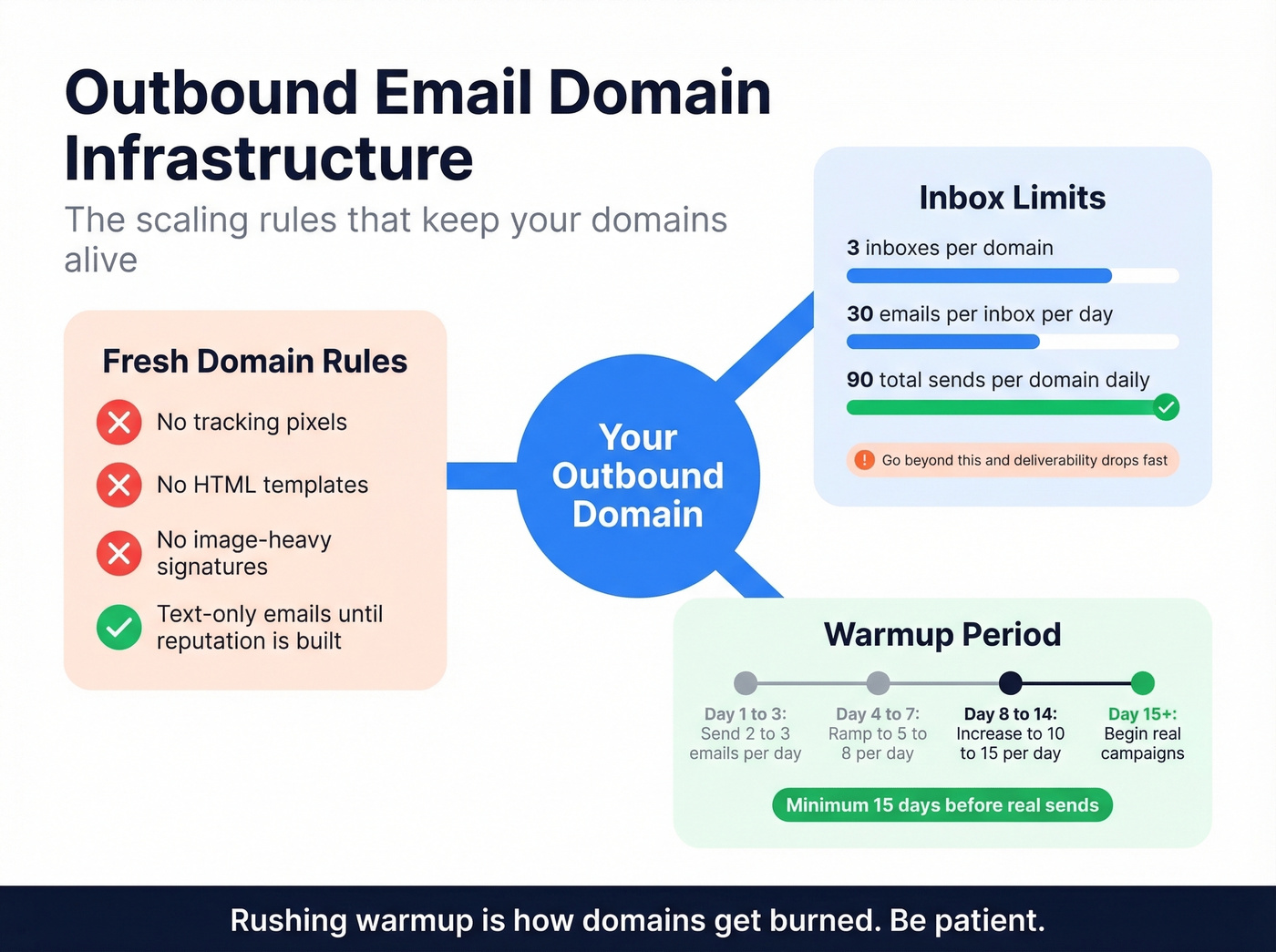
The practitioner consensus on scaling: run about 3 inboxes per domain, cap each inbox at ~30 emails per day, giving you roughly 90 sends per domain daily. Go beyond that and you're asking for deliverability problems. (More on safe sending limits: email velocity.)
Warmup is non-negotiable on fresh domains. Budget at least 15 days before sending any real campaigns. The cold email community is genuinely split on this - some practitioners on r/coldemail swear by dedicated warmup tools, while others report better results with a manual slow ramp starting at 2-3 emails per day and gradually increasing to 10-15. Both approaches work. The key is patience; rushing warmup is how domains get burned.
On fresh domains, send text-only emails. No tracking pixels, no HTML templates, no image-heavy signatures. These are spam signals on domains without established reputation. And 70% of senders don't even use free monitoring tools like Google Postmaster Tools - don't be one of them.
Real talk: Your domain configuration and authentication are only half the equation. If your contact list has a bounce rate above 5%, you'll trigger filtering and reputation damage fast. All that DNS work you just did? Wasted. Only 60% of senders conduct regular list hygiene, which is exactly why bounce-related deliverability problems are so common. (Benchmarks and fixes: email bounce rate.)
Before you send your first campaign, verify every address. Prospeo checks emails in real-time with 98% accuracy using a proprietary 5-step verification process that catches invalid addresses, spam traps, and honeypots - and refreshes its database every 7 days, so you're not sending to addresses that went stale weeks ago. The free tier gives you 75 verifications per month, enough to validate a starter list before you risk your brand-new domain.
Bad data is the fastest way to destroy the domain reputation you just built. One campaign with a 35% bounce rate undoes every DNS record on this page. Prospeo catches spam traps, honeypots, and catch-all domains before you hit send - keeping your bounce rate under 4% like it did for Snyk's 50-person sales team.
Protect your new domain - start with emails that are already verified.
Common Mistakes
Multiple SPF records on one domain. You can only have one. If you add a second TXT record starting with v=spf1, both break. Merge all your include: statements into a single record.
Exceeding the 10 DNS lookup limit. Every include: in your SPF record triggers lookups. Stack too many sending services and SPF fails silently. Use subdomains for separate services or look into SPF flattening.
Jumping straight to DMARC p=reject. Start with p=none, monitor for 2-4 weeks, then escalate. Going straight to reject blocks legitimate email from services you forgot to authenticate.
Wrong MX priorities. If all your MX records have the same priority, failover doesn't work properly. Follow your provider's exact priority values.
Not checking headers after setup. Configuring DNS records and assuming they work is a recipe for silent failures. Send a test email and verify spf=pass, dkim=pass, dmarc=pass in the headers. Every time.
Sending to unverified lists. A 5% bounce rate on a new domain wrecks your deliverability fast. Always validate addresses before your first campaign.
FAQ
Can I get a custom email domain for free?
Yes. Zoho Mail's Forever Free plan supports up to 5 users with 5GB storage each on one custom domain. Cloudflare Email Routing paired with Gmail's "Send mail as" feature is completely free but only handles forwarding - no dedicated mailbox. Both require you to own a domain, which runs about $10/year.
How long does the full setup take?
Active configuration takes 30-60 minutes including SPF, DKIM, and DMARC. DNS propagation usually completes within an hour but can stretch to 48 hours in edge cases. Plan to finish your setup the day before you need to send.
Do I need SPF, DKIM, and DMARC for a small business?
All three. Gmail and Yahoo require authentication for bulk senders, but even low-volume senders see better inbox placement and protection against domain spoofing. There's no good reason to skip any of them in 2026.
How do I handle multiple sending services on one domain?
Use dedicated subdomains for each service rather than cramming every include: into a single SPF record. This keeps you under the 10 DNS lookup limit and isolates deliverability issues per service - if one tool misbehaves, it won't tank your primary domain's reputation.
How do I verify my contact list before sending?
Use a real-time verification tool to catch invalid addresses, spam traps, and honeypots before they damage your domain reputation. Prospeo's free tier includes 75 verifications per month with 98% accuracy - upload a CSV or verify one-by-one, and only send to addresses that pass.