

How to Make a Business Email: The Complete Guide for 2026
You're sending proposals from a Gmail address with your birth year in it. The prospect doesn't say anything, but they notice. A custom business email costs less than lunch - and it's the single easiest credibility upgrade you can make.
Here's the math: at 30 emails per day, that's nearly 11,000 brand impressions per year landing in inboxes with either yourname@yourbrand.com or yourname1987@gmail.com attached. Zoho's data puts custom domain emails at three times the open rate and five times less likely to hit spam compared to free providers. Those are vendor numbers, so take the exact multipliers with a grain of salt - but the directional truth is clear. A custom domain signals legitimacy to both humans and spam filters.
The cost? A domain runs $10-35/year. Email hosting ranges from free to $25/month per user, with most small teams landing around $1-7. You can be fully operational - domain, mailboxes, authentication - in a single sitting.
What You Need Before You Start
Three things: a custom domain (~$10-35/year), an email hosting provider, and 30-60 minutes.
Our opinionated picks by use case:
- Tightest budget: Zoho Mail - free for up to 5 users with 5GB per mailbox and custom domain support
- Easiest setup: Hostinger - $0.99/mailbox with SPF, DKIM, and DMARC enabled by default
- Safe default: Google Workspace - $6.30/user/month, full Gmail interface with your domain, 14-day free trial
If you're a solo founder or a team under five, Zoho's free tier is genuinely hard to beat. If you want zero friction on the technical side, Hostinger handles authentication for you. And if your team already lives in Google's ecosystem, Workspace is the path of least resistance.
Let's be honest: most businesses overthink this decision. Pick the provider that matches your existing workflow, set up authentication properly, and move on. The difference between a $1/month and a $7/month email provider matters far less than whether you configure SPF and DKIM correctly. That's where most people actually fail.
Pick Your Email Provider
| Provider | Best For | Starting Price | Storage | Notes |
|---|---|---|---|---|
| Google Workspace | Teams in Google ecosystem | $6.30/user/mo | 30GB/user | 14-day trial; manual DNS setup |
| Zoho Mail | Free custom domain email | Free (5 users) | 5GB/user | Free tier; guided auth setup |
| Hostinger | Budget + easy auth | $0.99/mailbox | 10GB | SPF/DKIM/DMARC enabled by default |
| Microsoft 365 | Outlook-first teams | ~$6/user/mo | 50GB/user | 1-month trial; manual DNS setup |
| Titan Mail | Bundled budget pick | ~$1.50-3.50/user/mo | Varies | Bundled with Hostinger/Namecheap |
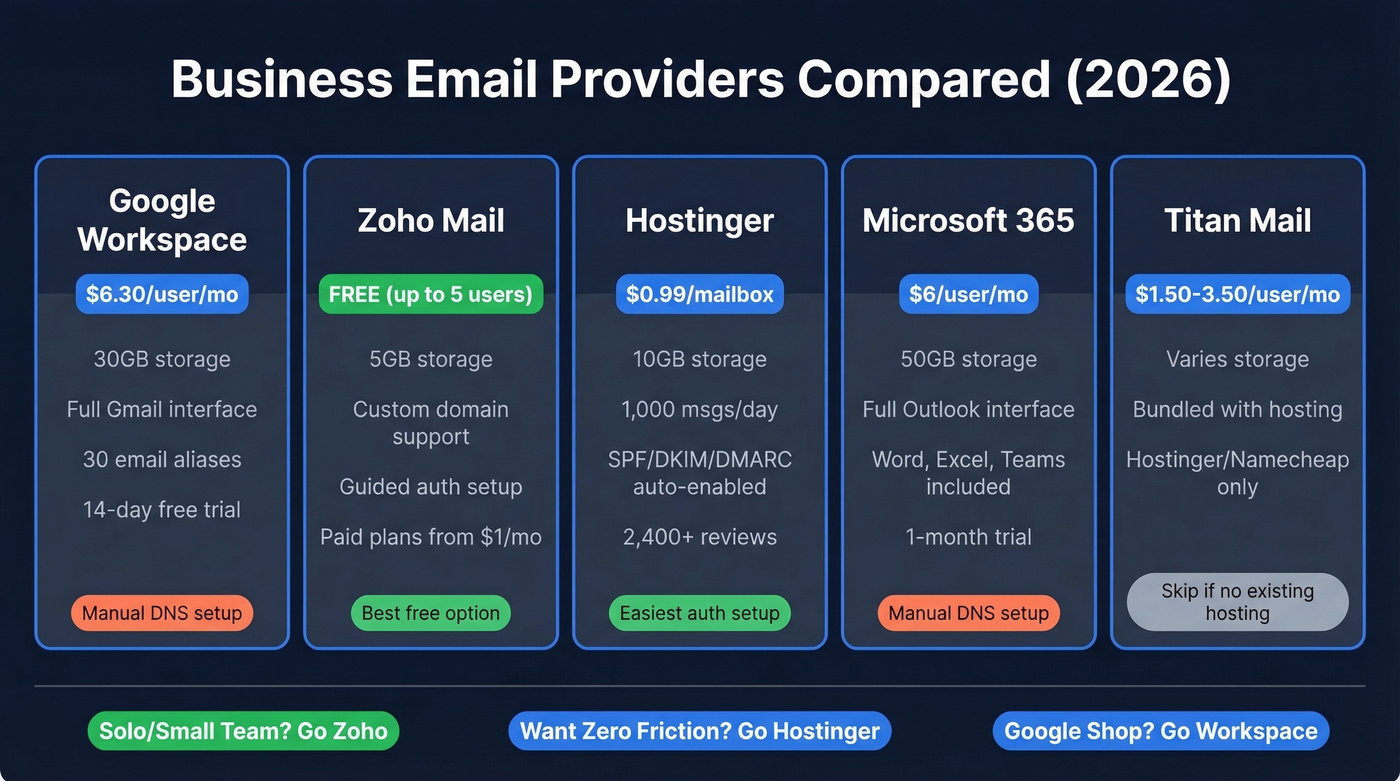
Google Workspace is the safe default for a reason. You get the full Gmail interface - filters, labels, search - running on your custom domain. The Business Starter plan at $6.30/user/month includes up to 30 email aliases and a 14-day free trial. One quirk: Workspace doesn't play nicely with free subdomains from website builders and rejects some extensions like .site domains. Irrelevant for most businesses, but worth knowing if you're on an unusual TLD.
Zoho Mail is the best free option, full stop. Five users, 5GB each, custom domain support, and they walk you through SPF and DKIM configuration step by step. A founder on r/smallbusiness who tested 10 free providers called Zoho "best for small teams... free forever." Paid plans start around $1/user/month if you outgrow the free tier.
Hostinger starts at $0.99/mailbox and has a killer advantage for beginners: SPF, DKIM, and DMARC are enabled by default. No DNS record copy-pasting. The Starter plan gives you 10GB storage and 1,000 messages/day. Premium bumps that to 50GB, 3,000 messages/day, and AI writing tools. With 2,400+ user reviews, it's a well-tested budget pick.
Microsoft 365 Business Basic starts around $6/user/month and gives you the familiar Outlook interface. If your team already uses Word, Excel, and Teams, this is the natural choice. It's comparable to Workspace in price and capability - it really comes down to whether you're a Gmail or Outlook shop.
Titan Mail shows up bundled with Hostinger and Namecheap hosting plans at ~$1.50-3.50/user/month. Skip this if you don't already have hosting with one of those providers - there's no reason to buy hosting just to get Titan.
Two other providers worth mentioning: Migadu is developer-friendly with per-domain pricing that appeals to people running multiple projects. ProtonMail offers strong end-to-end encryption, but the free plan doesn't support custom domains - you'll need a paid plan starting around $4/month.

You're setting up a professional email to look credible. Smart. But the real ROI comes from what you send - and who you send it to. Prospeo gives you 143M+ verified emails at 98% accuracy so your new business address lands in the right inboxes, not spam folders.
Your domain is ready. Now build the pipeline to match.
Step-by-Step Business Email Setup
Register Your Domain
Your domain is your brand's address on the internet. Pick something short, brandable, and easy to spell over the phone. The .com extension is still the default - people trust it instinctively.
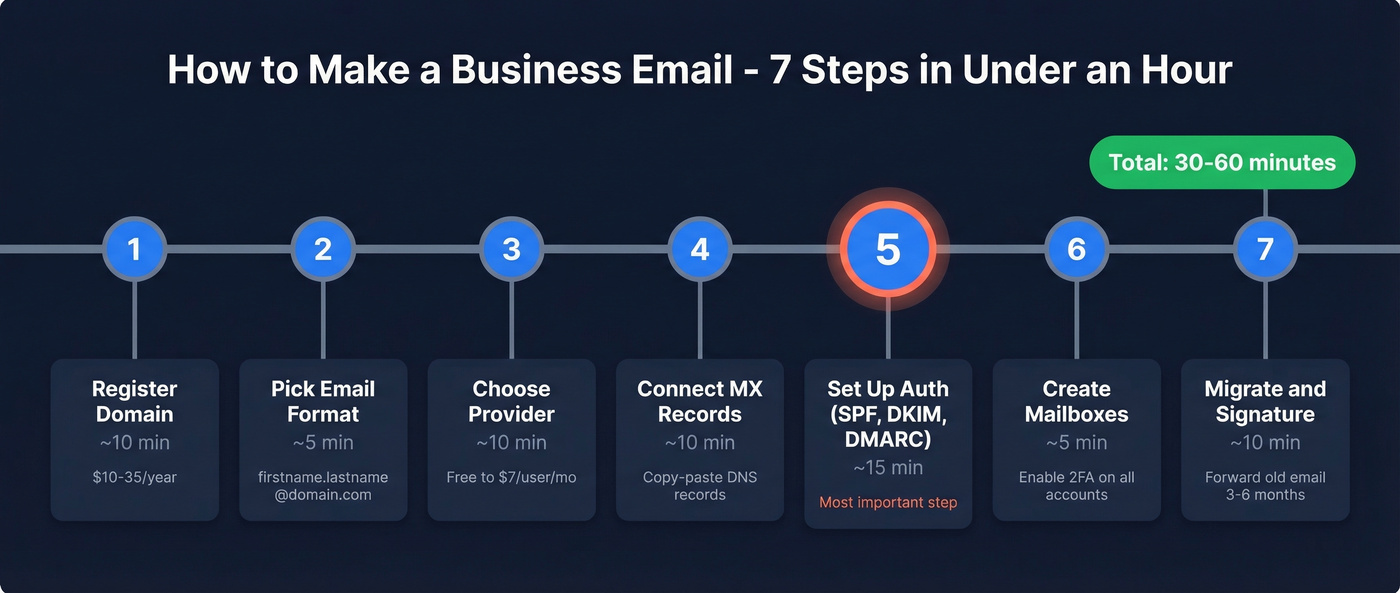
Registrars worth considering: Namecheap (often the cheapest), Cloudflare (at-cost pricing, no markup), and Hostinger (convenient if you're bundling hosting + email). Expect $10-35/year for a standard .com.
Avoid hyphens, keep it under 15 characters if possible, and check that the domain isn't trademarked. If yourcompanyname.com is taken, try adding "hq," "team," or "get" as a prefix before resorting to a different TLD.
Choose Your Email Address Format
The correct business email format follows a simple pattern: firstname.lastname@yourdomain.com. It scales cleanly as you add team members, and it's what recipients expect.
These formats work well:
sarah.chen@acme.com- professional default, most commonsarah@acme.com- works for small teams where first names are uniquesales@acme.com,support@acme.com,info@acme.com- department aliases that forward to real mailboxes
One useful trick: plus-addressing. Emails sent to sarah+newsletter@acme.com still land in Sarah's inbox but can be filtered automatically. Great for tracking where signups come from.
Connect Your Domain (MX Records)
MX records tell the internet where to deliver email for your domain. Think of them as a forwarding address - they point incoming mail to your email provider's servers.
Every provider gives you the exact MX records to copy-paste into your domain registrar's DNS settings. The process is nearly identical everywhere: log into your registrar, find DNS management, add the MX records your email provider specifies, and save.
DNS propagation can technically take up to 48 hours, but in our experience it often resolves within a few hours. Don't panic if email doesn't work immediately - give it time before troubleshooting.
Set Up Email Authentication
This is the section most guides skip entirely. It's also the section that determines whether your emails land in inboxes or spam folders. We've seen teams set up beautiful custom domains and then wonder why every message gets flagged - the answer is almost always missing authentication.
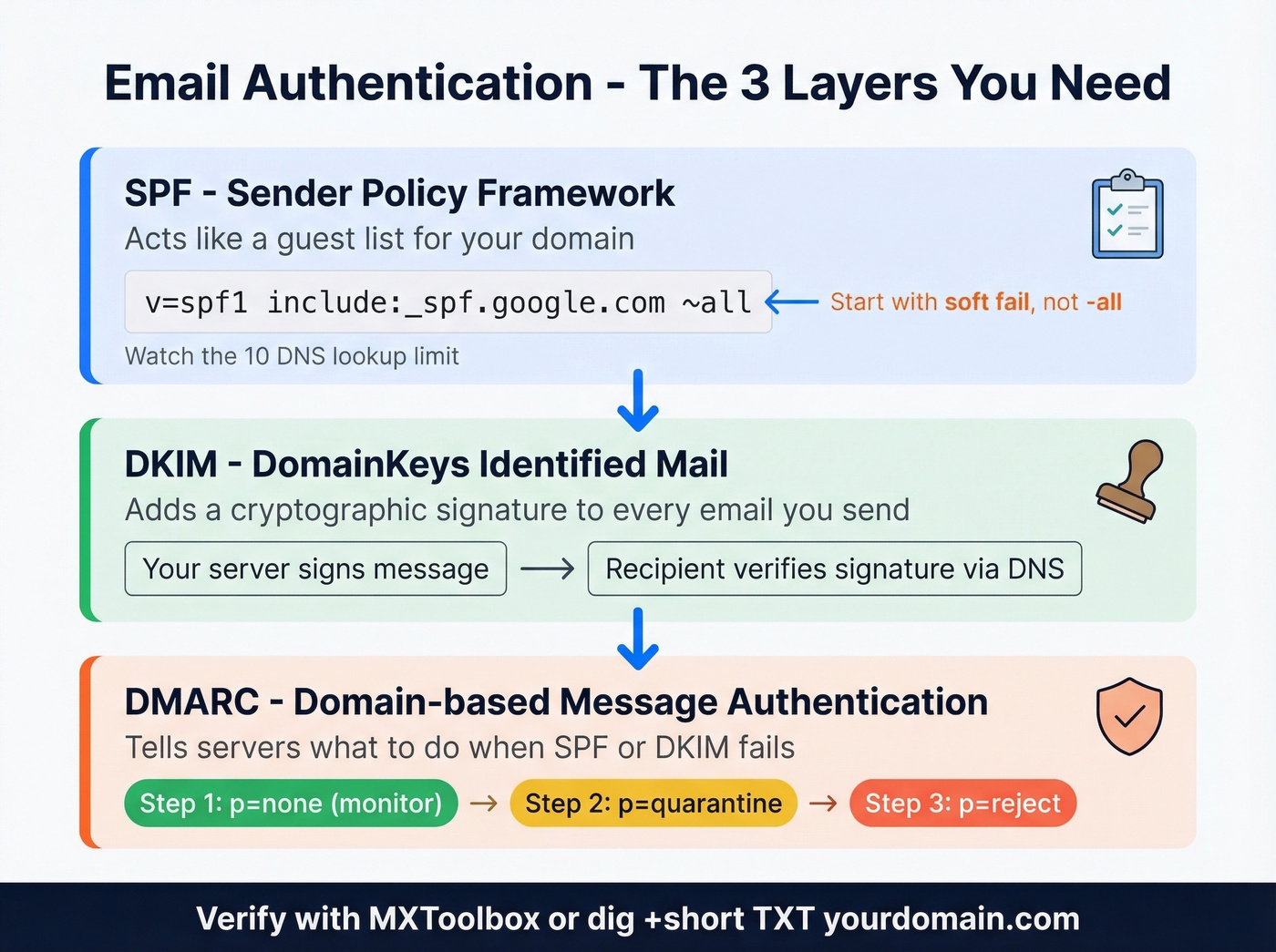
SPF (Sender Policy Framework) is like a guest list for your domain. It's a DNS TXT record that tells receiving servers which mail servers are authorized to send on your behalf. A typical SPF record looks like this:
v=spf1 include:_spf.google.com ~all
The include: mechanism authorizes your provider's servers. The ~all at the end is a soft fail - it tells receivers to be suspicious of unauthorized senders but not reject them outright. A -all (hard fail) is stricter and rejects unauthorized mail entirely. We recommend starting with ~all. I've seen too many teams lock themselves out with -all on day one because a forgotten sending service wasn't included.
Here's something most guides don't mention: SPF has a 10 DNS lookup limit. Every include: mechanism counts as a lookup. If you're using Google Workspace, a marketing tool, and a transactional email service, you can hit that limit fast. Two fixes: use dedicated subdomains for different sending services (like marketing.yourdomain.com for newsletters), or use SPF flattening tools.
DKIM (DomainKeys Identified Mail) works like a wax seal on a letter. Your email provider cryptographically signs outgoing messages, and the receiving server verifies the signature matches your domain's public key. Most providers generate the DKIM key for you - you just add it as a DNS TXT record.
DMARC (Domain-based Message Authentication, Reporting & Conformance) ties SPF and DKIM together. It tells receiving servers what to do when authentication fails.
DMARC Rollout Strategy: Start with
p=noneto monitor without affecting delivery. Review your DMARC reports for a few weeks. Once you're confident legitimate mail is passing, move top=quarantine. Finally, graduate top=reject. Don't jump straight toreject- you'll block your own emails if something's misconfigured.
To verify everything's working, run dig +short TXT yourdomain.com in your terminal or use MXToolbox for a browser-based check.
Create Mailboxes and Passwords
With DNS configured, creating actual mailboxes is straightforward:
- Add each team member with their chosen email format
- Enforce strong, unique passwords - ideally generated by a password manager
- Enable two-factor authentication on every account, no exceptions
- Set up IMAP/SMTP on mobile devices
Even if you're a solo founder, create at least two mailboxes: your personal one and a generic info@ or hello@ for your website contact form.
Migrate Existing Email
Don't abandon your old address overnight. Use your new provider's migration tool to pull in historical emails via POP/IMAP import, and set up forwarding from your old address to your new one - keep this running for at least 3-6 months.
Then update your email address on critical accounts: banking, SaaS tools, domain registrar. Send a brief "new email address" note to key contacts. People will keep emailing your old address for months, and forwarding catches those messages so nothing falls through the cracks.
Set Up Your Email Signature
Keep it simple and mobile-friendly. Your name, title, phone number, and website. Maybe a company logo if it renders well on mobile. That's it.
Skip the inspirational quote, the 47-line legal disclaimer (unless your legal team insists), and the animated GIF. A clean four-line signature looks professional on every device. Test it by sending yourself an email and viewing it on your phone - you'll catch formatting issues immediately. If you want examples that render well across clients, see our guide to good email signatures.
Mistakes That Kill Deliverability
You've got a professional email address. Now don't ruin it.
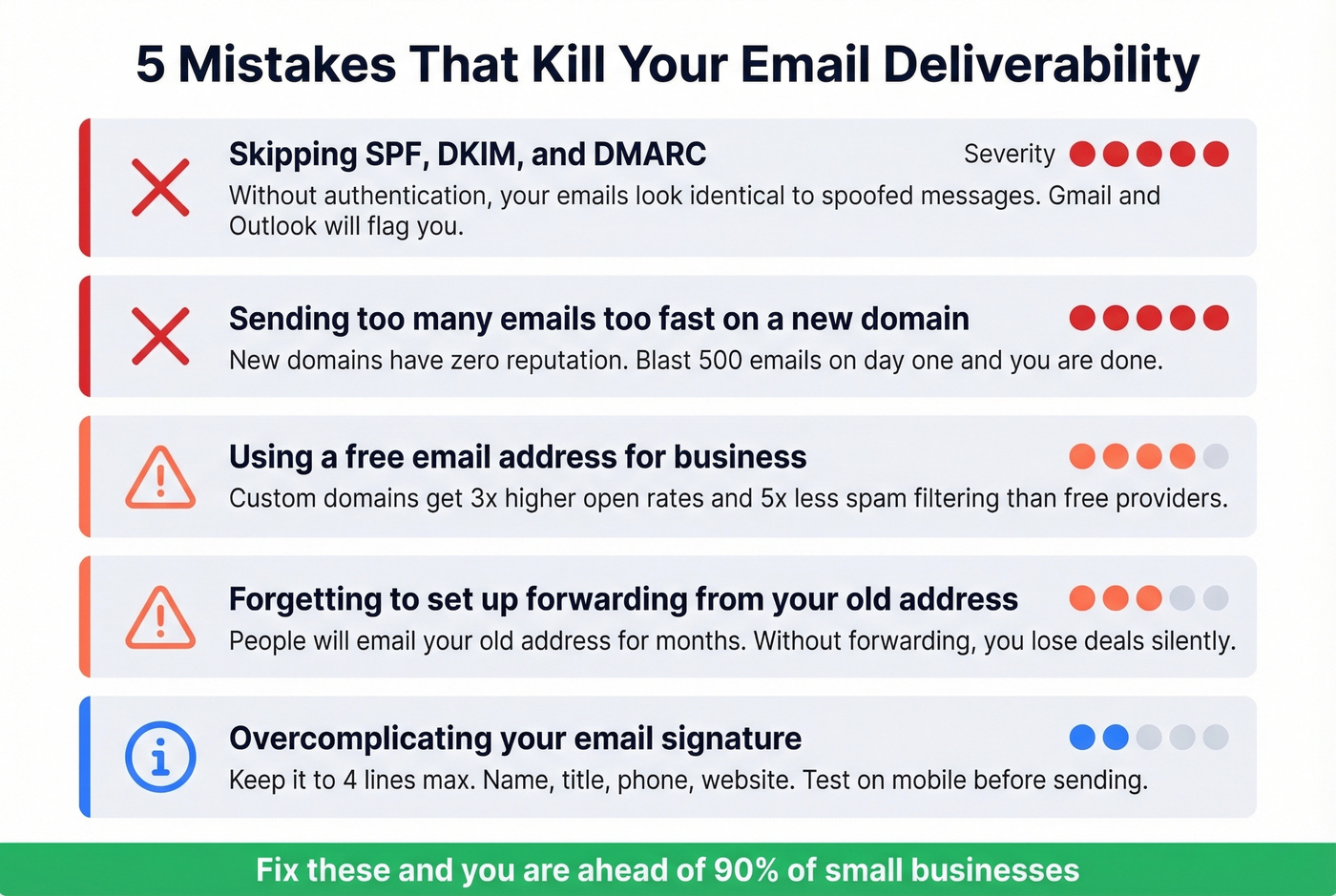
Skipping SPF/DKIM/DMARC. Without authentication, your emails look indistinguishable from spoofed messages. Gmail and Outlook are increasingly aggressive about filtering unauthenticated mail. This is the number one reason new business emails end up in spam. If you’re troubleshooting, our guide on Gmail emails going to spam covers the most common fixes.
Sending too many emails too fast from a brand-new domain. Email providers track sender reputation, and a new domain has none. If you blast 500 emails on day one, you'll trigger spam filters. Warm up gradually - start with 10-20 emails per day and increase over 2-4 weeks. For a deeper setup, follow our cold email domain guide.
Using a new domain for cold outreach without building reputation first. One user on r/webhosting reported leaving mailbox.org because emails "always end up in spam filters by default," suspecting aggressive geo-fencing. Provider choice matters, but so does warming up your sending reputation before going outbound. Pair that with a solid B2B sales cadence so volume ramps safely.
Sending to invalid or unverified email addresses. Every bounce hurts your sender score. A handful of bounces is normal; a 10%+ bounce rate is a red flag that email providers notice immediately. Run your contact list through a verification tool before any outbound campaign. Prospeo's 5-step verification catches spam traps and honeypots with 98% email accuracy - the kind of bad addresses that silently destroy a new domain's reputation. If you want the mechanics, see how to verify email address.
Ignoring your DMARC reports. You set up DMARC at p=none - great. But if you never read the reports, you won't know when something breaks. Check them monthly at minimum. If you suspect reputation issues, use our blacklist checker walkthrough.
From New Inbox to First Outreach
You've got a professional email address, proper authentication, and a clean sender reputation. Now the question becomes: who do you email?

The domain reputation you just built is an asset - and the fastest way to destroy it is sending to bad data. Bounced emails, spam traps, and outdated addresses will undo everything you just set up. We've watched it happen to teams who did everything else right.
Prospeo covers 143M+ verified emails with a 7-day data refresh cycle. Search by job title, company size, or industry, verify every address before sending, and push contacts directly to your sequencer or CRM. If you’re building lists from scratch, our guide to targeted leads is a good next step. The free tier gives you 75 verified emails per month - enough to test whether outbound works for your business before spending a dollar.
You just built a professional email presence. Don't waste it on bad data.
You just spent time perfecting SPF, DKIM, and DMARC to protect deliverability. Don't wreck it by sending to bad data. Prospeo's 5-step email verification keeps bounce rates under 4% - the same reason 15,000+ companies trust it for outbound at scale.
Protect your new domain with emails that actually verify.
FAQ
Can I create a business email for free?
Yes. Zoho Mail offers a free plan for up to 5 users with custom domain support and 5GB per mailbox. Hostinger includes basic email (1GB/mailbox) free with hosting plans in the first year. You'll still need a domain at $10-35/year - so "free" really means $10-35 total for year one.
How long does setup take?
About 30-60 minutes for most providers. Mailbox creation takes under 5 minutes. DNS propagation for MX records can technically take up to 48 hours but often resolves within a few hours. Authentication records propagate on a similar timeline.
Can I use Gmail with my own domain?
Yes, through Google Workspace starting at $6.30/user/month on an annual plan. You get the full Gmail interface - search, labels, filters, mobile apps - running on your custom domain. There's a 14-day free trial to test before committing.
What's an alias vs. a separate mailbox?
An alias (like info@yourdomain.com) forwards to an existing mailbox at no extra cost - no separate login or storage. A dedicated mailbox has its own credentials, inbox, and storage quota. Use aliases for department addresses like sales@ and support@; use mailboxes for individual team members.