

Why Your Gmail Emails Are Going to Spam (And How to Fix It)
Your ESP says "delivered." Your open rates tell a different story. Reply rates cratered, leads went quiet, and nobody bounced - the emails just vanished into spam folders without a trace. We've audited hundreds of email setups, and this silent failure is the most common deliverability problem teams bring to us: Gmail emails going to spam while everything looks fine on the dashboard. Gmail has quietly decided your messages don't belong in the inbox.
This pattern shows up constantly on r/Emailmarketing - senders whose dashboards show "delivered" while Gmail silently spam-folders everything. The fix isn't a checklist of 10 generic tips. It's a diagnostic process that finds the actual cause and resolves it today.
Quick Diagnostic
Before the full breakdown, run through these three steps in order:
- Check your email headers for SPF/DKIM/DMARC failures. Authentication problems are one of the most common causes of messages landing in spam. If any show "fail," that's your answer.
- Check Google Postmaster Tools for your spam rate and compliance status. Above 0.3% spam complaints is a strong negative signal.
- If both look clean, the problem is sender reputation. You need warmup time, list hygiene, and engagement - not more DNS records.
Don't skip to content fixes until you've ruled out authentication and reputation.
How Gmail's Spam Filter Works
Gmail doesn't use a simple keyword blocklist. It runs a layered ML-based filtering system that evaluates every inbound message across multiple signal categories, roughly in this order:
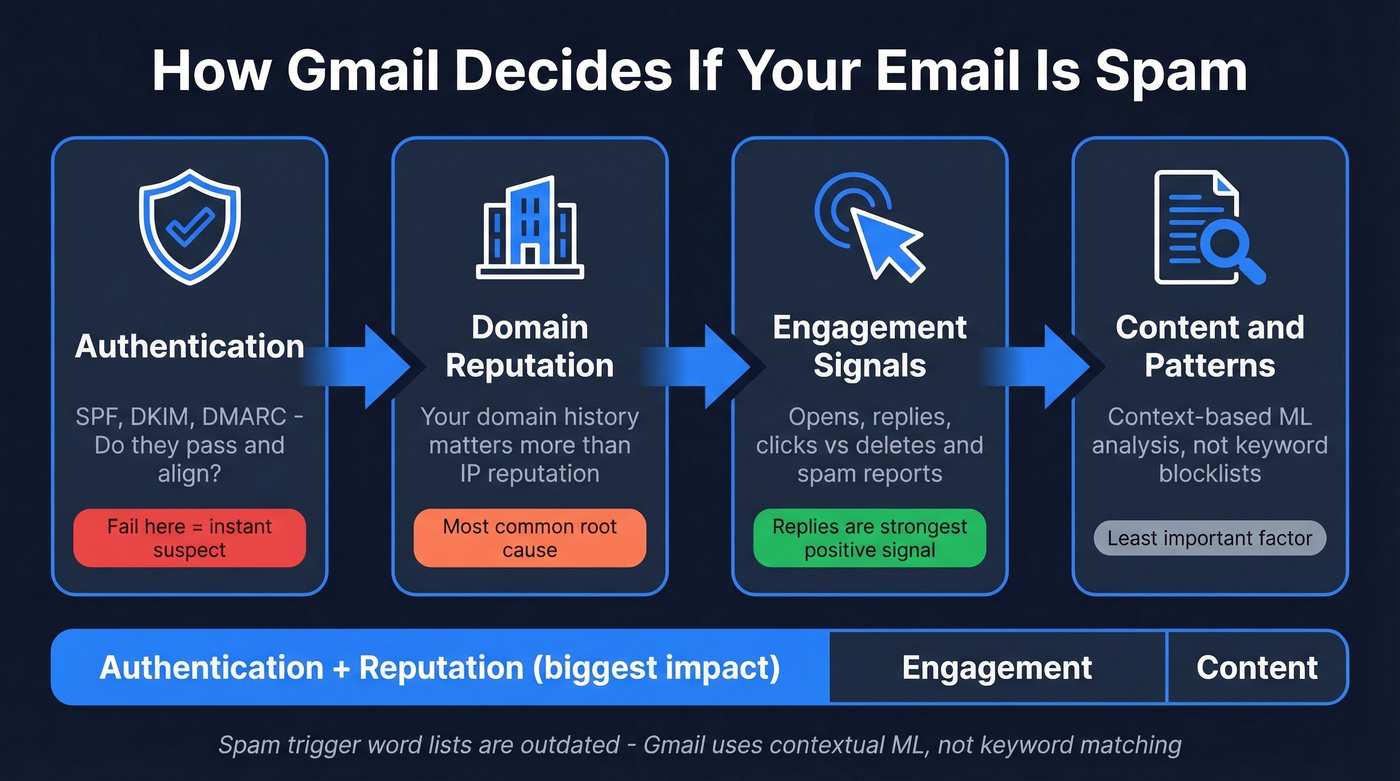
Authentication comes first. Does the sending domain have valid SPF, DKIM, and DMARC records? Do they align? If not, the message is immediately suspect - and for bulk or non-compliant traffic, Gmail can reject it at the SMTP level before it even reaches a spam folder.
Domain reputation is next, and it matters more than IP reputation. Gmail weights domain history heavily because shared IP pools make IP reputation unreliable as a standalone signal. This is often the root cause when you see messages hitting spam despite clean authentication.
Engagement signals follow. Does the recipient read, reply, or click? Or do they delete without opening, or worse, hit "Report Spam"? Replies are a very strong positive signal. Spam reports are devastating.
Content and sending patterns come last. Here's the contrarian take: spam trigger word lists are outdated nonsense. Gmail's filtering is contextual and ML-driven. Writing "free" in your subject line isn't killing your deliverability. Broken authentication and a trashed domain reputation are.
How to Diagnose the Problem
Read Your Email Headers
This is the single most underrated diagnostic step. Open a message in Gmail, click the three dots, select "Show original," and look for the [Authentication-Results](https://support.google.com/mail/answer/180707?hl=en&co=GENIE.Platform%3DDesktop) header. You'll see lines for SPF, DKIM, and DMARC - each showing pass or fail.
If you want a deeper, end-to-end framework, use our email deliverability guide alongside this header check.
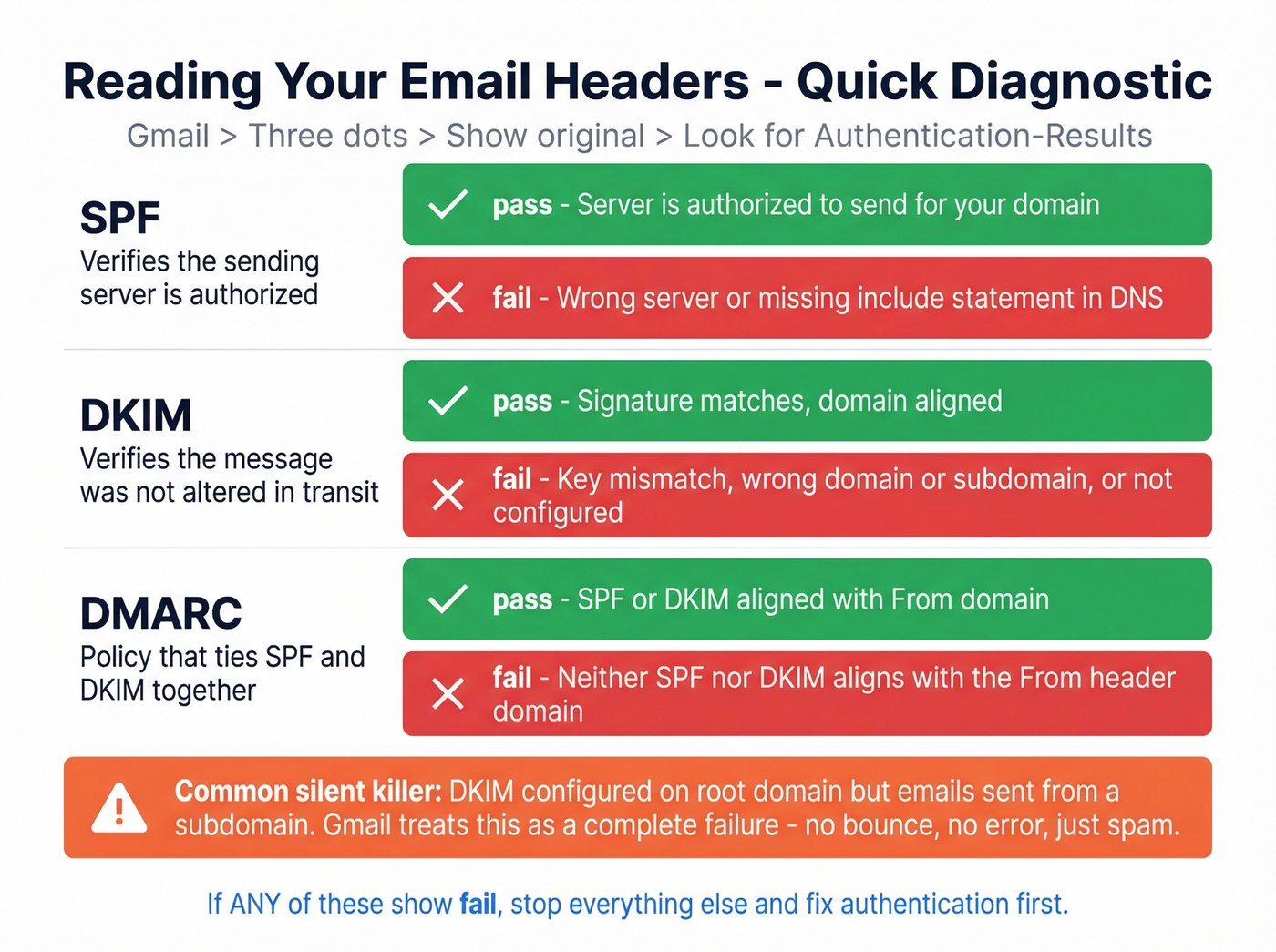
A Klaviyo user on r/Emailmarketing spent three hours diagnosing why a friend's Shopify store emails were all hitting spam. The ESP showed "delivered." But raw headers revealed SPF pointed to an old hosting provider, and DKIM was configured on the root domain while emails sent from a subdomain. Both failed on every message. No bounce, no error - just silent spam placement.
If you see any fail results, stop here. Fix authentication first.
Check Google Postmaster Tools
Google Postmaster Tools gives you two critical dashboards: Compliance Status (SPF, DKIM, DMARC alignment, TLS, one-click unsubscribe) and Spam Rate (percentage of recipients clicking "Report Spam").
Google's target: keep spam complaints below 0.3%.
But here's what most people miss: the spam rate only reflects manual "Report Spam" clicks. It doesn't show automatic spam-folder placement. You can have a 0.1% spam rate in Postmaster Tools while Gmail auto-filters a large chunk of your mail. A clean dashboard isn't proof you're in the inbox.
Check SMTP Error Codes
If you're getting bounces, the error codes tell you exactly what's happening:
| SMTP Code | Meaning |
|---|---|
| 550 5.7.1 | Blocked - blacklisted or spam |
| 554 5.7.1 | Message rejected by server |
| 421 4.7.0 | Temp block, poor reputation |
| 5.7.26 | DMARC/authentication failure |
A 5.7.26 error means broken authentication - go straight to the fix section below. A 421 4.7.0 means Gmail is throttling you based on reputation (see email velocity for safe ramping). If you're seeing 550 5.7.1, run your domain and IP through MxToolbox and Spamhaus to check for blacklistings. One sysadmin on r/sysadmin found their IP listed on Spamhaus for "suspect behavior" and saw warnings for reverse DNS mismatch and TLS issues alongside it.
Fix Your Authentication
In our experience, most Gmail spam issues trace back to this section. If you're trying to figure out why your outbound mail keeps landing in junk folders, start here.
SPF: Your DNS needs exactly one SPF TXT record. For Google Workspace, it must include include:_spf.google.com. If you also send through a third-party ESP, add their include:
v=spf1 include:_spf.google.com include:yourESP.com ~all
Common SPF mistakes that silently break everything:
| Mistake | What Happens |
|---|---|
| Multiple SPF records | SPF fails entirely |
| Missing Google include | Workspace emails fail |
| Syntax errors | Record is ignored |
| Over 10 DNS lookups | SPF permerror, fails |
If you want more examples and provider-specific syntax, see our SPF breakdown.
DKIM: In Google Admin Console, go to Apps > Google Workspace > Gmail > Authenticate Email. Generate your DKIM key, then add the DNS TXT record. Make sure DKIM is set up for the exact domain or subdomain you're sending from. The Klaviyo case failed because DKIM was on the root domain while emails went out from a subdomain - Gmail treats that as a complete failure. If you’re unsure, follow this quick checklist to verify DKIM is working.
DMARC: Start with a monitoring-only policy:
v=DMARC1; p=none; rua=mailto:dmarc-reports@yourdomain.com
This tells Gmail you're authenticating and gives you reports. After you've reviewed reports and confirmed alignment, move to p=quarantine and eventually p=reject. In the Klaviyo/Shopify case, fixing SPF + DKIM + adding DMARC resulted in the next campaign landing in the inbox within hours. For the nuance around alignment, read our DMARC alignment guide.

Most Gmail spam problems start with bad email data. Sending to invalid, outdated, or catch-all addresses tanks your domain reputation - the exact signal Gmail weighs heaviest. Prospeo's 5-step verification with catch-all handling, spam-trap removal, and honeypot filtering delivers 98% email accuracy. Our data refreshes every 7 days, not the 6-week industry average that leaves you blasting dead addresses.
Stop fixing symptoms. Fix the data that's destroying your sender reputation.
Build Sender Reputation
Warmup Schedule
Even with perfect authentication, a new domain has zero reputation. Gmail doesn't trust you yet - and we've seen fresh IPs get blocked within roughly 12 hours of setup, even with everything configured correctly. That frustrates teams who did everything "right" technically but skipped the warmup.
If you’re actively trying to recover, this pairs well with our guide on how to improve sender reputation.
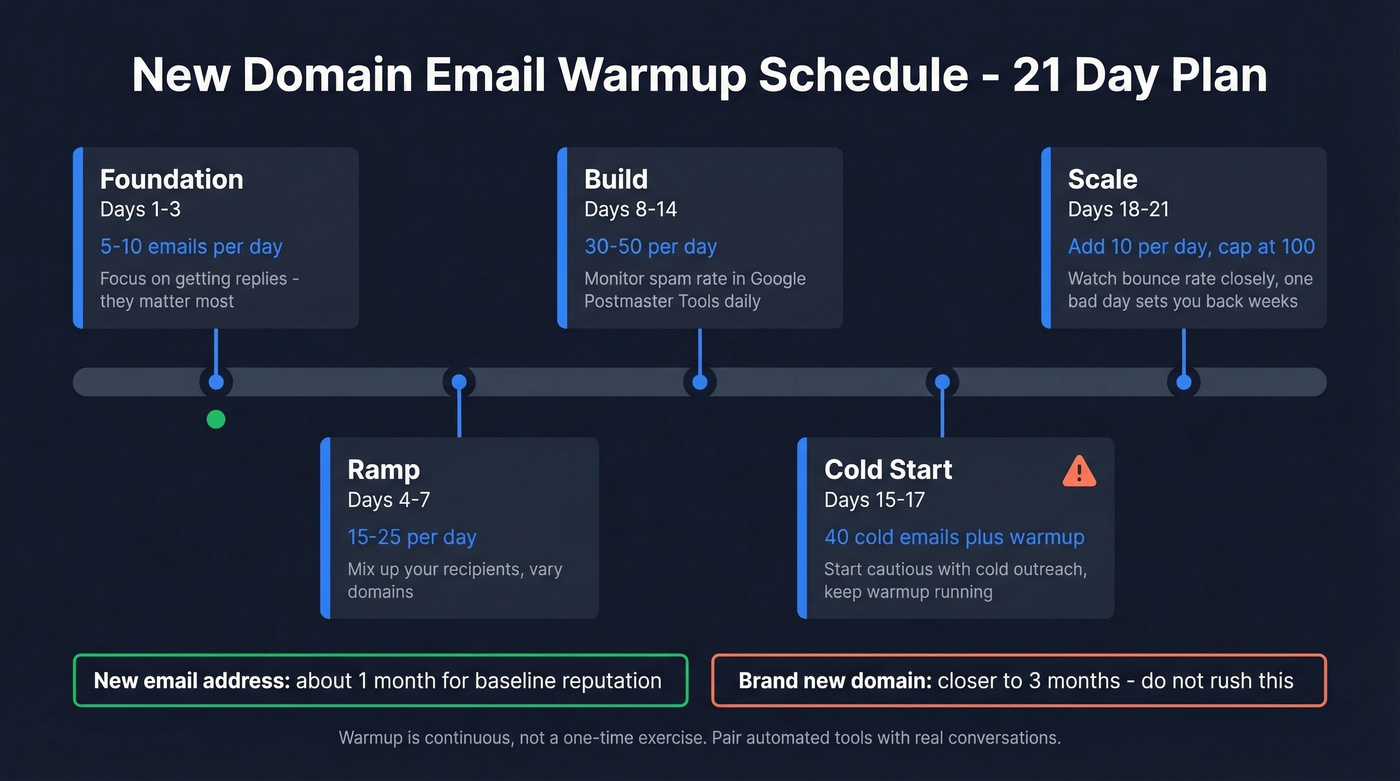
| Phase | Days | Volume | Notes |
|---|---|---|---|
| Foundation | 1-3 | 5-10/day | Replies matter most |
| Ramp | 4-7 | 15-25/day | Mix recipients |
| Build | 8-14 | 30-50/day | Monitor spam rate |
| Cold start | 15-17 | 40 cold + warmup | Start cautious |
| Scale | 18-21 | +10/day, cap 100 | Watch bounce rate |
Expect about a month for a new email address to build baseline reputation, and closer to three months for a brand new domain. Don't rush this. One bad day can set you back weeks.
Let's be honest about warmup: it needs to be continuous, not a one-time two-week exercise. Gmail weights engagement quality signals like reading and replying. SMTP-only warmups are weaker than real inbox engagement, so pair automated tools with actual conversations.
Gmail Sending Limits
| Account Type | Daily Limit |
|---|---|
| Free Gmail (SMTP) | 100/day |
| Free Gmail (browser) | 500/day |
| Google Workspace | 2,000/day |
| Workspace trial | 500/day |
Hitting these ceilings doesn't just stop your sends - it can flag your account for review.
Clean Your Contact List
This is where silent reputation damage happens. Sending to invalid addresses and spam traps tanks deliverability without any visible warning. Bounces above 2% actively damage your sender reputation (see email bounce rate benchmarks and fixes). And spam traps - recycled or planted addresses used to catch senders with poor list hygiene - don't bounce at all. They just quietly report you.
Do this: Remove anyone who hasn't engaged in 6+ months. Run your entire list through verification before every major campaign. Strip hard bounces immediately.
Skip this if you value your domain: Buying lists. Scraping without verification. Assuming a list from last quarter is still clean. Data decays fast - what was a valid contact in January can be a spam trap by June.
If you suspect traps already made it in, follow a dedicated spam trap removal remediation playbook.
Before any campaign, run your list through Prospeo's email verification. Its 5-step verification process catches invalid addresses, spam traps, and honeypots at 98% accuracy - the kind of silent list problems that cause reputation damage without any visible bounces. The free tier gives you 75 verifications per month to test it.

Stack Optimize built a $1M agency on Prospeo data: 94%+ deliverability, under 3% bounce rate, zero domain flags across every client. Snyk cut bounce rates from 35-40% to under 5% across 50 AEs. When your contact data is verified at $0.01 per email with proprietary infrastructure - not recycled third-party lists - Gmail stops treating you like spam.
Your domain reputation is only as good as the emails you're sending to.
Fix Your Content and Formatting
Content matters less than authentication and reputation, but it can still tip the scales.
If you need a practical framework for writing emails that earn replies (the engagement signal Gmail loves), use our email copywriting guide.
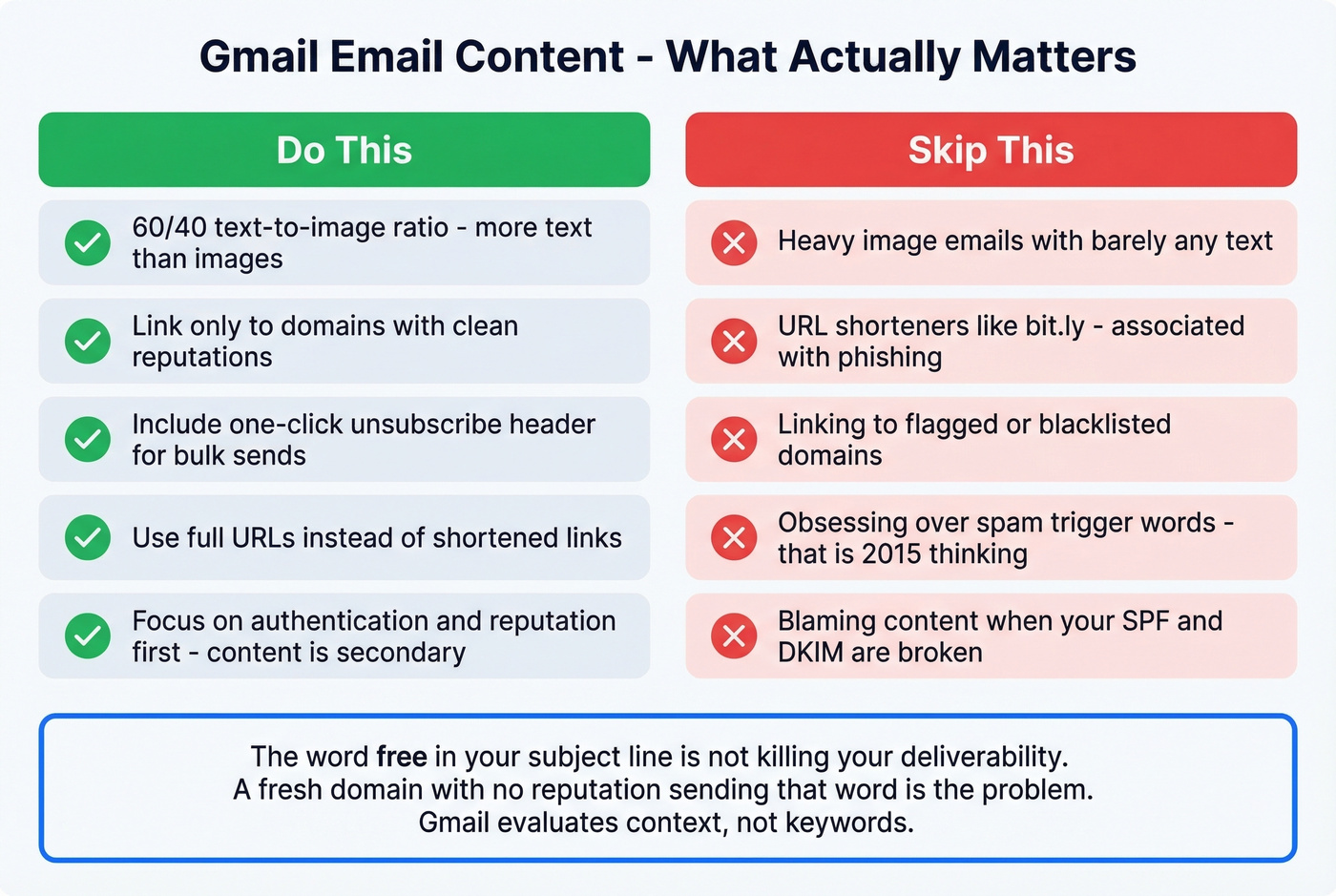
Keep your image-to-text ratio around 60/40 in favor of text. Heavy-image emails with minimal text look like marketing spam to Gmail's filters. Don't use URL shorteners - they're associated with phishing. Link only to domains with clean reputations, because if you're linking to a flagged domain, it drags your email down with it.
Look, obsessing over "spam trigger words" is 2015 thinking. Gmail's ML models evaluate context, not individual words. An email with "free" in the subject from a reputable sender with good engagement history lands in the inbox. The same word from a fresh domain with no reputation won't. The word isn't the problem - the sender is.
For bulk senders, include a one-click unsubscribe header.
Google's Bulk Sender Requirements
If you're sending 5,000+ messages per day to Gmail addresses, you're a bulk sender in Google's eyes. Gmail has increasingly enforced these requirements with SMTP-level rejections for non-compliant traffic - your messages don't just go to spam, they bounce.
The requirements:
- Full authentication: SPF + DKIM + DMARC all passing and aligned
- Spam complaint rate below 0.3%
- One-click unsubscribe in the email header
- Valid forward and reverse DNS records
- TLS encryption for transmission
Failing these triggers a compliance "Fail" in Postmaster Tools and can lead to outright rejection. If you're a bulk sender who hasn't checked compliance recently, do it today.
If you’re scaling outreach, also review the best way to send bulk email without getting blacklisted.
Recipient-Side Fixes
Sometimes the problem isn't on the sender's side. If a trusted sender's messages keep hitting your spam folder, here's how to fix it on your end.
Mark as Not Spam. Open the message in your Spam folder and click "Not Spam." Gmail learns from this for future messages from that sender.
Add to Contacts. Go to Google Contacts and add the sender's email address. Gmail is far less likely to spam messages from your contacts.
Create a Filter. Go to Settings > Filters and Blocked Addresses > Create a new filter. Enter the sender's address, click "Create filter," and check "Never send to Spam." This is the most reliable per-recipient fix to prevent Gmail emails going to spam from a specific sender.
These are per-recipient fixes. They won't help if you're the sender - but they're worth sharing with recipients who report missing your emails.
FAQ
How Long Does It Take to Fix Spam Placement?
Authentication fixes can restore inbox placement within hours. Reputation recovery takes 2-4 weeks for a damaged address, and up to 3 months for a brand new domain building trust from scratch. Monitor Postmaster Tools daily during recovery.
Can One Bad Campaign Ruin My Reputation?
Yes. One campaign with a bounce rate above 2% or spam complaints above 0.3% can trigger filtering that persists for weeks. Pause sending, clean your list with a verification tool, and ramp back slowly at 25% of your previous volume.
Why Do Sent Emails From Gmail Land in Recipients' Spam?
The most likely causes are broken SPF/DKIM authentication, a new or damaged domain reputation, or sending volume that exceeds what your warmup supports. Check your email headers first, then Postmaster Tools, then focus on reputation building with the warmup schedule above.
Is Free Gmail or Workspace Better for Deliverability?
Free accounts cap at 100/day via SMTP versus 2,000/day for Workspace, and free Gmail doesn't give you admin-level DKIM controls. For any serious outbound sending - cold outreach, newsletters, transactional mail - Workspace is the baseline.
How Do Spam Traps End Up on My List?
Spam traps are recycled addresses or planted honeypots designed to catch senders with poor list hygiene. They appear on purchased lists, scraped databases, and any list that hasn't been verified recently. Running verification before every campaign removes them.