

How to Send Mass Emails in Gmail Without Getting Flagged
You've got a spreadsheet of 500 contacts, a Gmail account, and a deadline. The campaign needs to go out today. You start pasting addresses into the BCC field and immediately wonder: will Gmail lock my account? Will everything land in spam?
Here's what most guides won't tell you: starting in late 2025, Gmail moved into an enforcement phase where non-compliant messages get rejected at the SMTP level with specific error codes. The rules changed. Most senders haven't caught up.
With 1.8 billion Gmail users worldwide, sending mass emails in Gmail without getting flagged comes down to three things: picking the right method, cleaning your list, and respecting the limits. We've tested all three approaches below and broken down exactly where each one falls apart.
Pick Your Method by List Size
| List Size | Method | What You Need |
|---|---|---|
| Under 50 | Gmail BCC | Free Gmail, no tools |
| 50-500 | Mail merge or add-on | Workspace plan or Mailmeteor |
| 500+ | Dedicated add-on + list verification | GMass/YAMM + verified data |
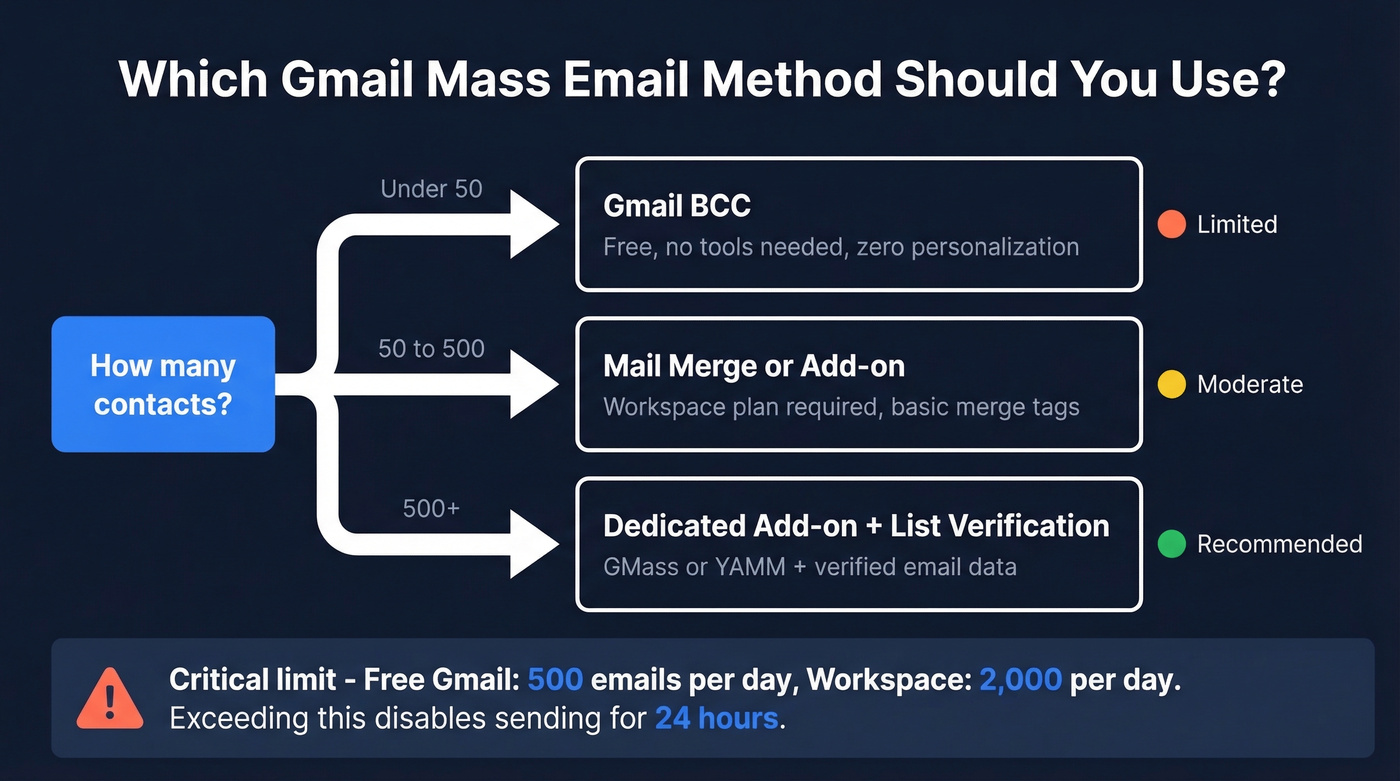
One critical number to memorize: Gmail caps you at 500 emails/day on free accounts and 2,000/day on paid Workspace plans. Exceed either limit and outbound sending gets disabled for about 24 hours.
For lists over 500, verify every address first. Bounces are what get accounts flagged, not volume alone.
Gmail Sending Limits Explained
Gmail's limits aren't as straightforward as "500 per day." They run on a rolling 24-hour window, not a midnight reset. Send 300 emails at 2pm and another 250 at 8pm, and you're at your ceiling until 2pm tomorrow. In our testing, the rolling window caught us off guard - we hit the limit at 3pm and couldn't send again until the next afternoon.
| Account Type | Daily Limit | Notes |
|---|---|---|
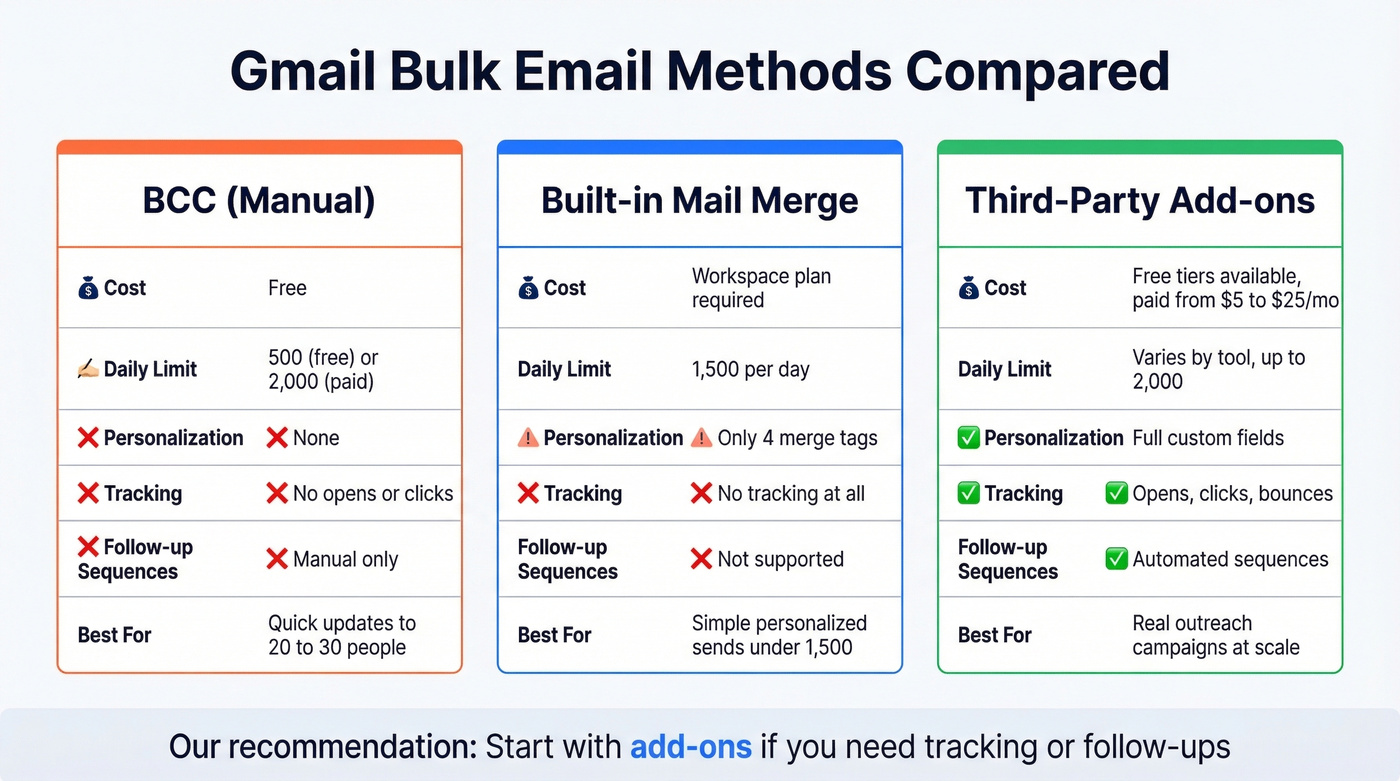
| Free Gmail | 500/day | Per rolling 24h window |
| Workspace (paid) | 2,000/day | Same rolling window |
Everything counts toward your quota: CC'd recipients, BCC'd recipients, emails sent from aliases, vacation auto-responders, mobile sends, and messages sent by delegated senders. One email BCC'd to 500 people counts as 500 sends, not one. This is the detail that burns people most often, because the quota disappears far faster than anyone expects when they're sending bulk email through Gmail for the first time.
Hit the wall and your sending just stops. No countdown timer, no warning. You wait. Repeatedly slamming into the limit also raises the risk of your account being flagged or restricted long-term.
Three Methods for Bulk Gmail Sends
Method 1: BCC (Quick and Dirty)
Let's be honest - this is a hack from 2008. But it still works for tiny sends.
- Open Gmail and click Compose
- Click BCC in the header fields
- Paste your email addresses (up to ~90 recipients per email)
- Write your message and hit Send
No personalization, no tracking, no merge tags. Every recipient sees the same generic message. If someone accidentally replies-all, everyone on the list gets it. Sending to 400 people? That's 5 separate emails you have to compose and send manually.
Use this if: You're emailing 20-30 people a quick update and don't care about personalization.
Skip this if: You're doing anything that could be called "outreach." BCC emails look and feel like spam because they are, functionally, spam. There's no way to send each message individually - every recipient gets the exact same copy with zero personal touch.
Method 2: Gmail's Built-In Mail Merge
Google added native mail merge in 2023 and updated it in 2024 to work with Google Sheets. Calling it anything other than underwhelming in 2026 would be generous.
Here's the exact flow:
- Open Gmail and click Compose
- In the To field, click the Use mail merge icon (the people icon with a plus sign)
- Check the Mail Merge box - the composer turns purple and Send becomes Continue
- Add recipients from Google Contacts or import from a Google Sheet
- Type
@in the body to insert merge tags - Click Continue, preview your merge, then Send all
The merge tag options are painfully limited: @first name, @last name, @full name, and @email. Four tags. No custom fields, no company name, no job title.
You can set default values for missing fields, so contacts without a first name get "Hi there" instead of a blank. That's a band-aid, not a feature.
Mail merge is capped at 1,500 people per day and it's only available on paid Workspace plans: Business Standard, Business Plus, Enterprise Standard/Plus, and Education Standard/Plus. Free Gmail accounts don't get it at all. There's no open tracking, no click tracking, no scheduling, and no automated follow-ups. If you need any of those - and for outreach, you almost certainly do - you need an add-on.
Method 3: Third-Party Add-Ons
This is where most people end up. Gmail add-ons plug directly into your inbox and unlock the features Google won't build natively: follow-up sequences, A/B testing, send throttling, and real tracking.
| Tool | Free Tier | Paid From | Send Limit | Key Feature |
|---|---|---|---|---|
| GMass | 50/day (7-day trial) | ~$25/mo | Workspace limit | Follow-ups, A/B tests |
| YAMM | 20/day | $25/yr Personal; $50/yr Pro | 400/day Personal; 1,500/day Pro | Simple Sheets-based merge |
| Mailmeteor | 500/month | $4.99/mo Starter | 500/month free; higher on paid | Clean UI, easy setup |
| Brevo | 300/day | $9/mo Starter | Scales with plan | Full ESP (leaves Gmail) |
GMass is the power tool. It lives inside Gmail as a Chrome extension and handles follow-up sequences, throttling, and deliverability diagnostics. The 7-day trial gives you 50 sends per day to test it. YAMM is a solid budget pick if you're already comfortable with Google Sheets, though it lacks bounce/spam protection, so treat it as a one-shot sender rather than a campaign engine. Mailmeteor is the simplest option for occasional sends. And Brevo is the off-ramp for when you've outgrown Gmail entirely - it's a standalone ESP with its own sending infrastructure.
The consensus on r/Entrepreneur lines up with our experience: Mailmeteor, GMass, and YAMM are the three names that surface in every "how do I send bulk from Gmail" thread. If you're already sending weekly campaigns, skip the add-ons and jump to the "When to Move Beyond Gmail" section below.
Verify Your List Before You Send
Here's the step every other guide skips. Your last mass email had a 12% bounce rate. Half the addresses were dead. And now Gmail is watching your account more closely.
Bounces are one of the fastest ways to trigger spam detection and account restrictions. Keep your bounce rate under 2%.

Before you compose a single word, run your list through verification. Prospeo's 5-step process handles syntax checks, domain validation, mailbox pings, catch-all domain handling, and spam-trap removal - delivering 98% email accuracy on the addresses that come back valid. The free tier gives you 75 verifications per month, and larger lists work out to roughly $0.01 per email. Upload a CSV, get results in minutes, export a clean list. Think of it as Step 0: the thing you do before you even open the compose window.

Gmail disables sending after too many bounces - and most lists have 10-15% invalid addresses. Prospeo's 5-step verification catches dead mailboxes, spam traps, and catch-all domains before you hit send. 98% accuracy. $0.01 per email.
Clean your list in minutes. Send your campaign without the anxiety.
What Changed in 2026: Gmail's Enforcement Phase
This is the biggest shift in Gmail bulk sending in years.
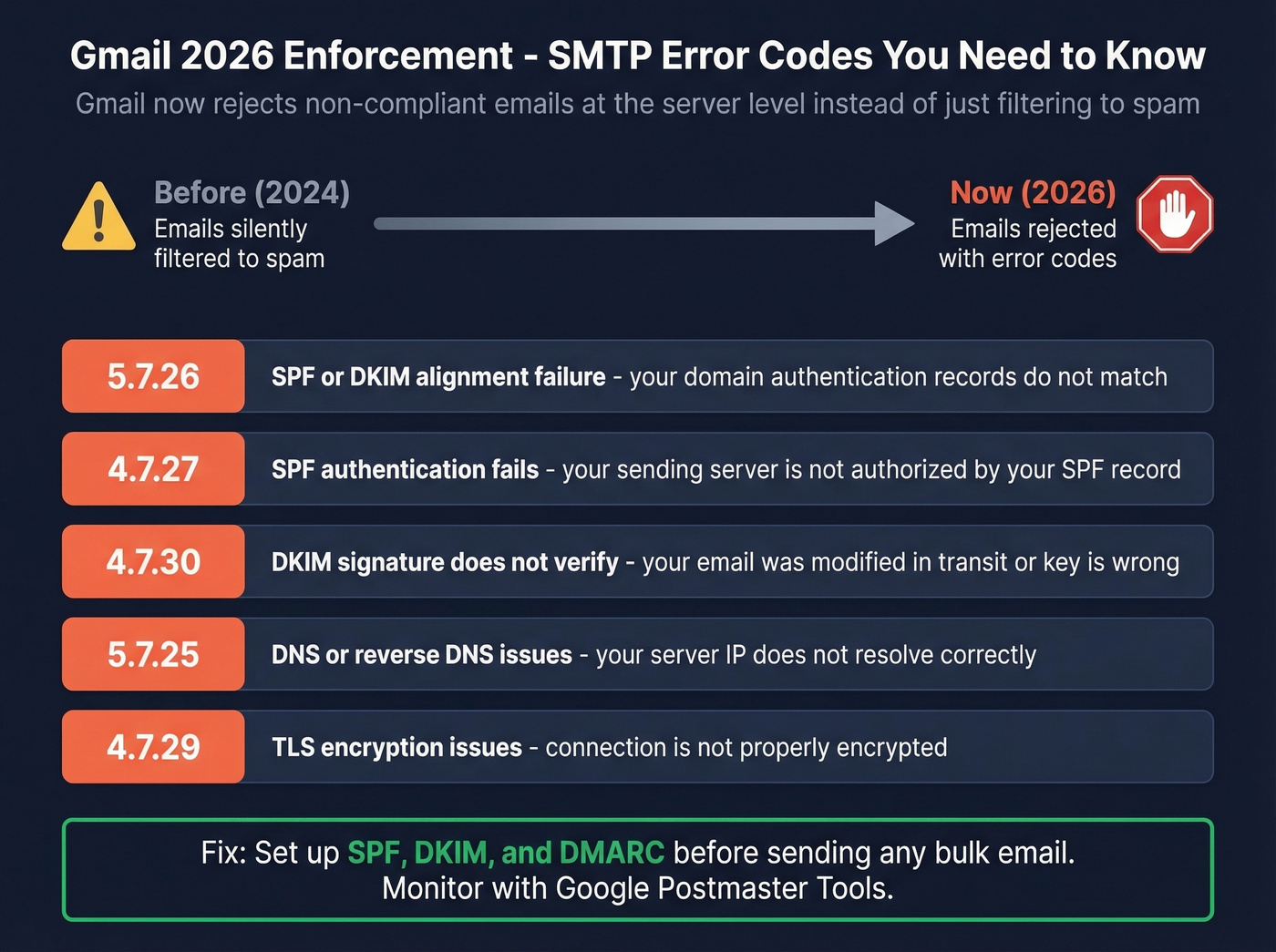
Starting in late 2025, Gmail escalated from basic filtering to actively rejecting non-compliant messages at the SMTP level. Your emails don't just disappear into spam anymore - they bounce back with specific error codes telling you exactly what's wrong.
Common error codes you'll see in bounce-back messages:
- 5.7.26 - SPF/DKIM alignment failure
- 4.7.27 - SPF authentication fails
- 4.7.30 - DKIM signature doesn't verify
- 5.7.25 - DNS/rDNS issues
- 4.7.29 / 5.7.29 - TLS encryption issues
Google's Postmaster Tools v2 also shifted toward a binary Pass/Fail compliance status. You're either compliant or you're not.
This matters even for legitimate mail merge campaigns. If your domain authentication isn't set up correctly, these rejections will hit you. The enforcement applies to messages sent to personal Gmail addresses (@gmail.com and @googlemail.com) - which is a huge chunk of any B2B contact list where people use personal accounts alongside work email.
Deliverability Best Practices
Getting past Gmail's filters takes more than good content. Here's the checklist we use:
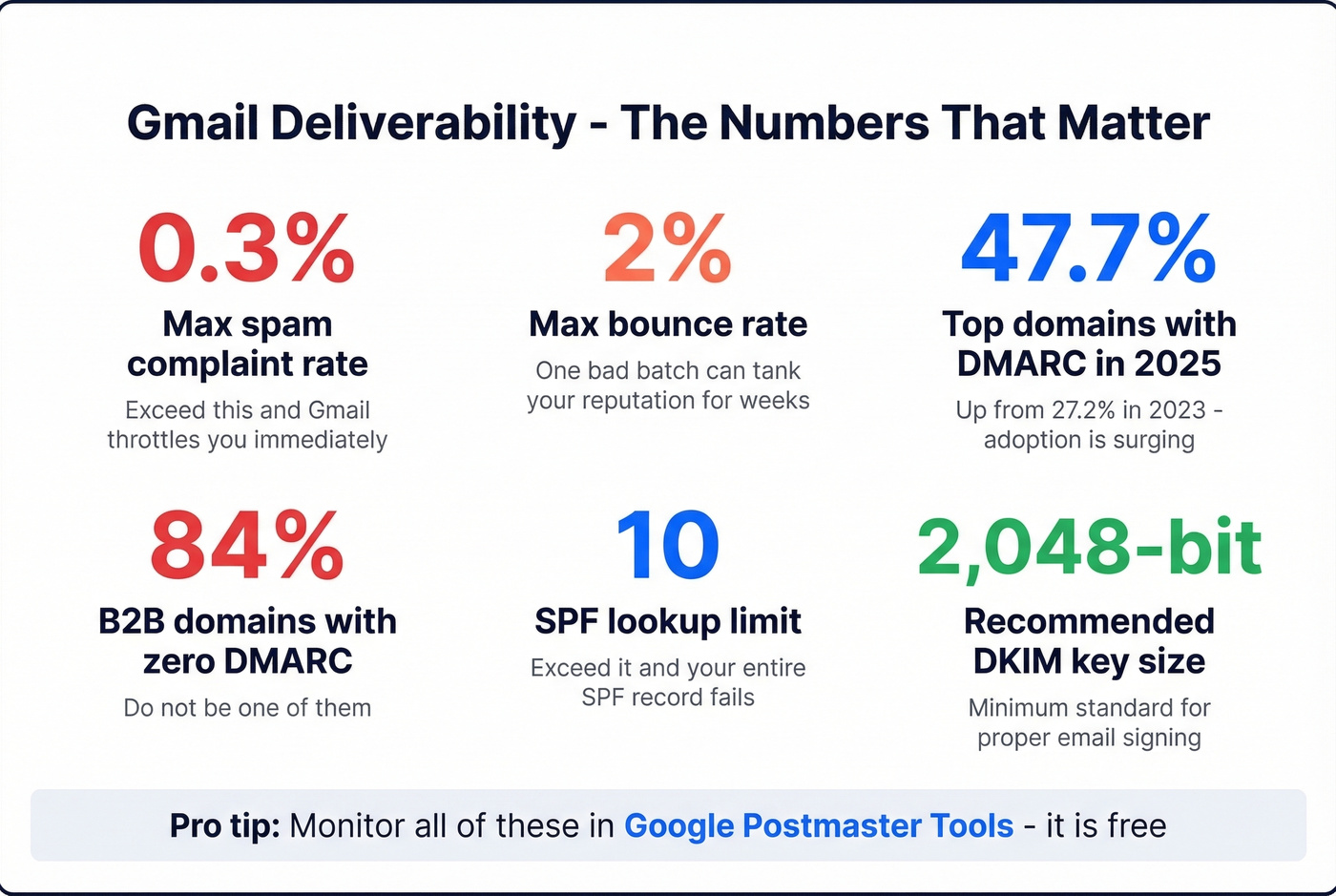
Set up SPF, DKIM, and DMARC. SPF has a 10-lookup limit - exceed it and the whole record fails. Use 2048-bit keys for DKIM. DMARC adoption has surged from 27.2% to 47.7% among the top 1.8 million domains between 2023 and 2025, but 84% of B2B sending domains still have zero DMARC protection. Don't be one of them.
Keep spam complaints under 0.3%. Google's threshold is firm. Exceed it and you'll see immediate throttling.
Keep bounce rate under 2%. This is where list verification pays for itself. One bad batch can tank your sender reputation for weeks. If you want a deeper breakdown of bounce codes and what they mean, start with bounce rate.
Warm up gradually. Don't send 2,000 emails on day one from a new Workspace account. Start with 50, then 100, then scale up over two weeks. Patience here saves you months of reputation repair later. If you're trying to systematize this, use a clear email velocity plan.
Monitor with Google Postmaster Tools. It's free, it shows your domain reputation, and it's the only way to see how Gmail actually views your sending behavior. Pair it with a few email reputation tools so you can spot issues early.
Include a real unsubscribe link. Not buried in size-8 font at the bottom. A visible, one-click unsubscribe that actually works. For copy patterns that keep you compliant and get clicks, see email call to action.
Legal Compliance
Two laws matter here, and they work differently:
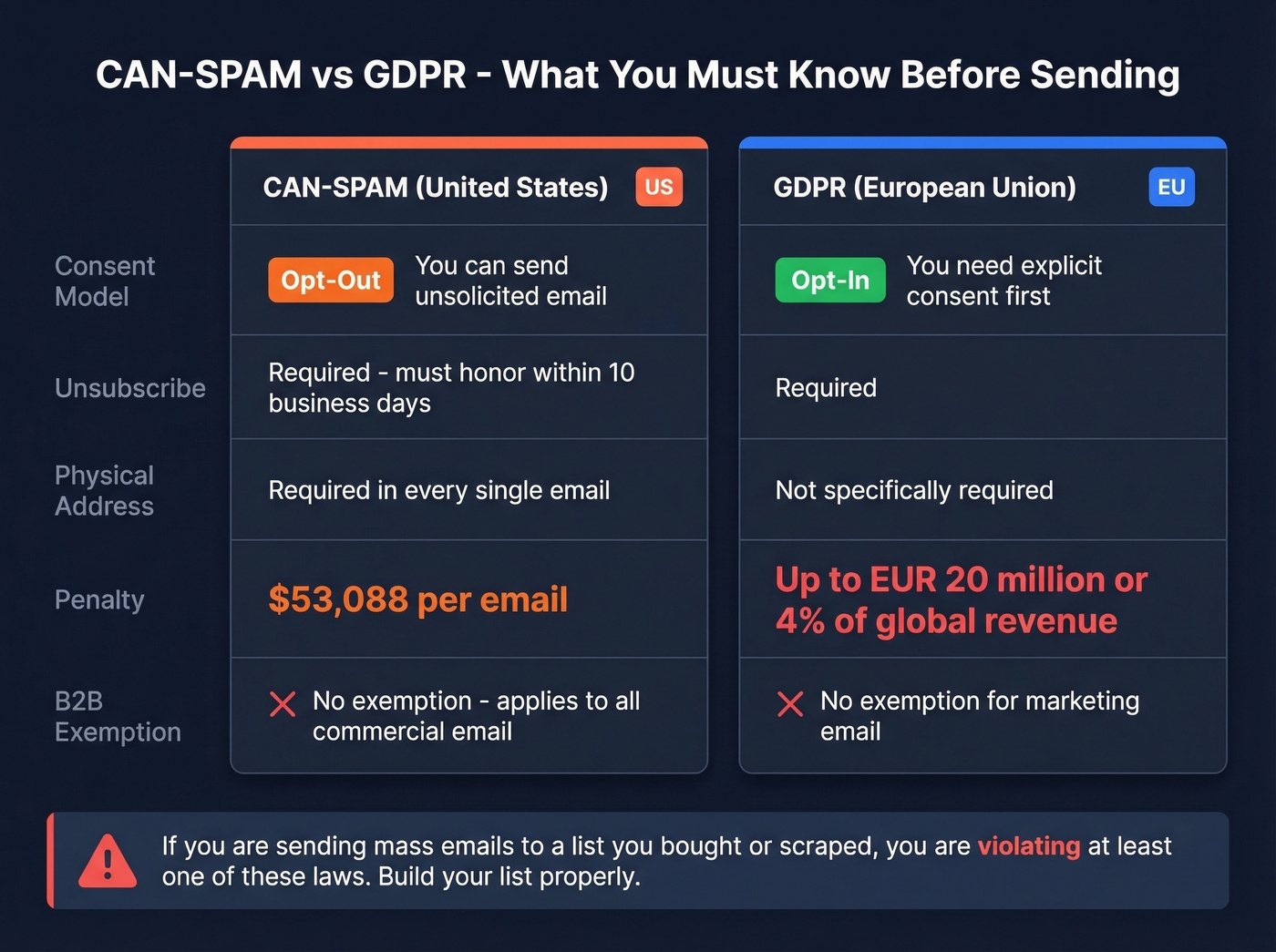
| Requirement | CAN-SPAM (US) | GDPR (EU) |
|---|---|---|
| Consent model | Opt-out (can send unsolicited) | Opt-in (need explicit consent) |
| Unsubscribe | Required, honor in 10 days | Required |
| Physical address | Required in every email | Not specifically required |
| Penalty per violation | $53,088/email | Up to EUR 20M or 4% of revenue |
CAN-SPAM applies to all commercial email, including B2B. There's no exemption for "business" messages. Every email needs a valid physical postal address, a clear unsubscribe mechanism that works for at least 30 days after sending, and honest header information. You're responsible even if a third party sends on your behalf.
GDPR is stricter. You need explicit opt-in consent before sending marketing emails to EU recipients. Double opt-in is the gold standard - the recipient confirms their subscription via a confirmation email. In 2023 alone, GDPR fines exceeded EUR 1.2 billion. These aren't theoretical penalties.
Look, if you're sending mass emails from Gmail to a list you bought or scraped, you're violating at least one of these laws. If you're unsure where the line is, read Is It Illegal to Buy Email Lists? before you hit send.
You're building a mass email campaign in Gmail, but half your spreadsheet is stale data. Prospeo verifies every address against live mailboxes, removes honeypots and spam traps, and returns only deliverable contacts - keeping your bounce rate under 2% where Gmail wants it.
Stop guessing which emails are real. Know before you hit send.
When to Move Beyond Gmail
Here's a strong opinion: Gmail is a communication tool that tolerates occasional bulk sends. It isn't an email marketing platform, and no amount of add-ons will make it one. If your deal sizes are north of $5k and you're running weekly campaigns, you're leaving money on the table by staying in Gmail.
Signs you've outgrown it:
- Your list regularly exceeds 500 contacts
- You need open/click tracking and analytics
- You want automated follow-up sequences (a real B2B cold email sequence, not one-off blasts)
- You're running A/B tests on subject lines or send times (use these email subject line examples to speed up testing)
- You're managing multiple campaigns simultaneously
We've seen teams try to scale Gmail by running 15 domains and 30 mailboxes to hit 5,000 emails per day. That's not a strategy - that's duct tape. Move to a dedicated ESP like Brevo, or build proper outbound infrastructure with a tool like Instantly or Smartlead paired with verified contact data. If you want the bigger picture on staying off blacklists, see bulk email without getting blacklisted.
FAQ
How do I send a mass email individually in Gmail?
Use Gmail's built-in mail merge or a third-party add-on like GMass. Mail merge (paid Workspace plans only) imports contacts from Google Sheets and inserts personalization tags so each recipient gets their own copy. Add-ons like GMass and Mailmeteor offer the same on free accounts with extras like follow-up sequences and tracking.
Can I send 500 emails a day from free Gmail without getting flagged?
Yes, but only if your list is verified, your content avoids spam triggers, and you stay under the rolling 24-hour cap. Verify every address before sending - one batch with a high bounce rate can flag your account even if you're under the volume limit.
What happens if I exceed Gmail's daily sending limit?
Gmail temporarily stops outbound sending for approximately 24 hours. You can still receive email, but nothing goes out. Repeated violations can trigger deeper account restrictions or temporary suspensions.
Does Gmail's built-in mail merge work on free accounts?
No. Native mail merge requires a paid Google Workspace plan - Business Standard, Business Plus, Enterprise, or Education tiers. Free Gmail users need a third-party add-on like Mailmeteor (500 free sends/month) or GMass (50/day trial) to send personalized bulk messages.
Is it legal to send mass emails from Gmail?
Yes, if you comply with CAN-SPAM or GDPR. Include a working unsubscribe link, your physical mailing address, and honor opt-outs within 10 business days. CAN-SPAM penalties reach $53,088 per violation. GDPR fines can hit EUR 20 million or 4% of global revenue.