

How to Send the Same Email to Multiple Recipients Separately
You've got 50 email addresses in a spreadsheet, one message to send, and zero desire to copy-paste it 50 times. Figuring out how to send the same email to multiple recipients separately sounds simple, but the right solution depends on what you actually need: hiding addresses, sending truly separate emails, or personalizing at scale. Here's the part nobody warns you about - pick the wrong method and you'll torch your sender reputation before lunch.
Let's break down every method across Gmail, Outlook, and Apple Mail so you pick the right one in five minutes.
Which Method Do You Need?
The right method comes down to volume and personalization. Quick breakdown:
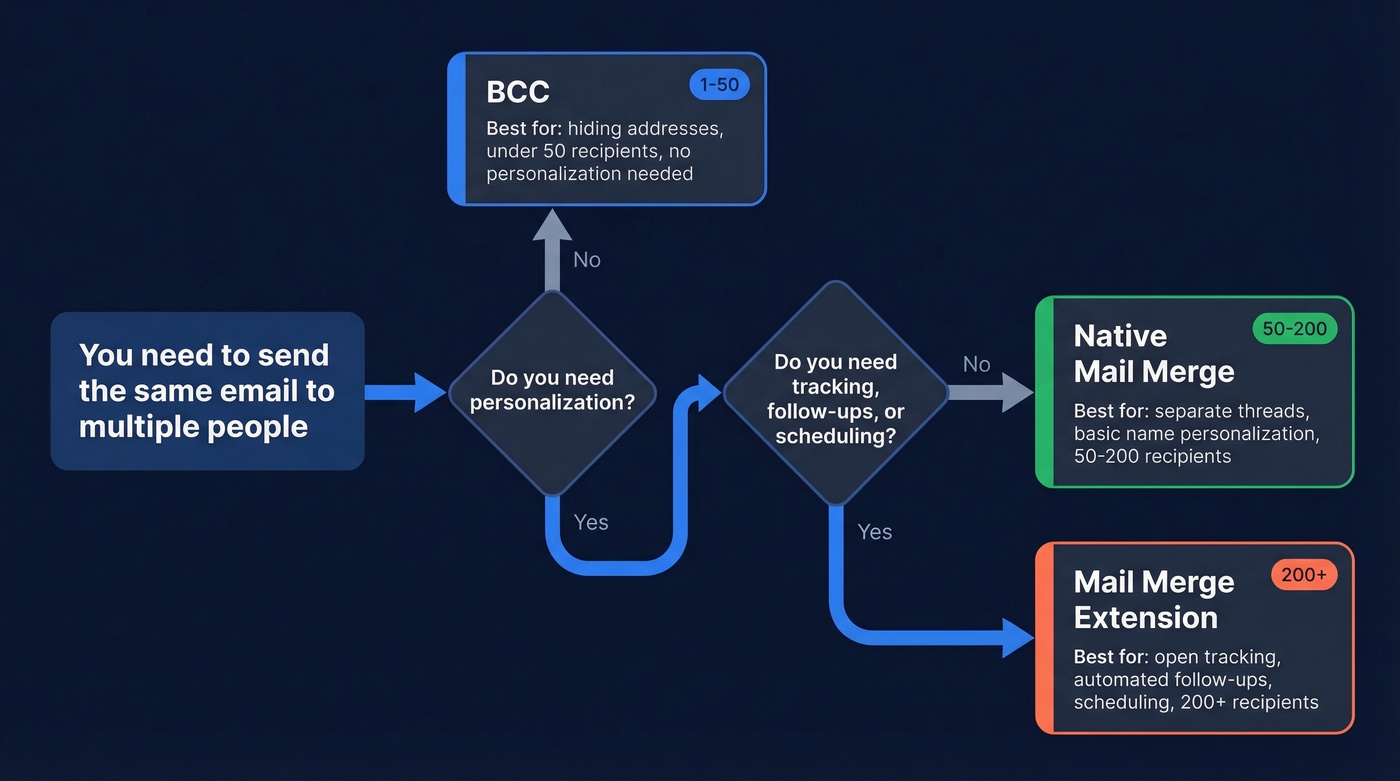
- BCC is fastest when you just need to hide addresses from each other.
- Mail merge creates genuinely separate email threads per person, with basic personalization.
- Mail merge extensions add tracking, scheduling, follow-ups, and deeper personalization on top.
A practical rule we follow: keep batches to 50-100 recipients per send. Blasting huge lists in one go is how accounts get flagged (and why email velocity matters).
| Situation | Method |
|---|---|
| Hide addresses, small list | BCC |
| Separate emails with personalization | Mail merge |
| Scale, tracking, or follow-ups | Mail merge extension |
BCC - The Quick Method
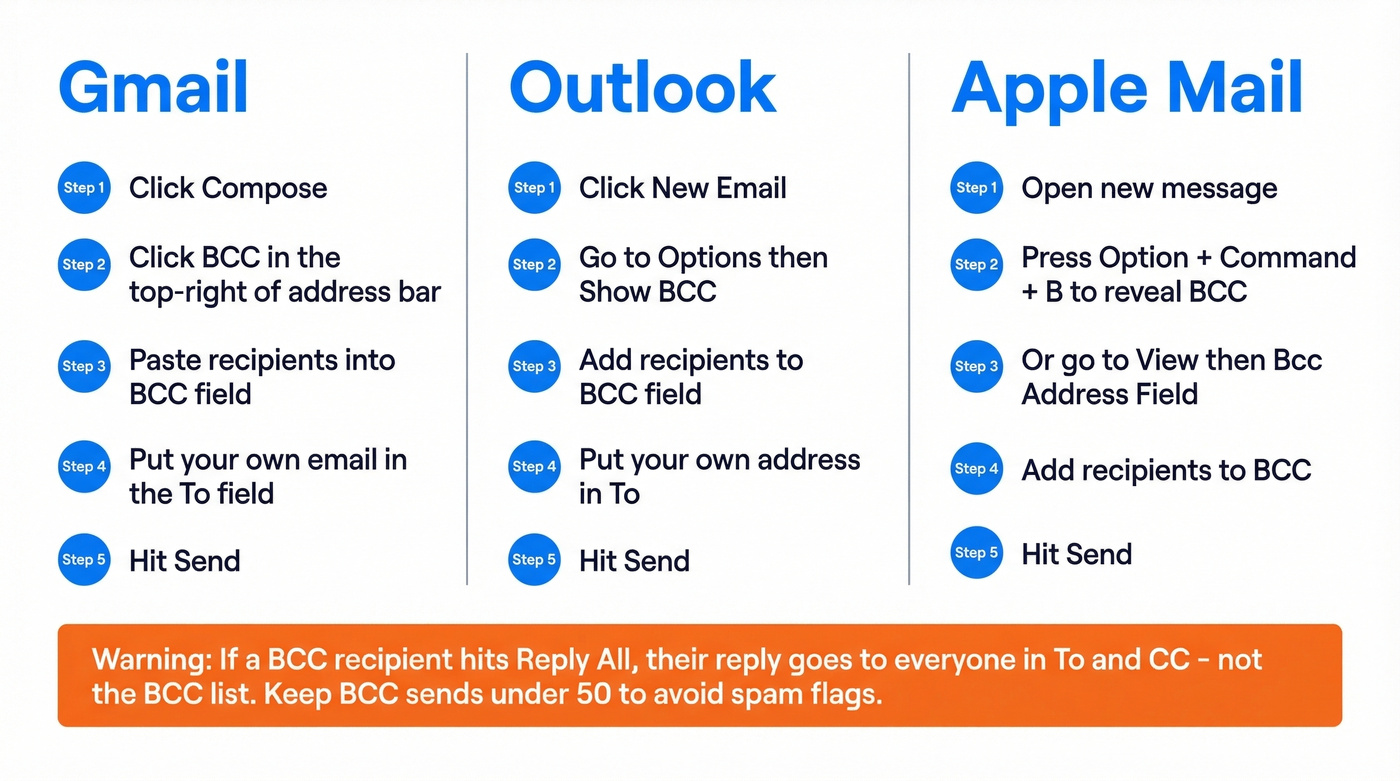
BCC lets you send one email to multiple people without recipients seeing each other's addresses. It's great for quick, low-volume sends where privacy is the main concern. But it's not the same as mail merge - BCC doesn't create separate threads per person.
Gmail
Open a new compose window and click BCC in the top-right of the address bar. Paste your recipients into the BCC field. Put your own email address in the To field - it looks more polished and avoids the awkward blank "To" that some email clients display. Hit send.
Outlook
If the Bcc field isn't visible in the compose window, enable it first. In Outlook desktop, click New Email, then go to Options > Show BCC (or click BCC in the compose header if it's already there). Add your recipients to the BCC field and your own address in To.
Apple Mail
Apple Mail hides the BCC field by default. Press Option + Command + B to reveal it, or go to View > Bcc Address Field. Apple Mail doesn't require a "To" address to send a BCC-only message - recipients will see "Undisclosed Recipients" in the To field.
One thing to watch: if a BCC recipient hits Reply All, their reply goes to everyone in To and CC - not the BCC list.
BCC works for small lists. Sending more than 50 messages at a time via BCC can get flagged as spam and even block your account, so once you need higher volume, mail merge is the safer move.
Gmail Native Mail Merge
Gmail has a built-in mail merge feature that sends genuinely separate emails - each recipient gets their own message in their own thread. We've tested it extensively, and it's solid for basic personalization but comes with real limitations.
To set it up: open a new compose window, click the Mail Merge icon (looks like a person with a plus sign), toggle Mail Merge on, then click Add from a spreadsheet to connect a Google Sheet with your recipient data. Map your columns, compose your message using merge tags, and send.
The supported merge tags are @first_name, @last_name, @full_name, and @email. You can't personalize the subject line (see our email subject line examples), you can't attach files, you can't schedule the send, and it only works on desktop. Those are hard limits, not bugs.
This feature requires a paid Google Workspace plan - Business Standard/Plus, Enterprise Standard/Plus, Education Standard/Plus, or Workspace Individual. Free Gmail accounts don't get it.
For straightforward "Hi @first_name, here's the update" emails to a few dozen people, it's genuinely useful. The moment you need subject-line personalization, attachments, or follow-up sequences, you'll outgrow it fast.
Outlook Mail Merge
The classic Outlook question: "I have 50 addresses in Excel and need each person to get their own copy - how?" You've got two paths depending on whether you're running classic Outlook or the new version.
Classic Outlook (Word + Excel)
The classic method routes through Microsoft Word. It's clunky but powerful, and it's the most reliable Outlook approach for separate emails with personalized fields. Here's the workflow per Microsoft's official documentation:
- Open Word > Mailings tab > Start Mail Merge > E-mail Messages
- Click Select Recipients > choose your Excel file or Outlook contacts
- Insert merge fields into your message body
- Finish & Merge > Send E-mail Messages
Word sends an individual email to every address in your data source. Each one shows up individually in your Sent folder.
The hard limitations: you can't CC or BCC additional recipients, and you can't add attachments. If you need to include a file, link to a shared OneDrive or Google Drive document instead.
New Outlook
The new Outlook has a Start mail merge option built into the compose window - you'll find it under Options > Start mail merge or in the dropdown next to the Send button, depending on your build. It sends separate individual emails, which is great for privacy.
Right now, it's still limited: no personalization field support, recipients are manual entry only (no Excel import), and Sent items show as one grouped message. Microsoft Roadmap ID 423047 lists "Advanced Mail Merge" improvements, including personalization fields and Excel import. Until those features ship consistently, the classic Word method is more reliable.

Mail merge only works if your email list is clean. One bad address tanks your sender reputation - the exact thing this article warns about. Prospeo's 98% email accuracy and 5-step verification (spam-trap removal, honeypot filtering, catch-all handling) means every address you merge is real.
Stop merging into the void. Verify every address before you hit send.
Best Mail Merge Extensions
When Gmail's native mail merge isn't enough and you need tracking, scheduling, or follow-up sequences, extensions fill the gap (especially if you're doing cold email marketing).
| Tool | Free Tier | Paid Price | Best For |
|---|---|---|---|
| Mailmeteor | 150/day | $9.99/mo | Best value for most users |
| GMass | 50/day (trial) | $29.95/mo | Power users needing automation |
| YAMM | 50/day | $48/yr | Occasional bulk senders |
| Quicklution | - | $30/yr | Budget-conscious teams |
Mailmeteor
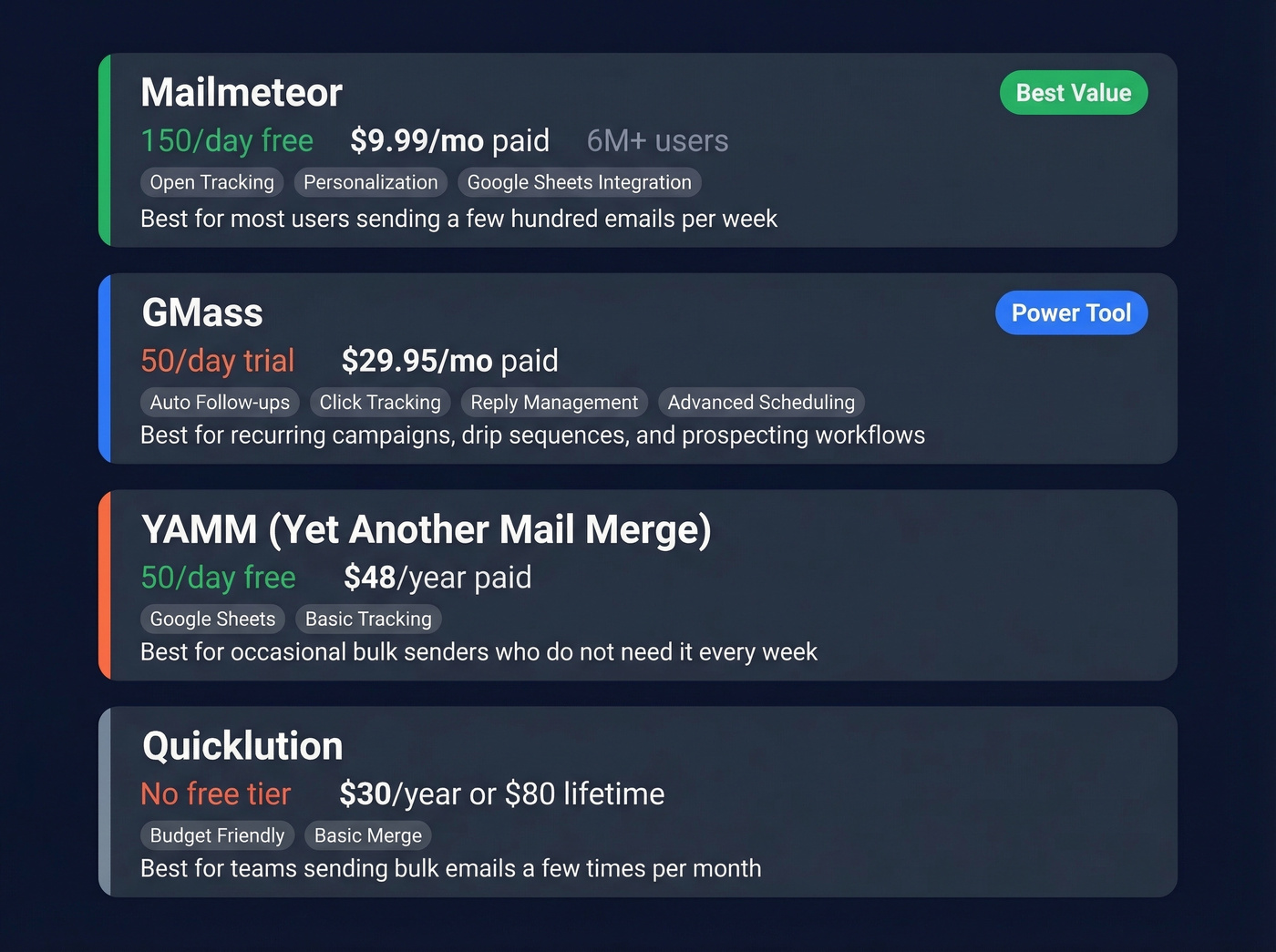
Mailmeteor is a strong starting point for most people who want to email multiple recipients individually. The free tier gives you 150 emails per day, and the paid plan starts at $9.99/mo. With 6M+ users, it's well-established. If you're sending a few hundred emails a week and don't need complex automation, it covers the basics well - open tracking, personalization, and Google Sheets integration all work as expected.
GMass
GMass is the power tool. At $29.95/mo it's pricier, but you get automated follow-ups, detailed open/click tracking, reply management, and advanced scheduling. The trial limits you to 50 emails per day.
If you're running recurring campaigns - weekly newsletters, drip sequences, or prospecting workflows - GMass earns its price. Skip it if you're sending under 200 emails a week; it's overkill for light use.
In r/Entrepreneur threads about bulk sending from Gmail, GMass and Mailmeteor come up constantly - along with warnings that repeatedly hitting Gmail's sending cap can risk account restriction or suspension.
YAMM & Quicklution
YAMM (Yet Another Mail Merge) starts at $48/year and includes a 50/day free tier. Solid for occasional senders who don't need it every week.
Quicklution is the budget pick at $30/year or $80 for a lifetime license. Worth considering if you send bulk emails a few times a month and don't need bells and whistles.
Gmail Sending Limits
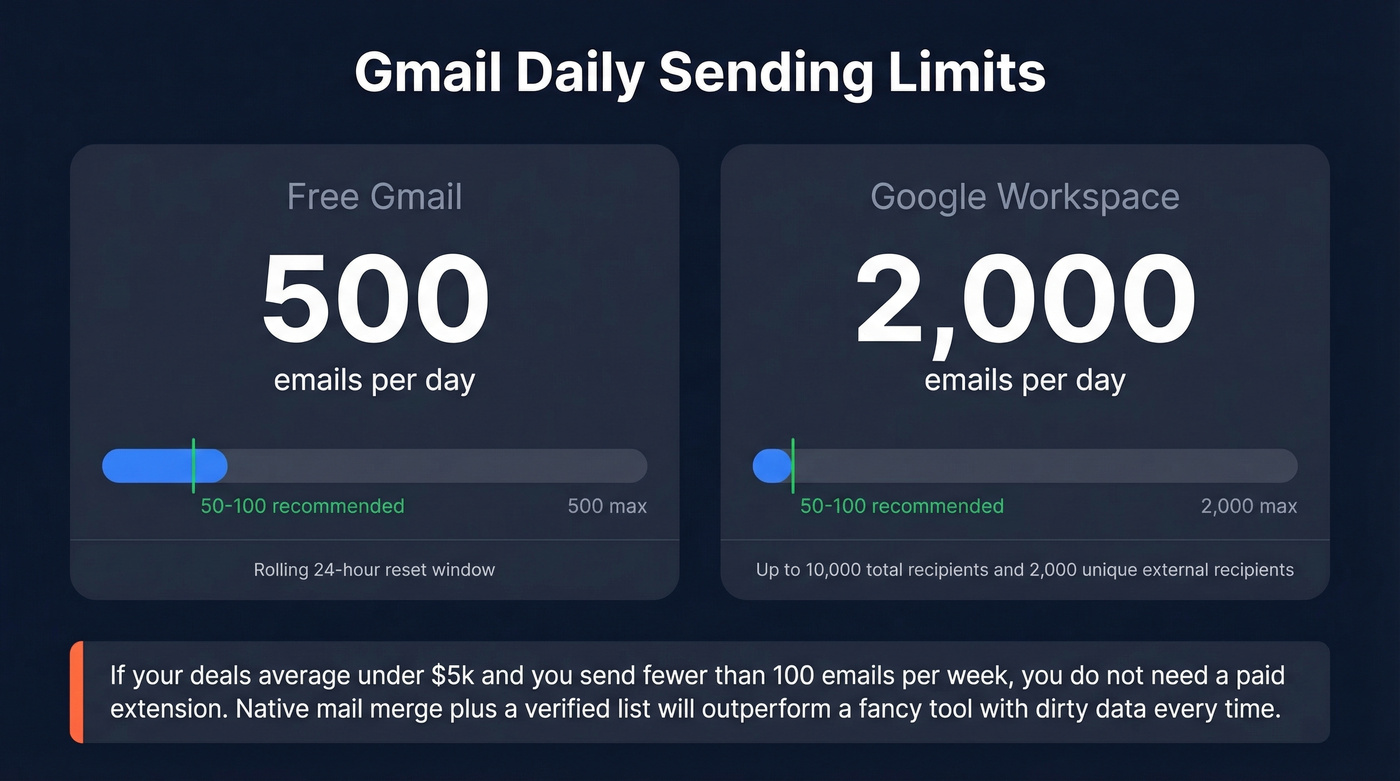
Regardless of which method you use, Gmail enforces daily sending caps. Exceed them and your account gets temporarily restricted - or worse (see bulk email threshold for how teams define “bulk” in practice).
| Account Type | Daily Limit | Per-Message Recommendation | Reset |
|---|---|---|---|
| Free Gmail | 500 | ~50-100 | Rolling 24 hrs |
| Google Workspace | 2,000 | ~50-100 | Rolling 24 hrs |
The limits reset on a rolling 24-hour window, not at midnight. Workspace accounts can technically reach 10,000 recipients per day and 2,000 unique external recipients - but keeping individual sends to 50-100 is a safer operating range.
Here's the thing: if your deals average under $5k and you're sending fewer than 100 emails a week, you don't need a paid extension at all. Gmail's native mail merge plus a verified list will outperform a fancy tool with dirty data every single time.
Mistakes That Tank Deliverability
Sending bulk emails isn't hard. Sending them without destroying your sender reputation - that's where people mess up. In our experience, these mistakes account for the vast majority of deliverability problems we see (and they’re covered deeper in our email deliverability guide).
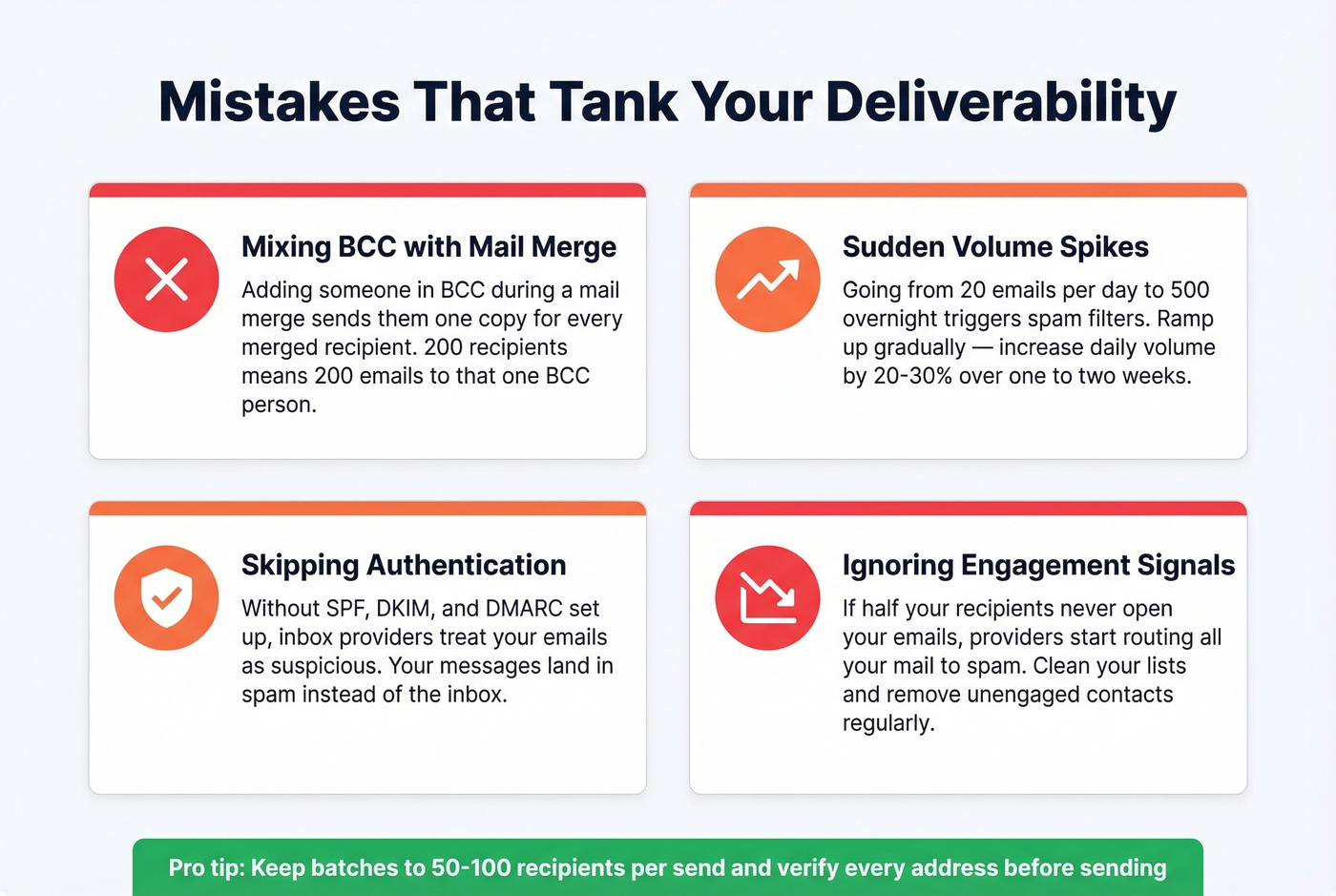
Mixing BCC with mail merge. If you run a mail merge to 200 recipients and accidentally add someone in the BCC field, that BCC person receives 200 separate emails - one for every merged send. It's not a bug; it's how mail merge works. Double-check your fields before hitting send.
Sudden volume spikes. If you normally send 20 emails a day and suddenly blast 500, spam filters notice. Ramp up gradually - increase your daily volume by 20-30% over a week or two.
Skipping authentication. SPF, DKIM, and DMARC tell inbox providers you're legitimate. Without them, your emails land in spam. Google has a clear guide to setting these up (and you can sanity-check your setup with DMARC alignment and SPF record examples).
Ignoring engagement signals. If half your recipients never open your emails, inbox providers start routing you to spam. Clean your lists regularly and remove consistently unengaged contacts.
Sending to a Group Individually
If you manage contact groups in Gmail or Outlook, you might wonder how to send a group email so each person receives a private copy rather than seeing every other member. Don't paste the group into the To field.
Instead, export the group to a spreadsheet, then run a mail merge as described above. This ensures each group member gets a separate thread with no visibility into who else received the message. It takes an extra two minutes and saves you from the "wait, who else got this?" reply-all chaos.
When This Becomes Email Marketing
There's a legal line between "sending the same email to multiple people" and "email marketing." Once you're sending promotional content to people who haven't explicitly opted in, CAN-SPAM and GDPR kick in. That means a physical mailing address in every email, a working unsubscribe link, and honoring opt-outs within 10 business days. CAN-SPAM violations carry penalties of up to $51,744 per email - not per campaign, per individual message.
If you're regularly sending to 500+ recipients, you've outgrown Gmail and Outlook mail merge. Move to a dedicated platform like Mailchimp, Brevo, or MailerLite that handles compliance, unsubscribes, and deliverability infrastructure for you.
FAQ
Does BCC send separate emails or one email?
BCC sends one email while hiding recipients' addresses from each other - it doesn't create truly separate threads. Each person sees the message but can't see other BCC'd addresses. For genuinely separate emails where each recipient gets their own thread, use mail merge instead.
Can I use Gmail mail merge on a free account?
No. Gmail's native mail merge requires a paid Google Workspace plan. Free Gmail users can use third-party extensions like Mailmeteor (150 free sends/day) or GMass to send individual emails to multiple people.
What happens if I exceed Gmail's daily sending limit?
Your account gets temporarily restricted from sending for up to 24 hours. The limit resets on a rolling 24-hour window, not at midnight. Repeated violations can lead to longer suspensions - stay well under the cap by batching sends across multiple days.
Can I add attachments to an Outlook mail merge?
No. Classic Word-to-Outlook mail merge doesn't support attachments. The workaround is linking to shared files on OneDrive, Google Drive, or Dropbox instead of attaching them directly.
How do I verify my email list before a bulk send?
Run your spreadsheet through a verification service before sending. Prospeo's 5-step verification process catches invalid addresses, spam traps, and catch-all domains at 98% accuracy - the free tier includes 75 email credits per month, enough to clean a small list without spending anything.
You've nailed the send method - BCC, mail merge, extensions. But where are those 50 email addresses coming from? Prospeo gives you 143M+ verified emails with 30+ filters to find exactly the right recipients. At $0.01 per email, building a clean list costs less than a coffee.
Build the list first. Send it separately second.