

How to Set Up SPF and DKIM in 2026: The 15-Minute Copy-Paste Guide
You set up a new domain, send 50 emails, and Gmail flags every one. The fix takes 15 minutes - but most teams either skip it or botch a DNS record and make things worse. This guide gives you the exact copy-paste records to publish SPF, DKIM, and DMARC right now.
Google and Yahoo started enforcing stricter bulk-sender requirements in February 2024, and those rules haven't loosened. If you're sending more than 5,000 emails a day to their recipients, you need SPF and DKIM authentication plus DMARC in place, spam complaints below 0.3%, and one-click unsubscribe support. Business email compromise is a $55 billion problem according to the FBI, and inbox providers aren't cutting anyone slack.
Let's get it done.
How SPF and DKIM Actually Work
SPF validates the envelope sender - the MAIL FROM address your server announces during the SMTP handshake. Your DNS record lists every server authorized to send on your behalf. The receiving server checks that list, and if the sending IP isn't there, SPF fails. One critical constraint: SPF allows a maximum of 10 DNS lookups. Exceed that and you'll trigger a PermError even if the sender is legitimate.
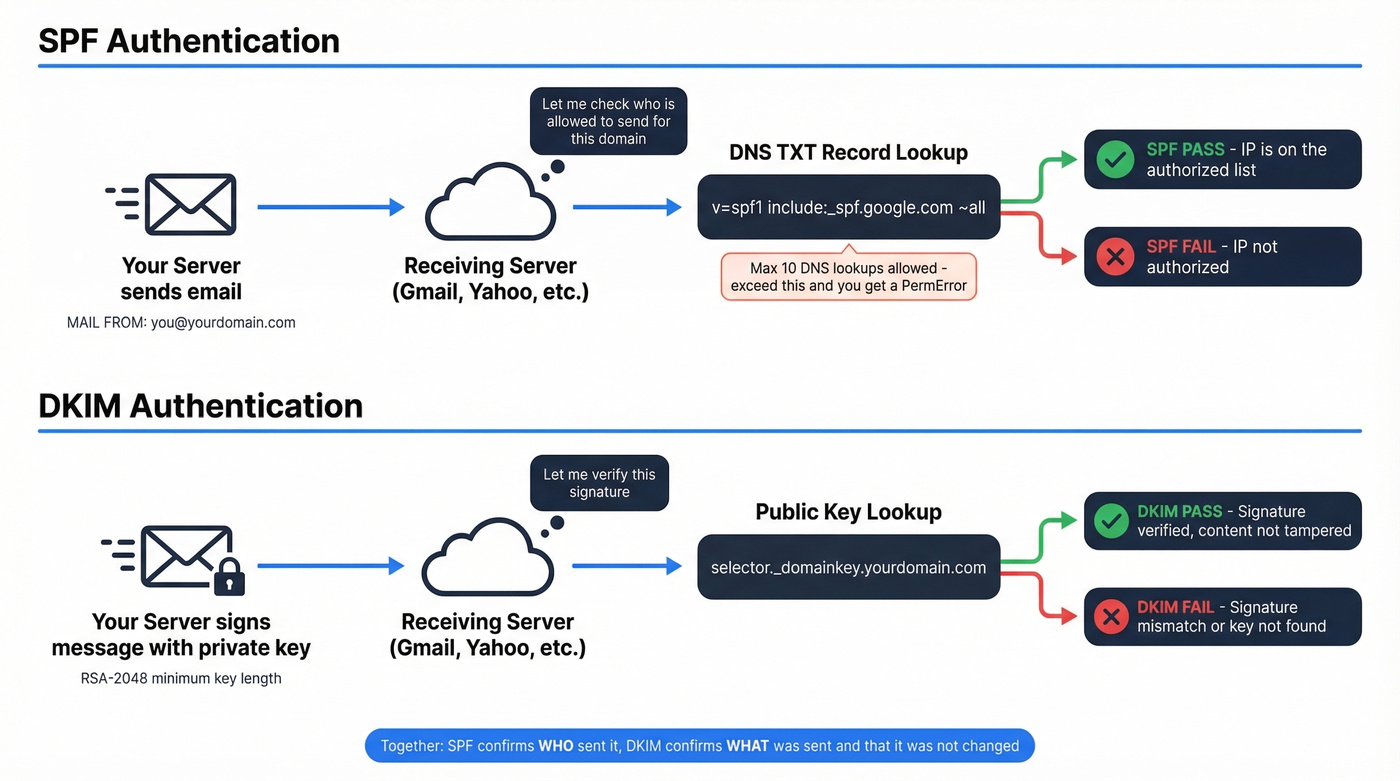
DKIM works differently. It signs each outgoing message with a private key, and the receiving server looks up the corresponding public key in your DNS via a "selector" to verify the signature. RSA-2048 is the baseline key length - shorter keys are increasingly distrusted. Messages can carry multiple DKIM signatures: your provider signs with their domain, and your custom DKIM adds a second signature aligned to your From address.
Together, these two protocols make sure only authorized servers send mail from your domain and that message content hasn't been tampered with in transit. If you want the bigger picture beyond authentication, start with an email deliverability checklist.
SPF Configuration (Step-by-Step)
Google Workspace
Add this TXT record at your domain's root:
v=spf1 [include:_spf.google.com](https://knowledge.workspace.google.com/admin/security/set-up-spf) ~all
If you also send through third-party services, add their includes before ~all:
v=spf1 include:_spf.google.com include:servers.mcsv.net ~all
Microsoft 365
v=spf1 [include:spf.protection.outlook.com](https://learn.microsoft.com/en-us/defender-office-365/email-authentication-spf-configure) ~all
Append any additional senders as include: entries. There's no admin portal in M365 for SPF - you publish this directly at your DNS host. Microsoft also recommends using subdomains for bulk or marketing email so issues don't bleed into your primary domain's reputation.
Counting Your Lookups
Each include:, a, mx, and redirect mechanism counts toward the 10-lookup limit. Nested includes count too - _spf.google.com alone triggers several. We've seen teams running five or six SaaS tools hit the limit without realizing it, because each tool's include chain nests two or three levels deep. Consolidate where possible and retire senders you no longer use. For more syntax patterns, see these SPF record examples.
DKIM Configuration (Step-by-Step)
Google Workspace
- Go to Admin Console > Apps > Google Workspace > Gmail > Authenticate Email
- Select your domain, click Generate New Record (choose 2048-bit)
- Copy the TXT record value
- In your DNS, create a TXT record named
google._domainkeyand paste the value - Return to Admin Console and click Start Authentication
Some DNS hosts want the full name google._domainkey.yourdomain.com - others just want the prefix. Check your provider's docs if the record doesn't resolve.
Microsoft 365
Microsoft uses CNAME records instead of TXT for DKIM, requiring two selectors for key rotation. The pattern:
selector1._domainkey.yourdomain.com → selector1-yourdomain-com._domainkey.yourtenant.onmicrosoft.com
selector2._domainkey.yourdomain.com → selector2-yourdomain-com._domainkey.yourtenant.onmicrosoft.com
Here's the thing: for newer custom domains, Microsoft's DKIM CNAME targets can include an extra dynamically generated partition segment. Don't guess these values. Copy the exact CNAME targets shown in your Defender portal or via Get-DkimSigningConfig. One character off and the selector won't resolve.
The CNAME approach is genuinely confusing compared to Google's straightforward TXT record. If you're stuck, pull the values directly from Defender - don't try to construct them manually. If you want a dedicated walkthrough for testing, use this guide on how to verify DKIM is working.

Perfect authentication means nothing if you're sending to bad addresses. Prospeo's 5-step email verification delivers 98% accuracy - teams using it cut bounce rates from 35% to under 4%. That's the difference between inbox and blacklist.
Don't let bad data undo the DNS work you just did.
Add DMARC (Don't Skip This)
DMARC ties SPF and DKIM into a policy receivers actually enforce. Add this TXT record at _dmarc.yourdomain.com:
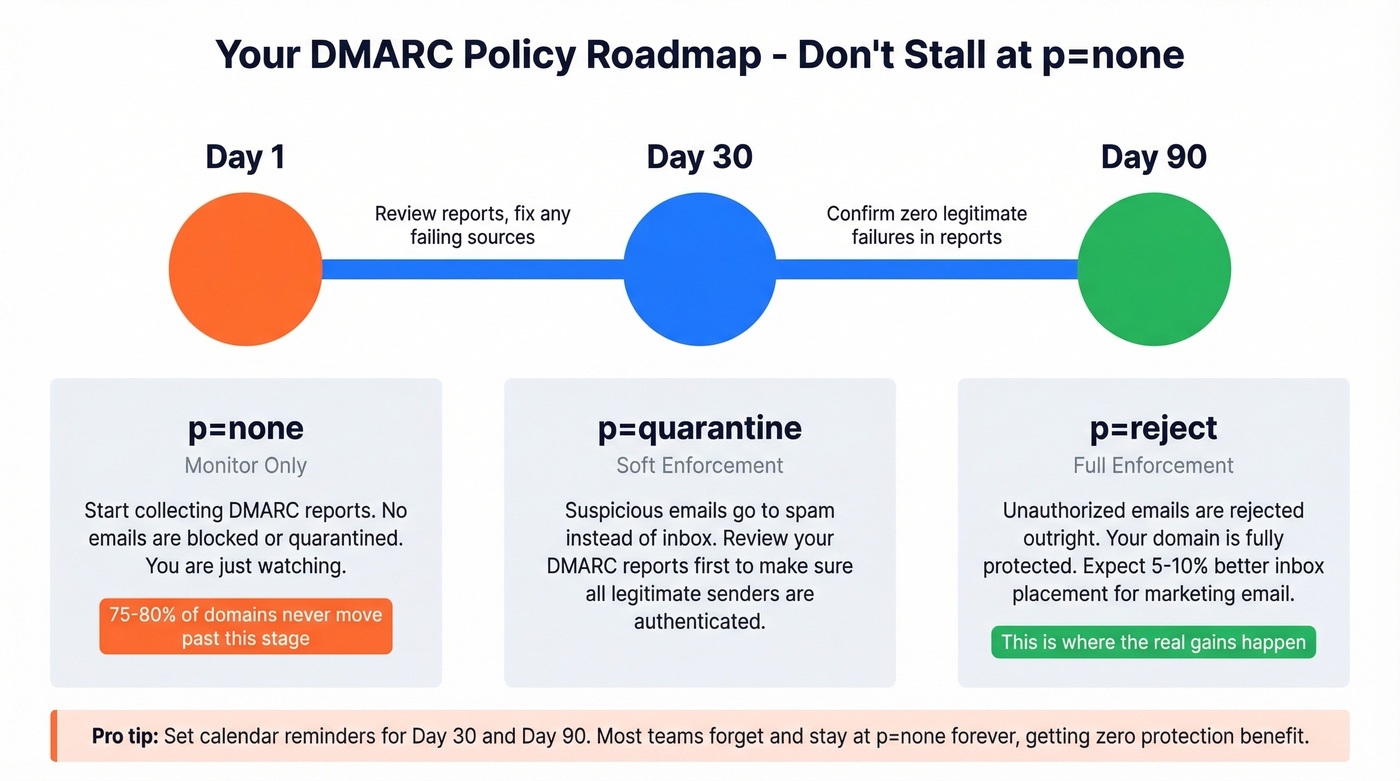
v=DMARC1; p=none; rua=mailto:dmarc@yourdomain.com
Most domains never get past p=none. Roughly 75-80% stall there and never move to enforcement, which means they're collecting reports nobody reads while getting zero protection benefit. Set a calendar reminder: move to p=quarantine within 30 days, then p=reject within 90. Domains that reach enforcement typically see 5-10% better inbox placement for marketing email. That's where the real gains kick in. If you’re unsure what “alignment” means in practice, read up on DMARC alignment.
Verify Your Setup
A lot of email authentication resources tell you what's broken but not what to do next. Here are the exact commands and what to look for.
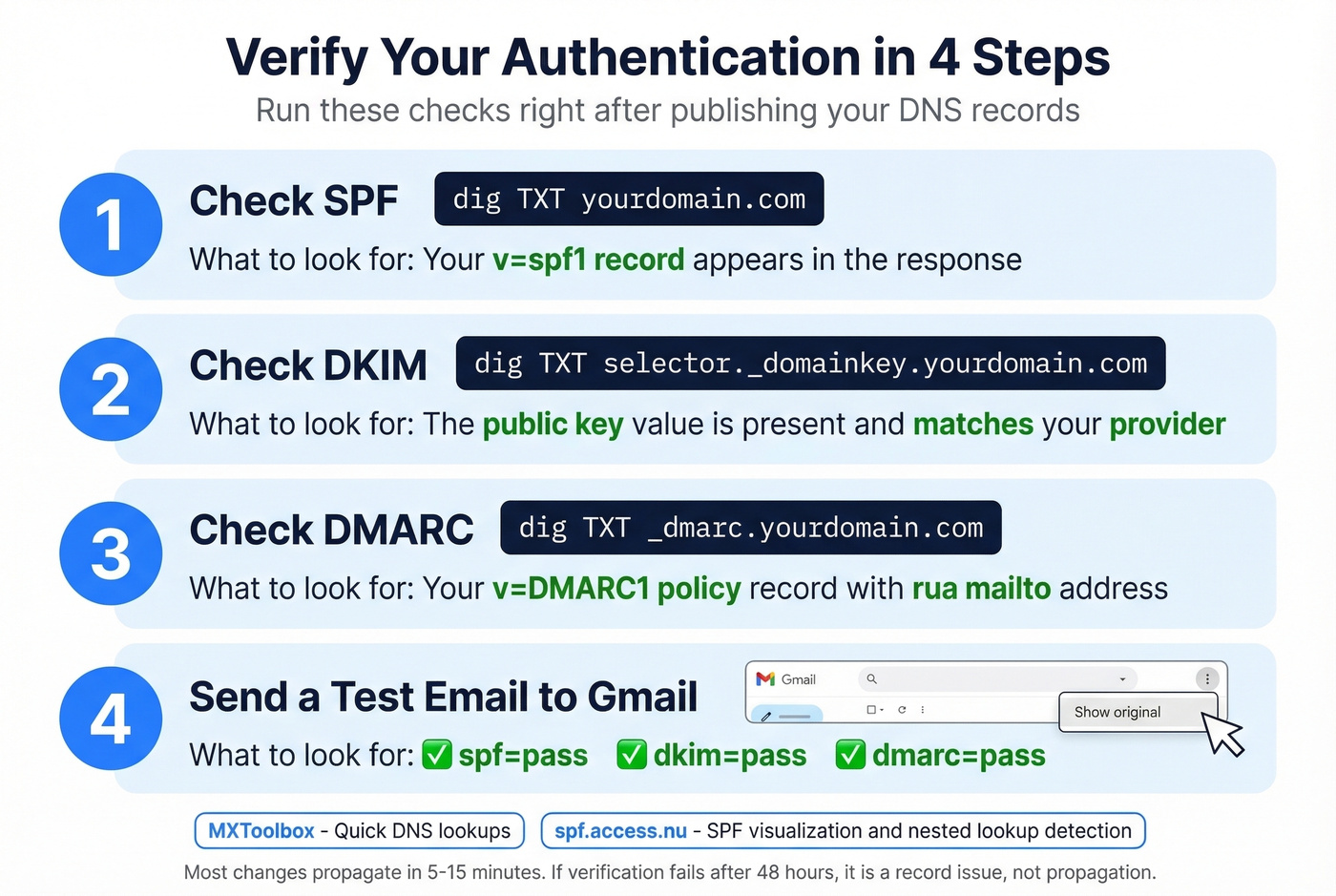
- Check SPF:
dig TXT yourdomain.com- look for yourv=spf1record - Check DKIM:
dig TXT selector._domainkey.yourdomain.com- confirm the public key exists - Check DMARC:
dig TXT _dmarc.yourdomain.com- verify your policy record - Send a test email to Gmail - open the message, click the three dots, select Show Original, and look for
spf=pass,dkim=pass,dmarc=pass
For deeper checks, use MXToolbox for quick lookups and spf.access.nu for SPF visualization and pre-publish testing - it's especially good at catching nested lookup issues. Propagation usually takes minutes. The safe upper bound is 48 hours, but if verification still fails after that, you've got a record issue, not a propagation issue. If you’re seeing deliverability issues even with passes, check your sender reputation.
Common Mistakes That Break Authentication
Multiple SPF records. This triggers a PermError instantly. One SPF TXT record per domain - combine multiple senders into a single record with multiple include: entries.
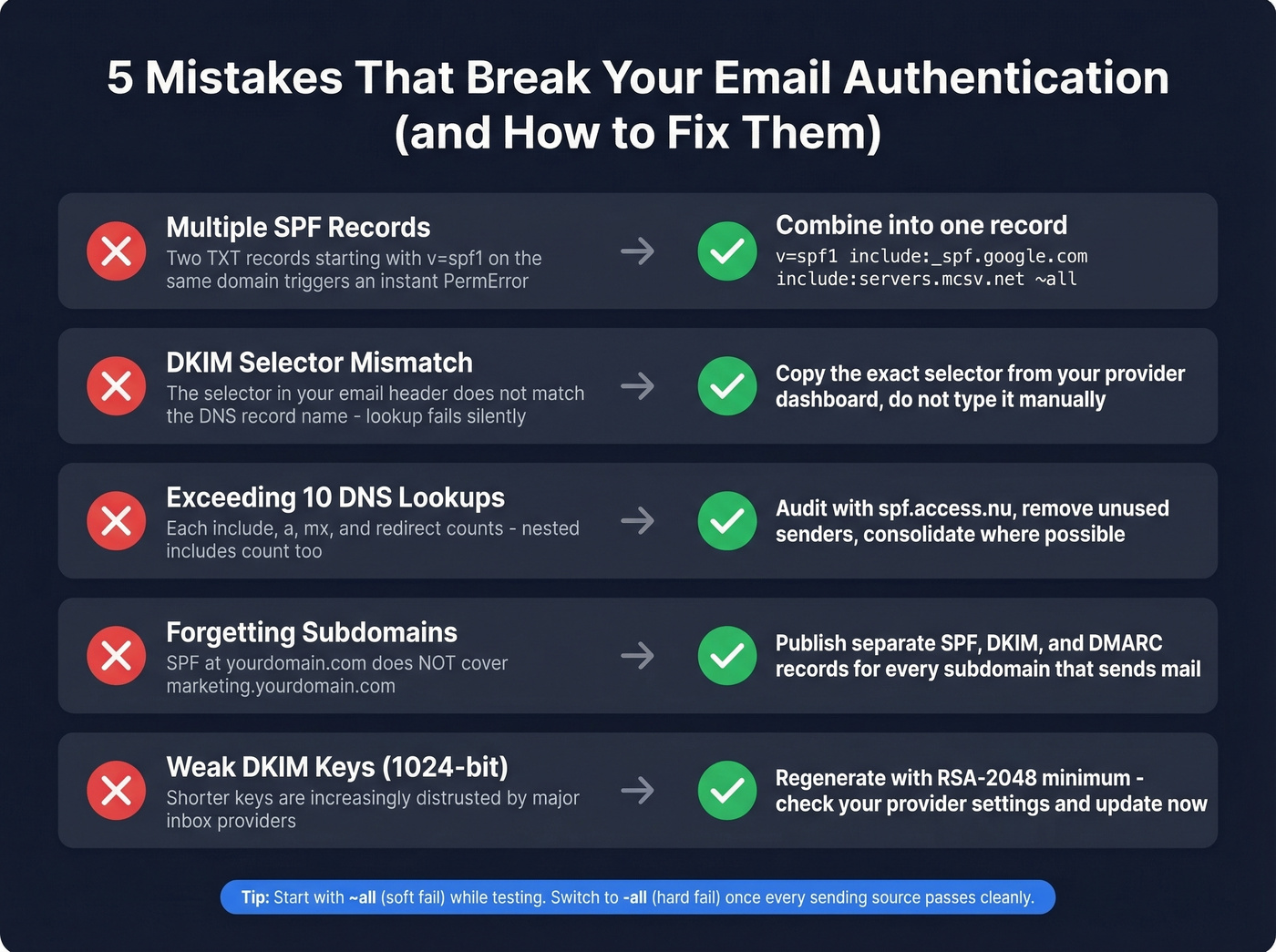
DKIM selector mismatch. The selector in your DKIM-Signature header must exactly match the DNS record name. One typo and the lookup fails silently.
Exceeding 10 DNS lookups. Permanent SPF failure. Count your includes carefully, including nested ones. We've watched teams go from inbox to spam overnight after adding a single new SaaS tool's include chain that pushed them over the limit.
Forgetting subdomains. SPF at yourdomain.com doesn't cover marketing.yourdomain.com. Each subdomain that sends mail needs its own records.
Weak DKIM keys. 1024-bit keys are increasingly distrusted. Use RSA-2048 minimum. If your provider generated a 1024-bit key years ago, regenerate it now.
Use ~all (soft fail) while testing. Move to -all (hard fail) once everything passes cleanly.
Authentication for Cold Outreach
Look - authentication is the easiest part of cold email deliverability. It's also the part most teams treat as the finish line when it's actually the starting line.
If you're running a multi-domain setup with 10 domains and 3-4 mailboxes each, ramping to around 15 emails per day per inbox, every single domain needs its own SPF, DKIM, and DMARC records. No shortcuts. Complete the full authentication on each domain before you send a single message. (If you’re scaling volume, track email velocity so you don’t spike risk signals.)
But what actually kills domains isn't a missing DNS record. It's emailing invalid addresses. Your bounce rate destroys the reputation you just built. In our experience, teams that skip verification and jump straight into outreach burn through domains in weeks, then blame "deliverability" when the real problem was data quality all along. Prospeo's email verification - with spam-trap removal, honeypot filtering, and catch-all handling at 98% accuracy - catches bad addresses before they tank your sender score. If you want benchmarks and fixes, use this email bounce rate guide.

You just spent 15 minutes protecting your domain with SPF and DKIM. Protect it permanently with data that's verified every 7 days - not the 6-week-old records other providers sell. Prospeo's 143M+ verified emails at $0.01 each keep your sender reputation clean.
Authentication gets you in the door. Clean data keeps you there.
FAQ
How long does DNS propagation take for SPF and DKIM?
Most changes propagate within 5-15 minutes. The safe upper bound is 48 hours, but that's worst case. If verification still fails after 48 hours, go back and check for typos or selector mismatches - it's a record issue, not propagation.
Can I use SPF and DKIM without DMARC?
They'll work independently, but Google and Yahoo require all three for bulk senders. Without DMARC, receivers see authentication signals but have no instructions on what to do when something fails, which means inconsistent handling across providers.
What's the difference between ~all and -all in SPF?
~all is a soft fail - the message gets accepted but flagged. -all is a hard fail - the receiver rejects outright. Start with ~all during setup, switch to -all once every sending source passes cleanly.
Do subdomains inherit SPF and DKIM from the root domain?
No. SPF and DKIM records at your root domain don't automatically cover subdomains. If marketing.yourdomain.com or support.yourdomain.com sends mail, each one needs its own records published in DNS.
What's the best way to verify emails before sending from a new domain?
Use a dedicated verification tool before any campaign. Pair that with MXToolbox to confirm your DNS records, and you'll protect the sender reputation you just spent 15 minutes building.