

Mail Merge for Outlook: Everything Microsoft Didn't Tell You
You opened New Outlook, clicked Mail Merge, and nothing happened. No confirmation, no Sent item, no error message - just silence. You're not alone. The Classic-to-New Outlook transition has broken the mail merge for Outlook workflow for thousands of users, and Microsoft's documentation hasn't caught up. Reddit threads are full of people asking whether merge was quietly dropped, whether their IT team is wrong, and whether they need to buy a third-party tool just to send personalized emails to 50 people.
We've tested both Classic and New Outlook's merge workflows extensively. Here's everything you actually need to know - the steps, the limits, the workarounds, and the moment you should stop using mail merge entirely.
What You Need (Quick Version)
Your path depends on which Outlook you're running and how many people you're emailing. Mail merge is free and built into tools you already have - that's its main advantage over dedicated email platforms.
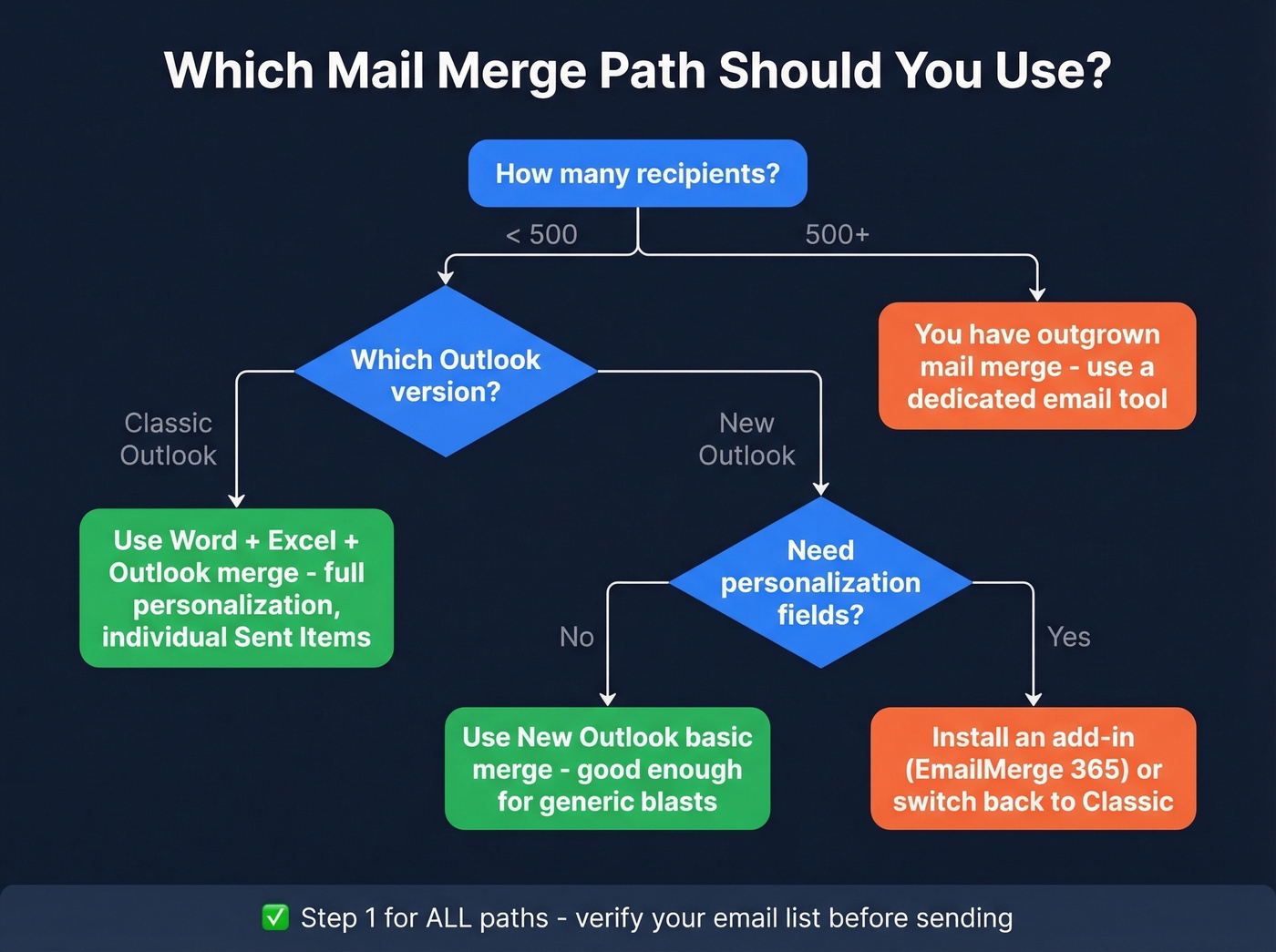
- Classic Outlook + Word - Full merge with personalization fields and individual Sent Items. Follow the step-by-step guide below. If you need CC/BCC or attachments, you'll need an add-in.
- New Outlook - Basic bulk send only. No personalization fields, no CC/BCC. For anything beyond a generic blast, use an add-in or switch back to Classic.
- 500+ recipients regularly - You've outgrown merge. Use a dedicated email tool. More on this at the end.
Whichever path fits, one step applies to all three: verify your list first. A high bounce rate from stale addresses can tank your domain reputation and create deliverability problems that take weeks to unwind. Run your Excel file through an email verifier like Prospeo before merging - it takes minutes and saves you from real pain.
How to Set Up Mail Merge in Classic Outlook
Classic Outlook's merge runs through Microsoft Word. It's a three-app dance - Word handles the template, Excel holds the data, and Outlook sends the emails. Clunky, but it works. If you've been wondering how to send mass email individually in Outlook without recipients seeing each other, this is the native method.
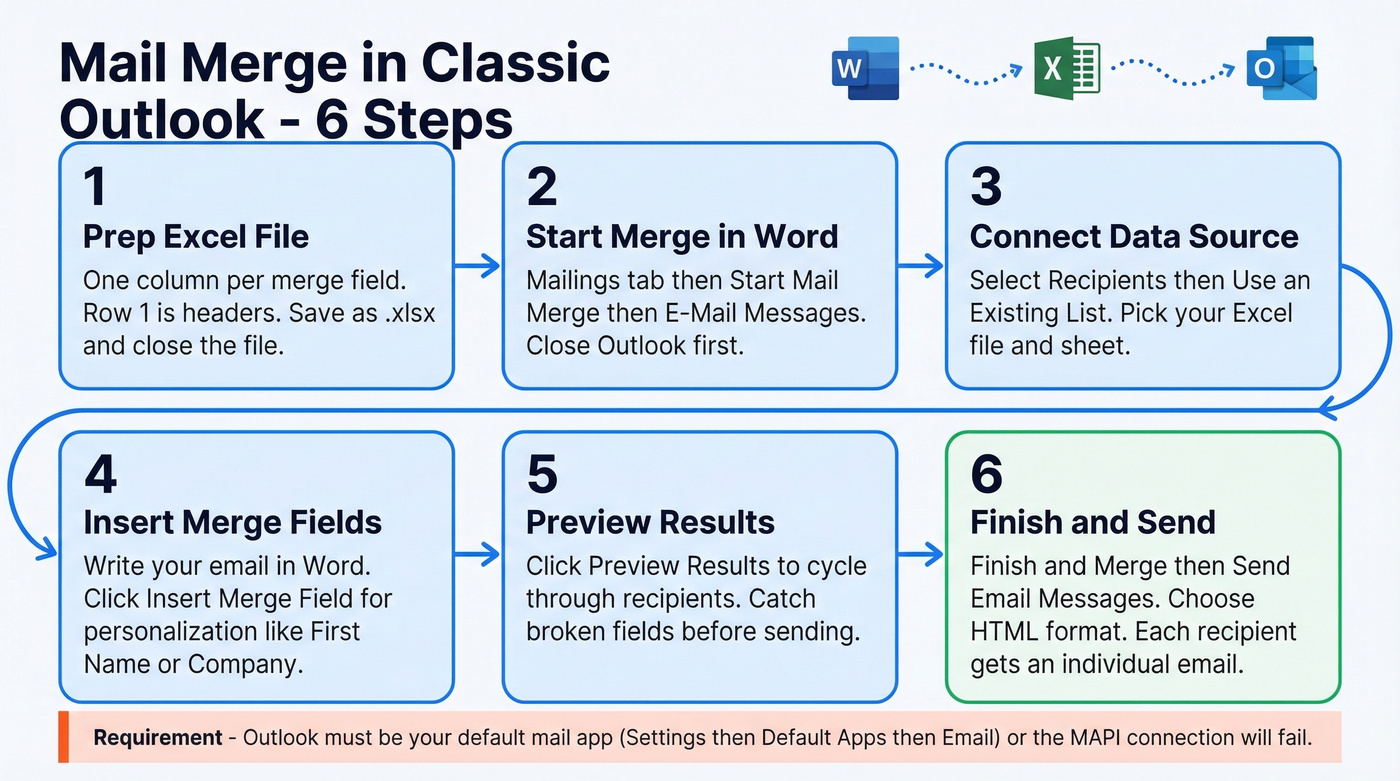
1. Prepare your Excel file. Create a spreadsheet with one column per merge field - First Name, Last Name, Email, Company, whatever you need. Row 1 is headers. Every row after that is a recipient. Save it as .xlsx and close the file before starting the merge.
Pro tip: if your data includes ZIP codes with leading zeros like 01234, format that column as Text in Excel before saving. Otherwise Excel strips the zeros and your recipients get mangled addresses.
2. Open Word and start the merge. Go to the Mailings tab, then Start Mail Merge, then E-Mail Messages. This tells Word you're building an email, not a letter or label. Close Outlook before starting - otherwise the merge can send from whichever mailbox happens to be open.
3. Connect your data source. Click Select Recipients, then Use an Existing List, and navigate to your Excel file. If your spreadsheet has multiple sheets, Word asks which one to use. Pick the right sheet and confirm.
4. Write your email and insert merge fields. Draft your message directly in Word. Where you want personalization, click Insert Merge Field and choose the column - «First_Name», «Company», etc. These placeholders pull from your Excel data at send time. You build the template once in Word and reuse it for every campaign.
5. Preview before sending. Click Preview Results on the Mailings tab. Word cycles through each recipient so you can spot broken fields, missing data, or formatting issues. This step catches the "Dear «First_Name»" disasters before they reach inboxes.
6. Finish and send. Click Finish & Merge, then Send Email Messages. Word asks for the email field, the subject line, and the mail format - choose HTML for most merges. Hit OK.
Each recipient gets an individual email. It shows up separately in your Sent Items, and recipients can't see each other's addresses. That's the whole point of merge over BCC.
One critical requirement: Outlook must be set as your default mail app for the MAPI connection to work. If you've switched your default to New Outlook or another app, the merge can fail or trigger prompts. Check Settings > Default Apps > Email on Windows before you start.
The entire process takes 10-15 minutes once you've done it a couple of times. Budget 30 minutes the first time to fumble through the field mapping.
New Outlook: What Works and What Doesn't
Let's be honest - Microsoft botched this transition.
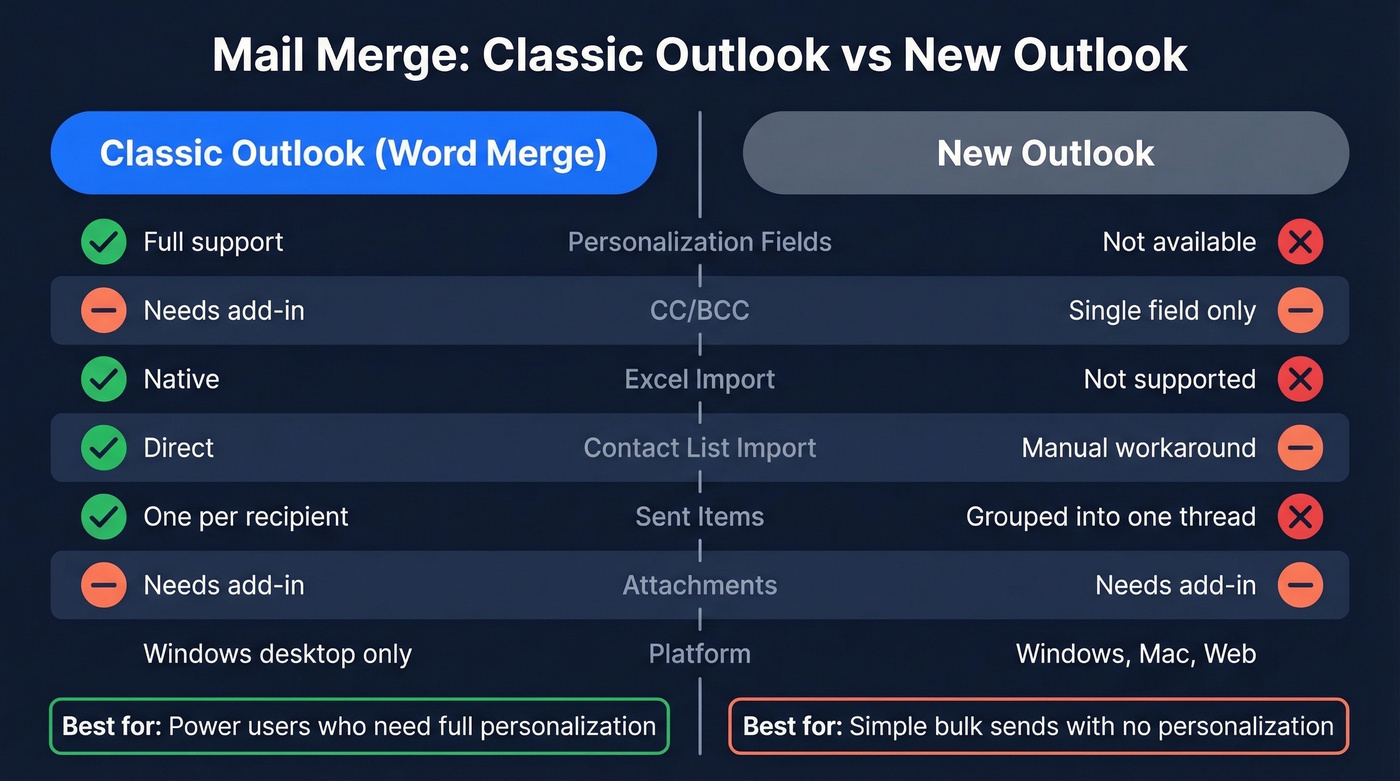
New Outlook has a merge feature, but it's a stripped-down version missing most of what made the Classic workflow useful. You can start a merge from the Options tab or the Send dropdown. It works fine for sending bulk email - the same message to a list of people. That's where the functionality ends.
| Feature | Classic Outlook (Word merge) | New Outlook |
|---|---|---|
| Personalization fields | Full support | Not available |
| CC/BCC | Not native (requires add-in) | Single field only |
| Excel import | Native | Not supported |
| Contact list import | Direct | Workaround only |
| Sent Items | One per recipient | Grouped into one thread |
| Attachment support | Not native (requires add-in) | Not native (requires add-in) |
Contact and distribution lists aren't even listed by default in New Outlook's merge interface. The workaround is to type the list name manually, then click the plus (+) icon to expand the names. It works, but it's the kind of thing that makes you wonder if anyone at Microsoft actually tested this with real users.
The sent mail behavior is particularly annoying. Classic Outlook creates one Sent item per recipient, so you can see exactly who got what. New Outlook groups everything into a single thread. Need to confirm delivery to a specific person? Good luck.
Microsoft 365 Roadmap ID 423047 lists "Advanced Mail Merge" improvements including personalization and recipient importing, but it's still not broadly available. The consensus on r/sysadmin and r/Office365 is clear: keep Classic Outlook installed as a fallback.
How to Merge with Attachments
This is the question that generates the most frustration. You drag a PDF into your Word merge document, run the merge, and your recipients get an icon - not the file, just a tiny image of a PDF logo embedded in the email body.
The root cause: Word's built-in merge doesn't support attaching files to each individual email. When you insert a file into the Word document, Word embeds a visual representation, not an actual attachment. Microsoft's own support forums confirm this isn't a bug - it's a limitation of how Word handles objects in merge documents.
Three solutions, ranked by practicality.
Mail Merge Toolkit (MAPILab) is the best option for Classic Outlook users. It hooks directly into Word's merge wizard and adds real attachment support, including per-recipient attachments via a file-path column in your data source. In our testing, setup took under 10 minutes. It also supports password-protected PDF and DOCX attachments - a lifesaver for sending invoices or statements.
EmailMerge 365 (Standss) is the best option if you're on New Outlook, Mac, or Outlook Web. The 365 add-in variant works across all platforms. Same concept: bulk or personalized attachments pulled from your data source. Setup is similarly quick, though the free trial limits you to 10 emails per merge with a promotional footer.
Power Automate is the most flexible option but the longest setup. You're building a flow that reads from Excel or SharePoint, constructs emails, and attaches files dynamically. Budget 30-60 minutes for initial configuration. Worth it if you're already in the Power Platform ecosystem and need recurring automated merges. Overkill for a one-off send.

A single bounced email from a stale list can trigger spam filters and wreck your domain reputation for weeks. Prospeo's 5-step email verification catches bad addresses, spam traps, and catch-all domains before your mail merge sends a single message. 98% accuracy, $0.01 per email, no contracts.
Clean your merge list in minutes - not after the damage is done.
Best Add-ins Compared
Mail Merge Toolkit (MAPILab)
This is the power-user's choice for Classic Outlook. Version 7.3.0 packs features that should've been in Word's native merge from the start: personalized subject lines using data fields, CC/BCC support, Send As and Send on Behalf with proper Exchange permissions, per-recipient attachments via a file-path column, password-protected PDF and DOCX generation, UTM parameter tracking, and SharePoint List support as a data source.
The catch: it's built for the classic Word/Outlook desktop workflow only. Trial is 30 days, limited to 50 recipients per send. Pricing is subscription-based - Standard runs $2.50/user/month billed annually, PRO is $8.25/user/month.
EmailMerge (Standss)
The first thing to know: Standss sells two variants, and the distinction matters. The COM add-in is built for Classic Outlook on Windows - full-featured, 30-day free trial. The 365 add-in works with New Outlook, Mac, and Outlook Web - broader compatibility, but the trial caps you at 10 emails per merge with a promotional footer.
Features across both variants include personalized mass emails, bulk and per-recipient attachments, scheduling, open/click tracking, CC/BCC, and data sourcing from Excel, Access, Outlook contacts, or Salesforce. Standard pricing starts at $59.95, Pro at $79.00, and Pro + Salesforce at $97.00. If you're stuck on New Outlook and need real merge functionality, this is your best bet.
SecureMailMerge
Skip this if you need CC/BCC or open tracking - it doesn't have them. But for something lightweight that works across Outlook platforms, SecureMailMerge covers the basics well. It supports an Attachment Path column for per-recipient attachments and installs from AppSource in minutes. Paid plans run around $10/month.
Add-in Quick Comparison
| Tool | Platforms | Key Features | Price |
|---|---|---|---|
| Mail Merge Toolkit | Classic desktop | Attachments, CC/BCC, UTM tracking | $2.50-$8.25/user/mo |
| EmailMerge | Classic, New, Mac, OWA | Attachments, CC/BCC, open/click tracking | From $59.95 |
| SecureMailMerge | Classic, New, Mac, OWA | Attachments, custom subject | ~$10/mo |
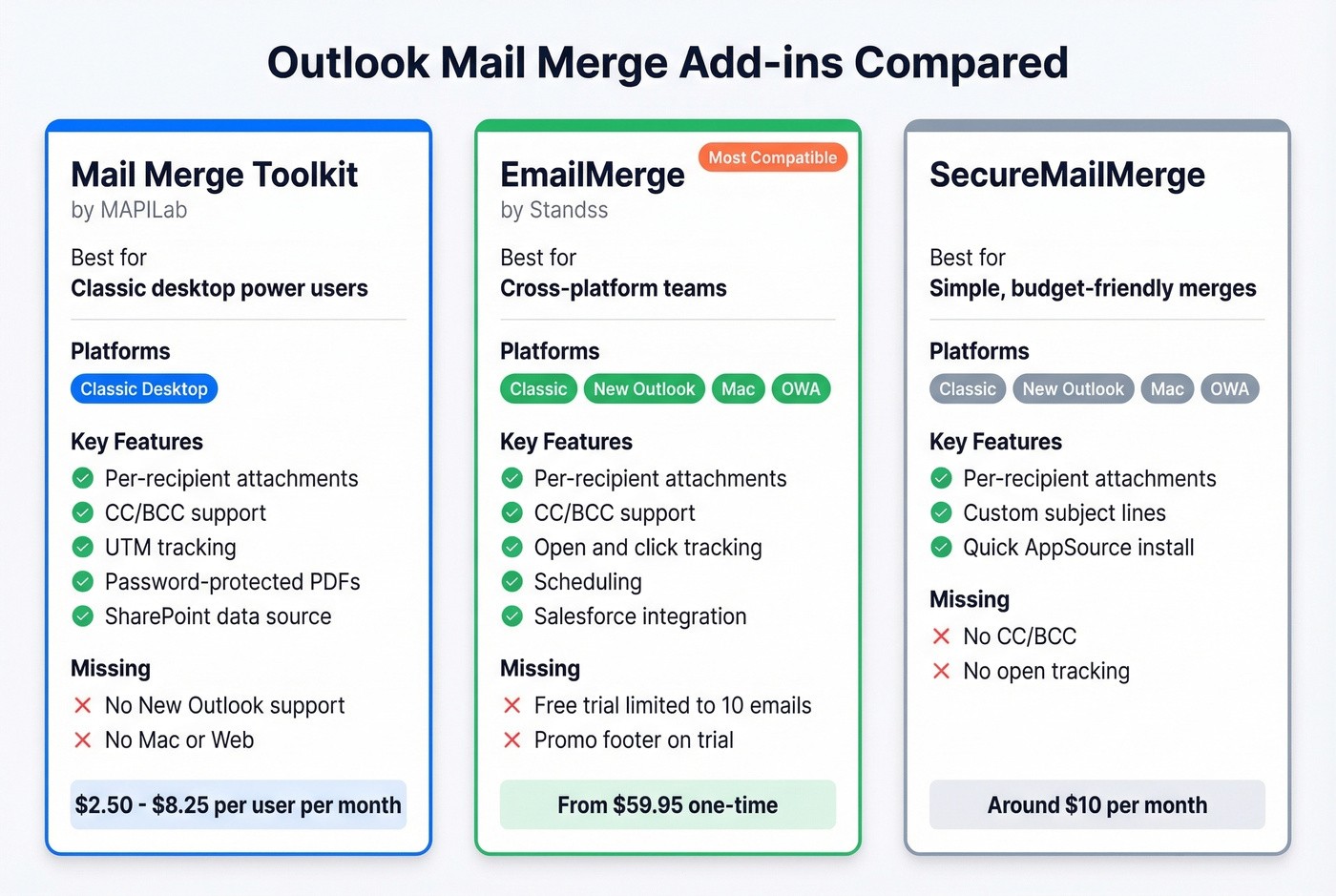
Mail Merge Toolkit wins on features for the classic desktop workflow. EmailMerge wins on platform coverage. SecureMailMerge wins on simplicity and price.
Outlook Sending Limits
Every merge guide glosses over limits until you hit one. Then you're staring at a stuck Outbox wondering what went wrong.
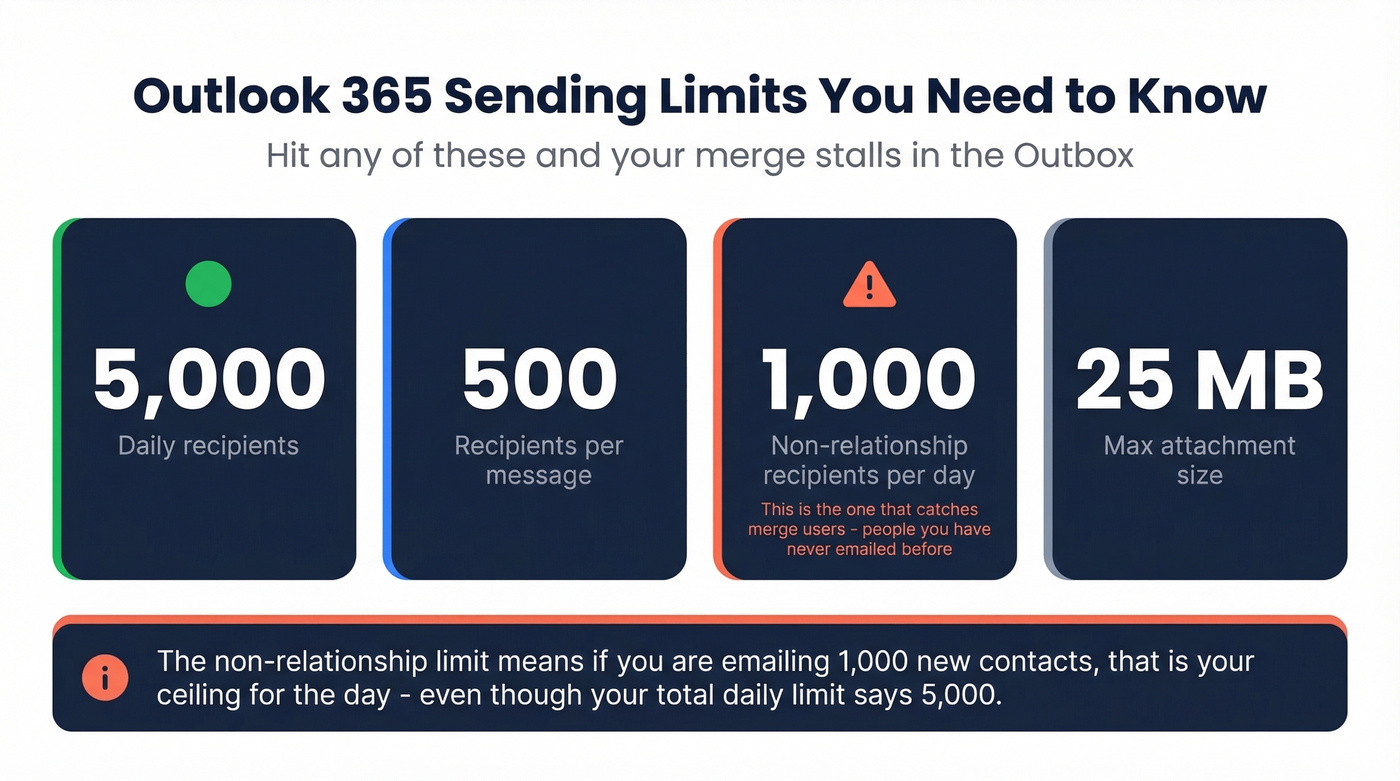
Here are the Outlook.com limits for Microsoft 365 subscribers:
| Limit | Number |
|---|---|
| Daily recipients | 5,000 |
| Recipients per message | 500 |
| Non-relationship recipients/day | 1,000 |
| Max attachment size | 25 MB |
The "non-relationship" limit is the one that bites merge users. If you're emailing 1,000 people you've never contacted before, that's your daily ceiling - even if your total daily limit is technically 5,000.
Exchange Online limits are murkier and vary by tenant age and configuration. The "30 messages per minute" belief keeps coming up on Reddit. Microsoft doesn't publish an exact per-minute cap, but 30/minute is a safe pacing target in practice. A 180-email merge takes about 6 minutes at that rate - no need to split into manual batches.
When you hit limits, three things happen: emails get stuck in your Outbox, you receive NDRs, or Outlook temporarily blocks sending. Don't panic, don't keep clicking Send, and don't restart Outlook - that can create duplicates. Wait 30-60 minutes and let the throttle lift. If you're trying to manage email velocity at scale, Outlook isn't the right tool.
Protect Your Domain Reputation
Most merge guides skip the step that matters most - making sure your email list is actually good. A polished Word template means nothing if a chunk of your addresses bounce.
The stakes are higher than most people realize. Since May 2025, domains sending more than 5,000 emails per day to Outlook.com addresses - hotmail.com, live.com, outlook.com - must pass SPF, DKIM, and DMARC with at least p=none. Non-compliant mail gets routed to Junk or rejected outright with a 550; 5.7.515 error. Even under 5,000/day, these authentication standards affect your sender reputation.
A high bounce rate from stale addresses can trigger filtering that affects all your email - not just the merge. Your regular one-to-one messages start landing in Junk. Your calendar invites get flagged. It's a cascading problem.
Before running any merge, verify your list. Prospeo's email verification checks addresses in real time with 98% accuracy. Upload your Excel file, get a cleaned list back in minutes - invalid addresses flagged, catch-all domains identified, spam-trap and honeypot risks filtered. The free tier includes 75 email verifications per month, and paid usage runs about $0.01 per email. If you want the deeper playbook, use this email deliverability guide and keep an eye on your email bounce rate.
The full deliverability checklist:
- Verify every address before merging. Remove invalids and flag risky catch-all domains.
- Confirm SPF, DKIM, and DMARC are configured for your sending domain. Your IT team should have this handled, but check. (If you need a quick audit, see SPF Record Examples and How to Verify DKIM Is Working.)
- Include a functional unsubscribe link in every merge. Even internal communications benefit from this - it's a trust signal to email providers.
- Use accurate From and Reply-To headers. Don't send from a no-reply address if you want replies.
- Pace your sends. Don't blast 3,000 emails at once if you normally send 50/day. Ramp up gradually over a week or two.
If you're regularly merging to 500+ recipients, you've outgrown Outlook's limits. Prospeo gives you 143M+ verified emails with 30+ targeting filters - buyer intent, job changes, technographics - so you're not just sending personalized emails, you're sending them to the right people.
Stop merging to stale CSVs. Build verified lists that actually convert.
Troubleshooting Common Problems
"Merge sent but nothing in Sent folder." This is a known New Outlook issue. The merge appears to execute - no error, no confirmation, no Sent item. It's the most disorienting failure mode in the product. Switch to Classic Outlook or use a 365 add-in like EmailMerge, which provides its own send confirmation.
"Recipients got a blank email." Field mapping error. Your Excel column headers must match your merge fields exactly - including spaces and capitalization. If your column says "First Name" but your merge field references "FirstName," Word inserts nothing. Open Preview Results in Word before sending.
"Outlook security prompt blocks sending." This is a MAPI trust issue. Outlook needs to be set as your default mail app, and some antivirus software intercepts the MAPI call. Check Settings > Default Apps > Email and temporarily disable email scanning in your security software.
"Emails stuck in Outbox." You've hit a throttle. Don't keep clicking Send, and don't restart Outlook - that creates duplicates. Wait 30-60 minutes and let Outlook pace the delivery. For 500+ emails, this is expected behavior.
"PDF attachment shows as icon in the email body." Not a bug - it's how Word handles embedded objects. You need an add-in for real attachments. Mail Merge Toolkit for the classic desktop workflow, EmailMerge 365 for New Outlook. See the attachments section above.
When to Stop Using Mail Merge
Here's the thing: mail merge is a 2005 solution to a 2026 problem. It works for occasional sends under 500 recipients where you control the data and don't need analytics. Beyond that, you're fighting the tool instead of using it.
You've outgrown mail merge for Outlook when any two of these are true: you're sending to 500+ recipients regularly, you need open and click tracking, unsubscribe management has become a headache, you want scheduling and send-time optimization, or you need deliverability monitoring.
For marketing emails, use a dedicated email platform that gives you templates, analytics, list management, and compliance features - Mailchimp, Brevo, or similar. For sales outreach, tools like Instantly or Smartlead handle sequencing, A/B testing, and deliverability warming out of the box.
If you're building prospect lists for outbound sales, skip the Excel-to-Word-to-Outlook dance entirely. Prospeo's database covers 300M+ professional profiles with 30+ search filters - pull verified emails directly and push them into a dedicated outreach tool through native integrations with Smartlead, Instantly, or lemlist. For a broader stack view, see our guide to sales prospecting techniques and outbound lead generation tools.
FAQ
Does mail merge work in New Outlook?
Basic bulk sending works, but there are no personalization fields, no CC/BCC, and sent mail groups into one thread instead of individual items. Microsoft 365 Roadmap ID 423047 lists Advanced Mail Merge improvements, but they aren't broadly available yet. For full functionality now, use Classic Outlook or an add-in like EmailMerge 365.
Can you add attachments to a mail merge?
Not natively. Word embeds a visual icon, not a real file. Use Mail Merge Toolkit ($2.50/mo, classic desktop) or EmailMerge 365 (from $59.95, works on New Outlook/Mac/OWA) for per-recipient attachments pulled from a file-path column in your data source.
How many emails can you send per day?
Outlook.com allows 5,000 daily recipients and 500 per message. The non-relationship cap is 1,000/day - the limit that catches most merge users. Pace at roughly 30 emails/minute to avoid throttling.
Why did my merge send but nothing appears in Sent?
This is a confirmed New Outlook bug - the merge executes silently with no Sent item and no error. Multiple users on r/Office365 report the same behavior. Switch to Classic Outlook or use a 365 add-in that provides its own delivery confirmation log.
Should you verify your email list before merging?
Always. Bounces from stale addresses damage domain reputation and can route all future email to spam - not just the merge. Prospeo's free tier includes 75 verifications per month at 98% accuracy, enough to clean a small merge list before hitting Send.