

How to Preview Contacts Before Export (The 2026 Preflight Checklist)
One bad export can turn a simple migration into a cleanup project: accents break, columns shift, phone numbers lose their "+", and iCloud throws the dreaded "invalid contact data" error with zero clues.
Previewing isn't a button. It's a routine: scope what you're exporting, inspect the file you produced, then run a small test import.
Here's the thing: the 10-contact test feels slow right up until it saves you two hours.
What you need (quick version)
These three checks catch most failures:
- Export 10 contacts first and validate end-to-end (export -> preview -> test import).
- Open the CSV in Excel for a field scan (then close without saving).
- Open the VCF in a text editor and confirm structure + encoding (
[BEGIN/END](https://datatracker.ietf.org/doc/html/rfc6350),FN/N, no BOM weirdness).
What "preview contacts before export" really means
Most apps don't offer a magical "preview export" screen. In practice, previewing means one of three things:

1) In-app preview (before export).
Sanity-check what's selected: filters, folders, labels, lists. This is where most mistakes happen.
2) Downloaded file preview (after export, before import). Export a CSV/VCF, then inspect it locally. This is the most reliable check because you're looking at the exact artifact you'll import.
3) Import-sample preview (during import). Some importers show example contacts during CSV import so you can confirm text renders correctly. That's your early warning for UTF-8 issues.
A decision tree I use:
- Need to confirm who you're exporting? -> in-app preview (filters/folders/labels).
- Need to confirm what fields are coming through? -> downloaded file preview (CSV/VCF).
- Need to confirm it'll import cleanly? -> import-sample preview (cancel if it looks wrong).
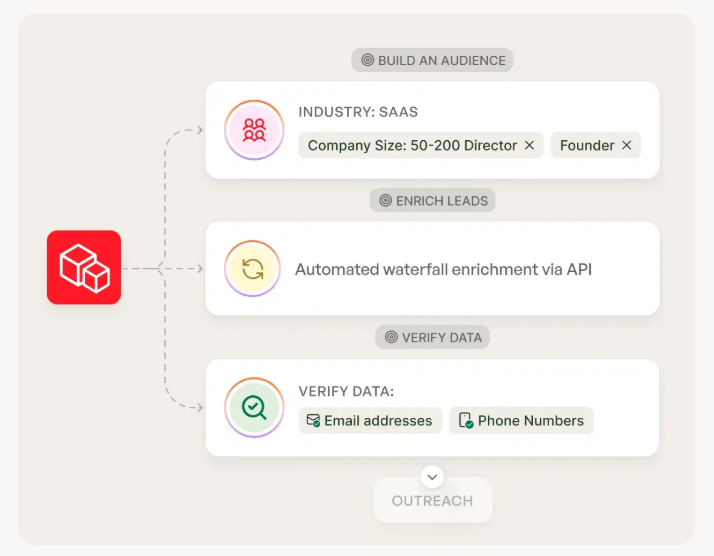
The universal workflow to preview contacts before export (works for any app)
Use this workflow whether you're exporting from Outlook, Google Contacts, iCloud, a CRM, or a sales database.
Preflight checklist (copy/paste)
- Scope it: pick the right folder/label/list/filter.
- Export 10 contacts first: not 100, not "all."
- Preview the file locally:
- CSV -> open in Excel, scan columns, close without saving
- VCF -> open in a text editor, check structure + encoding
- Run a test import into a throwaway destination (or a test folder/account).
- Only then export the full set.

Use this / skip this
Use this workflow if...
- You're moving contacts between platforms (Outlook <-> Google <-> iCloud).
- You care about preserving labels, addresses, or custom fields.
- You're exporting more than a few hundred contacts.
Skip the heavy QA if...
- You're exporting a tiny set and retyping would be faster.
- You're exporting for archival only (and won't re-import).
I've seen teams burn an entire afternoon because they exported "All contacts" instead of the one folder they meant to move, imported it into a CRM, and then had to dedupe, delete, and explain why random vendors from 2019 were suddenly getting sequenced. (If you’re importing into a CRM, it’s worth having a cleanup SOP like this: keep CRM data clean.)
One practical note: many SaaS exports run in background jobs and often cap exports in the 10,000-100,000 row range depending on the tool and plan, so the 10-contact test isn't just safer, it's also a cheap way to confirm you're not about to waste an export run on a broken format.

You're building a preflight checklist because bad data breaks imports. What if the data was clean before you ever exported it? Prospeo's 5-step verification and 7-day refresh cycle mean 98% email accuracy out of the box - no broken columns, no stale records, no two-hour cleanup sessions.
Start with data that passes QA before you even run it.
Scope first (export only what you need)
Most export disasters aren't "bad data." They're "wrong subset."
Subset mistakes I see constantly, plus how to catch them before you export:
Wrong folder (Outlook): you're viewing "People," but the export pulls from a different Contacts folder (or a different mailbox). Detect it: sort your contact list by "Created" or "Modified" and spot-check 3-5 names you know should be included. If they're missing in-app, they'll be missing in the export.
Archived/hidden contacts (Google): contacts can live in "Other contacts" (auto-saved) or be effectively "not in your main view." Detect it: search for a specific email you expect. If it only appears in a different view/label, your export selection's wrong.
Shared mailbox vs personal mailbox (Outlook/Exchange): you export from the wrong account tree. Detect it: in the export wizard, confirm the mailbox name above the Contacts folder. If it's not the mailbox you expect, stop.
Lists aren't folders (Outlook.com): you click a list and assume export respects it. It doesn't. Detect it: export 10 contacts and check whether the file contains people outside the list. If yes, you're exporting everything.
Subset export reality check (by platform)
| Platform | Subset export? | How | Workaround |
|---|---|---|---|
| Classic Outlook | Yes | Export a folder | Use a temp folder for the subset |
| New Outlook | Yes | "Contacts from this folder" dropdown | Export the selected folder only |
| Outlook.com | No (lists) | Exports all | Export all, then filter the CSV |
| Google Contacts | Yes | Select contacts or a label | Export the label |
| iCloud Contacts | Yes (manual select) | Manual select | Split the VCF if needed |
| Sales databases (varies; example: SalesIntel) | Often | Preview sample | Use a list workflow |

Two specifics that matter:
- New Outlook has a "Contacts from this folder" dropdown during export. Use it. It's the cleanest way to avoid exporting your entire universe.
- Outlook.com can't export a single contact list (distribution list). It's not a folder, so export doesn't respect it.
Preview/export steps by platform (Outlook, Google, iCloud, sales databases)
Each section follows the same promise: how to export + what to preview + the gotcha.
Outlook (classic desktop): export, then preview safely in Excel
Classic Outlook's export flow is old-school, but it's predictable.
Export
- File -> Open & Export -> Import/Export
- Export to a file
- Comma Separated Values (.csv)
- Select the Contacts folder under the right email account
- Save the CSV
Preview
- Open the CSV in Excel and scan headers + columns (details below).
- If you need a subset: create a temporary Contacts folder, move the 10 test contacts there, export that folder, validate, then repeat with the real subset.
Gotcha Excel loves "helping." It'll happily reformat phone numbers, ZIP codes, and long IDs unless you import carefully.
New Outlook / Outlook on the web: scope folder + use the import sample preview
New Outlook makes two things easier: scoping and encoding validation.
Export
- Go to People
- Manage contacts -> Export contacts
- Use "Contacts from this folder" to scope
- Export (it lands in Downloads)
Preview
- During import (People -> Manage contacts -> Import contacts), Outlook shows example contacts so you can confirm names/addresses render correctly.
- If text looks garbled, cancel and fix encoding (UTF-8) before you import for real.
Gotcha Encoding issues show up here first. If the sample preview looks wrong, the full import will be wrong.
Outlook.com limitation: why lists don't export (and the clean workaround)
Outlook.com "Contact lists" behave like distribution lists, not exportable folders. So even if you click a list, export typically dumps all contacts.
Workaround (fast + reliable)
- Export all contacts to CSV.
- Compose a new email, type the list name in To, then click the plus to expand it into individual addresses.
- Copy those addresses into a temporary column in Excel.
- Filter your exported CSV to only rows whose email matches that list.
If you only need names/emails (not full contact fields): open Classic Outlook, right-click the list, Quick Print, save as PDF, then convert/extract. It's not a full-fidelity export, but it's a clean "who's on this list?" preview.
Google Contacts: select first, then export in the right format
Google Contacts is straightforward as long as you select before exporting.
Export
- Go to Google Contacts
- Select 10 contacts (test set) or select a label/group
- Click Export
- Choose the format:
- Google CSV (best for Google-to-Google)
- Outlook CSV (best when Outlook's the destination)
- vCard (VCF) (best for Apple/iCloud and many phone imports)
Preview
- Open the CSV and confirm columns match the destination you chose (Outlook CSV vs Google CSV).
- For VCF, do a raw text check for
BEGIN:VCARD/END:VCARD.
Gotcha If your destination's Outlook, pick Outlook CSV. Exporting "Google CSV" out of habit is how you end up in mapping purgatory.
iCloud Contacts: export VCF and verify before importing elsewhere
iCloud exports vCards. That's good (portable), but it's also where structure/encoding issues show up fast.
Export
- Go to iCloud Contacts
- Select contacts (or Select All)
- Export as vCard (.vcf)
Preview
- Open the VCF in a text editor and confirm it's a clean vCard file (structure, VERSION, encoding).
Gotcha Outlook can be finicky with multi-contact VCFs. If Outlook's the destination, CSV is often smoother than a giant multi-contact vCard.
Sales databases: preview without spending credits (SalesIntel example)
Credit-based databases are where "preview before export" is a real feature, because exports cost money and mistakes cost more.
Export + preview pattern (SalesIntel)
- Run your search
- Select contacts
- Bulk Actions -> Preview File
- Download the spreadsheet and review key fields (name, company, domain, title) before you spend export credits
Gotcha The preview isn't the export. Treat it like a staging file.
Clean list workflow (tight version)
- In the preview spreadsheet, delete rows you don't want.
- Keep MatchID (that's the key).
- Upload the MatchID-only file into Lists -> Create a List.
- Export from the resulting report with the right options (like contacts per company).
SalesIntel's walkthrough: SalesIntel's "Preview File" post.
How to preview the export file without breaking CSV + VCF
Previewing is where people accidentally corrupt the file. The goal's simple: look without "fixing" anything by accident.
Real talk: Excel is the #1 reason a "perfectly fine CSV" becomes a mess.
Common real-world failures (the stuff people actually curse about)
- Excel ate leading zeros in ZIP codes and extensions.
- Excel dropped the "+" from E.164 phone numbers (so +44 becomes 44).
- Outlook.com export ignored the list and dumped every contact you've ever saved.
- The first vCard got skipped because the file started with "BEGIN:VCARD" (BOM).

CSV: Excel "view-only" workflow (avoid auto-format damage)
Do this:
- Expect many empty cells. That's normal in Outlook exports. Don't "fill down" or "clean up" unless you mean it.
- For the safest preview, open Excel first, then Data -> From Text/CSV:
- Set the delimiter correctly (comma vs semicolon). If columns look shifted, this is usually why.
- Set columns like ZIP/Postal Code, phone, and IDs to Text so Excel doesn't reformat them.
- Scan these columns:
- Email (no spaces; no stray commas)
- Phone (leading
+preserved; no scientific notation) - Address (street/city/state not split into nonsense columns)
- Notes (quotes and commas didn't create extra columns)
- Non-English characters (e, u, n accents) for encoding sanity
If you edit anything, save a new copy.
Don't do this:
- Don't open a CSV, see "1/2" and let Excel convert it into a date.
- Don't let Excel convert long numbers into
1.23E+11. - Don't hit Save over the original unless you're 100% sure.
VCF: readable preview vs raw preview
Readable preview (no raw text):
- Windows: open with Windows Contacts
- Mac: double-click to open in Contacts (careful, this can import)
Raw preview (best for QA):
- Windows: open in Notepad
- Mac: open in TextEdit as plain text
Raw preview is where you catch the killers: BOM characters, missing END:VCARD, broken line folding, or weird TEL labels.
CSV -> VCF conversion preflight (field mapping rules)
CSV-to-VCF conversions fail for boring reasons: headers and mapping.
Minimum columns to keep (so converters don't guess)
If you're converting CSV -> VCF, keep at least:
- First Name, Last Name (or a single Full Name)
- Phone (if you need it)
- Company/Organization (optional but useful)
- Address fields (only if you can map them cleanly)
Everything else is nice-to-have, but these columns stop converters from guessing and getting it wrong.
Mapping rules that prevent garbage vCards
- Headers are in the first row. No headers means the converter guesses, and the output's usually junk.
- Headers match the column data. If "Phone" sits on a company-name column, you'll generate nonsense TEL fields.
- Use common header names to reduce mapping failures:
- Name / First Name / Last Name
- Email / E-mail
- Phone / Mobile / Work Phone
- Company / Organization
- Address / City / State / Postal Code / Country
Multi-email / multi-phone handling (where things get dropped)
This is where "it imported, but half my data vanished" happens, because a lot of tools only map one email and one phone unless you set it up exactly the way they expect.
- Multiple emails: many converters only map one email column. If you have
Email 1,Email 2, decide which one matters and rename it toEmailfor the conversion. Keep the other in Notes or a secondary field if your converter supports it. - Multiple phones: normalize to one primary number (ideally E.164 like
+14155550123) for the conversion. If you must keep both, useMobileandWork Phoneheaders and verify the converter maps both to separateTELlines.
Decide what you're willing to lose before you convert. vCard supports a lot, but plenty of converters drop custom labels, multiple addresses, or notes formatting, so plan for a little loss and validate it with a test import before you run the full batch.
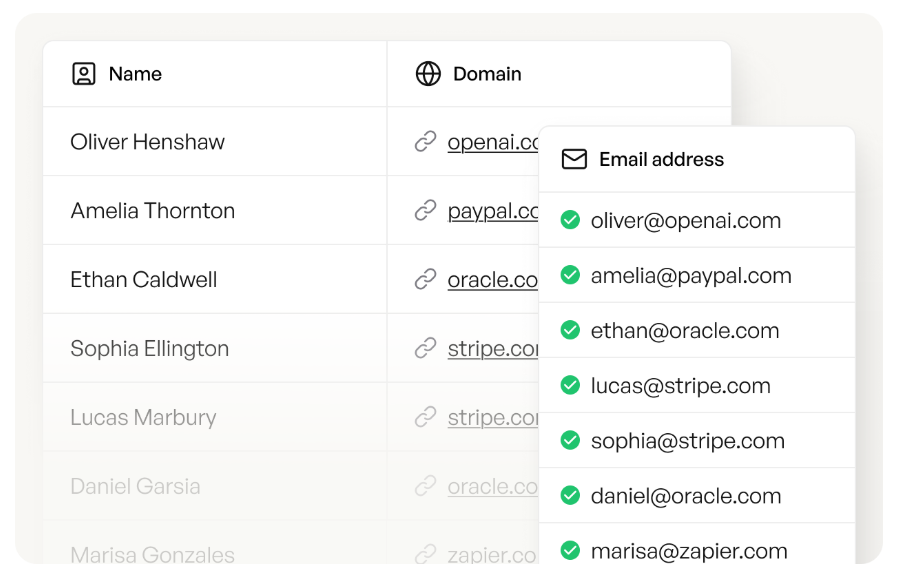
VCF (vCard) preflight checklist (copy/paste)
When a VCF import fails, it's almost always one of these.
Copy/paste checklist
- File contains
BEGIN:VCARDandEND:VCARDfor every contact - No weird characters before the first
BEGIN:VCARD - Encoding is UTF-8 without BOM
- VERSION is consistent (prefer 3.0 for broad compatibility; 4.0 can break older importers)
- Each contact has FN and/or N
- Addresses use the ADR seven-field semicolon structure
- Phone numbers use consistent TEL syntax
- Line folding is valid (continuation lines start with a space)
Minimal "known good" vCard skeleton
BEGIN:VCARD
VERSION:3.0
N:Doe;Jane;;;
FN:Jane Doe
EMAIL;TYPE=work:jane.doe@company.com
TEL;TYPE=cell:+14155550123
ADR;TYPE=work:;;123 Main St;San Francisco;CA;94105;USA
END:VCARD
BOM problem (the sneaky one)
If your file starts like this, you've got a BOM:
BEGIN:VCARD
A bunch of importers treat that as "not actually BEGIN:VCARD" and fail or skip the first contact. Fix it by re-saving as UTF-8 without BOM in a proper editor.
FN / N requirement
Many importers require at least one of these:
FN:formatted name (human-readable)N:structured name (Last;First;Middle;Prefix;Suffix)
If you're missing both, Google Contacts tends to choke.
ADR seven-field structure (don't improvise)
ADR has seven slots separated by semicolons:
PO Box;Extended;Street;City;Region;Postal;Country
Example:
ADR;TYPE=home:;;742 Evergreen Terrace;Springfield;IL;62704;USA
If you drop placeholders (like the double semicolons), addresses get mis-parsed or silently dropped.
TEL syntax + line folding
TEL syntax varies by version/importer. Two common patterns:
- Modern:
TEL;TYPE=cell:+14155550123 - Older:
TEL;CELL:+14155550123
If labels disappear after import, normalize to the modern TYPE= style.
Also watch line folding: if a line's too long, it can wrap, but the continuation line must start with a space:
NOTE:This is a long note that might wrap in some exports and the next
 line must start with a space or the importer may break the field.
If import fails ("invalid contact data"): diagnose in 5 minutes
When an importer says "invalid contact data," it means some contact in the file violates its rules.
And yes, it's frustrating, because the error message rarely tells you which one.
5-minute troubleshooting flow
Try importing your 10-contact test file. If the small file imports, your process is fine and the issue's in the larger dataset.
Check hard limits (iCloud is strict). iCloud limits are:
- 256 KB per contact
- 224 KB per contact photo
- 50,000 total contacts in the account
Oversized photos are a classic failure mode. Strip photos first if you're importing into iCloud.
- Open the VCF in a text editor and scan the first 30 lines.
Look for:
- BEGIN:VCARD (BOM)
VERSION:mismatch (2.1 vs 3.0/4.0)- missing
END:VCARD - lots of custom
X-properties from CRMs
- Normalize the basics.
- Convert to UTF-8 without BOM
- Standardize line endings (CRLF is safest across Windows tools)
- Ensure every contact has
FNorN - Prefer
VERSION:3.0unless you know the importer supports 4.0 cleanly
- Use the binary split method to isolate the bad contact.
Split the VCF into two files by contact boundaries (between
END:VCARDandBEGIN:VCARD). Import each half. The half that fails contains the bad contact. Repeat until you find the single offender.
It sounds tedious, but it beats guessing, and it works even when the importer gives you nothing to work with.
Quick "symptom -> likely cause" table
| Symptom | Likely cause | Fast fix |
|---|---|---|
| Weird characters | UTF-8/BOM | Save UTF-8 no BOM |
| Only 1st contact fails | BOM at top | Remove BOM |
| Addresses missing | ADR format | Use 7-slot ADR |
| Import stops mid-file | Bad folding | Fix folded lines |
| iCloud rejects file | Size/photo | Strip photos |
Once your file passes these checks, do one more thing before you push contacts into a CRM or sequencer: verify the emails and mobiles so you don't import bounces, dead numbers, and duplicates that wreck reporting and deliverability.
In our experience, this is where teams regret skipping the "data hygiene" step, because fixing a bad CRM import is way worse than fixing a CSV. (If you’re doing bulk loads, follow a repeatable import leads process.)
Every CSV you export from a legacy tool needs manual inspection because you can't trust the underlying data. Prospeo delivers 143M+ verified emails and 125M+ verified mobiles with catch-all handling and spam-trap removal built in. Export directly to your CRM via native integrations - no throwaway test imports required.
Stop previewing broken contacts. Export ones that actually work.
FAQ
Can I preview contacts before export inside Outlook or Google Contacts?
Yes. Use the on-screen list to confirm the right folder/label, then run a 10-contact test export to confirm the file matches what you saw. In New Outlook, the "Contacts from this folder" dropdown is the key control; in Google Contacts, exporting a specific label is the cleanest way to avoid grabbing everything.
Why does my CSV look fine but imports with weird characters? (UTF-8/BOM)
Your file's in the wrong encoding or includes a BOM, which can corrupt headers and non-English characters during import. Re-save the CSV as UTF-8 without BOM, then re-run the import and use the importer's sample/preview step to confirm names like "Jose" with accents render correctly before importing the full set.
Why did addresses/labels disappear after converting CSV to VCF?
Most converters drop fields when headers are missing, non-standard, or hard to map, especially multiple addresses and custom labels. Keep headers in row 1, use common column names (Email, Mobile, Address, City, Postal Code), and map addresses into vCard's ADR seven-slot format; expect some label loss unless you map it explicitly.
What does "invalid contact data" mean when importing a VCF into iCloud?
It means at least one contact breaks iCloud's rules, usually missing BEGIN/END, missing FN/N, bad line folding, a VERSION mismatch, or an oversized record. iCloud also enforces 256 KB per contact, 224 KB per photo, and 50,000 total contacts, so stripping photos and importing a 10-contact test file is the fastest way to isolate the issue.
After I preview and fix the file, how do I verify emails before importing into a CRM?
Verify before import so you don't load bounces and dead numbers into your CRM, and aim for under 5% bounces on the first batch. Prospeo's a strong option because it verifies in real time with 98% email accuracy and a 7-day refresh cycle, and its free tier (75 emails + 100 extension credits/month) is enough to validate your test export and first real upload.
Summary: the fastest way to preview contacts before export (without regrets)
If you only remember one thing: preview contacts before export by doing a 10-contact test, inspecting the actual CSV/VCF you'll import, and running a throwaway import to catch encoding and mapping issues early.
Boring beats broken.