

How to Import Leads Into Any CRM - The Complete 2026 Guide
You just came back from a trade show with 2,000 business cards, a spreadsheet from your SDR's scraping tool, and a CSV export from your webinar platform. Three sources, three formats, zero consistency. You try to import leads into your CRM and half the rows get rejected. The other half create duplicates that haunt your pipeline reports for months.
Over one-third of CRM users report losing revenue directly because of bad data. The U.S. economy loses an estimated $3.1 trillion annually to data quality problems, and 70% of CRM implementations fail - not because the software is broken, but because the data going in is garbage. As one frustrated ops manager put it on Reddit: "Automated data formatting is not a solved problem yet."
Here's the thing: uploading a lead file isn't hard. Importing clean leads is. The difference between a CRM that drives revenue and one that drives your reps crazy comes down to what you do before you hit the upload button.
What You Need to Import Leads Successfully (Quick Version)
If you're short on time, here's the three-step framework that prevents 90% of import failures:
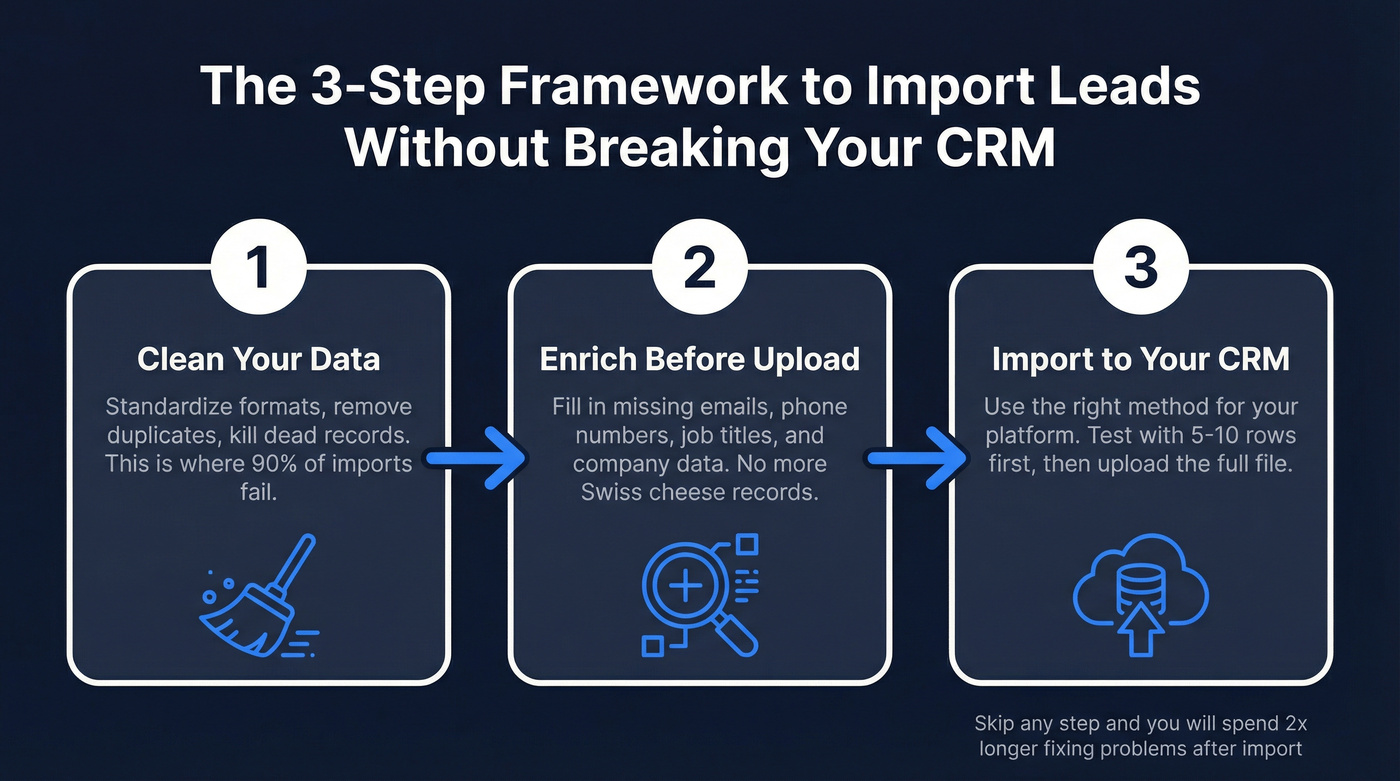
- Clean your data first. Standardize formats, remove duplicates, kill dead records. This is where most imports fail - not in the CRM, but in the spreadsheet. (If you need a long-term process, use a data hygiene cadence.)
- Enrich before you upload. Fill in missing emails, phone numbers, job titles, and company data so your CRM starts with complete records instead of Swiss cheese. (See our rundown of lead enrichment tools.)
- Use the right import method for your CRM. HubSpot and Pipedrive are beginner-friendly with drag-and-drop uploads. Salesforce requires separate tools for anything over 50K records.
Skip any of these steps and you'll spend twice as long fixing problems after the import. Do them in order and the actual upload becomes the easy part.
Pre-Import Data Cleaning Checklist
This is the step everyone wants to skip and nobody should. Manual data imports carry a 1-4% error rate - that's up to 40 bad records per thousand, compounding every time you upload. And 76% of CRM users believe less than half their data is accurate or complete. (If you want to measure it, start with a data quality scorecard.)

A clean import file is the difference between a CRM that works and one that creates more problems than it solves.
Here's the 10-step checklist we use before every import:
1. Consolidate your sources. Merge every spreadsheet, CSV, and export into a single master file. If you're managing leads in Google Sheets from multiple campaigns, now's the time to combine them into one clean document. Tag each row with its source (trade show, webinar, scraper, etc.) so you can track quality later. (Related: trade show lead generation.)
2. Check required fields. Every CRM has mandatory fields. HubSpot needs an email or name. Salesforce needs Last Name and Company. Pipedrive needs a lead title plus a person name or org name. Check your CRM's requirements before you start cleaning.
3. Standardize formats. This is where the tedious work lives:
- Dates: YYYY-MM-DD (ISO 8601). Not "March 3, 2026" or "3/3/26."
- Phone numbers: +country code format (+14155551234). No parentheses, no dashes. (If you’re missing dials, use a B2B phone number workflow.)
- Text case: Pick one convention for names and titles. "VP of Sales" not "vp of sales" or "VP OF SALES."
- Encoding: Save as UTF-8. Always. Non-UTF-8 files turn "Jose" into "José."
4. Deduplicate. The average person has 2-3 email addresses. Sort by email, then by company + last name to catch people who appear with different addresses. Use conditional formatting or a COUNTIF formula to flag duplicates. I've seen teams discover 30% of their "new" trade show leads were already in the CRM - under slightly different email addresses.
5. Verify every email.
Non-negotiable. Importing unverified emails is like pouring sand into your CRM's engine - bounces, spam traps, and dead addresses that tank your sender reputation and skew every report you run. (If you need a full SOP, follow an email verification list workflow.)

6. Enrich missing data. Fill in blank job titles, company sizes, phone numbers, and industries. More on this in the enrichment section below. (Related: firmographic data for leads.)
7. Match CRM picklists. If your CRM has a dropdown for "Industry" with specific values (Technology, Healthcare, Finance), your import file needs those exact values. "Tech" won't match "Technology." Free-text values going into dropdown fields is the #1 cause of field mapping errors.
8. Remove dead records. Kill rows with no email and no phone number. Kill rows with obviously fake data ("test@test.com," "John Doe at ACME"). Kill rows older than 18 months with no engagement.
9. Test with 5-10 rows. Upload a tiny sample first. Check that fields map correctly, dates display right, and duplicates get caught. This takes two minutes and saves hours of cleanup.
10. Back up your original file. Before any import, save an untouched copy of your source data. You'll thank yourself when something goes wrong.

Why clean data after import when you can import clean data? Prospeo's CRM enrichment fills in missing emails, phone numbers, job titles, and 50+ data points per contact - with 98% email accuracy and a 92% match rate. Enrich your CSV or sync directly with HubSpot and Salesforce.
Enrich before you import. Your CRM will finally have data worth using.
How to Format Your Import File
File Format Rules
Your CRM doesn't care about your beautiful formatting. It cares about structure. Follow these rules and your file will upload cleanly on the first try:
- Encoding: UTF-8, always. The single most common cause of garbled data. In Excel: Save As -> CSV UTF-8. In Google Sheets: File -> Download -> CSV (UTF-8 by default).
- Dates: ISO 8601 (YYYY-MM-DD). "2026-03-15" is unambiguous. "03/15/26" could be March 15 or the 3rd of the 15th month in some locales.
- Commas in data: quote the field. If a city field contains "Boston, MA," wrap it in quotes:
"Boston, MA". Otherwise your CSV parser reads two separate columns. - Quotes in data: double them. William "Bill" Jones becomes
"William ""Bill"" Jones"in your CSV. - Multi-value fields: use semicolons. Multiple emails or phone numbers in one cell? Separate with semicolons, no spaces:
john@co.com;jane@co.com. - Column headers: unique and simple. No duplicate header names. No special characters. "First Name" and "Last Name" - not "First Name (from form)" and "First Name."
- No currency symbols in numeric fields. Revenue should be
50000, not$50,000. Strip symbols and commas.
10 Common CSV Errors (and How to Fix Them)
Bookmark this list. We see these on nearly every import project.

1. File too big. Excel caps at 1,048,576 rows. Google Sheets caps at 10 million cells. Split into chunks before importing.
2. Unescaped quotes. A single quote inside a quoted field breaks the parser. Always double your quotes: "" inside quoted strings.
Before: "William "Bill" Jones"
After: "William ""Bill"" Jones"
3. Inconsistent delimiters. Some rows use commas, others use semicolons. Pick one. Stick with it. Most CRMs expect commas for CSV.
4. Encoding issues. You saved from Excel without selecting UTF-8. Now every accented character is corrupted. How to check: open your file in a plain text editor (Notepad++, Sublime Text). If you see garbled characters instead of accented letters, re-save with explicit UTF-8 encoding.
5. Trailing whitespace and mixed line endings. Invisible spaces after email addresses cause duplicate detection to fail. Windows uses CRLF (\r\n), Mac/Linux uses LF (\n). Mixing them causes rows to merge or split randomly. Fix: use TRIM() on every text column in Excel or Google Sheets, and convert line endings in a plain text editor.
6. Missing headers. Your first row must be column headers. If it's data, the CRM will try to map "John Smith" as a field name.
7. Misaligned rows. One row has 12 columns, the next has 11. Usually caused by an unescaped comma or a line break inside a cell. Open the CSV in a text editor and search for rows with a different comma count than the header row.
8. Date format inconsistency. Row 1 has "2026-03-15," row 500 has "March 15, 2026," row 1,000 has "15/03/26." Pick YYYY-MM-DD and convert everything.
9. Phone number formatting. Parentheses, dashes, dots, spaces - CRMs choke on all of them. Strip everything and use +country code format: +14155551234.
10. Commas in numeric fields. Revenue of "1,500,000" reads as three separate columns. Remove all commas from numbers before import.
Enrich Your Data Before You Import
Look, enrichment isn't optional anymore.

Teams that skip this step upload what they have, realize half the records are missing job titles, phone numbers, or company data, and then spend weeks manually filling gaps. Or worse - they never fill them, and reps work from incomplete records forever.
Companies with clean, enriched CRM data see lead conversion rates jump by 29% and sales productivity rise by 34%. Companies lose over $15 million a year on average because of poor data quality. Pre-import enrichment is the cheapest insurance against that. (See: B2B contact data decay.)
The data points that matter most for sales: job title, company size, revenue, industry, direct phone number, and verified email. Without these, your reps are guessing. With them, they're targeting.
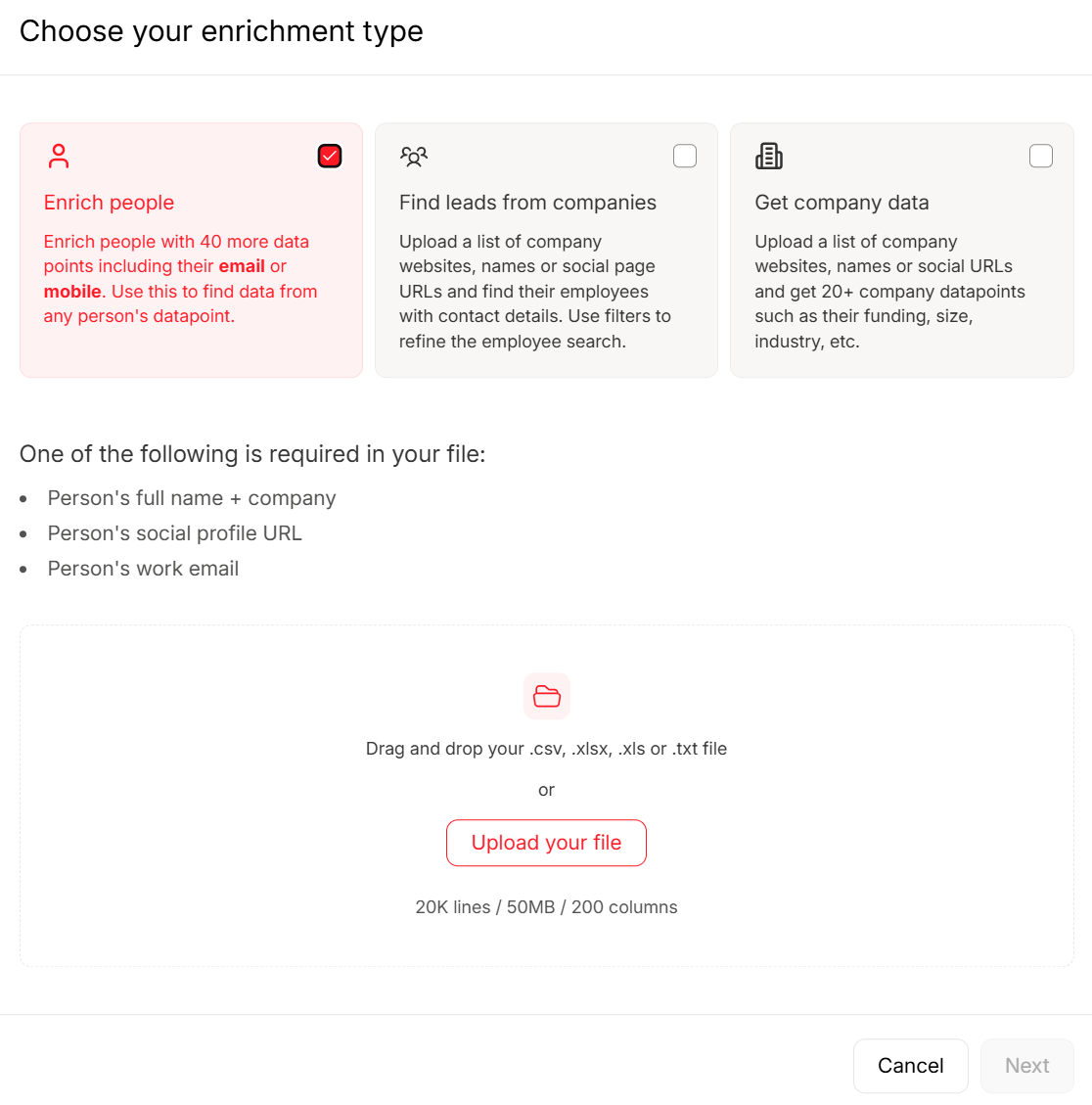
Prospeo is the tool we'd start with for pre-import enrichment. Upload your CSV, and it comes back with verified emails (98% accuracy), phone numbers, job titles, company data - 50+ data points per contact at an 83% enrichment match rate. Map your columns, get enriched records back ready for CRM import. Pricing runs about $0.01 per email, with a free tier to test. No contracts, no sales calls. It integrates natively with HubSpot, Salesforce, and every major sequencing tool. (If you want a plan-by-plan breakdown, see Prospeo pricing.)
For comparison: Apollo offers enrichment starting at $59/user/month with 210M+ contacts. Clearbit (now part of HubSpot) starts at $45/month. ZoomInfo starts at ~$15,000/year - serious money for a tool you only need for enrichment.
Real talk: If your deals average under $10K, you almost certainly don't need ZoomInfo-level data. A per-lead enrichment tool paired with good import hygiene will outperform a $15K/year platform that your team uses at 20% capacity.
Step 5 on the checklist says verify every email. Prospeo's 5-step verification catches bounces, spam traps, and honeypots before they hit your CRM. At $0.01 per email, verifying 2,000 trade show leads costs less than a cup of coffee.
Kill bad data at the source - not after it wrecks your pipeline reports.
How to Import Leads Into Major CRMs
Every CRM handles imports differently. Some make it painless. Others make you question your career choices. Here's what you need to know for the four most common platforms.
HubSpot
HubSpot's import experience is good - especially compared to what you'll deal with in Salesforce. Drag and drop a CSV, XLSX, or XLS file, map your columns, and you're done.
The limits depend on your plan. Free users get 20MB files, 500K rows per day, and 50 imports per day. Paid plans (starting at $20/user/month) bump that to 512MB, 10 million rows per day, and 1,048,576 rows per file. For most teams, the free limits are plenty.
Gotchas worth knowing:
HubSpot doesn't have a traditional "lead" object for imports. You bring in contacts, then convert them to leads using workflows. This trips up teams migrating from Salesforce where leads and contacts are separate objects. (Related: prospect in marketing.)
Duplicate detection only catches exact matches on email, company domain, or record ID. If someone's in your CRM as john@company.com and your import file has john.doe@company.com, HubSpot won't flag it. Enrich your data with company domains first and use domain as the matching key.
The Create Date property is read-only. Every imported contact gets today's date as their creation date, regardless of when you actually acquired them. In our experience, this catches about half the teams we work with off guard. The workaround: create a custom property called "Original Create Date," populate it via import, then use a workflow to copy HubSpot's Create Date into this property for new records going forward.
HubSpot supports multi-object imports - you can bring in contacts and companies simultaneously and associate them in one upload. That's a genuine time-saver.
Salesforce
A common complaint on r/salesforce: "How on earth is the #1 CRM in the world still relying on a Java-based thick client app to handle bulk data operations?" Fair question. You've got two options:
Data Import Wizard is browser-based, requires no installation, and handles up to 50,000 records. It supports leads, contacts, accounts, solutions, campaign members, and custom objects - but not Opportunities. It includes duplicate detection via email or ID matching and lets you assign lead sources and assignment rules during import.
Data Loader is a desktop application that requires Java. It handles unlimited records and works with all standard and custom objects. It supports insert, update, upsert, delete, hard delete, and export operations. Powerful but painful to set up.
If you're on Essentials or Professional editions ($25-$165/user/month), you need an API add-on to use Data Loader at all. For imports under 50K records, use the Wizard. For anything larger, consider Dataloader.io - a web-based alternative that users actively recommend over Salesforce's native Data Loader for its modern interface and easier setup.
Pipedrive - The Most Forgiving Import
Starting at $14/user/month (scaling to $79/user/month for Ultimate), Pipedrive offers the most forgiving import experience of the bunch. Upload an XLS, XLSX, or CSV file (up to 50MB, 50K rows), and Pipedrive's auto-recognition feature matches your column headers to its fields automatically. It usually gets it right. (If you're evaluating options, compare CRM software for small businesses.)
You can bring in leads, deals, organizations, people, products, notes, and activities simultaneously - no need for separate imports per object type.
The standout feature: the skip file. Any rows that fail get organized into a downloadable file with the row number and specific reason for failure. Fix the issues, re-upload the skip file, done. No guessing.
Imports can be reverted within 48 hours by a global admin. That's a safety net I wish every CRM offered.
Close CRM
Close (~$49/user/month and up) keeps it simple but has strict formatting requirements. CSV, XLSX, and XLS files only, with a 15MB size limit per upload. Larger files need to be split.
Phone numbers must use +country code format. No parentheses, no dashes - +18334625673, not (833) 462-5673. Multiple emails or phones go in one cell separated by semicolons.
Close's duplicate detection lets you compare by company name, lead ID, or custom field, with options to add missing info, replace entirely, or skip. Imports can be reverted within 48 hours (admin only).
Skip this CRM for migration if: you need to transfer notes, calls, emails, or SMS. The lead importer doesn't support activity data - you'll need Close's CRM migration tool or API for that.
CRM Import Limits at a Glance
| CRM | Max Size | Max Rows | Dedup | Revert |
|---|---|---|---|---|
| HubSpot (Free) | 20MB | 500K/day | Email/domain/ID | No |
| HubSpot (Paid) | 512MB | 10M/day | Email/domain/ID | No |
| SF Import Wizard | N/A | 50K records | Email or ID | No |
| SF Data Loader | N/A | Unlimited | External ID | No |
| Pipedrive | 50MB | 50K rows | Auto-detection | 48 hrs |
| Close | 15MB | N/A | Custom fields | 48 hrs |
Pricing quick reference: HubSpot Free / $20+/user/mo paid - Salesforce $25-$500/user/mo - Pipedrive $14-$79/user/mo - Close ~$49+/user/mo.
Automate Your Lead Imports
When to Automate vs. Manual Import
If you're importing leads once - a trade show list, a purchased database, a one-time scrape - manual upload is fine. Clean the file, push it in, move on.
But if leads flow in continuously from forms, ads, events, or partner referrals, manual imports become a full-time job. Over 25% of sales reps already spend a quarter of their week on repetitive data entry. (Related: manual data entry problems.) One real estate SaaS company saved 70% of their data entry time by automating lead ingestion from web forms into their CRM.
Automation eliminates busywork entirely.
Common workflows worth automating:
- Facebook Lead Ads -> CRM (new ad lead creates a contact automatically)
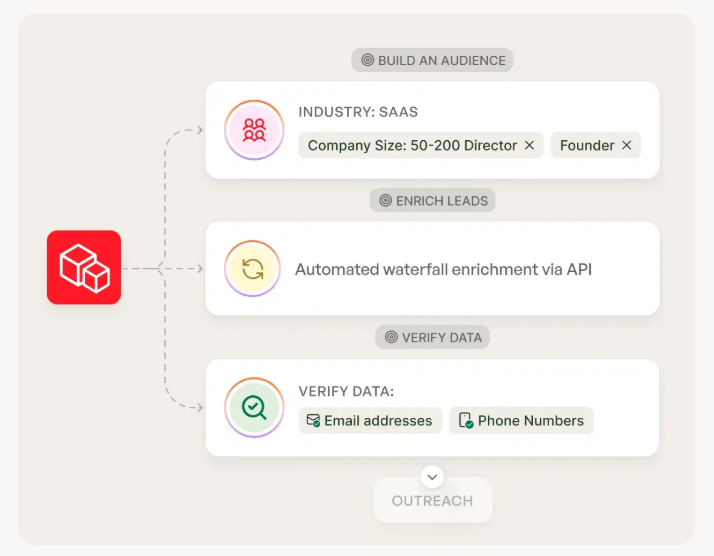
- Form submission -> enrichment -> CRM entry (lead gets enriched before it hits your database)
- Leads from Google Sheets -> CRM sync (a shared sheet updated by partners or event teams pushes new rows into your CRM automatically)
- Webinar attendee -> CRM contact with "Webinar" source tag (Related: webinar lead follow up.)
Zapier vs. Make vs. n8n
Three platforms dominate the automation space. The right choice depends on your technical comfort and budget.
| Feature | Zapier | Make | n8n |
|---|---|---|---|
| Integrations | 8,000+ | 2,000+ | 400+ |
| Starting price | ~$30/mo | ~$10/mo | ~$20/mo (cloud) |
| Free tier | Yes (limited) | 1,000 ops/mo | Free (self-hosted) |
| Best for | Non-technical | Complex logic | Developers |
Here's the pricing difference that matters: a 10-step workflow on Zapier costs you 10 tasks. On n8n, that same workflow costs 1 execution. For high-volume lead imports, n8n can be dramatically cheaper - especially if you self-host it (free).
Zapier is the easiest to set up. Its AI Copilot lets you describe what you want in plain English and builds the automation for you. Best for teams without a developer.
Make has a visual flowchart editor that handles complex branching logic better than Zapier. It's the sweet spot between power and usability, and at ~$10/month it's the cheapest paid option.
n8n is open-source and self-hostable - critical for teams with GDPR or HIPAA requirements. The learning curve is steeper, but the flexibility and cost savings are real.
CRM-to-CRM Migration Tips
Migrating from one CRM to another is a different beast than importing a fresh lead list. You're moving contacts, deals, activity history, custom fields, automations, and reports. I've walked teams through migrations that took 19 weeks when they budgeted 6.
Get it wrong and you lose months of institutional knowledge.
Migration Timeline
Don't let anyone tell you a CRM migration takes "a couple weeks." Realistic timeline:
- Data cleansing: 4-6 weeks. Always takes longer than expected.
- System configuration: 3-4 weeks. Custom fields, picklists, automations, integrations.
- Migration execution: 1-2 weeks. The actual data transfer.
- Testing: 2-3 weeks. Verifying data integrity, checking field mappings, running reports.
- User training: 2-4 weeks.
Total: 12-19 weeks. Budget at least a full quarter.
Migration Mistakes That Will Ruin Your Data
1. Migrating everything instead of cleaning first. "Let's get it all over and clean up later" is the most expensive sentence in CRM operations. You will never clean it up later.
2. Not doing a test run. Import 100 records first. Check every field. Then scale up. Something will break the way you didn't expect.
3. Field mapping mayhem. Free-text fields going into dropdown fields. Date formats that don't match. Custom fields that don't exist in the new CRM yet. Map every field before you start, and create custom properties in the target CRM first.
4. Not knowing your subscription limits. Signing up for HubSpot Starter and then realizing you need workflows (Professional) or custom objects (Enterprise) to replicate your old CRM's setup. That's an expensive surprise.
5. Only involving one team. CRM migrations need input from sales, marketing, customer success, and IT. If only one team drives the project, the others will revolt when their data doesn't look right.
6. Not removing duplicates and dead emails. The average person has 2-3 email addresses. Migrating all of them creates duplicate records that compound over time. Deduplicate and verify emails before migration - not after. (If you’re troubleshooting bounces post-migration, see 550 Recipient Rejected.)
7. Ignoring platform-specific gotchas. Case in point: during a Zoho-to-HubSpot migration, one team lost 85% of their contacts' lead associations because HubSpot's Lead object can't be imported directly - you have to create a custom property on contacts and use workflows to generate leads in bulk. And every imported contact gets today's date as their Create Date, wiping out all historical timing data unless you create a custom "Original Create Date" property and populate it during import. I've seen teams discover this after migrating 200K contacts. Don't be that team.
8. No ongoing CRM management strategy. The migration isn't the finish line. Without a plan for data hygiene, duplicate prevention, and enrichment going forward, your shiny new CRM will be just as messy as the old one within six months.
FAQ
What file format should I use to import leads into a CRM?
CSV with UTF-8 encoding is the universal standard - every major CRM accepts it. XLSX works too but can introduce formatting issues with dates and phone numbers that silently corrupt your data. Always use a single-sheet file with a header row matching your CRM's field names exactly.
How do I prevent duplicate records when importing leads?
Deduplicate your spreadsheet before upload using email address as the unique identifier. CRM-side duplicate detection only catches exact matches - slight variations like john@ vs. john.doe@ slip through every time. Enrich your data with company domains first and use domain as the secondary matching key for company-level dedup.
Why does my CRM reject rows during import?
The most common causes are encoding errors (non-UTF-8 characters), inconsistent date formats, phone numbers with parentheses or dashes instead of +country code format, and fields containing unescaped commas or quotes. Check your CRM's skip file or error log - it tells you the exact row and reason for each rejection.
Should I verify emails before importing leads?
Always. Importing unverified emails poisons your CRM with bounces, spam traps, and dead addresses, damaging sender reputation and skewing every report. Tools like Prospeo run a 5-step verification process (98% accuracy) that catches spam traps and honeypots before they reach your database, and the free tier lets you test with 75 credits. It's the cheapest fix for the most expensive problem.
How long does a CRM-to-CRM migration take?
A full migration typically takes 12-19 weeks: 4-6 weeks for data cleansing, 3-4 for system configuration, 1-2 for the actual transfer, 2-3 for testing, and 2-4 for user training. Most teams underestimate the cleansing phase - budget at least a full month for it, even if you think your data is "pretty clean."