

How to Whitelist an Email in Gmail (2026 Guide)
Your accountant sends tax documents every March. Every March, they land in spam. You find them nine days later, panicked, buried under Nigerian prince emails and fake invoice alerts. Gmail has over 1.8 billion users, and it still doesn't have a dedicated "whitelist" screen - learning how to whitelist an email in Gmail means learning to work around filters, contacts, and a few other tricks that Google never bothered to make obvious. Worse, Gmail auto-deletes spam after 30 days, so important emails don't just hide. They vanish.
Most guides give you one method and call it a day. That's why your emails still end up in spam. Here's every method, ranked by reliability, plus what to do when whitelisting fails entirely.
Quick Answer: The Filter Method
- Open Gmail on desktop - click the gear icon - See all settings
- Go to Filters and Blocked Addresses - Create a new filter
- Enter the sender's address in the From field
- Click Create filter - check "Never send it to Spam" - Create filter
That's the most reliable single method. But one method alone isn't enough. Layering multiple approaches is how you actually guarantee inbox delivery.
Four Ways to Whitelist in Gmail
Mark as "Not Spam"
- Open your Spam folder in the left sidebar.
- Find the email that shouldn't be there.
- Click the "Not spam" button at the top of the message.
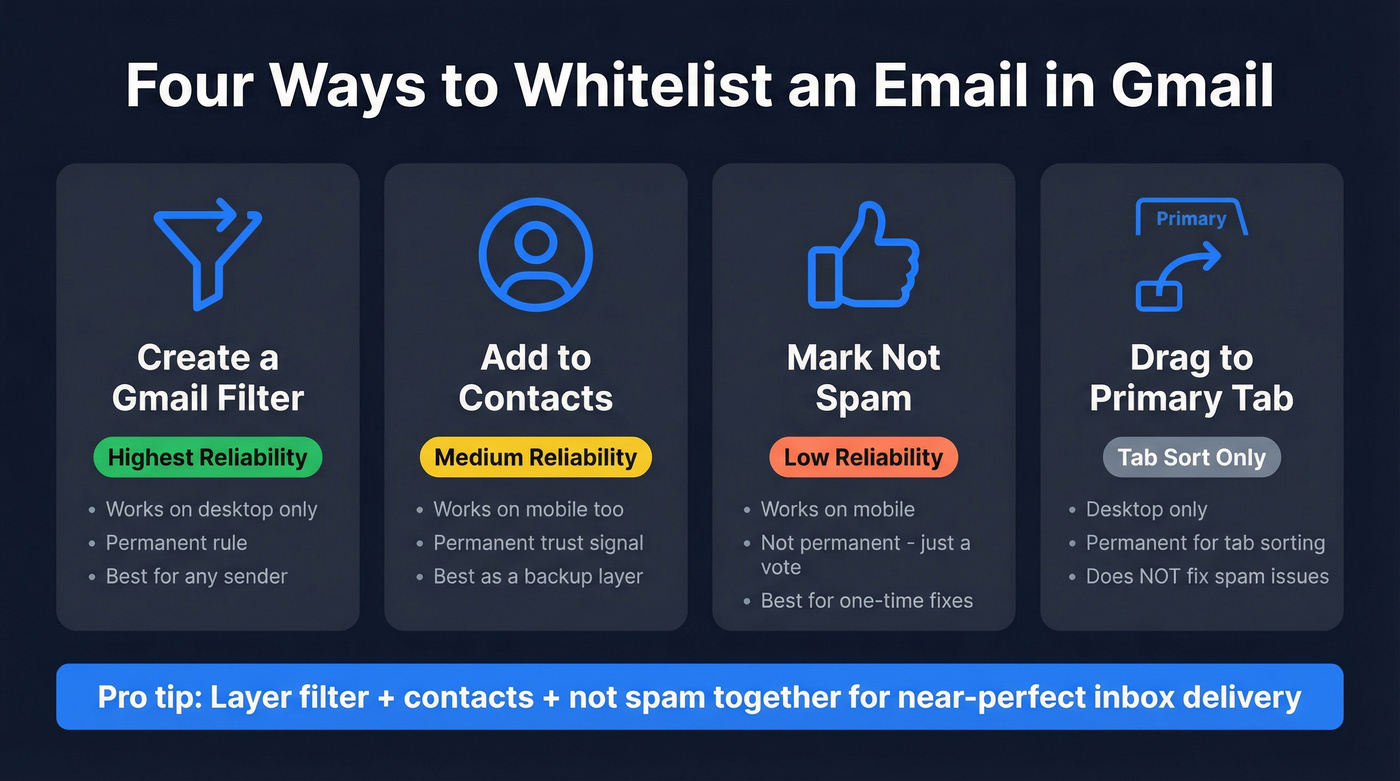
This moves the message out of Spam and helps Gmail learn that messages like this shouldn't be flagged. It's fast, but it's not as reliable as a filter. Think of this as a vote, not a rule.
Create a Gmail Filter
This is the gold standard:
- Click the gear icon - See all settings.
- Navigate to the Filters and Blocked Addresses tab.
- Click Create a new filter.
- In the From field, enter the sender's email - something like
accountant@taxfirm.com. - Click Create filter.
- Check "Never send it to Spam" and optionally "Also apply filter to matching conversations" to rescue emails already stuck in spam.
- Click Create filter again to save.
Want to whitelist an entire company? Enter @domain.com in the From field instead of a full address. Every email from that domain bypasses spam. We've used this approach for years with key vendors and it's never let us down. (If you need the domain-specific steps, see whitelist an entire company.)
Add the Sender to Contacts
Adding a sender to your Google Contacts is a quick trust signal:
- Go to contacts.google.com.
- Click Create contact.
- Enter the sender's name and email address.
- Click Save.
Gmail treats known contacts as more trustworthy. It's not an official allowlist, but it's a strong signal that nudges the spam filter in the right direction. Combine this with a filter for near-certainty.
Drag to Primary Tab
If emails land in Promotions or Updates instead of your Primary inbox, that's a tab-sorting problem, not a spam problem. Different fix entirely.
- Find the email in the Promotions or Updates tab.
- Drag it to the Primary tab.
- When Gmail asks if you want to apply that choice to future messages from the same sender, confirm it.
Skip this if your real issue is spam. This method only affects tab sorting and won't pull anything out of the Spam folder. (If this is your issue, see our guide on emails land in Promotions.)
Gmail Whitelisting on Mobile
Here's the frustrating part: you can't create filters on mobile. The Gmail app on both iPhone and Android doesn't expose the Filters and Blocked Addresses settings at all.
iPhone workaround: Open the message in your Spam folder and tap "Report as not spam." This trains Gmail but doesn't create a permanent rule.
Android workaround: Open your Contacts app, create a new contact with the sender's email, and save. Gmail will treat them as a known sender going forward.
For anything mission-critical, open Gmail in your phone's browser, request the desktop site, and create a proper filter there. It's clunky. But it works, and it's the only way to get a real filter from your phone.

Whitelisting fixes the symptom. Bad data causes the disease. Emails bounce, spam scores spike, and your domain reputation tanks - all because you're sending to unverified addresses. Prospeo's 5-step email verification delivers 98% accuracy, keeping bounce rates under 4%.
Stop landing in spam. Start with data that's verified every 7 days.
Single Email vs. Entire Domain
| Scope | Syntax | Best For | Risk Level |
|---|---|---|---|
| Single address | name@domain.com |
Specific senders | Low |
| Entire domain | @domain.com |
Your employer, bank, key vendors | Medium-High |
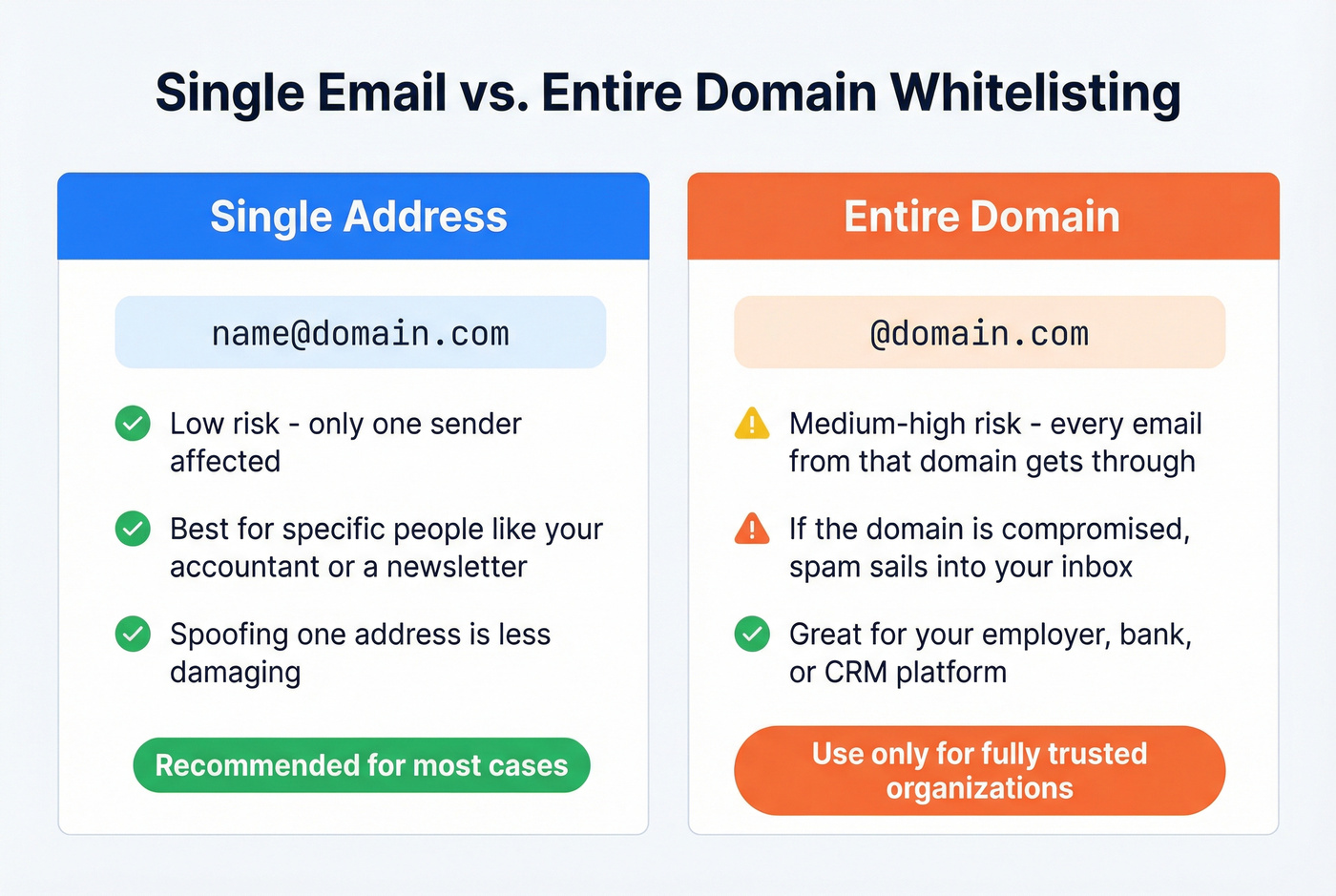
Domain-level whitelisting carries real risk. If that domain gets compromised or a spammer spoofs it, every email sails straight into your inbox unfiltered. Reserve domain whitelisting for organizations you fully trust - your company, your bank, maybe your CRM platform. For everything else, use the single-address approach.
All Methods Compared
| Method | Reliability | Mobile? | Permanent? | Best For |
|---|---|---|---|---|
| Gmail filter | Highest | No | Yes | Any sender |
| Add to Contacts | Medium | Yes | Yes | Quick trust signal |
| Mark "Not spam" | Low | Yes | No | One-time fix |
| Drag to Primary | Tab sort only | No | Yes | Tab sorting, not spam |
The filter method wins outright. But let's be honest: no single method is bulletproof against Gmail's spam filtering. Layer filter + contacts + "not spam" together - each reinforces the others, and in our experience, that triple layer eliminates false spam classification in virtually every case we've tested.
When Whitelisting Doesn't Work
You followed every step, and emails still land in spam. Here's what's actually happening:
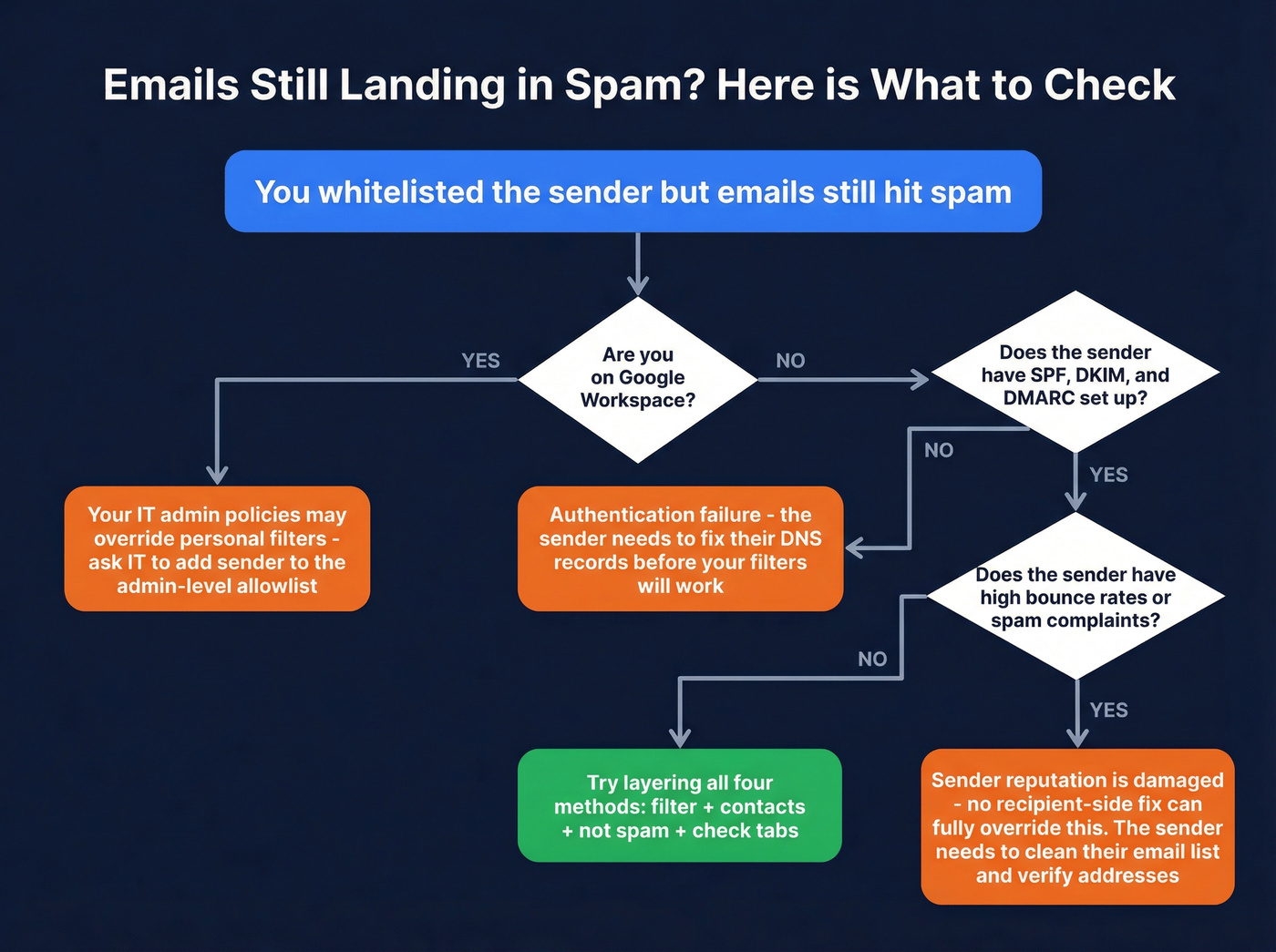
SPF/DKIM/DMARC problems. If the sender's domain isn't properly authenticated, Gmail treats the mail as suspicious regardless of your filters. Google's own email authentication documentation explains the requirements in detail. (If you're the sender, start with SPF, DKIM, DMARC or run an email authentication checker.)
Google Workspace admin policies. On a company Gmail account, admin-level mail settings can override individual filters. If you're on Workspace, talk to IT and ask them to add the sender to the allowlist at the admin level - your personal filter won't be enough. (If you're managing this centrally, start with Google Workspace email setup.)
Sender reputation damage. High bounce rates or spam complaints tank a sender's score. Gmail weighs that heavily, and no amount of recipient-side whitelisting fully overrides a trashed reputation. (If you're troubleshooting deliverability, use an email deliverability checklist and learn how to check email reputation.)
Google's bulk sender requirements. Google tightened bulk sender rules starting in 2024, and enforcement has only gotten stricter. Senders with poor list hygiene get penalized regardless of what recipients do on their end. (For the full picture, see our email deliverability guide and Gmail sender guidelines.)
If emails still hit spam after you've layered all four methods, the problem is on the sender's side. Which brings us to the part most whitelisting guides skip entirely.
Most Spam Problems Are Sender Problems
Look - if you're sending emails that keep getting flagged, the issue is almost always your data or authentication, not your recipients' settings. You can't ask every recipient to create a Gmail filter on your behalf. Fix the root cause instead. (If you're seeing this specifically in Google, follow Gmail emails going to spam.)
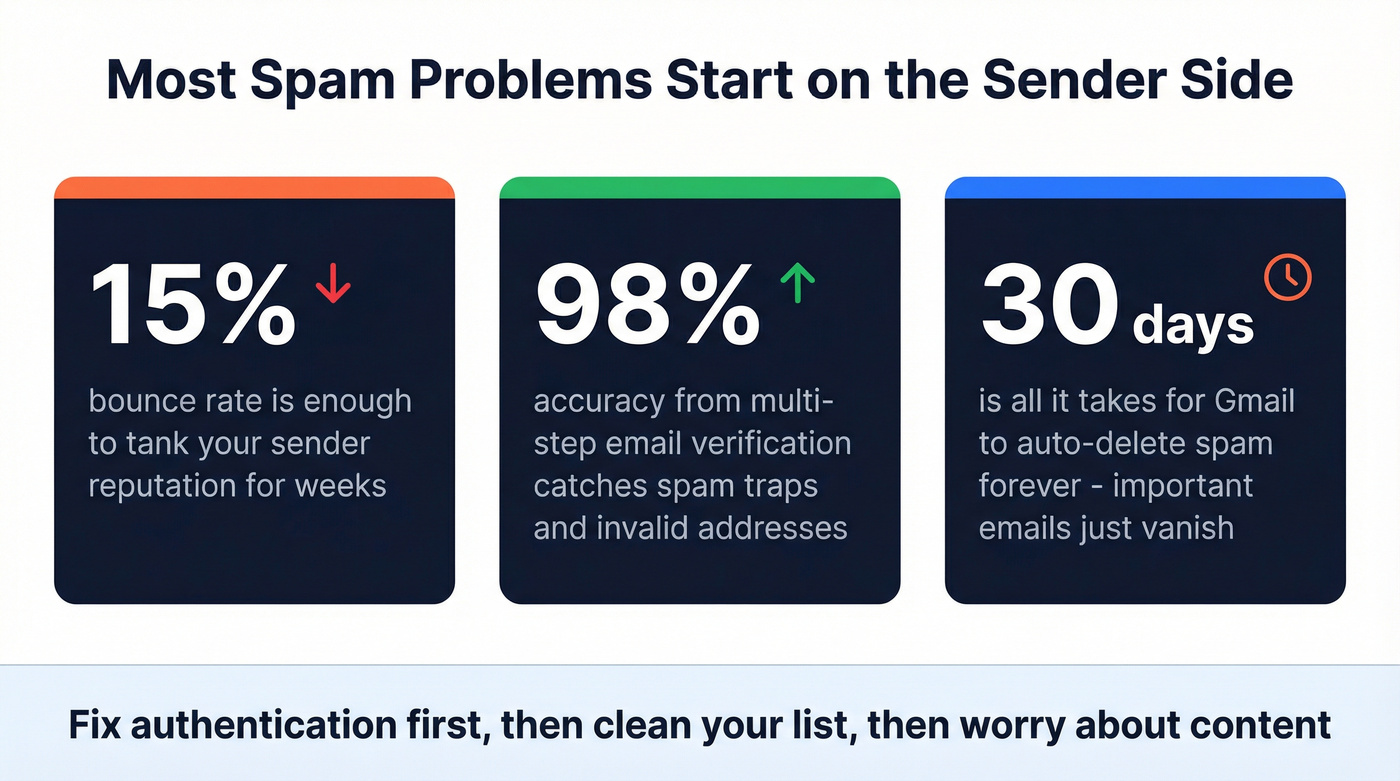
Authentication is non-negotiable. Set up SPF, DKIM, and DMARC records for your sending domain. Postmark's DMARC guide is one of the best free resources for getting this right. Without proper authentication, Gmail will filter your emails aggressively no matter what your recipients do.
Verify your email list before sending. Bounced emails, spam traps, and honeypot addresses destroy sender reputation fast. One bad send to a dirty list can tank deliverability for weeks. Tools like Prospeo catch invalid addresses, spam traps, and honeypots through a 5-step verification process - 98% accuracy across 143M+ verified addresses, with a free tier of 75 verifications per month. (If you're comparing options, see our roundup of the best email checker tools and email ID validators.)
We've seen teams blame Gmail's spam filter when the actual problem was a 15% bounce rate from stale data. One agency we work with went from 35% bounce rates to under 3% just by running their list through verification before every campaign. Clean your list first. Then fix authentication. Then worry about content. (If you're scaling outreach, follow email verification for outreach and how to scale outbound campaigns without wrecking deliverability.)
Google's bulk sender rules punish bad list hygiene - and no recipient-side filter can save you. Prospeo verifies 143M+ emails with catch-all handling, spam-trap removal, and honeypot filtering so your outreach hits the inbox, not the junk folder.
Clean data means inbox placement. Try 75 verified emails free - no card required.
FAQ
Can I whitelist multiple email addresses at once?
Yes. In a single filter, put multiple addresses in the From field separated by OR - for example: sender1@domain.com OR sender2@domain.com. You can also create separate filters per sender if you prefer to manage them individually.
Does adding someone to Contacts whitelist them?
Not officially, but Gmail treats contacts as a strong trust signal. It's a lightweight way to improve deliverability without creating a filter. Combine it with a filter for the best results.
Does whitelisting work on the Gmail mobile app?
Not fully. Use "Report as not spam" or add the sender to Contacts as workarounds, then create a proper filter on desktop when you get the chance. There's currently no way to create filters from the mobile app.
Why do whitelisted emails still land in spam?
Usually it's an admin-level policy on a Workspace account, or the sender's failing SPF/DKIM/DMARC authentication. If you're the sender, run your list through an email verification tool before blaming the recipient - bad data triggers spam filters regardless of recipient-side settings.
What's the difference between whitelisting and a safe sender list?
Same concept, different names. Gmail calls it "filters," Outlook calls it "safe senders," other platforms say "approved senders." The result is identical: you're telling your email client to always deliver that sender's messages to your inbox.