

Sales Leads Excel Template (Free 2026 Download)
It's Monday morning. You open your lead tracker and can't tell which prospects need a call today. Three leads that were ready to buy last week? They went cold while you were updating a different tab. 84% of reps missed quota last year, 50% of sales go to the first vendor that responds, and most deals take 5-12 touchpoints to close. A sales leads Excel template without follow-up tracking isn't a pipeline - it's a contact list with delusions of grandeur.
Most free templates floating around are empty shells. Columns with no formulas, no qualification logic, no follow-up system. The template we're walking through here is a working system: 16 fields, conditional formatting, weighted forecasting, and BANT qualification built in.
What's in the Template
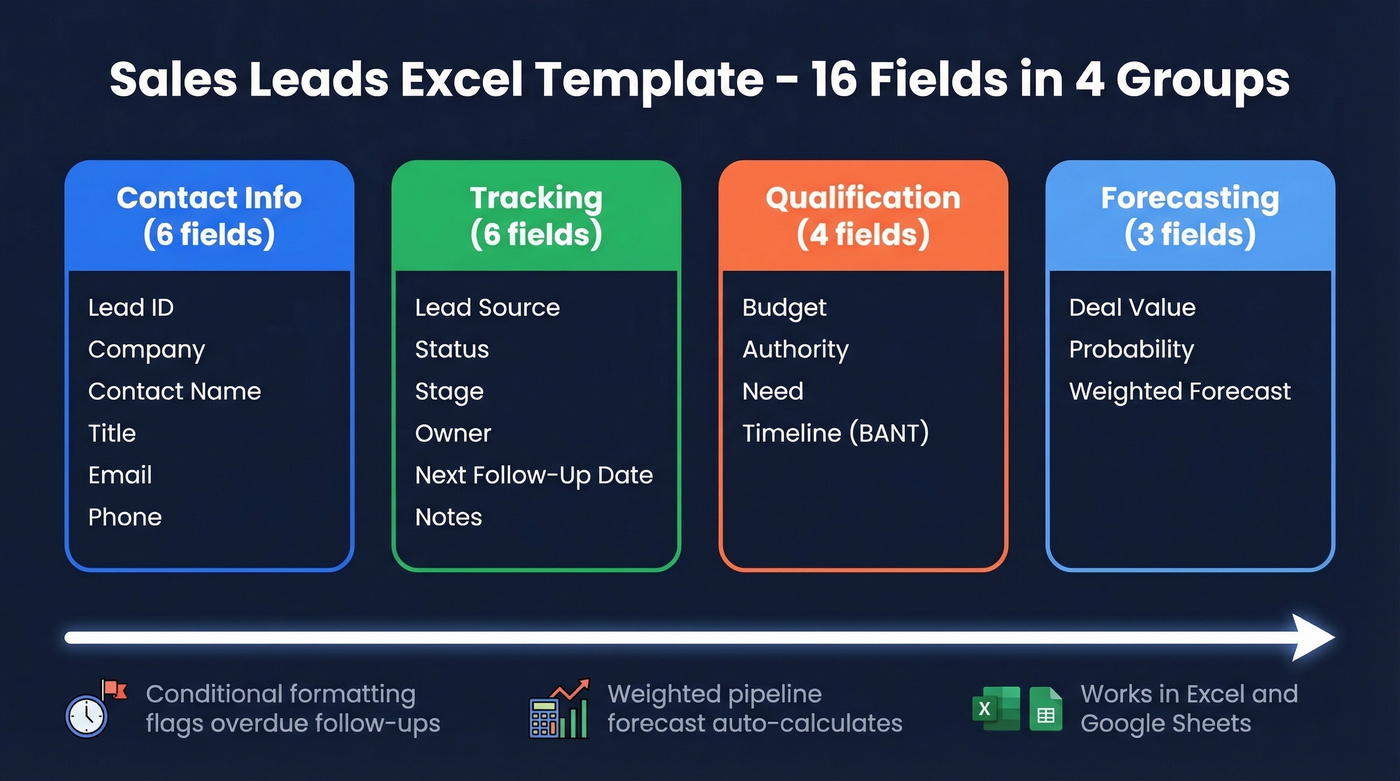
The template includes 16 fields, conditional formatting that flags overdue follow-ups in red, a weighted pipeline forecast, and conversion rate formulas. It works in both Excel and Google Sheets, and setup takes about 10 minutes.
It's designed for your first 25-75 active leads. When you outgrow it, your data exports cleanly to HubSpot's free CRM.
Template Fields Explained
The 16 fields break into four groups.
Contact Info covers Lead ID, Company, Contact Name, Title, Email, and Phone. Lead ID is the field most templates skip - and the one that saves you when linking leads to deals across sheets.
Tracking is your daily workflow: Lead Source, Status, Stage, Owner, Next Follow-Up Date, and Notes. These columns turn a static contact list into a functioning prospect tracking spreadsheet.
Qualification adds Budget, Authority, Need, and Timeline (BANT) - the columns that separate a real pipeline from a wish list. Forecasting rounds it out with Deal Value, Probability, and Weighted Forecast.
The Status field uses a defined taxonomy:
| Status | Meaning |
|---|---|
| Prospect | Acquired, not contacted |
| Qualified | Meets your ICP criteria |
| Unqualified | Doesn't fit |
| Working | Actively in contact |
| Nurture | Not ready now, drip |
| Won | Closed deal |
| Lost | Dead opportunity |
| Churned | Was a customer, left |
Most templates stop at Won/Lost. Adding Nurture and Churned gives you a realistic picture of where leads actually end up - and "Nurture" alone will change how you think about your pipeline, because it forces you to admit that half your "active" leads aren't active at all.
How to Track Leads in Excel
Step 1: Generate unique Lead IDs. In cell A2, paste ="LEAD-"&TEXT(ROW()-1,"0000") and drag down. Without persistent IDs, cross-sheet attribution breaks completely.
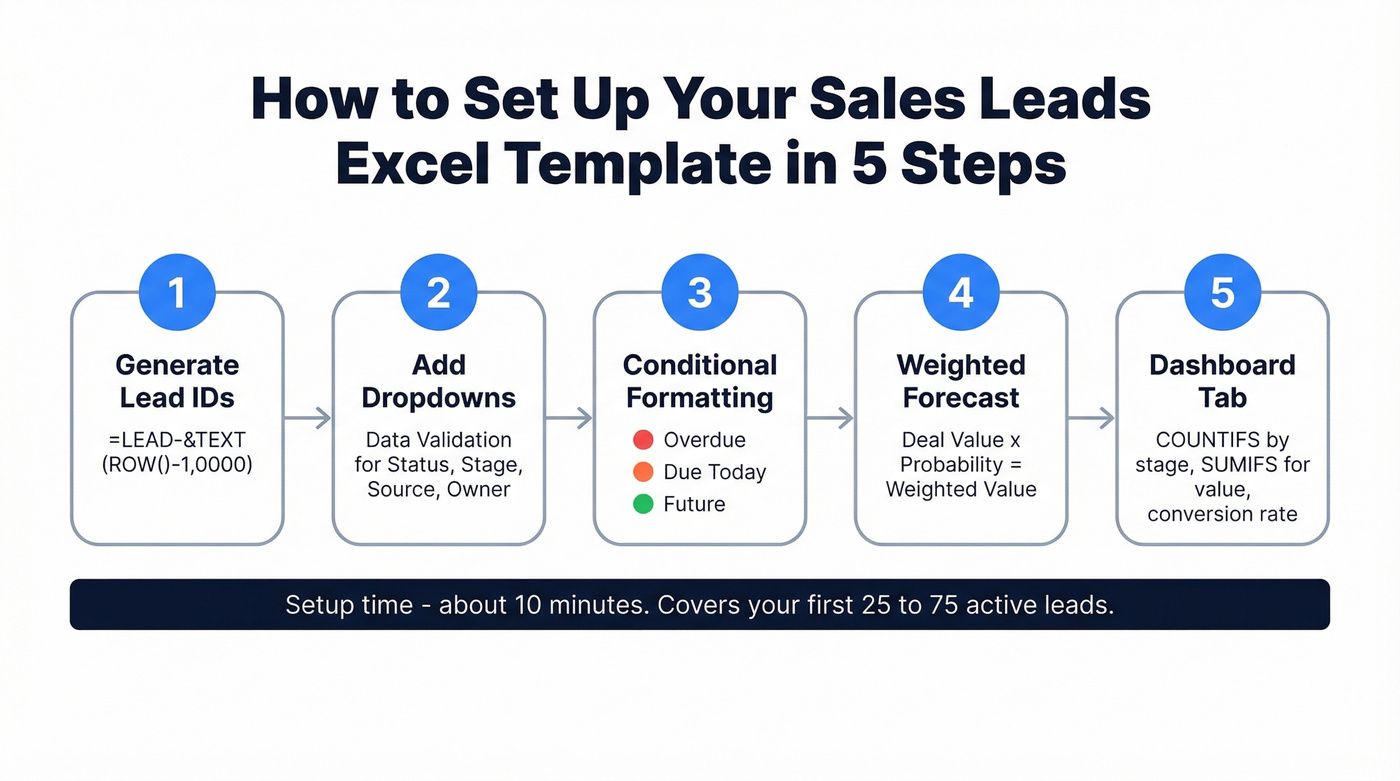
Step 2: Add data validation dropdowns. Select the Status column, go to Data, then Validation, and enter your status list. Repeat for Stage, Lead Source, and Owner. Dropdowns prevent the "John typed 'Qualified' and Sarah typed 'qualified lead'" problem that makes every COUNTIFS formula useless within a week.
Step 3: Conditional formatting for follow-ups. Select the Next Follow-Up Date column and create three rules:
- Red fill - cell value before
=TODAY()(overdue) - Orange fill - cell value equals
=TODAY()(due now) - No fill - future dates
Open the sheet each morning, scan for red and orange, and you know exactly who needs attention. No scrolling, no guessing. If you want a ready-made cadence, pair this with sales follow-up templates.
Step 4: Build the weighted forecast. In the Weighted Forecast column, enter a Deal Value x Probability formula. If Deal Value is in P2 and Probability is in Q2, use =P2*Q2. A $50,000 deal at 30% shows as $15,000. Sum the column for your total forecast.
Step 5: Dashboard formulas. On a separate tab, use COUNTIFS for leads by stage, SUMIFS for pipeline value by stage, and a simple conversion rate formula like =COUNTIF(B:B,"Won")/COUNTIF(B:B,"<>") where column B is your Status column. For what to track beyond the basics, use pipeline health metrics.
Lead Qualification Columns
Here's the thing - most templates give you a Status dropdown and call it qualification. That's labeling, not qualifying.
BANT gives you four dropdown columns:
| Column | Dropdown Values |
|---|---|
| Budget | Yes / No / Unknown |
| Authority | Decision Maker / Influencer / Champion |
| Need | Critical / Nice-to-Have / Exploring |
| Timeline | This Month / This Quarter / Next Quarter / No Timeline |
For consultative mid-market deals, swap in CHAMP. For enterprise with seven-plus stakeholders per deal, MEDDIC is more thorough but heavier to maintain in a spreadsheet. We've tested all three in spreadsheet format, and most teams get 80% of the qualification value from just these four BANT columns. Skip MEDDIC unless you're genuinely tracking multi-threaded enterprise deals with long sales cycles.

BANT columns only work when the contact data behind them is real. If 20% of your emails bounce, your weighted forecast is fantasy. Prospeo's 98% email accuracy and 5-step verification mean every row in your tracker connects to an actual buyer - not a dead inbox.
Stop qualifying leads you can't actually reach.
Benchmark Your Pipeline
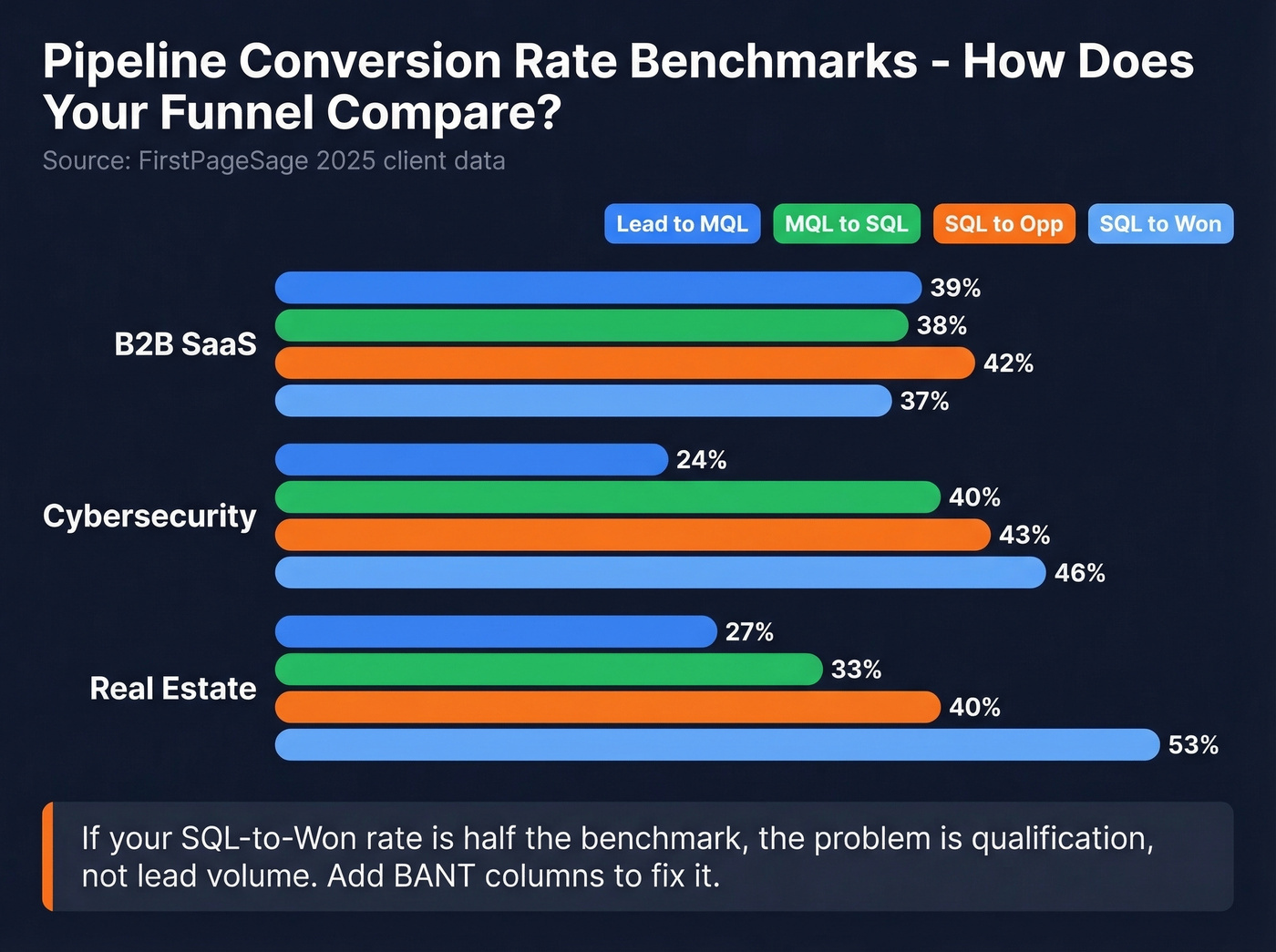
A tracker without benchmarks is just a list. Add a Conversion Rate row to your dashboard and compare monthly against these benchmarks from FirstPageSage's client data. You can also sanity-check your numbers against broader sales pipeline benchmarks.
| Industry | Lead to MQL | MQL to SQL | SQL to Opp | SQL to Won |
|---|---|---|---|---|
| B2B SaaS | 39% | 38% | 42% | 37% |
| Cybersecurity | 24% | 40% | 43% | 46% |
| Real Estate | 27% | 33% | 40% | 53% |
If your SQL-to-Won rate is half the benchmark, the problem isn't lead volume. It's qualification. That's exactly what the BANT columns solve.
Five Mistakes That Kill Lead Trackers
1. No unique Lead IDs. The moment you connect your leads sheet to a deals sheet, you're stuck without them. Start with IDs on day one.
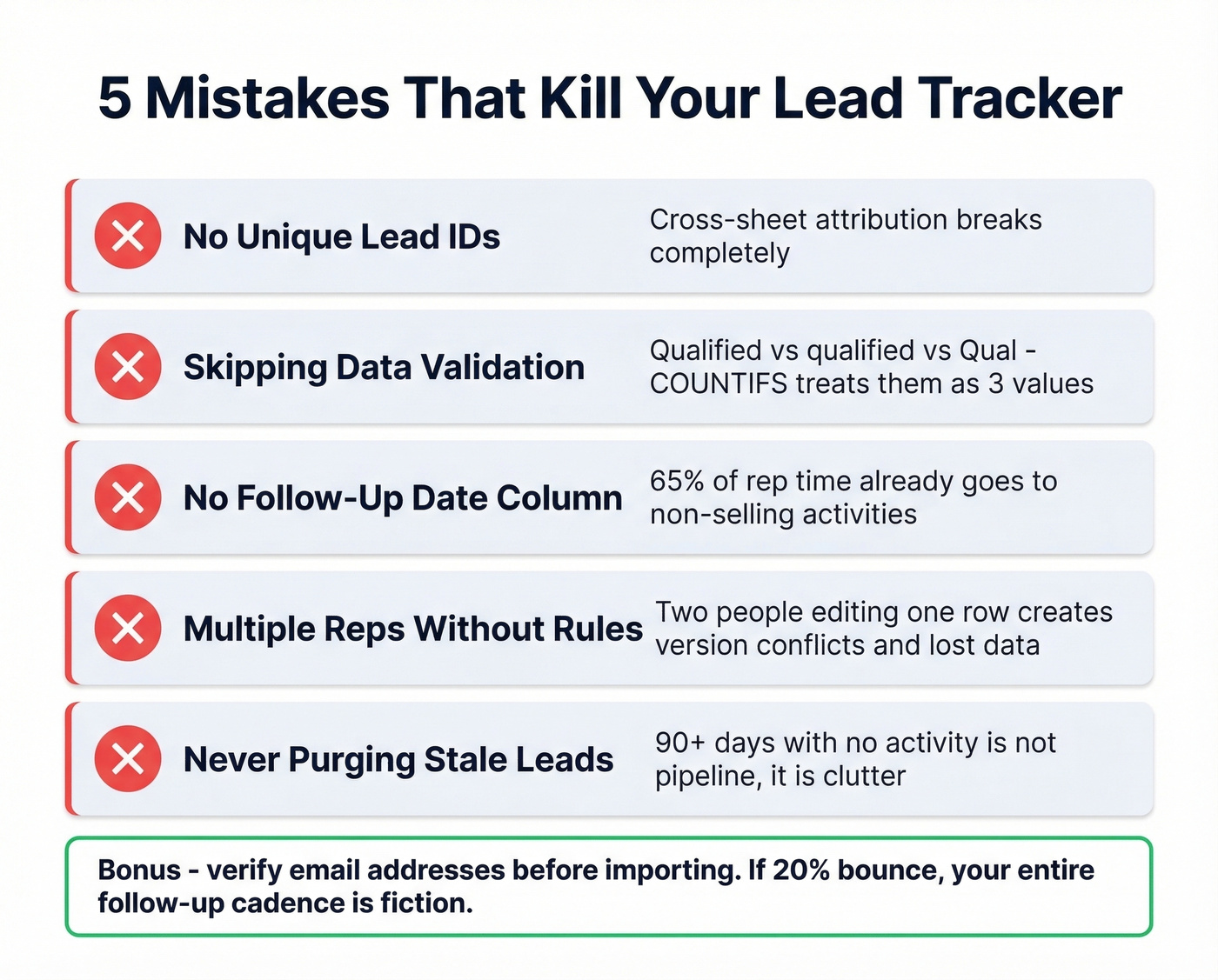
2. Skipping data validation. Free-text entry guarantees "Qualified," "qualified," and "Qual" all coexisting within a week. COUNTIFS treats them as three different values, and your dashboard numbers become fiction.
3. No follow-up date column. 65% of a rep's time goes to non-selling activities. Without a follow-up date column, your tracker adds to that waste instead of reducing it. If you need a system for timing, see when should I follow up on an email.
4. Multiple reps editing without rules. Two people updating the same row in Excel creates version conflicts. One lead, one owner - enforce it.
5. Never purging stale leads. A lead with no activity in 90+ days isn't pipeline. It's clutter. Set up a monthly purge or an Archive tab.
One more that doesn't make the top five but kills more pipelines than people realize: bad data. If 20% of your emails bounce, your follow-up cadence is fiction. Verify addresses before you import. Also decide upfront whether your tracker shows current status or furthest-achieved status - without that rule, stage counts become meaningless within a month. (If you want bounce benchmarks and fixes, use email bounce rate.)
Where to Get Leads
Every competing article hands you a blank spreadsheet and assumes you already have contacts. That's backwards. If you're starting from scratch, use a few sales prospecting techniques and a shortlist of free lead generation tools.
A template with 16 fields and zero contacts is just a formatted blank page. Prospeo gives you 300M+ professional profiles with 30+ filters - job title, industry, headcount, intent signals - so you can export verified leads straight into your spreadsheet at $0.01 per email.
Export verified leads into your template in under five minutes.
When to Switch to a CRM
Here are the signals your prospect tracking spreadsheet has hit its ceiling, per HubSpot's operational thresholds. If you're comparing options, start with these examples of a CRM.
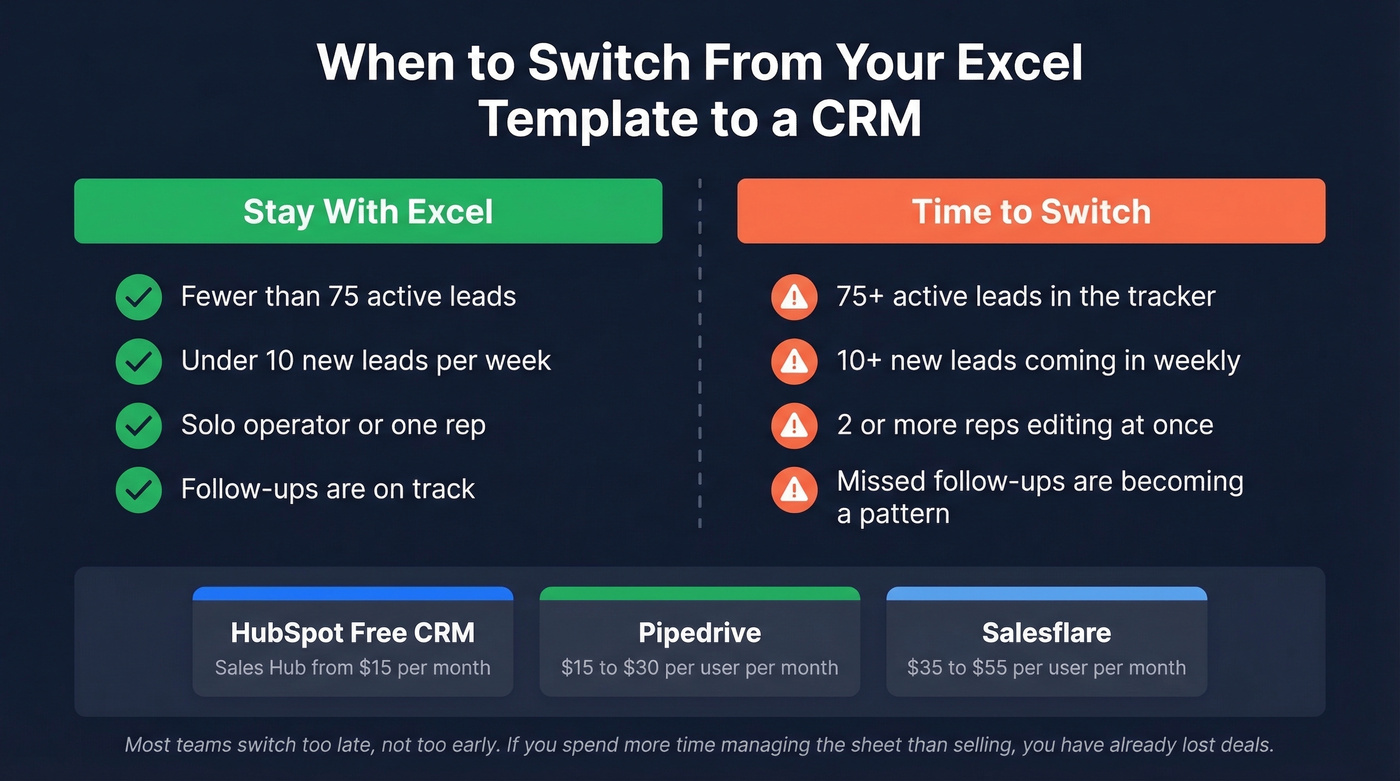
- 75+ active leads in the tracker
- 10+ new leads per week coming in
- Two or more reps editing simultaneously
- Missed follow-ups becoming a pattern, not an exception
Let's be honest: most teams switch to a CRM too late, not too early. A well-maintained lead tracking template covers your first 2-6 months, but the moment you catch yourself spending more time managing the sheet than selling, you've already lost deals. Good next steps include HubSpot Free CRM (Sales Hub from $15/mo), Pipedrive at roughly $15-30/user/mo, or Salesflare at around $35-55/user/mo.
FAQ
Google Sheets or Excel - which is better for lead tracking?
Google Sheets wins for teams. Real-time co-editing, free, accessible from any browser. Excel is stronger for complex formulas, pivot tables, and offline work. If two or more reps need simultaneous access, use Google Sheets. Solo operators can go either way.
How many leads can this template handle?
Up to 75 active leads with 1-2 hours of weekly maintenance. Beyond that, data entry errors and missed follow-ups compound fast - that's your signal to migrate to a CRM like HubSpot or Pipedrive.
How do I keep lead data accurate over time?
Use data validation dropdowns, purge leads with no activity in 90+ days, and verify email addresses before importing. Tools like Prospeo's Email Finder validate addresses at 98% accuracy before they enter your sheet, so your follow-up cadence stays grounded in reality instead of bouncing off dead inboxes.