

How to Send the Same Email to Multiple Recipients Separately in Outlook - Without BCC
You've got 40 clients who each need the same pricing update. Each one should see only their name in the To field. You want to pull names from a spreadsheet, personalize each message, and send them as individual emails. You open Outlook and there's no obvious "send individually" button. So you reach for BCC, because that's what everyone does.
Here's the thing: BCC doesn't actually send separate emails. It sends one email with hidden recipients. When the To field is empty - or shows "undisclosed-recipients:;" - spam filters notice. That pattern is associated with spam, and it chips away at your sender reputation over time. Individual sends mimic normal human behavior, which means better deliverability and zero risk of accidentally exposing your entire recipient list. (If you want the deeper mechanics, see our email deliverability breakdown.)
Outlook still doesn't make "send separately" obvious. But five methods get it done, whether you need a quick batch send or a full mail merge campaign with personalized fields.
Which Method Should You Use?
| Method | Best For | Personalization | Attachments | Difficulty |
|---|---|---|---|---|
| New Outlook Mail Merge | Quick batch sends | No merge fields yet | Yes | Easy |
| Classic Mail Merge | Personalized sends | Yes (merge fields) | No | Medium |
| Power Automate | Attachments + automation | Yes | Yes | Medium-Hard |
| Outlook Add-ins | Full-featured merge | Yes | Yes | Easy |
| Outreach Tools | Sales campaigns | Yes | Yes | Varies |
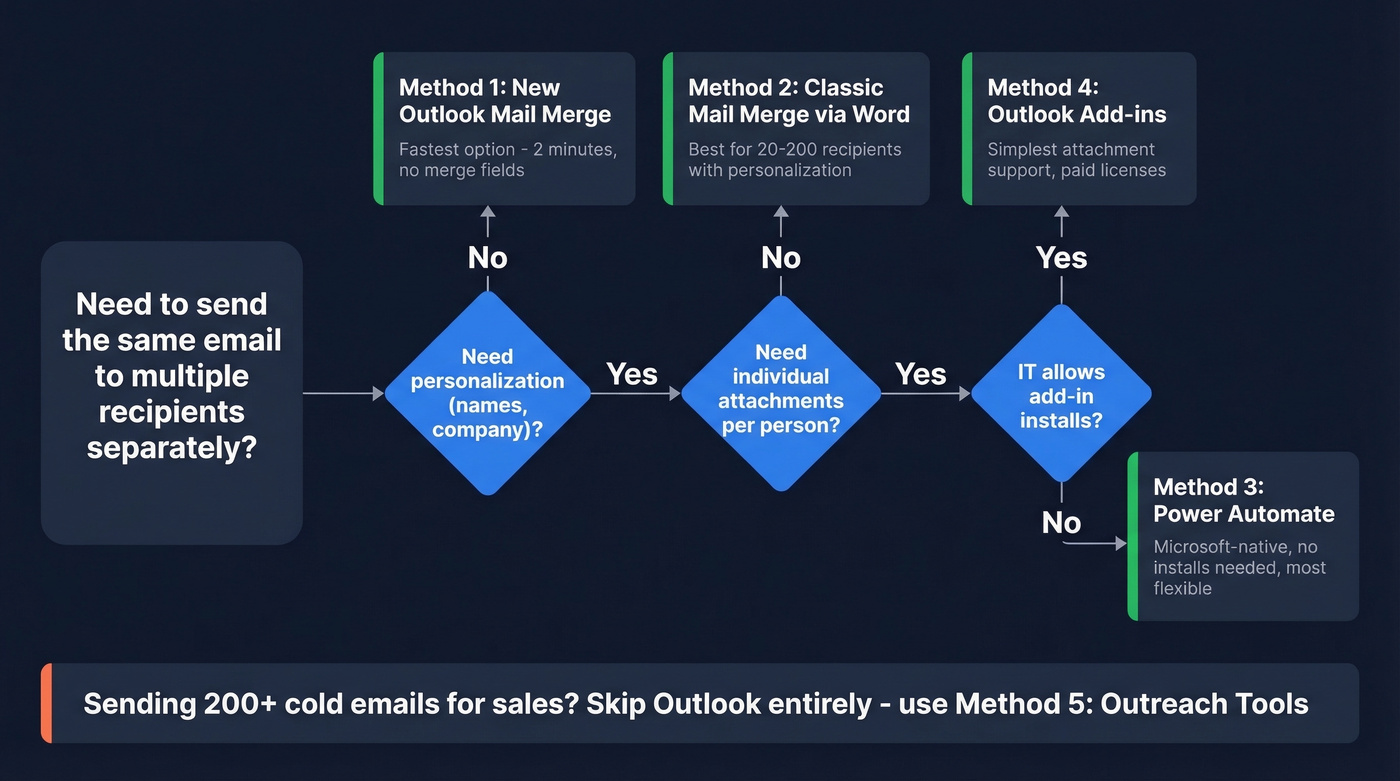
Most people should start with New Outlook's built-in mail merge. If you need personalization fields like first name or company, use Classic mail merge via Word. Need individualized attachments? Jump straight to Power Automate.
Quick decision by list size: Fewer than 20 recipients? New Outlook mail merge takes two minutes. Between 20 and 200 with personalization? Classic mail merge. Over 200, or with unique attachments per person? Power Automate or a dedicated outreach tool. And if IT blocks add-ins in your environment, Methods 1-3 are all Microsoft-native - no third-party installs required. (For safe scaling, also watch your email velocity as list size grows.)
5 Ways to Send Mass Email Individually in Outlook
1. New Outlook's Built-in Mail Merge
This is the feature Microsoft should've shipped years ago. It's simple, it works, and most people don't know it exists. If you just need to send a mass email in Outlook without personalization, this is your answer.
- Open New Outlook (Windows or web).
- Compose your email - subject line, body, attachments.
- Go to Options > Start mail merge (or look for the dropdown next to Send).
- Add your recipients. The field is labeled Recipient now, not "To."
- Hit send.
Each person sees only their own address in the To field. You can attach files, and every recipient gets the attachment. Done.
The limitation: no merge fields yet. You can't pull in first names or company names from an Excel sheet inside this flow. Microsoft 365 Roadmap ID 423047 lists "Advanced Mail Merge" with personalization and Excel/contact import as an upcoming feature. For a quick, no-personalization batch send - a policy update, a pricing change, a holiday notice - this is the fastest path.
2. Classic Mail Merge via Word
When you need merge fields like {{First Name}} or {{Company}}, this is the method. It's been around for decades, and it still works. Classic mail merge through Word remains the most reliable way to send personalized emails in Outlook without any third-party tools. (If you want better reply rates, pair it with proven email subject lines.)
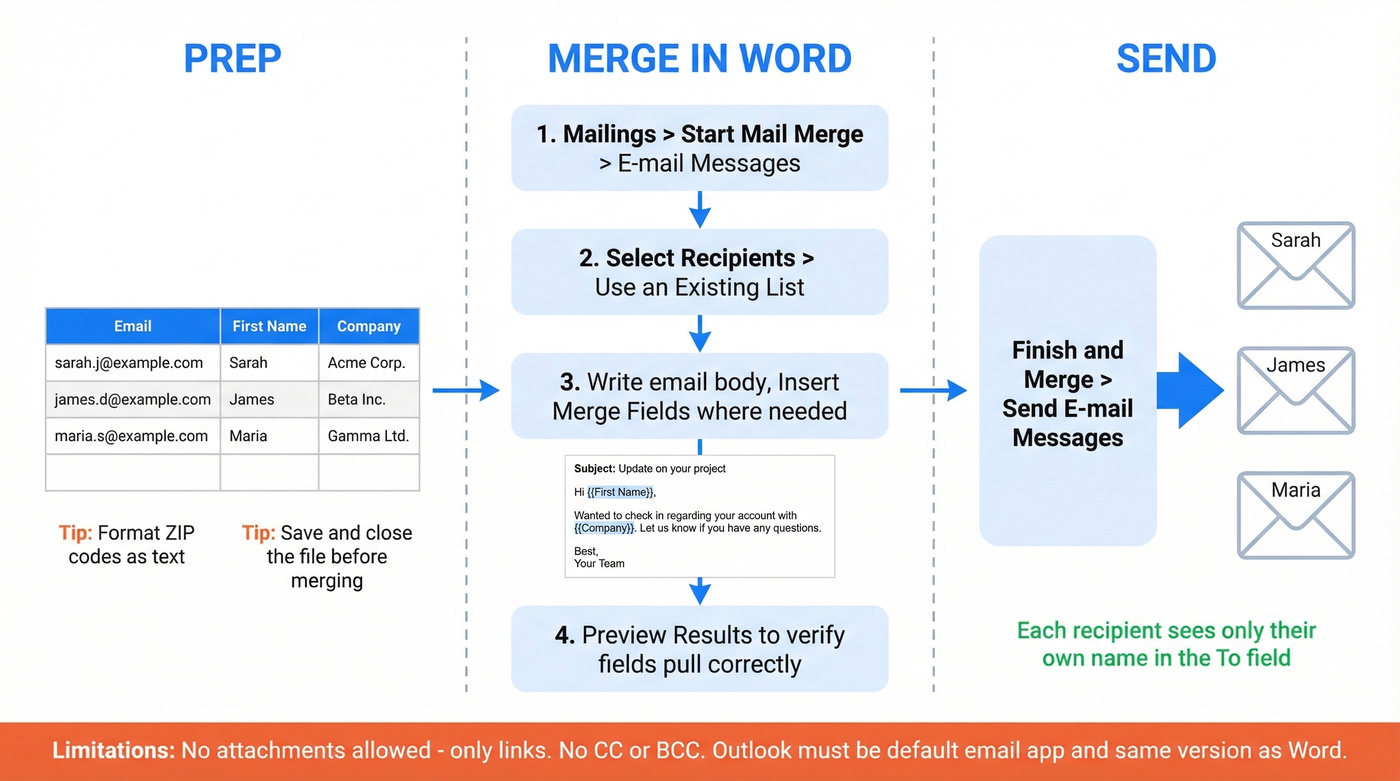
Prep your Excel file first:
- Create a spreadsheet with columns for email address, first name, and any other fields you want to merge. The email column is required.
- Format ZIP codes as text - Excel loves stripping leading zeros.
- Save and close the file.
Then in Word:
- Open a blank document.
- Go to Mailings > Start Mail Merge > E-mail Messages.
- Click Select Recipients > Use an Existing List and pick your Excel file.
- Write your email in the Word document. Click Insert Merge Field to drop in personalization tokens wherever you want them.
- Preview results to make sure fields are pulling correctly.
- Click Finish & Merge > Send E-mail Messages.
- Choose your email field column, type your subject line, and select HTML or Plain Text format.
Word sends an individual message to each address, and recipients see only their own name in the To field. That's how Outlook mail merge works under the hood - Word handles the merge logic, Outlook handles the sending.
Attachment limitation: Microsoft's documentation confirms you can't add attachments to mail merge emails - only links. You also can't CC or BCC additional recipients. If you need individualized attachments, skip to Power Automate.
Two requirements that trip people up: Outlook must be your default email program, and it needs to be the same version as Word.
3. Power Automate for Attachments
If you need individualized attachments - unique PDFs, personalized invoices, custom proposals - stop trying to force mail merge. It can't do it. This is the exact scenario Reddit users keep asking about, and Power Automate is the answer.
- Store your recipient list in Excel Online or SharePoint - one row per recipient, with columns for email, name, and attachment file path.
- In Power Automate, create a flow triggered manually or on a schedule.
- Add a "List rows present in a table" action pointing to your Excel file.
- For each row, add a "Send an email (V2)" action. Map the recipient, subject, and body from your spreadsheet columns.
- Use Get file content to pull the recipient's attachment from OneDrive or SharePoint.
- Add the file using the attachment field in the Send action.
- Run the flow.
Emails appear in your Sent Items folder, just like normal sends. If you're sending from a shared mailbox, the "Send an email from a shared mailbox (V2)" action handles that too. We've found Power Automate to be the most flexible option once you get past the initial setup curve - it handles edge cases that the other methods simply can't. (If you're troubleshooting bounces, start with your email bounce rate and list hygiene.)
4. Outlook Add-ins
When you want the simplicity of mail merge but with attachment support, add-ins fill the gap. Three worth knowing:
- Mail Merge Toolkit (MAPILab): Around EUR 30-40 one-time license. Adds attachment support, CC/BCC fields, and individual subject lines to classic mail merge.
- SecureMailMerge: Available on AppSource. Paid plans typically run $5-$20/user/month. Supports per-recipient attachments via a file path column in your spreadsheet.
- OutlookFreeware Mail Merge with Attachments: A utility commonly used for simple attachment-merge scenarios.
The catch: enterprise environments often block add-in installation. We've seen this frustrate teams more than any technical limitation - the tool exists, but policy won't let you use it. If IT restricts your AppSource access, you're back to Methods 1-3.
5. Outreach Tools for Sales Campaigns
If the use case is cold outreach or sales campaigns, skip Outlook entirely. Outlook wasn't built for sequencing, tracking, or deliverability management at scale.

The foundation of any campaign is verified contact data. Bounces from bad addresses don't just waste time - they actively damage your domain reputation, pushing future emails to spam for everyone on your domain. Prospeo handles this pre-flight check with 98% email accuracy across 143M+ verified addresses. Pair it with a sequencer like Lemlist or Instantly, and you've got a proper outreach stack that Outlook alone can't match. (If you're building lists from names, see our name to email guide.)
Let's be honest about when you don't need a big platform, though. If your average deal value is under $10k and you're emailing fewer than 50 prospects a week, you don't need a $15k/year sales engagement tool. Outlook mail merge plus verified data gets you 80% of the way there at a fraction of the cost. (For messaging, keep a swipe file of sales follow-up templates.)

Mail merge only works if the emails you're merging are real. Bad addresses tank your sender reputation faster than BCC ever will. Prospeo's 98% verified email accuracy and 7-day data refresh mean every individual send actually lands.
Stop perfecting your send method with broken contact data.
Outlook Sending Limits in 2026
You'll see "300 emails per day" cited in many blogs as Outlook's limit. That number has no official Microsoft source we've been able to find - it's been copy-pasted across posts for years without anyone linking to documentation.
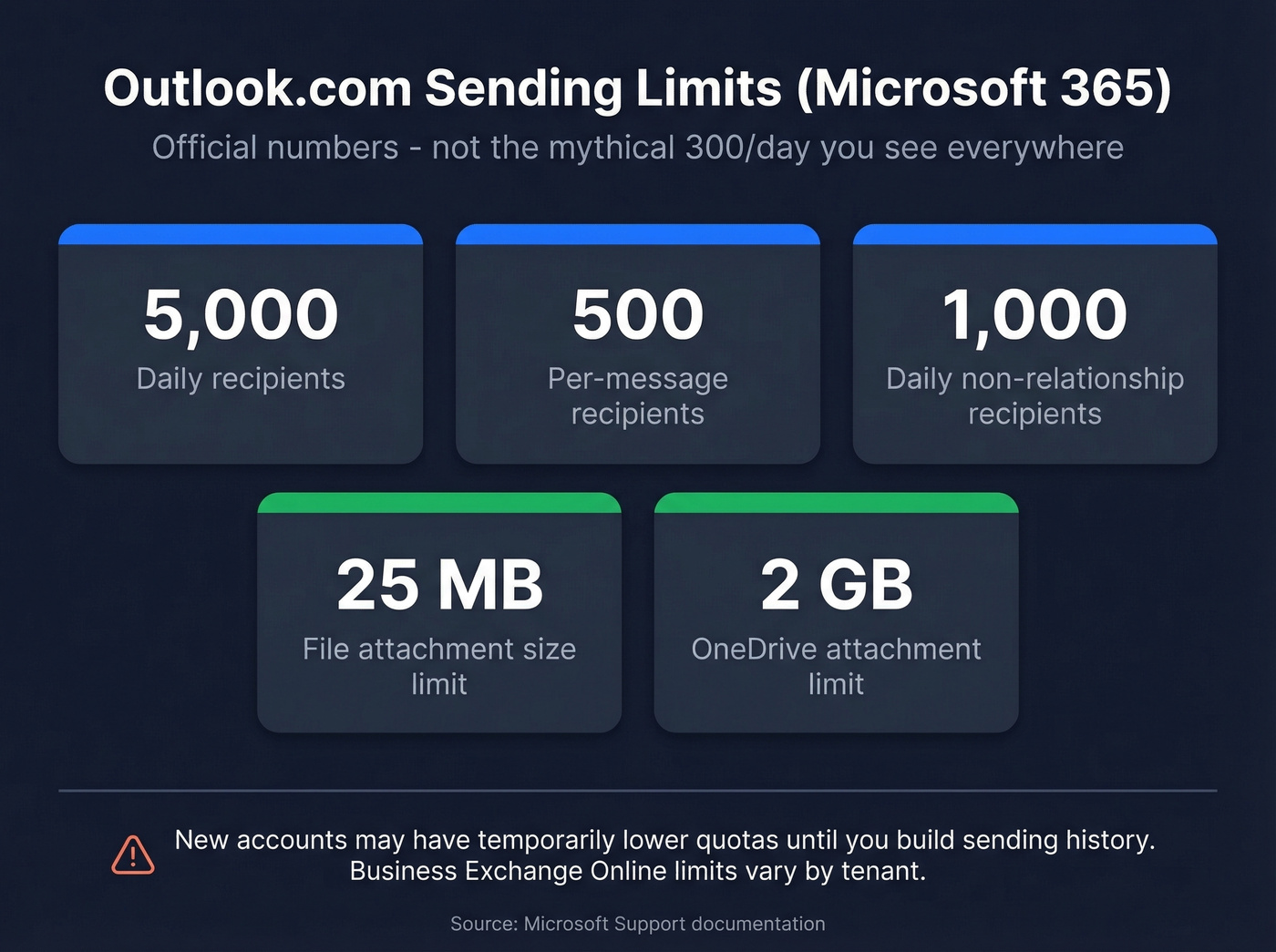
Here are the actual Outlook.com limits for Microsoft 365 subscribers:
| Limit | Outlook.com (M365) |
|---|---|
| Daily recipients | 5,000 |
| Per-message recipients | 500 |
| Daily non-relationship recipients | 1,000 |
| File attachment size | 25 MB |
| OneDrive attachment | 2 GB |
New accounts may have temporarily lower quotas until you build sending history. These are Outlook.com (consumer/personal) limits - Exchange Online business limits vary by tenant. Check your Exchange admin center for tenant-specific caps, or review Microsoft's Exchange Online limits page. (If you're trying to avoid throttling and spam placement issues, our guide on the best way to send bulk email without getting blacklisted is the next read.)
Limits protect you from volume throttling. But bounces from invalid addresses do more damage than high volume ever will. Running your list through a verification tool before every major send catches bad addresses before they hit your queue - worth doing even on a list you think is clean.
Mail Merge Not Working? Try This
Classic mail merge has a few failure modes that aren't obvious. Before you give up, run through this checklist:
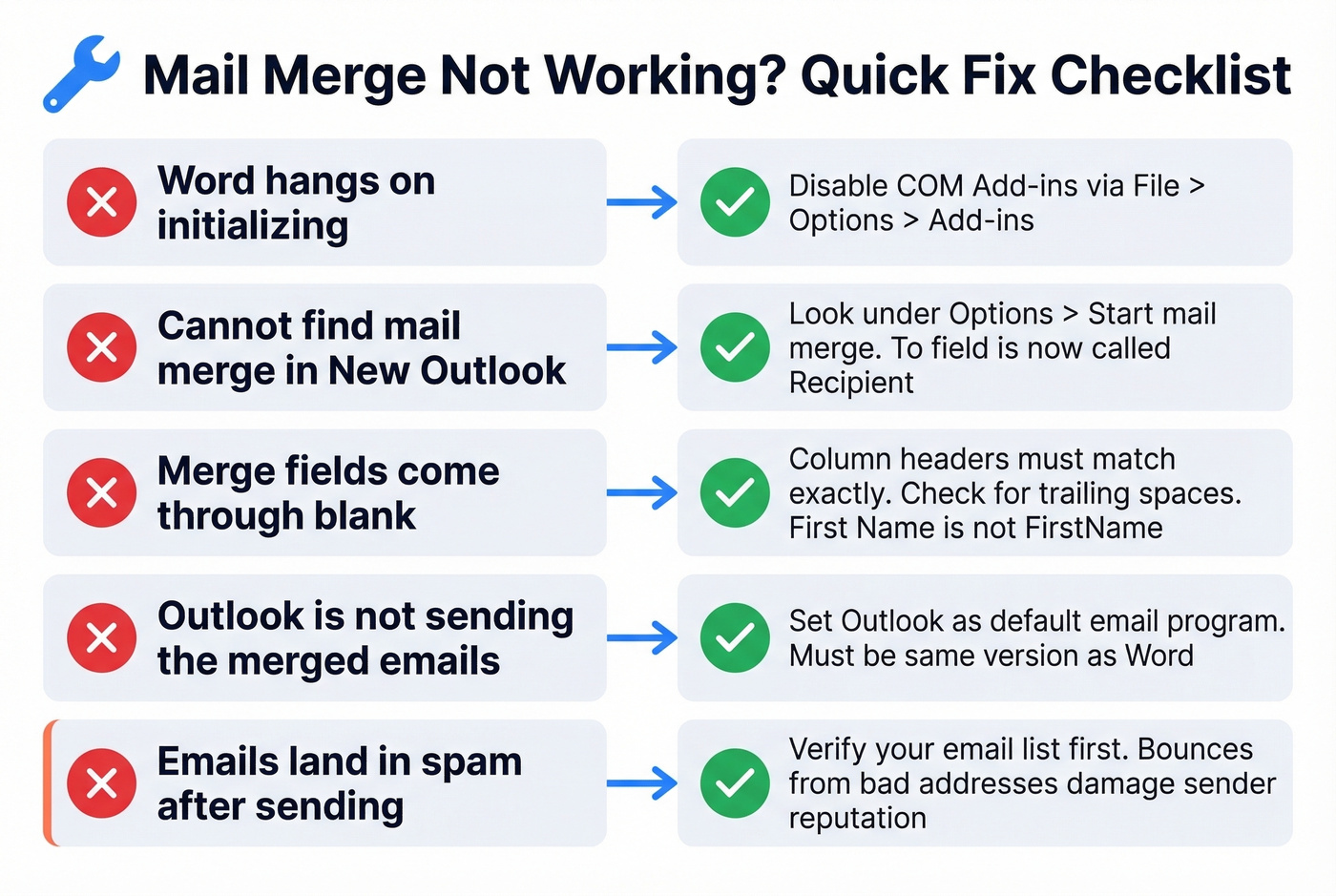
- Word hangs on "initializing": Often a Word COM add-in conflict. Go to File > Options > Add-ins, select COM Add-ins from the dropdown, and disable non-essential ones. Reddit threads confirm this is a common fix.
- Can't find mail merge in New Outlook: The To field has been renamed to Recipient. Look for Options > Start mail merge - it's there, just not where you'd expect.
- Merge fields come through blank: Your Excel column headers must match the merge field names exactly. "First Name" is not the same as "FirstName" or "first_name." Check for trailing spaces too.
- Outlook isn't sending: Confirm Outlook is set as your default email program and that it's the same version as Word.
- General weirdness: Microsoft maintains a known issues page for classic Outlook updated through March 2026. Check there before troubleshooting further.
I once spent 45 minutes debugging a merge that kept sending blank fields, only to discover a single trailing space in the "Email " column header. Maddening. Save yourself the headache and triple-check those headers.
If you're sending personalized emails to 200+ recipients, you need more than a mail merge - you need a pipeline of verified contacts. Prospeo gives you 300M+ profiles with 30+ filters so every batch send targets the right person at the right company.
Build your recipient list in minutes, not hours of manual research.
FAQ
Can recipients see other addresses when I use mail merge?
No. Each recipient receives an individual email with only their address in the To field - identical to a personally typed message. Unlike BCC, you avoid the empty-To/"undisclosed-recipients" pattern that triggers spam filters. The only giveaway would be generic content, so use merge fields when you can.
Can I add attachments to Outlook mail merge?
Not with Classic mail merge - Microsoft's documentation confirms it only supports links, not file attachments. New Outlook's built-in mail merge does support attachments. For individualized attachments like unique PDFs per recipient, use Power Automate or Mail Merge Toolkit (around EUR 30-40).
How do I send a mass email individually in Outlook?
Use New Outlook's built-in mail merge: compose your message, add recipients, and each person gets a separate email with only their address visible. For personalized content with names or company fields, use Classic mail merge through Word and Excel. Both methods send each message independently - no one sees anyone else's address.
How do I avoid bounces when emailing a large list?
Verify every address before sending. Bounces from invalid emails damage your sender reputation and push future messages to spam - even valid ones. Running a full verification pass before every major send is the single best thing you can do for deliverability, especially if your list is more than a few months old.