

What Is HTML Email - and Why Is It So Hard to Get Right?
Email marketing returns $36-40 per dollar spent. But that number assumes your emails actually render correctly - and for most teams, they don't. You build something beautiful in your browser, hit send, and it shows up looking like a ransom note in Outlook. The gap between what you design and what recipients see is wider than most marketers realize, and closing it requires understanding rendering engines, CSS limitations, and constraints that haven't changed in over a decade.
HTML Email Defined
HTML email is email built with HTML and CSS instead of plain text. It's what makes branded newsletters, promotional campaigns, and transactional messages look polished - images, buttons, colors, columns, and tracking pixels all live here.
Most HTML emails are sent as MIME multipart messages containing both an HTML version and a plain-text fallback. The recipient's email client decides which to render. If the client can't display HTML (rare today, but it happens), the plain-text version kicks in.
Here's the thing: this isn't web development. It looks similar - you're writing markup and styles - but the rendering environment is fundamentally different. Email clients strip code, ignore properties, and render the same markup in wildly different ways. That's the core challenge, and it's why email development remains its own discipline entirely separate from front-end web work.
A quick note on tracking, since it comes up constantly. Open tracking uses a tiny 1x1 transparent image embedded in the email. When the client loads it, the server logs the open. Click tracking wraps links through a redirect URL that records the click before forwarding to the destination.
The Short Version
- Outlook supports only 59 of 302 CSS features. It uses Microsoft Word's rendering engine. Yes, Word. In 2026.
- Gmail clips emails over 102KB. Anything past that threshold hides behind a "view entire message" link most people never click.
- Use MJML if you don't want to hand-code table-based layouts. It compiles to battle-tested HTML and handles the ugly parts for you.
- For cold outreach, skip HTML entirely. Plain text wins on deliverability. Save designed emails for marketing campaigns to opted-in lists.
- Send through an ESP like Mailchimp, SendGrid, or Postmark - not from Gmail or Outlook directly. Consumer email clients strip important code on compose and enforce daily sending limits that make campaigns impossible. (If you're scaling outbound, also watch your email velocity.)
HTML Email vs Plain Text
The HTML-vs-plain-text question isn't really a debate. It's a question of context.
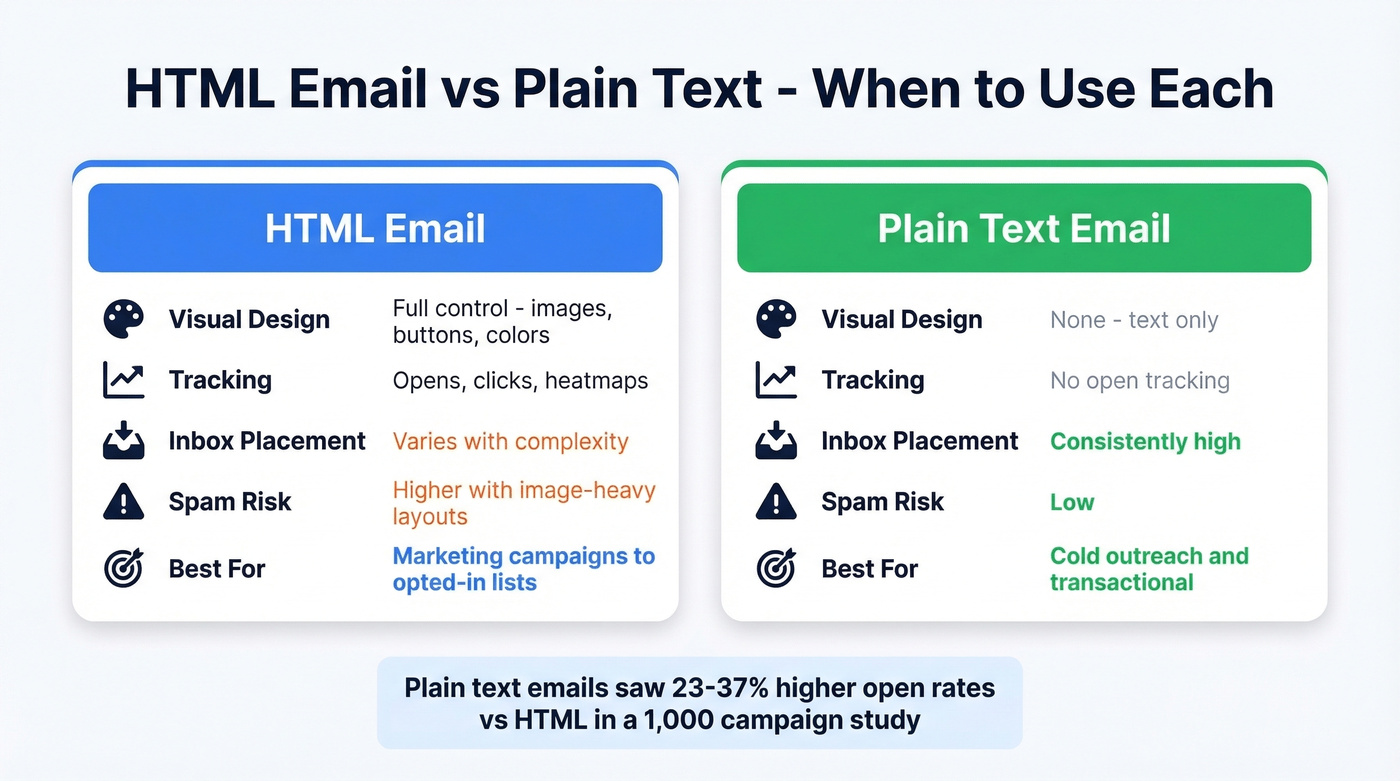
| HTML Email | Plain Text Email | |
|---|---|---|
| Visual design | Full control | None |
| Tracking | Opens, clicks, heatmaps | No open tracking |
| Inbox placement | Can vary with complexity | High |
| Spam risk | Higher with image-heavy layouts | Low |
| Best for | Marketing campaigns | Cold outreach, transactional |
An analysis of over 1,000 campaigns found that adding images and GIFs to identical copy produced 23-37% lower open rates compared to plain text. Plain text also captured 60% of conversions from existing customers.
For cold outreach, plain text wins. Period. Spam filters treat heavily formatted emails with suspicion, and recipients pattern-match designed emails as "marketing" - which means they mentally opt out before reading. For marketing campaigns to opted-in subscribers, HTML drives higher CTR because you can use buttons, product images, and visual hierarchy to guide attention. Match the format to the context. (If you need examples, start with these email subject lines.)
Why Rendering Is Broken
Web browsers converge on standards. Email clients don't. There's no equivalent of the W3C enforcing consistent rendering across inboxes.
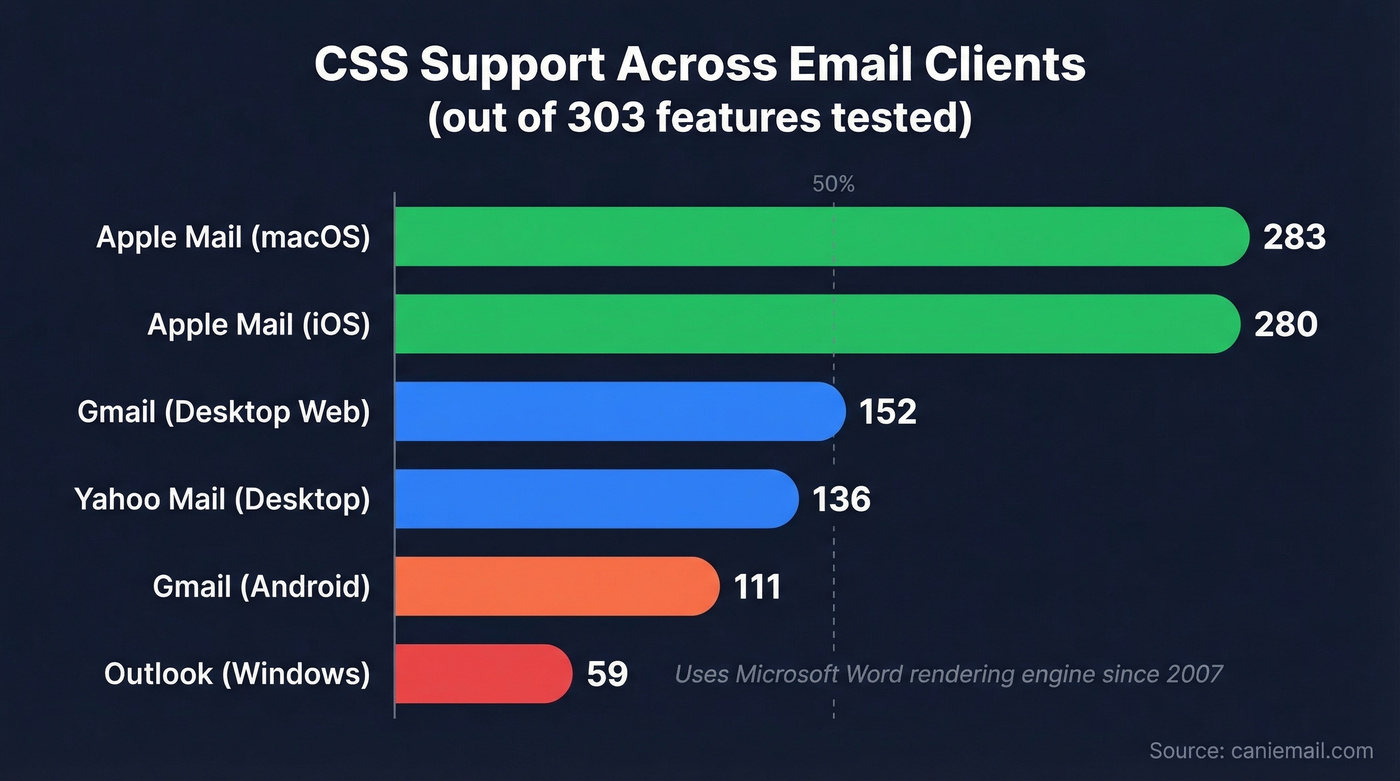
| Email Client | CSS Features Supported (of ~303 tested) |
|---|---|
| Apple Mail (macOS) | 283 |
| Apple Mail (iOS) | 280 |
| Gmail (desktop web) | 152 |
| Yahoo Mail (desktop) | 136 |
| Gmail (Android) | 111 |
| Outlook (Windows) | 59 |
Look at that spread. Apple Mail at 283, Outlook at 59. Email developers have been complaining about Outlook's Word rendering engine since 2007, and nothing has changed. It still doesn't support flexbox, grid, CSS animations, or most modern layout techniques. Some Gmail experiences and other webmail clients drop or limit <head> styles, which is why inlining remains the safest default.
This is why email developers still use table-based layouts in 2026. Not because they enjoy it. Tables are the only layout method that renders consistently across every major client. The web moved past tables two decades ago. Email never did.
How to Build an HTML Email
Layout: Tables, Not Divs
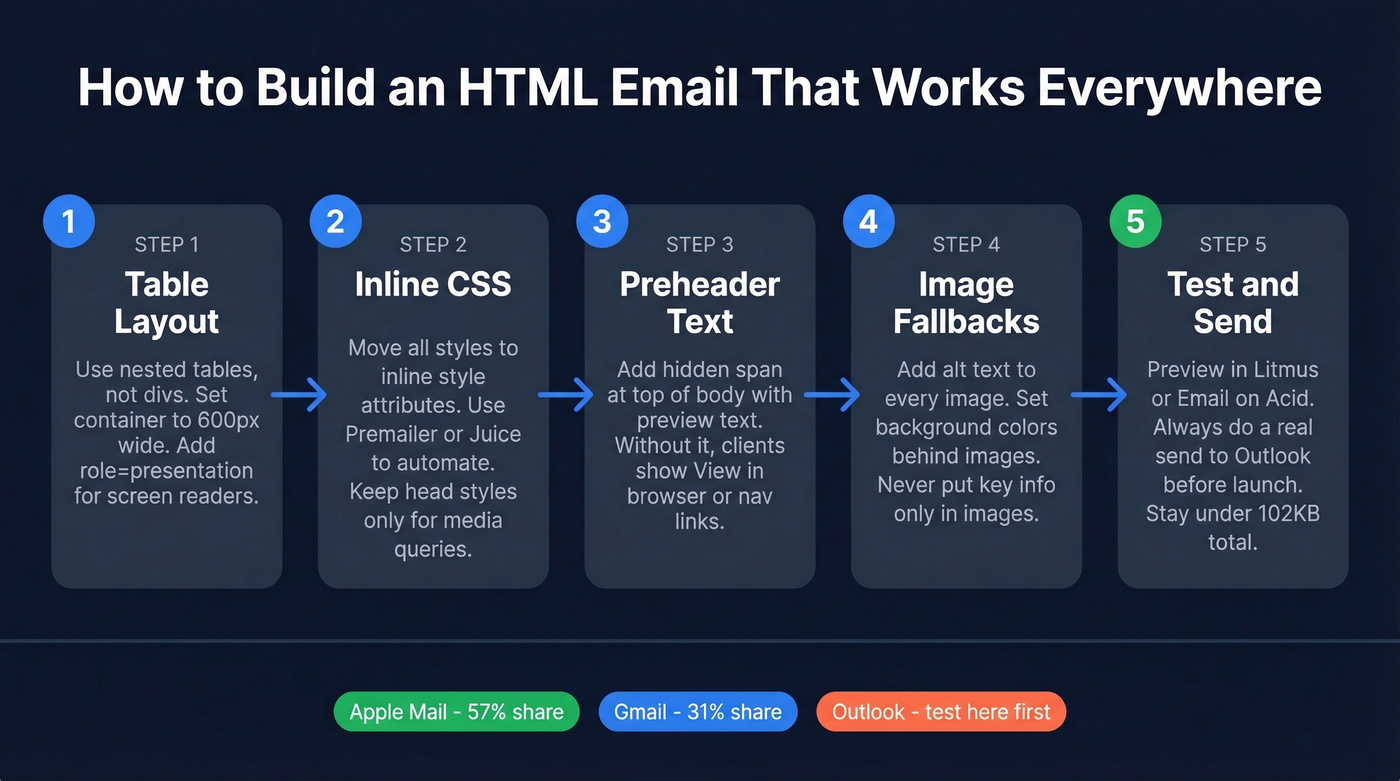
Every HTML email that needs to look right in Outlook starts with <table>. Use tables for your overall structure - header, body, footer - and nest tables within cells for multi-column layouts. Set a container width of 600px for maximum compatibility. In our experience, this width handles 95% of use cases across desktop and mobile preview panes.
It feels wrong if you're a web developer. It is wrong, by modern web standards. But it works everywhere, and that's what matters.
Inline Your CSS
Many email clients don't fully support embedded styles in the <head> or external stylesheets. The fix is inline CSS: every style applied directly to the element via the style attribute.
Don't do this by hand. Use a tool like Premailer or Juice to write your styles normally, then inline them as a build step. You can still use <style> blocks in the <head> for media queries, but treat them as progressive enhancement - the email should look acceptable without them.
Preheader Text
The preheader is the preview text that appears after the subject line in most inboxes. Control it by adding a hidden <span> at the top of your email body:
<span style="display:none; max-height:0; overflow:hidden;">
  Your preheader text goes here.
</span>
Without this, email clients pull the first visible text from your email - often "View in browser" or a navigation link. Every message you send should have an intentional preheader. (More on testing it: Email Preview Text A/B Testing.)
Design for Image Blocking
Many corporate Outlook environments block images by default. Your email needs to make sense even when images don't load. Use descriptive alt text on every image, set background colors behind image containers so the layout doesn't collapse, and never put critical information only in an image.
Starter Boilerplate
Here's a minimal skeleton:
<!DOCTYPE html>
<html lang="en">
<head>
  <meta charset="utf-8">
  <meta name="viewport" content="width=device-width, initial-scale=1.0">
  <title>Email Subject</title>
</head>
<body style="margin:0; padding:0; background-color:#f4f4f4;">
  <table role="presentation" width="100%" cellpadding="0" cellspacing="0">
    <tr>
      <td align="center">
        <table role="presentation" width="600" cellpadding="0" cellspacing="0"
               style="background-color:#ffffff;">
          <tr>
            <td style="padding:20px; font-family:Arial, sans-serif; font-size:16px; color:#333333;">
              <!-- Your content here -->
            </td>
          </tr>
        </table>
      </td>
    </tr>
  </table>
</body>
</html>
The role="presentation" attribute tells screen readers to treat tables as layout, not data. The outer table centers your 600px container. Everything is inline-styled. Not elegant, but it renders.
Frameworks and Tools
Hand-coding table-based emails is tedious. These frameworks absorb the pain:
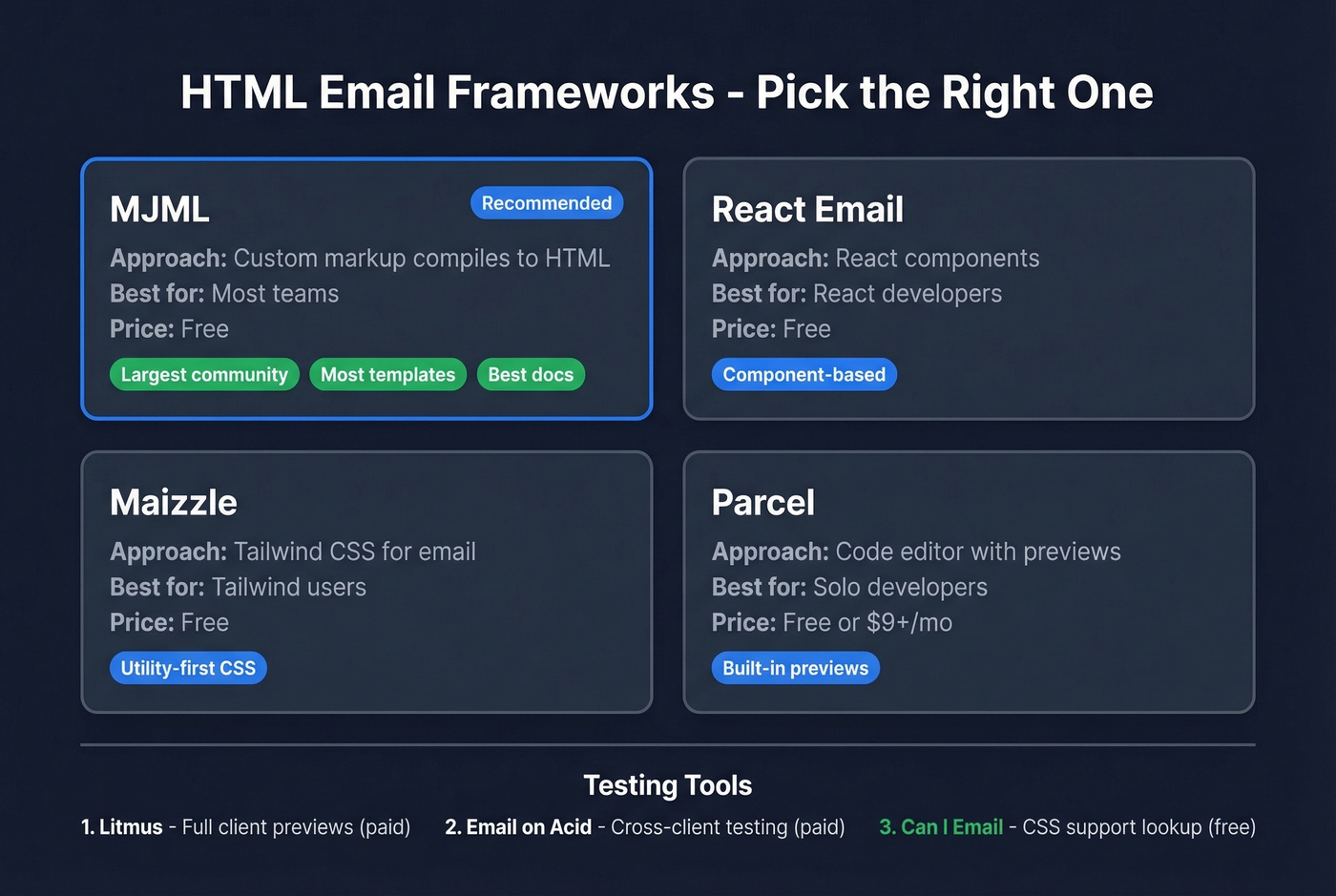
| Framework | Approach | Best For | Price |
|---|---|---|---|
| MJML | Custom markup to HTML | Most teams | Free |
| React Email | React components | React developers | Free |
| Maizzle | Tailwind CSS for email | Tailwind users | Free |
| Parcel | Code editor + previews | Solo developers | Free / $9+/mo |
MJML is the gold standard. You write clean, semantic markup, and it compiles to fully inlined, table-based HTML that works everywhere. It has the largest community, the most templates, and the best documentation. If you're starting from scratch, start here.
For testing, Litmus and Email on Acid let you preview across dozens of clients. Can I Email is free and invaluable for checking specific CSS property support. If you're on a budget, prioritize testing in Apple Mail and Gmail - they cover roughly 86.9% of market share combined. Get those two right and you've handled the majority of your audience.
We've seen emails that look perfect in preview tools still break in Outlook, so always test with a real send before launching a campaign. Skip this step at your own risk.
Dark Mode, Mobile, and Accessibility
Dark Mode
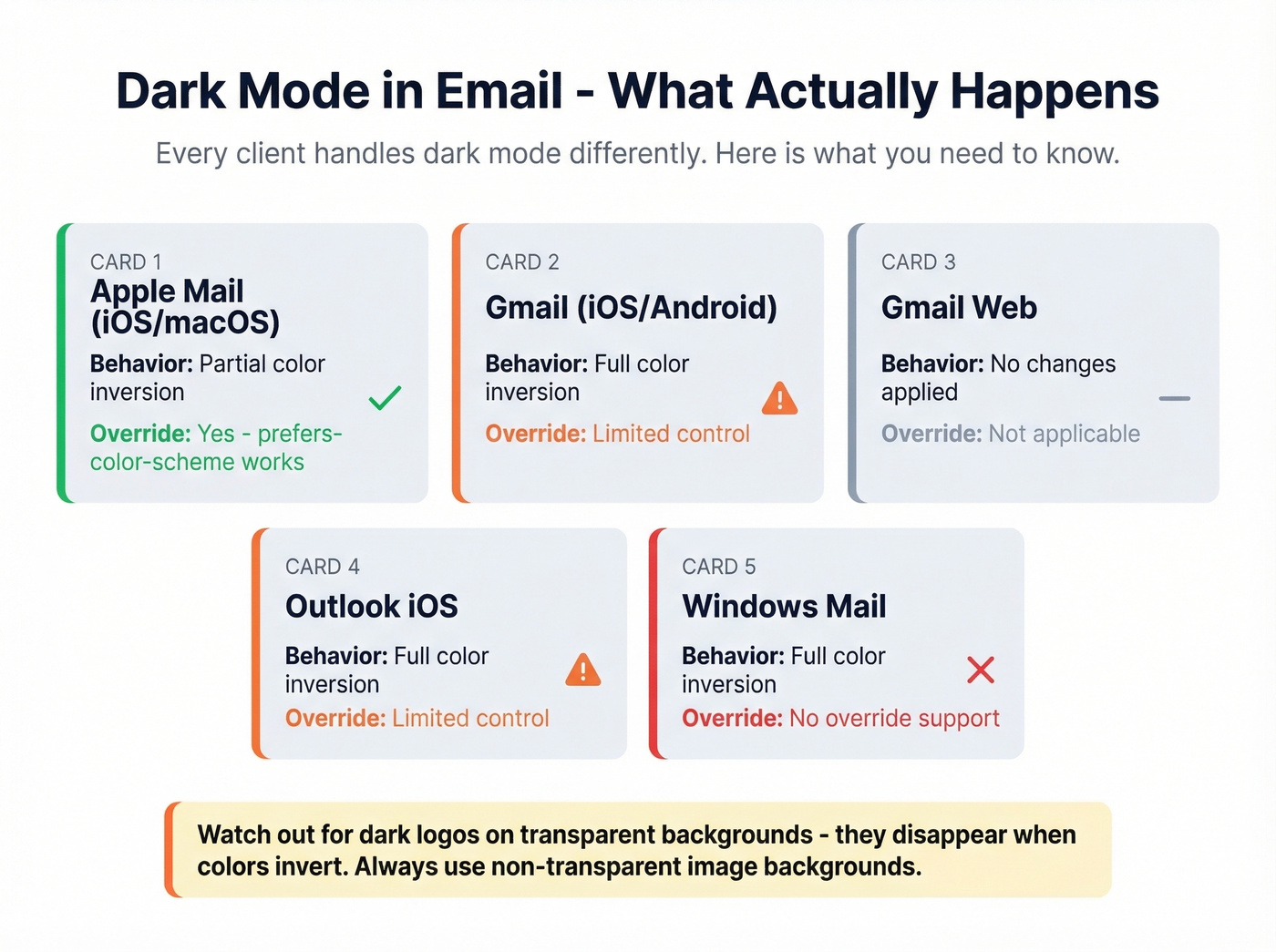
Dark mode doesn't work the same way across email clients, and the inconsistency is maddening:
| Client | Behavior | Override Support |
|---|---|---|
| Apple Mail (iOS/macOS) | Partial inversion | prefers-color-scheme supported |
| Gmail iOS/Android | Full inversion | Limited |
| Gmail web | No change | N/A |
| Outlook iOS | Full inversion | Limited |
| Windows Mail | Full inversion | None |
The practical impact: your logo might disappear. A dark logo on a transparent background becomes invisible when the client inverts colors. Apple Mail specifically auto-inverts when it detects a transparent or pure white background - a gotcha that catches even experienced developers.
The safest approach: give images non-transparent backgrounds, test CTA button colors in both modes, and use prefers-color-scheme media queries for clients that support them. For Gmail and Windows Mail, you're at the mercy of the client's inversion algorithm.
Mobile-First Design
41% of email opens happen on mobile, and average mobile email viewing time is just 10 seconds. Half of users delete emails that aren't optimized for their device, a number that climbs to 75% in the US. Apple Mail holds 56% global market share, Gmail sits at 31% - these two clients should drive your design decisions.
Responsive design increases unique mobile clicks by 15%. Use media queries for fluid layouts, single-column designs for narrow screens, and minimum tap targets of 44x44pt for buttons. Keep your total HTML under 102KB to avoid Gmail clipping, which is easier to hit than you'd think once you inline all your styles.
Accessibility
WCAG 2.2 Level AA is the industry standard for email accessibility, and it's not optional if you're sending into the EU - EN 301 549 uses WCAG 2.1 AA as its foundation.
One <h1> per email, don't skip heading levels. Maintain a 4.5:1 contrast ratio for normal text. Set 44x44pt minimum tap targets for all interactive elements. Write descriptive link text - never "click here." Add alt text on every image, and use empty alt="" for decorative ones.
These aren't compliance boxes to check. Screen readers navigate emails by heading structure. Low-contrast text is unreadable in bright sunlight. Accessibility improvements make emails better for everyone.
Deliverability and Compliance
Getting Past Spam Filters
Your HTML email can be pixel-perfect and still fail if it never reaches the inbox. Authenticate with SPF, DKIM, and DMARC. For bulk sending at 5,000+ messages per day, standard requirements include authentication, one-click unsubscribe, and keeping complaint rates under 0.3%. (If you want the full checklist, use this email deliverability guide.)
One of the most common spam filter triggers is a high image-to-text ratio. Google's RETVec spam detection system rewards human-like correspondence and penalizes manipulative formatting and image-only layouts. Keep a healthy balance - more text than images, always.
Gmail's 102KB clipping threshold matters here too. Clipping can hide parts of your footer, including unsubscribe links, and break the experience on top of the engagement hit.
None of this matters if you're sending to dead addresses. Bounced emails damage sender reputation faster than any design mistake. Before every campaign, verify your list. Tools like Prospeo run real-time email verification with 98% accuracy, catch spam traps that destroy deliverability, and handle catch-all domains that other tools skip. (Related: Email Bounce Rate and Spam Trap Removal.)
Let's be honest: if your deal sizes are under five figures, you probably don't need a $1,000/month email platform. What you need is clean data and simple HTML. Most deliverability problems aren't design problems - they're list hygiene problems.
Legal Compliance
Three frameworks govern email marketing, and the penalties aren't theoretical.
CAN-SPAM (US) carries fines up to $53,088 per violation. It requires truthful headers, non-deceptive subject lines, ad identification, a physical address, clear opt-out, honoring opt-outs within 10 business days, and responsibility for third-party sends. CAN-SPAM is opt-out: you can email people until they say stop.
GDPR (EU) imposes fines up to EUR 20M or 4% of global annual turnover, whichever is higher. GDPR is opt-in: you need explicit consent before sending.
PECR (UK) carries penalties up to GBP 500,000. Also opt-in, with limited exceptions for existing customer relationships.
The consent model difference is the critical distinction. If you're sending to EU or UK recipients, you need consent first. CAN-SPAM's opt-out model doesn't apply internationally. (If you're considering list buying, read: Is It Illegal to Buy Email Lists?.)
FAQ
Is HTML email the same as rich text?
No. Rich text supports basic formatting like bold and italic but can't handle images, CTA buttons, or tracking pixels. HTML email uses full HTML and CSS for complete design control - layouts, embedded images, click tracking. They're fundamentally different formats.
Can I use CSS grid or flexbox?
Technically yes in Apple Mail, which supports 283 of ~303 CSS features. But Outlook and Gmail don't support them reliably. Stick with table-based layouts for cross-client compatibility and treat modern CSS as progressive enhancement, not a foundation.
Why do emails look different in every inbox?
Each email client uses its own rendering engine. Outlook relies on Microsoft Word's engine and supports just 59 of 302 CSS features. Apple Mail supports nearly everything. There's no universal standard, so identical HTML produces different visual results across clients.
Should I send HTML or plain text for cold outreach?
Plain text. Adding images and formatting to cold emails lowers open rates by 23-37% compared to identical plain-text copy. Spam filters treat heavily formatted messages with more suspicion, and recipients mentally categorize designed emails as marketing. Save HTML for campaigns to opted-in subscribers where visual design drives engagement.
How do I prevent emails from bouncing?
Verify your list before every send. A clean list is the single highest-impact thing you can do for deliverability - no amount of authentication or design optimization compensates for bad addresses.

Cold outreach works best as plain text - the article made that clear. But plain text only converts when it reaches the right person. Prospeo gives you 143M+ verified emails with a 7-day refresh cycle, so your outbound messages land in active inboxes at $0.01 per email. No bounces wrecking your domain reputation.
Send plain text that actually reaches decision-makers.