

Gmail 550 Permanent Failure: Find Your Error Code, Fix It Fast
You just sent a proposal to a prospect and got a bounce-back with "550 permanent failure" in the subject line. That's Gmail telling you the message is dead on arrival - no retry, no queue, no second chance. Let's match your exact error code to the fix so you can get back to sending.
The Quick Version
Most 550s fall into three buckets:
If your bounce says 5.7.26, your SPF or DKIM authentication is broken - fix your DNS records. If it says 5.1.1, the email address doesn't exist, so verify your list before sending again. And if it says 5.7.1 or 5.7.350, Gmail thinks you're spam - check your sender reputation and blacklist status.
What Does "550 Permanent Failure" Actually Mean?
A 550 is an SMTP rejection code. The first digit - 5 - means permanent. The server won't accept this message no matter how many times you retry, which is the critical distinction from a 4xx code (temporary, worth retrying later). (If you need benchmarks and code-by-code context, see email bounce rate.)
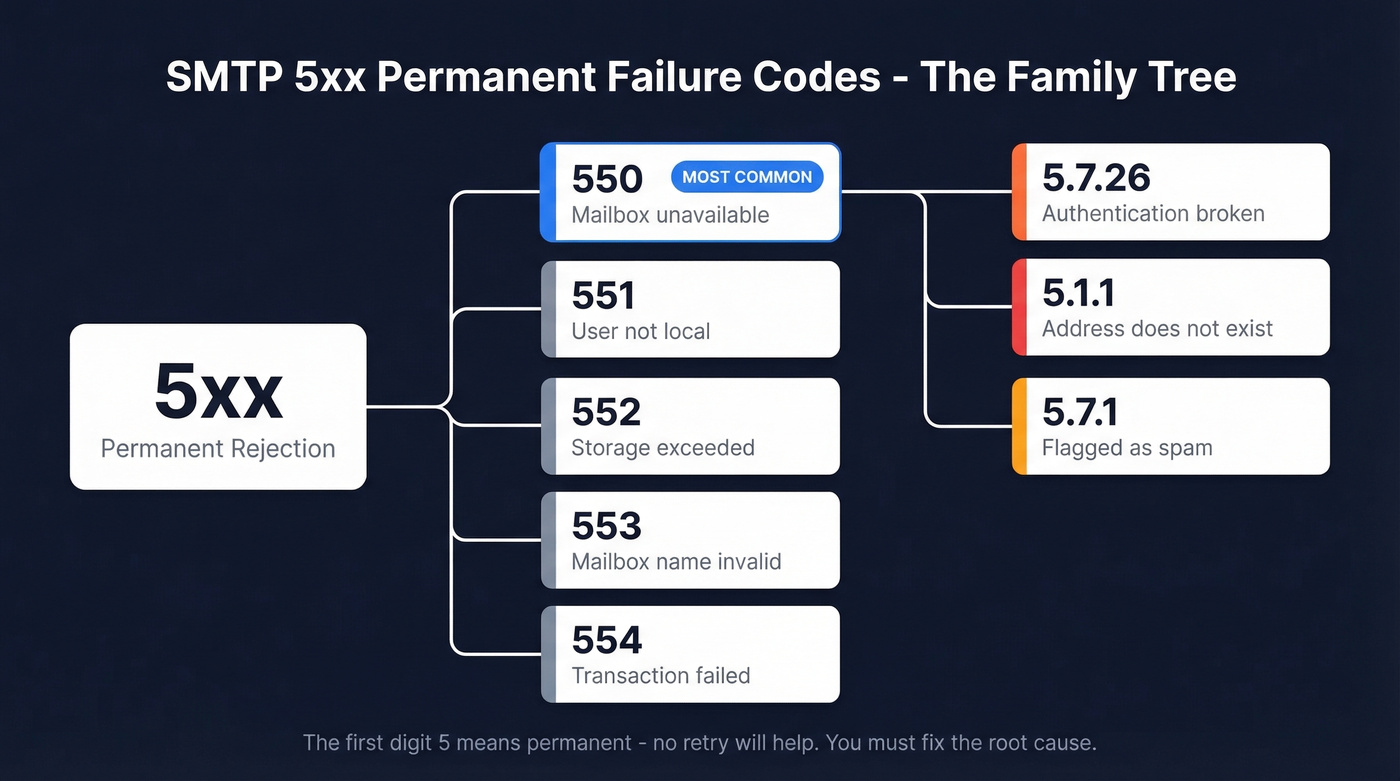
The 550 sits in a family of permanent failure codes:
| Code | Meaning |
|---|---|
| 550 | Mailbox unavailable |
| 551 | User not local |
| 552 | Storage exceeded |
| 553 | Mailbox name invalid |
| 554 | Transaction failed |
All 5xx codes are permanent rejections, and 550 is the most common you'll encounter. The enhanced status codes after it - 5.7.26, 5.1.1, etc. - tell you why it happened.
If someone tells you to "just wait and retry," they're confusing temporary and permanent failures. A 550 requires you to fix something before resending.
Why You're Seeing This Now
Gmail's enforcement of sender requirements ramped up starting late 2025, and rejections have been climbing throughout 2026. If you were skating by with partial authentication or sloppy list hygiene, Gmail's now catching what it used to let slide.
The baseline for all senders: authentication via SPF or DKIM at minimum, spam complaints below 0.3%, and TLS encryption. Senders pushing more than 5,000 emails per day to Gmail addresses face a higher bar - both SPF and DKIM, a DMARC record with at least p=none and proper alignment, plus one-click unsubscribe headers. Google's sender guidelines spell this out, and Gmail is actively rejecting mail that doesn't comply. (For a deeper deliverability baseline, use this email deliverability guide.)
Match Your Error Code
Find your exact bounce string below. Gmail's bounce messages are specific enough to diagnose the problem without guessing.
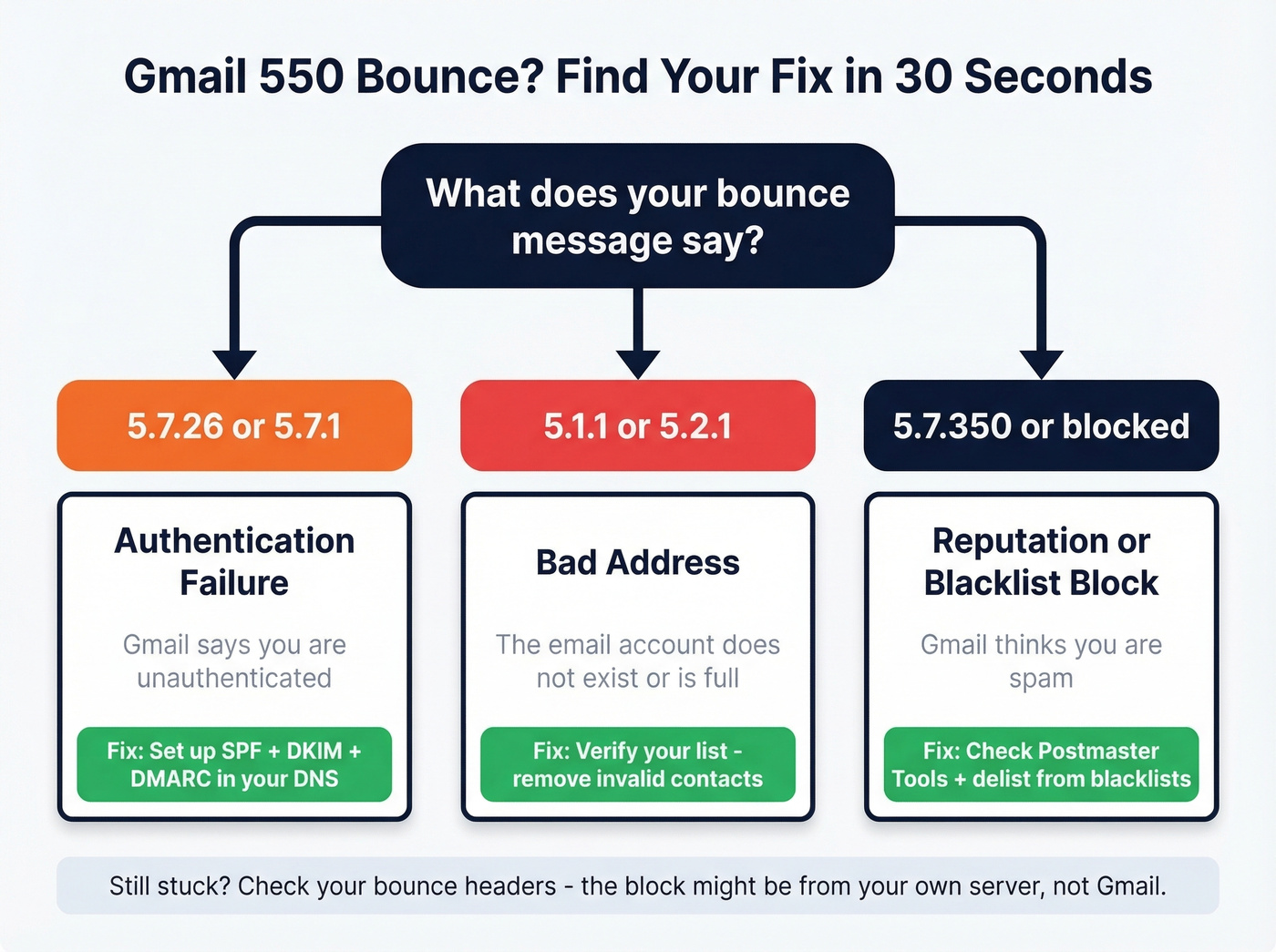
| Code | Gmail Bounce String | What It Means | Quick Fix |
|---|---|---|---|
| 550 5.1.1 | "The email account does not exist" | Address is invalid | Remove from list |
| 550 5.2.1 | "The user you are trying to contact is receiving mail at a rate that prevents additional messages" | Recipient over quota | Wait and retry later |
| 550 5.4.1 | "Recipient address rejected" | Routing failure | Verify domain/MX records |
| 550 5.7.1 | "Message rejected" | Policy block (spam) | Check domain rep via Postmaster Tools |
| 550 5.7.26 | "Your email has been blocked because the sender is unauthenticated" | SPF/DKIM failing | Fix DNS auth records |
| 550 5.7.350 | Suspected spam/policy filtering | Spam filtering | Delist + warm domain |
| 550 "blocked" | "Permanent failure...:blocked" | Upstream or blacklist block | Check blacklists via MXToolbox |
The 5.7.26 bounce is the most explicit. Gmail literally tells you what failed:
"550 5.7.26 Your email has been blocked because the sender is unauthenticated. Gmail requires all senders to authenticate with either SPF or DKIM."
If you're seeing that exact string, skip straight to the authentication fix below.

Most 550 5.1.1 bounces happen because the email address never existed. Prospeo's 5-step verification - including catch-all handling, spam-trap removal, and honeypot filtering - delivers 98% email accuracy. Teams using Prospeo cut bounce rates from 35%+ to under 4%.
Stop sending to dead addresses. Start with verified ones.
Where Is the Rejection Happening?
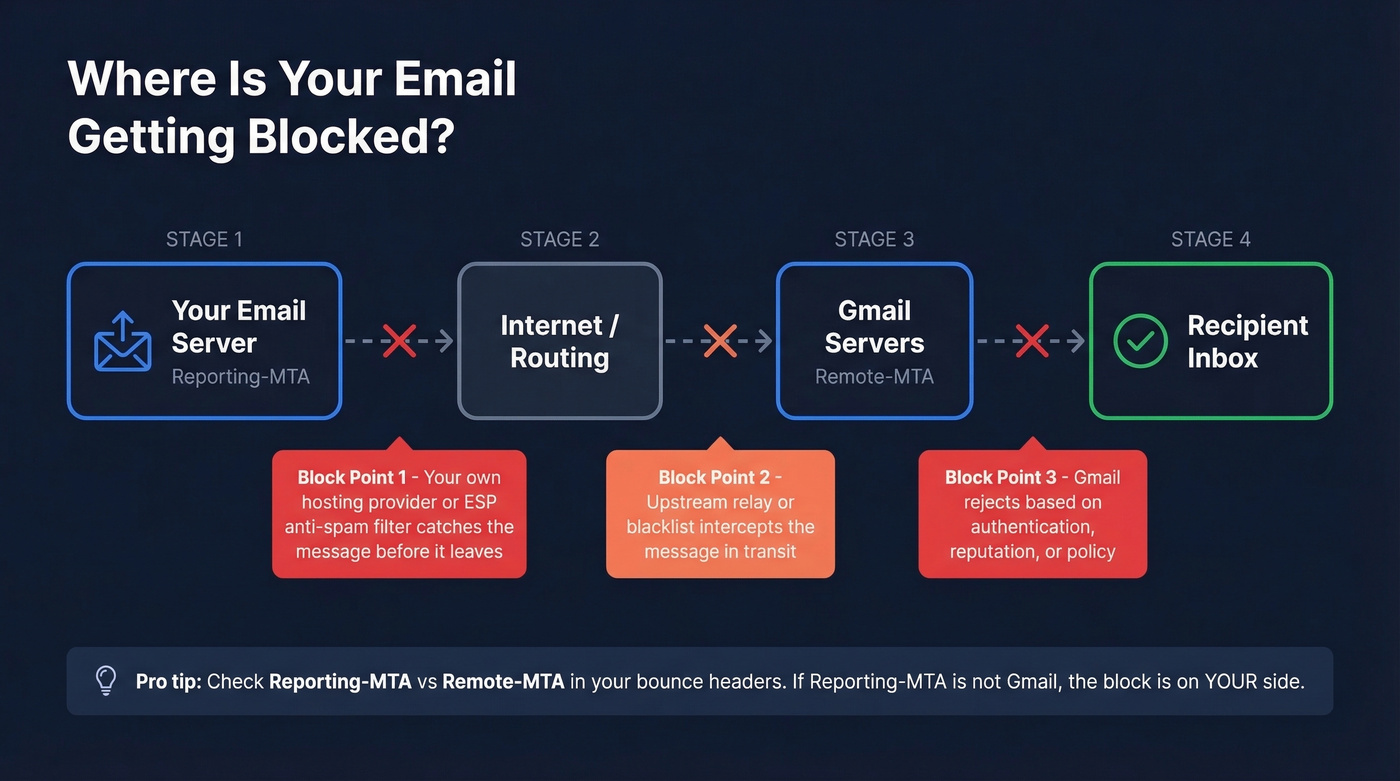
Before you start fixing things, figure out who rejected your message. It isn't always Gmail.
Read Your Bounce Headers
Open the bounce-back email and look for two fields: Reporting-MTA and Remote-MTA. The Reporting-MTA is the server that generated the bounce notification. The Remote-MTA is the server that actually refused the message.
Here's the thing - this is a recurring frustration in email communities. Senders assume Gmail rejected them when their own hosting provider intercepted the message first. We've seen cases where a sender's upstream anti-spam filter was generating the 550 before the message ever reached Gmail's servers. If your Reporting-MTA doesn't match Gmail's servers, the block is on your side. Call your ESP or hosting provider.
Use Google's Free Diagnostics
Google's Admin Toolbox is underused and free. Check MX validates your domain's mail server configuration, Dig lets you query DNS records without a terminal, and Messageheader analyzes SMTP headers to identify routing issues and delivery delays.
For ongoing monitoring, set up Google Postmaster Tools on your sending domain. It shows your domain reputation, spam rate, and authentication pass rates - the exact metrics Gmail uses to decide whether to accept your mail. For blacklist checks, run your sending IP through MXToolbox's blacklist lookup. (If you want a broader toolkit, see these email reputation tools.)
For Google Workspace Admins
Check your SMTP relay configuration under Admin Console > Apps > Google Workspace > Gmail > Routing > SMTP relay service. Verify that your allowed sending IPs are correct and that authentication settings match between Workspace and any apps sending through the relay. Also confirm the recipient account is active under Directory > Users > Status - a disabled Workspace account bounces just like a nonexistent address.
How to Fix Each 550 Error
Authentication Failures (5.7.26, 5.7.1)
These are the most fixable 550s. Gmail is telling you your mail isn't authenticated.
SPF: Add a TXT record to your domain's DNS. For Google Workspace: v=spf1 include:_spf.google.com ~all. If you send through multiple services like Mailchimp or Outreach, include each one. In our experience, the SPF 10-lookup limit is the most common silent failure - teams add third-party services without checking their lookup count, and the entire SPF record quietly breaks. (Use these SPF record examples to sanity-check syntax.)
DKIM: Enable DKIM signing in your email platform. For Workspace, go to Admin Console > Apps > Gmail > Authenticate email. Generate the key, add the record to DNS, and activate signing. (Then confirm it’s live with how to verify DKIM is working.)
DMARC: Publish a DMARC record at minimum v=DMARC1; p=none; rua=mailto:dmarc@yourdomain.com. The p=none policy doesn't block anything - it just starts collecting reports so you can see what's passing and failing. Bulk senders who push 5,000+ messages per day to Gmail need DMARC with proper SPF and DKIM alignment. (If alignment is confusing, read DMARC alignment.)
If you're a bulk sender and you don't have all three configured, Gmail will reject your mail. Not might. Will.
Blacklist and Reputation Blocks (5.7.350)
A 5.7.350 means Gmail's filtering flagged your message as spam or policy-violating, often because your sending IP or domain reputation is poor.
Identify the listing. Run your IP through MXToolbox. Note which lists you're on.
Fix the root cause. A blacklist listing is a symptom. The cause is usually a spam complaint spike, an open relay, or a compromised account.
Submit delist requests. Major lists provide delisting workflows. Typical removals take 24-72 hours once the underlying issue is fixed.
Monitor. Use Google Postmaster Tools to watch your domain reputation recover.
One pattern we see repeatedly: teams delist themselves, then immediately resume high-volume sending without fixing the underlying data quality issue. The listing comes back within a week. (If you suspect traps are involved, start with spam trap removal.)
Invalid Addresses (5.1.1, 5.2.1, 5.4.1)
The address doesn't exist, the recipient is rate-limited, or the domain can't route mail. The only fix is to stop sending to that address.
This sounds simple, but for outbound teams it's the most dangerous category. High bounce rates from invalid addresses don't just waste sends - they damage your sender reputation and can trigger rejections on valid addresses too, creating a cascading failure that's much harder to recover from. (If you need a process, use how to check if an email exists.)
Recipient-Side Blocks
Some 550s genuinely aren't your fault. We've seen cases where senders on Microsoft 365 had roughly 25% of messages to Gmail rejected intermittently - even after configuring connectors correctly. The recipient's admin may need to allowlist your domain or sender address. Still, exhaust every sender-side diagnostic first. Skip this explanation if you haven't already confirmed your own authentication and reputation are clean.
Bad Data Causes 550 Cascades
Let's walk through the scenario we've watched play out dozens of times. An SDR team loads 500 contacts into a sequence on Monday morning. By noon, 40 emails have bounced - an 8% bounce rate. Inbox providers notice. By afternoon, even the valid addresses start getting rejected. The domain's reputation is in freefall.
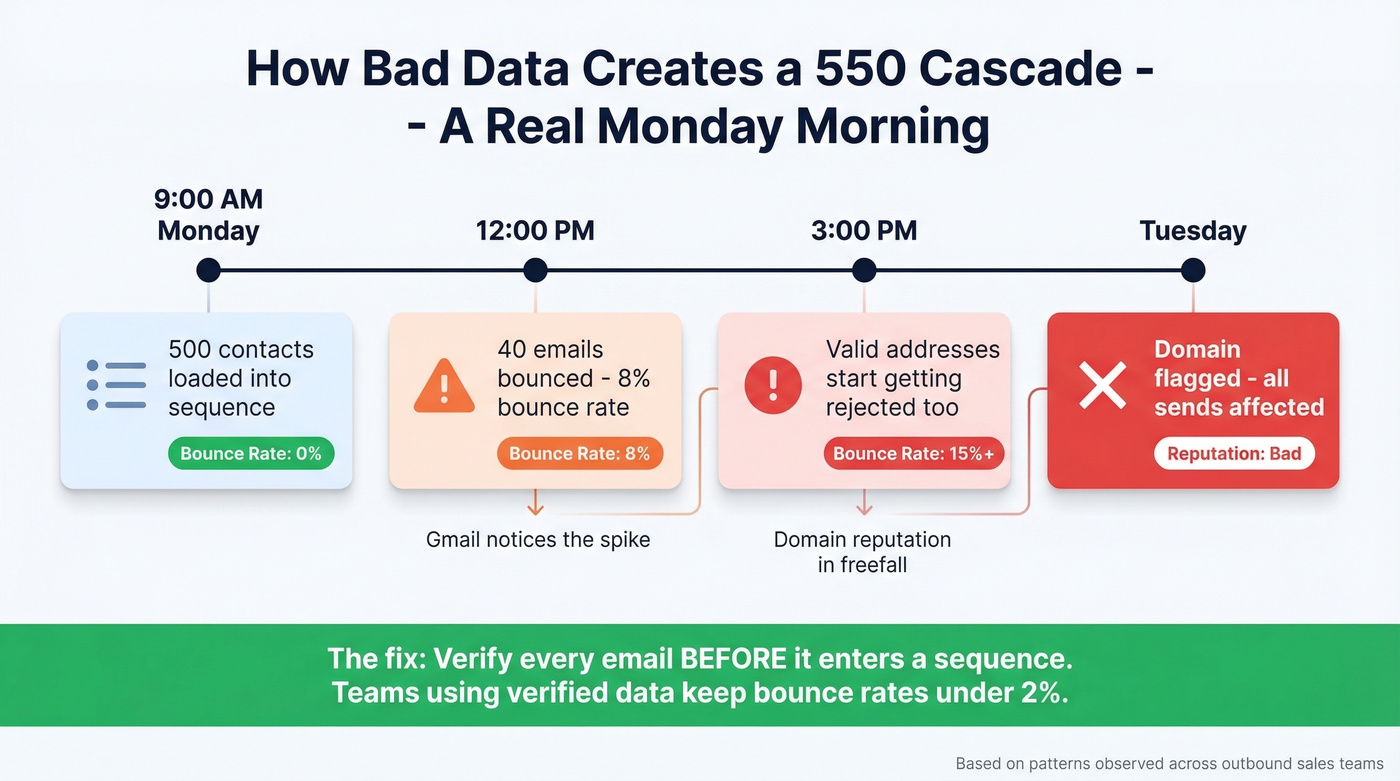
The root cause isn't authentication or blacklists. It's bad data.
When enough addresses on your list are invalid, you'll see a 550 permanent failure for one or more recipients on nearly every send - and the problem compounds as your reputation drops. Most teams don't have a deliverability problem. They have a data quality problem wearing a deliverability mask. Fix the inputs and the 550s disappear.
Prospeo's 5-step email verification catches this before it starts, running every address through catch-all domain handling, spam-trap removal, and honeypot filtering - the exact traps that trigger reputation damage when you hit them. One customer, Snyk (50 AEs), went from 35-40% bounce rates to under 5% after switching their verification workflow.

Every invalid email you send chips away at your domain reputation, pushing you closer to 5.7.350 blocks. Prospeo refreshes its 143M+ verified emails every 7 days - not every 6 weeks like competitors. That's why agencies like Stack Optimize maintain 94%+ deliverability with zero domain flags.
Protect your sender reputation with data that's never more than a week old.
Prevention Checklist
Run through this before every outbound campaign:
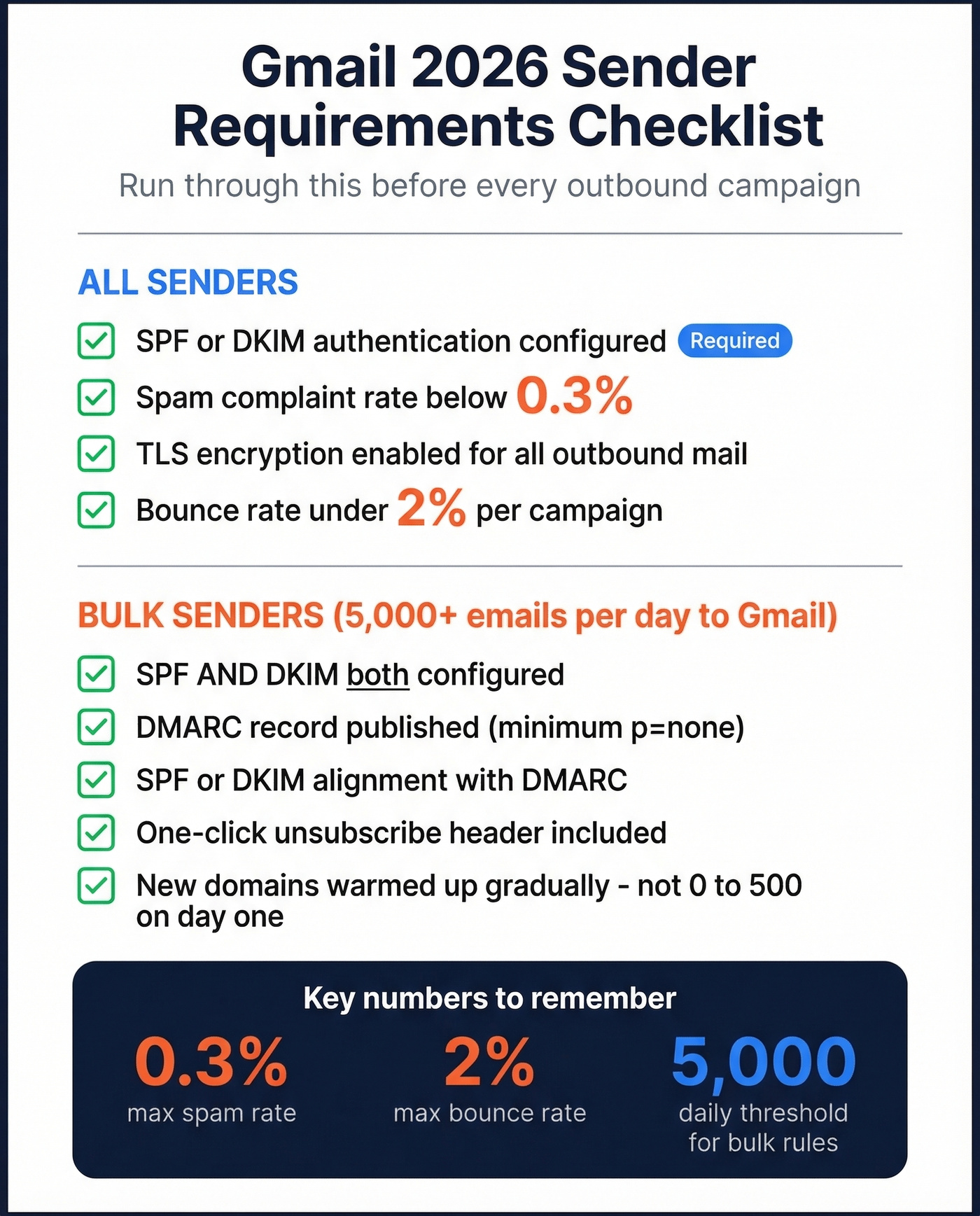
- Set up SPF + DKIM + DMARC before sending a single email from a new domain
- Verify every email address before it enters a sequence
- Stay under 0.3% spam complaint rate - monitor in Google Postmaster Tools
- Check domain reputation weekly via Postmaster Tools
- Warm up new domains gradually - don't go from 0 to 500 emails on day one (use a safe email velocity ramp)
- Keep bounce rate under 2% per campaign
- Use TLS encryption for all outbound mail
- Enable one-click unsubscribe if you send 5,000+ emails per day to Gmail
FAQ
Is a 550 error permanent?
Yes. Unlike 4xx temporary errors, a 550 means the receiving server won't accept this message. You need to fix the underlying cause - authentication, reputation, or invalid address - before retrying.
Can I fix a 550 error on my own?
In most cases, yes. Authentication failures, blacklist issues, and bad data are all sender-side fixes you control directly. The exception is recipient-side policy blocks, where the receiving admin has to allowlist your domain.
What does "550 permanent failure for one or more recipients blocked" mean?
This bounce string means Gmail permanently refused delivery to at least one address on your message. The "blocked" portion typically indicates a policy or reputation issue - check your authentication records and blacklist status first, then verify the recipient addresses are valid.
How do I prevent 550 bounces in outbound campaigns?
Verify every email address before sending. Pair verification with proper SPF, DKIM, and DMARC setup, and you'll cut the two most common causes of 550 errors.
What's the difference between a 550 and a 4xx error?
A 4xx is temporary - the server may accept the message on a later attempt. A 550 is permanent. The server is refusing your message outright, and retrying without fixing the root cause will produce the same bounce every time.