

Gmail SMTP Server Address: Settings, Setup & Troubleshooting
Your office Kyocera printer stopped scanning to email last Tuesday. Nobody changed anything. The Gmail SMTP server address is still smtp.gmail.com - that hasn't changed. What changed is how Google handles authentication, and it breaks devices and apps that worked fine for years.
No, you don't need to contact Google to get SMTP access. It's available on every Gmail and Google Workspace account, right now, for free.
Gmail SMTP Settings at a Glance
Copy these details into whatever app, device, or plugin you're configuring.
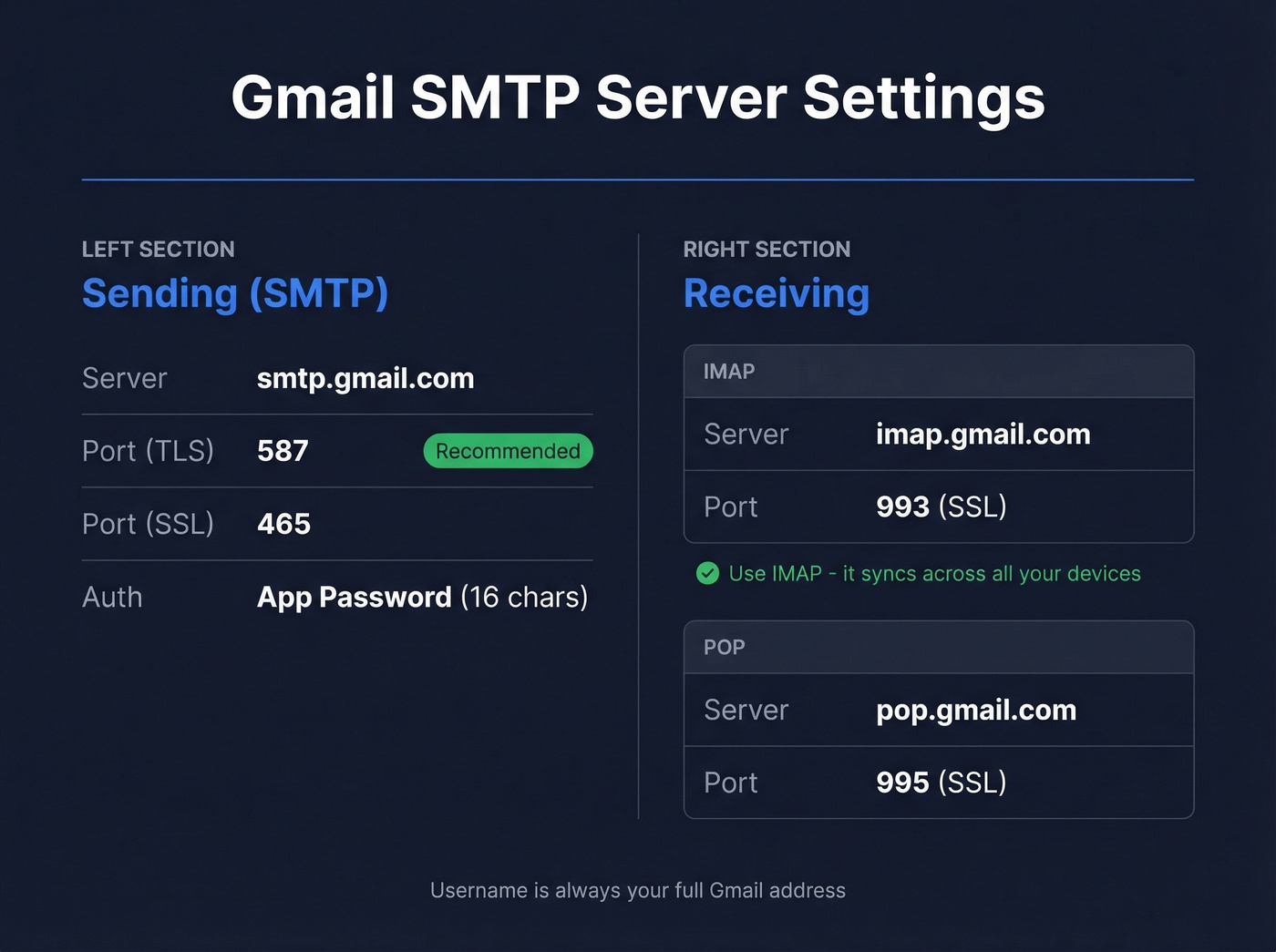
| Setting | Value |
|---|---|
| SMTP Server | smtp.gmail.com |
| Port (TLS) | 587 (recommended) |
| Port (SSL) | 465 |
| Authentication | Required |
| Username | Your full Gmail address |
| Password | App Password (16-char) |
Port 587 with TLS is the modern standard. Use 465 only if your client doesn't support STARTTLS - some older printers and embedded devices fall into this category.
For receiving mail, here are the companion settings:
| Protocol | Server | Port |
|---|---|---|
| IMAP | imap.gmail.com | 993 (SSL) |
| POP | pop.gmail.com | 995 (SSL) |
Use IMAP unless you have a specific reason not to - it syncs across devices, while POP downloads to a single client. As of January 2026, Gmail no longer fetches mail from third-party accounts via POP, so if you relied on that feature, switch to IMAP forwarding or import. You can find these same values on Google's IMAP/SMTP developer page, but the tables above are all most people need.
How to Generate an App Password
App Passwords are the piece that trips everyone up. Google doesn't tell you on the App Password page itself, but 2-Step Verification must be enabled first. Skip that step and the App Passwords option simply won't appear in your account settings - no error, no explanation, just absent.
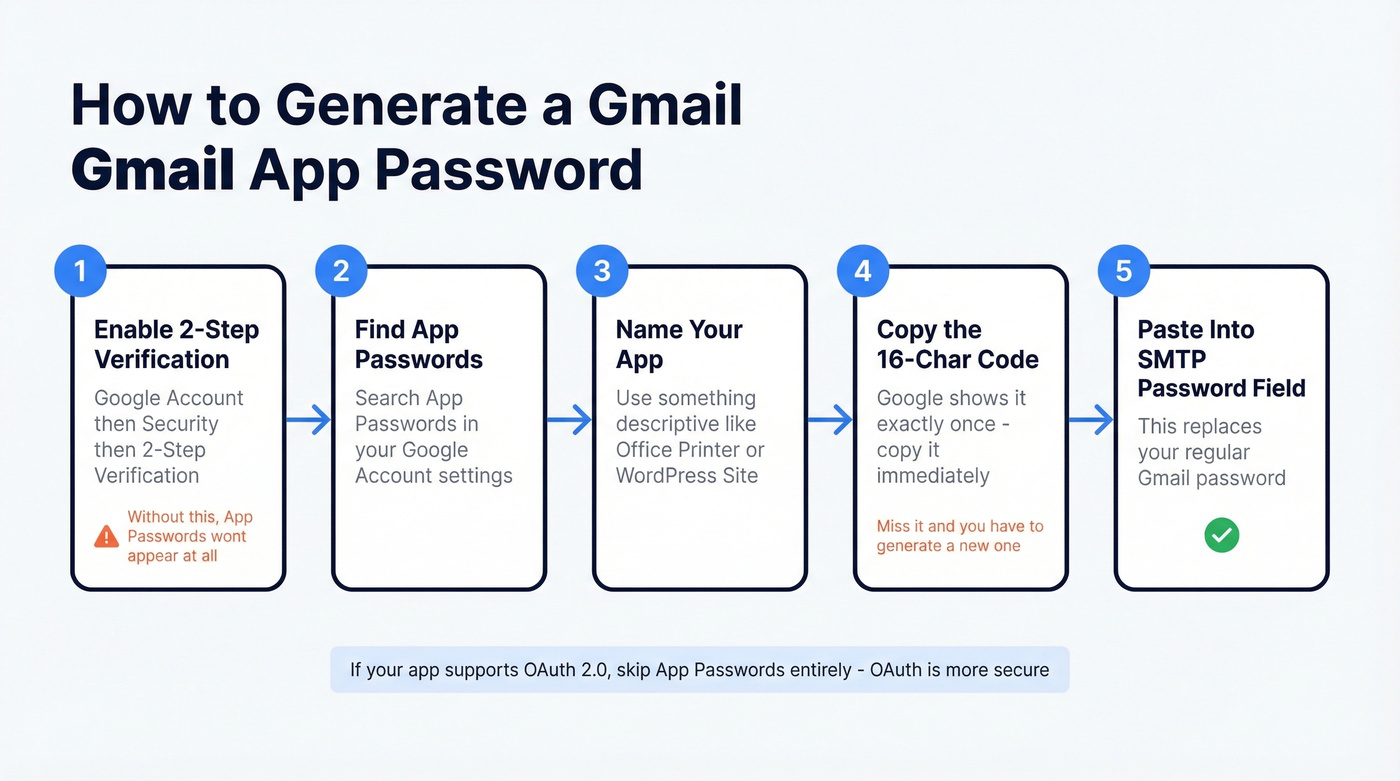
- Enable 2-Step Verification - Go to your Google Account, then Security, then 2-Step Verification, and turn it on.
- Navigate to App Passwords - Search "App Passwords" in your Google Account settings, or go to Security and then App Passwords directly.
- Generate a password - Name it something descriptive like "Office Printer" or "WordPress Site," then click Generate.
- Copy the 16-character code - Google shows it once. In our experience, this is the biggest gotcha: miss it and you're generating a new one.
- Paste it into your app's SMTP password field - This replaces your regular Gmail password. Your username is your full email address; the password is this 16-character App Password.
App Passwords won't be available if your account uses security keys only, if your organization's admin has disabled them, or if you've enrolled in Google's Advanced Protection Program.
Here's the thing: App Passwords are a band-aid. They store a static credential in plaintext on whatever device or app you're configuring. If your app supports OAuth 2.0, use OAuth instead - it's more secure and doesn't leave a password sitting in a config file somewhere.
Setup by Use Case
Email Clients
Thunderbird and Apple Mail handle Google SMTP with minimal friction. Enter smtp.gmail.com, port 587, your full Gmail address, and the App Password - both clients auto-detect the remaining settings.
Outlook requires more manual work: you'll need to explicitly set TLS encryption and specify the port. Outlook 2016 and earlier default to basic auth; Outlook 2019+ and Microsoft 365 prefer modern authentication via OAuth. If your version supports OAuth, use it and skip the App Password entirely.
If you need a deeper walkthrough for client-specific fields, see our Gmail outgoing SMTP server guide.
WordPress (WP Mail SMTP)
WordPress defaults to PHP mail(), which fails silently on most hosting providers. The standard fix is a plugin like WP Mail SMTP set up with a Gmail API (OAuth) connection - not raw SMTP credentials. The Gmail API method is more secure because you authorize via OAuth instead of storing an App Password in your WordPress database, and it works even when SMTP ports are blocked since it's API-based. If you're still using App Passwords for WordPress email in 2026, switch to the API method.
If you're stuck on ports, our Gmail port for SMTP breakdown covers the common gotchas.
Printers and Scanners
This is the scenario that fills Reddit threads. A school's Kyocera fleet stopped scanning to email despite nobody touching the settings. Google killed "Less Secure Apps" access, and these devices can't do OAuth.
We've walked multiple school IT teams through this exact fix: enable 2-Step Verification on the sending Gmail account, generate an App Password, and enter that 16-character code in the printer's SMTP password field. Most printers only need smtp.gmail.com, port 587, and the App Password. Google didn't send you a memo, but that's the fix, and it works immediately.

Configuring Gmail SMTP to send outbound emails? You're solving the wrong problem. Prospeo gives you 143M+ verified emails with 98% accuracy and native integrations with Instantly, Smartlead, and Lemlist - no SMTP setup, no App Passwords, no daily sending limits to worry about.
Skip the server config. Start sending to verified emails today.
Gmail SMTP vs. Workspace SMTP Relay
If you're sending more than a handful of emails, the daily limits matter.
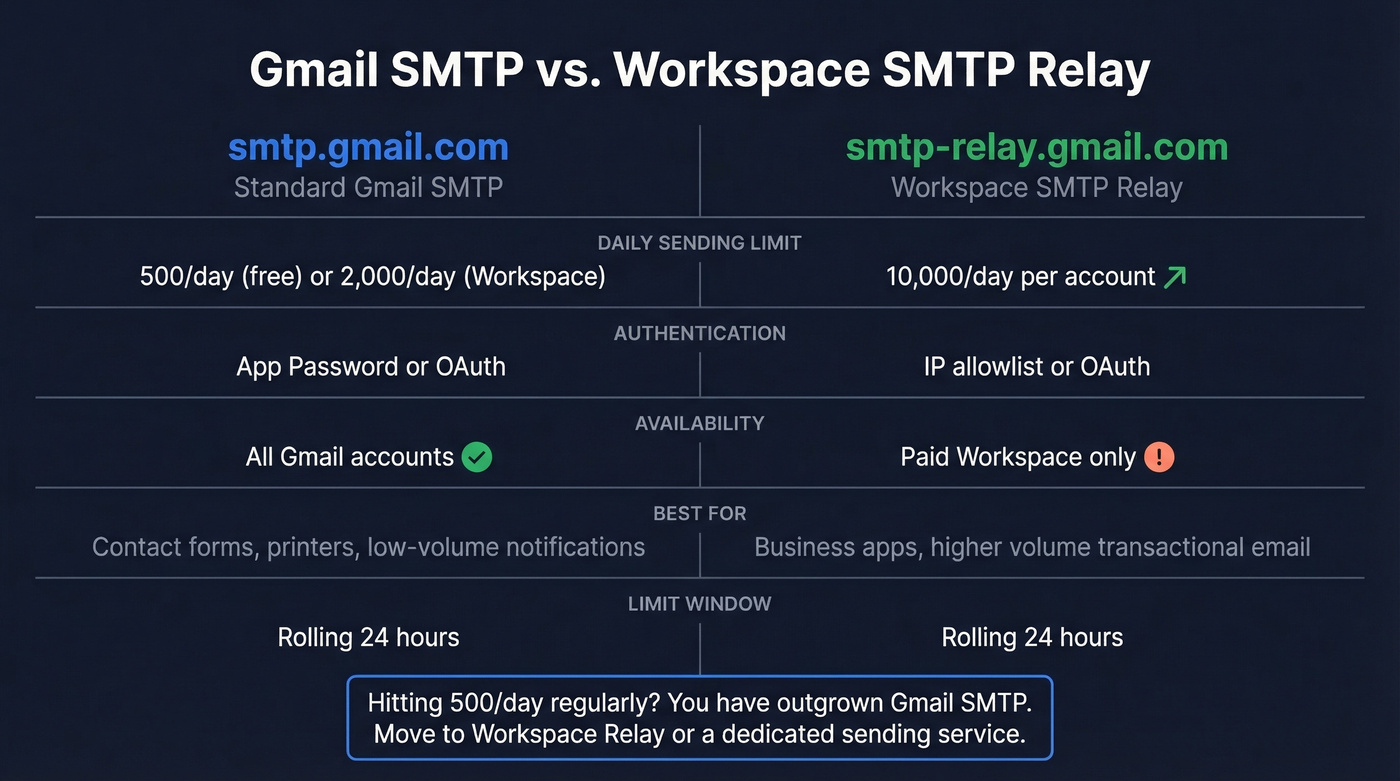
| smtp.gmail.com | smtp-relay.gmail.com | |
|---|---|---|
| Free Gmail | 500/day | Not available |
| Paid Workspace | 2,000/day | 10,000/day per account |
| Auth method | App Password/OAuth | IP allowlist or OAuth |
These limits run on a rolling 24-hour window. Send 500 emails at 2:00 PM and you're locked out until roughly 2:00 PM the next day. When you exceed the cap, messages may sit as drafts, throw a "You have reached a limit for sending mail" error, or - worse - appear in your Sent folder without actually delivering.
If you're running into caps often, bookmark our full Gmail SMTP limits reference.
Let's be honest: if you're hitting the 500/day limit regularly, you've outgrown Gmail SMTP. The Workspace SMTP relay is the next step up, or move to a dedicated transactional service. Most teams agonize over server settings when the real problem is they need infrastructure that Gmail was never designed to provide.
Deliverability: SPF, DKIM & DMARC
Getting your Gmail SMTP server address configured correctly is only half the deliverability equation. If you send from a gmail.com address through a non-Google SMTP server, DMARC alignment fails and your emails get quarantined or rejected.
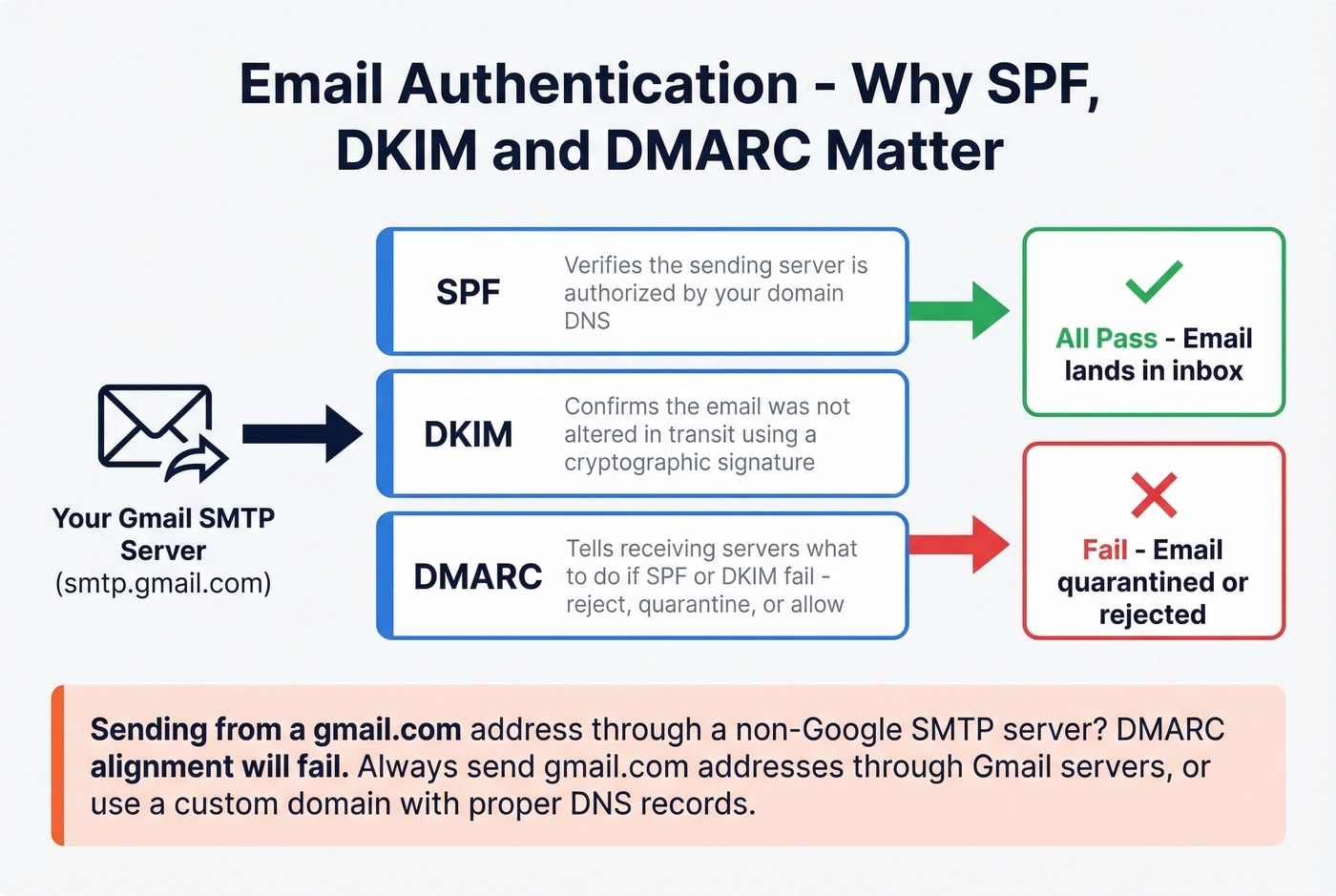
The sysadmin consensus is clear: SPF, DKIM, and DMARC are like HTTPS - not optional, not "nice to have," but required for emails to reach inboxes at all. The practical rule is simple: if you send from a gmail.com address, use Gmail's SMTP server. If you send from a custom domain, configure SPF, DKIM, and DMARC records properly and make sure your MX records point to Google if you're routing through Workspace. Skip any of that and expect deliverability to crater.
If you want the step-by-step, start with email authentication and then go deeper on DKIM and DMARC alignment.
Troubleshooting Common Errors
"535 Authentication Failed" - You're using your regular Gmail password instead of an App Password. Generate one following the steps above and paste that 16-character code into the SMTP password field. This is the #1 error people hit.
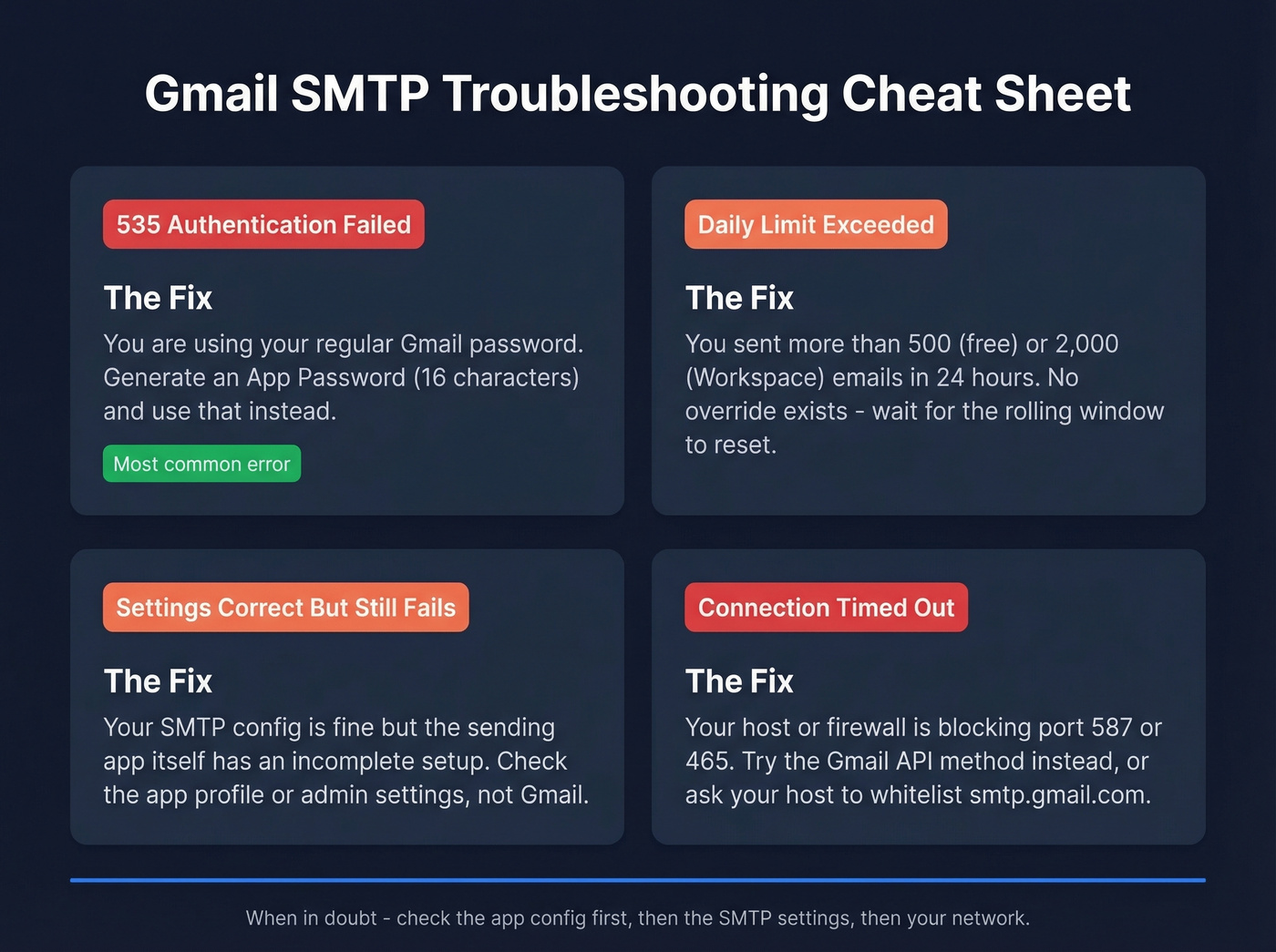
"Daily limit exceeded" - You've sent more than 500 (free Gmail) or 2,000 (Workspace) emails in the last 24 hours. There's no override. Wait for the rolling window to reset, or upgrade to Workspace / SMTP relay for higher caps.
"Settings are correct but it still fails" - This one's sneaky. A Nextcloud user configured everything perfectly - smtp.gmail.com, port 465, SSL, App Password - and got an AxiosError 400. We've seen this exact scenario multiple times: the SMTP credentials were fine, but the sending application's own config was incomplete. In that case, they had to add an email address in the Nextcloud admin profile. When Gmail SMTP "doesn't work" and your settings are right, check the app, not Gmail.
"Connection timed out" - Your hosting provider or network firewall is blocking outbound traffic on port 587 or 465. Many shared hosting environments block these ports by default. Try the Gmail API method instead, or contact your host to whitelist smtp.gmail.com.
If you're seeing hard bounces after you fix SMTP, use our bounced email meaning guide to decode what’s happening.
When Gmail SMTP Is the Wrong Choice
Gmail SMTP is for low-volume transactional email - contact forms, notifications, printer scan-to-email. It's not an email marketing tool and it's definitely not a cold outreach engine.
For teams that need to send more than 2,000 emails per day, a dedicated transactional service like SendGrid or Mailtrap is the right call, typically $0-20/month for low volume. Skip Gmail SMTP entirely for bulk sending - the limits and reputation risk aren't worth the savings.
If you're using Gmail SMTP for outbound prospecting, your sending setup is only half the equation. Bad email addresses cause bounces that tank your sender reputation faster than any port or encryption setting ever will. Verify your list before sending - tools like Prospeo check emails in real time with 98% accuracy, and there's a free tier covering 75 verifications per month.
If you're doing cold outreach, pair verification with a proper cold email warm up plan and a domain warm up tool so you don’t torch deliverability.

Gmail caps you at 500 emails a day. Teams using Prospeo's verified data with dedicated sending tools book 26% more meetings than ZoomInfo users - with bounce rates under 4%. At $0.01 per email, you get enterprise-grade deliverability without fighting SMTP relay settings.
Ditch the 500/day ceiling and reach real buyers.
FAQ
Do I need to contact Google for SMTP access?
No. Gmail SMTP is available on every Gmail and Google Workspace account with zero approval required. The server address is smtp.gmail.com, port 587 with TLS. Generate an App Password and you're ready to send.
What's the Gmail SMTP server IP address?
Google doesn't publish a single static IP for smtp.gmail.com - the hostname resolves to multiple addresses that change as Google load-balances across its infrastructure. Always configure apps with the hostname smtp.gmail.com rather than a hard-coded IP, so connections automatically route to the nearest available server.
What's the difference between port 465 and 587?
Port 587 uses STARTTLS - a negotiated TLS connection - and is the modern standard recommended by Google. Port 465 uses implicit SSL and exists mainly for legacy compatibility. Use 587 unless your device only supports 465.
Why can't I find the App Passwords option?
App Passwords require 2-Step Verification to be enabled first. If you've enabled 2FA and still don't see the option, your account likely uses security keys only, is managed by an organization that's disabled App Passwords, or has Advanced Protection enabled.
Can I use Gmail SMTP for cold email?
Technically yes, but you'll hit the 500/day limit almost immediately and risk account suspension for spam-like sending patterns. For outbound prospecting, use a dedicated sending tool with proper warmup - and start with verified contact data so you're not burning your domain on bad addresses.