

How to Create an Email Signature That Actually Works Everywhere
You build a signature in Outlook. It looks perfect. You send it to a Gmail user and it arrives as a jumbled mess of broken images and misaligned text.
This isn't a rare edge case - it's one of the most common complaints in small business circles, including threads on r/smallbusiness that pop up almost weekly. Outlook and Gmail use fundamentally different rendering engines, and with 60% of business emails now opened on mobile, a signature that only works in one client is broken for most of your recipients. We've spent way too many hours debugging these cross-client rendering nightmares, so we put together everything we know about building signatures that actually survive the journey from your outbox to someone else's inbox - across Gmail, Outlook, Apple Mail, and mobile.
What You Need (Quick Version)
Three paths, depending on how much control you want:
- Just want it done fast? Use HubSpot's free generator. It outputs responsive HTML. Paste the result into your email client and you're live in under five minutes.
- Want full control? Build from the HTML table template in Section 7 below. More work, but you own every pixel.
- Need it on iPhone or Apple Mail? Jump straight to the platform-specific section - both require workarounds that aren't obvious.
Design rules matter more than aesthetics. A beautiful signature that breaks in Outlook helps nobody.
What to Include in Your Signature
With 240 million emails sent every minute globally, your signature is your most-seen piece of marketing collateral. Get it right.
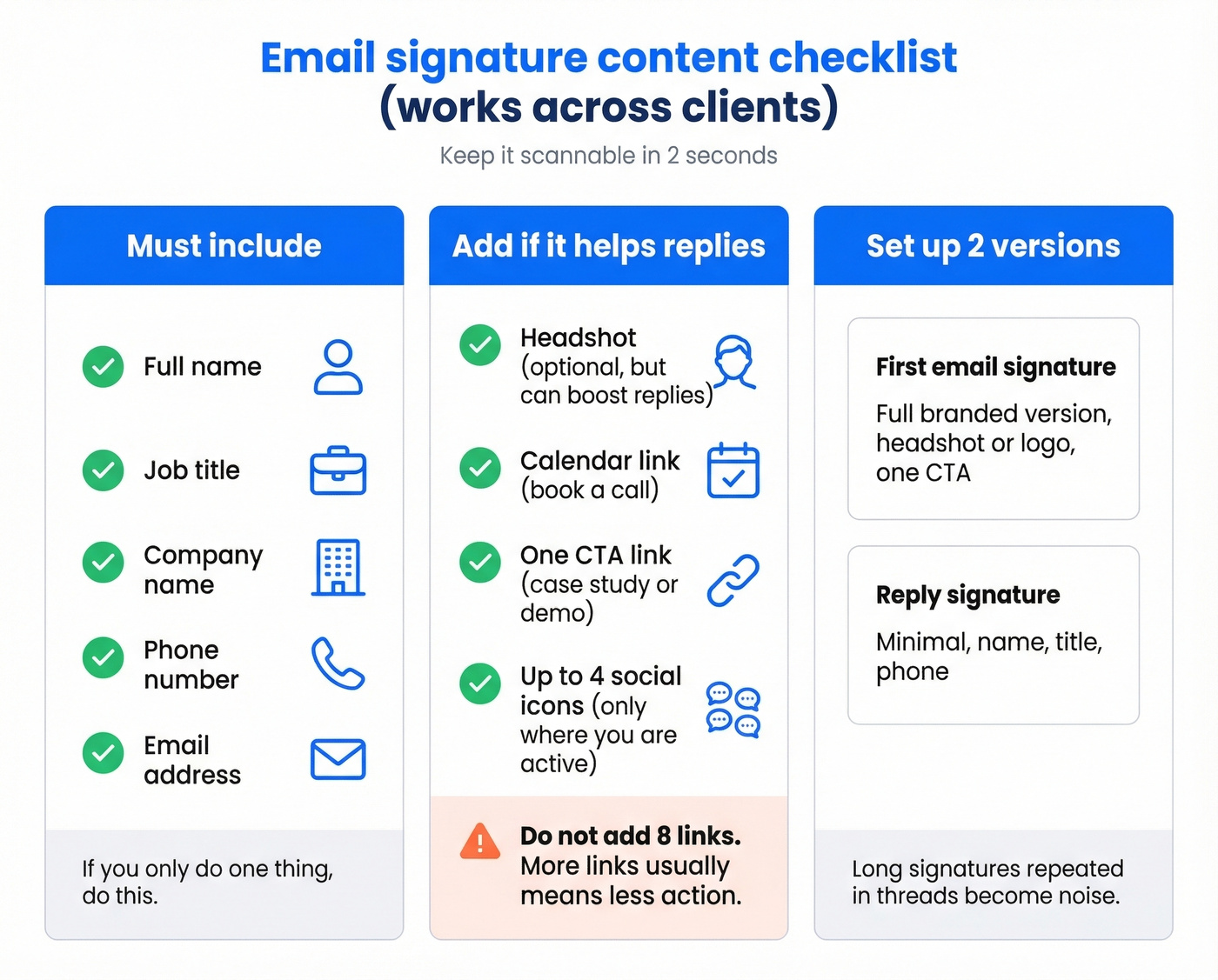
The essentials are straightforward: full name, job title, company name, phone number, and email address. That's your baseline. Every signature needs these, and they should be scannable in under two seconds.
Now for the additions that actually move the needle. A professional headshot increases response rates by 32%. A calendar booking link pulls a 26% click-through rate - higher than most marketing CTAs. A single, relevant CTA like a case study link or demo booking turns every email into a soft touchpoint without feeling pushy.
Keep social icons to a maximum of four - stick to the platforms where you're actually active. The impact can be significant: Unilever added a follow button to employee signatures and grew from 40,000 to 235,000 followers in 10 months. That's free distribution at scale.
One detail most people skip: set up two signatures. Use a full branded version for first emails and a minimal reply signature with just name, title, and phone for ongoing threads. Long signatures repeated 12 times in a thread are noise, not branding.
Email Signature Design Rules
These aren't suggestions. They're constraints imposed by email clients, spam filters, and mobile screens. Ignore them and your signature will break.
Width, Font, and Contrast
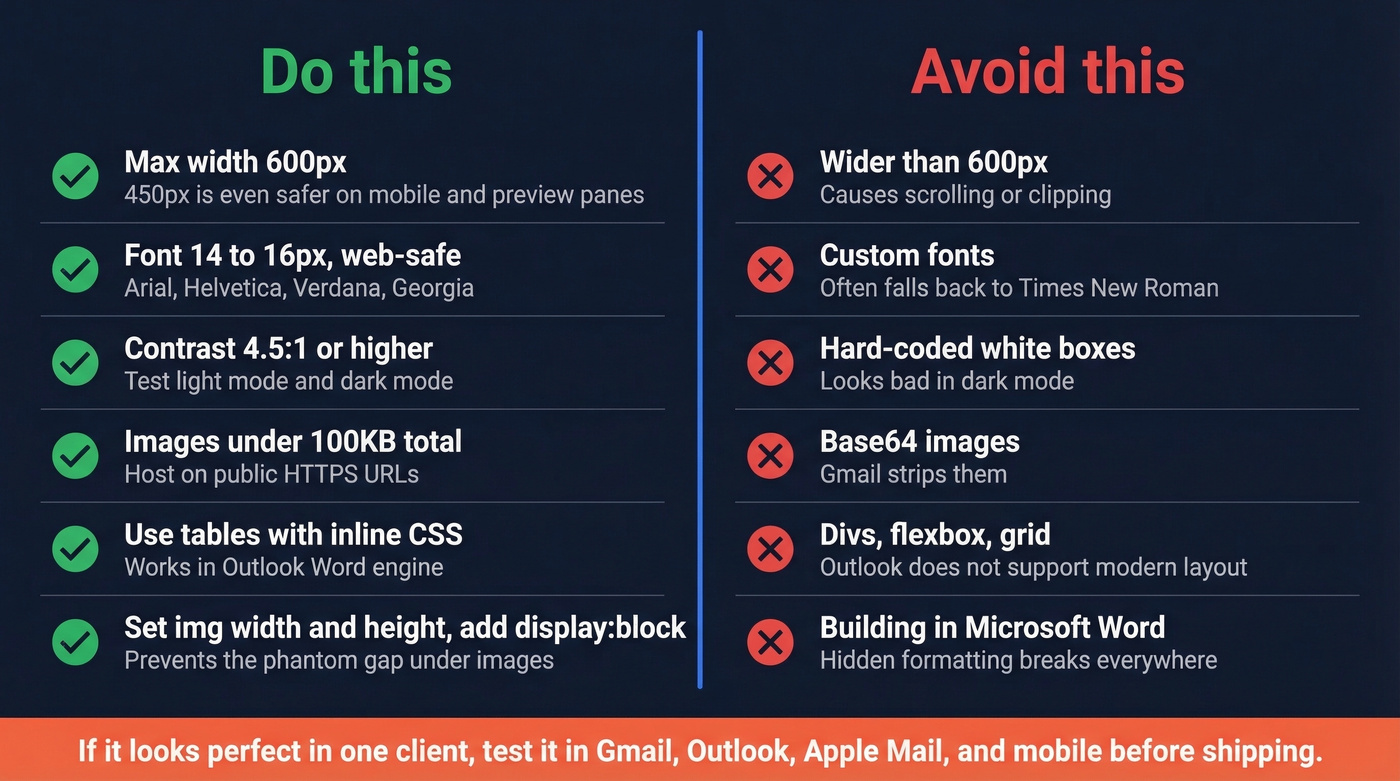
Width: 600px maximum. Some guides recommend 650px, but 600px is the safe ceiling. Anything wider risks horizontal scrolling on mobile or clipping in narrow preview panes. For extra safety, 450px reduces rendering risk across nearly every device.
Font: 14-16px, web-safe only. Arial, Helvetica, Verdana, or Georgia. Custom fonts won't render in most email clients - they'll silently fall back to Times New Roman in Outlook, which looks terrible. Always define fallbacks in your font-family declaration.
Contrast: 4.5:1 minimum ratio. This isn't just an accessibility checkbox. Low-contrast text becomes unreadable in dark mode, and dark mode adoption climbs every year. Test your signature in both light and dark themes before you ship it.
Images and File Size
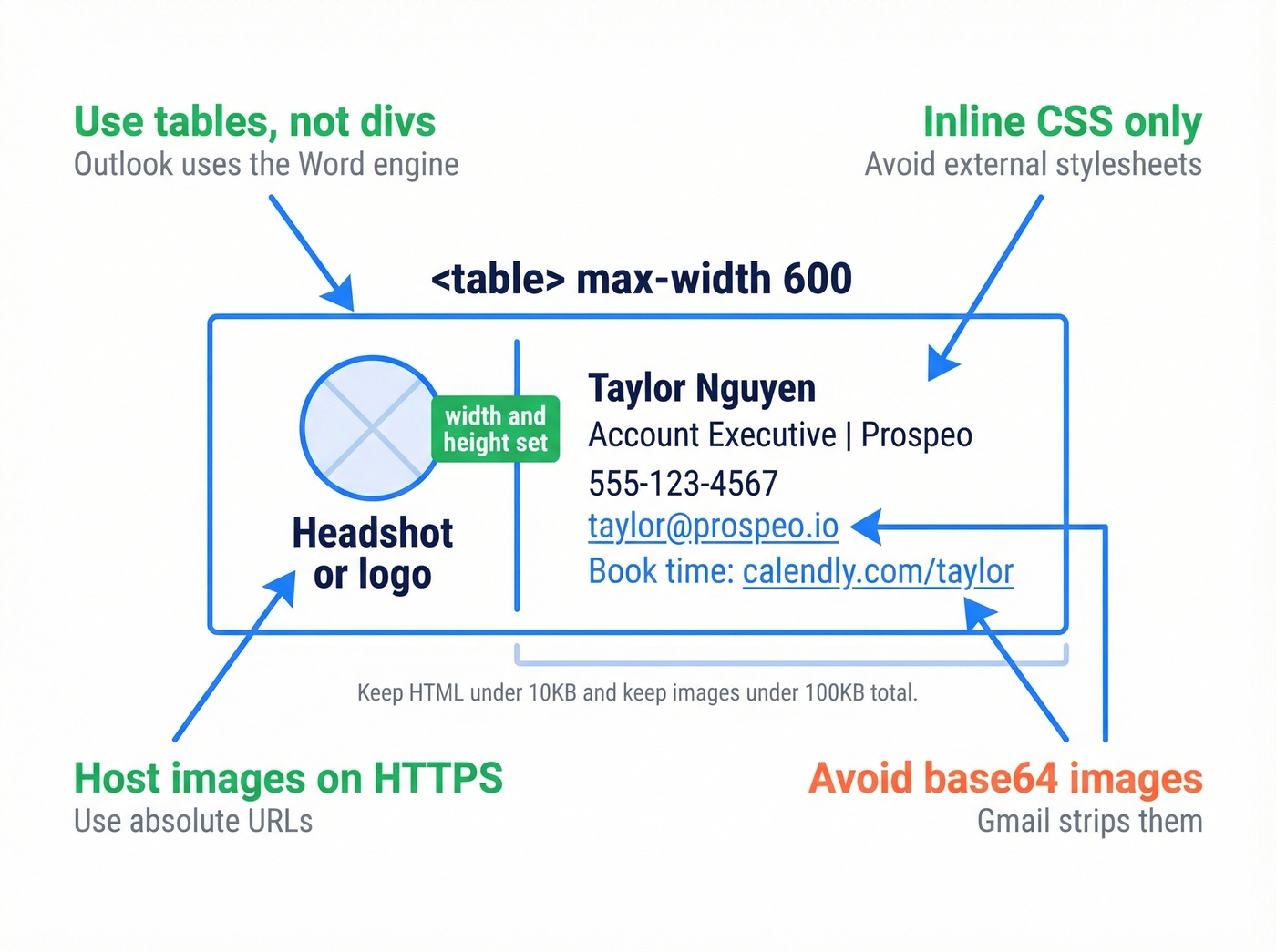
Images: under 100KB total. Keep individual images small and host them on public HTTPS URLs. Never use base64 encoding - Gmail strips it entirely.
Set explicit width and height attributes on every <img> tag without "px" units, and add display:block to eliminate the phantom gap that appears below images in most clients.
HTML: under 10KB, under 10,000 characters. Bloated HTML triggers spam filters and causes rendering inconsistencies. Building signatures in Microsoft Word is the single worst approach - Word injects invisible formatting that breaks across clients. We'll say this again later because it's that important.
Dark Mode and Rendering
Bullet points render inconsistently between Outlook and Gmail. Use line breaks or table rows instead.
For dark mode readiness, avoid hard-coded white backgrounds - they create ugly white boxes. Use transparent backgrounds for images and logos, and test across Gmail, Outlook, and Apple Mail before deploying.
HTML vs. Image-Only Signatures
Here's the thing: Canva makes gorgeous signature designs, but they're often image-based. Image-only signatures get blocked by spam filters more often, aren't searchable or copyable, break links in dark mode, and scale poorly on mobile. Always use HTML with hosted images - never a single flattened image file.
Three Ways to Build a Signature
| Free Generator | Build HTML | Client Editor | |
|---|---|---|---|
| Speed | 5-10 minutes | 30-60 minutes | 5 minutes |
| Control | Template-limited | Total | Very limited |
| Cost | Free-$5/mo | Free | Free |
| Cross-client | Good | Best (if done right) | Poor |
| Best for | Most people | Developers, perfectionists | Internal-only email |
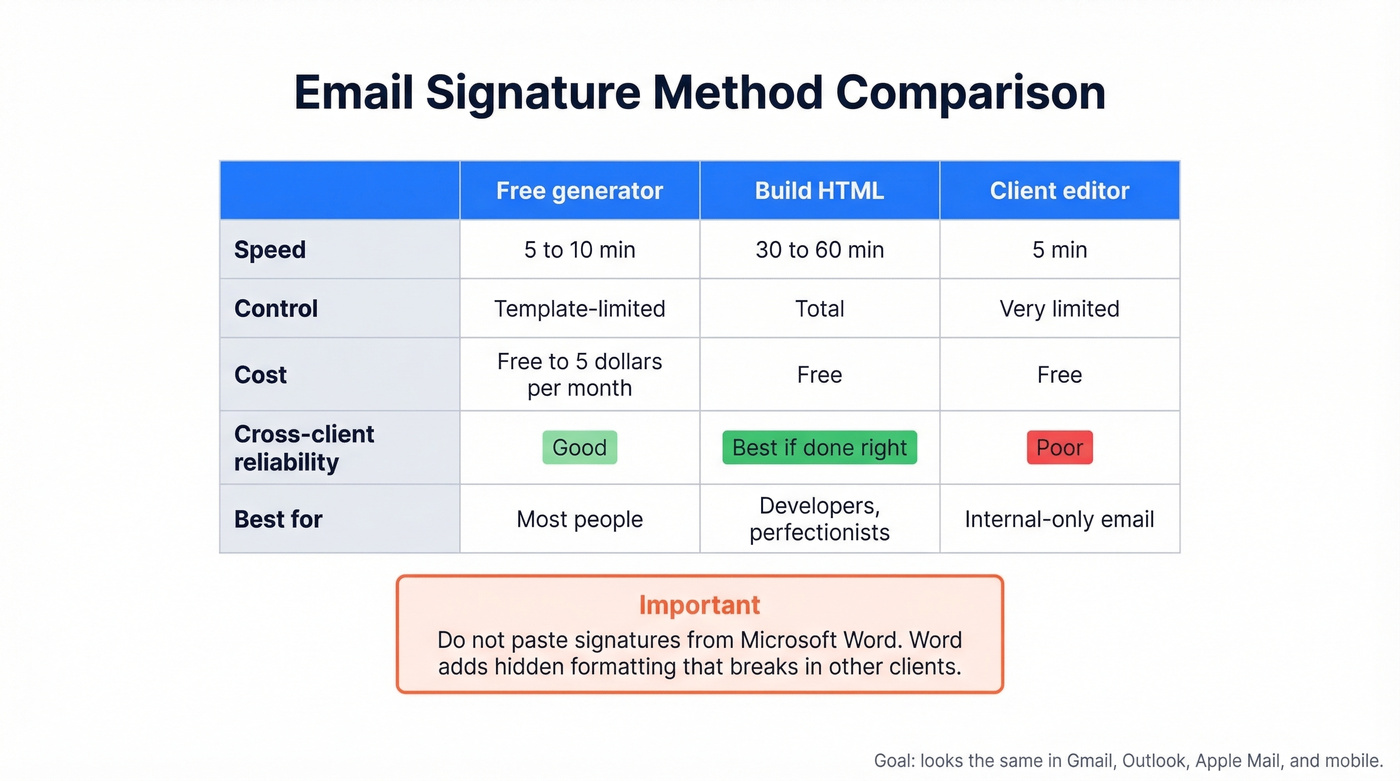
The client editor path - typing directly into Gmail or Outlook's signature box - is tempting but produces the least reliable results. And whatever you do, don't build your signature in Microsoft Word and paste it in. Word's hidden formatting is the number-one cause of signatures that look fine on your screen and break everywhere else.
Best Free Signature Generators
HubSpot Email Signature Generator
The default recommendation for a reason. Completely free, clean responsive HTML output. You fill in your details, pick a template, and copy the generated signature into your email client. Template selection is limited compared to paid tools, but the output is reliable across clients. For most people who need a professional business signature quickly, this is the right starting point. We've used it ourselves for quick setups and it consistently produces clean code that doesn't need manual fixes.
MySignature
More template variety than HubSpot, with free templates you can start with right away. It also supports Gmail tracking via a browser extension, signature analytics for clicks on links, banners, images, and buttons, plus team signature management for rolling out signatures centrally. If you care about measuring which CTA in your signature actually gets clicks, this is worth a look.
Canva (Use for Inspiration Only)
Canva's signature templates look fantastic. The problem is output format: many designs end up as images, not clean HTML. Your links won't behave the way you want, text won't be searchable, spam filters are more likely to flag it, and dark mode can wreck the rendering. Use Canva to mock up your design, then rebuild the layout in HTML.
WiseStamp
A well-known option with a free tier and a strong template library. The free version adds a small WiseStamp badge to your signature, which is the trade-off. Paid plans starting around $5.80/month remove the badge and unlock features like social feed integration and banner campaigns.
Gimmio
A solid budget option at roughly $4/month or $28/year for a single signature, producing clean HTML output. The catch: the cheapest plan only covers one signature, so costs add up if you need multiple versions.
Pricing Snapshot
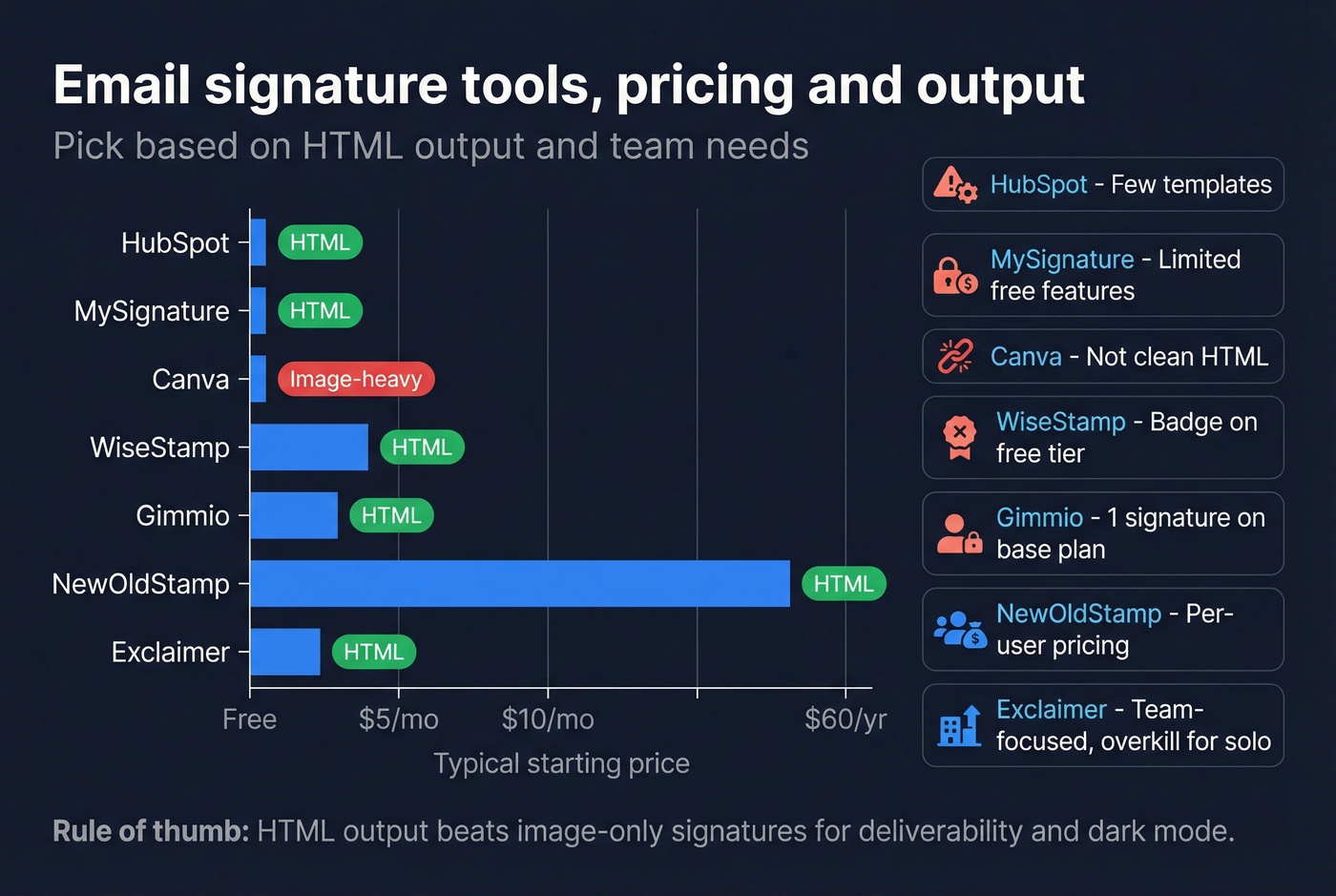
| Tool | Price | Output | Limitation |
|---|---|---|---|
| HubSpot | Free | HTML | Few templates |
| MySignature | Free templates | HTML | Limited free features |
| Canva | Free tier | Image-heavy | Not clean HTML |
| WiseStamp | Free / ~$5.80/mo | HTML | Badge on free tier |
| Gimmio | ~$4/mo | HTML | 1 signature on base plan |
| NewOldStamp | ~$54/yr | HTML | Per-user pricing |
| Exclaimer | ~$2-4/user/mo | HTML | Team-focused, overkill for solo |

Your signature is only as effective as the emails it's attached to. If 20% of your outbound bounces, that branded signature never gets seen - and your domain reputation tanks. Prospeo delivers 98% email accuracy with 5-step verification, so every polished signature you craft actually reaches a real inbox.
Stop perfecting signatures for emails that bounce.
Build an HTML Signature From Scratch
If you want full control, you're building a two-column HTML table with inline CSS. Here's the skeleton:
<table cellpadding="0" cellspacing="0" border="0" style="
  font-family: Arial, Helvetica, sans-serif;
  font-size: 14px;
  color: #333333;
  max-width: 600px;">
  <tr>
    <!-- Photo cell -->
    <td style="vertical-align: top; padding-right: 15px;">
      <img src="https://yourdomain.com/headshot.jpg"
        width="90" height="90" alt="Your Name"
        style="display: block; border-radius: 50%;" />
    </td>
    <!-- Info cell -->
    <td style="vertical-align: top; line-height: 1.5;">
      <strong>Your Name</strong><br />
      Job Title | Company Name<br />
      [555-123-4567](tel:+15551234567)<br />
      [
        you@company.com](mailto:you@company.com)
    </td>
  </tr>
</table>
A few critical rules when building from scratch.
Host images externally. Use public HTTPS URLs - always absolute paths starting with https://, never relative URLs. Gmail strips base64-encoded images entirely, and Outlook handles them inconsistently. Upload your headshot and logo to your company's CDN or public web hosting.
Tables, not divs. Outlook uses Microsoft Word's rendering engine under the hood. No flexbox, no grid, no modern CSS layout. Tables with inline styles are the only layout method that works everywhere. Use td padding instead of margins - Outlook doesn't reliably support margins on <p> or <div> elements.
Set explicit dimensions. Every <img> tag needs width and height attributes with numbers only, no "px" suffix. Add display:block to prevent the phantom gap below images. Add alt text to every image - many clients block images by default, and alt text is what recipients see first.
Need background images in Outlook? You'll need VML inside conditional comments (<!--[if gte mso 9]>...<![endif]-->) - Outlook's Word engine doesn't support CSS background-image. Check Can I Email to verify CSS support across clients before committing to any styling approach.
Keep it light. Total HTML should stay under 10KB. If you're over that, strip unnecessary inline styles or redundant table nesting.
Add Your Signature by Platform
Gmail
Go to Settings -> See all settings -> General -> Signature. Click the "+" to create a new signature, then paste your signature block into the editor (the formatted version, not raw code). Gmail handles formatted paste well - just make sure you're in the default compose mode, not plain text. You can assign different signatures to different email addresses if you have multiple accounts.
If you're using signatures in cold outreach, pair this with a quick check on email deliverability so your signature actually gets seen.
Outlook (New, Classic, and Web)
This is where it gets messy because there are three different Outlooks.
Outlook on the web: Settings -> View all Outlook settings -> Mail -> Compose and reply -> Email signature. Paste your signature here.
New Outlook (Windows desktop): Settings -> Accounts -> Signatures. You can choose defaults for new messages and for replies/forwards.
Classic Outlook (Windows desktop): Open the signature editor via File -> Options -> Mail -> Signatures, or from a compose window via Message -> Signature -> Signatures. The classic version uses Word's rendering engine, which means it can strip some formatting on paste. Compose in HTML format - Rich Text or Plain Text can cause images to attach as files instead of displaying inline.
If you're seeing inbox placement issues alongside signature issues, run a quick email spam checker to rule out content and link triggers.
Apple Mail (macOS)
Apple Mail doesn't make HTML signatures easy out of the box. The workaround requires editing a system file:
- Create a placeholder signature in Mail -> Settings -> Signatures
- Close Mail completely
- Navigate to
~/Library/Mail/V10/MailData/Signatures/ - Find your
.mailsignaturefile and open it in a text editor - Replace the HTML portion with your custom signature code
- Lock the file via Get Info -> check "Locked" to prevent Mail from overwriting it
It's hacky. It works. Re-lock the file after any macOS update.
iPhone / iOS Mail
Go to Settings -> Mail -> Signature. You can set one signature for all accounts or different ones per account. iOS Mail doesn't have a native HTML editor, so here's the workaround:
- Email your HTML signature to yourself
- Open it on your iPhone and copy the rendered signature
- Paste it into the signature field in Settings
- Shake your iPhone and tap "Undo Change Attributes" to restore the formatting
If images aren't showing, make sure they're hosted on publicly accessible HTTPS URLs - locally hosted or firewall-protected images won't load on mobile.
Yahoo Mail
Settings (gear icon) -> More Settings -> Writing email -> Signature. Toggle it on, paste your content. Yahoo's formatting options are limited, so keep expectations modest. A simple text-based signature with one hosted image works best here.
Fixing Broken Signatures
Most signature problems trace back to the same handful of rendering quirks:
| Symptom | Cause | Fix |
|---|---|---|
| Gap below images | Default line-height | Set line-height:0px on <td> |
| Images change size | DPI mismatch | Use 96 DPI for older Outlook, 72 DPI for others |
| Blurry on mobile | Low-res source | Use 3x resolution (display 120px -> source 360px) |
| Images as attachments | Plain text compose | Switch to HTML compose format |
| Times New Roman fallback | Outlook font fallback | Quote first font: "Arial" in font-family |
| Huge spacing in Gmail | Outlook <p> injection |
Add <p style="margin:0.05px;"> inside each <td> |
| White boxes in dark mode | Hard-coded backgrounds | Use transparent backgrounds |
| Logo breaks on reply | Local file reference | Host all images on HTTPS URLs |
| Jumbled in Gmail | Word-generated markup | Use table-based layout, not divs |
The Outlook-to-Gmail breakage deserves special attention because it's the most common pain point we hear about. Outlook's Word-based rendering engine injects proprietary HTML that Gmail simply doesn't understand, and the result is a mangled mess of misaligned text and broken images that makes you look unprofessional. The only reliable fix is building your signature with simple HTML tables and inline CSS from the start. No amount of after-the-fact tweaking will fix Word-generated markup.
For the Outlook macOS logo issue - where logos appear while composing but break after sending - the root cause is local file references. Every image in your signature must point to a publicly hosted HTTPS URL.
If you're also dealing with bounces, check your email bounce rate and clean the list before you troubleshoot design.
Mistakes That Kill Your Signature
Building in Word. We've said it three times now because it's that common. Word's hidden formatting is invisible to you and catastrophic to email clients. Use a generator or write HTML directly.
Image-only signatures. Canva, Photoshop, or any tool that outputs a flat image instead of HTML. Your links won't work, spam filters will flag it, and dark mode will destroy it.
Custom fonts without fallbacks. That trendy brand font will render as Times New Roman in Outlook. Always declare web-safe fallbacks in your font-family stack.
Too many links and icons. Every link and image is a signal to spam filters. Keep social icons to four or fewer, limit total links to three or four, and avoid URL shorteners - they're a known spam trigger. If you're sending campaigns, keep an eye on email velocity too.
No reply signature strategy. Your full branded signature on the first email is great. That same signature repeated 12 times in a thread is visual noise. Set up a minimal reply signature with just your name and phone number.
Ignoring dark mode. If you haven't tested your signature in dark mode, you haven't tested your signature. White backgrounds become blinding boxes, dark text disappears, and transparent logos can vanish entirely.
Legal Requirements
If you're sending commercial email, several jurisdictions require specific disclosures in your signature or email footer.
European Union: Most EU countries require your company's official name, registration number, registered office address, and VAT number. Germany is especially strict - you'll also need the legal form of the company, names of managing directors, and the commercial register court and number.
United Kingdom: The Companies Act 2006 requires your registered company name, registration number, place of registration, and registered office address in business correspondence, including email.
United States: CAN-SPAM requires a physical business address in commercial emails. This can go in the email footer rather than the signature itself, but it needs to be present somewhere.
GDPR considerations: If you're sending marketing emails to EU recipients, include a privacy policy link and an unsubscribe mechanism. GDPR applies to any business processing EU citizens' data, regardless of where you're based.
Real talk: this isn't legal advice. Requirements vary by jurisdiction and change regularly. Use this as a starting checklist and confirm specifics with local counsel, especially if you operate across multiple countries.
If you're doing outbound, it's also worth understanding whether Is It Illegal to Buy Email Lists? applies to your workflow.
Make Sure Your Emails Actually Land
Let's be honest - most teams spend more time on signature design than on verifying whether their emails actually reach anyone. A polished signature is worthless if the email bounces. We've seen teams spend hours perfecting their design only to send campaigns to outdated addresses that tank their domain reputation. If you're doing outbound at any scale, verifying your contact list before hitting send isn't optional. Prospeo handles real-time email verification with 98% accuracy on a 7-day refresh cycle, so the professional impression your signature creates actually reaches a real inbox.
If you're scaling outreach, combine this with sales prospecting techniques and a clean list-building process like how to generate an email list.
You just optimized your signature with a booking link that pulls 26% CTR. Now imagine attaching it to emails sent to 300M+ verified professional contacts at $0.01 each. Prospeo pairs accurate data with the outreach tools you already use - HubSpot, Salesforce, Instantly, and more.
Put that new signature to work on emails that actually connect.
FAQ
How long should an email signature be?
Keep it to 3-4 lines of contact info with total HTML under 10,000 characters. Anything longer risks rendering issues and can increase spam-filter risk. Use a full branded signature on first emails and a minimal version (name, title, phone) on replies.
How often should I update my signature?
Update immediately when your role, phone number, or company branding changes - then review quarterly at minimum. Swapping seasonal CTAs like a new case study or webinar link keeps your signature working as a marketing asset instead of going stale.
Does my email signature affect deliverability?
Yes - image-heavy or link-heavy signatures can trigger spam filters, especially with URL shorteners or large embedded files. Keep total image weight under 100KB, limit yourself to 3-4 links, and host images on HTTPS URLs. Verifying recipient addresses before you send prevents deliverability issues from compounding.
Can I use different signatures for different accounts?
Gmail, Outlook, and iOS Mail all support per-account signatures natively. Best practice: a full branded signature for external emails and a minimal one for internal threads. Gmail even lets you assign different signatures to different aliases within the same account.
What's the best free email signature generator in 2026?
HubSpot's generator is the most reliable free option - clean HTML output, no badge, works across clients. MySignature offers more templates and basic analytics. For teams that also need to verify contact data before outreach, Prospeo's free tier gives you 75 email verifications per month to pair with any generator.