

How to Prevent Emails Going to Spam (2026 Guide)
Gmail blocks 99.9% of spam - roughly 15 billion unwanted emails every single day. That's impressive until your legitimate outreach gets caught in the same net. If you're wondering how to prevent emails going to spam, the answer isn't guesswork. It's a specific set of DNS records, list hygiene practices, and sending behaviors that separate you from the noise.
The Three Things That Actually Matter
If you only do three things, do these:
- Authenticate your domain - SPF + DKIM + DMARC with actual DNS records, shown below and copy-paste ready.
- Verify your list before every send - 20-30% of email addresses decay annually. Stale lists destroy sender reputation.
- Warm up new domains and IPs on a concrete schedule - not "gradually," but a specific day-by-day ramp.
The rest of this guide explains why these three matter most and what to do when they're not enough.
Why Emails Land in Spam
Spam filters don't flip a coin. They run every inbound message through a decision tree that weighs hundreds of signals. Here are the five that matter most, ranked by impact.
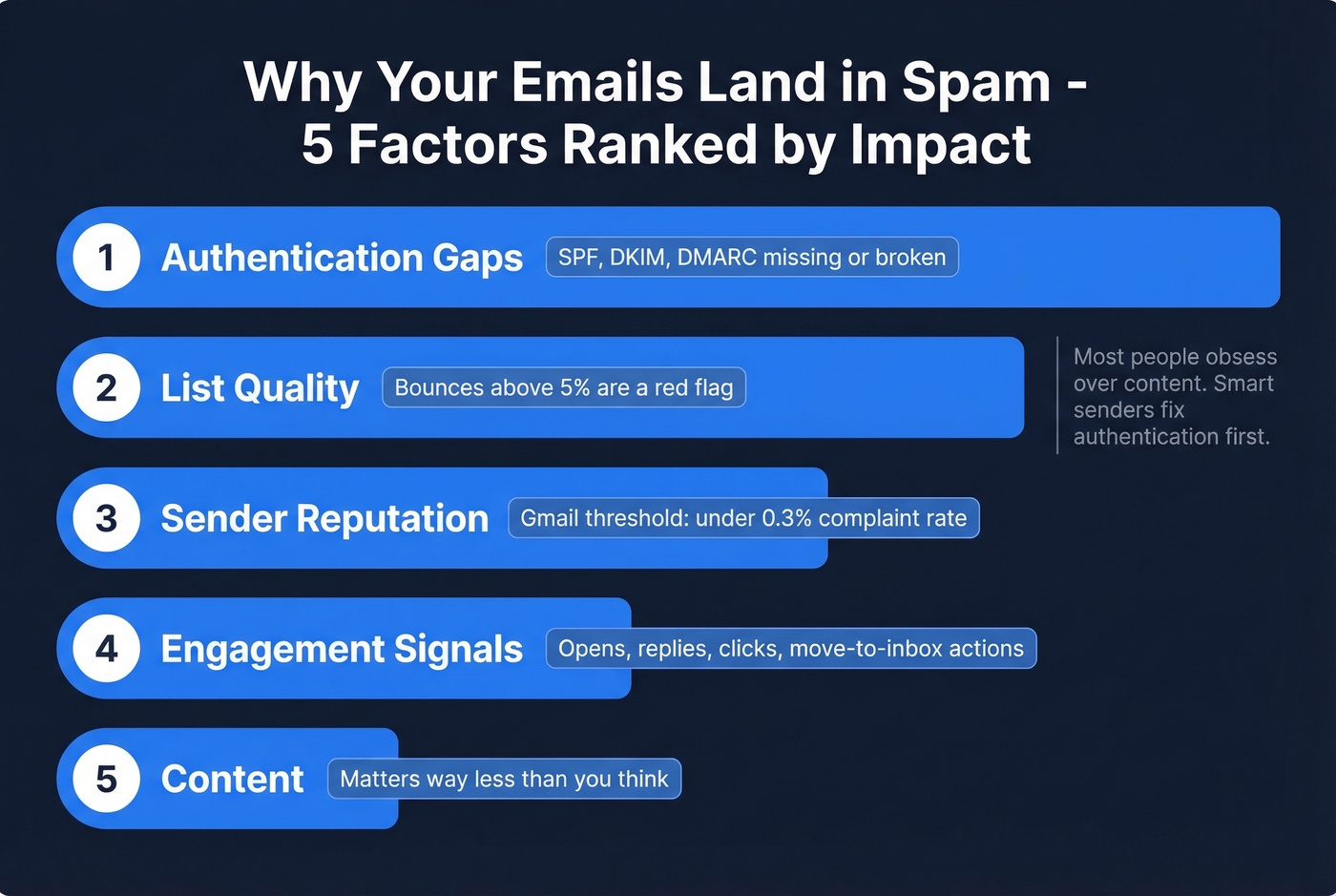
1. Authentication gaps. Missing or misconfigured SPF, DKIM, or DMARC records are the single fastest way to land in spam. Without them, inbox providers can't verify you're who you say you are - so they treat you like you're not.
2. List quality. Sending to invalid addresses, spam traps, or people who never opted in tells providers you don't maintain your list. Bounce rates above 5% are a red flag that demands immediate attention.
3. Sender reputation. Your domain and IP carry a score based on historical sending behavior. High complaint rates, bounces, or spam trap hits drag that score down. Gmail's hard threshold is a 0.3% spam complaint rate - the ideal target is under 0.1%.
4. Engagement signals. Opens, replies, clicks, and "move to inbox" actions all tell providers your email is wanted. Low engagement over time signals the opposite.
5. Content. Yes, content matters - but far less than most people think. We'll debunk the "spam trigger words" myth shortly.
Authentication Rules That Changed Everything
In February 2024, Gmail and Yahoo rolled out mandatory requirements for bulk senders - those sending 5,000+ emails per day. By late 2025, non-compliant mail started facing temporary and permanent rejections. As of 2026, these aren't suggestions. They're enforced.
| Requirement | Detail | Status |
|---|---|---|
| SPF + DKIM | Must pass for all mail | Enforced since Feb 2024 |
| DMARC | At minimum p=none | Enforced since Feb 2024 |
| One-click unsubscribe | List-Unsubscribe header | Enforced since June 2024 |
| Unsubscribe processing | Within 2 days | Enforced since June 2024 |
| Domain alignment | Return-path matches From | Required since Feb 2024 |
| Spam rate < 0.3% | Monitored via Postmaster | Ongoing |
| Non-compliance rejection | Temp/perm bounces | Active enforcement |
If you haven't implemented all of these, stop reading and do it now. Everything else in this guide assumes your authentication is in place.
Email Authentication Setup
This is where most guides fail you. They say "set up SPF" without showing you what the record looks like. Here's every record you need, ready to paste into your DNS.
SPF Records (With Provider Examples)
SPF tells receiving servers which IPs and services are authorized to send email on behalf of your domain. You publish it as a TXT record on your root domain.
Google Workspace:
v=spf1 include:_spf.google.com ~all
Microsoft 365:
v=spf1 include:spf.protection.outlook.com ~all
Multiple providers - Google Workspace + Amazon SES + a dedicated IP:
v=spf1 ip4:192.168.1.0/24 include:_spf.google.com include:amazonses.com ~all
Unused domain (park it properly):
v=spf1 -all
The critical constraint: SPF has a hard limit of 10 DNS lookups. Every include: and redirect: counts toward that cap. Exceed it and you get a permerror, which means SPF effectively breaks and providers treat your mail as unauthenticated. If you're using multiple ESPs, marketing tools, and transactional senders, you'll hit this limit faster than you think. Flatten your SPF record or consolidate providers. (If you want more syntax patterns, see these SPF record examples.)
DKIM Setup and Key Rotation
DKIM adds a cryptographic signature to every outgoing message. The receiving server checks it against a public key you've published in DNS.
Your DKIM DNS record looks like this:
s1._domainkey.yourdomain.com TXT "v=DKIM1; k=rsa; p=MIIBIjANBgkqh..."
Use 2048-bit keys minimum - 1024-bit keys are increasingly treated as insufficient. Rotate your DKIM keys every 6-12 months: publish the new selector, switch your signing configuration, then retire the old selector after a grace period of a few days.
Most ESPs handle DKIM signing automatically, but you still need to verify the DNS record is published correctly and that the d= value in the DKIM signature matches your sending domain. Misalignment here is one of the most common - and most invisible - authentication failures. We've seen inbox placement jump dramatically after a single DKIM alignment fix that took ten minutes. (If you need a quick checklist, here’s how to verify DKIM is working.)
DMARC Rollout Strategy
DMARC ties SPF and DKIM together and tells receiving servers what to do when authentication fails. Don't jump straight to p=reject. Roll it out in stages:
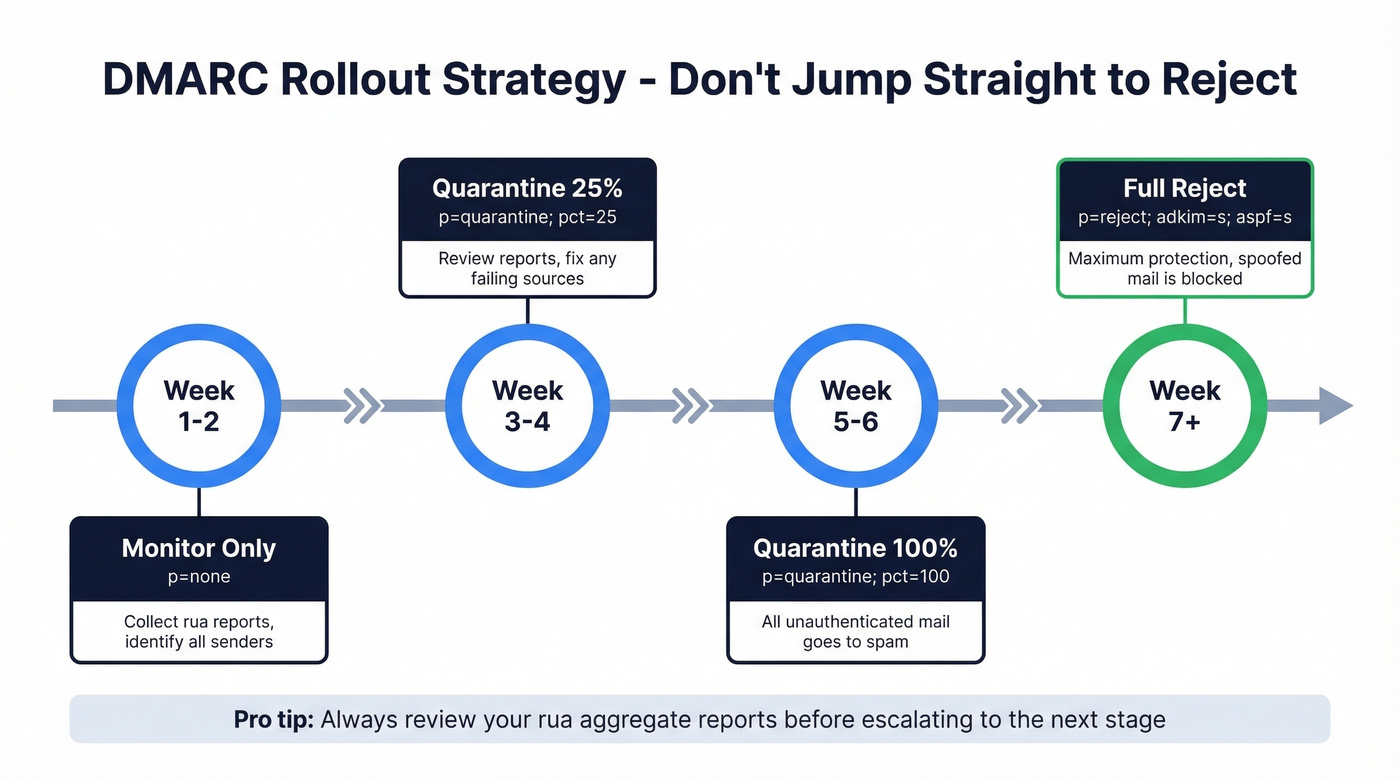
Week 1-2 (monitor only):
_dmarc.yourdomain.com TXT "v=DMARC1; p=none; rua=mailto:dmarc@yourdomain.com"
Week 3-4 (quarantine 25%):
v=DMARC1; p=quarantine; pct=25; rua=mailto:dmarc@yourdomain.com
Week 5-6 (quarantine 100%):
v=DMARC1; p=quarantine; pct=100; rua=mailto:dmarc@yourdomain.com
Week 7+ (reject):
v=DMARC1; p=reject; rua=mailto:dmarc@yourdomain.com; adkim=s; aspf=s
The rua reports are essential - they show you exactly which sources are sending mail as your domain, legitimate and otherwise. Review them before escalating your policy. You can also use Google Postmaster Tools to cross-reference authentication pass rates and domain reputation in real time. (For the alignment details DMARC actually enforces, see DMARC alignment.)
Three Mistakes That Break Everything
These are the misconfigurations we see most often, and they're all silent failures. Your email still sends, but authentication quietly breaks.
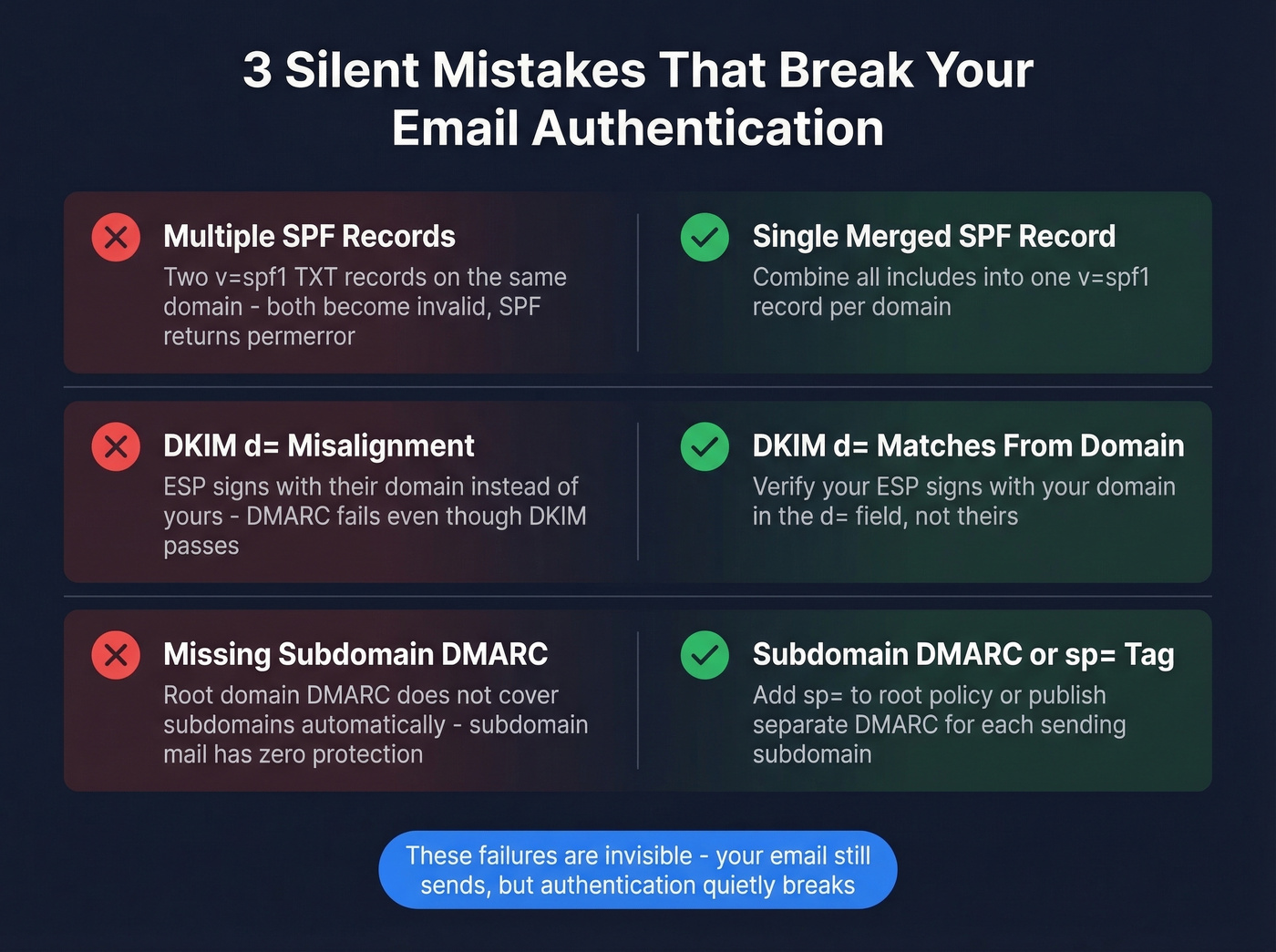
Multiple SPF records. You can only have one v=spf1 TXT record per domain. If you add a second one when onboarding a new ESP, both become invalid. SPF returns permerror and you're effectively unauthenticated. Merge everything into a single record.
DKIM d= misalignment. Some ESPs sign emails with their own domain in the DKIM d= field rather than yours. DMARC requires alignment between the DKIM d= domain and your Header From domain. If they don't match, DMARC fails even though DKIM technically passes.
Missing subdomain DMARC policy. DMARC on your root domain doesn't automatically cover subdomains. If you send marketing email from news.yourdomain.com, you need either a subdomain-specific DMARC record or an sp= tag in your root policy. Without it, subdomain mail has no DMARC protection.
Here's the thing: separate your email streams by subdomain. Use one for marketing, one for transactional, and keep your corporate domain clean. If your marketing subdomain takes a reputation hit, your transactional receipts and internal email stay unaffected.
Stop Worrying About Spam Trigger Words
Let's kill this myth. You don't need to avoid the word "free" in your subject lines. You don't need a list of 500 banned words taped to your monitor.
Modern spam filters use machine learning that evaluates hundreds of variables simultaneously. A single word doesn't trigger filtering on its own. "Free" in a well-authenticated email from a reputable sender with strong engagement history lands in the inbox every time. "Free" in an unauthenticated email from a brand-new domain with a purchased list lands in spam - but it's not the word doing it.
Reputation, authentication, and engagement are what matter. Obsessing over word choice is optimizing the wrong variable.

You just learned that bounce rates above 5% destroy sender reputation. Prospeo's 5-step email verification - with catch-all handling, spam-trap removal, and honeypot filtering - delivers 98% accuracy. That means bounce rates under 2%, not 20%.
Fix your authentication, then fix your list. Start with 75 free verified emails.
Clean Your List (Or Your Reputation Dies)
Email lists decay 20-30% per year. People change jobs, companies shut down, inboxes get abandoned. Every invalid address you send to is a bounce that chips away at your sender reputation.
Worse than bounces are spam traps. Pristine traps are addresses created by inbox providers specifically to catch senders using purchased or scraped lists - they've never belonged to a real person. Recycled traps are abandoned addresses that providers have repurposed. Typo traps catch senders who aren't verifying their data. Hit enough of any type and your domain reputation craters overnight. (If you’re dealing with traps already, start with this spam trap removal playbook.)
The fix is straightforward: verify every address before you send, and use double opt-in for inbound lists. For outbound, run your list through a verification tool that catches more than just syntax errors. Prospeo's 5-step verification process handles spam-trap removal, honeypot filtering, and catch-all domain handling at 98% accuracy. Here's what that looks like in practice:
| Company | Before | After |
|---|---|---|
| Meritt (B2B agency) | 35% bounce rate | Under 4% bounces |
| Snyk (50 AEs prospecting) | 35-40% bounces | Under 5%, 200+ new opps/month |
| Stack Optimize (multi-client agency) | Inconsistent deliverability | Under 3% bounces, zero domain flags |
There's a free tier with 75 emails/month if you want to test it before committing. Paid plans run about $0.01 per email on a credit-based model - no contracts. (If you’re comparing tools, see Bouncer alternatives for 2026.)
20-30% of email addresses decay every year. Prospeo refreshes its 143M+ verified emails every 7 days - not every 6 weeks like competitors. Clean data means clean sends, and clean sends mean inbox placement.
Stop feeding spam traps. Send to emails verified this week, not last quarter.
How to Warm Up a New Domain
"Warm up gradually" is useless advice. Here's the actual schedule.
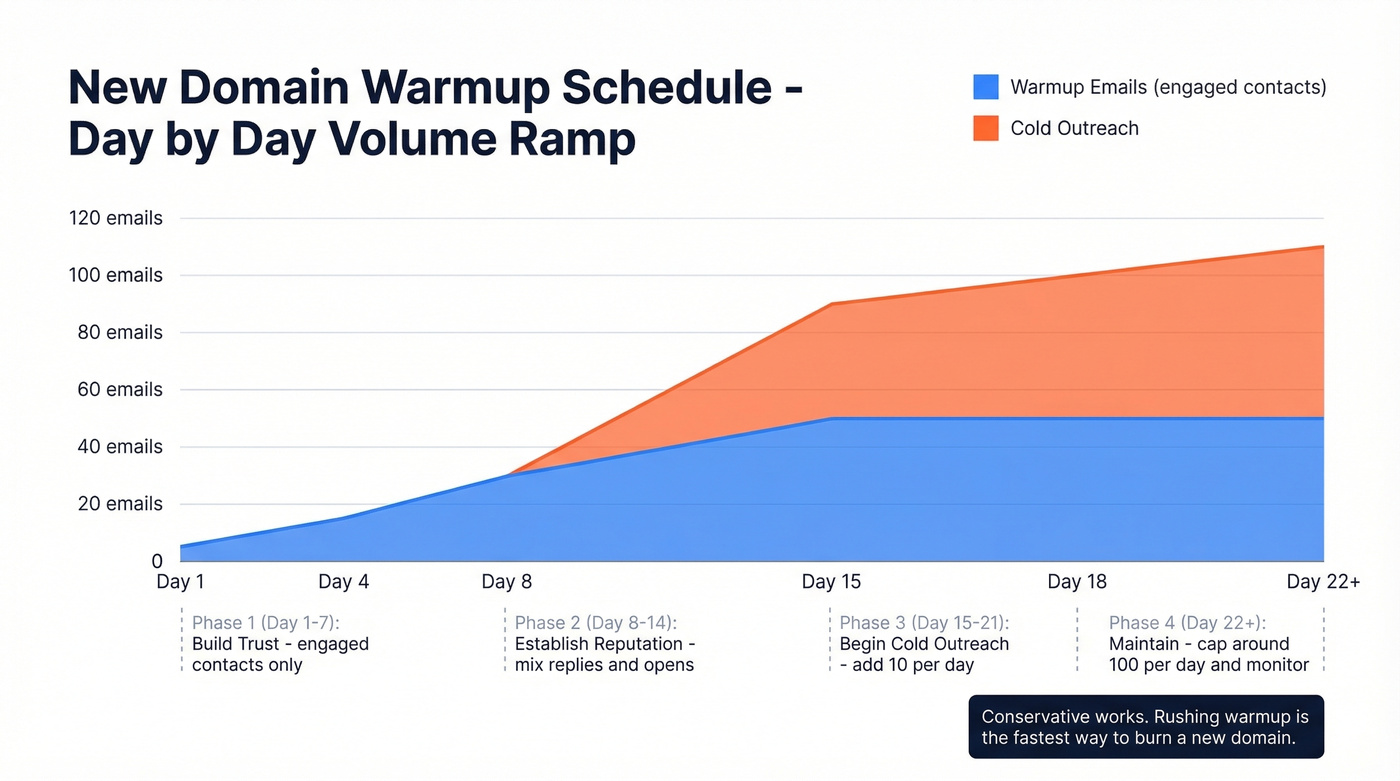
| Day | Warmup Emails/Day | Cold Emails/Day | Notes |
|---|---|---|---|
| 1-3 | 5-10 | 0 | Engaged contacts only |
| 4-7 | 15-25 | 0 | Mix replies and opens |
| 8-14 | 30-50 | 0 | Build baseline reputation |
| 15 | 50 | 40 | Begin cold outreach |
| 16-21 | 50 | +10/day | Scale to ~100 total/day |
| 22+ | Maintain | Cap ~100/day | Monitor and adjust |
In our experience, this schedule is conservative - but conservative works. Baseline reputation takes about 14 days of consistent sending. Stronger trust for cold outreach takes 3-4 weeks. One practitioner on r/coldemail reported 72% open rates and 4% reply rates using a conservative ramp with real engagement - subscribing to email lists, starting genuine conversations, and only adding cold sends after two weeks of warmup.
A warning about SMTP-only warmup tools: warmups that rely on custom SMTP inboxes don't build Gmail and Outlook reputation the same way as engagement in real Google Workspace or Microsoft 365 inboxes. The warmup emails need to land in real inboxes and get real interactions. Shortcuts here cost you weeks of wasted time. (More on safe sending limits in this email velocity guide.)
Cold Email Deliverability Rules
Cold outreach plays by a different rulebook than newsletters or transactional email. Here's the practitioner playbook that matches what we've seen work consistently.
Use secondary domains. Non-negotiable. Never send cold email from your primary domain. If company.com gets flagged, your transactional email, support replies, and internal communication all suffer.
Max ~50 emails per day per inbox. Lower during warmup. This is the ceiling, not the target.
1-2 inboxes per domain. More than that concentrates too much volume on a single domain.
Custom tracking domains. Shared tracking pixels and link domains used by thousands of senders get blacklisted. Set up your own. (If you’re implementing this, start with a tracking domain setup guide.)
Verify every address before sending. A 5% bounce rate on a new domain can destroy weeks of warmup in a single campaign. (Benchmarks and fixes: email bounce rate.)
Rotate inboxes. Spread volume across multiple sending accounts to reduce per-inbox risk.
Look, if your deal sizes are under $10k, you probably don't need a complex multi-tool cold email stack. A verified list, proper authentication, and a disciplined warmup schedule will outperform any expensive deliverability platform. The fundamentals beat the hacks every time.
2026 Inbox Placement Benchmarks
Here's what "normal" looks like right now, based on Q4 2025 data from GlockApps:
| Provider | Avg Inbox Rate |
|---|---|
| Office 365 | 67.95% |
| Yahoo | 57.48% |
| Gmail | 56.97% |
| AOL | 57.51% |
| Google Workspace | 49.98% |
| Hotmail | 46.79% |
| Outlook | 45.06% |
These numbers are lower than most people expect. If you're hitting these rates or better, your setup is working. If you're significantly below - especially on Gmail - the authentication and list hygiene fixes above will close the gap.
Office 365 is the most forgiving; Outlook.com consumer accounts are the strictest. In our testing, fixing authentication alone often improves Gmail inbox rates by double digits. (For a deeper troubleshooting framework, see our email deliverability guide.)
What to Do If You're Blacklisted
If your deliverability suddenly tanks, check your IP and domain against major blacklists first. Here's the priority order:
- Spamhaus - 24-48 hours for manual delisting. This is the big one; most major inbox providers reference it.
- Barracuda - 12-24 hours. Widely used by enterprise email gateways.
- SpamCop - 24-48 hours, auto-delisting once the spam stops.
Before you request removal, fix the root cause. Blacklist operators will reject your request - or re-list you immediately - if the underlying problem persists. Walk through this checklist first:
- Secure your mail server (patch, update, lock down)
- Verify you're not running an open relay
- Protect web forms with CAPTCHA and rate limiting
- Clean your list and remove all addresses that bounced or complained
- Confirm SPF, DKIM, and DMARC are correctly configured
- Review sending logs for unusual volume spikes
Use MXToolbox or MultiRBL to check your blacklist status across dozens of lists simultaneously. Both are free for basic lookups. Getting delisted is only half the battle - you also need to reduce your complaint rate going forward so you don't end up back on the list within weeks. (If you’re specifically dealing with Spamhaus, follow this Spamhaus blacklist removal guide.)
Monitoring Tools Worth Setting Up
You can't fix what you can't see. Three tools worth setting up today:
Google Postmaster Tools is free and essential for anyone sending to Gmail. It shows your domain reputation, spam rate, authentication pass rates, and delivery errors. Takes five minutes to set up and there's no reason not to.
Mail-tester.com lets you send a test email and get a spam score in 30 seconds. It checks authentication, content, and blacklist status in one pass. Free for basic checks, and the consensus on r/coldemail is that it's the fastest way to sanity-check a new sending setup.
GlockApps at around $59/month for the Essential plan shows inbox vs. spam placement broken down by provider - the data you actually need when troubleshooting. Skip this if you're sending under a few hundred emails a week; it's overkill at low volume. But for teams sending at scale, it's the difference between guessing and knowing which providers are filtering you.
Together, these give you early warning before small issues become reputation-killing problems.
FAQ
Does using the word "free" in a subject line send emails to spam?
No. Modern spam filters evaluate hundreds of signals simultaneously using machine learning. A single word won't trigger filtering. Authentication, sender reputation, and engagement history carry far more weight than any individual keyword. Write naturally and focus on the technical fundamentals instead.
How long does it take to warm up a new email domain?
Baseline reputation takes about 14 days of consistent, low-volume sending to engaged contacts. Stronger trust for cold outreach typically requires 3-4 weeks, starting at 5-10 emails per day and ramping gradually. Rushing the schedule risks triggering filters before you've built any positive sending history.
What's a safe spam complaint rate?
Stay under 0.3% - that's Gmail's hard threshold, and exceeding it triggers throttling or outright rejection. Aim for under 0.1% as your operating target. If you're consistently above 0.1%, review your targeting, frequency, and unsubscribe process before complaints escalate.
How often should I verify my email list?
Before every major campaign. Lists decay 20-30% per year as people change jobs and inboxes get abandoned. Run verification even if your list was clean a month ago - a few hundred new bounces can undo weeks of reputation building.
How do I stop cold outreach from landing in spam?
Use secondary domains, cap volume at 50 emails per day per inbox, and verify every address before sending. Follow the warmup schedule above - skipping it is the most common reason cold senders get filtered. Custom tracking domains and inbox rotation further reduce the risk of being flagged.