How to Send Mass Emails in Outlook in 2026 (Without Getting Throttled)
Outlook will absolutely let you send a "mass email." It'll also happily let you do it in the one way that gets you throttled, delayed for hours, or stuck with a message that looks personalized in Word but lands weird in real inboxes.
The trick is picking the method that matches your setup (Classic vs New Outlook, Windows vs Mac) and your requirements (personalization, attachments, internal vs external).
Do that, and Outlook behaves.
Before you start: pick the right Outlook method (decision tree)
First, classify what you're sending. This one choice determines the tool, the compliance requirements, and whether Outlook's even the right hill to die on:

- Internal update (employees): distribution groups + approvals matter more than personalization.
- Transactional (invoices, statements, certificates): you usually need PDF-per-recipient attachments.
- Marketing / outreach (external prospects): you need unsubscribe handling and deliverability controls - Outlook's rarely the best tool.
Quick checklist
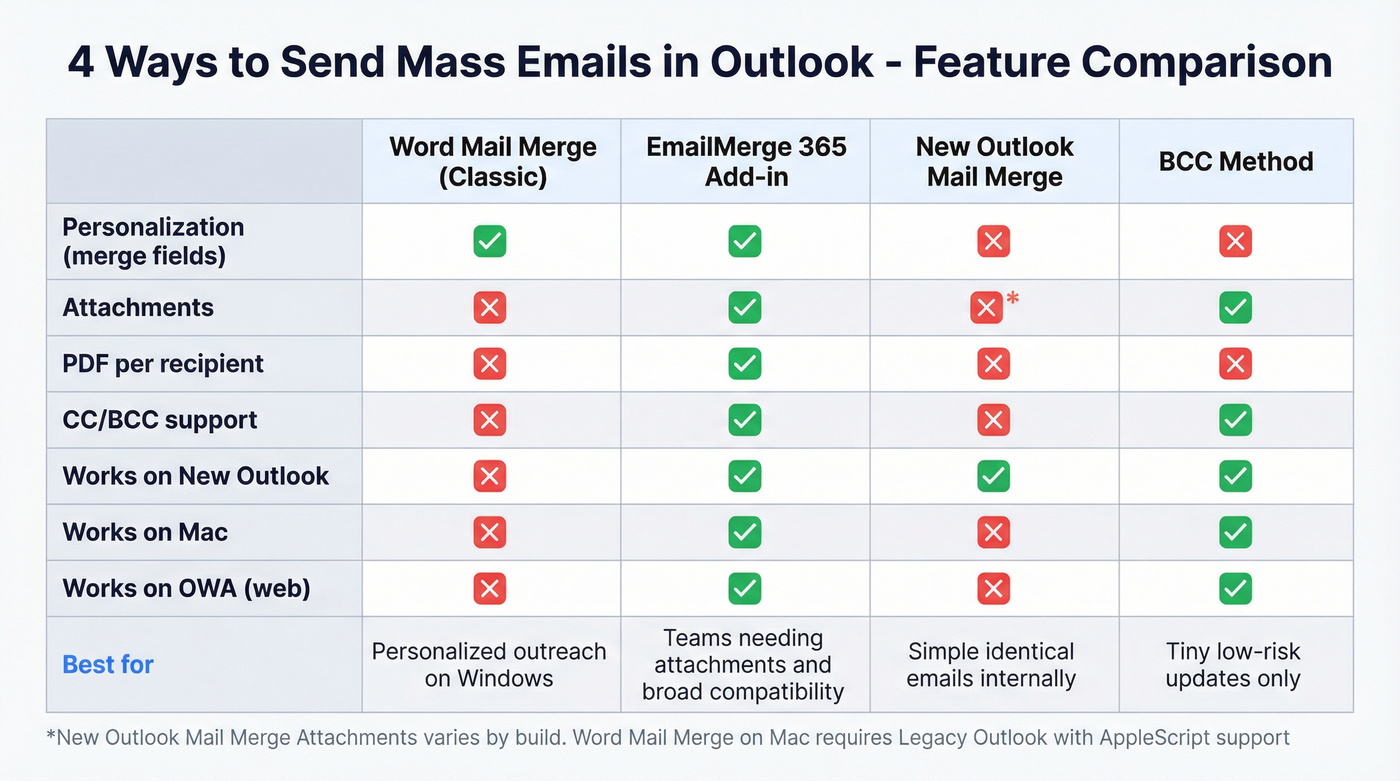
- You need personalization fields (First name, Company, etc.) -> you're in Word Mail Merge territory.
- You need attachments (same file or PDFs per recipient) -> you need an add-in (Word's native merge can't do attachments).
- You're on New Outlook (Windows) -> Word Mail Merge won't work; New Outlook's built-in merge sends identical emails only.
- You're on Mac -> Word Mail Merge requires Legacy Outlook (Mac) because it depends on AppleScript automation.
- You're sending internal comms to employees -> use an org distribution group (scales better than personal contact groups).
- You're tempted to use BCC -> only for small, low-risk updates (see the BCC failure modes below).
- You need per-recipient PDFs/invoices -> skip ahead to attachments. Don't try to "make Word do it."
Decision tree (pick one path)
- Need personalization + Classic Outlook (Windows)? -> Excel -> Word Mail Merge -> Outlook (Classic)
- Need personalization but you're on New Outlook / Mac / OWA? -> Use an add-in like Standss EmailMerge 365 Add-in (or switch platforms)
- Need identical email only (no merge fields) and you're on New Outlook? -> New email -> Options -> Start mail merge
- Need internal broadcast to a big list? -> Org distribution group (not a personal Contacts group)
Compatibility reality check (the stuff that trips people up)
- Word Mail Merge requires Classic Outlook (Windows) because it depends on MAPI.
- Word Mail Merge on Mac requires Legacy Outlook because it depends on AppleScript.
- New Outlook "Start mail merge" sends the same email to each recipient--no merge fields.
What you need (quick version)
If you want the fastest correct answer, use this.
Use this if / avoid if (TL;DR)
- Classic Outlook + Word Mail Merge (best for personalization)
- Works on: Windows + Classic Outlook desktop
- Use this if: you need "Hi Sarah" and "at Acme" style fields.
- Avoid if: you need attachments, CC/BCC, or you're on New Outlook.
Standss EmailMerge 365 Add-in (best for attachments + broad compatibility)
- Works on: New Outlook, Classic Outlook, Outlook for Mac, Outlook on the web (OWA)
- Use this if: you need attachments (or PDFs per recipient) and can't rely on Classic Outlook.
- Avoid if: you refuse add-ins and want a pure Microsoft-native workflow.
New Outlook "Start mail merge" (best for identical emails)
- Works on: New Outlook app (Windows)
- Use this if: you're okay with the same message to everyone and want it delivered as individual copies.
- Avoid if: you need merge fields (it doesn't do them).
BCC (only for small, low-risk updates)
- Works on: any Outlook
- Use this if: it's a tiny list and you're sending something like "office closed Friday."
- Avoid if: it's marketing, you care about deliverability, or the list's big.
How to send mass emails in Outlook using Word Mail Merge (Classic)
This is still the most reliable "real mail merge" workflow--as long as you're on Classic Outlook for Windows.
Microsoft's official flow is here: Use mail merge in Word to send bulk email messages. The catch: it's picky about versions and has hard limitations (no attachments, no CC/BCC).
Prepare your Excel sheet (columns that matter)
Create an Excel file with one row per recipient.

Minimum recommended columns
Email(required)FirstName(recommended)Company(recommended)
Nice-to-have columns
LastNameTitleCityStateZIPCustomLine1(for a short personalized sentence)
Formatting tips that prevent dumb merge bugs
- Format ZIP/postal codes as text before you paste data (otherwise Excel drops leading zeros).
- Keep headers simple: no spaces, no punctuation.
FirstNamebeatsFirst Name. - Dedupe your list. If the same email appears twice, Word will send twice.
Here's the thing: list quality is the difference between "this went fine" and "why are we suddenly landing in spam?"
In our experience, teams blame Outlook first, then discover 10-20% of the spreadsheet was stale, mistyped, or scraped from somewhere sketchy.
List hygiene (do this before you import into Excel): Bad addresses don't just bounce - they drag down your domain reputation and make future sends slower and spammy. Prospeo, "The B2B data platform built for accuracy," is built for this exact pre-merge step: 98% verified email accuracy, a 7-day refresh cycle (industry average: 6 weeks), and spam-trap/honeypot filtering as part of its 5-step verification. Export a valid-only CSV, then bring that CSV into Excel.
Build the Word template (merge fields + subject line)
- Open Word (Windows desktop).
- Go to Mailings > Start Mail Merge > E-mail Messages.
- Click Select Recipients > Use an Existing List... and choose your Excel file.
- Insert merge fields where you want personalization:
- Mailings > Insert Merge Field > FirstName
- Example opening line:
Hi «FirstName»,
- Write the rest of the email like normal.
Subject line: Word's native "Send E-mail Messages" dialog uses a single subject line for the whole send. If you need subject lines that pull from fields (like «Company»), use an add-in (covered below).
Send via Classic Outlook (what you'll see in Outlook)
Word doesn't send emails by itself - it hands them to your default MAPI email client.
Important callout (this is where people get stuck): "Merge to E-mail" is unavailable if you haven't selected a default email program. Set Outlook (Classic) as your default email app in Windows, then restart Word and Outlook. If you skip this, the merge option disappears or stays greyed out.
Now send:
- In Word, click Finish & Merge > Send E-mail Messages...
- In To: pick the column that contains emails (usually
Email). - Add a subject.
- Choose Mail format (HTML is typical).
- Choose which records to send (start with a small range).
- Click OK.
What you'll see in Outlook (Classic):
- Outlook generates individual messages.
- They appear in Sent Items as separate emails (not one big thread).
- If you're sending a lot, Outlook stays busy and the Outbox drains gradually.
We always run a 5-recipient test first (you + colleagues on Gmail/Outlook/Yahoo).
I once watched a team send a "simple" merge to 600 people where the greeting line was fine, but the main paragraph collapsed into one giant block in Gmail because of a pasted signature table. Nobody noticed until replies started coming in.
Non-negotiable limitations (and what to do instead)
Word -> Outlook mail merge has hard constraints:
- No CC/BCC
- No attachments
- Requires a MAPI-compatible default email app (Classic Outlook on Windows)
If you need attachments, CC/BCC, PDF-per-recipient, or subject-from-field, use an add-in. Don't waste an afternoon trying to hack around it.
How to send mass emails in Outlook on New Outlook (Start mail merge)
New Outlook includes a bulk-send feature, but it's not Word-style mail merge. Think of it as: send the same email as individual copies.
How to do it (New Outlook)
- Click New email
- Go to Options
- Click Start mail merge
- Add recipients
- Write your email and click Send
What it feels like in New Outlook (practitioner notes that matter)
This is where New Outlook surprises people - especially if you're used to Classic:
- You often see only a single Recipient field (not the familiar To/CC/BCC layout).
- To use a distribution list, the reliable workflow is: type the list name, then expand it (often via a small expand/plus control). If you don't expand, you can end up with confusing recipient behavior.
- Sent Items may show one grouped message instead of hundreds of separate items, even though delivery still goes out as individual copies.
Users describe New Outlook merge as "fine for basic bulk comms" and then hit the wall: no merge fields, limited control, and a UI that hides the mechanics.
Attachment note (don't assume): attachment behavior can vary by build. If attachments matter, test with 2-3 recipients before you commit to a full send.
Use this if
- You want recipients hidden from each other, but delivered as individual messages.
- You don't need personalization fields.
- You're sending a simple internal update and don't want to touch Word.
Skip this if
- You need merge fields like FirstName/Company.
- You need a clean Excel-driven workflow with predictable auditing.
- You need attachments/PDF-per-recipient reliably (use an add-in).

Outlook throttles you when addresses bounce. Bad data is the #1 reason mass sends fail - not the tool. Prospeo's 5-step verification with spam-trap and honeypot filtering gives you 98% email accuracy, so your merge list is clean before it hits the Outbox.
Export a verified CSV and merge with confidence.
Internal mass email that scales: use org distribution groups (and avoid contact groups)
If you're emailing employees (policy updates, all-hands notes, internal newsletters), don't paste 2,000 addresses into a compose window. Use the directory.
One clean group beats a thousand pasted recipients.
Distribution group (org address book) vs Contact group (your personal contacts)
- Org distribution group: often treated like 1 recipient at submission time when you send.
- Personal Contacts group: counts each member toward your limits.

Concrete example: sending to all@company.com with 2,000 employees behaves very differently than sending to a personal "All Employees" contact group with 2,000 members. The org group is built for this; the personal group is a fast path to rate limits and chaos.
The "sounds contradictory but isn't" gotcha: It can count as 1 toward certain submission counting, but delivery enforcement still evaluates expanded recipients--so you can still hit recipient limits after expansion depending on tenant policy and admin settings. In other words: distribution groups help, but they don't make limits disappear.
Practical tips that make DG sends smoother
- Ask IT for a moderated group (or an approvals workflow) if this is org-wide comms. It prevents "oops, wrong attachment" disasters.
- Use a shared mailbox (e.g.,
internal-comms@) for continuity and auditing, instead of a single employee's mailbox. - Keep your DGs clean: stale accounts and external guests increase bounces and complaints.
- If you need targeting, create multiple DGs (by region/department) instead of blasting everyone every time.
Scale note: Exchange Online supports distribution groups up to 100,000 members, which is plenty for most org-wide comms.
How to send mass emails with attachments (and PDFs per recipient)
If you remember one thing from this article, make it this: Word Mail Merge can't add attachments.
So your options are basically add-ins.
Attachment solution matrix
| Need | Best option | Why |
|---|---|---|
| Same attachment for all | Standss EmailMerge 365 Add-in | Outlook-friendly bulk send with attachments |
| PDF per recipient | Merge Tools Add-in | Field-based PDFs + per-recipient files |
| CC/BCC required | Merge Tools Add-in / Standss EmailMerge | Native Word merge can't |
| New Outlook/Mac/OWA | Standss EmailMerge 365 Add-in | Broad support across clients |
| Classic Windows only | Merge Tools Add-in | Deep automation for Classic Outlook |
My recommendation (opinionated, because you want an answer):
- If you need PDF-per-recipient (invoices, statements, certificates), use Merge Tools Add-in on Classic Outlook. It's built for the "one personalized PDF per person" workflow, and it saves you from the ugly workaround where someone tries to generate PDFs manually, attach them one by one, and inevitably sends the wrong file to the wrong person.
- If you need attachments but you're on New Outlook/Mac/OWA, Standss EmailMerge 365 Add-in is the cleanest route.
One more constraint that matters: Merge Tools Add-in is Classic Outlook only. New Outlook blocks the automation it relies on.
Best Outlook add-ins (when you must stay in Outlook)
This is the "I can't change platforms, I just need Outlook to do the thing" shortlist. We'll go deeper on the ones that solve real problems, and keep the rest short.
Standss EmailMerge (recommended if you need attachments + broad support)
Use it when: you need attachments and you're on New Outlook, Mac, or OWA (or you want one tool that works across them). Why it wins: it bridges the Classic/New split with a 365 add-in track, so you're not stuck reopening Classic Outlook just to send, and it covers the most common "I need to attach the same PDF to 200 people" scenario without turning your afternoon into a copy/paste marathon.
It also fits the reality of mixed teams: one person on New Outlook, another on Mac, someone else living in OWA. If your process only works on one specific Outlook flavor, it breaks the moment the wrong person has to run the send.
Pricing signal: COM editions are one-time $59.95-$97 depending on tier ($59.95 Std / $79.00 Pro / $97 Pro + Salesforce). The 365 add-in is subscription-style; budget around $100/user/year.
Merge Tools Add-in (best for PDF-per-recipient on Classic Outlook)
This is the power-user option for Classic Outlook on Windows: merge to email with attachments, attach output as PDF, set CC/BCC, and build the subject line from a field.
If you're doing statements, certificates, renewals, or anything where each recipient gets a different file, this is the category of tool you want. The alternative is a manual process that invites mistakes, and those mistakes are the kind that get escalated to legal or HR fast.
Pricing signal: typically ~$30-$100 one-time depending on license/version.
JungleMail 365 (internal newsletters + approvals)
Use if: you run repeatable internal newsletters and need approvals/targeting. Skip if: you just need a one-off merge. Pricing signal: quote-based; plans commonly map to Basic (x10), Pro (x15), and Enterprise (unlimited) send multipliers.
Outlook sending limits in Microsoft 365 (2026) + what throttling looks like
Most "mass email" failures aren't template issues. They're limits.
A reliable baseline is Microsoft's SMTP AUTH submission service protection limits, including:
- 3 concurrent connections per mailbox
- 30 messages per minute
- 10,000 recipients per day
Tenant policies can be stricter - especially for Outlook client sends - so treat these as the floor, not a promise.
Limits + symptoms table (scan this before you hit Send)
| Limit type | Number | What you'll notice | Typical fix |
|---|---|---|---|
| Message rate | 30/min | Delivery slows; Outbox drains gradually | Send in smaller batches |
| Daily recipients | 10,000/day | 554 5.2.0 quota exceeded |
Wait 24 hours / use an ESP |
| Concurrent conns | 3 | 432 4.3.2 errors |
Close extra clients/apps |
| Per-message practical cap (rule of thumb) | ~500 (admins may set lower) | Rejects/blocks or heavy throttling | Chunk lists / use an ESP |
What throttling looks like (plain English)
When you exceed the rate (like 30/min), Exchange throttles and carries the overflow into subsequent minutes. That's why it feels like: "It sent... but half the list didn't get it until later." It didn't fail - it got queued and slowed down.
The two error codes you'll actually see
432 4.3.2 Concurrent connections limit exceeded554 5.2.0 ... SubmissionQuotaExceededException(quota exceeded)
Also: if your mailbox or Sent Items is at quota, sending stops cold. It's boring, but it's real.
The "stop using Outlook" threshold (hot take)
If you're sending marketing to more than ~500 recipients/day on a repeating basis, Outlook's the wrong tool. Full stop.
I'm not saying that to be precious. I'm saying it because I've seen teams torch a perfectly good domain by treating a user mailbox like a mini-ESP, then spend weeks wondering why normal one-to-one emails started landing in junk.
Use an ESP when you need:
- Unsubscribe automation (Outlook can't do this safely at scale)
- List management + suppression (opt-outs, bounces, complaints)
- Deliverability controls (dedicated sending domains, warmup, feedback loops)
- Reporting (opens/clicks) that doesn't rely on hacky tracking
Outlook's fine for internal comms and small, controlled external updates. It's not Mailchimp, and pretending it is will burn your domain.
What changed in 2026 (so you don't follow outdated advice)
Older posts still warn about a strict "external recipients per day" mailbox cap.
Microsoft canceled the Mailbox External Recipient Rate Limit (ERR) indefinitely in January 2026, per a post from the Microsoft Exchange Team on Tech Community.
Two important limits did not go away:
- Recipient Rate Limit (general per-mailbox recipient rate limit)
- Tenant-level External Recipient Rate Limit
So yes, one limiter's gone. No, that doesn't mean you can turn Exchange Online into a bulk marketing platform without consequences.
Troubleshooting: when mail merge "doesn't work" (New vs Classic vs Mac)
Fastest way to debug the common failures:
| Symptom | Likely cause | Fix |
|---|---|---|
| "Merge to E-mail" unavailable | Default email app not set | Set Outlook as default, restart |
| Word merge sends nothing | You're on New Outlook | Switch to Classic Outlook |
| Word tries to open Outlook (classic) | MAPI dependency | Use Classic Outlook |
| Mac merge fails to send | You're on New Outlook (Mac) | Switch to Legacy Outlook |
| Merge runs but fields are blank | Column headers mismatch | Fix Excel headers |
| ZIP codes lose leading zeros | Excel formatted as number | Format ZIP as text |
Two practitioner truths that match what people run into:
- Word merge doesn't behave on New Outlook until Classic Outlook is installed and set as default.
- New Outlook merge is great for "send the same note to a list," and frustrating for anything beyond that.
BCC: the failure modes nobody mentions until it's too late
BCC looks like the easy button. It's also how teams create privacy incidents and reply-all disasters.
Look, if you're emailing customers or prospects, BCC is the "please let this not blow up" option.
BCC fails in predictable ways:
- Confidentiality risk: one slip (To/CC instead of BCC) exposes the whole list.
- Reply-all chaos: recipients hit Reply All to the visible address, and your inbox becomes a dumpster fire.
- Spam signals: large BCC sends look like bulk behavior without the infrastructure to support it.
- No real opt-out: you end up manually tracking unsubscribes (and you will miss someone).
- Hard to audit: it's difficult to prove who received what and when.
Use BCC for tiny, low-risk updates only. For anything else, use mail merge, a DG, or an ESP.
Compliance + safety checklist (CAN-SPAM + deliverability basics)
If your mass email is commercial (including B2B), CAN-SPAM applies. The FTC's compliance guide is blunt about it, and the penalty number gets your attention: up to $53,088 per email in violation.
CAN-SPAM checklist (don't skip this)
- Use truthful header info (From/Reply-To/domain).
- Subject line can't be deceptive.
- Identify the message as an ad (when applicable).
- Include a valid physical postal address.
- Include a clear opt-out mechanism (unsubscribe).
- Honor opt-outs within 10 business days.
- Your opt-out mechanism must work for 30 days after sending.
Deliverability safety checklist (Outlook-specific)
- Don't run recurring marketing blasts from a user mailbox. Use an ESP.
- When you must use Outlook/Exchange, chunk sends into <500 recipients per message.
- Start small, then scale (sudden volume spikes get filtered).
- Keep complaints low: if people didn't ask for it, expect spam reports.
Your Word Mail Merge is only as good as your Excel sheet. If 10-20% of addresses are stale, your domain reputation tanks and future sends land in spam. Prospeo refreshes every 7 days - not the 6-week industry average - so your contact data is never the bottleneck.
Stop blaming Outlook. Fix the list first.
FAQ
Can I send a mass email in Outlook without showing recipients?
You can hide recipients by sending individual copies via New Outlook's Start mail merge or by using Word Mail Merge in Classic Outlook; both avoid exposing the full list. For anything above ~50 recipients, skip BCC because it's easy to mis-send and it tends to trigger spam filtering.
Why is "Merge to E-mail" unavailable in Word?
"Merge to E-mail" is unavailable when Word can't detect a default MAPI email client, which usually means Outlook (Classic) isn't set as the default mail app in Windows. Set Outlook (Classic) as default, then restart Word and Outlook; in mixed installs, also confirm you're launching Classic, not New Outlook.
Does Word mail merge work with the New Outlook app?
No - Word's merge-to-email relies on MAPI, which works with Classic Outlook on Windows, not the New Outlook app. If you need merge fields like FirstName/Company, switch to Classic Outlook for the send or use a dedicated Outlook add-in that supports New Outlook.
How many recipients can I email per day in Microsoft 365?
Most mailboxes can send up to 10,000 recipients per day under SMTP AUTH submission protection limits, with about 30 messages per minute and 3 concurrent connections. In practice, admins can enforce lower caps; if you see 554 5.2.0 quota exceeded, you've hit a quota and need to pause or use an ESP.
How do I reduce bounces before an Outlook mail merge?
Remove duplicates and verify addresses before you import into Excel; a clean list is the difference between a smooth send and domain reputation damage. Prospeo verifies emails at 98% accuracy, filters spam traps/honeypots, and refreshes data every 7 days - export valid-only, then merge.
If you only remember 3 things
- Personalization: Word Mail Merge works best - but only with Classic Outlook on Windows.
- Attachments/PDFs: don't fight Word; use an add-in.
- Scale: if it's recurring marketing to >500 recipients/day, use an ESP and keep Outlook for internal or small controlled sends.
Bottom line: if you're deciding how to send mass emails in Outlook in 2026, start with your client (New vs Classic), then decide whether you need merge fields or attachments. That one decision saves the most time - and prevents the "it sent but nothing arrived" throttling spiral.