

How to Stop Emails from Going to Spam in Gmail (2026)
Your accountant sent an invoice three days ago. It's been sitting in your Gmail spam folder the entire time, sandwiched between a fake crypto offer and a phishing attempt disguised as a Google alert. You've hit "Not spam" on this sender before - twice. Gmail ignored you both times.
On the other side of the equation, there's an SDR team staring at a 3% open rate because 40% of their emails bounced or landed in spam before a human ever saw them. Here's the thing: the "mark as Not Spam" advice every guide leads with is the least effective fix for either problem. Let's break down what actually works - for both senders and recipients - with steps that survive Gmail's next filter update.
The Quick Version
If you're receiving legit emails in Spam: Create a "Never send to Spam" filter - it's far more reliable than clicking "Not spam." Add the sender to your Contacts. If filters aren't sticking, check Settings > Inbox > Importance markers and select "Don't override filters."
If your emails are landing in recipients' Spam: Set up SPF + DKIM + DMARC, keep spam complaints under 0.3%, verify your email list before sending, and monitor Google Postmaster Tools. Since November 2025, Gmail rejects non-compliant bulk email outright - your messages don't even reach the spam folder anymore.
How Gmail's Spam Filter Actually Works
Gmail doesn't expose a single spam score for individual messages. It runs a layered, machine-learning system evaluating five signal categories in roughly this order:
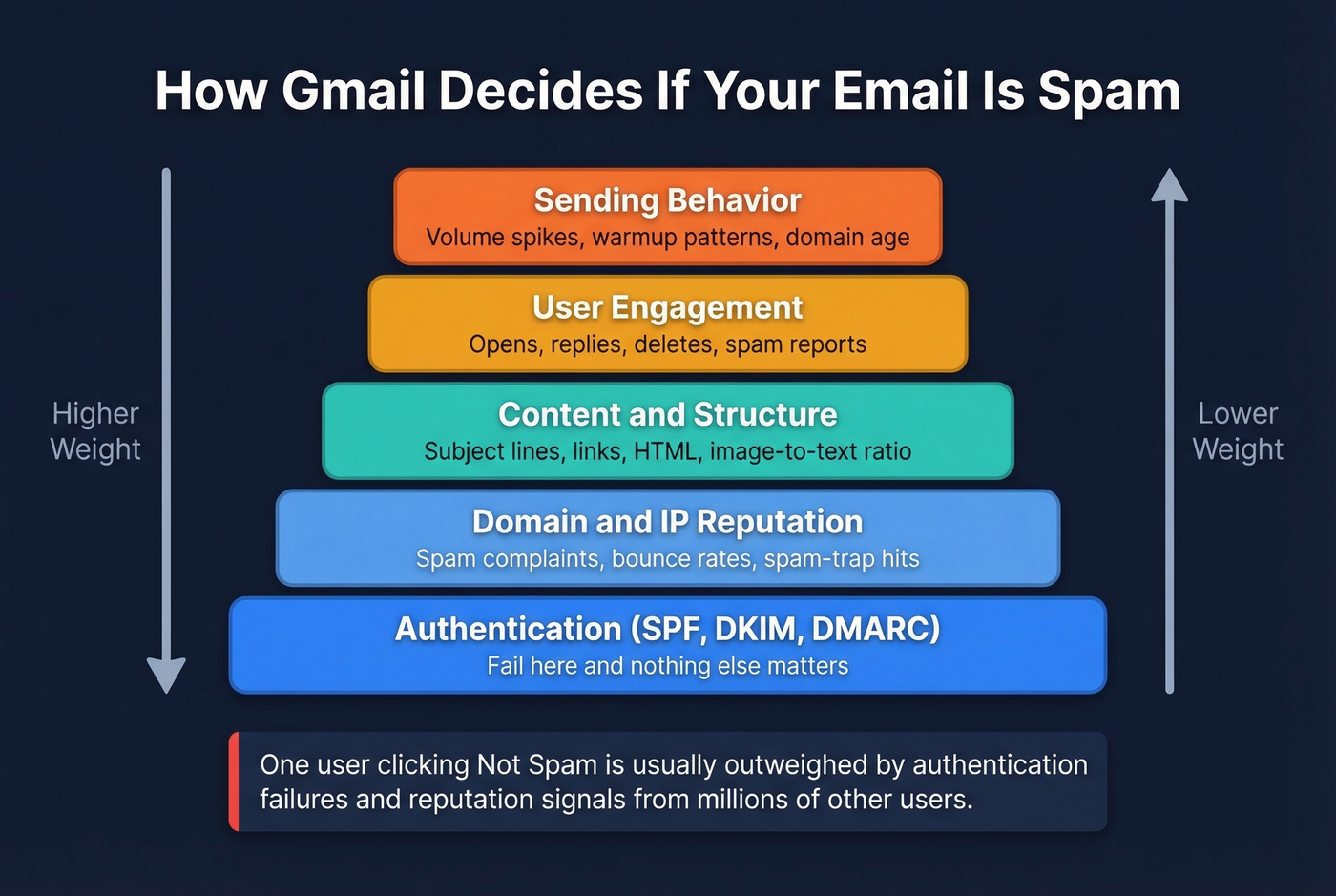
Authentication sits at the base. Gmail checks whether SPF, DKIM, and DMARC are properly configured and aligned with the visible "From" domain. Fail here, and nothing else matters.
Domain and IP reputation comes next. Gmail tracks historical behavior - spam complaints, bounce rates, spam-trap hits - and builds a rolling score for your sending domain and IP. This score carries enormous weight, and it takes weeks of clean sending to recover once it drops.
Content and structure is the third layer. Subject lines, link patterns, HTML formatting, image-to-text ratio, and attachment types all feed the model.
User engagement is where things get personal. Gmail watches what recipients do with your messages - read, delete, ignore, reply, report spam. Replies are one of the strongest positive signals.
Sending behavior rounds it out. Sudden volume spikes, inconsistent patterns, and new domains blasting high volume without warmup all trigger suspicion.
One user clicking "Not spam" is usually outweighed by stronger signals like authentication, reputation, and broader user feedback. That's why recipient-side fixes feel broken - and why sender-side fixes matter so much more.

Bounce rates above 2% destroy your domain reputation - and Gmail punishes you for months. Prospeo's 5-step email verification with catch-all handling, spam-trap removal, and honeypot filtering delivers 98% accuracy. Teams using Prospeo cut bounce rates from 35%+ to under 4%.
Stop fixing spam folder problems. Prevent them with verified data.
Fixes for Emails You Receive
Mark as "Not Spam" (and Why It Fails)
Open the message in your Spam folder and click "Not spam." Gmail moves it to your inbox and supposedly learns from the action. In practice, Gmail's model weighs sender-side signals - authentication failures, aggregate spam reports from millions of users - far more heavily than one person's manual override.
A Google Workspace user on Reddit reported that emails from PayPal, GoDaddy, eBay, and Amazon kept landing in Spam despite repeatedly marking them "Not spam." Their conclusion: "Gmail still isn't learning." That's not a bug. That's how the priority hierarchy works.
Add the Sender to Contacts
Open Google Contacts, click "Create contact," and add the sender's email address. This sends a positive signal to Gmail's filtering model. It's not a guarantee - Gmail still evaluates sender authentication independently - but it stacks with other fixes and helps prevent important messages from being misclassified.
Create a "Never Send to Spam" Filter
This is the most reliable recipient-side fix:
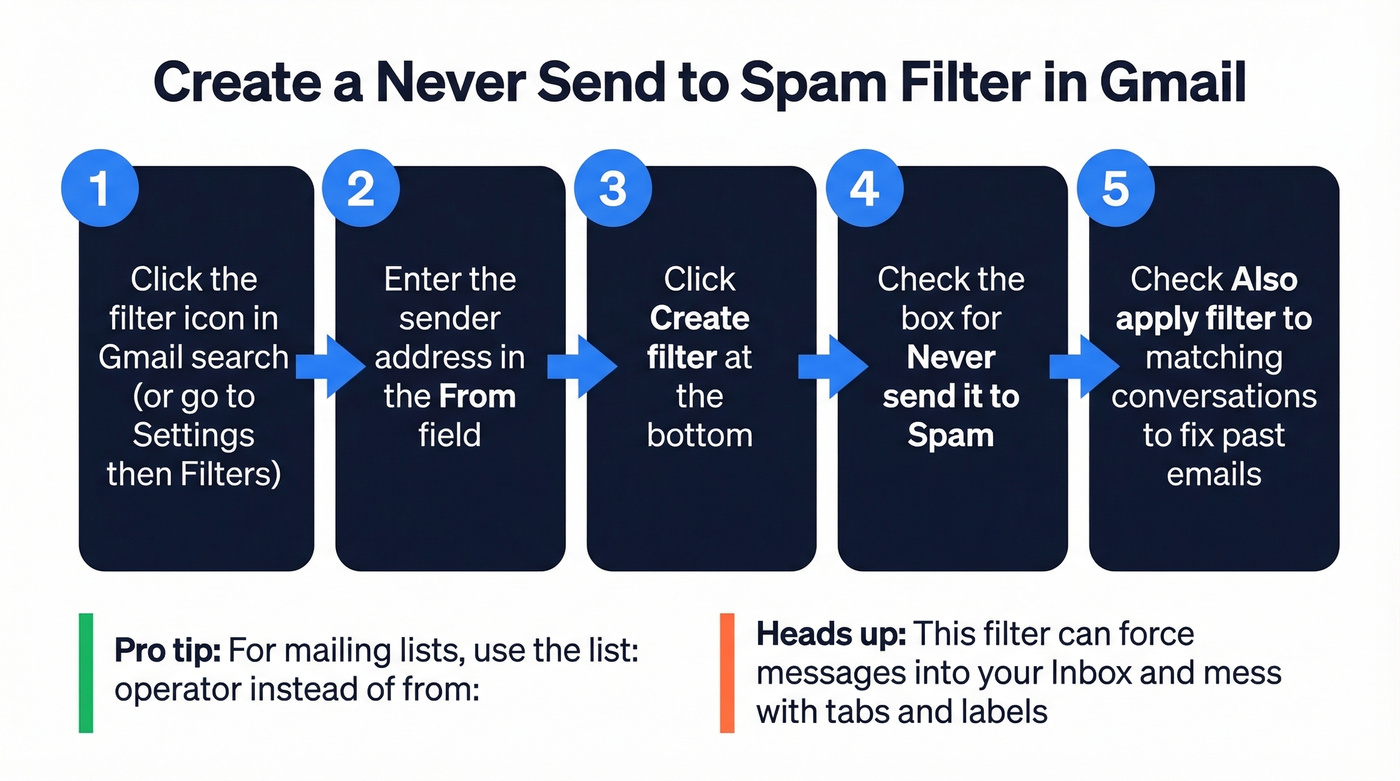
- In Gmail, click the search bar's filter icon or go to Settings > Filters
- Enter the sender's address in the "From" field
- Click "Create filter"
- Check "Never send it to Spam"
- Optionally check "Also apply filter to matching conversations"
For mailing lists where the sender address varies, use the list: operator instead of from:. For alias-based delivery, deliveredto: is more reliable than to: in some configurations.
One quirk worth knowing: "Never send it to Spam" can force messages into your Inbox and mess with tabs and labels. It's a blunt instrument, but it works.
Fix Filters That Aren't Working
If you've created a filter and emails still land in Spam, run through this checklist:
- Test the query first. Paste your filter criteria into Gmail's search bar. If the search doesn't return the messages you expect, the filter won't trigger either.
- Search with
in:anywhereto confirm the message exists in Gmail. Spam and Trash auto-delete after 30 days. - Disable the importance override. Go to Settings > Inbox > Importance markers and select "Don't override filters."
- Check for conflicting filters. Multiple filters targeting the same messages produce unexpected behavior. Review your full list in Settings > Filters and Blocked Addresses.
The Inbox Zero troubleshooting guide has a solid walkthrough if you're still stuck after these steps.
When Nothing Works
Sometimes the problem isn't your filters - it's something upstream. Check forwarding rules first: forwarding can change headers and affect how messages get classified. Run Google Security Checkup to review account security and connected access. If you're on Google Workspace, your admin may have compliance rules or routing configurations that override individual filter settings.
For the users getting 100+ spam and phishing emails per week - where blocking one sender spawns three new ones - individual blocking isn't a scalable defense. Filters on known-good senders work better than trying to block every bad sender.
Prevent Your Emails from Landing in Spam (Sender Fixes)
This is where the real gains are. You control most of the signals Gmail evaluates, and these steps address root causes rather than symptoms.
Set Up Email Authentication
Authentication is the foundation. Without it, Gmail treats your emails as suspicious regardless of content or reputation.
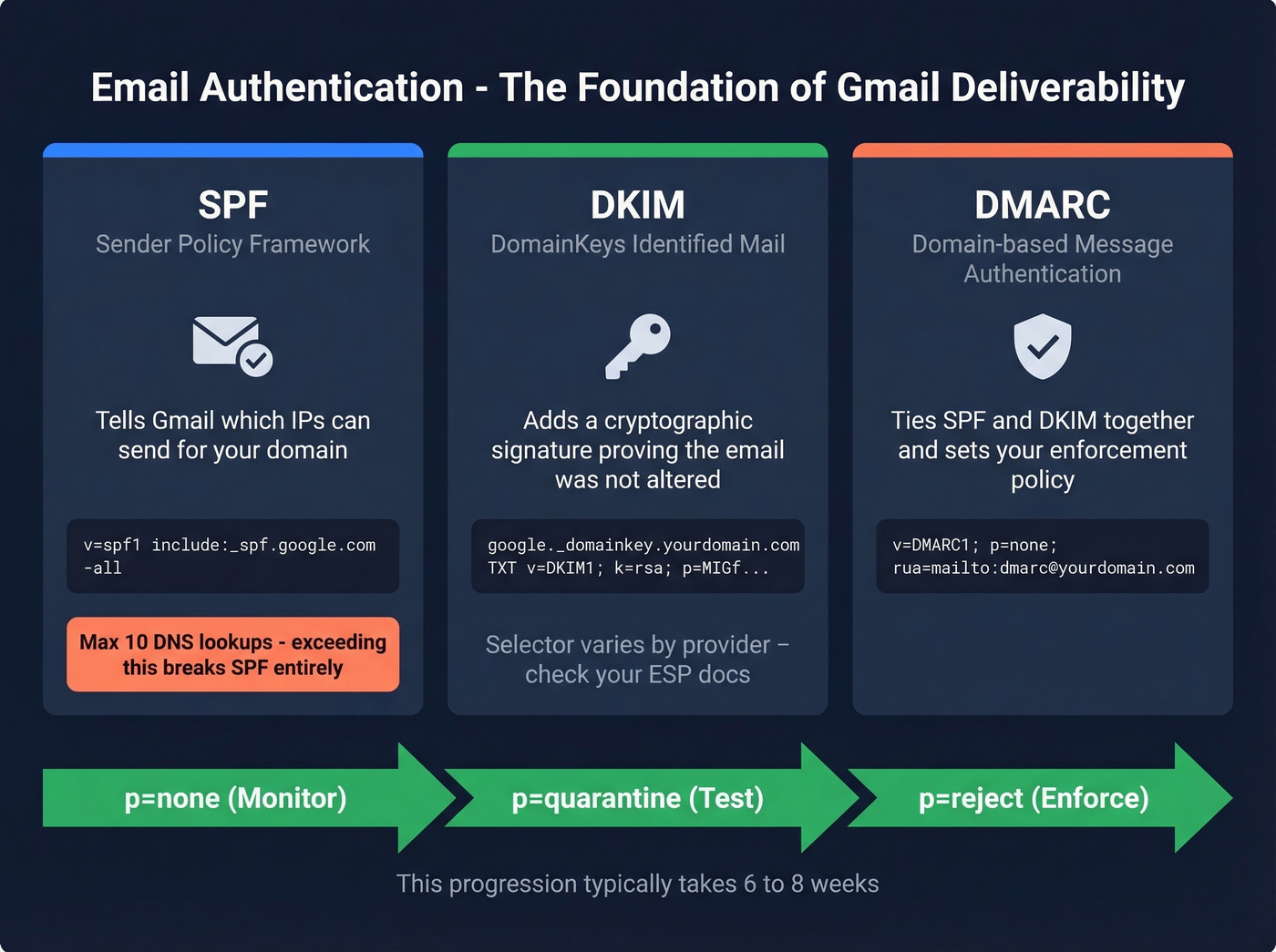
SPF tells receiving servers which IPs are authorized to send on behalf of your domain. Add a TXT record to your DNS:
v=spf1 include:_spf.google.com include:sendgrid.net -all
Every include: directive counts toward a 10 DNS lookup limit. Exceed 10 and your SPF record returns a permerror - Gmail may treat the email as unauthenticated. Fix this by consolidating services, using dedicated subdomains, or using SPF flattening tools. Never publish two SPF records for the same domain; you must merge them into one. I've seen teams debug deliverability issues for weeks before realizing they had a duplicate SPF record sitting in their DNS.
If you want more examples and edge cases, see our SPF breakdown.
DKIM adds a cryptographic signature to your emails. Your email provider generates the key pair; you publish the public key as a DNS TXT record:
google._domainkey.yourdomain.com TXT "v=DKIM1; k=rsa; p=MIGfMA0GCS..."
The selector varies by provider - check your ESP's documentation for the exact record.
If you're troubleshooting, use this guide on how to verify DKIM is working.
DMARC ties SPF and DKIM together and tells receivers what to do when alignment fails. Start with monitoring only:
_dmarc.yourdomain.com TXT "v=DMARC1; p=none; rua=mailto:dmarc@yourdomain.com"
Once you've reviewed aggregate reports and confirmed legitimate mail is passing, progress to p=quarantine, then p=reject. In our experience, this progression takes closer to 6-8 weeks if you're cautious about it.
For the technical nuance, read our DMARC alignment guide.
Gmail's Bulk Sender Rules
If you send roughly 5,000 messages or more per day to personal Gmail accounts, you're a bulk sender. Subdomains aggregate toward the same primary domain's threshold. And once you cross it, bulk-sender status is treated as permanent.
If you're unsure what counts as "bulk," see our bulk sender threshold explainer.
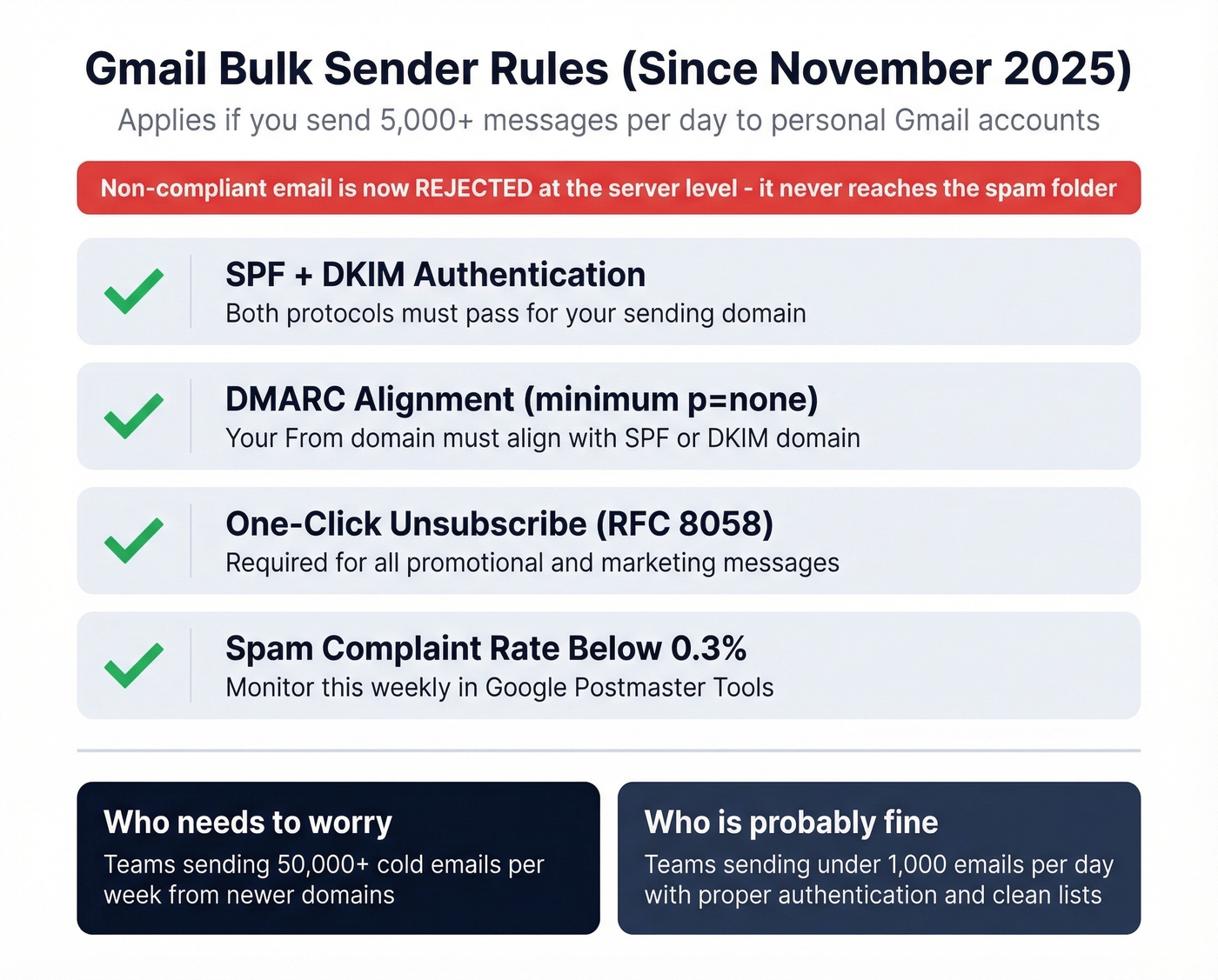
Since November 2025, Gmail rejects non-compliant bulk email at the SMTP level. Not spam-folders it - rejects it. The message never arrives.
Gmail requires:
- SPF + DKIM authentication
- DMARC alignment (minimum
p=none) - One-click unsubscribe per RFC 8058 for promotional messages
- Spam complaint rate below 0.3%
A thread on r/automation captured the panic well - senders who ignored the deadline saw open rates collapse overnight as Gmail started rejecting their messages. Yahoo and Microsoft adopted similar rules in 2024-2025, so this isn't a Gmail quirk anymore. It's the new baseline for email delivery.
Let's be honest: if you're closing deals under $10k and sending fewer than 1,000 emails a day, you don't need to obsess over bulk sender rules. Get your authentication right, keep your list clean, and you'll be fine. The teams getting burned are the ones blasting 50,000 cold emails a week from a domain they bought last month.
Monitor with Google Postmaster Tools
Google Postmaster Tools is the only tool that shows how Gmail sees your domain. Set it up by verifying domain ownership through a DNS TXT record.
Once verified, you'll see spam rate, domain reputation, authentication pass rates, and delivery errors. Check it weekly. If your spam rate creeps up, something changed - a bad list segment, a content issue, or a compromised sending IP. We've found that teams who check Postmaster Tools weekly catch reputation drops 2-3 weeks earlier than teams who only look when something breaks.
If you need more options, here are the email reputation tools we see teams use most.
Clean Your Email List
The best authentication setup in the world won't save you if you're sending to dead addresses. Bad data causes bounces, bounces damage sender reputation, and damaged reputation triggers spam placement. Spam-trap hits can tank your domain reputation fast. Long-unengaged contacts drag your engagement metrics down too - remove them or move them to a re-engagement campaign.
Prospeo's 5-step verification catches spam traps, honeypots, and catch-all domains that basic verification tools miss. With 98% email accuracy and a 7-day data refresh cycle, you're not sending to addresses that went invalid last month. Stack Optimize built from $0 to $1M ARR using Prospeo - client deliverability stayed above 94%, bounce rates under 3%, zero domain flags across all clients. The free tier gives you 75 verifications per month to test it yourself.

Warm Up Your Domain
New domains and new sending IPs need a warmup period. Start low, send to your most engaged contacts first, and ramp volume over several weeks.
Warmup isn't a one-time event, though. Continuous warmup - maintaining a baseline of positive engagement signals - matters more than the initial ramp. Tools that help: Instantly starting around $37/mo, Lemwarm at roughly $29/mo per email, and WarmySender from about $4.99/mo. Verify every address before sending - invalid addresses cause the bounces that destroy your reputation during warmup.
If you're scaling outbound, keep an eye on email velocity so you don't spike volume.
Protect Your Primary Domain
Never send cold outreach from your primary domain. Full stop.
Use a dedicated subdomain like outreach.yourcompany.com or a secondary domain. If the outreach domain gets burned, your primary domain's reputation stays intact. Set up a custom tracking domain too - shared tracking domains from ESPs inherit other senders' reputation. If someone else on the same shared domain is sending garbage, your deliverability suffers. A custom tracking domain like track.yourcompany.com isolates you from that risk.
If you want the technical setup, see tracking domain.
Fix Your Content
Content is rarely the primary cause of spam placement, but it compounds other issues:
- Keep your image-to-text ratio reasonable - heavy image emails with minimal text look like marketing spam
- Avoid spam trigger words in subject lines (FREE, URGENT, ACT NOW)
- Fix broken HTML - malformed code is a spam signal
- Don't overload with links - link-heavy emails raise flags
- Skip URL shorteners - they're associated with phishing
Real talk: if your authentication is solid and your list is clean, content tweaks are marginal improvements. Fix the infrastructure first.
If you need a deeper playbook, use our email copywriting guide.
Quick-Reference Checklist
| Recipient Fixes | Sender Fixes |
|---|---|
| Create "Never send to Spam" filter | Set up SPF + DKIM + DMARC |
| Add sender to Contacts | Spam complaints under 0.3% |
| Click "Not spam" (weak signal) | Use Google Postmaster Tools |
| Disable importance override | Verify your email list before sending |
| Check forwarding rules | Warm up new domains gradually |
| Run Google Security Checkup | Use a dedicated outreach domain |
Search in:anywhere for missing mail |
Set up custom tracking domain |
| Review Workspace admin settings | Fix content: image ratio, links, HTML |
That 3% open rate your SDR team is staring at? It starts with list quality, not subject lines. Prospeo refreshes 300M+ profiles every 7 days - not every 6 weeks like competitors - so you're never sending to stale or invalid addresses that trigger Gmail's spam filters.
Clean data means clean inboxes. Start with 75 free verified emails.
FAQ
Why does Gmail keep sending emails to spam after I mark them "Not spam"?
Gmail's model weighs sender authentication and aggregate behavior across millions of accounts more heavily than one user's manual action. Create a "Never send to Spam" filter instead - it bypasses most of the ML routing logic and is the most reliable recipient-side fix available.
What's the difference between spam placement and email rejection?
Since November 2025, Gmail rejects non-compliant bulk email at the SMTP level - it never arrives anywhere. Spam placement means the email was delivered but flagged. Rejection means it was blocked entirely, and the sender gets a bounce-back error.
Do I need DMARC if I already have SPF and DKIM?
Yes. Gmail's bulk sender rules require DMARC alignment at minimum p=none. Without a published DMARC record, your SPF and DKIM passes don't satisfy compliance. Start with p=none, then progress to p=reject over 6-8 weeks.
How do I check my domain's spam rate in Gmail?
Set up Google Postmaster Tools by adding a DNS verification record. Once verified, the dashboard shows your spam complaint rate, domain reputation score, authentication pass rates, and delivery errors. Keep spam rate below 0.3%.
Can bad email data cause messages to land in spam?
Absolutely. Invalid addresses cause bounces, bounces damage sender reputation, and damaged reputation triggers spam placement - or outright rejection for bulk senders. Prospeo's 5-step verification with 98% accuracy and a 7-day refresh cycle catches spam traps and honeypots that basic tools miss, preventing this chain reaction before it starts.