How to Import a CSV for Email Warmup (2026 Cross-Platform Guide)
You just set up 30 inboxes across 10 domains. You're staring at a blank CSV template with columns like "Warmup Increment" and "IMAP Port," and every guide you find only covers one platform. Half of them are outdated.
This is the cross-platform reference for email warm up CSV import across Instantly, Smartlead, Snov.io, and Mailshake - with the settings, formatting rules, and troubleshooting that actually matter right now.
What You Need Before Touching a CSV
Nail these three things first:
- DNS authentication on every outreach domain - SPF, DKIM, DMARC. No exceptions.
- App passwords for Gmail/Workspace or OAuth for Outlook/Microsoft 365 on each mailbox.
- A verified contact list. Bounces during warmup destroy sender reputation before you've even started. Run your list through Prospeo's email finder first - its 5-step verification with catch-all handling and spam-trap removal keeps your warmup pool clean.
Pick your platform: Instantly for simplicity, Smartlead for scale, Snov.io for an all-in-one workflow. Download their sample CSV template, fill in the column schema below, and upload. Warmup takes 14 days minimum. Start campaigns when your warmup score holds above 90 for 2-3 consecutive days.
Before You Import - Prerequisites
Every failed warmup we've traced comes back to skipping one of these steps.
DNS Records
Set these on your dedicated outreach domain - never your primary company domain:
- SPF - one record that includes your mailbox provider and sending platform
- DKIM - 2048-bit key minimum
- DMARC - start with
p=noneand a reporting address so you can monitor without blocking mail
Wait 24-72 hours for DNS propagation before uploading any CSV. Importing before propagation completes is the single most common reason for "connection failed" errors.
Gmail App Passwords
Gmail and Google Workspace accounts need app passwords for SMTP/IMAP access. Go to Google Account > Security > App Passwords > generate a 16-character code. Use that code as both your SMTP and IMAP password in the CSV. Two-Step Verification must be enabled first - if you don't see the App Passwords option, that's why.
You don't need to hunt for obscure Gmail toggles. If you have the right SMTP/IMAP settings and a valid app password, you're good.
Outlook / Microsoft 365
On most platforms, Microsoft 365 inboxes connect through Microsoft sign-in (OAuth) rather than a password in a CSV. Plan to connect those through each platform's Microsoft connector when required.
Verify Your List First
Warmup campaigns that send to unverified addresses generate bounces that tank your sender reputation before you've sent a single real email. Run every address through verification that catches invalid emails, catch-all domains, spam traps, and honeypots - the exact addresses that cause bounce cascades during warmup.


Bad data kills warmup before it starts. Prospeo's 5-step verification catches invalid emails, spam traps, and catch-all domains before they bounce - 98% accuracy on a 7-day data refresh cycle. At $0.01 per email, cleaning your warmup list costs less than a single bounced domain recovery.
Verify your entire CSV before one warmup email goes out.
CSV Column Reference for Warmup Imports
Every platform uses slightly different column names. Treat these as the common denominator fields you'll see across mailbox-import templates, then follow each tool's exact header names.
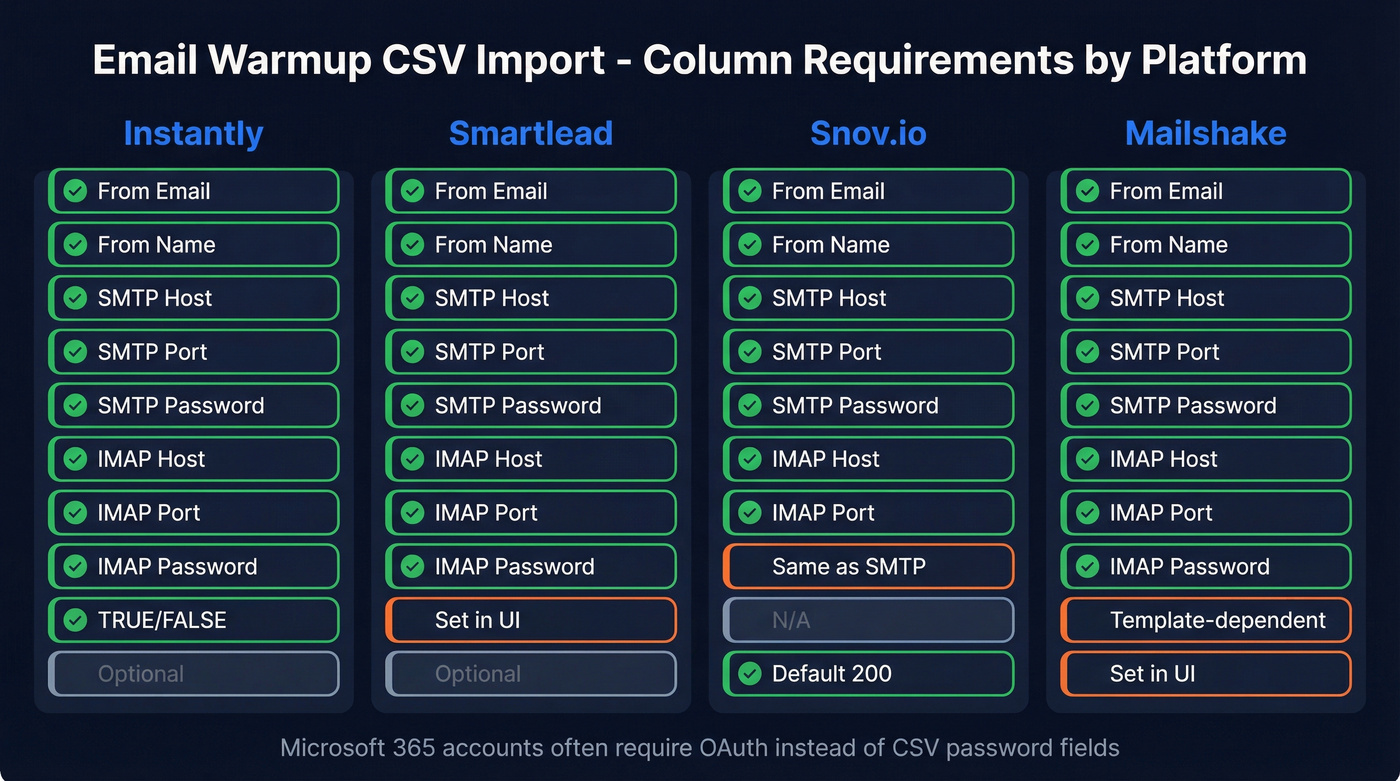
| Field | Instantly | Smartlead | Snov.io | Mailshake |
|---|---|---|---|---|
| From Email | Required | Required | Required | Required |
| From Name | Required | Required | Required | Required |
| SMTP Host | Required | Required | Required | Required |
| SMTP Port | Required | Required | Required | Required |
| SMTP Password | Required | Required | Required | Required |
| IMAP Host | Required | Required | Required | Required |
| IMAP Port | Required | Required | Required | Required |
| IMAP Password | Required | Required | Same as SMTP | Required |
| Warmup Enabled | TRUE/FALSE | Set in UI after import | N/A | Template-dependent |
| Warmup Limit | Optional | Set in UI | N/A | Template-dependent |
| Warmup Increment | Max 4 | Set in UI | N/A | Template-dependent |
| Daily Send Limit | Optional | Optional | Default: 200 | Set in UI |
Provider SMTP/IMAP Settings
These don't change across platforms - bookmark this:
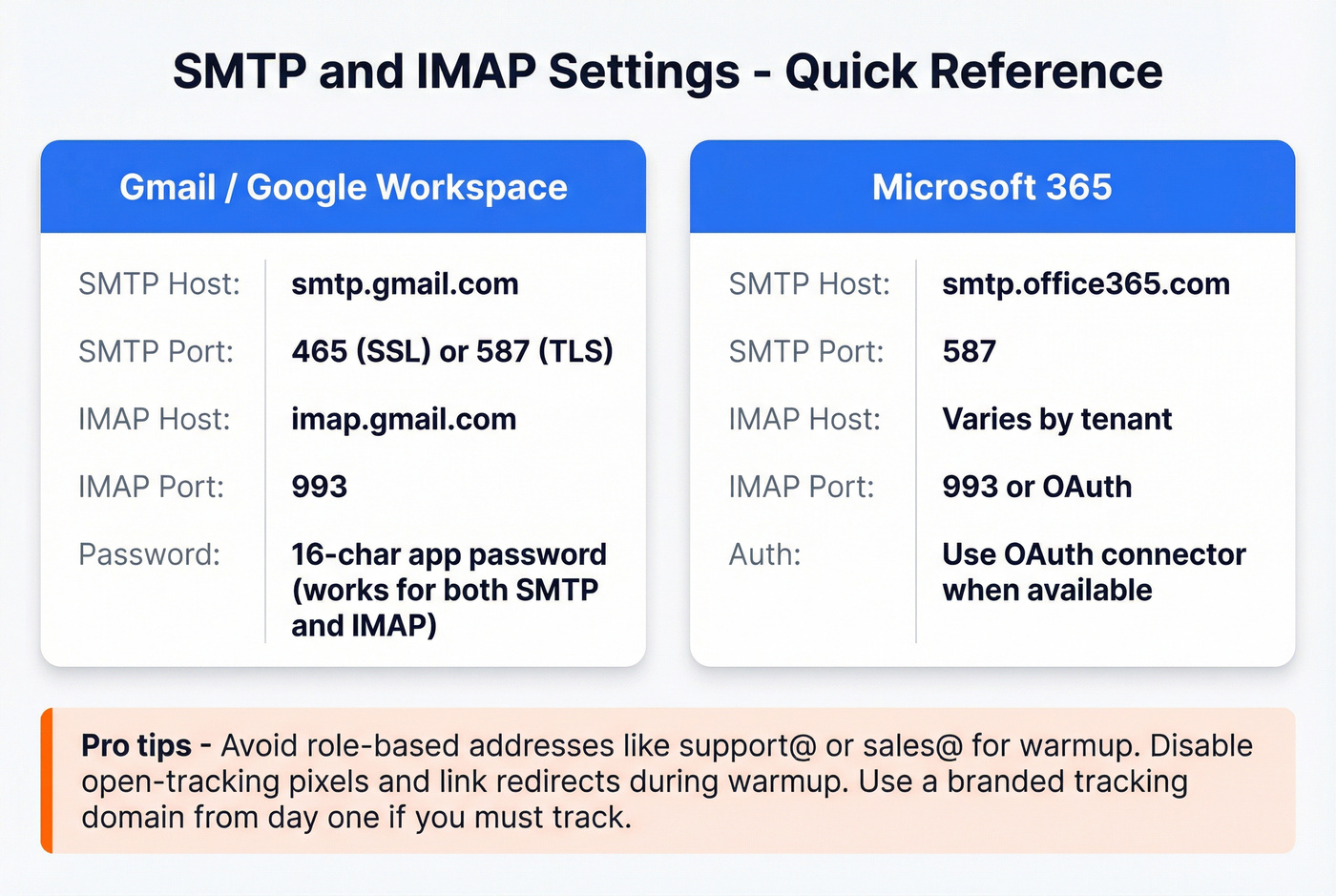
| Provider | SMTP Host | SMTP Port | IMAP Host | IMAP Port |
|---|---|---|---|---|
| Gmail | smtp.gmail.com | 465 (SSL) / 587 (TLS) | imap.gmail.com | 993 |
| Microsoft 365 | smtp.office365.com | 587 | Varies by tenant | 993 / OAuth in many tools |
For Gmail, use your 16-character app password in both the SMTP and IMAP password fields. One password works for both.
Two tips most guides skip: avoid role-based addresses like support@ or sales@ for warmup - ISPs flag them differently. And keep open-tracking pixels and link redirects disabled during warmup. At low volume, tracking artifacts look unnatural and hurt deliverability. If you do track, use a branded tracking domain from day one.
You're formatting CSVs across Instantly, Smartlead, and Snov.io - but none of that matters if your contact list is full of dead addresses. Prospeo removes spam traps, honeypots, and invalid emails with catch-all handling built in. 143M+ verified emails, 98% accuracy, no bounced warmup cycles.
Stop warming up inboxes just to bounce on bad data.
Platform-by-Platform Import
Instantly
Download Instantly's sample file, delete the "Instructions" tab, and export as CSV. Key constraints: Warmup Increment maxes out at 4, and Warmup Enabled only accepts TRUE or FALSE - no "yes/no" or "1/0." Instantly recommends 30 campaign emails plus 10 warmup emails as your daily limit. After upload, look for the green flame icon next to each account to confirm warmup is active.
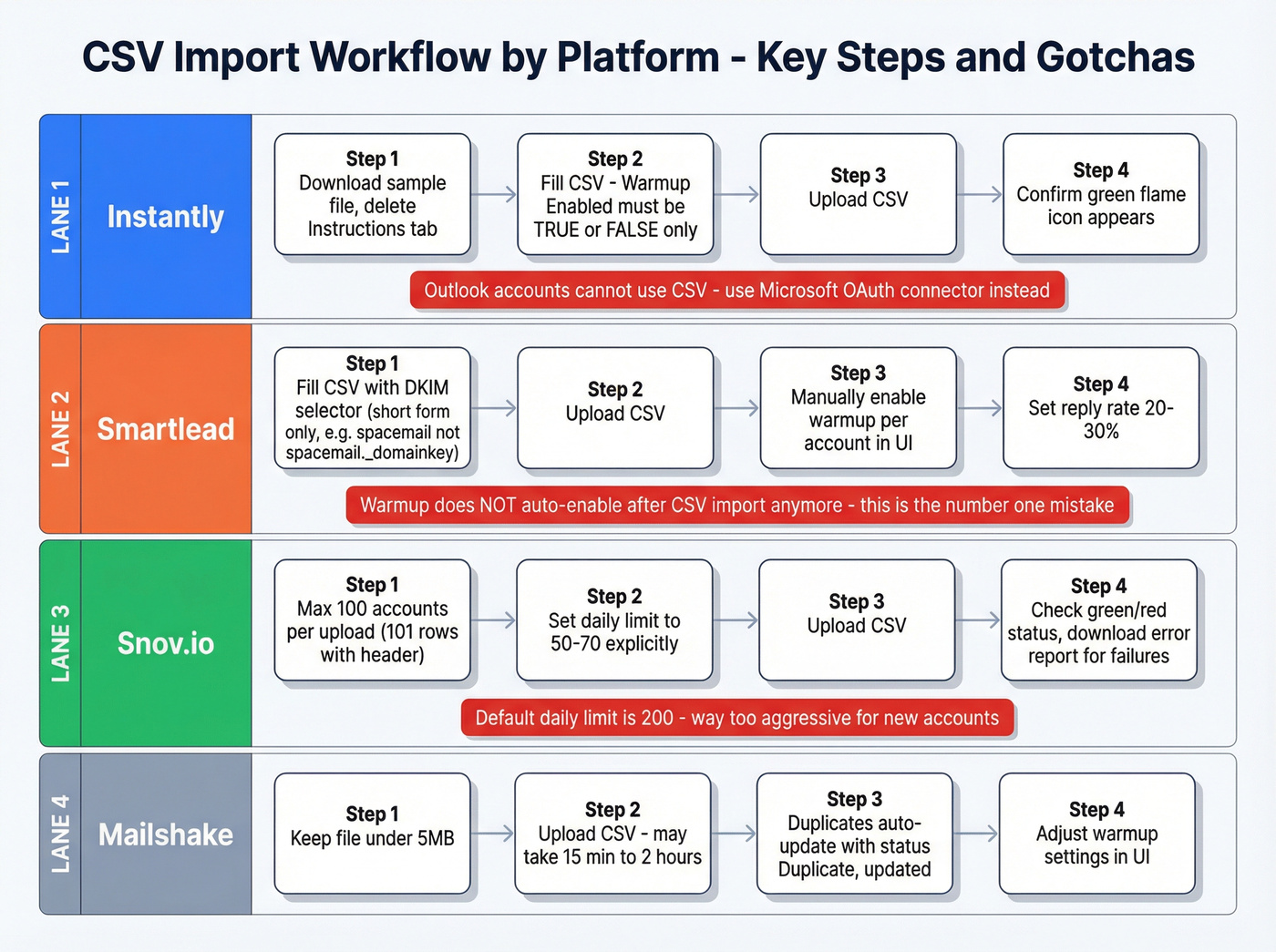
Outlook accounts can't be imported via CSV here; use the Microsoft OAuth connector instead. Plans start around $30/month.
Smartlead - The Gotcha Platform
Here's the thing: people get burned here more than anywhere else. Smartlead's CSV import no longer auto-enables warmup - that changed in a recent platform update. After uploading your CSV, go to Email Accounts > select each account > Enable Warmup > Save. Set your reply rate between 20-30%, and never exceed 30% unless you really know what you're doing.
The DKIM selector field trips up nearly everyone: use only the unique part - for example, spacemail, not spacemail._domainkey. The full string fails validation.
Smartlead also doesn't clearly surface which leads were blocked as bounced inside the app. A common workaround is exporting the CSV and running a quick filter to identify blocked addresses. Plans start at $39/month.
Snov.io
Snov.io caps CSV imports at 100 accounts per upload - that's 101 rows counting the header. Required fields: From email, From name, SMTP host, SMTP port, Password, IMAP host, IMAP port. If you leave the daily sending limit blank, it defaults to 200. That's way too aggressive for new accounts. Set it to 50-70 explicitly.
After import, green means connected, red means failed. Download the error report for failed rows - it includes an Error column with specific failure reasons. Plans start around $30/month.
Mailshake
Mailshake enforces a 5MB file limit, and imports can take anywhere from 15 minutes to 2 hours depending on list size. If an email address is already connected, the import updates it and marks status as "Duplicate, updated." Mailshake can enable warmup automatically via its CSV template, and you can adjust warmup settings in the UI after import. Pricing runs $25-$60/month per user depending on plan.
Inframail (Honorable Mention)
Skip this unless you're running an agency with dozens of accounts. Inframail embeds warmup settings directly in the CSV with Warmup Enabled, Warmup Limit, and Warmup Increment columns. You must wait a minimum of 24 hours after DNS changes before uploading. Pricing runs $99/month for unlimited accounts or $249/month for the agency pack.
Warmup Ramp Schedule
Let's be honest: most people ramp too fast. They see their warmup score hit 85 on day 10 and start blasting campaigns. Then deliverability craters by day 15. We've watched this happen enough times that we always recommend the conservative schedule below for fresh domains, no matter how impatient the team is.
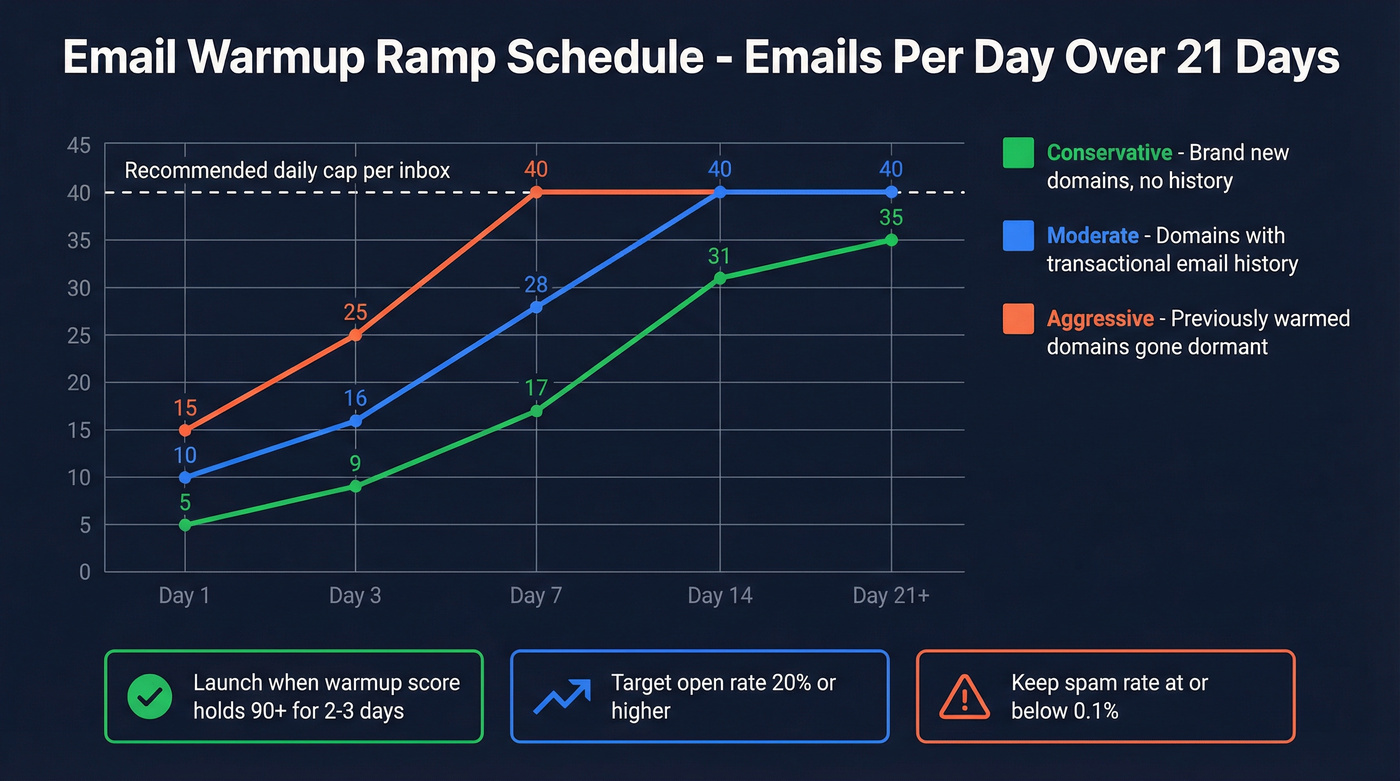
| Day | Conservative (+2/day) | Moderate (+3/day) | Aggressive (+5/day) |
|---|---|---|---|
| 1 | 5 | 10 | 15 |
| 3 | 9 | 16 | 25 |
| 7 | 17 | 28 | 40 |
| 14 | 31 | 40 | 40 (cap) |
| 21+ | 30-40 (plateau) | 40 (plateau) | 40 (plateau) |
Conservative is for brand-new domains with no sending history. Moderate works for domains that have sent transactional email but never outbound. Aggressive is only for domains that were previously warmed and went dormant - and even then, watch your spam rate daily.
Your readiness criteria before launching campaigns: warmup score holds at 90+ for 2-3 consecutive days, open rate at or above 20%, and spam rate at or below 0.1%. Post-warmup, keep campaign volume at 20-40 emails/day per inbox depending on domain age and reputation, with 3-5 inboxes per domain. Monitor deliverability with Google Postmaster Tools and Microsoft SNDS - both free, and they catch reputation drops before they become emergencies.
Formatting Rules That Prevent Failed Imports
Most import failures aren't about wrong passwords. They're about formatting.
Encoding matters most. In Excel, save as "CSV UTF-8 (comma delimited)." Google Sheets exports UTF-8 by default, which is one reason we prefer it for this workflow. Headers go in the first row with capital letters - "Email" not "email." Even "Email" and "email" in different columns can conflict on some platforms.
Keep column names under 20 characters; Instantly enforces this limit, and others are more lenient but why risk it. If your app password contains commas, wrap the entire field in quotes. And the most common silent killer: blank rows between data rows. One stray empty row can break the entire import on every platform.
Why Your Import Failed
| Error | Cause | Fix |
|---|---|---|
| Authentication failed | Wrong app password or OAuth needed | Regenerate app password; use OAuth for Microsoft accounts |
| Connection failure | DNS not propagated | Wait 24-72 hrs, retry |
| Warmup not enabling | Smartlead manual toggle | Email Accounts > Enable Warmup > Save |
| Bounces >2% during warmup | Unverified addresses in warmup pool | Pause, re-verify your list, resume |
| Formatting error | Wrong encoding or blank rows | Re-save as UTF-8, remove blank rows |
| Snov.io red status | Missing required field | Download error report, check Error column |
| Mailshake "connection error" | Bad SMTP/IMAP credentials | Re-check host, port, and app password |
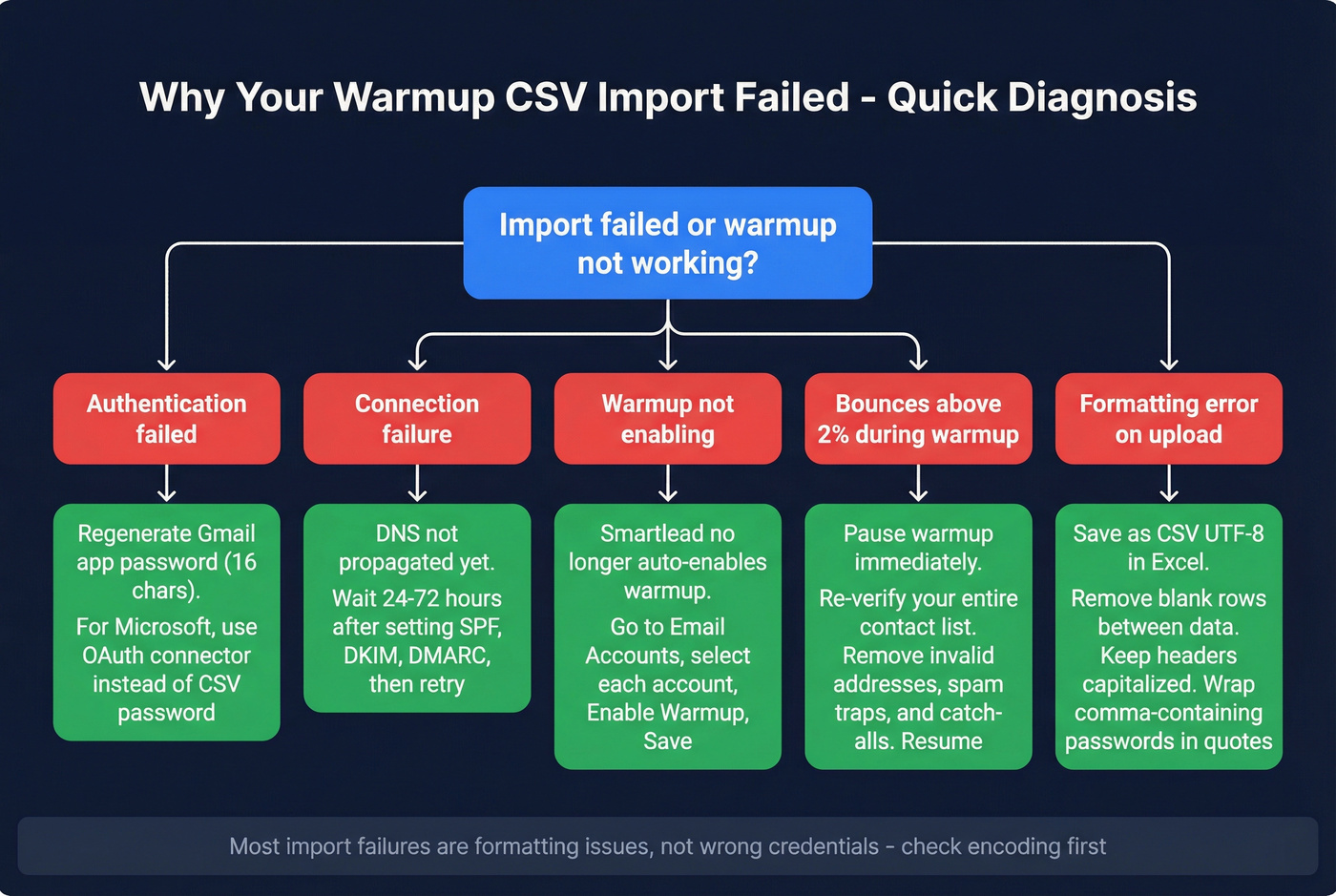
A bounce rate under 2% during warmup is normal - every warmup pool has some churn. But 5%+ means your list quality is the problem, and no amount of warmup fixes bad data.
FAQ
How long does email warmup take?
Fourteen days minimum for fresh domains. Previously warmed domains can restart in as few as 7 days. Start campaigns when your warmup score holds above 90 for 2-3 consecutive days - don't rush it based on a calendar date alone.
Can I import Outlook accounts via CSV?
Most platforms require Microsoft 365 inboxes to connect through OAuth rather than CSV password fields. Instantly and Snov.io both require the Microsoft connector. Plan to handle those accounts separately from your bulk CSV upload.
What CSV encoding should I use?
UTF-8, always. In Excel, choose "CSV UTF-8 (comma delimited)" when saving. Google Sheets handles this automatically. Non-UTF-8 encoding causes silent failures where the file uploads but individual rows fail with no clear error message.
How many accounts can I import at once?
Snov.io caps at 100 accounts per CSV. Instantly and Smartlead handle 200+ in a single upload. Mailshake's 5MB file limit works out to roughly 500-1,000 accounts depending on column count.
Should I verify contacts before warmup?
Always. Bounces during warmup damage sender reputation at the worst possible time. We've seen teams lose weeks of warmup progress because a handful of spam traps slipped through. Run your list through verification that catches invalids, catch-alls, and honeypots before you upload anything.