

How to Find Invalid Email Addresses in Excel: 4 Methods That Actually Work
You're staring at 12,000 rows and your next send goes out Friday. Email lists decay by roughly 28% every year, so if you haven't cleaned yours recently, a chunk of those addresses are already dead. Keep your bounce rate under 2% and you're safe. Let it creep past 5% and your sender reputation starts taking real damage - the kind that follows you across campaigns.
Here's the quick version:
- Excel 365 users: Use REGEXTEST. One formula, one cell, done.
- Older Excel versions: Use the classic FIND/ISERROR formula combo.
- After Excel cleanup: Run your CSV through a verification tool to catch emails that look valid but still bounce.
What Counts as "Invalid"
Not all invalid emails look broken. Six categories matter:
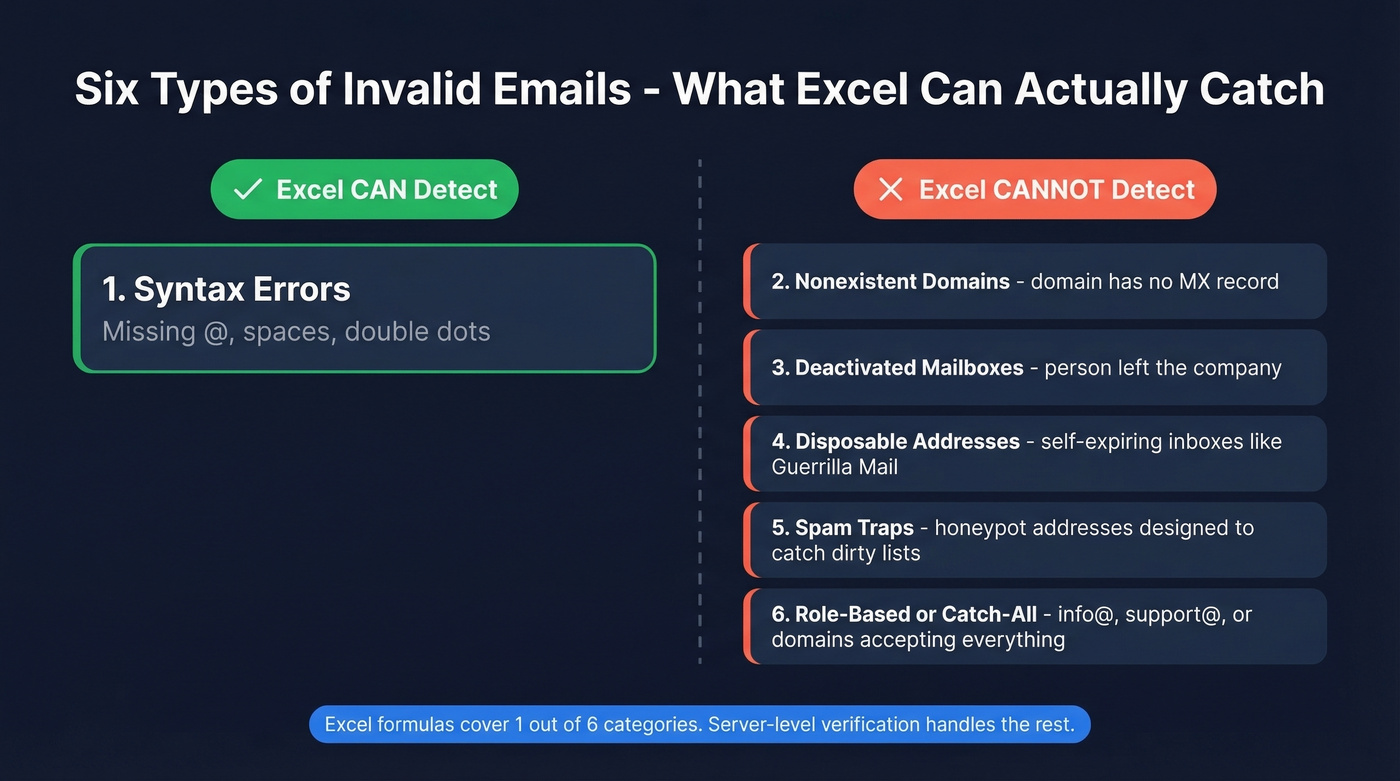
- Syntax errors - missing @, spaces, double dots
- Nonexistent domains - the domain has no MX record
- Deactivated mailboxes - the person left the company
- Disposable addresses - self-expiring inboxes from services like Guerrilla Mail
- Spam traps - addresses designed to catch senders with dirty lists (see spam traps)
- Role-based / catch-all - info@, support@, or domains that accept everything
Excel formulas catch only the first category. Everything else requires server-level checks that a spreadsheet can't perform. That distinction matters more than most guides let on.

Four Methods to Validate Email Addresses in Excel
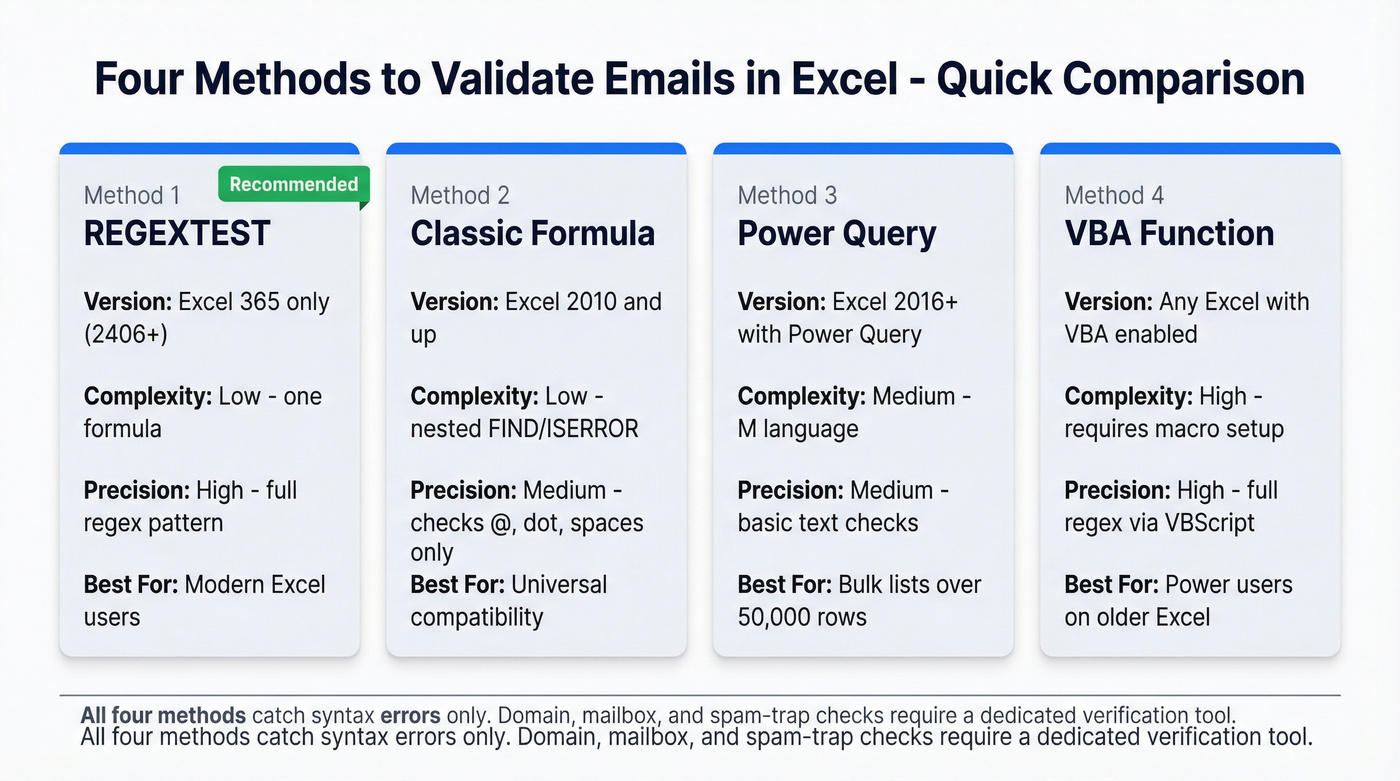
Method 1 - REGEXTEST (Excel 365)
If you're on Excel 365 and have the newer regex functions (they first appeared in Insider/Beta builds like Windows 2406+ and Mac 16.86+), this is the cleanest approach. Microsoft shipped REGEXTEST, REGEXEXTRACT, and REGEXREPLACE in late 2024, replacing pages of nested formulas with a single line:
=REGEXTEST(A2, "^[A-Za-z0-9._%+-]+@[A-Za-z0-9.-]+\.[A-Za-z]{2,}$")
This returns TRUE when the text matches a basic "email-like" pattern: allowed characters, one @, a domain with a dot, and a letter-only TLD. It returns FALSE for obvious issues like missing @, spaces, or a missing dot in the domain. The {2,} at the end allows longer modern TLDs like .technology and .agency instead of the old 2-3 character limit that breaks on newer domains.
Drag the formula down your column and filter for FALSE. That's your cleanup list.
Method 2 - Classic Formula (All Versions)
No REGEXTEST? The FIND/ISERROR pattern works in every Excel version we've tested, going all the way back to 2010:
=AND(NOT(ISERROR(FIND("@",A2))), NOT(ISERROR(FIND(".",A2,FIND("@",A2)))), ISERROR(FIND(" ",A2)))
This checks three things: an @ exists, a dot appears after the @, and there are no spaces. It's blunt - but simple "@ + dot" rules weed out about 95% of incorrectly formatted addresses. The real problem is that formatting is only one layer of the issue.
Two warnings.
Watch for smart quotes. If you paste this formula from a website, the quotes can end up as curly quotes (character codes 147 and 148) instead of plain " (character code 34), which breaks everything. Retype the quotes manually if you get errors.
Don't add TLD length restrictions. Any pattern that limits TLDs to 2-3 characters will reject valid .works and .agency addresses. We've seen teams accidentally purge hundreds of legitimate contacts this way.
Google Sheets users: these formulas won't copy 1:1. If you want the regex route in Sheets, use REGEXMATCH instead.
Method 3 - Power Query (Bulk Lists)
For large lists, Power Query handles the load better than cell formulas. Note that Text.RegexMatch was introduced in May 2024 for Power BI Desktop and Power Query Online but isn't available in every Excel Power Query environment yet. Use this M-language fallback:
if Text.Contains([Email], "@") and Text.Contains(Text.Range([Email], Text.PositionOf([Email], "@")), ".") then "Valid" else "Invalid"
Less precise than regex, but it processes bulk lists without crashing your workbook.
Method 4 - VBA Function (Power Users)
A VBA user-defined function gives you regex power in older Excel versions. Enable Microsoft VBScript Regular Expressions via Tools > References first.
Function IsValidEmail(eml As String) As Boolean
    Dim emailRegEx As New RegExp
    emailRegEx.Pattern = "[A-Z0-9._%+-]+@[A-Z0-9.-]+\.[A-Z]{2,}"
    emailRegEx.IgnoreCase = True
    IsValidEmail = emailRegEx.Test(eml)
End Function
Then use =IsValidEmail(A2) like any other formula. Use {2,} for the TLD length - not {2,3}. Real-world VBA patterns that end with (\.[a-z]{2,3})$ will flag modern TLDs as invalid, and you'll spend an hour debugging something that isn't broken.
Fix Common Domain Typos First
Before you run any validation, catch the low-hanging fruit. These typos are the most common bounce causes we see in client lists:
| Typo | Correction |
|---|---|
| gamil.com | gmail.com |
| gmial.com | gmail.com |
| yaho.com | yahoo.com |
| hotmal.com | hotmail.com |
| outlok.com | outlook.com |
A nested SUBSTITUTE handles this in one pass:
=SUBSTITUTE(SUBSTITUTE(SUBSTITUTE(A2,"gamil.com","gmail.com"),"gmial.com","gmail.com"),"yaho.com","yahoo.com")
Run this before your syntax check - it'll save you from flagging emails that are one character away from perfectly valid. This mirrors a workflow that comes up constantly on r/excel: exporting bouncing addresses from Mailchimp to CSV, fixing obvious misspellings like @gamil.com, then re-importing a cleaned file.
If you're doing this as part of a bigger outbound workflow, it also helps to track email bounce rate and email velocity so you don't compound list issues with sending issues.

You just cleaned syntax errors in Excel. That's level 1 of 4. Prospeo's 5-step verification handles the rest - MX lookups, SMTP checks, catch-all detection, and spam-trap removal - at $0.01 per email with 98% accuracy. Upload your CSV and get back only addresses that actually deliver.
Stop bouncing emails that passed your spreadsheet formulas.
Why Excel Formulas Aren't Enough
Let's be honest: most guides treat email validation in Excel as a solved problem. It's not.
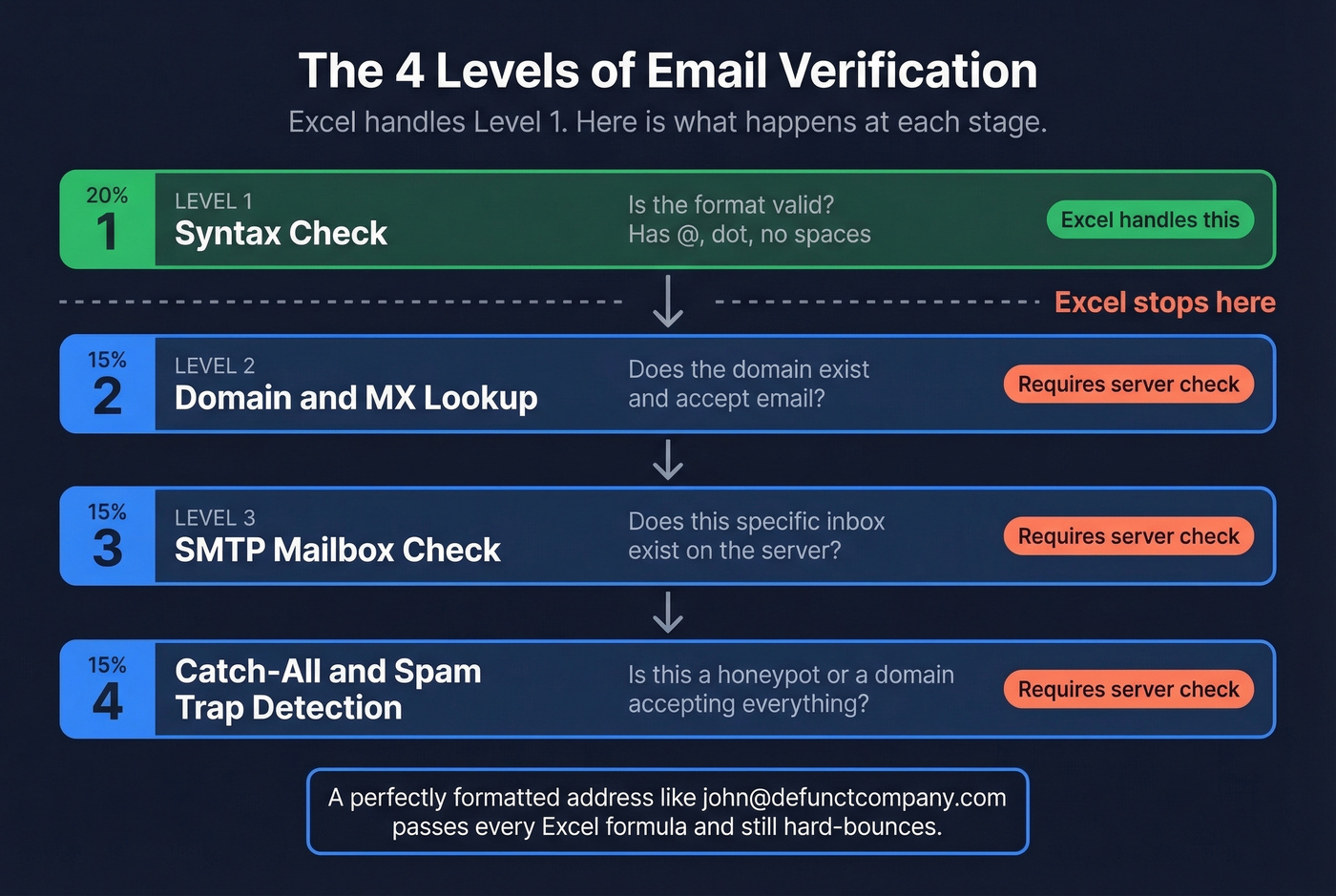
Excel can tell you an address looks wrong. It can't tell you it works. Four levels of verification determine whether an email actually delivers:
- Syntax check - is the format valid? (Excel handles this)
- Domain/MX lookup - does the domain accept email?
- SMTP mailbox check - does this specific mailbox exist? (see check if an email exists)
- Catch-all and spam-trap detection - is this a honeypot or a domain that accepts everything?
Excel covers level 1. That's it. A perfectly formatted address like john@defunctcompany.com passes every formula above and still hard-bounces.
Here's the thing: if your list is under 500 emails, Excel cleanup plus a free verification tier is all you need. You don't need a $200/month platform for a quarterly newsletter. But if you're sending outbound at scale - say, 2,000+ emails per week - skipping verification is lighting your domain reputation on fire. One of our agency customers, Stack Optimize, built to $1M ARR while keeping client deliverability above 94% and bounces under 3%, and that only happened because they verified after the spreadsheet cleanup, not instead of it. (If you're troubleshooting deliverability, start with an email deliverability guide and then improve sender reputation.)
Verification Tools for What Excel Can't Catch
Once you've cleaned syntax errors and domain typos in your spreadsheet, run the surviving list through a dedicated verifier:
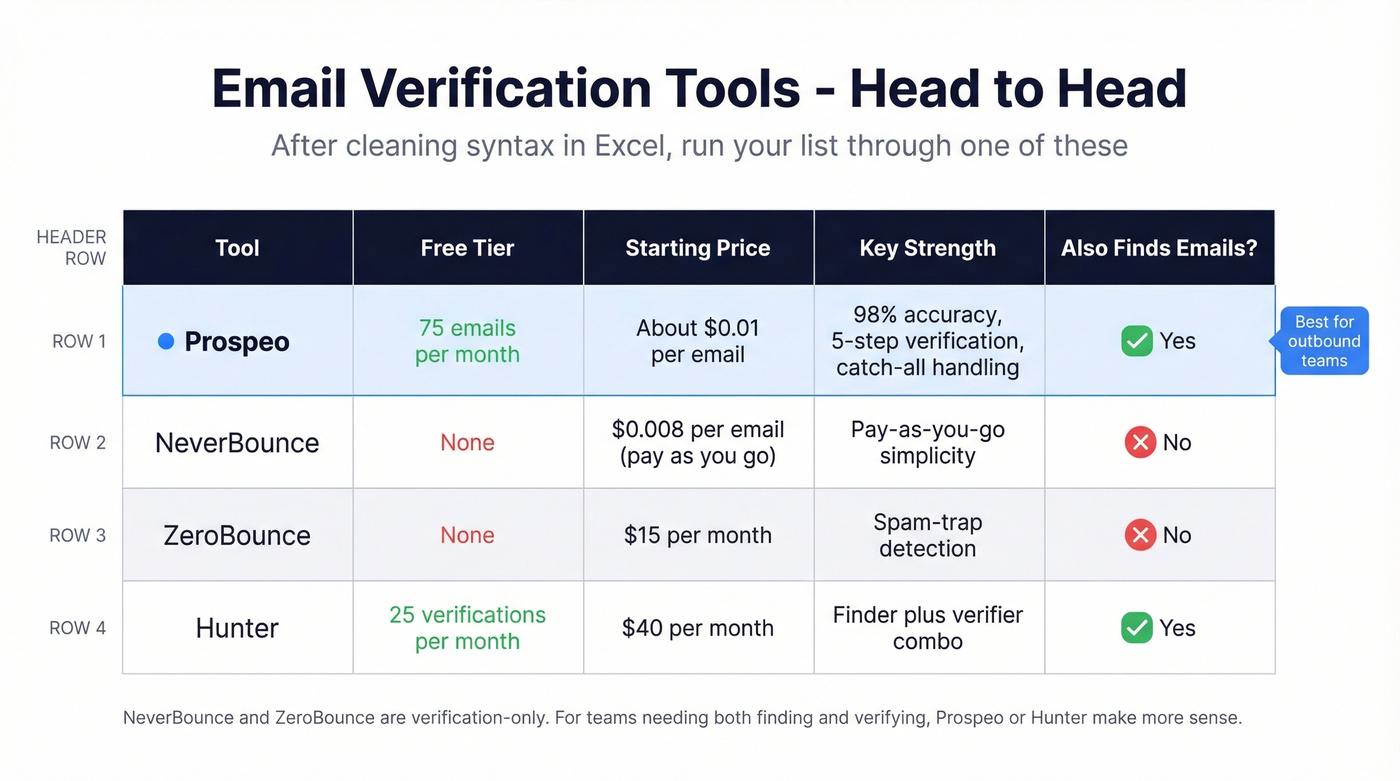
| Tool | Free Tier | Starting Price | Key Strength |
|---|---|---|---|
| Prospeo | 75 emails/mo | ~$0.01/email | 98% accuracy, 5-step verification, catch-all handling |
| NeverBounce | - | $0.008/email (PAYG) | Pay-as-you-go simplicity |
| ZeroBounce | - | $15/mo | Spam-trap detection |
| Hunter | 25 verifications/mo | $40/mo | Finder + verifier combo |
Skip NeverBounce and ZeroBounce if you also need email finding - they're verification-only. For teams that need both finding and verifying in one workflow, Prospeo or Hunter make more sense.
Prospeo's verification pipeline covers MX lookups, SMTP mailbox checks, catch-all domain handling, spam-trap removal, and honeypot filtering - the four levels Excel can't touch. Upload a CSV, get results in minutes, and pay only for verified addresses. If you also need to build lists (not just clean them), pair verification with a name to email workflow or an email search tool.
Stack Optimize kept client bounce rates under 3% while scaling to $1M ARR - not by relying on Excel formulas, but by running every list through real verification. Prospeo's bulk CSV enrichment returns 50+ data points per contact with a 92% match rate, refreshed every 7 days.
Your Excel cleanup is step one. Finish the job in two clicks.
Prevent Future Invalid Entries
Excel's Data Validation feature lets you set a custom formula rule on your email column so new entries get flagged immediately. Use the FIND-based formula from Method 2 as your validation criteria, then go to Data > Validation > Circle Invalid Data to flag existing suspect cells.
This won't stop someone from entering a correctly formatted but nonexistent address - but it blocks the obvious typos before they ever hit your list. For ongoing protection, pair it with a verification step before every major send. If you're scaling cold outreach, it's also worth standardizing your cold email marketing process so list hygiene isn't an afterthought.
FAQ
Does REGEXTEST work in all Excel versions?
No. REGEXTEST requires Excel 365 with regex functions enabled (Insider/Beta builds like Windows 2406+ or Mac 16.86+). For older versions, use the FIND/ISERROR method from Method 2 or the VBA regex function from Method 4.
What bounce rate should I worry about?
Keep hard bounces under 2% per campaign. Above 5%, ESPs like Mailchimp and SendGrid throttle or suspend your account, and your sender reputation takes lasting damage. Clean your list in Excel first, then verify with a dedicated tool before every major send.
What's the fastest way to clean a large email list?
Use Excel formulas to catch syntax errors and the SUBSTITUTE function for domain typos first. Then export the cleaned CSV and upload it to a verification service for full server-level checks - MX lookup, SMTP validation, and spam-trap detection in one pass.