

How to Mail Merge Email: Complete Guide (2026)
Learning how to mail merge email is the difference between three hours of copy-paste and three minutes of setup. You've got 300 personalized event invitations to send by Friday - you don't want to BCC everyone like it's 2009, and you definitely don't want to manually swap names into individual emails all afternoon.
Mail merge handles this. But most walkthroughs cover one ecosystem and stop at "click Send." Nobody talks about what happens when 47 of those emails bounce, or when New Outlook silently strips your personalization fields.
Here's how to set up a mail merge across Outlook, Gmail, and third-party tools - plus the deliverability and compliance steps that most guides skip entirely.
Pick Your Path
| Criteria | Outlook (Word) | Gmail Built-In | Third-Party Tool |
|---|---|---|---|
| Cost | Included with Microsoft 365/Office | Included with eligible Workspace plans | $10-$60/mo |
| Personalization | Deep (any field) | 4 tags only | Deep + conditional |
| Tracking | None | None | Opens, clicks, replies |
| Attachments | No | No | Yes (most tools) |
| Daily limit | 10,000 recipients/day (Microsoft 365) | 500-2,000 | Provider-dependent |
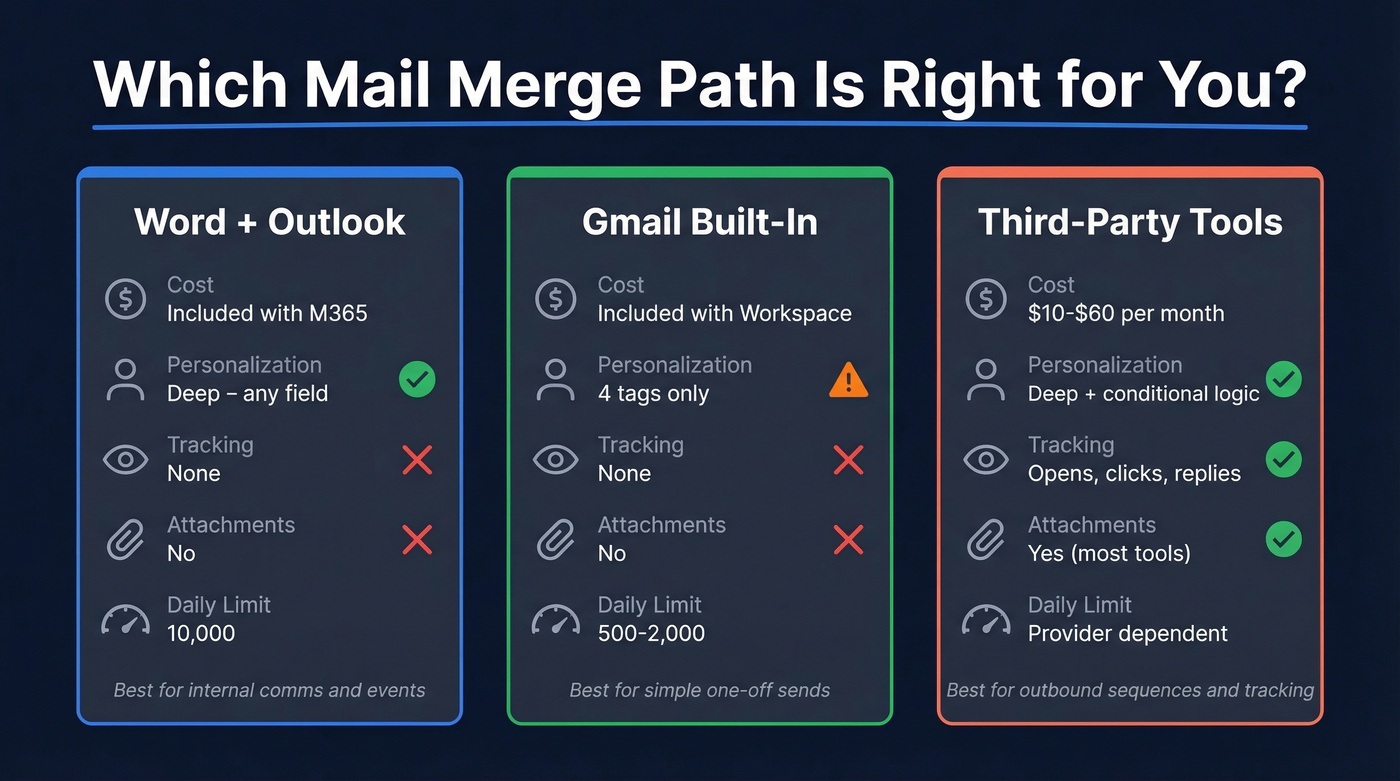
The short version: If you're an Outlook user who needs simple personalization, Word's built-in merge feature works well. Gmail Workspace users get a native merge that handles basic sends. If you need tracking, attachments, or automated follow-ups, grab a third-party tool like GMass or Mailmeteor. And if you're sending cold outreach to a purchased or scraped list, verify your emails first - even a double-digit bounce rate will torch your domain reputation faster than any bad subject line.
Word + Outlook Mail Merge (Step-by-Step)
This is the method most people search for, and it's been in Microsoft Office for decades. It works well for internal communications, event invitations, and personalized updates where you don't need open tracking or attachments.
Two hard limitations to know upfront: you can't CC/BCC other recipients, and you can't add attachments. If either is a dealbreaker, skip to the third-party tools section. You'll also need a MAPI-compatible email program installed - Outlook is the standard choice. Word and Outlook must be the same version; mixing Office 2021 Word with a Microsoft 365 Outlook install can cause the "Send E-mail Messages" option to disappear entirely.
Prepare Your Excel Data
Your data source is everything. A messy spreadsheet produces messy emails.
Put column headers in Row 1: FirstName, LastName, Email, Company - whatever fields you'll merge. No blank rows between records. No merged cells. If you've got ZIP codes or phone numbers with leading zeros, format those columns as Text before entering data. Excel loves to silently strip leading zeros, turning ZIP code "01234" into "1234."
Keep formatting consistent. If some rows have "VP of Sales" and others have "VP, Sales" or "Vice President - Sales," your merge fields will reflect that inconsistency. Clean it once in the spreadsheet rather than fixing it in 300 individual emails.
If you're building lists for outreach, pair your spreadsheet cleanup with data enrichment so your merge fields stay consistent.
Run the Merge
Open a new Word document. Go to Mailings > Start Mail Merge > E-mail Messages. Your document is now an email template.
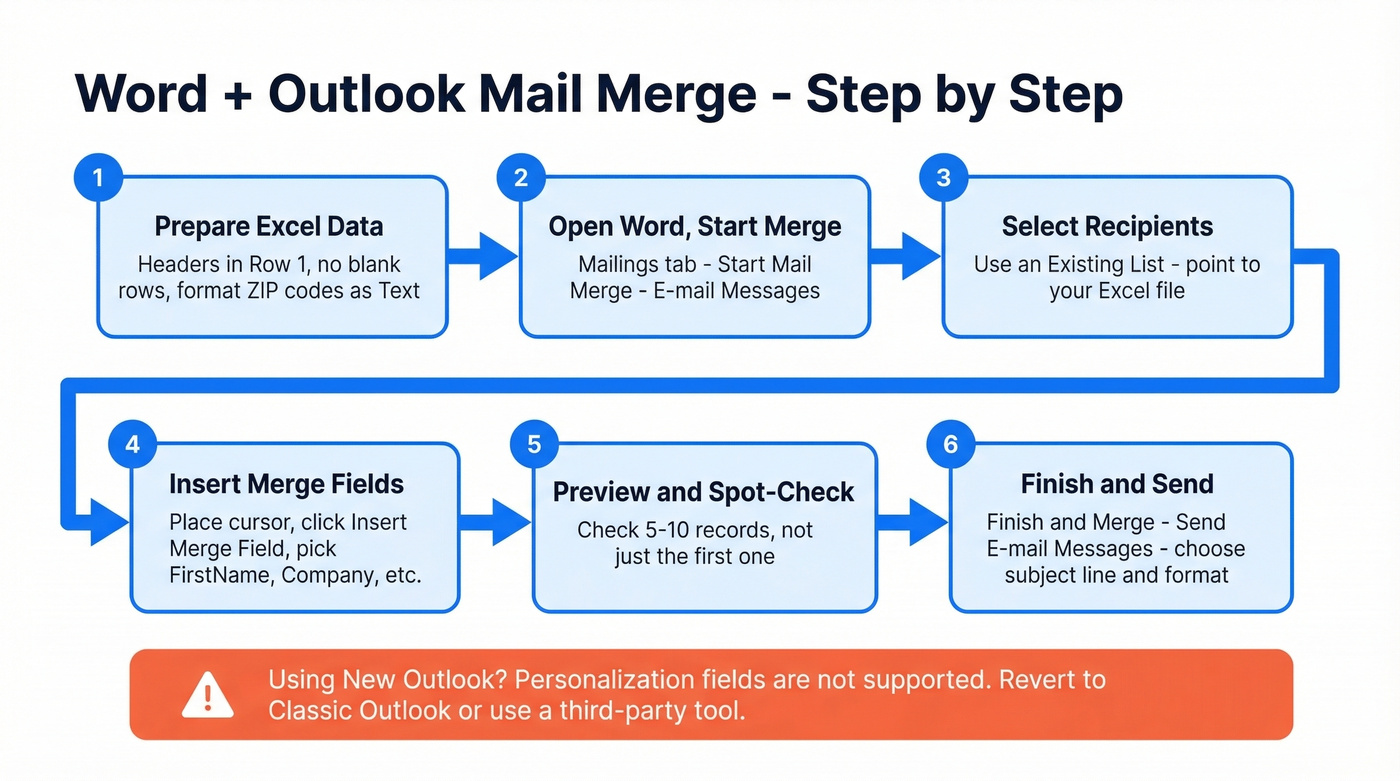
Click Select Recipients > Use an Existing List and point to your Excel file. Select the correct sheet when prompted. Write your email body in the Word document, place your cursor where you want personalized data, then click Insert Merge Field and choose the field (FirstName, Company, etc.).
Preview results with the arrow buttons in the Mailings tab. Spot-check 5-10 records - don't just look at the first one. When you're satisfied, click Finish & Merge > Send E-mail Messages. Choose your subject line, confirm the "To" field maps to your Email column, and select HTML or Plain Text format. Hit OK, and Word hands each message to Outlook for delivery.
If you want better performance from your subject lines, borrow patterns from these email subject lines.
New Outlook Warning
If you've been migrated to New Outlook, your merge experience is going to be worse. Peak Microsoft.
New Outlook doesn't support personalization fields - no first name tags, no custom merge fields - so you're stuck with generic greetings. It also uses a single recipient field with no separate To/CC/BCC options. Contact and distribution lists don't show up by default either. The workaround is to type the list name manually in the To field and click the plus icon to expand it, but that's clunky at best.
The consensus on r/microsoft365 is straightforward: revert to Classic Outlook for mail merge, or switch to a third-party tool. If personalization matters - and it should, since that's the entire point of a merged email - New Outlook isn't ready.
How to Mail Merge Email in Gmail
Gmail introduced native mail merge in 2023 and improved it in 2024 to work with Google Sheets. If you see older guides referencing "multi-send," that's the same feature under a retired name.
Open Gmail and click Compose. In the To field, click the Use Mail Merge icon (a person with a plus sign), then check the Mail Merge box. Your compose window turns purple - that's your visual confirmation that merge mode is active.
Add recipients manually, from Google Contacts, or by importing from a Google Sheet. For Sheets import, click Add from a spreadsheet, select your sheet, and map the columns. Gmail pulls in the email addresses and makes merge tags available.
If you're doing outreach (not internal comms), consider using cold email follow-up templates so your second and third touches don't sound like copy-paste.
Available merge tags are limited to @firstname, @lastname, @fullname, and @email. Type the @ symbol in your email body and select the tag. You can set fallback values for missing data - so if a contact doesn't have a first name, you can default to "there" instead of leaving an awkward blank.
Eligible Workspace Plans
Gmail's built-in merge isn't available on free Gmail accounts. You need Google Workspace Business Standard or Plus, Enterprise Standard or Plus, Education Standard or Plus, or Workspace Individual. On a free Gmail or Business Starter plan? You'll need a third-party tool.
Gmail Limitations
Four merge tags. That's the ceiling. You can't use tags in the subject line. There's no open or click tracking, no scheduled sends, no personalized file attachments. Addresses with special characters get rejected.
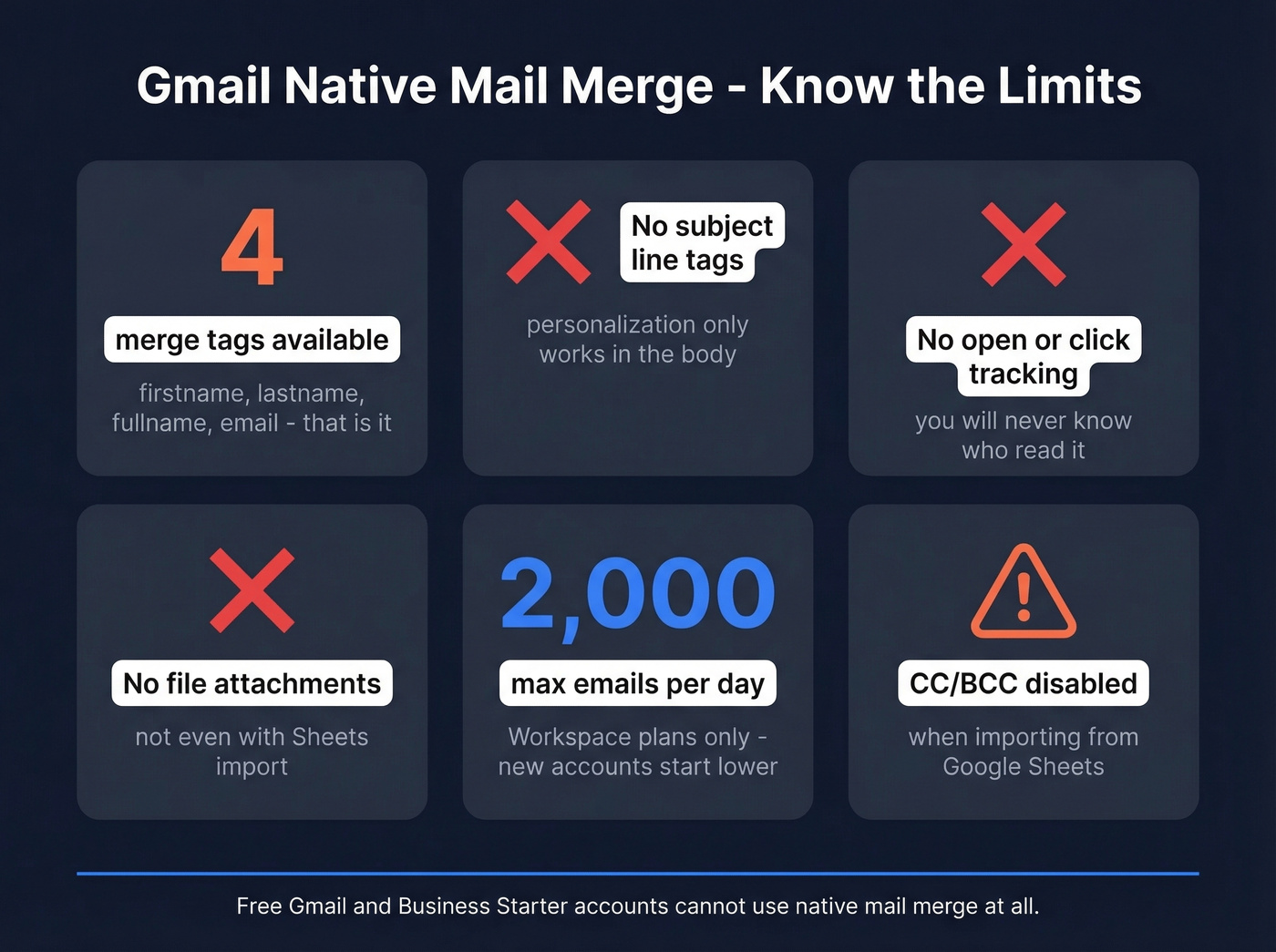
CC/BCC behavior is also quirky. If you import recipients from a Google Sheet, CC and BCC are disabled entirely. If you add recipients manually or from Google Contacts, you can CC/BCC - but only one address each. Daily sending limits sit at 2,000 per day on Workspace, though new accounts start lower while Google builds trust in your sending patterns.
To avoid getting throttled, follow a safe email velocity ramp-up.
Third-Party Mail Merge Tools
When native options hit their limits - no tracking, no attachments, no follow-up sequences - third-party tools fill the gap.
| Tool | Platform | Starting Price | Daily Limit | Key Features |
|---|---|---|---|---|
| GMass | Gmail (Chrome) | $29.95/mo | Gmail limits | Attachments, tracking, follow-ups |
| Mailmeteor | Gmail/Sheets | Free (150/day) | 150-2,000 | Attachments, tracking, follow-ups |
| YAMM | Google Sheets | Free (20/day) | 20-1,500 | Tracking only |
| Mail Merge Toolkit | Outlook | $2.50/user/mo | Outlook limits | Attachments, subject personalization |
GMass
If you're running multi-step outbound sequences from Gmail, GMass is the tool to beat. Pricing starts at $29.95/mo for Standard, with Premium at $39.95/mo and Professional at $59.95/mo - all plans bumped up effective January 1, 2026.
Every plan includes unlimited emails, personalization, open/click tracking, automated follow-up sequences, A/B testing, and their Spam Solver deliverability tool. In our testing, the sequence builder alone justified the price jump over Gmail's native merge. For one-off sends, it's overkill. For ongoing outreach, nothing in the Gmail ecosystem matches it.
If you're comparing options, start with these SDR tools and narrow down by your sending volume and tracking needs.
Mailmeteor
For teams that just need to send a personalized newsletter once a month and want tracking without the complexity, start here. Mailmeteor works as both a Gmail and Google Sheets add-on, with a free tier covering 150 emails per day. Paid plans start at $9.99/mo and add scheduling, personalized attachments, and CRM integrations with HubSpot and Salesforce. With 6M+ users, it's the most popular option for teams that need more than Gmail's native merge but don't need GMass-level automation.
YAMM
$25/yr for 400 emails per day. $50/yr for 1,500/day. No automated follow-ups, no advanced automation, no frills. Yet Another Mail Merge does exactly what the name suggests - it merges data from Google Sheets into Gmail and sends it. The free tier handles 20 emails per day. Skip this if you need anything beyond basic tracking and simple sends.
Mail Merge Toolkit
$2.50/user/mo gets you two things Word's built-in merge can't do: attachments and subject-line personalization. Mail Merge Toolkit by MAPILab is an Outlook add-in with a PRO tier at $8.25/user/mo for advanced features. A 30-day free trial lets you test before committing. If you're locked into the Outlook ecosystem but need attachments, this is one of the most straightforward options.
If you're sending sequences, use a proper sequence management workflow so follow-ups don't collide with replies.

A double-digit bounce rate will torch your domain reputation faster than any bad subject line - you read that above. Prospeo's 5-step email verification delivers 98% accuracy, catching spam traps, honeypots, and catch-all domains before your mail merge ever hits Send.
Verify every email on your merge list for $0.01 each.
Verify Your List Before Sending
Every mail merge guide tells you how to set up fields and click Send. Almost none mention what happens when your data is bad.
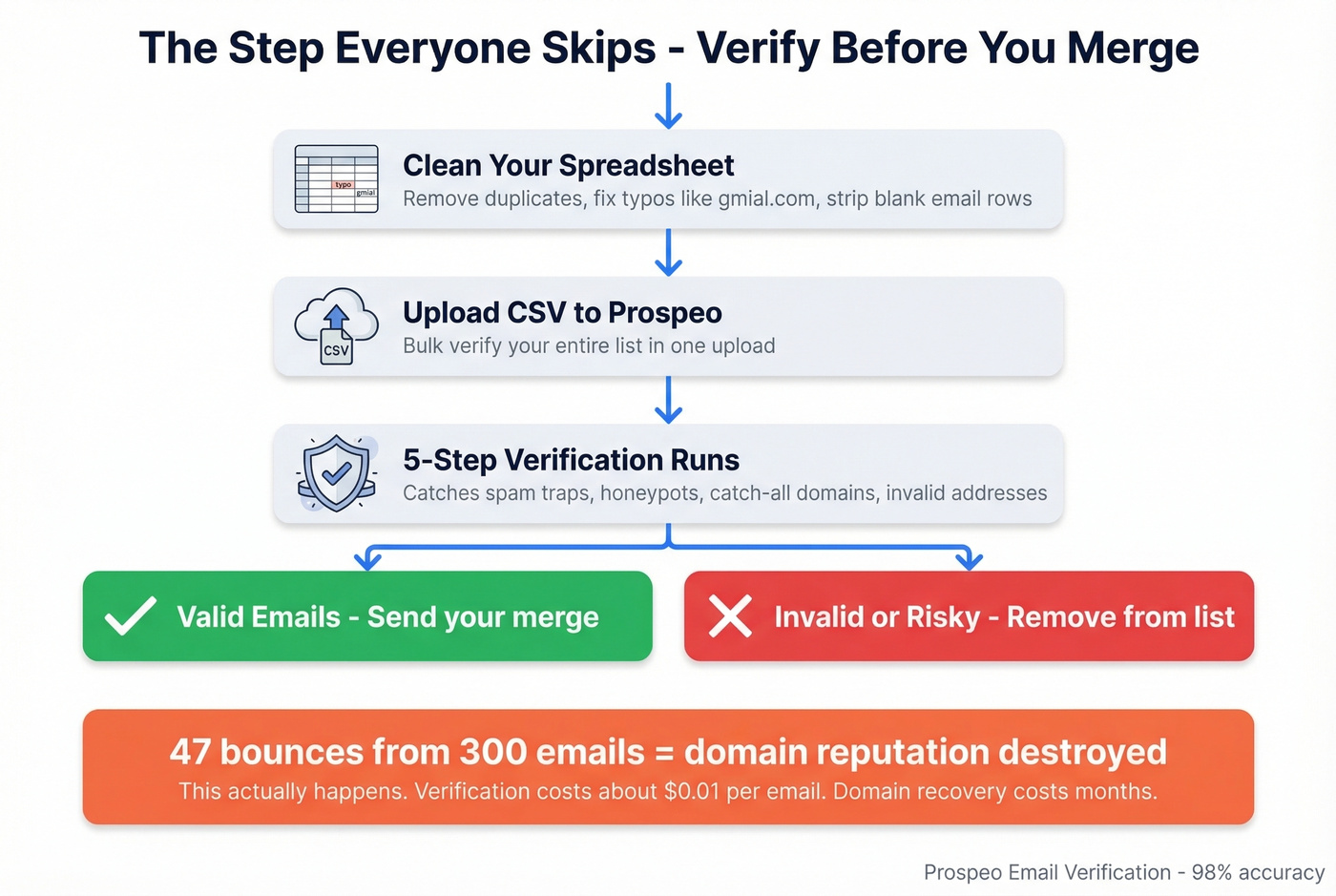
Here's what we've seen happen: someone sends 300 merged emails, 47 bounce, and their IT team gets an alert about the domain's sender reputation dropping. Suddenly regular business emails are landing in spam too. The merge worked perfectly - the data didn't.
For internal communications and event invitations to known contacts, verification is optional. But the moment you're merging to any list you didn't build yourself - purchased contacts, scraped leads, conference attendee lists - verification isn't a nice-to-have. It's the most important step in your entire workflow. Skip it and you're gambling your domain reputation on data quality you can't see.
Upload your CSV to Prospeo's email verification tool to flag invalid, catch-all, and risky addresses before merging. Their 5-step verification process catches spam traps and honeypots that simpler tools miss, delivering 98% email accuracy. The free tier covers 75 verifications per month - enough for a small merge. For larger lists, credits run about $0.01 per email, which is trivially cheap compared to the cost of a damaged domain.
If you're troubleshooting bounces, start with bounce rate benchmarks and fixes before you send again.

A quick data quality checklist before any merge: remove duplicate rows, verify email format (look for missing @ symbols, double dots, typos like "gmial.com"), strip any rows with blank email fields, and run the list through verification. Five minutes of cleanup saves days of deliverability headaches.
You've built the perfect mail merge template. Now you need contacts worth merging into it. Prospeo gives you 300M+ professional profiles with 30+ filters - job title, intent signals, tech stack - so every row in your spreadsheet is a real buyer with a verified email.
Stop merging into dead inboxes. Start with verified data.
Sending Limits by Provider
Plan your batch sizes around these limits. Going over them doesn't just delay your send - it can trigger account-level throttling that takes days to lift.
| Provider | Daily Limit | Per-Message Limit | Notes |
|---|---|---|---|
| Gmail (free) | 500 (browser) | 500 recipients | 100/day via SMTP |
| Gmail Workspace | 2,000 | 2,000 recipients | Lower for new accounts |
| Office 365 | 10,000 recipients | 500 per message | 30 messages/minute cap |
These limits operate on rolling 24-hour windows, not calendar days. Sending 400 emails at 11 PM and 400 more at 1 AM doesn't reset your count at midnight. We've seen new Workspace accounts start with limits as low as 500/day that gradually increase over 2-3 weeks.
For a deeper playbook on staying out of trouble, see our guide on the best way to send bulk email without getting blacklisted.
Troubleshooting Common Errors
Merge fields not populating. The most common cause is a mismatch between your spreadsheet headers and your merge fields. "First Name" and "FirstName" and "first name" are three different fields as far as Word or Gmail is concerned. Extra spaces, inconsistent capitalization, or special characters in column headers will break the merge silently - and you won't notice until someone replies asking why their email starts with "Dear {{FirstName}}."
Empty fields creating awkward gaps. If a contact is missing a company name and your template says "at {{Company}}," you'll get "at " with a trailing space. Use fallback values in Gmail, or conditional fields in third-party tools, to handle missing data gracefully.
Formatting looks wrong. Copy-pasting from Word, Google Docs, or a website into your email template carries hidden formatting that can break layouts. Compose directly in the native editor, or paste into a plain-text editor first to strip formatting, then paste into your email.
Row misalignment - wrong data for wrong person. This happens when your spreadsheet has empty rows or columns that shift the data mapping. Delete blank rows, check that your header row is Row 1 with no gaps, and always preview 5-10 records before sending the full batch. Let's be honest: sending "Dear Sarah" to someone named Mike is worse than sending no personalization at all.
255-character truncation in Word. Word's OLE DB connection inspects the first 8 records to determine data types. If those records have short text, Word classifies a column as "text" with a 255-character max instead of "memo," and longer entries get silently truncated. The fix: add a dummy first record with a long string in that column, or reorder rows so an early record contains the longest entry. In our testing, this caught us off guard on a 400-person merge where a handful of contacts had long address fields.
Excel formatting not carrying over. If dates, currency, or number formats look wrong after merging, enable "Confirm conversion at Open" in Mailings > Select Recipients and choose "Application via DDE" when prompted. This forces Word to read Excel's formatting rather than guessing.
Outlook security prompts. When Word hands messages to Outlook, you'll see repeated "A program is trying to send email on your behalf" alerts. Disable this in Outlook Trust Center > Programmatic Access, or use Group Policy in enterprise environments.
Emails not arriving. If a significant percentage of your merged emails bounce, your list has a data quality problem - run it through verification before your next send. If emails are being delivered but landing in spam, check your SPF/DKIM/DMARC configuration and whether you're including an unsubscribe link.
Compliance Checklist
Mail merge makes it easy to send hundreds of emails. Ignore the legal side and you're looking at up to $53,088 per email in CAN-SPAM fines.
CAN-SPAM (US) requires truthful header information, non-deceptive subject lines, identification that the message is an ad, your physical mailing address, a clear opt-out mechanism, honoring opt-out requests within 10 business days, and monitoring what third parties do on your behalf.
GDPR (EU/UK) is stricter. Where CAN-SPAM is opt-out, GDPR requires opt-in - you need lawful basis before sending. Penalties reach EUR 20M or 4% of global annual turnover, whichever is higher.
Beyond legal requirements, configure SPF, DKIM, and DMARC authentication for your sending domain. These aren't just deliverability best practices - they're table stakes for inbox placement. Google and Microsoft both prioritize authenticated senders.
If you're implementing authentication, start with an SPF record example and then confirm how to verify DKIM is working.
A few practical rules: don't blast your entire list at once (send in batches over hours or days), always include a one-click unsubscribe link, and remember that the strictest applicable law governs. If you're in the US emailing someone in Germany, GDPR applies.
FAQ
Can you add attachments to a mail merge email?
Not with Word/Outlook's built-in merge or Gmail's native merge. For Outlook, Mail Merge Toolkit ($2.50/user/mo) adds attachment support. For Gmail, GMass and Mailmeteor both support personalized attachments on paid plans.
What's the daily sending limit for mail merge?
Gmail Workspace allows 2,000 emails per day. Office 365 permits 10,000 recipients per day at 30 messages per minute, with a 500-recipient cap per message. All limits reset on rolling 24-hour windows, not at midnight.
Does mail merge work in New Outlook?
Barely. New Outlook strips personalization fields - no first name tags, no custom merge fields. For any merge requiring personalization, revert to Classic Outlook or use a third-party tool like GMass or Mailmeteor.
How do I stop merged emails from landing in spam?
Verify your list to catch invalid addresses and spam traps before sending. Configure SPF, DKIM, and DMARC on your domain. Send in batches rather than blasting your full list at once, and always include a visible unsubscribe link.
Is mail merge GDPR compliant?
Mail merge is a delivery mechanism, not a compliance framework. GDPR compliance depends on your practices: you need lawful basis for processing, must include an opt-out mechanism, and must honor unsubscribe requests within the required timeframe. The tool doesn't make you compliant - your process does.